Martel Video Transcription Software with Timestamps - 2 Licenses
SKU 1527
$179.99
Two Windows software licenses with timestamps and playback resume
In stock: 1 available
Martel Video Transcription Software with Timestamps - 2 Licenses
Product Details
Condition: New
Availability: IN-STOCK
Martel Video Transcriber 2027 · Software only · Two licenses
Stay with the recording.
Keep control of every word.
Martel video transcription software with two licenses. Review recordings in a familiar writing workflow, control playback and insert timestamps without repeatedly reaching for the player.
For Windows · Manual transcription · New timestamp controls
See what is includedRead questions and answers- Two licenses included — use on two separate computers.
- One-time purchase — no subscription.
Your complete instruction manual
Step-by-step help for setup, foot-pedal controls, keyboard shortcuts, timestamps, automatic markers, saved playback positions and troubleshooting.
35 pages · PDF · Version 2027.0.9.3
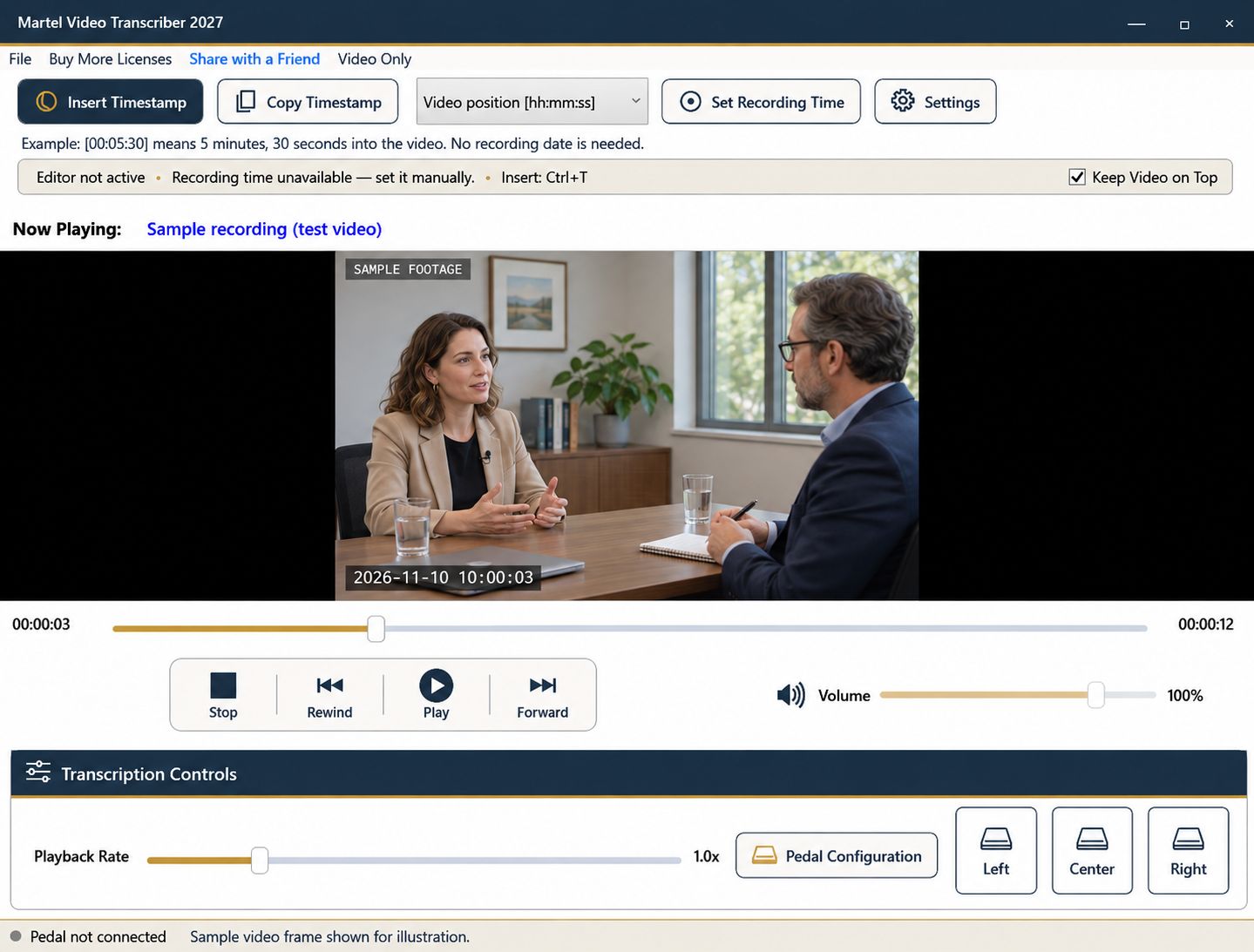
Your package · SKU 1527
Add the software to your existing setup
- Martel video-transcription software
- Two software licenses for two separate computers
- Keyboard and on-screen playback controls
- Updated manual and automatic timestamp options
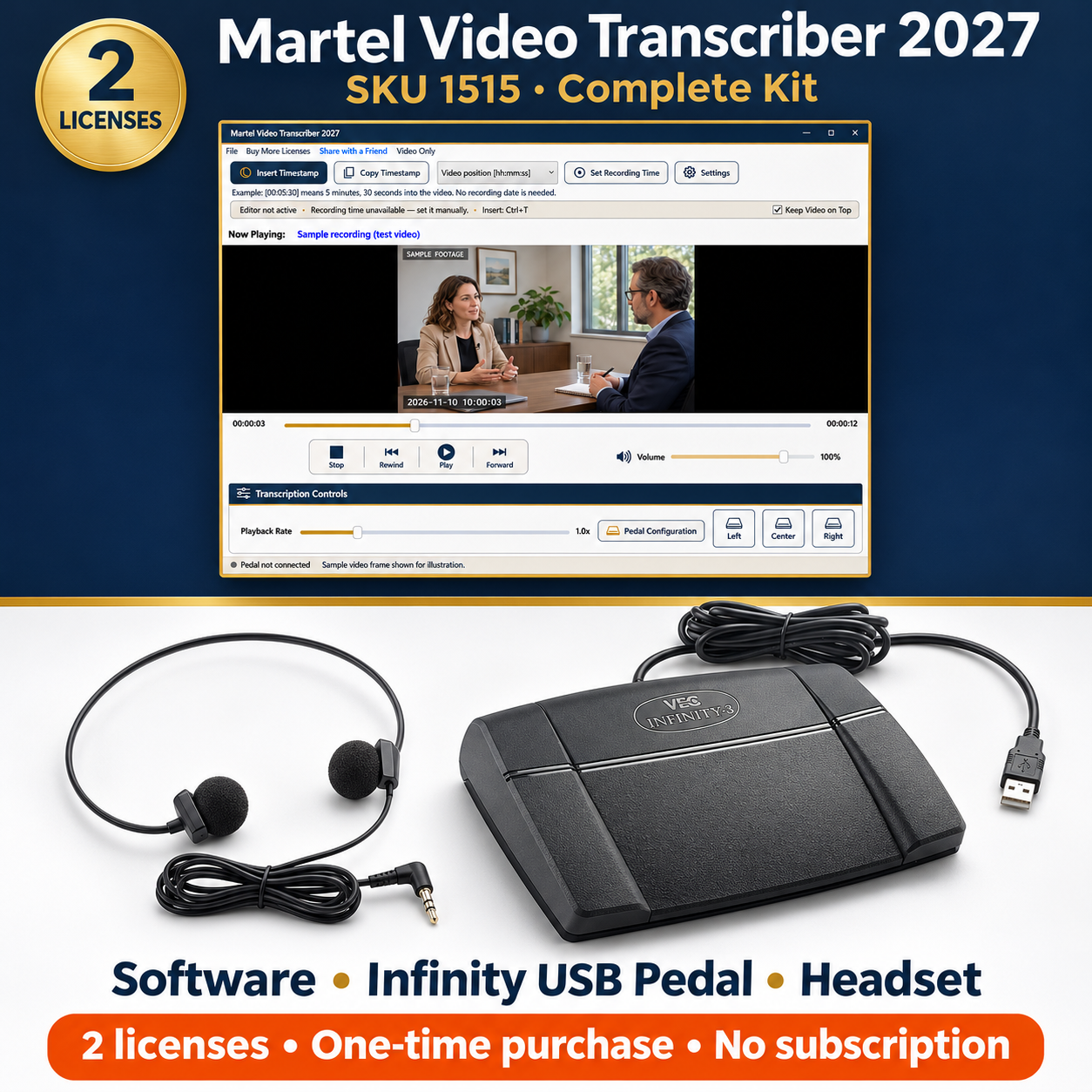
Foot pedal and headset are separate. Confirm your existing pedal model, or choose the complete kit linked below.
- Preserves your original video and audio files. Playback does not convert, re-encode, or reduce the quality of the source files.
VIDEO FORMATS
Your recording. Ready for review.
Open familiar video files, control playback with your pedal, and add timestamps as you work.
Common video files
These familiar formats are listed in Martel’s standard Open File menu:
- MP4 & M4V
.mp4, .m4v - QuickTime MOV
.mov - AVI
.avi - Windows Media Video
.wmv - MPEG video
.mpg, .mpeg - Flash video
.flv
Check the recording, not just its filename. The video and audio encoding inside a file determines playback. For a specialized camera export, ask Martel to check a representative file. Protected or damaged recordings may not play.
Additional VLC video formats to check with Martel
Martel uses VLC playback. VLC recognizes the additional video families below; they are broader than Martel’s standard file-picker list. Confirm your exact format in the current Martel app before purchasing for a specialized workflow.
- Camcorder & transport-stream video: .mts, .m2ts, .m2t, .ts, .tts, .tod
- Matroska & WebM: .mkv, .webm
- Mobile phone video: .3gp, .3g2, .3gp2, .3gpp
- Ogg video: .ogg, .ogm, .ogv, .ogx
- DV & professional media containers: .dv, .mxf, .gxf
- Additional MPEG extensions: .mp4v, .mpeg4, .mpe, .mpeg1, .mpeg2, .mp2, .mp2v, .mpv2, .m1v, .m2v, .ps
- Additional Windows, AVI & Flash extensions: .asf, .wm, .divx, .f4v
- RealMedia video: .rm, .rmvb
- Recorded TV & screen recordings: .wtv, .rec, .nuv, .xesc
- DVD video files: .vob, .vro
- Other legacy video formats: .amv, .bik, .drc, .gvi, .mtv, .mxg, .nsv, .rpl, .thp, .txd
This is a video-file reference, not a guarantee for every encoding or disc image. See VideoLAN’s format overview. Playback support does not mean that a camera’s original date or embedded timecode can be extracted automatically.
MP4 playback and troubleshooting guide · Ask Martel: 800-553-5536
Audio Formats
Working from sound alone? Martel’s Open File menu also lists these audio formats:
- MP3 & MPEG audio
.mp3, .mp2 - WAV
.wav - M4A & AAC
.m4a, .aac - Windows Media Audio
.wma - FLAC
.flac - AIFF
.aiff - Ogg audio
.ogg - Other listed audio formats
.ac3, .amr, .au, .caf, .dts, .mmf
Additional VLC audio formats to check with Martel
VLC recognizes these additional audio extensions. They are broader than Martel’s standard list; ask us to confirm a representative file for your workflow.
- Additional AAC & Apple audio extensions: .adt, .adts, .aif, .aifc, .m4b, .m4p
- Matroska, Ogg, Opus & speech audio: .mka, .oga, .opus, .spx, .3ga, .awb, .qcp
- Lossless & high-resolution audio: .ape, .wv, .tta, .w64, .mlp, .thd
- Additional MPEG & legacy audio: .mpa, .mp1, .mpga, .mpc, .oma, .ra, .voc, .vqf, .xa, .a52, .aob
- Music, tracker & MIDI-related formats: .669, .it, .kar, .m5p, .mod, .mus, .rmi, .s3m, .sid, .xm
Protected audio is not guaranteed to play. Some music or MIDI-related formats need additional components. Playback also depends on the encoding inside the file.
For audio-only recordings, timestamps follow the recording’s playback position. Read the audio transcription guide.
A clear reference, whenever you need one
Insert a timestamp. Keep your place in the conversation.
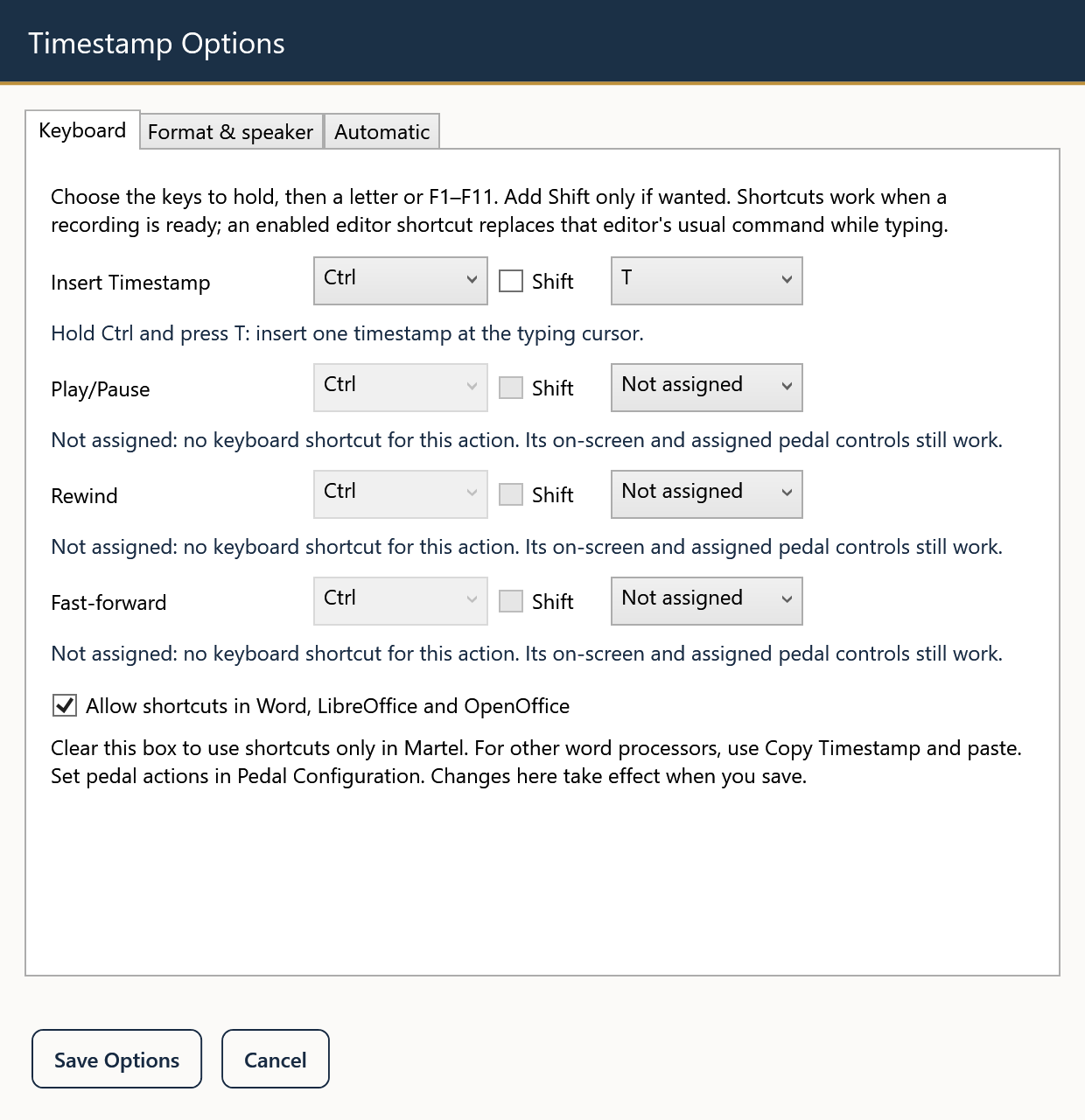
Press Ctrl+T. Insert the current timestamp with a configurable shortcut. Playback shortcuts can be customized too.
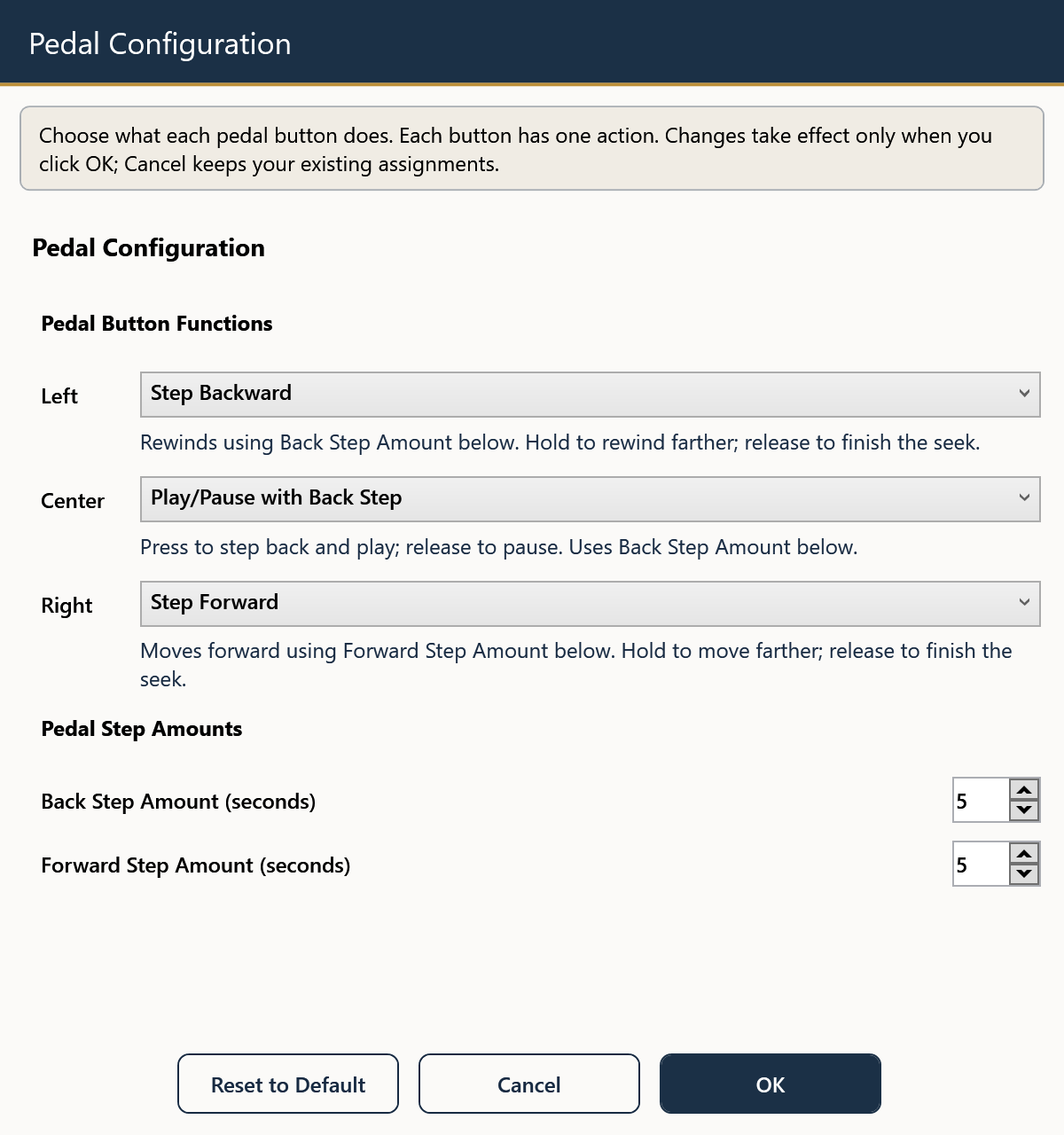
Choose a pedal button. Explicitly map a supported button to Insert Timestamp. Keep your preferred playback assignments on the other controls.
Click Insert Timestamp. Use the on-screen command when that is more convenient.
Copy when you want to paste. Copy Timestamp places the value on the clipboard; you choose where to paste it.
One press. One useful marker.
Holding the timestamp key or pedal should not fill your transcript with repeated markers. The value follows the actual video position through pauses, rewinds, seeks and speed changes.
Direct insertion targets a supported, identified editable Word or Writer document. Copy and paste is available for other text-editing workflows.
Video position, recording time—or both
Video position
[Video 00:05:30]
Five minutes and thirty seconds into the loaded recording. Elapsed position works even when the camera date and time are unknown.
Verified recording clock
Pause at a known moment, select Set Recording Time and enter the date/time for that point. Martel calculates later values from the change in media position. Include a known offset or leave the zone unspecified.
A practical example: If the first frame represents 12:10:00 a.m., video position 00:05:30 corresponds to 12:15:30 a.m. on the recording date. Typing at 2 p.m. does not change the recording to 2 p.m.
Choose a combined format when your reader needs both navigation and clock context. This is a manual-reference workflow; the current feature does not automatically extract camera dates or embedded frame timecode.
Make a long session easier to manage
Automatic markers, on your terms
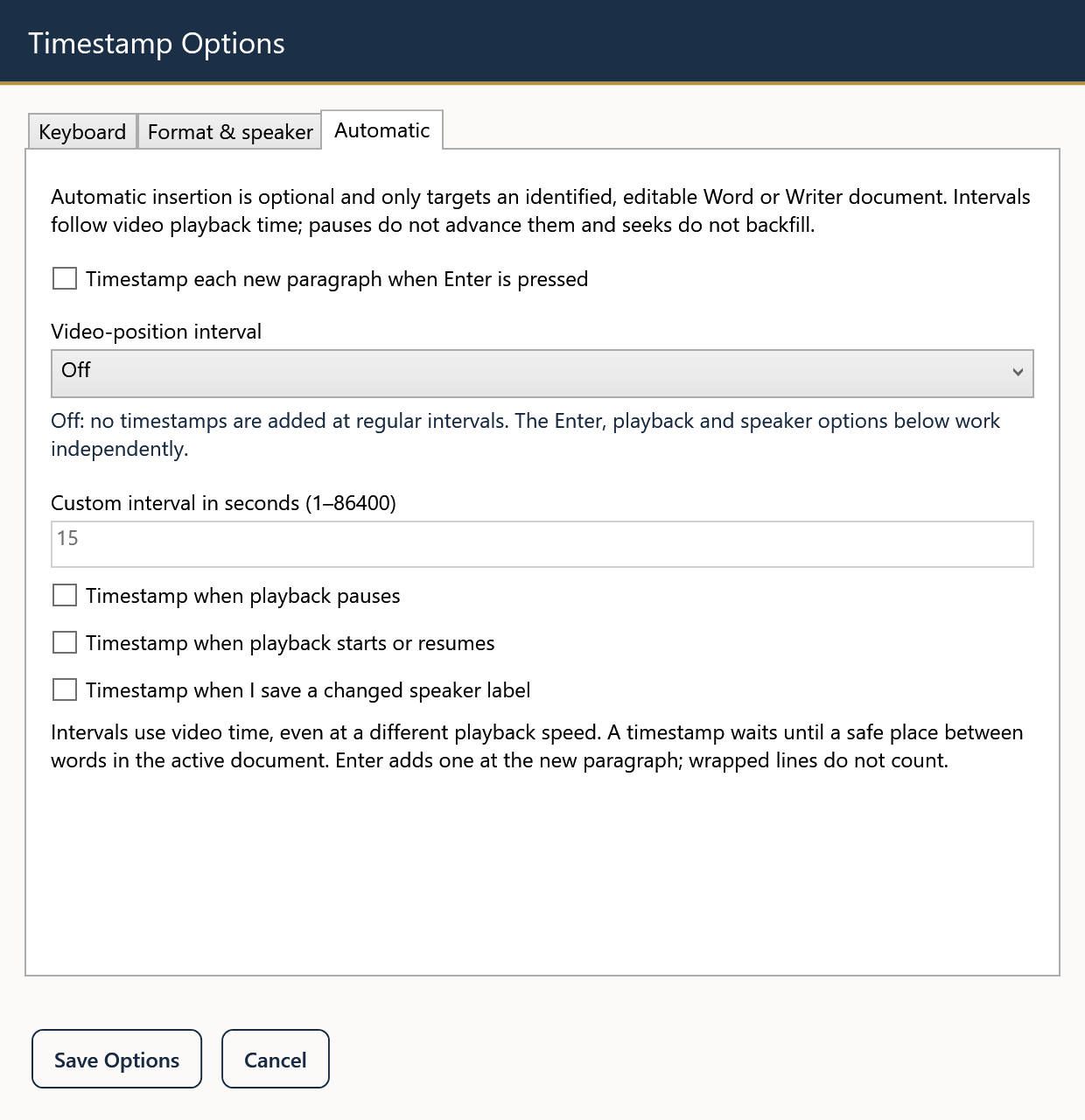
Optionally timestamp each new paragraph when Enter is pressed. Choose intervals of 10, 15 or 30 seconds, one minute, five minutes, or a custom number of seconds. Pauses do not advance media time, and seeks do not backfill skipped markers.
Automatic insertion waits for a safe word boundary in a supported target. You can also choose playback-event or saved speaker-label triggers in Settings.
A picture that fits your desk
Use Keep Video on Top while typing. Switch to a resizable Video Only window when you want the picture beside your document, then restore the full controls when needed.
Martel saves playback progress for each recording and can reopen the last file paused at the saved position. Save your transcript separately in its word processor.
See the settings before you start
Make the controls fit the way you work. These views show the actual current settings, with readable explanations beside each choice. Click a screenshot to open it at full size.
From recording to reviewed text
- Open and check the recording. Confirm the picture, sound and source filename. Keep the original media unchanged.
- Prepare your document. Select a timestamp format and test the editing target. Set recording time only when you have a verified reference.
- Listen, pause and type. Use pedal, keyboard or on-screen playback controls. Change speed or rewind for close review.
- Check and save. Verify wording, speaker labels and a sample of timestamps. Save the written transcript through the word processor.
Built for the recordings people actually review
Use a manual workflow for saved Zoom recordings, interviews, deposition and court-hearing video, ordinary body-camera exports, meetings, lectures, oral histories and research recordings. File playback depends on the actual format and encoding; verify representative files when your work uses a specialized export.
Martel helps you control and review the source. It does not automatically create speech-to-text output, certify a legal transcript or provide qualitative research analysis.
Choose the setup that fits your equipment
| What you need | Kit · SKU 1515 | Software · SKU 1527 |
|---|---|---|
| Updated timestamp tools | Included | Included |
| USB foot pedal | Included | Separate |
| Lightweight headset | Included | Separate |
| Software licenses | Two licenses for two computers | Two licenses for two computers |
| Best fit | A new complete workstation | Suitable equipment already owned |
Questions and answers
What is included with this item?
SKU 1527 is software only with two licenses for two separate computers. It is a one-time purchase with no subscription. It does not include a pedal or headset.
Does this software automatically turn speech into text?
No. Martel is a manual transcription and review player. You listen, control playback and write or correct the document in your word processor. You can use it to review a transcript created elsewhere.
Where does the timestamp come from?
Elapsed timestamps come from the player’s actual video position. Original recording date/time requires a verified reference entered through Set Recording Time. It is never inferred from the transcriptionist’s current computer clock.
Can it automatically read the date from every camera file?
No. The current feature does not automatically extract camera dates or embedded SMPTE/frame timecode. Use a known reference for recording-clock timestamps, or use elapsed position when recording time is unavailable.
Can I use Word, LibreOffice or another word processor?
Direct insertion is designed for supported, identified editable Word and Writer documents. Verify your exact version and document setup. Copy Timestamp is a separate option for pasting into other editors that accept text.
Will I lose my place when I close the player?
Martel remembers playback progress for the recording and reopens the last available recording paused at its saved position. Keep the file available and save the written transcript separately in your word processor.
Are automatic timestamps included?
Yes. Optional settings can insert a timestamp when you press Enter for a new paragraph or as video passes a selected interval. Intervals follow media time; safe insertion can defer a marker while you type.
Do I need to change the pedal drivers?
The update retains the existing pedal handling. You can explicitly assign a supported pedal button to Insert Timestamp in the application. Default play, rewind and forward actions remain available.
Is this a Windows or Mac product?
The current product is for Windows, with Windows 11 as the current listed platform. It is not a macOS DMG application. Ask Martel before purchasing for another environment.
Will every MP4 or other video file play?
Playback depends on the actual encoding and whether the file is protected. Test representative recordings and ask about any special format requirement. A familiar filename extension alone is not a compatibility guarantee.
Guides for the work you do
Explore practical workflows for legal and investigative review, insurance interviews, academic and UX research, oral histories, journalism, education, public meetings, translation review and caption preparation.
Find guides by job and recording type · Browse transcription software
Explore the video transcription guide library
Practical answers for setting up timestamps, working with a pedal, reviewing difficult footage and choosing the right equipment.
Timestamp essentials · 5 guides
- Set Recording Time in Martel: Match a Known Video Moment to the Clock
- Video Position, Recording Clock and Frame Timecode: Which Timestamp Do You Need?
- Recording Timestamps Across Midnight, Time Zones and Camera Clock Jumps
- Check a Timestamped Transcript Before You Hand It Off
- Why Edited Video Clips Need a New Recording-Time Check
Keyboard, pedal and writing · 4 guides
Automatic timestamps and workspace · 4 guides
Legal, investigative and case review · 6 guides
- Build a Clear Clock Reference for a Body-Camera Transcript
- Create Timed Review Notes from a Court-Hearing Video
- Review Deposition Video with Timed Questions, Answers and Exhibit Notes
- Transcribe a Police Interview Video with Clear Speaker and Timing Notes
- Keep Timestamps Unambiguous Across Multiple Video Clips
- Create Factual Timed Notes from a Claims Interview Video
Research, education and interviews · 8 guides
- Make a Timed Index for an Oral-History Video Interview
- Review Overlapping Speakers in a Focus-Group Video
- Turn a Usability Screen Recording into a Timed Event Log
- Separate Visual Observations from Dialogue in Video Research Notes
- Add Slide References and Useful Timestamps to Lecture Video Notes
- Build a Webinar Topic and Q&A Index from the Recording
- Check Video Interview Quotations with a Repeatable Timestamp Workflow
- Create an Agenda Index for a Public-Meeting Video
Products related to this item
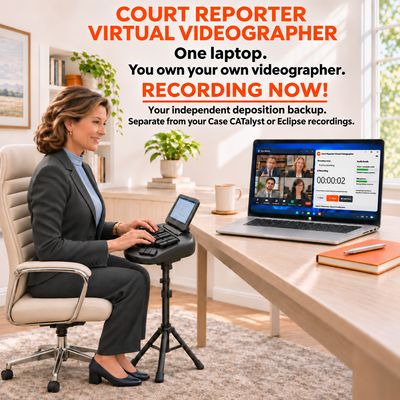
Court Reporter Virtual Videographer — Zoom & Meeting Audio Recorder
Court Reporter Virtual Videographer — Zoom & Meeting Audio Recorder
Your own clear, independent Zoom and Teams deposition audio copy.
$199.99