Martel Video Transcriber Kit or Software Only: Choose the Right Setup
Compare Martel SKU 1515 with pedal and headset against SKU 1527 software with two licenses. Choose the setup that matches the equipment you already own.
Martel field guide · Keyboard, pedal and writing
Choose an optional timestamp pedal assignment in Martel, preserve your preferred playback controls, and test one-press insertion in your document.
A foot pedal can do more than start and stop a recording. In Martel Video Transcriber, you can explicitly assign a pedal button to Insert Timestamp. This is optional: the normal playback assignments remain available, and installing the timestamp update should not silently turn a forward button into a timestamp button.
The important choice is which action you can comfortably move elsewhere. A three-button pedal cannot give each button two unrelated meanings at the same moment, so plan the complete control layout before changing it.
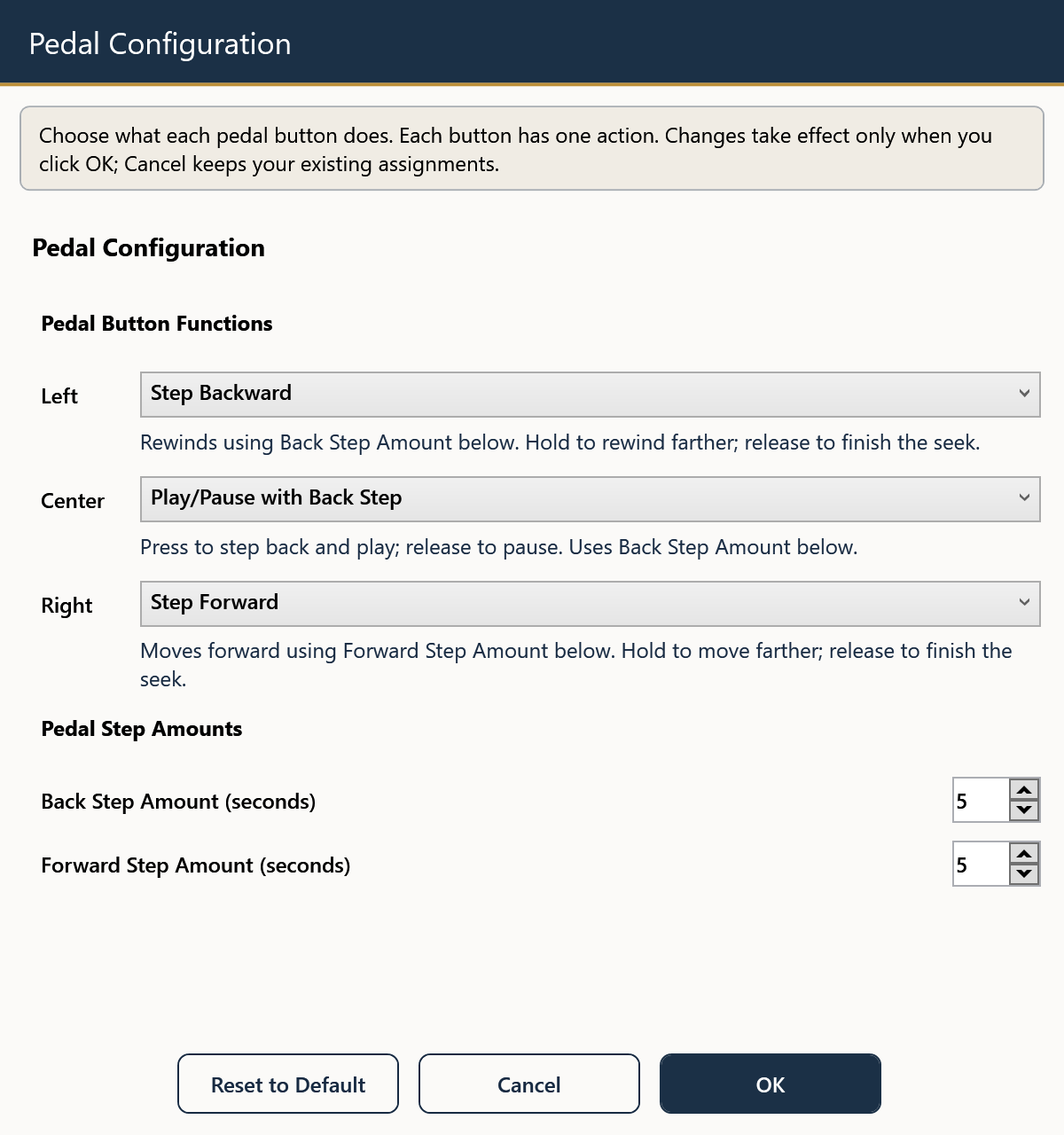
The standard arrangement uses the left pedal for stepping backward, the center for play/pause with the configured back-step behavior, and the right for stepping forward. Check the actual Pedal Configuration window because a previously saved custom assignment may differ.
Write down the current actions and step amounts. This makes it easy to restore a familiar arrangement if the new mapping does not suit your work. Leave the pedal's driver installation alone when all three buttons are already being recognized correctly.
If you rarely step forward, the right button may be a practical timestamp choice. If you use forward constantly, keep it and assign timestamps to the keyboard instead. The best setup is the one that preserves the playback actions you perform most often.
Open Pedal Configuration, locate the chosen button's action dropdown, and select Insert Timestamp. Save the assignment. Confirm that the other two buttons still show their intended playback actions. This change is a software command assignment; it is not a request to replace the pedal's drivers.
Open a supported editable test document and place the cursor after a short label. Load a recording, pause at a known position, and press the assigned pedal once. Release it fully before pressing again. You should get one timestamp for each separate press.
Next, press and hold that button for several seconds, then release it. A held timestamp button should insert only one marker. Finally, make a fresh press to confirm that releasing the button allows the next timestamp. This checks both repeat prevention and readiness for a new command.
The Infinity IN-USB-3 was used in hands-on testing of this workflow. That does not establish compatibility with every pedal sold under another brand or with every device that merely has a USB connector. Confirm your exact model if you are bringing existing equipment.
Try the rewind and center-play actions in a short passage. Pause, type a sentence, then insert a timestamp. If you find yourself pressing the wrong button, rearrange the assignment before building a habit around it.
Keyboard shortcuts remain useful alongside the pedal. If you reassign the forward pedal to timestamps, a configured forward shortcut can preserve that action without another trip to the player window. Keep the on-screen controls visible during your first trial so you can verify what each command did.
If the pedal controls playback but no timestamp appears, inspect the selected pedal action, the loaded recording, and the editing target. If Ctrl+T inserts correctly but the chosen pedal does not, focus on the mapping. If neither inserts, try Copy Timestamp and paste to check the format and player position independently.
Save your preferred configuration after testing. Include the button assignments in any workstation handoff notes so the next person knows which press controls playback and which press writes into the transcript.
Keep a small control card with each button and action. One reviewer may want rewind, play/pause and forward; another may trade forward for timestamp insertion. Before the next assignment, compare the card with Pedal Configuration and test press, hold, release and a second press in a sample document. Reassigning a button changes its purpose in the application. It does not add a fourth physical switch or make every USB pedal compatible.
This practical example is based on the Martel controls described in this guide. Check your current settings and a sample document before using the workflow for an assignment.
No. Timestamp insertion is an optional assignment you choose explicitly. The ordinary play, rewind and forward assignments remain available.
The Infinity IN-USB-3 was used for the physical timestamp and playback checks. Confirm other models separately rather than assuming all USB pedals are equivalent.
No. One press should produce one timestamp. Release the button fully before making another intentional press.
Changing the action in Martel is a software mapping. Leave a working driver installation unchanged unless a separate, verified device problem requires attention.
Use a configured forward keyboard shortcut or the on-screen control. Test the complete layout so frequently used actions remain convenient.
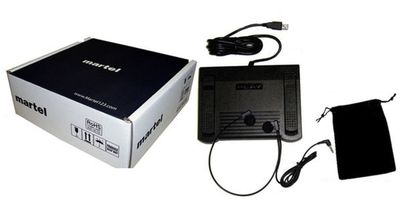
Choose an optional timestamp pedal assignment in Martel, preserve your preferred playback controls, and test one-press insertion in your document.