Martel Video Transcriber Kit or Software Only: Choose the Right Setup
Compare Martel SKU 1515 with pedal and headset against SKU 1527 software with two licenses. Choose the setup that matches the equipment you already own.
Martel field guide · Timestamp essentials
Set a verified camera date and time at a known video position. Learn how Martel calculates later recording timestamps and handles missing clock information.
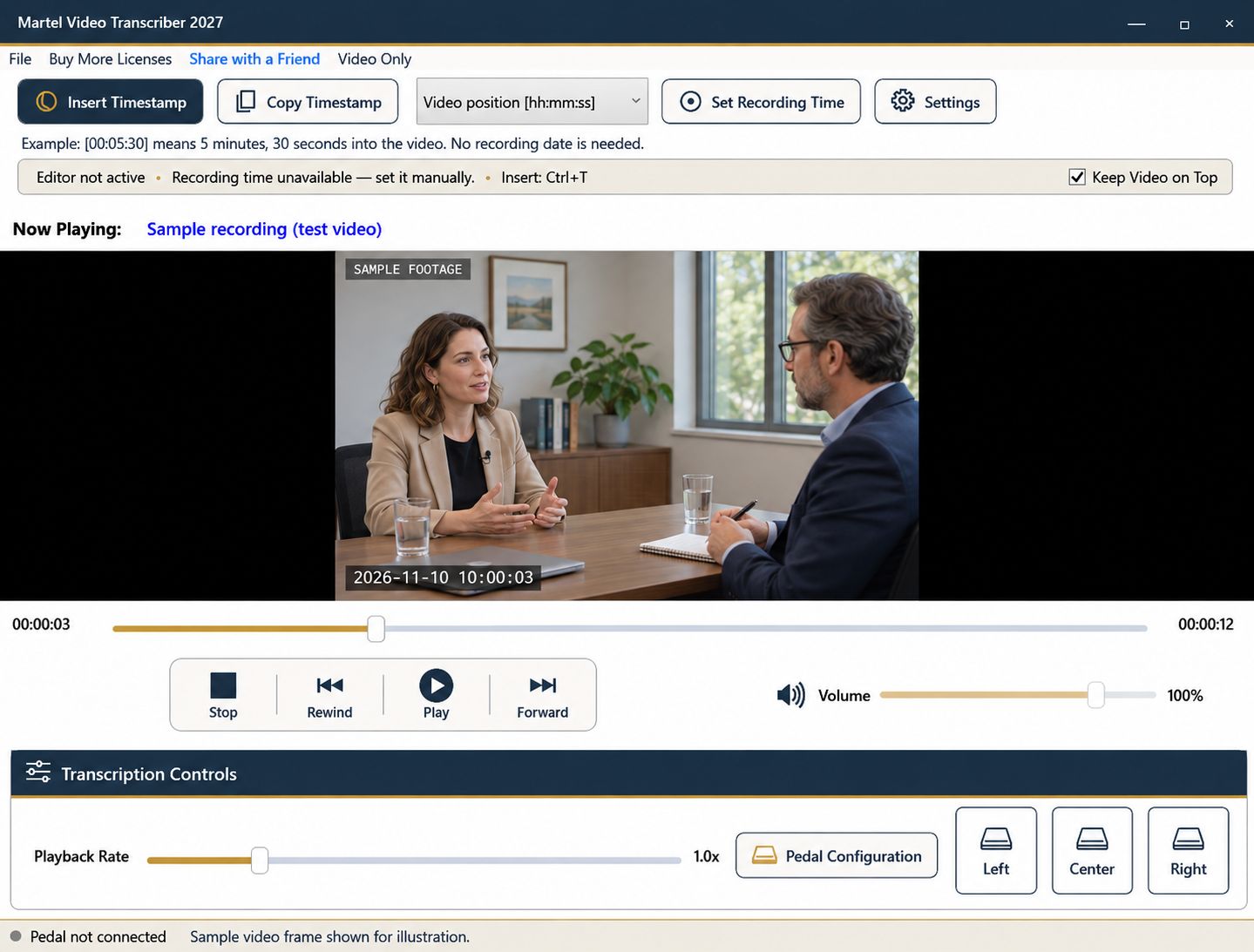
A video can have two useful times: its playback position and the date and time the recorded event occurred. Martel can insert either, or both. To use the recording clock accurately, establish a reference at a moment you can verify. You do not have to begin at the first frame.
This is a manual reference workflow. Martel does not infer the camera clock from the day you downloaded the file, and the clock on your transcription computer does not establish when the event happened.
Open the recording and pause at a clearly identifiable point. A readable clock displayed in the picture can be useful, provided you know what it represents. An independently verified recording log can also supply the reference. Record where your information came from in your working notes. A camera display may itself be incorrectly set; entering it accurately does not prove that the camera was synchronized to an authoritative clock.
If the date is unknown, do not invent one merely to enable a calendar timestamp. Keep using video-position timestamps while you obtain the missing information. They still give another reviewer a practical way to find the passage in the same file.
The saved reference contains both the date/time you entered and the video position where you entered it. The calculation is entered recording time plus the difference between the current and reference video positions. Playing more slowly does not change that relationship.
Suppose the picture at video position 00:02:00 corresponds to November 10 at 00:12:00. Set that point as the reference. At video position 00:05:30, three minutes and thirty seconds have passed since the reference, so the recording time is November 10 at 00:15:30. It does not matter whether you are transcribing at 9 a.m. or 2 p.m.
Rewind to 00:01:30 and the calculated clock becomes 00:11:30. This is why a reference can be established after the first frame: the offset works in either direction within a continuous recording segment.
Compare a second known moment farther into the file. If it disagrees, investigate whether the source was edited, the camera clock jumped, or the initial reference was wrong. One reference assumes a continuous relationship between media position and recording time. It cannot reconstruct a section removed during editing.
For footage with a clock discontinuity, document the boundary and reset the reference for the next segment. Resetting affects future inserted timestamps; review existing text separately. A reference belongs to its recording, so opening a different file should begin with its own timing information. Keep the source filename in the transcript header to make that association clear.
Include the source filename, the reference point, the entered date/time, and whether the zone is known. Keep a video-position reference alongside the clock when another reviewer needs to navigate the same file. That small explanation is more useful than a clock value with an unexplained origin.
An investigator, legal assistant or oral-history editor may receive a clip whose first seconds contain no readable clock. Use a later known point instead. In an illustrative setup, media 00:03:20 matches 2026-11-10 01:08:20, UTC offset unspecified. At media 00:06:00, the calculated recording time is 01:11:00. Add both the reference and its source to the document header. The calculation checks the entered relationship; it does not independently validate the camera clock.
Sources and further reading: U.S. Bureau of Labor Statistics: police and detectives; Library of Congress: transcribing oral-history interviews. Sources explain professional tasks and editorial practice; the Martel workflow example is our own.
No. Pause at any known point and enter the recording date/time corresponding to that position. Martel saves both parts of the reference and uses their difference for other positions.
Use elapsed video timestamps. Do not substitute a download date or the current computer date for information that has not been established.
No. The timing reference is application information. Timestamp insertion does not modify or re-encode the source recording.
Compare a second known moment farther into the same continuous segment. If it disagrees, investigate the reference, source version and any edits before relying on later clock values.
Its timing information is separate. Check the status and set a reference for that recording rather than carrying the previous file’s clock forward.
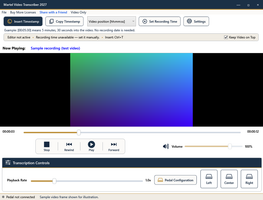
Set a verified camera date and time at a known video position. Learn how Martel calculates later recording timestamps and handles missing clock information.