Martel Video Transcriber Kit or Software Only: Choose the Right Setup
Compare Martel SKU 1515 with pedal and headset against SKU 1527 software with two licenses. Choose the setup that matches the equipment you already own.
Martel field guide · Automatic timestamps and workspace
Use Martel Video Only and Keep Video on Top beside your document. Arrange a readable workspace without sacrificing playback or timestamp controls.
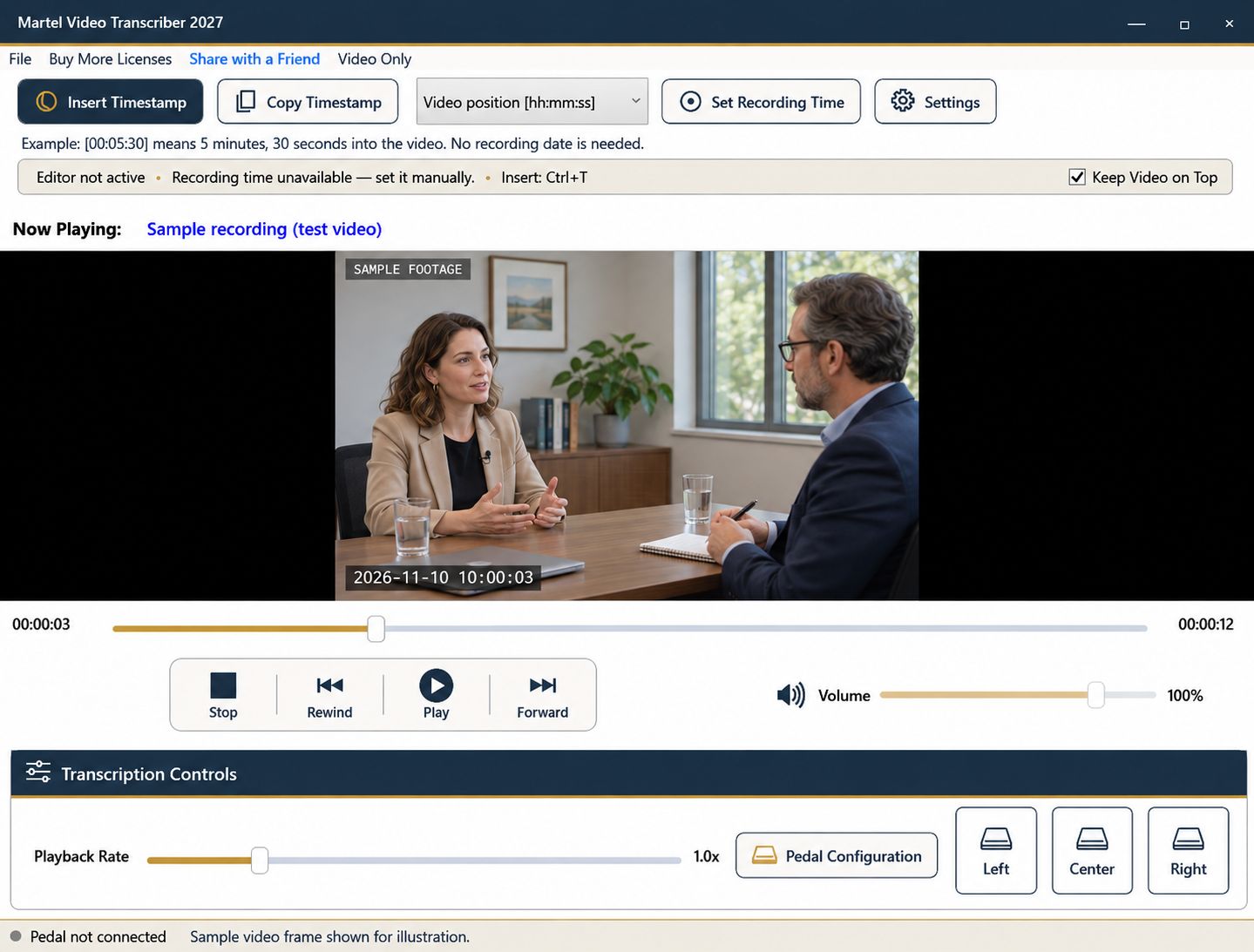
A full player window is helpful during setup, but it can occupy too much space once you begin typing. Martel's Video Only mode provides a compact view of the picture, while Keep Video on Top helps it remain visible when your document editor is active. Together, these controls let you arrange the recording around the writing task.
The aim is a readable working layout. A smaller player is useful only if you can still see the details required for the transcript.
For a straightforward interview, seeing which person is speaking may be enough. A screen recording may require readable menu labels. Body-camera review may depend on an on-screen clock or a brief visual event. Begin by identifying those requirements, then choose the player's size.
Keep the main dialogue and paragraph area of the word processor unobstructed. Avoid placing the video over the insertion point, a comment panel you use frequently, or document status information. If you work with two displays, make the cursor's location obvious before using a timestamp command.
Load the recording and confirm that playback, speed, and audio are correct in the full controls view. Enable Keep Video on Top if you want the picture to remain visible while typing. Select Video Only, then move and resize that compact window to a useful position.
Use Show Controls to return to the normal interface when you need Settings, Copy Timestamp, Set Recording Time, or other controls. Maximizing the compact viewer also restores the full controls in the updated application. This gives you a direct route back without having to reconstruct the layout.
A configured pedal lets you play, pause, rewind, or step forward without repeatedly clicking the player. Keyboard shortcuts offer another path. If you assign a pedal button to Insert Timestamp, retain a convenient way to perform the playback action that button previously handled.
Test the arrangement while the document is active. A visible player does not mean that it is the writing target. Direct timestamps belong at the cursor in a supported editable document; the player should not need to steal document focus for each marker.
Enlarge the video when you need to read a clock, identify a screen action, or distinguish speakers. Pause and review ambiguous details at a useful size instead of guessing from a tiny thumbnail. Return to the compact layout when the passage no longer requires close visual inspection.
The same principle applies to playback speed. Faster review can help with familiar material, but a dense visual sequence may need slower playback and repeated inspection. Your timestamp should refer to the media position you actually verified.
At the start of a session, check the loaded filename, document name, timestamp format, and pedal assignments. Play a few seconds and confirm that you can hear the necessary channels. Place the document cursor deliberately and insert a test marker if the setup changed.
At the end, return to a known paused point and save the transcript through its word processor. Martel can remember the recording position, while the document program saves the writing. Keeping these responsibilities clear avoids treating a convenient compact player as a complete document-management system.
For shared desks, take a simple note of the preferred window arrangement and control mapping. A consistent layout helps the next session start smoothly without requiring every transcriber to use the same screen size or writing application.
An interview transcript may need only a small view for speaker orientation. An instructional designer reviewing a software demonstration needs enough space to read menus and labels. Keep the compact player beside the document, then enlarge it for a short visual check. If the control text cannot be read, mark it for review instead of copying the most likely label. A smaller window is a convenience; it is not evidence that every relevant detail remains visible.
Sources and further reading: U.S. Bureau of Labor Statistics: training and development specialists. Sources explain professional tasks and editorial practice; the Martel workflow example is our own.
Use Video Only mode, then resize the compact viewer to fit beside your document. Keep it large enough to inspect the details your task requires.
Select Show Controls. Maximizing the compact viewer also restores the full controls in the updated application.
Enable Keep Video on Top and arrange the player beside the document. The document cursor remains the intended destination for supported direct timestamp insertion.
No. Keep the picture large enough for the task. Enlarge it for clock readings, interface labels, speaker identification or other visual details.
The compact view is a layout choice. Verify your configured pedal and keyboard actions in a short passage before beginning a long session.
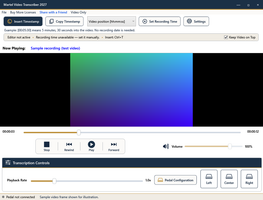
Use Martel Video Only and Keep Video on Top beside your document. Arrange a readable workspace without sacrificing playback or timestamp controls.