Martel Video Transcriber Kit or Software Only: Choose the Right Setup
Compare Martel SKU 1515 with pedal and headset against SKU 1527 software with two licenses. Choose the setup that matches the equipment you already own.
Martel field guide · Keyboard, pedal and writing
Configure Insert Timestamp, play, rewind and fast-forward shortcuts in Martel, avoid document-editor conflicts, and test the finished keyboard layout.
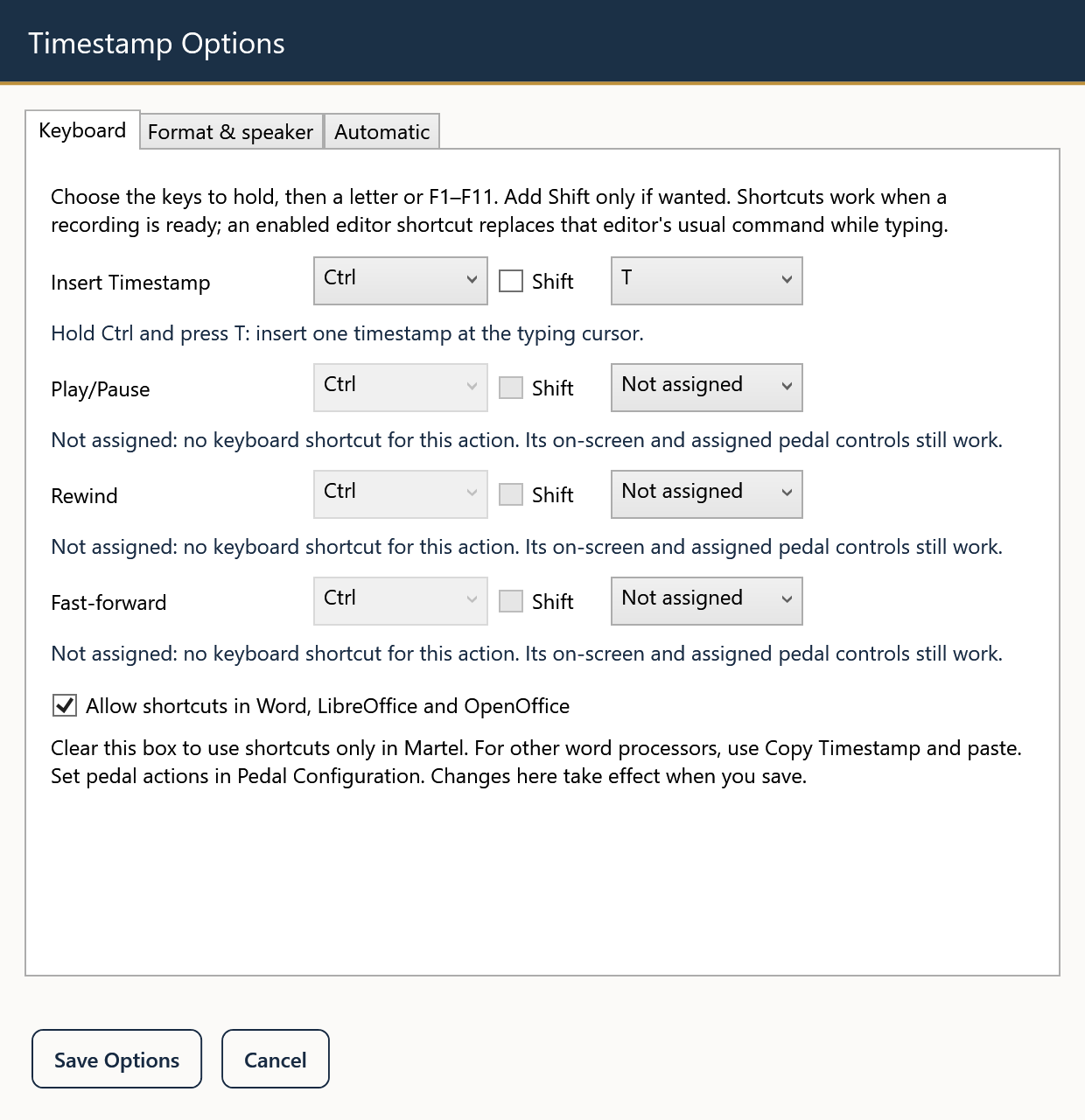
Good transcription shortcuts let you keep your attention on the recording and the sentence you are writing. Martel's keyboard settings let you configure Insert Timestamp and the playback actions for play/pause, rewind, and forward. The updated default timestamp shortcut is Ctrl+T; the displayed settings are the authority if you have already customized your installation.
Choose a layout around the word processor you actually use. A shortcut that is convenient in the player may already have an important meaning in your document editor or another background application.
List the four actions you need most often: insert a timestamp, play or pause, step backward, and step forward. Add your current pedal assignments beside them. This reveals where a keyboard command provides a useful alternative and where it simply duplicates something you rarely use.
For example, someone who assigns the right pedal to timestamp insertion may want an easy forward shortcut. Someone who retains all three playback pedal assignments may prefer Ctrl+T as the only frequent keyboard control. Neither arrangement requires changing the pedal's drivers.
Open Settings and select the Keyboard tab. On each relevant row, select the desired key and modifiers shown by the controls. Review the complete combination before saving; an extra checked modifier changes what you must press.
Use a distinct combination for each action. Preserve essential editing shortcuts such as save, copy, paste, and undo. If the application reports an assignment problem, resolve it before continuing rather than treating a partially accepted configuration as complete.
After saving, check the shortcut displayed beside Insert Timestamp in the main interface. Keep a short written control map near the workstation during the first session. Familiarity matters more than trying to memorize several new commands at once.
Open a supported editable test document and click inside its text. With a recording loaded in Martel, test each shortcut separately. Verify both the player response and any document change. A playback shortcut should not leave an unwanted character or formatting change in the transcript.
Press the timestamp shortcut once and release it. Then hold it briefly and check that only one timestamp was inserted. A fresh press after release should insert another. This distinguishes a separate intentional command from operating-system key repeat.
If the document program performs its own action, choose another combination or resolve the conflict. Do not assume that a shortcut which works with Martel in front will behave identically while a different program is active.
The on-screen controls are useful while you troubleshoot a new mapping. Copy Timestamp followed by a deliberate paste can also confirm that the timestamp value itself is correct even when a direct-insertion shortcut needs attention.
Change one assignment at a time if you are diagnosing a problem. Retest the working actions after each change. This is faster than changing every key and then trying to determine which change introduced the issue.
For a shared computer, record the saved combinations, the pedal layout, and the document program used during testing. Avoid describing the layout only as “the usual shortcuts,” because another transcriber may use a different routine. Run a brief practice passage before a deadline-driven session, and save the transcript through the word processor as you normally would.
A transcript editor may already use Ctrl+T for a formatting command. Select a different available combination in Martel, save it, and test with the actual editor active. Write the chosen command on the project setup sheet. Test play/pause and rewind separately so one shortcut does not appear to work only because the player itself has focus. A transcript prepared this way still needs separate caption-authoring work if the delivery requires synchronized captions.
Sources and further reading: W3C Web Accessibility Initiative: transcripts and visual information. Sources explain professional tasks and editorial practice; the Martel workflow example is our own.
Yes. The Keyboard settings include the timestamp command and playback actions for play/pause, rewind and forward.
The editor or another program may use the same combination, or the active area may not be a supported editable target. Test with the document active and resolve conflicts.
Avoid replacing combinations you rely on for save, copy, paste and undo. Choose a distinct, memorable mapping and test it with your usual programs.
Do not assume so. Existing configuration can differ from the new default. Check the saved Keyboard settings and the interface label.
Yes. Plan the mappings as one control layout and test them while your document is active, including repeat prevention for timestamp commands.
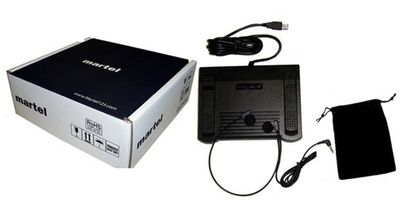
Configure Insert Timestamp, play, rewind and fast-forward shortcuts in Martel, avoid document-editor conflicts, and test the finished keyboard layout.