Martel Video Transcriber Kit or Software Only: Choose the Right Setup
Compare Martel SKU 1515 with pedal and headset against SKU 1527 software with two licenses. Choose the setup that matches the equipment you already own.
Martel field guide · Keyboard, pedal and writing
Set up Martel and LibreOffice Writer, insert a timestamp at the cursor with Ctrl+T, and check shortcut conflicts before a transcription session.
With Martel Video Transcriber running and a recording loaded, Ctrl+T can insert the current video timestamp at the cursor in an identified, editable LibreOffice Writer document. Writer remains your writing workspace while Martel handles playback. You do not need to click the player every time you mark a passage.
This workflow was exercised with LibreOffice Writer during the Martel update's hands-on checks. Your own short setup test is still worthwhile, especially if you use customized shortcuts, unusual document protection, or a different application version.
Open Writer and create an ordinary editable document. Type a short label such as TEST and leave the cursor immediately after it. In Martel, load a recording and pause at a recognizable position, perhaps 00:00:10. Select a video-position timestamp format for this first test; it needs no recording-date setup.
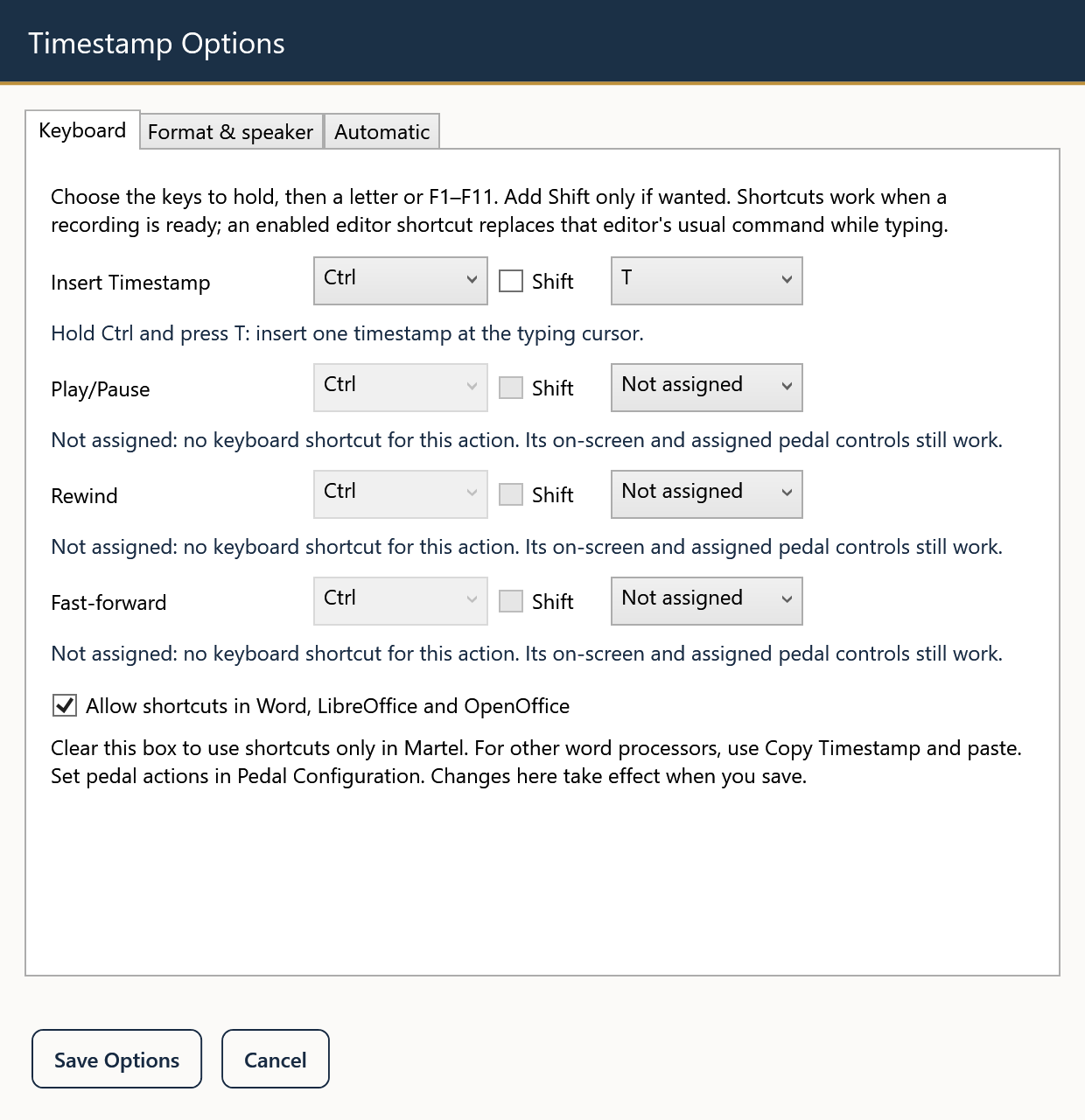
In Settings, check the Insert Timestamp shortcut. Ctrl+T is the default for the updated application, but an existing saved configuration may have a different assignment. Verify the displayed setting rather than assuming an older installation was reset.
Return to Writer, click the intended insertion point, press Ctrl+T once, and release both keys. A timestamp should appear where the cursor was placed. Confirm that it matches the paused position, then save the test document in Writer.
A single shortcut press should insert one timestamp. Holding the keys should not create a stream of repeated markers. Test that behavior in a disposable paragraph before using a long transcript. If Writer performs one of its own commands instead, investigate the shortcut assignment or a conflict with another program.
Choose an alternative combination in Martel when necessary. Avoid combinations you depend on for copy, paste, undo, save, or document formatting. A consistent assignment is more valuable than the shortest possible shortcut if several programs compete for it.
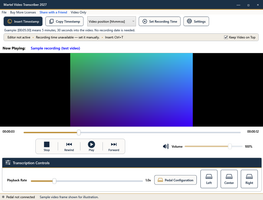
Use Martel's Keep Video on Top option when you need to see the picture while typing. Video Only mode makes the player easier to place beside the document. Resize it until you can still read any detail needed for the task; a tiny picture is less useful for speaker changes or on-screen text.
The visible player and the editable target serve separate purposes. Keep Writer's cursor in the intended paragraph. Do not expect a timestamp command to choose a different document for you or move text into a hidden window.
First check that Martel has a recording loaded and that the shortcut displayed in Settings is the one you pressed. Then click inside the actual Writer document rather than a search box, menu, print dialog, or protected area. Test in a new blank document to separate document-specific restrictions from the connection.
Try Martel's clearly labeled Copy Timestamp command and paste into the test document. If that works, playback and timestamp formatting are functioning; the remaining issue is the direct-insertion target or shortcut. Copying is a separate workflow and should not be mistaken for successful direct insertion.
Play a short passage, pause with the pedal, type a sentence, and insert a timestamp. Rewind and repeat at a different position. Verify both values and the cursor placement. Once that small workflow is reliable, apply it to the full transcript and use Writer's normal save or recovery features for the document itself.
Try a disposable paragraph before opening the assignment document: pause at 00:00:20, type a speaker label, press Ctrl+T once, and confirm one marker at the cursor. Then hold and release the shortcut and check that it does not repeat continuously. Repeat the short check after changing your editor version or shortcut mapping. Use Copy Timestamp if the current editing area is not recognized. This separates an insertion problem from a playback or typing problem.
This practical example is based on the Martel controls described in this guide. Check your current settings and a sample document before using the workflow for an assignment.
Ctrl+T in the updated application. A previously saved custom configuration can differ, so check the Keyboard settings and the shortcut shown in the interface.
In the supported direct-insertion workflow, keep the cursor in the editable Writer document and trigger the shortcut there. Test that workflow before a long session.
Check the loaded recording, saved shortcut and document target. Try a blank editable document, then use Copy Timestamp and paste to separate insertion trouble from timestamp calculation.
Yes, with a supported pedal button explicitly assigned to Insert Timestamp. Test a single press, a held press and a fresh press after release.
No. A held timestamp shortcut should produce one marker. Release the keys before another intentional insertion.
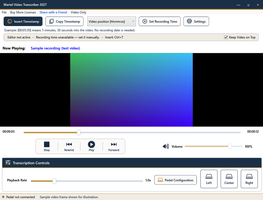
Set up Martel and LibreOffice Writer, insert a timestamp at the cursor with Ctrl+T, and check shortcut conflicts before a transcription session.