Martel Video Transcriber Kit or Software Only: Choose the Right Setup
Compare Martel SKU 1515 with pedal and headset against SKU 1527 software with two licenses. Choose the setup that matches the equipment you already own.
Martel field guide · Automatic timestamps and workspace
Learn what Martel remembers when you close the player, how to resume the same recording, and why your transcript still needs its own document save.
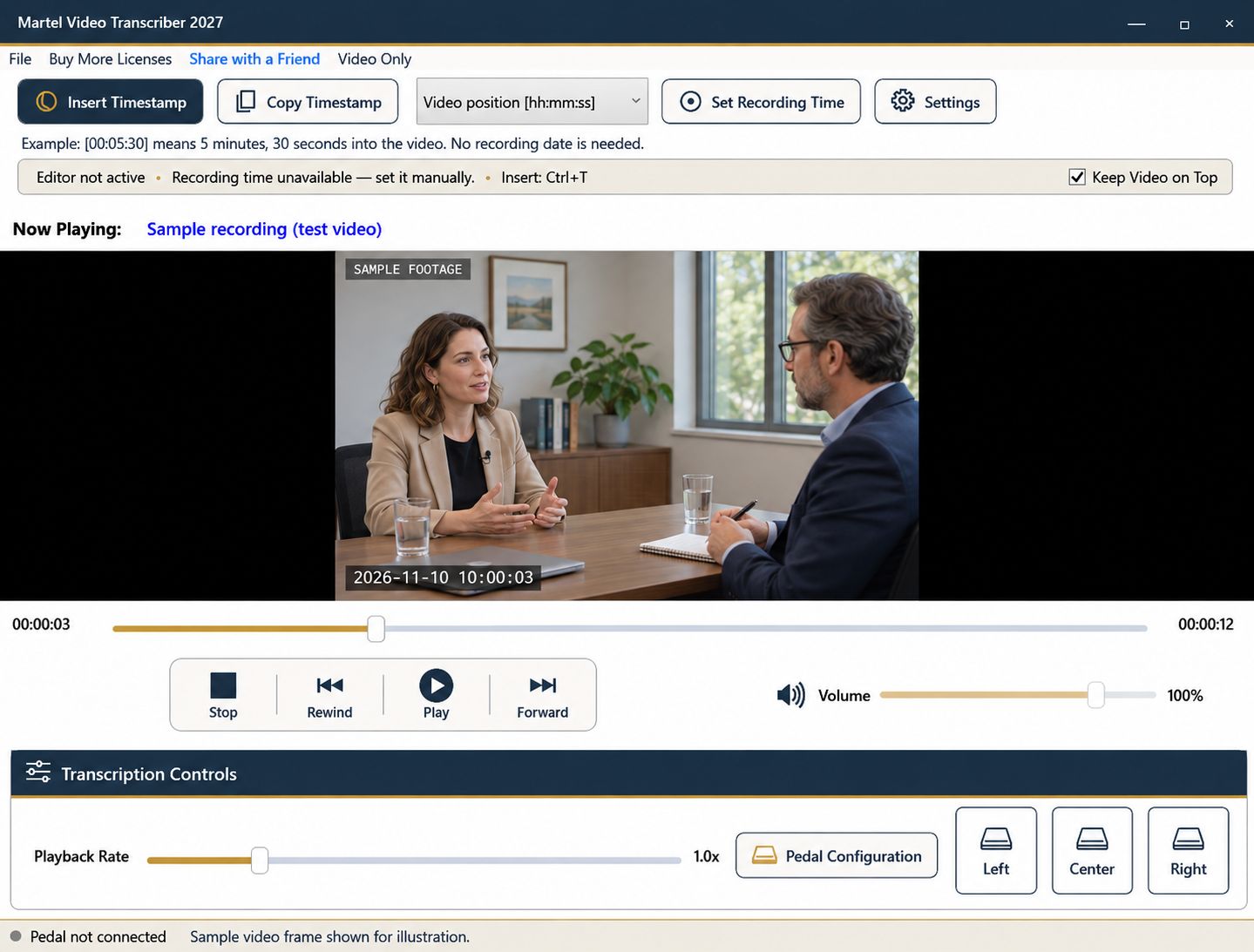
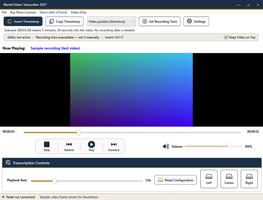
Stopping work midway through a long recording should not require finding your place from scratch the next morning. Martel remembers the playback position for a recording and can reopen the last recording at the saved position, paused and ready for review. This is a playback checkpoint, separate from the document saved by Word or Writer.
Treat those two saved states as a pair. The player remembers where you were listening; your word processor saves what you wrote. A good end-of-session routine keeps them consistent.
Pause after completing a manageable passage. Read the last paragraph and insert an elapsed timestamp if you need a visible handoff marker. Save the document in its editing program, then close Martel normally. The player stores position during use and on normal closure.
For example, if you stop at minute 30 of an hour-long video, reopening the same available recording should return to that stored position rather than starting at zero. It remains paused so you can put the document and headphones in place before continuing.
For important work, keep the final elapsed value in the document or a work log as well. A visible checkpoint is useful if the recording is later moved, replaced, or reviewed on another computer.
Automatic resume depends on identifying and finding the recording. Renaming or moving a file, disconnecting its storage device, or replacing it with a different export may require you to locate it again. A trimmed or revised version can also have a different timeline, even if its filename looks similar.
Use a stable working folder and a clear naming convention. Avoid replacing an active source with a newly exported file under the same name. If you intentionally switch versions, confirm the correct passage manually before treating an old timestamp as a valid checkpoint.
Start Martel and verify the loaded filename and paused position. Open the corresponding transcript in your word processor and find its last completed paragraph. Play a short section before the checkpoint to recover context, then continue.
The ideal listening position may be a few seconds earlier than the stored stop point. Rewinding for context does not mean resume failed; it is a practical way to avoid missing a sentence connection or speaker change at the session boundary.
Martel periodically stores playback progress, approximately every two seconds during normal operation. An unexpected power loss or system crash can therefore leave the most recent saved checkpoint slightly behind the last visible moment. Normal closure provides a better-defined stopping point.
This feature does not automatically save your transcript, create a backup of the recording, or synchronize a project across computers. Use your word processor's save and recovery settings, and follow your normal backup practice for important source material and documents.
Choose a test recording, pause at an easy-to-recognize position, and close Martel normally. Reopen it and verify the filename, paused state, and position. Then open a second recording and confirm that it is treated independently rather than inheriting the first recording's clock reference.
Complete that check before a long project. Once resume behaves as expected, your daily routine becomes simple: pause, record a clear checkpoint, save the document, and close. The next session begins with verification rather than a search through an hour of footage.
Before leaving a session at media 00:30:00, save the document and note the last reviewed sentence. Close Martel, reopen it with the same available source, and confirm the paused position. Replay a few seconds before the checkpoint to recover the sentence context. The document cursor can be elsewhere even when the video resumes correctly. Treat the saved file, document version and playback position as three items to check when handing work to another person.
Sources and further reading: UK Data Service: preparing research files for reuse. Sources explain professional tasks and editorial practice; the Martel workflow example is our own.
It remembers playback progress for the recording and can reopen the last available recording paused at its saved position. Verify the filename and position when resuming.
No. Save the transcript through its word processor. The player checkpoint and the document are separate saved states.
A moved file may need to be located again. An unexpected interruption can leave the latest checkpoint slightly behind playback, so keep a visible work-log reference for important sessions.
The saved recording is restored paused so you can arrange your document and listening setup before continuing.
For important projects, yes. A visible elapsed value and source identifier remain useful after a file move, machine change or unexpected interruption.
Learn what Martel remembers when you close the player, how to resume the same recording, and why your transcript still needs its own document save.