Transcription Kit Compatibility Checklist: Files, Pedals and Computer Setup
Choose and test a transcription kit using real recordings, current computer requirements, pedal controls, headset connections and acceptance checks.
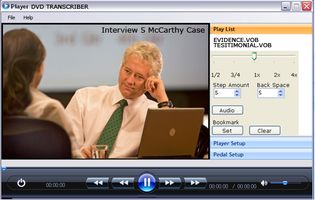
Transcribe MP4 recordings with a practical workflow for file compatibility, audio tracks, playback, source timestamps and choosing a video transcription kit.
Chapter 3 of 10 · Video and Zoom transcription
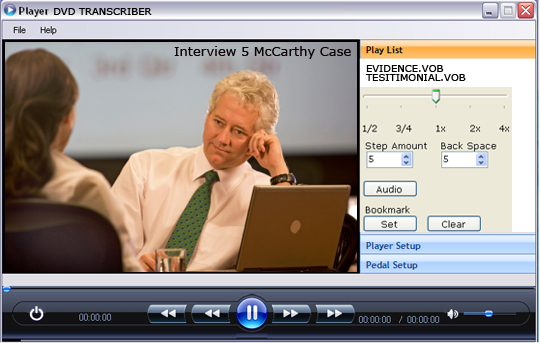
An MP4 transcription job starts with a playable recording, a clear document specification and tools that let you revisit speech accurately. You may type from the recording, correct an automatic draft, or combine those approaches. In every case, the original media remains the reference for the finished text.
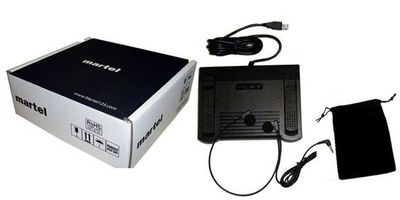
For Martel buyers, the relevant starting point is the All N One audio/video transcription kit. Its current listing includes MP4 among the supported video formats and describes foot-pedal playback. Verify a representative file before ordering when your recording source is unusual. The extension alone cannot establish compatibility with every encoding or protected export.
This guide concentrates on MP4 intake, playback and troubleshooting. For the writing process itself, use how to transcribe a video. For recordings produced by Zoom, continue to the Zoom transcription guide, which explains how video, audio-only files and saved text relate to one another.
An MP4 file packages media tracks and related information. The video and audio are encoded separately inside that package. A player may understand the container yet lack support for one of the encoded tracks. That is one reason a file can show picture while producing no sound, or play sound while the image remains unavailable.
MDN’s media-format explanation distinguishes containers from codecs. For practical transcription, record both when the information is available. Ask the sender which application or device created the file and which export option was used. Those answers are often more useful than a statement that the file is “standard MP4.”
An MP4 is not inherently an automatic text transcript. Some media may include additional tracks, but the presence of video does not mean a complete, accurate transcript is embedded. If a sender says that text is included, ask where it is available and whether it is a separate file, visible captions or an editable transcript.
Do not change the filename from .mp4 to .mp3 to turn it into audio. Renaming does not perform an export or conversion. It can make a recognizable file harder to identify and distract troubleshooting from the actual issue.
Record the original filename, the sender’s reference, the recording source and the expected length. Ask whether the file is a full recording, a trimmed excerpt or one part of a larger event. An excerpt needs a different reference convention from the complete recording, especially when someone expects timestamps to match another copy.
Confirm that the transfer has finished. A file still downloading or synchronizing may appear in a folder before it is completely available for local use. Follow your storage application’s normal status indicators. If playback is inconsistent, use an authorized, fully available local working copy to distinguish a transfer issue from a player issue.
Keep separate folders or clear names for source media, working documents and final outputs. Avoid replacing the original with a converted version of the same name. If a second export arrives, identify it as a different source until you have confirmed what changed.
Here is a sample intake record you can adapt:
| Field | Example entry | Why it matters |
|---|---|---|
| Source identifier | Interview-07, part B | Links the transcript to the correct recording |
| Original file | Interview-07-B.mp4 | Preserves the sender’s file identity |
| Source application | Confirmed by sender | Helps investigate playback support |
| Expected duration | Approximately 42 minutes | Flags an obviously incomplete copy |
| Required output | Speaker-labeled document | Defines the production task |
| Timing convention | Elapsed time within part B | Makes references reproducible |
| Known issue | Quiet second participant | Directs the initial listening check |
The example entries are a planning illustration, not observations about a customer recording. Keep the record short enough that a typist will actually maintain it.
Open the file and test three things independently. First, confirm that the expected image appears. Second, listen for the expected audio. Third, move to several locations and verify that playback resumes correctly. A successful opening frame does not demonstrate a complete working file.
Use early, middle and late sections. Include a point where a new person speaks and a point after any obvious break. Note whether the player reports a plausible duration. If the displayed duration changes between tools or seeking fails near the end, preserve that observation for troubleshooting instead of assuming the video simply contains silence.
Check the listening device before blaming the file. Confirm the selected output, connected headset and appropriate volume controls. If another known-good recording is also silent, the output path deserves attention. If only one MP4 fails, focus on that file, its tracks and its support in the application.
Test a short transcription passage while the document is active. A normal media player may be sufficient for inspection but inconvenient for repeated production. The acceptance test should include the real combination of video player, pedal, headset and typing software.
Work from the simplest separation first: is the issue the listening path, this player or this recording? Play a known-good file at a modest listening level. Confirm the headset is connected to the intended output. Check whether the operating system and application are sending sound to the same device you expect.
Next, inspect available audio-track choices if the player exposes them. Some files contain more than one track. A selected track may differ from the one the sender intended. Do not assume that every transcriber supports every track-selection feature; test the application you are considering.
Compare the same file in another trusted player when appropriate. If it plays there, the recording may be usable while the transcription application needs compatibility investigation. If it remains silent, ask the sender to verify the original recording and export. Zoom’s saved-recording audio guidance similarly distinguishes player problems from audio that was not captured.
Do not promise that converting the file will restore missing speech. A conversion may solve a supported-format problem, but it cannot reconstruct words that were never recorded. Keep the distinction clear when reporting the issue to the client.
Determine whether the task can proceed responsibly with audio while the picture issue is investigated. If visual context is required for speaker identification or demonstrations, an audio-only workaround may leave the assignment incomplete. State that limitation before committing to a final document.
Check whether the same video image appears in another appropriate player. Note the application, version and observed result. “Black image, audio plays, beginning and middle tested” is a useful report. “MP4 broken” is too broad to guide the next step.
Ask for a compatible export from the originating system where necessary. Do not assume that a proprietary camera export, a protected download or a preview file is equivalent to an ordinary editable video. Use the source system’s approved export process and preserve the original material.
If a new export is supplied, compare its beginning, end and duration with the earlier copy. It may have been trimmed or reprocessed. Recheck timestamps before continuing a transcript that was started against a different version.
Two audio channels do not automatically mean two independently recorded speakers. A stereo file may contain a combined room recording, two similar mixes, or distinct microphone feeds. Listen and consult the recording information before treating left and right channels as separate people.
Likewise, several people may share a single microphone or a single meeting endpoint. An application’s channel label describes a signal path, not a verified identity. Keep your speaker map separate from your technical track notes.
If channel isolation is essential, confirm that the recording actually contains usable separate sources and that the software can expose them. Do not buy an ordinary video player on the assumption that it offers a dedicated multichannel review workflow. Martel’s existing four-channel DM246 guide covers a different, specifically matched equipment path.
When an alternate track improves intelligibility, record which source was used for review. Continue to reference the agreed original timeline. This makes it easier for another reviewer to reproduce your finding and prevents an unexplained change in source material.
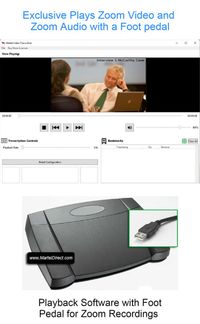
Direct playback keeps the picture and sound together during transcription. That is useful when you need to inspect speaker changes, slides, objects or actions. It also avoids maintaining an extra derived file simply for routine listening.
An audio working file can be practical when picture review is unnecessary or a separate system requires audio. Before creating one, decide how it will retain a traceable relationship to the video. Use an approved export method and keep the original MP4 available. Note any trimming, channel selection or timing change.
Do not assume an audio export begins at the same zero point if the export includes only a selected section. A five-minute excerpt taken from the middle of a video may have a new elapsed counter. Document the source start position so the transcript references remain understandable.
If your normal assignments are audio-only, compare the All N One audio kit. If the work routinely requires picture review, evaluate the video kit against actual files. Choose according to the material you must review, not merely the format you can produce after extra conversion.
Write down the reason for conversion before doing it. “The approved transcription application cannot open this encoding” is a defined problem. “Converting everything might be easier” is an assumption that needs testing. Extra processing can create more files, more opportunities for confusion and more timing checks.
Preserve a clearly identified original. Create a separately named working export and record the selected settings through your normal process. Check duration, beginning, end and an intelligibility sample after conversion. Verify that the required audio track was included and that nothing essential was accidentally trimmed.
Avoid repeated lossy re-encoding as a routine handoff method. It is not a way to improve missing detail. If the sender can provide an appropriate original export, that may be a cleaner starting point than converting an already reduced preview. Ask for the useful source rather than repeatedly processing a poor copy.
Treat technical tools and codec downloads carefully: use approved, current software and your organization’s installation process. You do not need an unverified codec pack merely because one file fails in one player. Gather the exact file and application facts first, then seek specific compatibility help.
MP4 assignments often arrive as several segments. Each segment may start its elapsed timer at zero. Label them clearly in the transcript. A reference such as “Part 03, 00:08:16” is more useful than a bare time when several files share the same clock range.
If a client supplies both a full recording and a shortened version, agree on which one governs the transcript. The words may be the same while the elapsed positions differ. Do not mix references from two versions simply because the content sounds familiar.
Check for gaps between recordings. A camera may stop and restart, or a meeting may be paused. File A ending at 00:30:00 and file B beginning at 00:00:00 does not prove continuous coverage. Ask for clarification if continuity matters to the assignment.
For a worked example, suppose a source excerpt begins 12 minutes into the original video. At the excerpt’s 00:03:20 position, the corresponding original elapsed position would be 00:15:20 only if no additional edits or speed changes occurred. Record that assumption and verify it against the actual files; do not apply arithmetic blindly to edited media.
A readable transcript needs consistent speakers and paragraphs. A detailed review document may need more source references. A caption deliverable needs cue timing and media playback checks. Ask for the required result before spending time polishing the wrong form of text.
If captions are requested, an MP4 may be accompanied by a separate text track file. Keep it with the matching video version. Changing the video’s timing can make an otherwise valid caption file drift out of alignment. The caption workflow must check the final media, not only the text.
When producing a transcript from an automatic draft, compare the text with the MP4. Speaker labels, numbers and unfamiliar words deserve focused review. If the picture clarifies a displayed term, record that editorial decision according to the project’s convention rather than pretending the term was clearly audible.
Use transcription software explained to distinguish playback tools from speech-recognition services. A product that controls an MP4 with a pedal is not automatically a caption generator or a speech-to-text engine.
Select a short, authorized MP4 that includes two speakers and at least one point that requires replay. Note its source and duration. Open it in the intended transcription application and listen at normal speed. Check that the image is useful for the actual assignment.
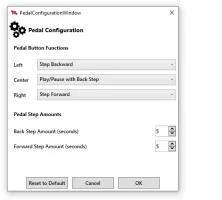
Move to an early, middle and late position. Then type a small passage in the actual word processor while using the pedal to stop and replay. Check whether the document keeps focus and whether the controls behave consistently after moving between applications.
Save the document, close the working applications normally and reopen the file. Confirm that you can find the recording and your place again. If the setup will be used by another typist, have that person repeat the exercise from your notes.
Record pass, fail or needs confirmation for each requirement. A sample that cannot establish a feature should not be marked as a pass. Use the results to ask Martel specific questions through the contact form and to compare the current transcription equipment options.
Describe the observable symptom before selecting a repair. The worksheet below keeps file, output and workflow problems separate. It offers diagnostic next steps, not guaranteed fixes or a claim that a particular codec is responsible.
| Observation | First comparison | Useful information to retain |
|---|---|---|
| Every file is silent | Known-good file through the intended output | Selected device and application volume |
| Only one MP4 is silent | Same file in another trusted player | Source application and audio-track details |
| Picture is absent but speech plays | Same source in an appropriate video player | Whether image is required for the job |
| Seeking fails late in the file | Beginning, middle and end after a complete transfer | Displayed duration and failure position |
| Pedal is inactive but mouse controls work | Controller configuration with document active | Exact pedal model and software edition |
| Transcript times differ from client references | Compare source versions and trimming | Filename, duration and any known offset |
| A speaker is missing in every player | Ask the sender to inspect the original capture | Whether another recording or track exists |
Do not change several settings after the first comparison. Preserve the result, make one justified adjustment and repeat the same check. Otherwise a temporary improvement may be difficult to explain or reproduce on the next workstation.
For support, combine the symptom and evidence in one sentence. For example: “This authorized MP4 has picture and sound in our reference player, but the transcription application shows picture only; the output device works with our other recordings.” That statement narrows the investigation while avoiding an unsupported diagnosis.
The worksheet also helps decide whether to request another source export. If the original capture is missing speech, repeatedly converting the same copy is a different activity from obtaining the missing recording. Keep the response matched to the evidence.
No. Container support, encoded tracks, software version and the way the file was exported can matter. Test a representative sample and disclose unusual recording sources. A long list of extensions should not replace a direct check when one particular file type is essential to the purchase.
Choose based on what must be reviewed. If you need to see the video, evaluate a video-capable workflow. If an approved audio export meets the assignment, an audio workflow may be suitable after compatibility checks. Do not assume that an audio-only listing includes video viewing.
Possible causes include output selection, track selection or differing codec support. Compare a known-good recording, verify the listening path and record the exact applications tested. The different results help isolate the issue; they do not by themselves establish which configuration change is required.
No. A filename change does not decode, extract or re-encode media. Keep the original name and use an appropriate authorized export process if audio is needed. Verify the resulting file and preserve its relationship to the video’s timeline.
Not if the intended workflow plays the supplied files correctly and meets the assignment. Conversion should solve a specific requirement. It adds a working copy that needs checking and organization. Keep direct playback as an option when it is supported and practical.
The workflow described here uses controlled media playback while a person types or corrects text. Do not interpret the word “transcription” as a promise of automatic document generation. Compare the current listing and the software types guide before buying.
Provide the recording source, filename extension, known codec information, computer and software versions, and the exact failure. Use a nonconfidential or authorized sample only through an appropriate agreed route. A precise description often narrows the issue before a file transfer is necessary.
Continue to how to transcribe Zoom recordings for a common MP4 source. Return to the series overview for the whole workflow or browse the All N One audio/video kit with your compatibility checklist ready.
Research note: Product details were checked against Martel’s current product pages. Technical references are linked beside the relevant guidance. Worked examples and worksheets are original illustrations, not measured product benchmarks. Features, licensing and software interfaces can change; confirm the current product details before ordering.