Court Reporter Virtual Videographer — Zoom & Meeting Audio Recorder
SKU 3322
$199.99
Your own clear, independent Zoom and Teams deposition audio copy.
In stock
Court Reporter Virtual Videographer — Zoom & Meeting Audio Recorder
Product Details
Get videographer quality audio without the videographer.
COURT REPORTER VIRTUAL VIDEOGRAPHER · WINDOWS SOFTWARE · SKU 3322
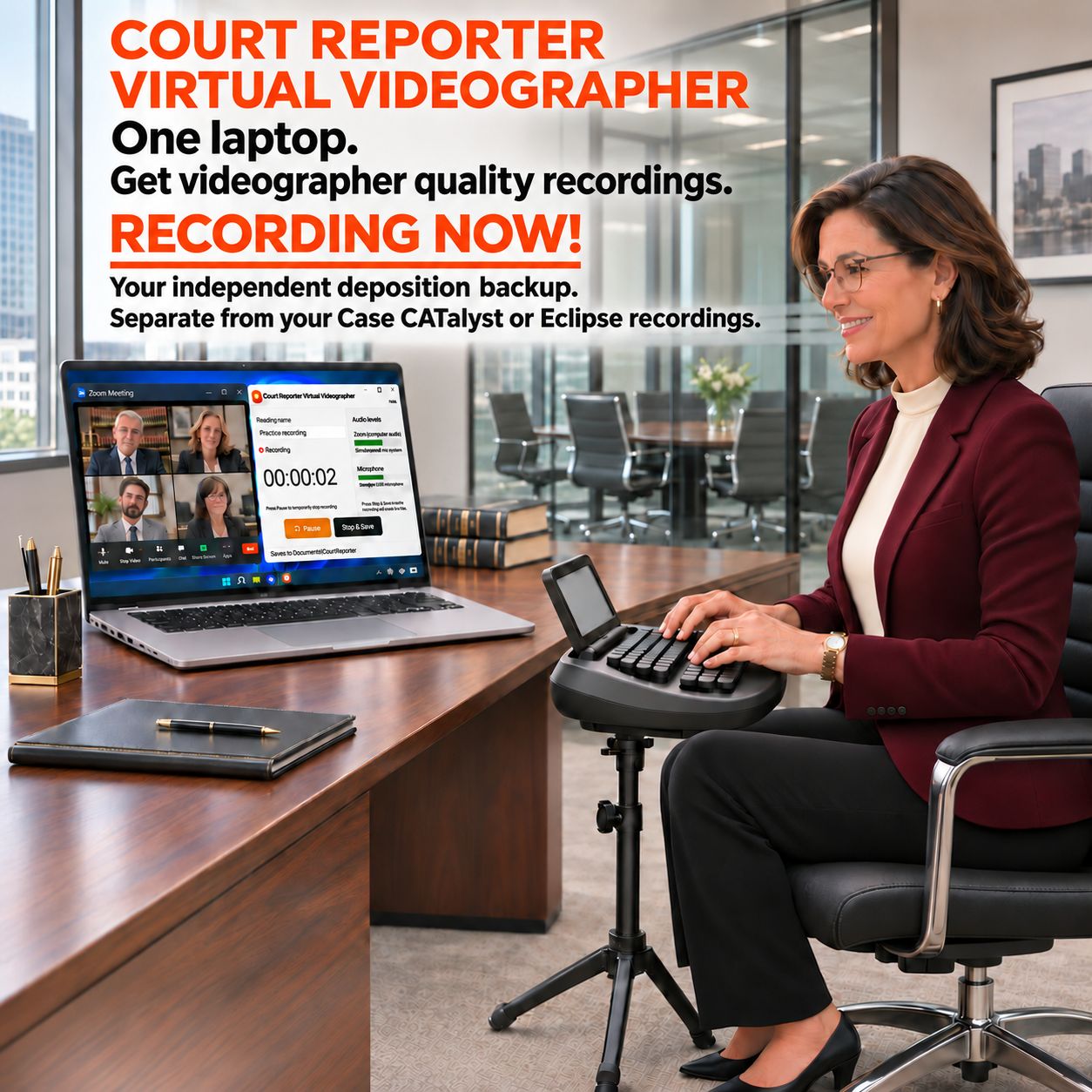
One laptop.
Get videographer quality recordings.
You’ve always wanted your own videographer—now you can have it. Your own clear audio copy, ready when you need it.
What does it do?
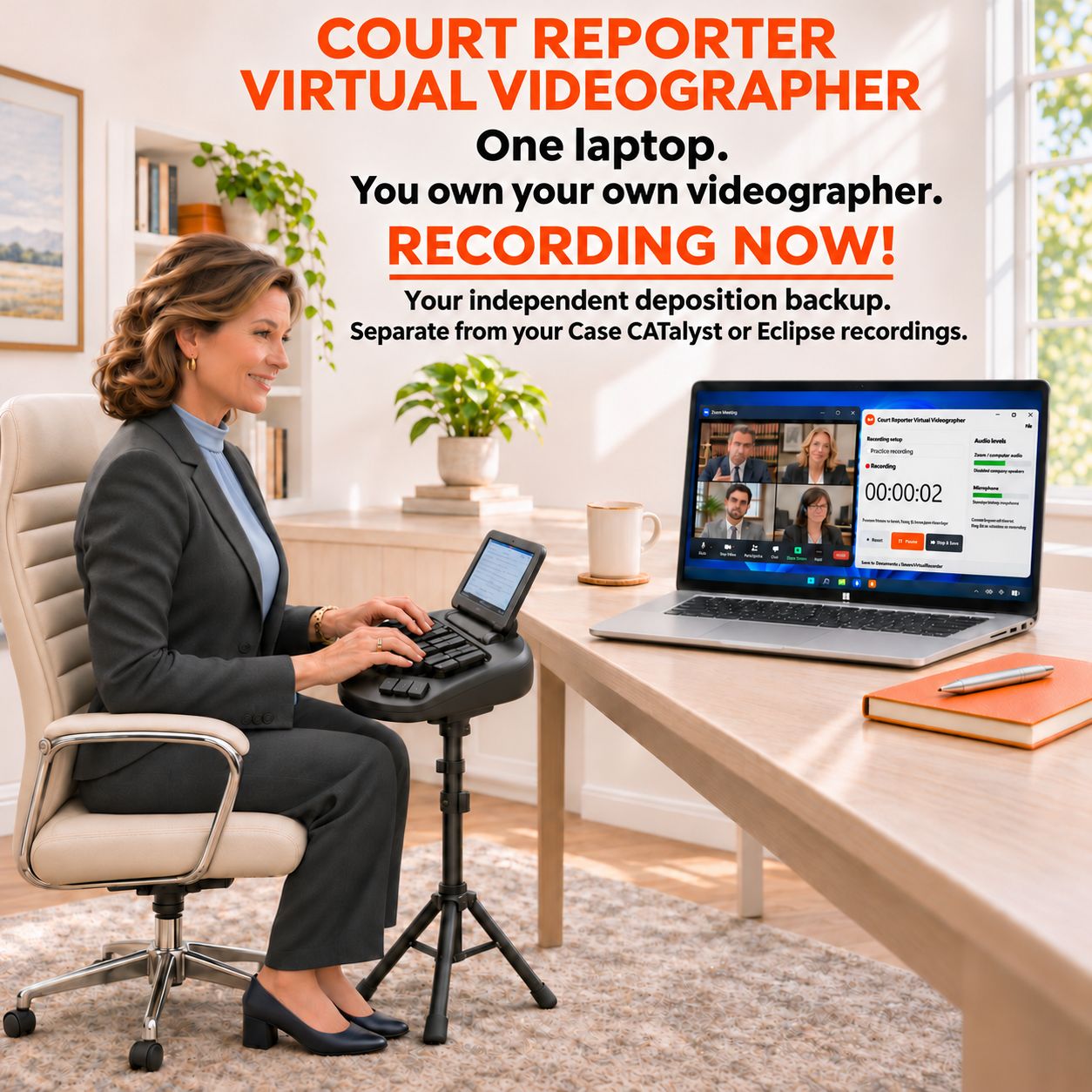
Record the Zoom or Teams participants you hear into your own clear, independent audio copy. Your recording is separate from Case CATalyst or Eclipse. Click Stop & Save, and it automatically saves in Documents and tells you where to find it.
Your own Zoom deposition audioNo extra hardware neededRecord · Pause · Save
YOUR DEPOSITION. YOUR AUDIO COPY.
The best investment of the year for court reporters.
Take control of your deposition audio for $199.99. Record the meeting participants you hear, keep an independent copy, and stop waiting for someone else to send theirs.
A separate recording that belongs to your workflow.
When you need to review a name, revisit a fast exchange, or prepare audio for your scopist, having your own recording makes a difference. Capture it while the deposition is happening. Stop & Save automatically saves the recording in your Documents folder and tells you where to find it.
Keep your existing Case CATalyst or Eclipse recording. Virtual Videographer makes an additional, independent audio copy alongside it. You do not have to wait for the videographer to send their audio before you can review your own recording.
Your meeting. Your own audio copy.
Capture the participants you hear directly from the Windows playback device used by Zoom or your meeting app. The audio meters show sound reaching the recorder.
No extra hardware needed.
It's all done through software on your Windows computer. Built-in Windows loopback captures the meeting audio playing on your PC.
BUILT AROUND THE WAY YOU REPORT
Your setup. Your meeting. Your own audio copy.
If you use a compatible Windows computer for Zoom or Teams and court reporting, Virtual Videographer can fit your workflow.
One laptop setup
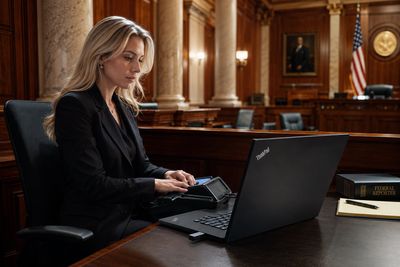
Run Zoom or Teams, your CAT software, and Virtual Videographer on the same compatible Windows laptop.
Two laptop setup
Keep CAT software on one laptop. Run Virtual Videographer on the Windows laptop handling the meeting audio.
Desktop + laptop setup
Use either computer for court reporting. Put the recorder on the Windows computer receiving the meeting sound.
Desktop workstation
Use your Windows desktop with the speakers or headphones selected for your meeting.
Stenotype writer setup
Continue writing on your stenotype. Virtual Videographer runs on the Windows PC and saves an audio copy separate from your CAT and writer recordings.
Voice writer setup
Continue your voice writing workflow. Run the recorder on the Windows computer receiving the meeting audio.
Headset or USB microphone
Listen through your chosen headphones or speakers. Select that same playback device in the recorder.
Hybrid deposition setup
Capture remote voices from the meeting playback and in-room voices reaching your selected microphone or existing Windows audio input.
Meeting app or browser
Use Zoom or Teams on Windows, in the app or a supported browser, with meeting sound playing through the recorder’s selected device.
The simple rule: Run the recorder on the Windows computer that receives the meeting audio. Choose the same playback device as Zoom or Teams. For a separate meeting computer, either record there or bring its audio into the recording PC through your existing connection. Phone-only audio and standalone writers are not captured automatically.
Use computer audio in the meeting and check a short saved recording before your deposition.
RECORDING NOW!
Record. Pause. Stop & Save.
There’s nothing complicated to learn. Simple and easy to use. Name your recording, choose your audio sources, and use the clear Record, Pause, and Stop & Save controls.
- Open your meeting and name your recording. Keep Virtual Videographer beside Zoom or your other meeting app.
- Choose the meeting’s audio device. Check the audio meters and a short saved recording.
- Click Record. Pause for a break and Resume when you're ready. Paused time is left out of the saved recording.
- Click Stop & Save. Your recording automatically goes into Documents > SecureVaultRecorder, inside its recording folder. The app displays the saved location so you know where it is. Stop & Save works while paused, too.
Your own independent audio copy.
Separate from your Case CATalyst or Eclipse recordings. Saved locally on your computer. Ready for your playback and review workflow.
Separate from your Case CATalyst or Eclipse recordings. Saved locally on your computer. Ready for your playback and review workflow.
For the meeting software you use.
Windows loopback records the audio available on your selected playback device. Use this method with Zoom, Microsoft Teams, Webex, Google Meet, and other meeting apps or browsers that play through that device.
Whether you use a laptop or a desktop with a USB microphone, choose the same speakers or headphones as the meeting.
FOR YOUR TRANSCRIPT TEAM
Make your scopist’s day.
Give your scopist or proofreader your own independent deposition audio copy to review alongside the transcript.
When your team checks audio, having your copy ready gives them another source to consult. The meeting audio is saved in one file, saved on your computer for you to share through your usual workflow. No waiting to request someone else’s recording.
For playback inside Case CATalyst or Eclipse, follow the import guidance below.
A few practical details.
Is this a separate backup from my CAT recording?
Yes. Virtual Videographer runs as its own recorder and saves its own audio files. It does not depend on your Case CATalyst or Eclipse recording to create that copy. Both programs still rely on the computer and audio sources on which they run.
Does it record video?
This product is an audio recorder. The name is Court Reporter Virtual Videographer; the recording it creates is your deposition audio copy.
Can I import the recording into Case CATalyst or Eclipse?
The app saves a standard mono WAV file (44.1 kHz, 16-bit PCM). The recording contains one combined audio channel, without separate tracks for each speaker.
Case CATalyst: Open the transcript and choose Tools > Audio > Associate Audio File. Select your WAV file. When asked whether CATalyst recorded it, choose No. Keep your original CAT audio: associating another file can replace the transcript’s current audio association.
Eclipse 11: Use Tools > Multimedia > Control Panel > Import to bring audio into a job. Menu options depend on your Eclipse version.
Can it capture audio playing on another computer?
It records the sources available on the computer where it runs. For two computers, run it on the meeting computer or use your existing connection to bring the meeting audio to the recording computer.
What determines the audio quality?
The meeting connection, participants' microphones, your devices, and recording levels all matter. The software records the meeting sound available to your PC. Make a short recording and playback check before your deposition.
Court Reporter Virtual Videographer
$199.99
Martel SKU 3322 · Windows audio recording software
Windows 11 PC with .NET Framework 4.8 and a Windows playback device receiving your meeting audio. Software activation required. Extended recordings create additional audio parts automatically.
Make your own audio copy part of every deposition. Add Virtual Videographer to the computer you already use.
Software only. Computer, microphones, speakers, and meeting services are sold separately. Explore Court Reporter Microphones, the Zoom Recording Kit #403, and hybrid deposition audio setups.
Products related to this item
On Sale
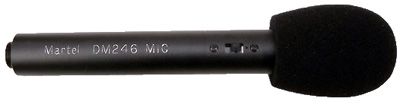
Courtroom Microphone Uni-Directional XLR
Courtroom Microphone Uni-Directional XLR
#1 Courtroom Microphone
was $299.99
Save 33%
$199.99
On Sale
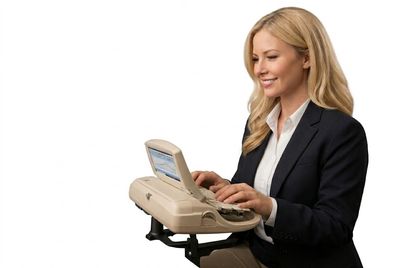
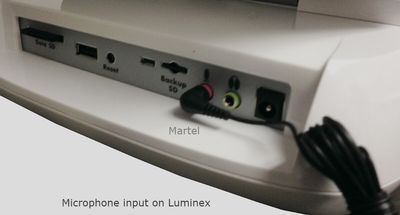
Luminex Steno Writer Microphone Ultimate Edition Kit - No Battery Only from Martel
Luminex Steno Writer Microphone Ultimate Edition Kit - No Battery Only from Martel
#1 Selling Luminex Microphone | 93% of All Court Reporters Buy From Martel Electronics
was $399.99
Save 50%
$199.99
On Sale
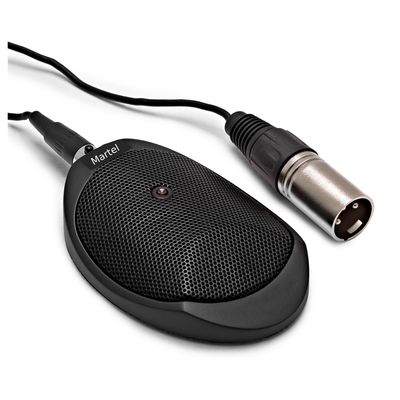
Voice Grabber Microphone with XLR Connector
Voice Grabber Microphone with XLR Connector
was $399.99
Save 50%
$199.99
On Sale
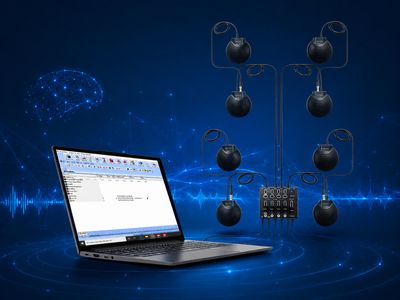
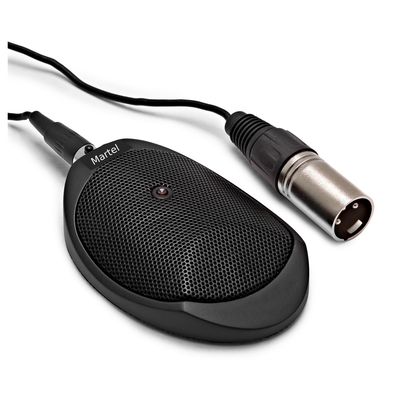
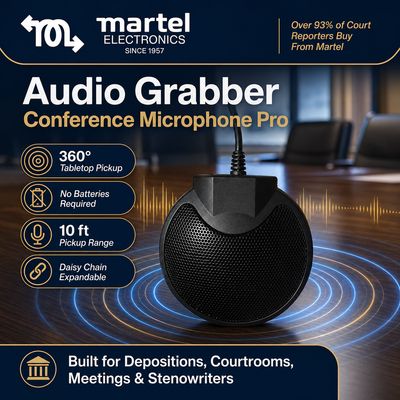
AI Voice Recognition Microphone System
AI Voice Recognition Microphone System
was $1,299.99
Save 46%
$699.99

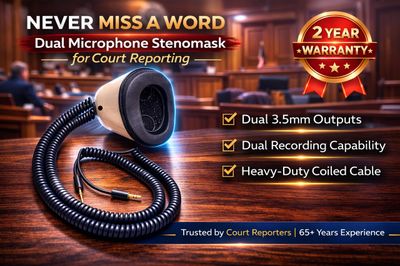
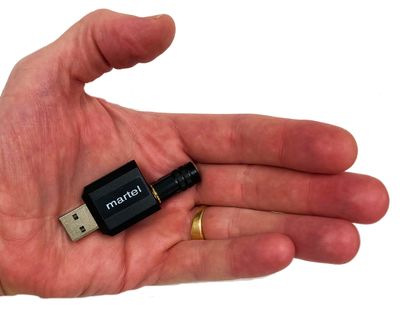
Case Catalyst Laptop Microphone
Case Catalyst Laptop Microphone
#1 Case Catalyst Laptop Microphone -No Battery
$199.99
Sold out
Bench Conference Microphone
Bench Conference Microphone
Buy up to 4 Sidebar Wireless Microphone for 1 Courtroom | #1 All Time Selling Court Wireless Microphone
$349.99
Out of stock
Court Reporter Wireless Microphone made for Digital Recorders and laptops
Court Reporter Wireless Microphone made for Digital Recorders and laptops
Works All Steno Writers Diamante, Luminex, & More
$329.99
On Sale
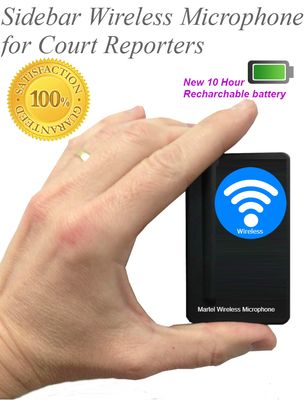
Sidebar Wireless Microphone for Court Reporters
Sidebar Wireless Microphone for Court Reporters
#1 Best Selling Wireless Mic for Court Reporters | Add up to to 4 Wireless in 1 Courtroom | 10.5 Hours of battery life Rechargeable
was $499.99
Save 34%
$329.99
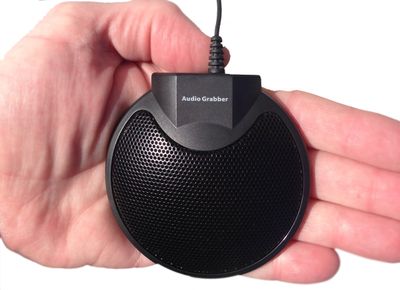
On Sale
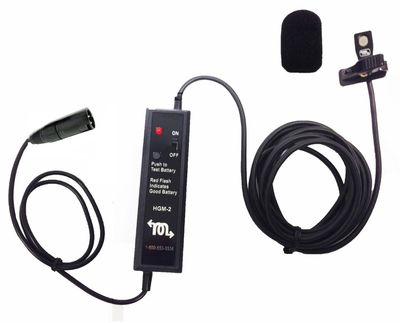
XLR HGM-2 Court Reporter Microphone
XLR HGM-2 Court Reporter Microphone
was $399.99
Save 38%
$249.99
On Sale
Court Reporter Wireless Microphone Assistant
Court Reporter Wireless Microphone Assistant
was $699.99
Save 43%
$399.99


On Sale
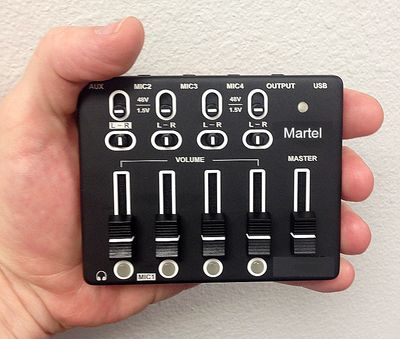
Ultimate Court Reporter Microphone Mixer
Ultimate Court Reporter Microphone Mixer
was $399.99
Save 38%
$249.99
On Sale
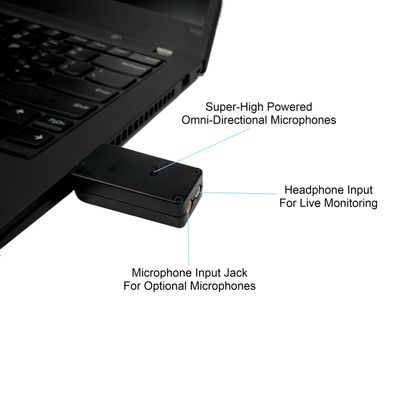
USB Miracle Mic for Court Reporters
USB Miracle Mic for Court Reporters
was $699.99
Save 43%
$399.99
On Sale
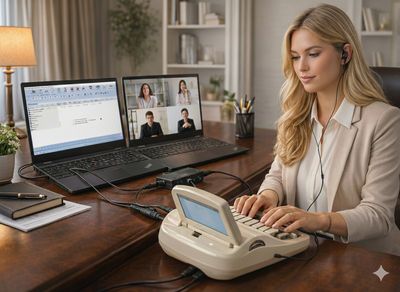
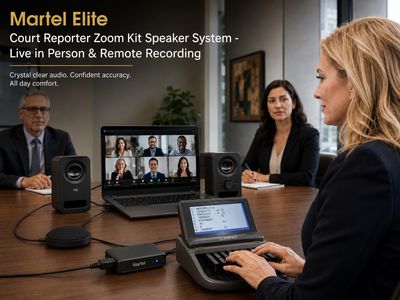
Zoom Compatible Court Reporter Teleconference and Recording Kit - Compatible with all CAT programs
Zoom Compatible Court Reporter Teleconference and Recording Kit - Compatible with all CAT programs
#1 ZOOM Court Reporter Kit | #1 Order item for Court Reporters
was $499.99
Save 50%
$249.99
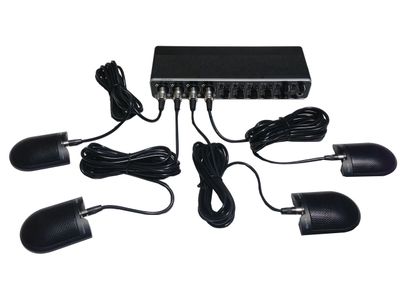
On Sale
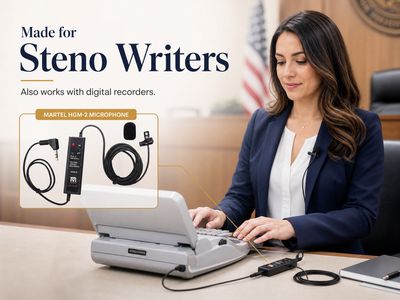
HGM-2 Court Reporter Microphone w/Battery Tester Built-in
HGM-2 Court Reporter Microphone w/Battery Tester Built-in
#1 Selling Court Reporter Microphone in the World!
was $299.99
Save 33%
$199.99
On Sale
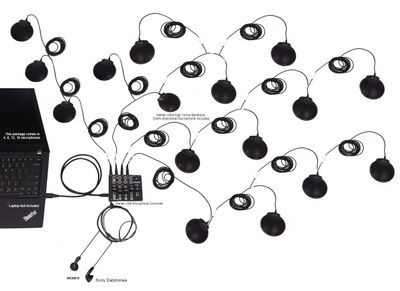
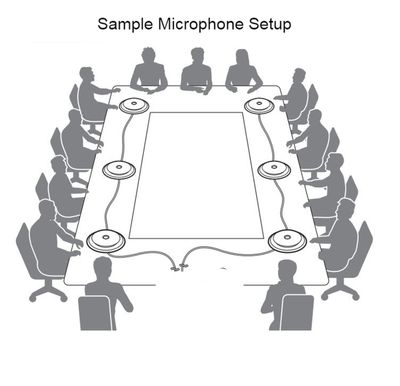
Zoom USB Multiple Microphones System 16 Microphone Mixer
Zoom USB Multiple Microphones System 16 Microphone Mixer
#1 Ordered 16 Multiple Mics Package for Large Meetings | Most Powerful Multiple Mic System in the World!
was $1,699.99
Save 41%
$999.99
On Sale
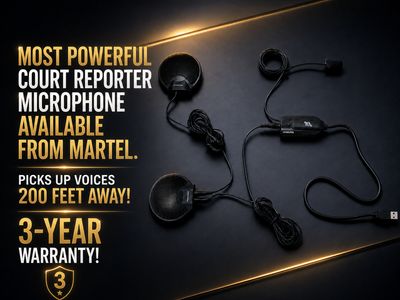
ELITE COURT REPORTER HGMUSB3 MICROPHONE PACKAGE
ELITE COURT REPORTER HGMUSB3 MICROPHONE PACKAGE
#1 Selling USB Court Reporter Microphone
was $799.99
Save 38%
$499.99

ELITE COURT REPORTER USB MICROPHONE HGM-USB
ELITE COURT REPORTER USB MICROPHONE HGM-USB
#1 Selling Court Reporter USB Microphone in the World | 30-day return policy; 5% restocking fee applies.
$295.00
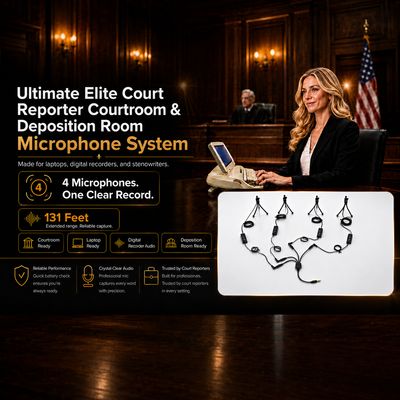
On Sale
Court Reporter USB Micro Microphone
Court Reporter USB Micro Microphone
was $499.99
Save 40%
$299.99
On Sale
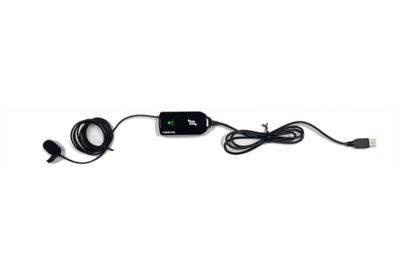
Best Court Reporter USB Microphone
Best Court Reporter USB Microphone
was $499.99
Save 30%
$349.99