Martel Video Transcriber Kit or Software Only: Choose the Right Setup
Compare Martel SKU 1515 with pedal and headset against SKU 1527 software with two licenses. Choose the setup that matches the equipment you already own.
Martel field guide · Keyboard, pedal and writing
Use Copy Timestamp and paste when direct insertion is unavailable. Compare the two workflows and keep video markers at the correct document position.
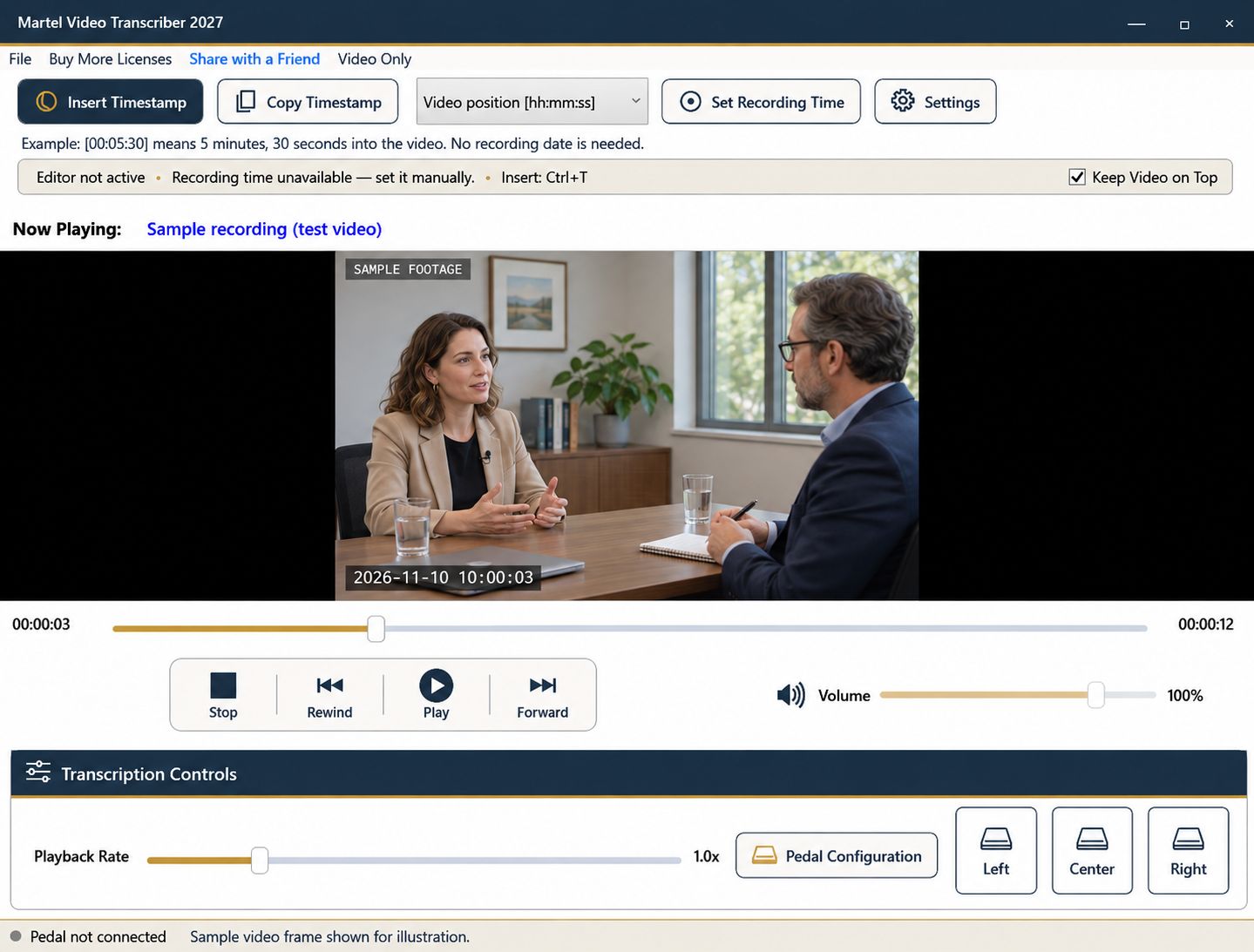
There are two distinct ways to move a Martel timestamp into a document. Insert Timestamp attempts direct insertion into a supported, identified editing target. Copy Timestamp puts the timestamp on the clipboard so you can paste it yourself. Choosing the right method prevents a common misunderstanding: a successful copy message does not mean text has already appeared in the document.
Copy and paste is useful when you write in an editor outside the supported direct-insertion workflow, or when a document's restrictions interfere with direct access. It also gives you deliberate control over the final destination.
The copied value represents the position captured by Copy Timestamp. If the video continues playing while you move to the document, the clipboard does not keep updating to the new position. Pause first when you need to inspect a specific word, image, or event before copying.
Do not copy another item between those steps. The clipboard may then hold that newer item instead. If you are unsure, copy the timestamp again and use a disposable test line before adding it to your working transcript.
Martel includes direct-insertion integration for identified editable Word and Writer documents, including the LibreOffice/OpenOffice Writer family. LibreOffice Writer was physically tested during this update. Microsoft Word integration was tested through its adapter checks; exact desktop versions and document configurations should be verified in your own environment. OpenOffice likewise deserves a local trial before relying on its direct workflow.
The clipboard route is broader: an editor that accepts pasted plain text can generally receive the copied timestamp. That does not make its playback shortcuts, automatic paragraph detection, or background direct insertion universally supported. Test the particular operation you intend to use.
Place the cursor where a plain-text marker makes sense, such as at the beginning of a new paragraph or after a quoted passage. Include a space before continuing with prose. Avoid pasting into a selected block of existing transcript unless you intend to replace it.
In a table, make sure the correct cell is active. In a document with tracked changes, comments, or forms, verify where the pasted text actually landed. These are document-editing considerations; they do not change the time calculation in the player.
For frequent timestamping in a supported editor, Ctrl+T or an explicitly assigned pedal button can reduce the number of steps. Keep Copy Timestamp available for occasional transfers, troubleshooting, or other editing programs. It is reasonable to use both methods in one project as long as their results follow the same timestamp convention.
Do not use an unrelated foreground window as a test target. Martel's direct insertion is intended for supported identified editing areas. If you are in another application, choose the explicit clipboard workflow and paste only where you intend.
Copy and paste one paused timestamp, then seek to a different moment and repeat. Check that the values differ correctly, the document remains editable, and the text appears at the cursor. Save the document using its own program. Martel remembers playback progress; that does not replace your word processor's document saving.
A translator preparing a bilingual table or a journalist writing in a browser-based publishing system can paste a copied marker into the intended field. First copy at 00:02:15 and paste into a disposable text field; confirm the value and its formatting. When moving between source-language and translated columns, paste beside the passage the marker actually identifies. Martel supplies the time reference, while the writer supplies and checks the translation or copy.
Sources and further reading: U.S. Bureau of Labor Statistics: interpreters and translators. Sources explain professional tasks and editorial practice; the Martel workflow example is our own.
No. It puts the captured timestamp on the clipboard. Click the intended document position and paste it yourself.
No. It represents the position captured when you copied it. Copy again if you need a later point.
No. Pasting text is a separate workflow. Direct insertion and automatic triggers require supported, identified editable targets.
Yes, if the editor permits it. Click the intended editable cell and verify that the timestamp did not replace selected text or enter a different field.
Another copy operation may have replaced the clipboard contents. Copy the intended timestamp again and inspect the destination.
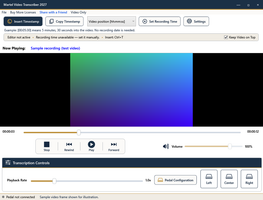
Use Copy Timestamp and paste when direct insertion is unavailable. Compare the two workflows and keep video markers at the correct document position.