Martel Video Transcriber Kit or Software Only: Choose the Right Setup
Compare Martel SKU 1515 with pedal and headset against SKU 1527 software with two licenses. Choose the setup that matches the equipment you already own.
Martel field guide · Research, education and interviews
Create a useful webinar index with topic starts, audience questions and verified answer references, using elapsed timestamps and clear source notes.
Webinar viewers often want one explanation or answer rather than the entire presentation. A timed topic and Q&A index helps them find that material. The index should identify the recording version and describe the content accurately, especially when questions are spoken, paraphrased, or visible only in a chat panel.
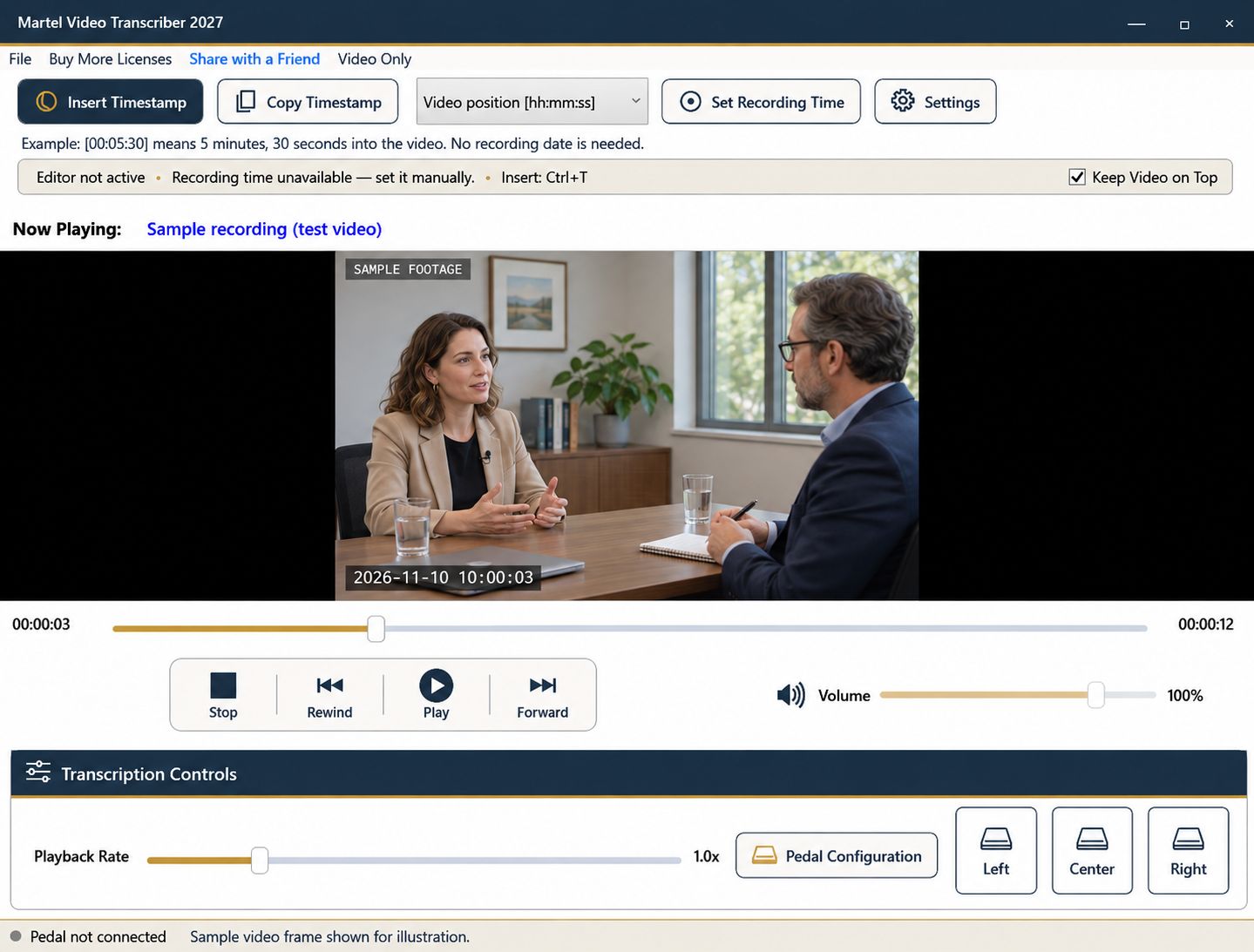
Martel can support the listening and timestamping work in your document. It does not retrieve missing chat messages or create automatic chapter links in a hosting platform.
Record the webinar title, source filename, and whether the file includes the introduction, presentation, breaks, and Q&A. If the published replay is trimmed later, recheck the elapsed positions against that final version before sharing the index.
Use a small number of fields: elapsed position, topic or question, speaker, and a short note. Decide whether the wording is a summary or a verified quotation and label it accordingly.
On the first pass, mark the start of each substantial topic, demonstration, or transition. Use the recording's content rather than assuming that slide headings or the advertised agenda match the delivered order.
Keep entries specific. “Explains how to choose the export format” helps a reader more than “More information.” Avoid adding promotional claims that were not part of the webinar simply to make the index sound more exciting.
A long question may begin well before its answer. When useful, record both positions. This allows a reader to hear the context or skip directly to the explanation without confusing a partial answer with the complete exchange.
If the presenter paraphrases a written question, label it as the question as read or summarized in the recording. Do not reconstruct the original chat message unless the authorized source is available and has been checked. A screen recording may not capture every chat entry.
Pause and rewind with a pedal while keeping the document cursor in the appropriate row. Insert a deliberate timestamp near a topic's start or the beginning of an answer. Fixed intervals can support a detailed working transcript, but a public index usually benefits from meaningful topic boundaries.
For demonstrations, enlarge the video enough to read the relevant controls. Distinguish what the presenter says will happen from the action actually visible on screen.
Navigate to each major entry in the exact replay file. Check that the first few seconds provide enough context and that an earlier trim has not shifted every marker. If you transfer the index into a video platform, follow that platform's actual chapter format and verify its links separately; ordinary timestamps in a document do not automatically create hosted chapters.
Include the source version and the convention that times are elapsed from the start. Use a recording clock only if the task needs it and a reference has been established. The date you downloaded a replay is not its recording time.
Save a working copy with any unresolved names, figures, or wording checks. When a revised replay replaces the old one, treat timestamp verification as part of that revision. A short, accurate index that matches the final recording is more helpful than a long list of markers carried forward from an earlier cut.
A marketing coordinator can use an index to locate a product demonstration, while a training specialist may need the question that led to it. A nonprofit or faith-community media volunteer can use the same process for recorded talks or sermons. For each task, label entries as summaries unless the wording has been checked as a quotation. Keep internal planning notes separate from the public replay index, and recheck positions after cutting an introduction or break.
Sources and further reading: U.S. Bureau of Labor Statistics: training and development specialists. Sources explain professional tasks and editorial practice; the Martel workflow example is our own.
No. Hosted chapters require the video platform’s own supported format and a separate check after publication.
A single marker can work for a short exchange. For a long question, separate references help readers find either the context or the answer.
Recheck the elapsed positions against the final version. An earlier trim can shift every later marker.
Do not present a reconstruction as the original message. Label the question as read or summarized in the recording unless the original source is available and checked.
Use the actual recorded sequence. The presentation may reorder topics, skip material or return to an earlier question.
Create a useful webinar index with topic starts, audience questions and verified answer references, using elapsed timestamps and clear source notes.