Transcription Kit Compatibility Checklist: Files, Pedals and Computer Setup
Choose and test a transcription kit using real recordings, current computer requirements, pedal controls, headset connections and acceptance checks.

Build an MP3 transcription workflow with file checks, foot-pedal playback, speaker labels, focused review and a practical audio-kit buying checklist.
Chapter 5 of 10 · Audio files and transcription software
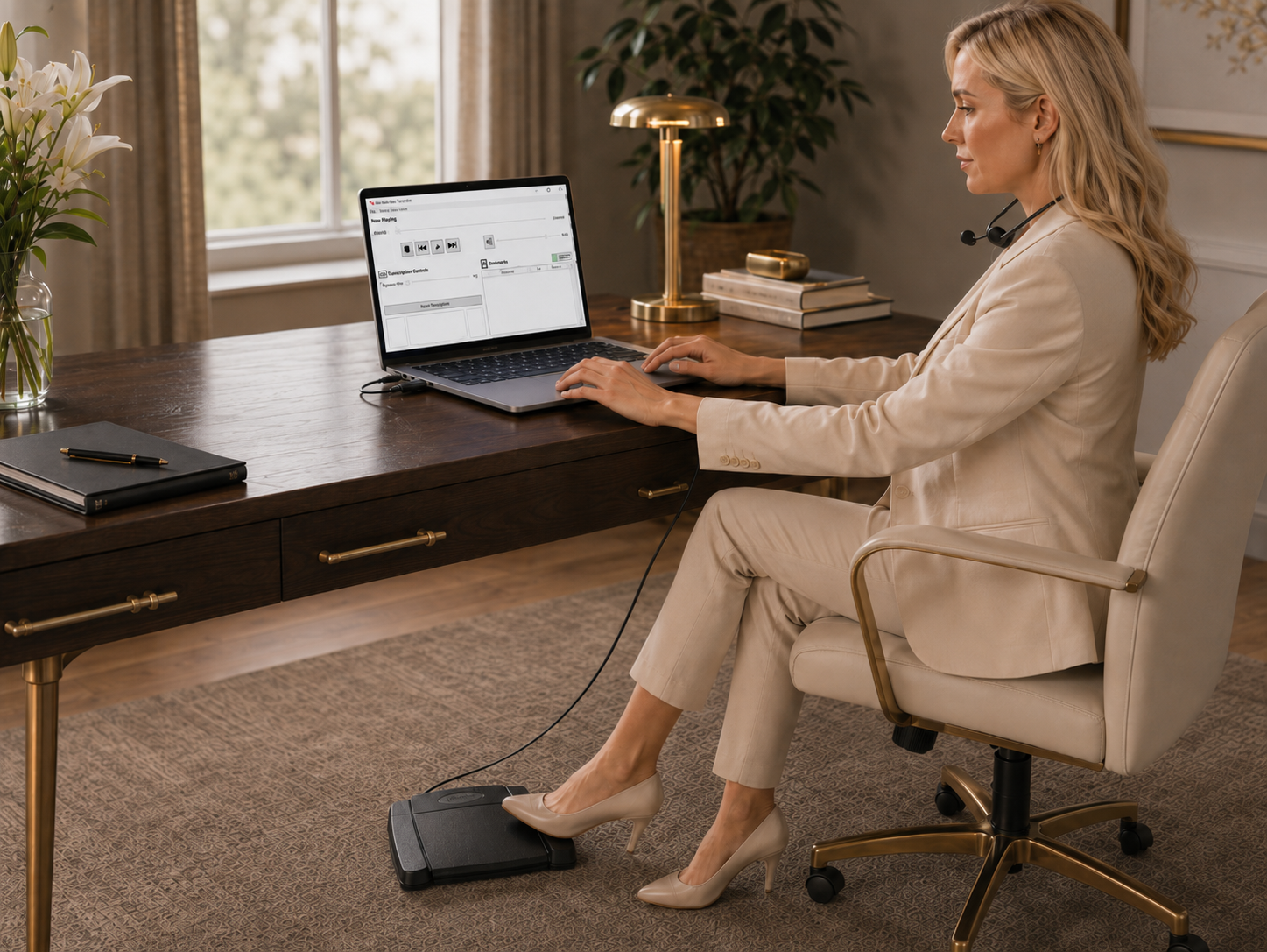
To transcribe MP3 audio, open the recording in compatible playback software, prepare a document, identify speaker turns and check the written text against the audio. You can type the first draft yourself or review a draft created by an approved speech-recognition tool. The quality of the final document depends on the complete process, not simply how quickly text first appears.
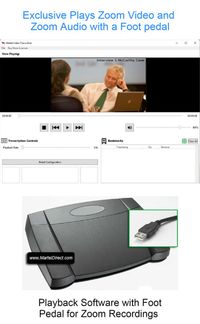
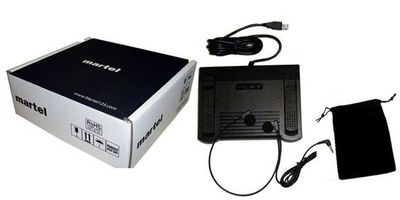
The All N One audio transcription kit is Martel’s main product route for a foot-pedal audio workflow. Confirm the current package and computer requirements against your own setup. If the assignment includes picture-dependent references or speaker identification from video, use the video workflow overview before deciding that an audio-only setup is sufficient.
This chapter focuses on MP3 intake, listening technique, timing, document preparation and quality control. The goal is to leave you with a repeatable process for interviews, dictated material and recorded discussions, rather than a one-click promise that overlooks the work of checking names, numbers and meaning.
MP3 is a compressed audio format. Its filename extension identifies an audio encoding, but it does not tell you who is speaking, whether the recording is complete or how much review the assignment will require. Two MP3 files of the same length can present very different transcription workloads.
MDN’s audio and video overview identifies MP3 as MPEG audio compression. Its lossy-compression explanation provides background on data reduction. For buyers, the practical point is that expanding an MP3 into a larger file does not recreate detail already discarded during earlier encoding.
A recording’s usefulness also depends on microphone placement, room sound, speaker overlap and the original capture. A large MP3 is not automatically clear, and a small one is not automatically unusable. Listen to representative passages before judging the file by its size or accepting an assignment’s time estimate.
Keep any known source information with the file. A direct export from a recorder and a copy that has passed through several editing or messaging applications may have different histories even when both end in .mp3.
Confirm that the file is the intended recording and that the transfer is complete. Play the opening, a middle passage and the end. Compare the content with the sender’s description. If an interview is expected but the file contains a short voice memo, resolve the mismatch before preparing the transcript.
Record the original filename, expected duration, project reference and requested output. Keep the source and working transcript distinct. An organized folder is especially valuable when several files have generic names or when two revisions arrive on the same day.
Ask whether the recording was edited or split. If a sender removed breaks, your elapsed timestamps may not match another person’s unedited copy. If several parts cover one event, establish the correct order and identify gaps rather than assuming that consecutive filenames prove continuity.
Use a short intake checklist: correct source, complete transfer, audible beginning and end, expected speakers, known scope and agreed transcript style. These checks take little time compared with discovering after several pages that you used the wrong file.
Bitrate describes the rate at which encoded data is stored, not the accuracy of a future transcript. As a simple planning calculation, a constant 128 kilobits per second for one hour is approximately 57.6 million bytes of audio data before small file overheads: 128,000 multiplied by 3,600, divided by eight. That is a storage example, not a recommended recording setting for every job.
Some MP3s use a variable bitrate, so a single constant-rate calculation may not predict the exact size. Metadata, duration and encoding choices also affect the result. Use the actual file size for transfer planning instead of treating an approximate formula as proof that a copy is complete.
More importantly, a quiet or distant voice may remain hard to understand at a high bitrate. Good source capture and a suitable microphone position matter before encoding. If you regularly receive difficult files, ask about the recording process rather than assuming the solution is simply a larger export.
For recurring work, keep a sample of an acceptable recording and a short capture checklist for the people supplying it. Agree on a practical format through the organization’s workflow, then verify that the resulting files play in the intended transcription software.
Manual drafting is straightforward: listen, stop, type and review. It provides close contact with the source throughout production, but it still requires a final check. Replaying a sentence while typing can create omissions or duplicates, especially when the work is interrupted.
An automatic draft can be useful when the chosen service is appropriate for the recording and its handling requirements. Measure correction and review time, not only processing time. If the draft introduces many plausible but incorrect names or speaker labels, correcting it may require a different strategy from drafting a clear passage manually.
Microsoft’s Transcribe documentation describes an upload workflow that supports MP3 among its listed formats and stores recordings in OneDrive. That is an example of a service-specific automatic workflow. It is separate from using Word as a document editor alongside a Martel playback application.
Choose a path for the job, then keep the source accessible. Neither a human first draft nor an automatic one should be treated as the final authority. The software types chapter explains the functional differences in greater depth.
Start with the project title, source filename and agreed transcript style. Add speaker labels and a timing convention before the draft grows. If the assignment uses a template, confirm that the current version is the correct one. Do not recreate a formal template from memory when the recipient has supplied it.
Decide how to mark an unclear word, an uncertain speaker and an inaudible interval. Use distinct markers when those are different problems. “Unclear name” and “speaker unknown” should not be represented by the same unexplained symbol if the reviewer needs to resolve them separately.
Keep a reference sheet for verified spellings and terminology. Include the source of a correction when it matters to review. If a name is inferred from a participant list, listen again before substituting it into a passage that may contain a different word.
Save early and keep revisions understandable. A clear draft number or status is more useful than several files named final, final2 and final-really-final. Follow the project’s storage and retention process rather than creating uncontrolled copies across unrelated applications.
Confirm the actual sound path before working through difficult passages. A headset can be physically connected while the computer still sends audio elsewhere. Check the selected output and begin at a modest volume. A second known-good recording helps distinguish an output problem from an issue in the source file.
If the audio seems one-sided or a participant appears missing, investigate the connection and channel behavior. A stereo file can contain different material in its channels. Do not assume that every voice is represented equally in a single earpiece or that the software automatically combines channels in the way you expect.
Keep the listening setup consistent during a review pass. Changing devices, volume and playback speed simultaneously makes it harder to identify what improved or worsened intelligibility. Adjust one factor, replay a known passage and note the result.
Comfort also affects a long session. Arrange the cable so it does not pull on the headset or interfere with the pedal. Take reasonable breaks and avoid compensating for unclear capture by continually increasing volume. A louder unclear passage is not necessarily a clearer one.
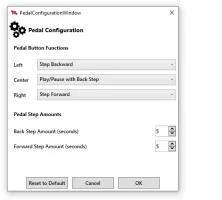
Test playback commands while the document has focus. Confirm that stopping, resuming and stepping back behave as intended. If the pedal works only when the player is selected, resolve that before beginning a long file. The foot-pedal guide provides a specific background-control test.
Begin with short units of speech that you can retain accurately. A dense sentence with names or numbers may need more frequent stops than a familiar conversation. Let the material determine the pace. There is no useful universal rule that every typist should keep a recording running continuously.
Adjust replay length to restore context without creating excessive repetition. If you keep hearing the same complete sentence after every pause, reduce the replay where the software allows it. If resumed speech feels disconnected, increase context or stop at a more natural boundary.
Keep normal-speed playback available for checking uncertain wording and final continuity. Slowing can help, but it can also change how phrasing feels. Verify the interpretation against the original pace before making a difficult punctuation or speaker-boundary decision.
An MP3 may be mono or stereo, but that distinction does not reliably identify the number of people recorded. Several participants may share one microphone. Two channels may contain the same mix or different signals. Inspect the actual recording and any supplied notes rather than equating channel count with speaker count.
If the software offers channel-specific listening, use it only after confirming what each channel contains. A quieter channel might reveal a useful voice, or it might simply duplicate the same room recording. Keep the full source available and document any listening choice that affects review.
Speaker labels should come from the assignment and verified recording context. A person's position near a microphone can be a clue, but it is not a permanent identity label. People move, interrupt and speak from different positions during a discussion.
For assignments that truly require independent channel review, confirm both the recording format and the application’s controls. Do not assume that a general MP3 workflow provides the same functions as a specifically matched multichannel transcription system.
Elapsed timestamps should identify a position in the correct source. State whether references belong to each individual file or to a deliberately assembled timeline. If the recording was trimmed, explain the source relationship instead of expecting the recipient to infer an offset.
Test seeking near the end of the file as well as at the beginning. If the player lands inconsistently or reports an implausible duration, record the observation and compare the original in another appropriate application. Keep timing problems separate from word-recognition problems.
For a split interview, use a reference such as “Interview B, 00:07:12” rather than a bare time. The exact naming convention is your choice, but it should remain consistent. A reviewer should not have to search every MP3 in the folder to locate one question.
Do not silently combine file durations if pauses or missing sections exist between them. Arithmetic can create a continuous number sequence without establishing continuous coverage. Preserve the actual source structure unless the assignment specifies a documented combined timeline.
After drafting, run a targeted pass for names, numbers, dates, units and negatives. Listen to the sentence before and after a difficult phrase. An isolated word may sound plausible while the full exchange reveals a correction or qualification.
Consider the invented example “We did not approve the second shipment.” Omitting one short word reverses the meaning. Similarly, “fifteen” and “fifty” can both fit a business conversation. A spell-checker will not reliably identify either error because both versions are ordinary language.
Keep corrections traceable in your review process. If a reviewer changes a term based on reference material, check the source again. A glossary improves spelling, but it should not turn a clearly different spoken word into the expected technical term.
Review speaker transitions independently. Correct words attributed to the wrong participant can still misrepresent a meeting or interview. If identity is unresolved, retain the agreed neutral label and a source reference for follow-up.
First decide whether the difficulty comes from playback or from capture. If a known-good recording is clear through the same setup, focus on the problem file. If all recordings sound distorted, investigate the output path, application settings and listening device.
For a specific difficult passage, use controlled comparisons: normal speed, a modestly slower speed and a useful amount of surrounding context. Note whether a change adds evidence or merely changes your impression. Repeated listening can make a guess feel familiar without making it correct.
If a separate audio-processing workflow is authorized, preserve the original and identify any derivative used for listening. Do not describe an edited or processed copy as the untouched source. The transcription record should make clear what was reviewed when that distinction matters to the assignment.
When speech remains unintelligible, mark the location honestly. A playback kit does not guarantee restoration of missing information. A clear limitation note is more useful than an invented sentence that reads smoothly but cannot be supported by the recording.
Create a short test set from authorized, nonconfidential material that resembles your work. Include a clear passage, a quiet speaker, a rapid exchange and a section with several numbers. Use the intended computer, document editor and listening device.
Record the time needed to produce and review each sample. Note errors, unresolved passages and control problems separately. Do not declare a workflow better only because it generated the first draft faster. The relevant result is a checked document that meets the assignment.
For the All N One audio kit, confirm the current requirements and included components on the product page. If video assignments are common, compare the audio/video kit as well. Keep the choice tied to files and tasks rather than to similar product names.
Use the software testing guide to build a scorecard and the compatibility checklist to verify the final setup. Bring specific questions to Martel through the contact form when a file or computer configuration needs confirmation.
Before delivery, open the exact final file. Check the title, source references, speaker labels and status. Search for unresolved drafting markers and confirm that intentional uncertainties are explained. Review page breaks and exported formatting if the recipient requires a fixed presentation.
Include a short note stating the covered recordings, transcript style and any limitations. If part of an MP3 was missing or inaudible, identify the relevant position. Avoid implying full coverage when the assignment includes an unexplained gap.
Keep the final transcript distinct from an automatic draft, a personal note file or an action-item summary. These may all be useful, but their labels should tell the recipient how much review they received and what purpose they serve.
Return to the transcription category for equipment or continue to transcription software explained to compare the roles of playback, speech recognition and document editing.
For a long MP3, keep a small review ledger with source time, issue type, current reading and outcome. A quiet name, an uncertain amount and a missing speaker identity require different checks. Separating them prevents a general “audio problem” label from hiding work that can still be resolved.
Use neutral entries such as “00:18:22, amount unclear, compare surrounding exchange.” After review, record whether the issue was resolved from listening, confirmed through an authorized reference or retained as uncertain. Do not turn a reference suggestion into a verified spoken word without checking the source.
At the end, reconcile the ledger with the document. Every remaining uncertainty should follow the agreed delivery convention, and every resolved item should be corrected consistently. This is especially useful when work is paused or handed to another reviewer: the next person can investigate exact passages instead of repeating the entire search.
Yes, when the intended playback or transcription workflow supports the actual file. Avoid adding a conversion step without a reason. Test the recording and preserve the source. A format change may solve compatibility, but it does not automatically improve the speech captured in the original.
Not necessarily. File size reflects duration and encoding choices as well as other data. Intelligibility also depends on capture conditions and speaker behavior. Listen to representative passages and evaluate the complete workflow instead of treating megabytes as a transcription-quality score.
A compatible playback setup can work alongside a word processor. Test pedal commands with the document active on your actual computer. That is different from using Word’s own automatic Transcribe service, which has its own account, storage and feature requirements.
Possible causes include distance from the microphone, different recording levels, speaker position or channel arrangement. Check the actual audio before adjusting equipment. A playback control may help listening, but it cannot guarantee recovery of a voice that was captured poorly.
Use the review standard required by the assignment. If the deliverable is intended as an accurate transcript, do not treat an unreviewed draft as finished. Pay particular attention to meaning-sensitive details and speaker attribution, and document any limitations that remain after review.
Separate media playback from controller support. Confirm the exact pedal model, application configuration and behavior while the document is active. A USB connection alone does not establish compatibility. Follow the foot-pedal troubleshooting sequence and record the result.
Provide your file sources, actual formats, computer operating system, typing application and whether video or independent channels are needed. Include the exact pedal model if you already own one. These facts support a more useful recommendation than simply asking for a universal transcriber.
Research note: Product details were checked against Martel’s current product pages. Technical references are linked beside the relevant guidance. Worked examples and worksheets are original illustrations, not measured product benchmarks. Features, licensing and software interfaces can change; confirm the current product details before ordering.