
Body Cameras for Security Guards: Buying Guide
Evaluate body camera equipment for security teams. Plan mounting, audio tests, charging, downloads, local storage and staff recording routines.
Choose video transcription software for manual typing, saved Zoom recordings and USB foot-pedal playback. Compare software, complete kits and practical workflows from Martel.
Video transcription software should make it easier to turn a recording into a document you can trust. For a typist, court reporter, legal assistant, researcher, or office professional, that means more than opening a movie file. You need to hear a phrase again without losing your place, slow a difficult passage, identify who is speaking, and keep the writing application ready for the next sentence.
The phrase covers several different products. Some applications attempt to generate text automatically. Others provide controlled audio and video playback while a person listens and types. A buyer who needs a USB foot pedal can be disappointed by a product designed mainly around uploading files for automatic text generation. A buyer expecting automatic speech recognition can be equally disappointed by a manual playback application. Start by choosing the workflow before comparing the feature lists.
This guide focuses on choosing software for manual transcription and reviewing recorded speech. It explains what to test, how to evaluate a complete transcription kit, and how to choose among Martel's software and hardware packages. It also explains where automatic transcripts can fit into a human review process without confusing those services with the playback products described here.
Describe the finished work before you choose the application. A readable interview transcript, a detailed deposition draft, research notes with timestamps, and meeting minutes are different deliverables. Each changes how you will listen. An interview may require careful speaker labels. A research project may require references to particular moments. Minutes may summarize decisions rather than reproduce every word.
Write down whether the assignment requires verbatim speech, a cleaned transcript, or a summary. Decide how to handle interruptions, incomplete sentences, background voices, and unclear words. If a client already has formatting instructions, use those instructions to shape the equipment trial. A software demonstration cannot tell you much if it uses an easy recording and produces a document unlike your actual assignments.
Consider what happens after delivery. Someone may need to locate a quotation weeks later or check a number against the recording. A consistent file name, source reference, and timestamp practice can matter as much as playback convenience. The best purchasing decision connects the recording, the working transcript, and the final document in a process another person can understand.
A manual transcription application helps you navigate recorded speech. You listen, decide what was said, and type the text in a word processor. The software handles playback; your judgment handles meaning, spelling, speaker identification, punctuation, and the treatment of uncertain passages. Those responsibilities remain separate even when they happen on the same computer.
Useful playback controls include play, pause, rewind, fast-forward, volume, and speed adjustment. A compatible USB foot pedal can provide frequently used controls without repeated mouse clicks. This is particularly useful when your writing application has focus and you want to keep both hands near the keyboard. The aim is a repeatable rhythm of listening and typing, followed by a separate review.
Manual transcription is also a review method. You may receive a rough draft from another person or an automatic system and use controlled playback to check it. That does not make every playback application an automatic transcription engine. Read the product description carefully and ask what creates the words. With the Martel products discussed here, the user listens and types; the software provides recording playback controls.
Automatic text can be useful as a starting point, but evaluate it against the actual deliverable. A rough searchable record and a carefully reviewed transcript have different purposes. If the draft gets a speaker's name wrong throughout a recording, correcting that error may be straightforward. If it changes an amount or omits a short negative, the error can be harder to notice because the sentence still sounds plausible.
Consider the entire review process instead of judging only how quickly the first draft appears. Can you locate an uncertain passage? Can you replay it with enough context? Are speaker changes clear? Can you distinguish an editorial correction from a change to the source? A useful workflow makes those decisions visible to the person responsible for the finished text.
Avoid comparing a manually prepared final transcript with an unchecked machine draft as though they are equivalent outputs. For a fair comparison, bring each route to the same level of review and formatting. You may decide to type from the recording, review an automatic draft, or use different methods for different assignments. The playback application should support the route you actually choose.
Gather representative files before buying. Include a short clear recording, a longer routine assignment, and a difficult example with overlapping voices or uneven levels. If you regularly receive Zoom recordings, include an actual finished Zoom video rather than a file from an unrelated camera. If your work also includes interviews or other video sources, include those as separate test cases.
A filename extension is an initial clue, not a complete compatibility test. Files with the same extension can contain different encoding details. A player opening one MP4 does not establish that it will open every MP4 you might receive. Likewise, seeing a picture does not prove that the audio track you need is available and understandable. Check picture, sound, seeking, and speed changes together.
Keep the original files while testing. Use copies for any conversion or editing, and describe what you changed. If you need support, provide the application version, Windows version, file extension, and a clear account of the failure. With permission, a short representative sample may help identify a compatibility problem. Do not assume that changing the filename converts the recording.
Slower playback is useful when speech arrives faster than you can comfortably process it. It can also reveal consonants or word boundaries you missed at normal speed. However, excessively slow playback can make natural phrasing harder to follow. Try a modest reduction first, listen to the whole sentence, and then adjust further only when you have a specific reason.
Constant-pitch speed control aims to change the pace while keeping voices from shifting in pitch in the familiar slow-tape manner. It is still a listening tool rather than a way to restore missing information. A clipped word, a disconnected microphone, or two voices occupying the same moment may remain uncertain at every speed. Treat improvement in intelligibility as something to assess, not assume.
Test normal playback again during review. The cadence of a sentence can help you notice punctuation errors or misplaced speaker breaks that were difficult to judge while working slowly. For familiar clear sections, a faster review may be comfortable, but accuracy should determine the setting. A speed indicator is a control, not a quality score or a promise about completion time.
A transcription pedal is useful only when the application recognizes it and maps its controls appropriately. USB describes the connection; it does not establish universal compatibility. Record the pedal's brand and exact model, and confirm that the software supports that model. Do this even if a pedal worked well with your previous application.
Test play, rewind, and fast-forward in a short practice session. Then click inside your word processor and repeat the test while typing. This exposes a common practical distinction: a control working while the player is active is not the same as a comfortable two-application workflow. Also test what happens when you release a pedal or move between functions, following the application's available settings.
Think about the person using the pedal. The spacing, resistance, and placement should allow deliberate control without an awkward reach. A heavy desk or chair can also interfere with cable routing. Before replacing equipment, check whether the difficulty comes from physical positioning, an unsupported model, a control mapping, or another application using the same device. Those are different problems with different solutions.
An adjustable playback backspace can replay a short portion when you resume. This helps reconnect the last words you typed with the next phrase you hear. Too little replay can make the transition feel abrupt. Too much replay can repeatedly send you through material you already entered and make it harder to notice where new speech begins.
Choose the setting through a small exercise. Type a few sentences, pause naturally, and resume. Ask whether you can immediately recognize your position. Change one setting at a time and repeat with the same passage. That is more informative than changing playback speed, pedal mapping, and backspace together and then trying to remember which change helped.
The useful amount may vary with the recording and the typist. A clear presentation and a rapid discussion do not necessarily benefit from identical settings. Keep a short note of your comfortable starting configuration, then adjust for specific jobs. Avoid turning a preference into a supposed universal rule. The setting is there to support comprehension and continuity.
Your transcript will usually live in a separate document. Confirm that the player and your preferred word processor work comfortably together. Open both, arrange the windows, enter text, use the pedal, and save the draft. Include routine actions such as changing paragraphs and correcting a word rather than testing only continuous typing.
Screen layout affects how often you interrupt yourself. Some users prefer a larger video window for speaker context; others spend most of their time in the document. Make the text readable at a normal working distance. If you use two displays, keep the most important information easy to glance at without repeatedly turning your head. An elaborate layout is not automatically a productive one.
Do not assume that playback compatibility means automatic integration with document formatting or a court-reporting application. A program working alongside Word is a different claim from automatically inserting speaker labels, synchronizing a transcript, or exporting a specialized litigation file. Ask for the exact feature you need, and verify it with a short realistic task.
A transcription headset should let you follow speech at a comfortable level over a working session. The right choice depends on fit, hearing preferences, the recording, and the room. Test with ordinary dialogue, quiet speech, and any background noise common in your assignments. More prominent bass or a louder maximum volume does not necessarily make words easier to understand.
Compare the headset with another known working playback device when a passage sounds poor. If both sound similarly unclear, the limitation may be in the recording. If only one does, inspect the connection, output selection, and device. Raise or lower volume gradually and avoid using excessive volume as the default answer to a difficult file.
Comfort also includes cable length, pressure, and how the headset sits during typing. A useful purchase is one you can wear and position consistently. If you already own a headset you like, a software-only option may be appropriate. If you need the entire setup, compare a complete kit and its included headset rather than assuming every package contains the same accessories.
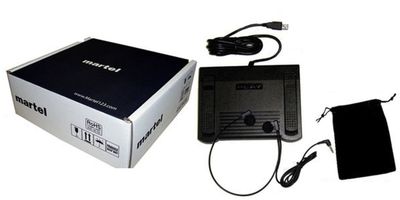
Product names can make a download and a complete kit sound similar. Read the included-items section and identify the software, license quantity, pedal, headset, and any documentation separately. A photograph can illustrate a workflow without proving that every pictured item ships with every version. The written package contents should resolve the choice.
Martel's video transcription software product lists two licenses and excludes the USB foot pedal and headset. The Zoom video transcriber kit includes the playback software, USB pedal, lightweight headset, and manual. The All N One audio/video kit lists Windows software with two licenses, a heavy-duty USB foot pedal, and an ultralight headset. Confirm current details on the linked product pages before ordering.
A license quantity does not by itself explain every activation or transfer condition. If you plan to move the software, share work across computers, or replace a machine, ask how that specific plan is handled. Keeping purchase details and installation information together can make a future support request clearer. Do not infer permission for unlimited installations from a package name.
Choose the software-only product when you need the application and already have compatible playback accessories. The important word is compatible. Verify an existing pedal rather than assuming that avoiding a hardware purchase will avoid every setup issue. This route suits buyers who can name the equipment they own and want to preserve an established workstation.
Choose the Zoom video transcriber kit when you want the software, pedal, and headset together for recorded-video transcription. Its buying question is practical: do you need a complete set of basic playback tools? Keep the distinction between transcribing a saved Zoom recording and controlling a live Zoom meeting clear. This kit's description concerns recording playback.
Consider the All N One audio/video transcription kit when your work involves a broader assortment of recordings and you want to review its published controls and format list. Read that list against your own sample files. The product page is the appropriate place to confirm current specifications. None of these choices removes the need to check the actual recording and the finished text.
A good evaluation produces a small finished document. Select a recording you are authorized to use and choose a short section containing the kinds of speech you normally encounter. Prepare the required speaker labels and formatting. Then work through intake, playback, typing, saving, and review. Record where you had to stop and why.
Separate product problems from task difficulty. If a name is unfamiliar, that is not automatically a playback failure. If the pedal does not respond, that is not automatically a problem with the recording. Your evaluation notes should identify the observed behavior: no audio, a missing control response, an unclear phrase, or difficulty finding your place.
Repeat the same short task after a meaningful adjustment. A change you cannot explain may be difficult to reproduce on a busy day. Keep only useful settings and observations. The goal is a workstation you can operate predictably, including after a restart or a routine switch between assignments. Do not turn a single easy demonstration into a prediction of all future work.
Keep a clear relationship between the original recording and the document you are preparing. A simple job folder can contain a source copy, working transcript, reference material, and final delivery. Choose names that communicate the recording's date or assignment identifier without revealing unnecessary information. Avoid a collection of indistinguishable documents called final, final2, and final-new.
Use consistent draft names and save at meaningful stages. Before a major edit, retain the preceding version if your workflow requires the ability to compare changes. If several people review the same job, agree who owns the current draft and how comments are returned. Conflicting versions create avoidable rework even when the playback equipment performs well.
Follow the storage and access rules established for the assignment. A local application does not determine every place files may be stored, synchronized, backed up, or shared. Review those choices separately. If confidentiality matters, confirm the permitted workflow with the organization responsible for the material rather than assuming a product label settles the question.
Video gives helpful context, but a visible name is not conclusive evidence of the person speaking. Someone may be using another person's account, speaking from outside the camera frame, or sharing a room. A screen-share view may also show a presentation while a different participant speaks. Use the recording and authorized reference material together.
Prepare a speaker list with confirmed names and roles. When identification is uncertain, use a consistent temporary label and mark the passage for review. Do not promote a guess into a confident name simply to make the draft look complete. A transparent uncertainty is easier to investigate than a silent attribution error spread across several pages.
Watch transitions carefully. Short interruptions and acknowledgments can be easy to assign to the wrong voice, particularly when you are concentrating on typing the longer speaker's sentence. Replaying the exchange at normal speed can help. Your procedure for speaker labels is part of transcript quality; it should not depend entirely on the application's video window.
A document can read smoothly and still contain an important error. Build a review pass for names, amounts, dates, measurements, addresses, and other details specific to the assignment. Use authorized reference material to confirm spelling, but compare the spoken content against the recording. A correct spelling does not establish that you heard the correct name.
Short words deserve attention as well. Negatives, qualifiers, and brief responses can change a statement's meaning. Listen beyond the isolated word so you can hear the structure of the exchange. Context can guide your questions, but it should not be used to replace speech with what you think the speaker probably intended.
Keep unresolved passages visible until they are reviewed. A marker with a source timestamp and brief note gives the next reviewer a starting point. Avoid repeatedly rewriting the same uncertain phrase without learning anything new. If the source cannot support a confident answer, follow the assignment's convention for uncertainty rather than manufacturing certainty.
Support matters most when the problem crosses several parts of the workstation. A pedal, a player, a headset, Windows, and a document application may each work individually while their combined workflow needs adjustment. Ask what setup assistance is available and what information the support team will need. A clear question is easier to answer than a general report that nothing works.
Prepare the exact product name, pedal model, Windows version, and the step where the problem occurs. Explain whether a known working file behaves differently. If the issue began after a change, identify that change without assuming it is the cause. This reduces the time spent repeating basic discovery and helps keep troubleshooting focused.
For purchases from Martel, use the current product links to review the options and contact the company about your equipment and recordings. Do not buy an extra kit solely because an existing pedal has not yet been identified. A short compatibility conversation can clarify whether you need software, accessories, or a different complete package.
Instead of asking only whether a product is good, ask whether it opens a representative file, supports your pedal, and works beside your writing application. Ask what is included, how many licenses are supplied, and what the user must do to create the transcript. These questions turn a broad search into a concrete purchasing decision.
Also ask which claims have limits. Does a supported format depend on the file's encoding? Does a particular convenience apply to every package or only one? Does a phrase such as transcription software refer to playback or automatic text generation? Precise answers prevent mismatched expectations and make it easier to compare products fairly.
Your final choice should leave you with a straightforward explanation of the workflow: where the recording comes from, how you control it, where you type, and how you verify the result. If those pieces are clear and the sample assignment works, you have a more useful basis for buying than a long list of loosely related features.
A useful budget separates equipment, software, setup, and ongoing work. A download may be appropriate when you already own compatible accessories. A complete kit may avoid separate equipment purchases when you are starting from an empty desk. Neither comparison is complete until you confirm what the package contains and which existing items you can actually reuse.
Include the work required to produce the same reviewed deliverable. As a purely illustrative example, suppose one route produces a draft quickly but requires a long correction pass, while another takes longer to draft and less time to revise. Compare their total time using your own short assignment. Do not assign a fixed transcription speed to all recordings: clear narration and a difficult group discussion place different demands on the typist.
Support and interruption costs are also practical considerations. If you cannot identify a pedal model or diagnose a file problem, a clearly defined support path may matter more than a small difference in initial price. Ask precise questions before buying and retain the answers with your purchase information. The objective is a predictable working setup rather than a nominal bargain whose missing pieces appear after installation.
Prepare a short acceptance note describing the work you need to complete. For example: open this authorized recording, listen through this headset, use this pedal while Word is active, prepare a short transcript, save it, and return to a marked passage. Name the actual equipment and file rather than writing only that video playback must work.
Separate required functions from preferences. If pedal control is essential, an unsupported pedal is a purchasing issue. If you would simply prefer a different window arrangement, evaluate whether the available layout is usable before treating it as a failure. If the assignment needs a specialized export, obtain explicit confirmation instead of inferring it from broad transcription terminology.
At the end of the exercise, write down the observed result. A statement such as this sample played with sound, seeking, and pedal control is more useful than the software seems powerful. Record any untested assumptions as questions. This gives you a concrete basis for a support conversation and a fair way to decide whether the setup fits your work.
Words such as professional, simple, and complete can describe an intention without answering your practical questions. Translate them into observable behavior. Simple might mean that a new typist can open a recording and operate three controls after a short orientation. Complete might mean that the software, pedal, headset, and instructions you need are included. Professional might mean that the workflow supports your document requirements and review process.
Ask the supplier to connect the description to the task rather than arguing over the adjective. You will make a better decision by confirming an exact accessory, supported file, or license condition. Retain realistic expectations: useful playback tools can support careful work, while the recording's quality and the typist's review still determine what the source can establish.
It is software used to help turn recorded speech from video into written text. Products vary: some generate an automatic draft, while others provide playback controls for a person who listens and types. Confirm which process a particular product supports before comparing prices or packages.
A manual video transcriber gives the user control over a recording while the user prepares the text. Playback functions can support listening, replay, and navigation. The typist remains responsible for the words, speaker labels, punctuation, and review of uncertain material.
The Martel pages describe working from saved Zoom recordings using controlled playback. Obtain the finished recording, confirm it is in a supported format, and test it before beginning a long assignment. You type and review the document in your chosen word processor.
No. In a manual transcription workflow, the pedal controls playback functions rather than creating the transcript. Its practical value is allowing you to operate the recording while keeping your hands near the keyboard. Check the supported controls for the application and pedal model.
Do not assume universal support. Identify the exact pedal model and ask whether the application supports it. Test the controls while the word processor is active. The physical USB connection alone does not establish that the player's control mapping will work as expected.
Software alone may fit if you already own compatible equipment. A kit is a clearer starting point when you need both playback software and accessories. Compare the written included-items list, not just the product photograph, and verify any equipment you plan to reuse.
It lets you adjust the pace while listening. A modest reduction can help you follow rapid speech, while normal-speed review helps with sentence flow and speaker changes. Choose a setting that supports comprehension; slowing down cannot recreate words that were never recorded clearly.
It refers to speed adjustment intended to avoid the obvious pitch shift associated with changing analog tape speed. Listen to the result on your own files. It is a playback convenience, not an assurance that every unclear word will become understandable.
It is a replay setting that can return playback by a short interval when resuming. The repeated context helps some typists reconnect with their place. Test a comfortable starting setting and change it gradually instead of assuming the longest replay is most helpful.
Martel's descriptions identify working with Word and other major word processors. Confirm the workflow by opening the recording and document together and testing the pedal. Working alongside a word processor does not imply automatic formatting or specialized transcript synchronization features.
Two displays can provide more room, but they are not a universal requirement. A single readable arrangement may work well. Choose a layout that keeps the document and necessary video context accessible without making you repeatedly search for controls or strain to read text.
No. A participant label, shared account, or visible face can be useful context but should not replace careful listening and confirmation. Use temporary labels for unresolved identities and follow the assignment's method for documenting uncertainty rather than guessing.
They serve related but different purposes. A readable transcript is a document; subtitles also require timing and presentation decisions for video playback. Confirm the required output and do not assume a manual transcription player automatically creates an upload-ready subtitle file.
Begin by testing the original supported file. Unnecessary conversion adds steps and can introduce problems. If conversion is needed, retain the original, work on a copy, and check sound, picture, duration, and navigation afterward. Renaming an extension is not conversion.
Playback adjustments can help you inspect what is present, but they cannot guarantee recovery of missing or badly obscured speech. Compare a difficult passage at sensible settings and keep uncertainty visible. Better controls and better source audio are separate considerations.
Compare finished, reviewed documents with the same formatting requirements. Include the time needed to correct names, speaker labels, and errors in either route. A rapidly produced rough draft and a carefully reviewed final transcript are different outputs.
Choose the option that lets you understand speech comfortably in your environment and meets the assignment's privacy needs. A headset is often practical for focused listening. Test another output device when diagnosing poor sound instead of immediately blaming the recording or software.
Not necessarily. Excessive volume can be uncomfortable and does not separate overlapping voices or restore missing detail. Adjust gradually, listen to context, and compare devices when appropriate. A clear recording at a comfortable level is more useful than simply maximizing volume.
Test a representative recording, your word processor, any existing pedal, speed controls, replay behavior, and saving a short draft. Include a difficult sample from your actual work. A realistic small assignment reveals more than a feature list alone.
Use the convention specified for the assignment. Keep a timestamp and enough context for review, and distinguish uncertainty about wording from uncertainty about speaker identity. Do not quietly replace an unresolved phrase with an educated guess merely to complete the page.
Only if the package explicitly says so. Martel's software-only listing excludes the pedal and headset. Review the complete-kit options if you need accessories, and compare the included-items sections because package contents can differ between products.
Operating-system compatibility and media-file compatibility are different questions. Confirm both. A program running on your computer may still need a particular file encoding or a different supported source. Use an actual sample rather than relying exclusively on extensions.
Manual playback tools can support interview transcription when the recording is compatible. Prepare confirmed speaker names and the required level of detail before starting. The workflow remains listening, typing, and review; the application does not resolve every ambiguous response for you.
Review the product's published compatibility and test an authorized representative file. Body-camera recordings can include multiple voices and challenging sound. Confirm access and handling requirements with the responsible organization and keep uncertain speech clearly marked during review.
The required document format, careful source review, accurate attribution, and explicit handling of uncertainty matter alongside dependable playback. Software features alone do not determine whether a document meets a particular court's or client's requirements. Follow the applicable assignment instructions.
Keep the source recording, working transcript, reference material, and delivery version clearly identified. Divide the work at meaningful boundaries and note where you stop. Consistent names and timestamps make it easier to resume and reduce confusion between similar drafts.
Provide the product and version, Windows version, pedal model, file extension, and the exact failing step. Explain whether another known working recording behaves differently. Share only material you are authorized to provide, and describe recent changes without assuming their cause.
Search terms help you discover options, but the purchase should follow your recordings and workflow. A result matching video transcription software may describe automatic text generation or manual playback. Read the actual product details before deciding that the wording establishes fit.
Check the text against the source, then inspect names, numbers, speaker labels, unresolved markers, formatting, and file identity. Keep content review distinct from presentation review so a well-formatted document does not distract you from an error in the spoken information.
Use the product links below to compare the software-only download, Zoom video transcriber kit, and All N One audio/video transcription kit. Identify whether you need equipment or only software, then confirm your files and existing pedal with Martel before choosing.
Software-only download with two licenses. USB foot pedal and headset sold separately.
View product detailsSoftware, USB foot pedal, lightweight headset and manual for recorded-video transcription.
View product detailsWindows software with two licenses, heavy-duty USB foot pedal and ultralight headset.
View product detailsCheck the product page for current price, availability and package details. For help choosing a setup, call (800) 553-5536.
Written for Martel Electronics. Practical examples and workflow recommendations are original editorial guidance; the product links above provide the current Martel specifications.
Platform guidance checked November 5, 2026. Menus, account features and product details can change.
Martel Electronics Sales Inc. · Serving professionals since 1957 · martelelectronics.com