Transcription Kit Compatibility Checklist: Files, Pedals and Computer Setup
Choose and test a transcription kit using real recordings, current computer requirements, pedal controls, headset connections and acceptance checks.
Learn how to transcribe a video with clear speaker labels, useful timestamps, foot-pedal playback, review passes and a reliable delivery checklist.
Chapter 2 of 10 · Video and Zoom transcription
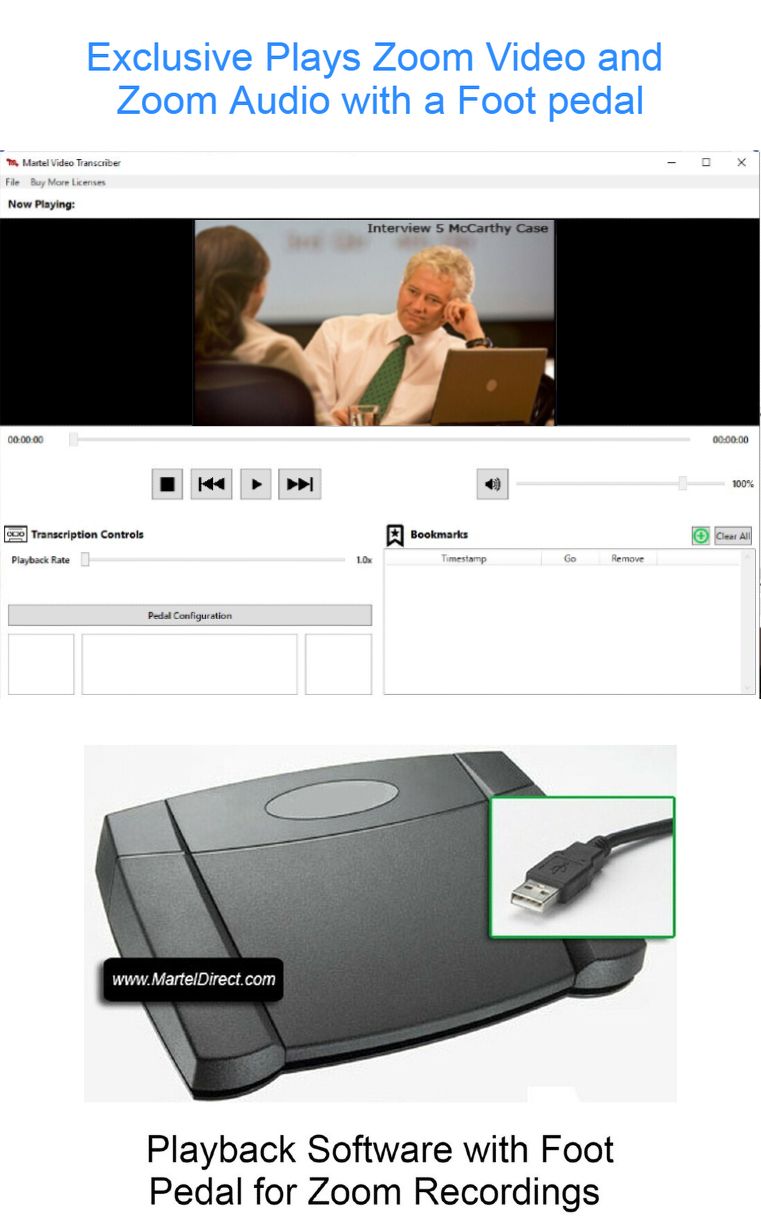
To transcribe a video, listen to the recorded speech, identify speaker turns, write the words in the requested style, and check the document against the source. The picture may provide useful context, but spoken words still need to be heard. A good transcript gives the next reader a reliable way to understand and revisit the recording.
Start with a complete, authorized copy of the video and a written description of the deliverable. A downloadable MP4, a streaming link and a folder of camera exports present different starting conditions. A link that opens for the sender may require permissions you do not have. Resolve access before quoting a turnaround or preparing the document.
This chapter focuses on production technique. For the broader equipment plan, begin with the video-to-text workflow overview. For a specific file problem, use the MP4 troubleshooting guide. If the source is a recorded Zoom meeting, the Zoom chapter covers exports and transcript settings separately.
Record which files are included, which portions must be transcribed and which portions can be excluded. If the assignment covers an entire interview, check whether introductions, breaks and discussion after the formal close are included. A note saying “start at the interview” can mean different positions to the sender and typist.
Agree on how to handle overlapping speech, meaningful sounds, false starts and incomplete sentences. Also specify whether the recipient wants a readable transcript, a strict word-for-word rendering, timed captions or a summary. These are editorial requirements, not settings that a foot pedal will determine for you.
Create a small issue list before starting. Include missing names, unclear filenames, unavailable documents and any uncertainty about scope. Resolve what affects the whole job first. It is more efficient to settle speaker labels and timestamp format once than to repair them across a long transcript later.
For a practical exercise, write this sentence in the job note: “Deliver a speaker-labeled transcript of files A and B, with elapsed times tied to each source file and unresolved words marked for review.” Replace each general term with the actual requirement. That sentence becomes a useful check against accidental scope changes.
Open the video and inspect the beginning, a middle section and the end. Confirm that the expected duration is plausible and that picture and sound remain available. A file can begin correctly yet contain an incomplete transfer, a damaged later section or a second part that was not supplied.
Listen with the output device you intend to use for transcription. Confirm that the sound is coming from that device rather than a laptop speaker across the room. If one participant seems absent, check whether the problem is a listening connection, an audio channel or the recording itself before deciding that the speaker was silent.
Watch for a mismatch between picture and sound. If a visible speaker’s movements consistently disagree with the audio, note the issue and compare playback in another trusted, appropriate player. Do not attempt to “correct” the transcript by guessing when a person must have spoken. Establish which source and timeline will govern the document.
Keep an intake record with filename, approximate duration, file size and a short description. File size alone does not prove completeness, but it can help explain whether two people are reviewing the same delivered copy. Where your organization already uses file hashes, retain those through its normal process as an additional identity check.
Create the title, source-file reference and speaker-label list first. Choose consistent paragraph spacing and a readable style. Save the file in the intended working location, and confirm that the application’s save or recovery behavior fits your organization’s requirements. Do not wait until several pages are complete to discover that the document is in an unexpected folder.
Use a neutral filename that distinguishes the working transcript from the source media. For example, a practice job might use Interview-A_transcript_draft-01 and Interview-A_review-notes. Those names are illustrative, not a required convention. The useful principle is that another team member can identify the source, status and revision without opening every file.
Keep editorial notes separate from transcript text. If you must insert a temporary query in the document, use a consistent marker that can be searched later. A private reminder such as “ask about this name” should not quietly remain in the delivered transcript.
Prepare a reference list of supplied names and specialized terms. Treat it as a spelling aid, not as a script that overrides the recording. If the speaker says a different term, the transcript should follow the agreed treatment of what was actually said.
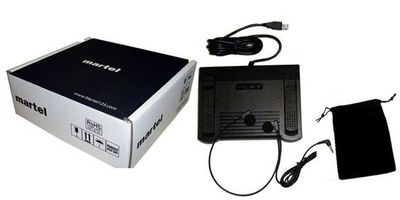
The Zoom Video Transcriber with Foot Pedal is a Martel option for controlling recorded video while working in a separate document. Compare the audio/video kit when your incoming files include MP4 and other video formats. Verify the exact sample and current computer requirements before deciding between listings.
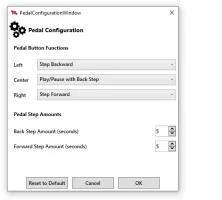
Check play, stop and reverse behavior with the document selected. Use a short passage to ensure that pressing the pedal does what you expect while your typing cursor stays in place. A successful test in the playback window does not confirm the complete workflow.
Find a comfortable listening level, then choose a starting playback speed. Keep normal speed available for final checks. Slowing a dense phrase may help interpretation, but the goal is intelligibility. Do not assume the slowest setting gives the most accurate understanding of emphasis or sentence boundaries.
Arrange the keyboard, pedal and screen so you can operate them without repeatedly shifting position. Leave room for the pedal to stay stable. If a control requires awkward movement, adjust the arrangement before a long session. The foot-pedal technique guide explains how to evaluate replay length and stopping rhythm.
Listen through the opening and sample transitions before drafting line by line. Learn how speakers introduce themselves, whether questions follow a regular pattern, and whether the video contains presentations or demonstrations. Note obvious changes in location, microphone conditions or recording segments.
Create a simple speaker map. It might say that Speaker A asks questions, Speaker B responds, and Speaker C joins later. Replace neutral labels only when identity is adequately established for the assignment. A voice that sounds similar to another person is not sufficient evidence by itself.
For a demonstration video, note where an action changes the meaning of the words. “Turn this clockwise” may be unclear without identifying the part on screen. Decide whether the assignment includes a separate visual description or only the spoken transcript. Keep that distinction visible throughout production.
Estimate the difficult portion rather than treating the recording as uniform. A clear introduction may be easy, while a group discussion in the final section may require repeated review. This early survey helps create a realistic working plan and prevents a rushed final third.
Work with phrases, questions or short speaker turns that you can retain accurately. Stop before your memory becomes uncertain, type the passage, and replay a small amount for context. The right segment length changes with speech density and familiarity. It is a working choice, not a speed contest.
Preserve meaningful corrections. In the invented sentence “The shipment arrived on the ninth—sorry, the tenth,” the correction matters. A readable transcript may handle the hesitation differently from a strict transcript, but simply deleting the change can misrepresent the conversation. Apply the agreed style rather than cleaning every sentence automatically.
Do not use punctuation to manufacture certainty. A question mark, comma or sentence break can change how a statement reads. Listen to the full exchange when a short phrase is ambiguous. Context can help interpretation, but it should not become permission to add an explanation the speaker never gave.
When two voices overlap, capture what is intelligible under the assignment’s convention and mark the unresolved portion. Avoid inventing a clean exchange merely because the document would look tidier. Return to overlap during the detail pass with the source position recorded.
Speaker attribution deserves its own review. A transcript can contain the correct words and still assign them to the wrong person. This is especially easy when several participants share a microphone, someone speaks off camera, or the camera remains on a listener.
Use verified introductions, direct address and consistent context to investigate identity. Do not treat an active-speaker border, displayed account name or camera framing as infallible. A room may join under one account while several people speak through its microphone.
Keep labels consistent when names are confirmed later. Search the document for earlier labels and review each replacement in context. A global replacement is useful only when the mapping is certain. If two people were grouped under one temporary label, they need individual review.
Document unresolved attribution through the agreed convention. For internal review, a note such as “unidentified participant at file A 00:18:42” gives the reviewer something specific to investigate. It is more useful than an unexplained question mark at the end of a paragraph.
Use the recording’s elapsed time unless the assignment specifies another clock. State that convention in the document. A displayed meeting time, a camera’s date stamp and a player’s elapsed counter may all be different. Mixing them without explanation makes references difficult to reproduce.
When files are separate, keep the file identifier with timestamps. If you combine references into one timeline, document the offsets and account for breaks. Do not assume that two successive recordings meet exactly at their displayed endpoints. A pause between files may be part of the event even though it is absent from the media.
Choose a useful reference interval. Some assignments need speaker-turn markers; others need periodic markers or only references for unresolved passages. More timestamps are not automatically better. A crowded document can be harder to read, and unchecked times create false precision.
Verify selected early, middle and late references by navigating back to them. Where the source contains edits or multiple exports, check that the references match the exact copy delivered to the recipient. A trimmed video may no longer share the original elapsed timeline.
If the deliverable includes non-speech information, use a consistent convention for meaningful sounds. W3C’s audio-to-text guidance discusses transcription for accessible media. The practical lesson is to consider what a reader needs to understand, rather than treating every sound or every silence as equally important.
A transcript for an instructional video may need to distinguish a spoken warning from an alarm heard in the recording. A separate visual note may identify a change on screen. Use plain labels that do not imply the observation was spoken aloud.
Avoid interpreting facial expressions or motives as facts. “Participant looks down at the document” is a visible action if the task calls for it. “Participant is embarrassed” adds an inference. Keep descriptions limited to what the assignment requires and what the recording supports.
If captions are also required, treat timing and segmentation as additional work. A transcript can support caption creation, but it does not become a complete caption track merely by including a few elapsed times. See the workflow overview for the distinction between these deliverables.
Run a dedicated pass for names, numbers, dates, units and negatives. “Fifteen” and “fifty” may look equally plausible in context. A missing “not” can reverse a statement. A fluent automatic or manually typed sentence should never be accepted solely because it reads naturally.
Review repetitions and corrections against the source. A duplicated paragraph may come from replaying a passage and typing it twice. A missing line may come from jumping forward after a pause. Check continuity between paragraphs as well as the spelling inside each paragraph.
Use the issue list as a review queue. Resolve items with the source, document the outcome and retain any remaining uncertainty. Where another reviewer is available, provide the file and exact position instead of asking them to guess which passage caused concern.
Finally, listen at normal speed while reading a substantial continuous section. This can reveal missing transitions and incorrect speaker changes that are less obvious when reviewing isolated difficult words. Choose the full-review scope required for the assignment; a brief sample is not a substitute for an agreed complete review.
Open the final exported document and inspect its layout. Confirm the correct version, source identifiers, page breaks, speaker labels and timestamp format. Search for working markers, placeholder labels and comments that should not be part of the delivery. Verify the document itself, not just its filename.
Include a concise handoff note stating the covered files, transcript style and any unresolved limitations. If part of a recording was absent or unintelligible, identify the location. Avoid declaring the transcript complete when an excluded section or missing file has not been explained.
Keep your working media, notes and final document organized according to the project’s storage rules. The recipient should not need your personal memory to understand which recording produced which transcript. A repeatable handoff is part of the quality of the work.
For equipment planning, return to the transcription category. For the next production problem, continue to transcribing MP4 files, where container compatibility, silent playback and seeking receive closer attention.
Use a harmless sample to practice how your chosen transcript style treats a corrected statement. Imagine the recording contains this exchange: a question asks when a package arrived, and the answer says, “Tuesday—no, Wednesday morning, before the meeting.” The following table illustrates document choices; it is not a transcription of a real customer recording.
| Output | Possible treatment | Review point |
|---|---|---|
| Detailed transcript | Retain the Tuesday-to-Wednesday correction | Confirm the exact spoken wording |
| Readable transcript | Preserve the correction while applying agreed punctuation | Do not silently erase a meaningful change |
| Meeting summary | State the confirmed Wednesday timing if the assignment permits summarizing | Label the output as a summary |
| Quotation list | Use the selected words with a source reference | Do not make separated speech look continuous |
Now add an interruption: another participant begins speaking between “Wednesday” and “morning.” The typist needs to decide how the agreed convention represents the overlap, while the reviewer checks whether the final word belongs to the original speaker. A clean-looking sentence is not sufficient evidence that the exchange was captured correctly.
Repeat the exercise with a number and a negative. Listen for an amount that is corrected and a statement containing “did not.” These short examples help a new typist understand why accuracy review should focus on meaning as well as spelling. They also expose whether the player’s replay controls make it easy to examine the full exchange.
Keep the practice reference with the setup notes. After a pedal mapping or software change, repeat the same passage and confirm that the user can still stop, replay, identify the speaker and return to the document without confusion. This gives the workstation a small, concrete acceptance exercise that can be reproduced by another person.
Yes, when your playback tool supports the supplied video. Direct video playback preserves convenient access to the picture. Extract audio only when the workflow needs it and you have a reliable method. Keep the original and document the relationship between any derived audio file and the video timeline.
Only according to the assignment. A spoken transcript, a descriptive transcript and captions have different purposes. Identify essential on-screen information when the deliverable requires it, and label it as visual information. Do not silently insert screen text into a speaker’s words.
Determine whether the person is the same speaker, whether an account label changed, or whether another participant took over. Review earlier references before changing labels. A consistent but incorrect name is still an error, and a blind replacement can spread it throughout the document.
It can be, if the service is appropriate for the recording and the draft is checked. Compare total correction and review time with manual drafting. Keep the original media available. Do not assume that punctuation, speaker attribution or unfamiliar names are correct because the generated text looks polished.
Replay enough surrounding speech to establish context, check legitimate reference material, and retain an exact source position. Avoid endless looping that increases confidence without adding evidence. If the word remains uncertain, use the agreed marker and send the issue for review.
Do not assume it does. Recorded-media playback and live meeting controls are different functions. Choose equipment for the task stated on its product page. The video transcription workflow here concerns reviewing saved recordings while preparing or checking a document.
Use a representative authorized file on the intended computer. Test picture, sound, seeking and pedal control while typing in the actual document application. Include a passage near the end of the file. The kit compatibility checklist provides a fuller acceptance plan.
Clear capture helps, but names, terminology, speaker changes and editing decisions still need review. Define the required checks and report unresolved passages honestly. A repeatable process with traceable source references is more useful than an unsupported guarantee that no error can occur.
Research note: Product details were checked against Martel’s current product pages. Technical references are linked beside the relevant guidance. Worked examples and worksheets are original illustrations, not measured product benchmarks. Features, licensing and software interfaces can change; confirm the current product details before ordering.