How to Record Everyone Around a Long Conference Table
Build a repeatable room-recording setup with deliberate microphone positions, a seat-by-seat acceptance check and a clear recording-to-file handoff.
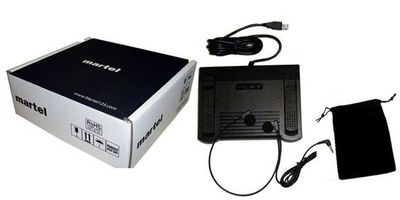
Plan a video-to-text workflow, choose compatible transcription equipment, and follow ten practical guides covering MP4, Zoom, MP3, software, foot pedals and meeting transcripts.
Chapter 1 of 10 · Video and Zoom transcription
Video-to-text transcription is the work of turning recorded speech into a document that another person can read, search and check. The finished result might be a speaker-labeled interview, a meeting transcript, a reference document for an editor, or text used to prepare captions. Those outputs share a recording, but they do not share every formatting rule. Decide what the reader needs before choosing software or beginning to type.
For example, a communications team may want readable paragraphs with important quotations preserved. A researcher may need every spoken response, including unfinished sentences. A video producer may need timed text that appears while the words are spoken. A manager may want decisions and action items rather than a full transcript. Calling all four jobs “transcription” without specifying the deliverable creates avoidable rework.
Write a short job brief containing the recording names, expected output, speaker-label convention, timestamp convention, review responsibility and deadline. If the client supplies a style sheet, make that the working reference. If the assignment has formal requirements, resolve them before production. A recording player cannot decide which omissions, punctuation choices or document format the recipient will accept.
This guide is the starting point for Martel’s ten-part transcription workflow series. Follow the chapters in order for a complete buying and production plan, or use the linked specialist guides when you already know the task. The series moves from video and Zoom recordings to audio files, software choices, foot-pedal technique and final equipment checks.
A useful system separates playback, text creation and review. Playback software opens the recording and controls what you hear or see. A word processor or transcript editor holds the document. Automatic speech recognition, when you choose to use it, generates a draft that still needs checking. These functions can be combined in one application or handled by several tools.
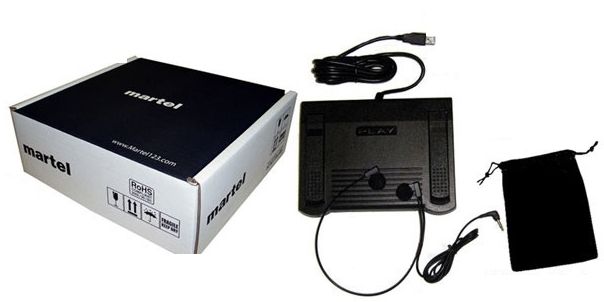
A foot-pedal transcriber belongs primarily to the playback part of that system. The pedal sends control commands to compatible software while your hands remain available for typing. It does not itself recognize voices, identify participants or turn speech into a finished document. A product described as transcription software therefore needs a closer reading: does it control recorded media, generate text, or do both?
For video review, begin with the Zoom Video Transcriber with Foot Pedal. For MP4 and mixed audio/video assignments, compare the All N One audio/video transcription kit. For an audio-focused workstation, see the All N One audio transcription kit. These are product routes to evaluate against your files and computer, not interchangeable promises that every recording will work.
Keep the purchasing decision tied to the task. Someone who receives video interviews needs to evaluate picture playback and navigation. Someone handling MP3 dictation needs dependable audio control. Someone correcting an automatic draft needs an efficient way to return to the recording while editing text. The software explained guide develops these distinctions in more detail.
Make a small inventory of actual incoming files. Include the filename extension, recording source, duration, number of files, expected speakers and whether picture review is necessary. Record any known export settings. A folder containing one MP4, one audio-only file and one transcript file may represent one meeting in three forms; it is not necessarily three different assignments.
An MP4 filename describes a media container. The audio and video inside it have their own encodings. That distinction explains why a broad format list is not a guarantee for every file carrying that extension. MDN’s media documentation describes the relationship between containers and encoded tracks. For a purchase, the useful evidence is successful playback of a representative, authorized sample.
Choose samples that resemble your difficult work, not only a short demonstration supplied by a vendor. Include a longer recording, a quiet participant, a file with several speakers and an example exported by your usual client. If you routinely receive separate sessions, test them separately. A system that opens the first minute has not yet demonstrated reliable seeking near the end.
Keep the original recording intact and organize a working copy when your workflow calls for one. Do not rename an extension to make it look like another format. Document any necessary conversion and keep the relationship to the original obvious. The MP4 guide and MP3 guide explain the different questions to ask for those files.
“Verbatim” can mean different things to different customers. One assignment may preserve repetitions and incomplete words. Another may remove routine fillers while retaining the speaker’s meaning. Avoid assuming that “clean” gives permission to rewrite an uncertain statement into a polished one. Put examples in the job brief so the typist and reviewer apply the same rule.
Consider this invented practice sentence: “I, um, sent it Tuesday—no, Wednesday, after lunch.” A strict rendering may retain the hesitation and correction. A readable transcript might omit “um” but preserve the Tuesday-to-Wednesday correction. A meeting summary could state that the item was sent Wednesday after lunch, but that is a summary decision rather than an exact record of the sentence.
Set speaker labels before the first pass. Use verified names where they are available, and consistent neutral labels where they are not. A person’s position on screen, display name or nearby microphone can help investigation, but none should automatically settle an uncertain identity. Maintain a speaker list with notes explaining confirmed changes.
Also decide how to mark unclear passages. A useful working marker identifies the issue and its location, such as an unclear name at a recorded elapsed time. Do not make an uncertain guess look certain simply to remove a marker. The reviewer needs to know what remains unresolved and what evidence was used to resolve it.
A transcript is usually read as a document. Captions are synchronized with media playback. Meeting notes select and organize information for a particular purpose. Producing one does not automatically complete the other two. This distinction matters when an inquiry asks for “video transcription” but the actual deliverable is an uploadable caption file.
W3C’s transcript guidance explains that useful transcripts may need relevant visual information as well as audio information. Its caption guidance also addresses meaningful non-speech audio. For a training video, an essential instruction shown only on screen may need attention even if nobody reads it aloud.
Specify caption work separately if it is required. Text still needs timing, segmentation and playback review in an appropriate caption workflow. A paragraph with occasional timestamps is not automatically a correctly timed caption track. Likewise, a downloaded caption file can be a starting point for a readable transcript, but headings, labels and presentation may need editing.
For ordinary meeting notes, separate quoted or transcribed statements from editorial action items. If a deadline was unclear in the recording, a note writer should flag it for confirmation rather than silently choose a date. Clear labels help readers understand which parts reproduce speech and which parts summarize the discussion.
Place the recording player and document where both remain easy to see. With video, keep the picture large enough to inspect relevant changes without repeatedly resizing it. With audio, prioritize the transcript and playback position. A second display can be useful, but an organized single-screen layout is a reasonable starting point.
Test the pedal while the word processor has focus. Pressing play successfully while the player is selected is only half the test. The real assignment involves typing in another application, pausing, replaying a phrase and continuing without a lost cursor position. Verify the commands and press/release behavior your particular software supports.
Start at normal playback speed. Use a short section to judge intelligibility, then adjust pace only where it helps. A faster setting that creates more corrections may increase total work. A slower setting can help with dense speech, but excessive slowing can make phrasing harder to follow. Judge the finished passage, not the apparent speed of typing.
Keep a simple setup note listing computer, software version, pedal model, output device and chosen controls. This is useful when another typist takes over or an update changes behavior. The foot-pedal technique chapter provides exercises for finding a practical stopping and replaying rhythm.
The first pass is an orientation pass. Listen to enough of the recording to understand its structure, speaker changes and difficult sections. Confirm that the beginning and end are present. Note obvious breaks, missing sections or mismatched files before committing to a delivery time. This pass prevents formatting an entire document around an incorrect assumption.
The second pass creates the draft. Work in phrases or short exchanges. Preserve the agreed transcript style and insert clear markers for unresolved details. Do not stop indefinitely on one difficult word when a later statement may clarify it. Track unresolved points in a separate list so they remain visible during review.
The third pass resolves details. Check names, numbers, dates, units, negatives and speaker attribution. A fluent sentence can still be wrong. Use supplied glossaries to investigate spelling, but listen again before substituting a term. A reference document can explain vocabulary; it cannot prove that a particular word was spoken.
The fourth pass checks the delivery. Compare the document with the recording, confirm coverage and inspect the exported file. Look for missing speaker turns, duplicated paragraphs, broken timestamp conventions and unfinished markers. Open the exact file intended for delivery rather than assuming that the editable working document and final export are identical.
Choose one timing convention and state it. Elapsed recording time is often practical for review, but it is different from wall-clock time or embedded production timecode. A reference to 00:12:30 should make clear which file and timeline it belongs to. If there are several recordings, include a source identifier with the reference.
Do not silently reset the timeline when combining files. Suppose a meeting has a 40-minute first segment and a 20-minute second segment. A timestamp of 00:05:00 in the second file does not refer to the fifth minute of the complete meeting. Either retain per-file references or document a combined timing scheme that the recipient can reproduce.
Test several references by jumping back to the recording. Include an early, middle and late passage. A reference that lands close to the correct sentence can still be inconvenient if the requested standard requires a tighter match. Decide the needed precision based on the deliverable rather than adding decorative timestamps that nobody has checked.
When visual observations are included, distinguish them from speech. “Screen shows revised total” is an editorial description of an image, not a quotation. A clear convention lets the reader understand whether a statement was heard, seen or added as a production note.
Recording length alone does not determine production time. Speaker overlap, unfamiliar terminology, poor capture, detailed formatting and review requirements can change the workload substantially. Rather than rely on a fixed industry multiplier, time a representative section using your actual tools and transcript style.
For an illustrative planning exercise, imagine that drafting and checking six minutes of media takes 24 minutes. That sample suggests four working minutes per recorded minute for similar material. It does not guarantee that a one-hour assignment will take exactly four hours. Add time for setup, difficult sections, document preparation and the final review.
Keep draft-generation time separate from review time when testing automatic tools. A rapid automatic draft may still require substantial listening. Measure the combined process from receiving the file to obtaining an acceptable final document. This is a more useful purchasing comparison than timing only the first appearance of text.
For repeated assignments, keep a private production log containing recording duration, task type and completed working time. Over time, that gives your team a more relevant planning baseline than a general claim about how fast everyone should transcribe.
Before ordering, identify the exact job that must work on day one. Include the file source, computer operating system, software edition, required pedal, headset connection and document application. List any purchasing assumption that would cause failure if it were wrong. Examples include Mac compatibility, background pedal control or direct support for an unusual file.
Ask whether a listing is software-only or a complete kit. Confirm license terms, installation help and included accessories on the current product page. Do not infer that two similarly named listings include the same hardware. A product photograph is useful, but the written package contents should settle what you are buying.
Use a small acceptance record after setup: sample opens, sound is audible, video is usable where needed, pedal commands work while typing, seeking works throughout the file, and the final document can be saved and reopened. Record exceptions immediately. The compatibility checklist turns this into a detailed handoff process.
Browse transcription kits, software and foot pedals with that checklist in hand. Buying a complete workflow means knowing how the recording reaches the typist and how the reviewed text leaves the workstation, not merely choosing the largest feature list.
Consider an invented assignment consisting of a 55-minute video interview and a request for both a reviewed transcript and a short quotation list. The team should treat these as two outputs from one source, with different checks. The transcript follows the complete agreed scope. The quotation list selects passages and therefore needs accurate source references and enough context to avoid changing their meaning.
At intake, the coordinator confirms that the supplied MP4 is the full interview, records its original filename and obtains the participant names. The typist checks picture and sound at several positions before selecting the playback workflow. A reference list provides spelling, but unresolved words remain marked until the recording or an authorized review settles them.
During drafting, the typist records source times for candidate quotations without interrupting the full transcript process. The reviewer then checks the selected wording against the same source copy. If a quotation removes an interruption or combines nonadjacent statements, that editing decision must be visible under the publication’s rules rather than concealed as continuous speech.
The final handoff contains the transcript, quotation list and a short note naming the covered source. If an edited video later arrives, the coordinator does not silently replace the source and reuse the old timestamps. The team first checks whether the selected passages and timing still match. This is a practical example of why source identity belongs in the workflow from the beginning.
For buying purposes, the important requirements are now concrete: the player must open the actual MP4, support usable picture review, permit efficient replay while typing and allow reliable navigation to quoted passages. Automatic drafting may be useful, but it does not remove the need for those checks. A buyer can take this specific task to the product pages rather than asking a feature list to define the job.
Use the same exercise for your own work. Name the source, the outputs, the review decisions and the handoff. Each step reveals a requirement the equipment and software must support, and each requirement can be checked with a representative file before a large assignment begins.
A video transcriber can mean software for controlled listening and viewing while a person types. Automatic transcription means speech recognition produces text. Some tools combine functions, so check the actual feature description. For Martel playback equipment, plan a human typing or correction step and a separate finished document.
Sometimes audio is enough. Video can still help confirm who is speaking, locate an exhibit or understand a reference to something on screen. Decide whether those visual checks are part of the assignment. If they are, retain access to the video even when most drafting is done by listening.
A compatible word processor can hold the transcript while a separate player controls the recording. Test pedal behavior with the document active. Word’s own automatic Transcribe feature is a different workflow from typing in a Word document while using a Martel player; buying playback equipment does not add that Microsoft feature.
No single style fits every assignment. A quotation review, a research interview and an internal meeting summary have different purposes. Agree on the required detail and label the output accurately. Do not describe edited notes as an exact transcript if words or exchanges have been deliberately omitted.
Changing a file format does not recreate speech that was never captured clearly. Conversion may solve a compatibility problem, but it can also introduce a new processing step. Preserve the original and make any working copy identifiable. Diagnose the playback issue before assuming that conversion is necessary.
An occasional short recording can be handled with ordinary playback controls. A pedal becomes worth evaluating when stopping and replaying repeatedly interrupts typing. Test it on your own assignments and measure the complete task. Its value comes from control and workflow fit, not a guaranteed speed increase for every person.
Mark it, retain its source location and review it with the available context. A participant list or glossary can help investigate spelling, but it should not replace listening. If uncertainty remains, communicate it through the agreed convention rather than turning a plausible guess into an apparently verified fact.
Start with how to transcribe a video for the production process, Zoom recordings for meeting exports, or MP3 transcription for audio-only work. Use software selection before purchasing. Each chapter links to the next, and the final checklist returns here to close the series.
Research note: Product details were checked against Martel’s current product pages. Technical references are linked beside the relevant guidance. Worked examples and worksheets are original illustrations, not measured product benchmarks. Features, licensing and software interfaces can change; confirm the current product details before ordering.