Transcription Kit Compatibility Checklist: Files, Pedals and Computer Setup
Choose and test a transcription kit using real recordings, current computer requirements, pedal controls, headset connections and acceptance checks.
Plan meeting transcription around capture, speaker labels, automatic drafts, foot-pedal review, action-item checks and a clear final handoff.
Chapter 9 of 10 · Foot pedals, meetings and kit selection
Meeting transcription software can only work with the speech and context available to it. A clear recording, an agreed output and a practical review process are therefore part of the purchase decision. Choosing an application after a difficult meeting has ended may leave you trying to solve capture problems with playback controls.
Start by defining the result: a full transcript, readable discussion record, action-item list or formal minutes prepared under an organization’s own rules. These outputs are related but different. A transcript records speech; a summary selects information; an action list assigns follow-up. Do not assume one automatically satisfies the requirements of another.
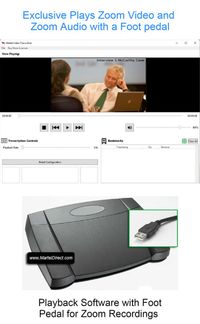
For saved-video review, consider the Zoom Video Transcriber with Foot Pedal. For MP4 and mixed recordings, compare the All N One audio/video kit; for audio-focused review, see the All N One audio kit. The right playback product depends on the material that reaches the person preparing the document.
Before the session, write down who needs the output and what decisions it must support. A project team may want a searchable discussion record, while an interviewer may need exact responses. A board or committee may have its own requirements for minutes. Resolve those requirements with the responsible organization rather than expecting transcription software to choose them.
Include the meeting identifier, expected participants, recording scope, output format and review owner. Specify whether breaks, side discussion and material after the formal close are included. If the meeting will have both room participants and remote participants, note that distinction in the brief.
Set speaker-label and timing conventions. Decide how to handle unknown speakers and unclear passages. Ask for a participant list and any agenda or terminology reference that can support spelling and organization. Those references should help investigation without replacing the recording as evidence of what was said.
Keep the brief short enough to use during production. A few clear requirements are more valuable than a lengthy template nobody checks. The typist should be able to answer what is included, who reviews it and what “finished” means.
For an in-room meeting, identify how each participant reaches the recording. A microphone at one end of a long table may capture a nearby speaker differently from a quiet person at the far end. The relevant question is not just how many microphones are present, but whether the saved recording contains usable speech from the actual seating positions.
For a hybrid meeting, trace room speech and remote speech separately. Confirm what the meeting platform receives and what the recording process saves. A local participant hearing a remote voice from a speaker does not prove that every recording route captures that voice as intended.
Make a simple seat and source note. Identify the shared room endpoint, remote participants and any separate recording source. Keep the note factual. Multiple microphone positions do not automatically create independent speaker tracks or guaranteed speaker identification.
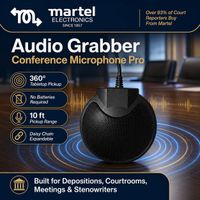
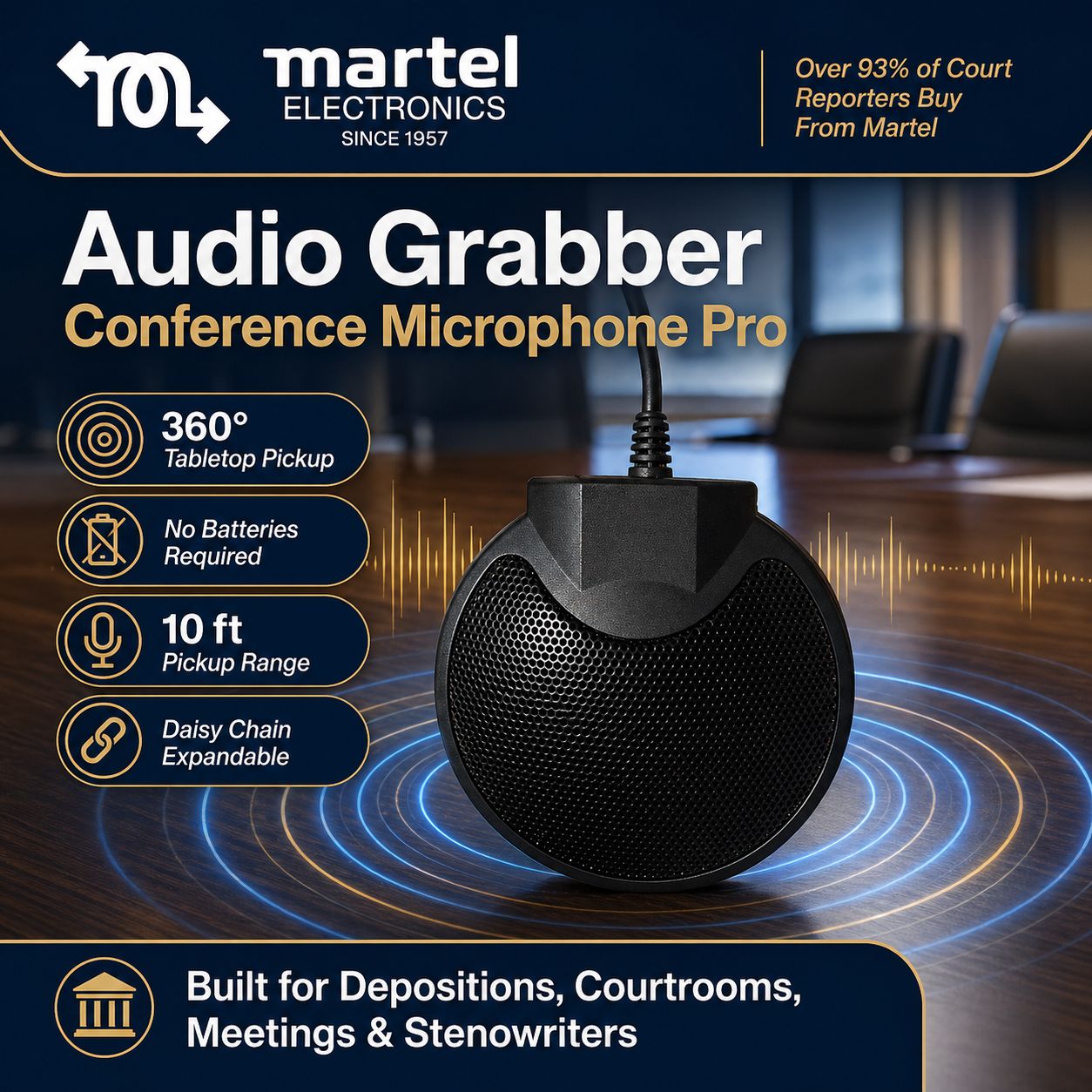
Martel’s conference microphone guide provides related capture planning. This series focuses on the transcription handoff, so verify the actual recorded result before assuming that a microphone purchase alone resolves every downstream issue.
Before an important meeting, record a short authorized rehearsal with someone speaking from the relevant positions. Include the quiet end of the table and a remote participant when applicable. Stop the test and open the saved file, rather than checking only the live sound.
Listen for the intended voices, reasonable level differences and distracting noise. Confirm that the expected file is created, that its duration is plausible and that the person responsible for transcription can access it. This test joins capture, storage and handoff in one exercise.
Include a short numerical sentence and an unfamiliar name in the rehearsal. These details make it easier to notice whether the saved source is intelligible enough for real work. The test is not a laboratory quality score; it is a practical acceptance check for the planned room and workflow.
If the test fails, identify the failed stage. An empty file, inaccessible folder, missing remote participant and unclear distant voice are different problems. Recording them separately makes the next adjustment more focused.
Meeting platforms may offer recordings, live captions, retained transcripts and summaries as separate functions. Their names and permissions can change. Check current documentation for the service actually used, and test the configured account rather than relying on an old tutorial.
Zoom’s 2026 caption and transcript update is a useful example: live captions and saved meeting transcripts have distinct roles and controls. Its cloud-recording audio transcription is another feature to check separately. The Zoom chapter explains the resulting file workflow.
If the organization wants a retained source recording, confirm that recording is enabled and authorized through its normal process. A summary or chat record is not a substitute for a complete audio source when the assignment requires detailed transcription and review.
Decide who owns the post-meeting download and verification step. A feature being enabled does not ensure that the typist receives the correct files. Assign responsibility for checking that the assets exist and cover the requested meeting.
A brief introduction can help establish names and roles for the transcript. Encourage participants to identify themselves when practical, especially in a hybrid room with several people sharing one endpoint. Do not assume that a platform display name uniquely identifies everyone heard through that connection.
Provide an agenda and a list of specialized terms to the transcription team when appropriate. These can help spelling and document organization. They should not be used to overwrite the words actually spoken or to fill a gap with what the agenda says should have happened.
For presentations, identify whether the assignment needs on-screen information or only speech. A participant saying “use the revised figure here” may require reference to a slide or shared screen. Keep the related materials available through the project’s approved process.
Agree on how the typist will raise questions after the meeting. A short, organized query list with source times is easier to resolve than scattered guesses inside the transcript. Assign one review contact or process so questions do not produce conflicting corrections.
After the meeting, collect the relevant media and text assets. Identify full recordings, segments, alternate views and any automatic transcript. Preserve the source names and note the relationship between files. Do not rename several unrelated assets to the same generic meeting label.
Verify opening, middle and closing sections. Confirm the expected participants and whether the recording stopped or paused. Compare the supplied material with the brief. If a segment is missing, identify it before the typist begins a complete-document workflow.
Send the typist a concise handoff record: covered files, participant reference, transcript style, required output, deadline and review contact. If automatic text is provided, label it as a draft unless it has already undergone a defined review.
Keep the access route appropriate to the material. A shared folder, platform link and local copy can have different permissions or availability. Confirm that the intended worker can use the source without assuming that the host’s access automatically extends to everyone else.
An automatic draft may help with initial text, but its usefulness depends on the meeting. Clear single-speaker segments may behave differently from overlapping discussion, distant room voices or specialized terminology. Evaluate the actual material before treating the draft as nearly complete.
Choose whether the typist will correct the draft directly or draft some passages manually. Keep the recording available either way. A flawed paragraph can sometimes be easier to rebuild from the source than to repair word by word, but that is a production judgment to test rather than a universal rule.
Measure correction and review time in the complete workflow. A fast draft is useful only if the final output meets the required standard. The software testing guide shows how to compare draft generation with the remaining work.
Avoid relying on an automatic summary to settle disputed action items. A summary condenses the discussion and may omit qualifications. Return to the relevant exchange and the organization’s review process when the wording or outcome matters.
List confirmed participants and the labels used in the document. Mark uncertain identities separately. A shared room endpoint may represent several voices, and a remote participant may join from more than one device during the session.
Review changes when someone enters late, moves seats or takes over a shared microphone. These transitions can create attribution errors even when the words are clear. Do not blindly replace every occurrence of a generic label with the first name associated with it.
Use direct introductions and reliable context to investigate identity. A camera focusing on a person can be helpful, but the displayed image may show a listener rather than the person speaking. A label generated by the platform is a clue to review, not an unquestionable identity record.
When uncertainty remains, preserve the agreed neutral label and source location. A well-organized unresolved question is more useful than a confident invented speaker name. The reviewer can then focus on a specific moment in the meeting.
A meeting often contains several versions of a proposed action. One person suggests a deadline, another raises a concern and a later exchange changes the plan. A transcript should preserve the discussion under the agreed style; an action list should reflect the outcome that was actually established.
For an invented example, imagine a team discussing a delivery date. Monday is proposed, Wednesday is suggested as an alternative, and the final statement says the date will be confirmed after testing. An action list that simply chooses Monday would overstate the decision.
Use a review table to distinguish these categories:
| Item | What to record | What not to assume |
|---|---|---|
| Proposal | Suggested action and source location | That it was adopted |
| Decision | Confirmed outcome and relevant exchange | That an earlier suggestion remained final |
| Owner | Person or role actually assigned | That the speaker volunteered responsibility |
| Deadline | Stated date or unresolved status | That an approximate phrase means a specific date |
| Follow-up question | Missing detail requiring confirmation | That software should fill the gap |
Keep this action review separate from spelling correction. Both matter, but they answer different questions. A transcript can be word-accurate while a summary still misstates the meeting’s outcome.
Create a focused pass for quantities, dates, names, units and negatives. Meeting discussion often assumes shared background knowledge, so a plausible term may be wrong even when it fits the topic. Check the surrounding exchange and legitimate reference material.
Do not silently substitute a slide’s number for a differently spoken number. If the assignment includes a discrepancy note, label it according to the agreed convention. The transcript records the source; editorial reconciliation is a separate review decision.
Check references such as “the previous version,” “that item” and “next Friday.” A readable transcript may preserve the original words, while a separate action list may need clarification. Do not create a specific date or document identity unless the meeting or authorized reviewer establishes it.
Use source times in the query list. Include enough context that a reviewer can understand the issue without listening to the entire meeting again. This is one of the most practical uses of controlled playback and consistent timestamping.
If the typist must inspect video, select a video-capable workflow and test the actual exports. If the work is audio-only, a suitable audio kit may be sufficient. If the meeting generates a proprietary project rather than an ordinary media file, confirm the required export path first.
For the Zoom Video Transcriber, test saved video playback while the document is active. For the All N One audio/video kit, include the MP4 sources you routinely receive. For the audio kit, verify the exact audio formats and the intended computer.
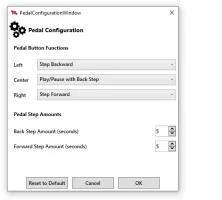
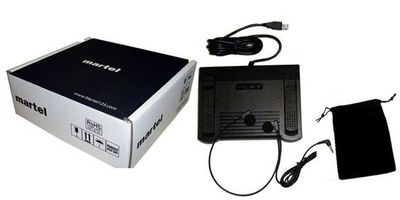
Check package contents, controller support and setup assistance in the current listing. A software-only purchase differs from a complete kit. Existing hardware should be identified by model rather than assumed compatible because it connects by USB.
Use a short acceptance exercise after installation: open the source, seek to several positions, type while using the pedal, save the transcript and resume later. The compatibility checklist provides the detailed version of this test.
Do not assign a turnaround solely from meeting duration. A structured presentation can be easier to transcribe than an equally long open discussion. Speaker overlap, unfamiliar terms, formatting and action-item review can substantially change the work.
Time a representative section using the intended process. Include correction and final review, and record any unusual difficulties. Use the result as a planning estimate with room for variation rather than a universal production multiplier.
Assign responsibility for the final approval. The typist can identify unclear wording; the meeting owner may need to confirm names or decisions. Keep those roles explicit so a transcript does not stall with unresolved questions that nobody owns.
For recurring meetings, maintain a compact reference set: participant names, terminology, document template and the last approved process. Update it when the meeting changes, but do not let historical notes override what a new recording actually contains.
Label the transcript, summary and action list separately. State which files were covered and which review steps were completed. If a source gap or unresolved speaker remains, identify it in a useful way rather than burying it in a generic disclaimer.
Open the final exported documents and inspect them. Check titles, meeting dates, speaker labels, page breaks and source references. If the output includes a timed text file, verify it with the matching media version.
Follow the organization’s existing access and retention process for recordings, drafts and final documents. Do not assume that a meeting link is intended for public sharing or that every participant can distribute the source. Keep the handoff within the agreed workflow.
Continue to the transcription kit compatibility checklist to make the equipment decision concrete. That final chapter returns to the series overview, completing the route from planning a recording to choosing and verifying the tools used to transcribe it.
Create a checkpoint before the meeting, one after capture and one before delivery. Each checkpoint has a different owner and a different question. This prevents a successful step early in the process from being mistaken for completion of the whole workflow.
Before the meeting, the recording owner confirms the planned source, required permissions and saved-recording rehearsal. The question is whether the meeting can produce usable media through the intended path. A microphone being connected is not enough evidence on its own.
After capture, the handoff owner confirms the actual files, coverage and access. The question is whether the typist has the correct usable material and the brief. A meeting platform showing a recording icon does not establish that every required segment reached the transcription folder.
Before delivery, the reviewer checks the final output against the agreed standard. The question is whether the transcript, summary and action list are accurately labeled, complete for their scope and clear about unresolved items. A document existing in a shared folder is not the same as an approved final version.
For a small team, one person may perform more than one role. The checkpoints still help because they separate different kinds of evidence. Record completion with a short note and retain exceptions rather than creating a lengthy administrative exercise.
This structure gives an equipment purchase a concrete purpose: the recording tools must pass the capture checkpoint, the playback kit must support production and review, and the document workflow must produce a usable handoff. Each component can then be evaluated against a job it actually needs to perform.
It cannot guarantee recovery of speech that was not captured intelligibly. Playback controls and draft correction can help with usable audio, but capture needs its own test. Record a short rehearsal from the actual seating positions and listen to the saved result.
No. A summary selects and condenses information, while a transcript follows the recorded speech under an agreed style. An action list adds another layer of interpretation. Label each output accurately and review it according to its purpose.
That depends on the recording system and assignment. Do not assume multiple microphones automatically produce independent tracks. Confirm what is actually saved and whether the chosen software supports the review functions you need.
Several people may share one microphone or meeting endpoint, and automatic labeling may not distinguish them reliably. Use a participant reference and the recording to review identities. Keep uncertain labels neutral rather than guessing.
No. Check the current retained-transcript and recording settings separately. Zoom’s 2026 changes distinguish live captions from saved transcripts. Test the complete account workflow before relying on it for an important meeting.
Evaluate a video-capable product such as the All N One audio/video kit using the actual MP4 export. The extension alone is not a complete compatibility test. Verify the computer, picture, sound, seeking and foot control while typing.
Run a saved-recording rehearsal and assign the post-meeting handoff owner. Those two steps reveal capture and access problems before they affect a full session. Then test the transcription workflow with the resulting file.
Research note: Product details were checked against Martel’s current product pages. Technical references are linked beside the relevant guidance. Worked examples and worksheets are original illustrations, not measured product benchmarks. Features, licensing and software interfaces can change; confirm the current product details before ordering.