Transcription Kit Compatibility Checklist: Files, Pedals and Computer Setup
Choose and test a transcription kit using real recordings, current computer requirements, pedal controls, headset connections and acceptance checks.
Understand transcription software types, compare manual playback with automatic drafts, and plan how recording, text editing and review work together.
Chapter 6 of 10 · Audio files and transcription software
Transcription software can mean a player controlled by a foot pedal, a speech-recognition service that generates text, an editor for correcting that text, or a system that manages assignments between people. These products may appear in the same search results while solving different problems. Start by naming the work you need the software to perform.
A typist who wants to stop and replay an interview needs dependable playback control. A team looking for a first draft needs a suitable speech-recognition workflow. A supervisor assigning files needs routing and status information. A caption producer needs timed-text editing and media checks. One tool may cover several roles, but the product name alone does not establish that it does.
For Martel’s equipment-centered approach, begin with the transcription category. This chapter explains how to compare functions without confusing a complete hardware kit, a software download and a cloud subscription. The next chapter, choosing the best transcription software for your work, turns those distinctions into a practical test.
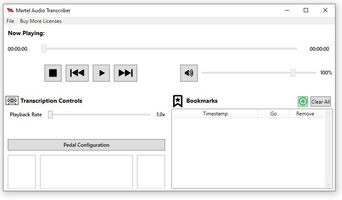
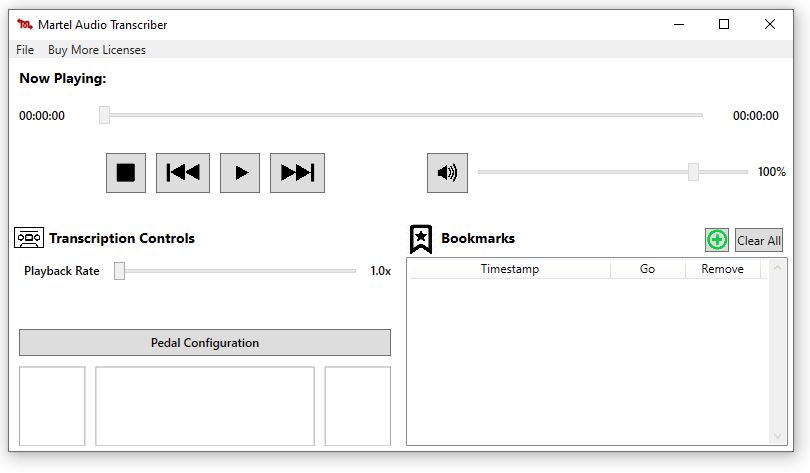
Playback software opens supported media and provides navigation, stopping and replaying controls. In a transcription workflow, it should be evaluated with the document application active, because that is where the user spends much of the session. A player that works well for watching a video may still be awkward for repeated phrase-by-phrase review.
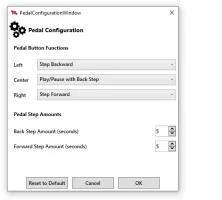
A compatible foot pedal sends commands to the playback application. The exact behavior depends on the pedal and software configuration. Test play, pause, reverse and any step functions you need. Do not assume that all USB pedals send the same commands or that every application listens for them in the background.
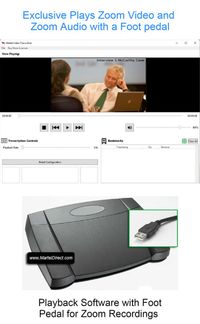
The All N One audio kit, All N One audio/video kit and Zoom Video Transcriber are relevant Martel product routes for controlled review. Compare their current descriptions with your source files and computer. Treat the audio and video requirements separately rather than assuming similarly named kits have identical capabilities.
Playback is valuable even when another tool has produced an automatic draft. The reviewer still needs to locate uncertain speech and compare it with the text. A controlled listening workflow can therefore complement speech recognition without itself being a speech-recognition engine.
Automatic speech recognition analyzes audio and generates text. Depending on the service, it may also attempt punctuation, timestamps or speaker separation. Those outputs should be evaluated on the recordings you actually receive. A short, clear demonstration does not establish performance on overlapping voices or unfamiliar terminology.
Microsoft’s Transcribe documentation describes one automatic recording-to-text workflow. Zoom’s cloud audio-transcript guide describes another. Each has its own account, feature and handling requirements. A Martel playback purchase should not be interpreted as including those separate services.
Measure how much correction is needed and which errors remain after an ordinary review pass. A draft can look polished while changing a number, omitting a negative or assigning an answer to the wrong person. Those are not cosmetic differences. They can change the meaning of the document.
Do not judge usefulness solely by whether a draft appears quickly. A service that produces a rough draft in a short time may still require substantial listening. Compare the complete production task: intake, processing, correction, formatting, review and delivery.
A word processor or transcript editor holds the finished text. It provides the document structure, formatting, revision tools and export options needed by the recipient. It may also include transcription features, but ordinary document editing remains a separate function from controlling the source media.
Define the required output before comparing editors. A simple interview transcript may need clear paragraphs and speaker labels. A specialized assignment may require a supplied template or application-specific format. A PDF can preserve presentation, while an editable document may be needed for review. Ask what the recipient will actually use.
Test the final export, not only the editing screen. Open the exported document and check labels, page breaks, tables, comments and special characters. A good working layout does not guarantee that every export format preserves it in the same way.
Also consider handoff. If another person must continue the work, can they open the file, understand the source references and identify the current version? A system that depends on one user’s memory of where the recording was stored is fragile even when the text editor itself is capable.
Assignment management becomes important when several people create, transcribe and review recordings. A workflow needs an owner for each stage, a clear source location and a visible status. Those needs can be met in different ways; do not assume every playback application includes a routing or collaboration system.
Map a typical file from arrival to delivery. Identify who confirms the recording, who drafts the text, who resolves queries and who approves the final output. Include exceptions such as an unreadable file, a missing speaker list or a changed deadline.
Keep statuses meaningful. “Uploaded” means a file arrived, not that it was checked. “Drafted” means text exists, not that it is accurate. “Reviewed” should correspond to a defined review step. Choose a small set of labels that everyone applies consistently.
For a team, test how work is reassigned. A second typist should be able to identify the correct source, the draft’s current position and unresolved questions. If those details exist only in a chat message or a personal folder, the software’s feature list has not solved the operational handoff.
Caption work adds timing and segmentation requirements. A readable transcript with occasional timestamps is not automatically a usable caption track. The final text must be checked with the media and prepared in the format the distribution workflow requires.
W3C’s captions resource discusses captions as a text representation of relevant audio information. A separate transcript may need a different presentation. Ask whether the assignment requires captions, a document, a descriptive transcript or more than one output.
Do not infer caption authoring from a video-player feature. A tool can display an MP4 and support foot control without offering cue editing or validated caption export. Likewise, a speech-recognition service may produce text without completing the final timing and presentation checks.
Include a short delivery test in your comparison. If the recipient needs a timed file, open it in the intended playback or publishing workflow with the matching video. If the recipient needs a document, inspect the document. Evaluate the actual deliverable rather than the most impressive demonstration screen.
Use a matrix to separate requirements before assigning a budget. Mark each feature as essential, useful or unnecessary for your current work. This prevents a long list of optional functions from hiding a missing requirement that would stop production.
| Function | Question to ask | Evidence to request |
|---|---|---|
| Media playback | Will it open and seek through my real files? | Representative sample test |
| Pedal control | Does my exact controller work while I type? | Test in the intended applications |
| Automatic text | Does it generate a draft, and where is processing done? | Current service documentation and sample results |
| Speaker labeling | How are identities assigned and corrected? | Review of a multi-speaker sample |
| Document output | Can I deliver the format the client needs? | Reopened final export |
| Caption output | Can I create and check the required timed file? | Playback with the matching video |
| Team handoff | Can another person resume and review the work? | Small reassignment exercise |
| Support | Who helps with installation and file problems? | Current package terms and support process |
Keep the matrix factual. “Yes” should mean a tested or explicitly documented capability, not an assumption based on a product category. Use “needs confirmation” where the evidence is incomplete.
List the formats you receive, but also identify their source. A camera export, a meeting recording and a proprietary project file may require different handling. An extension list is a starting point; it does not replace a representative-file test.
Separate ordinary audio or video files from application projects. A project may reference external media, contain editing instructions or require the originating software to export usable audio. Renaming the project extension does not turn it into a standard recording.
If you receive unusual formats, ask about them before ordering. Describe the source application, the exact extension and the intended task. Provide an authorized sample only through an appropriate agreed process. There is no need to send confidential content merely to begin a compatibility discussion.
For detailed examples, see MP4 playback and troubleshooting and MP3 transcription. Those chapters show why opening a file, hearing the expected audio and seeking through it should be checked separately.
Confirm the software’s current operating-system requirements, including the exact version and any restrictions that matter to your computer. Do not assume a Windows application works on macOS, a tablet, a Chromebook or every virtualized environment. A browser-based product and an installed desktop application may have different requirements.
Also distinguish application compatibility from the operating system’s own support status. Microsoft’s Windows support guidance explains that regular Windows 10 support ended in October 2025. An application continuing to run does not by itself establish that the overall workstation has a supported maintenance plan.
For a new setup, confirm the intended current platform with the software vendor and your organization’s IT process. Include the document application, USB connection and headset path in the test. A compatible player is only one part of the workstation.
Record the tested configuration. If an update changes behavior later, that note gives support a useful baseline. Include the software edition and version rather than only the product family name.
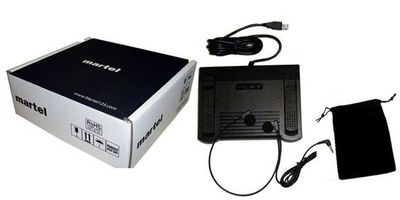
A download listing may be suitable if you already own compatible hardware. A complete kit may be simpler when you need the player, pedal and listening equipment together. Compare the written contents and support terms; do not infer the package solely from a product image.
Inventory what you already have. Record the exact pedal model, connector, headset connection and computer ports. “USB pedal” is not a sufficiently precise compatibility description. A controller designed for live meeting commands or a specific professional application may not be the correct choice for general media playback.
Ask what setup work remains after purchase. Is the software installed locally? Is activation required? Does the organization allow installation on that computer? Is an adapter needed for the available port? These are ordinary planning questions that prevent a package from arriving before the workstation is ready.
Compare total readiness rather than headline price alone. An inexpensive download that requires additional hardware and troubleshooting may serve a different buyer from a matched kit. Neither is automatically the better value without knowing what is already available.
Determine how many people and computers need the software. A license count does not automatically establish simultaneous use, transfer rights, shared-account use or installation on a replacement computer. Check the current terms for the exact edition you are buying.
If the workflow includes a cloud service, identify how usage is measured. It may involve accounts, seats, processing limits, storage or other plan conditions. Do not assume a subscription includes unlimited recordings or that a one-time software purchase includes every future update.
For a small office, write down the expected user pattern. One typist on one computer is different from two typists sharing a workstation or one person moving between home and office. Ask the vendor to confirm the appropriate configuration before purchase.
Keep license and activation information in the organization’s approved records. The production process should not fail because one departing user is the only person who knows how the software was purchased or configured.
Decide where recordings and text will be stored, who can access them and how they move between tools. An installed application may work with local files, while an automatic service may upload recordings. Verify the actual product behavior rather than using “desktop” or “AI” as a shortcut for a complete privacy assessment.
Follow the organization’s existing rules for the material. If a recording has handling restrictions, confirm the proposed workflow with the responsible person before uploading it to a new service. A public demonstration file can still be used to evaluate basic controls while those questions are resolved.
Include exports and temporary copies in the plan. A transcript may be stored in a document platform while the recording remains in a separate account. If the recipient needs both, check the access relationship and avoid assuming that sharing one automatically shares the other.
Document the retention and handoff process in plain language. The typist should know where to save the working draft, where the reviewed output belongs and what to do with obsolete copies under the project’s rules.
List software, hardware, support, setup time and recurring services separately. Then compare the time needed to produce an acceptable document. A feature that saves a few clicks may be useful, but it should be measured in the workflow rather than promoted as an automatic percentage gain.
Use an illustrative calculation to make the comparison concrete. If one approach takes 45 minutes of correction and another takes 60 minutes for the same sample, the difference is 15 working minutes on that sample. It is not proof that every future recording will show the same result. Repeat with different material before changing the team’s process.
Pay attention to error types as well as time. A faster draft with missed negatives may be less useful than a slower draft that is easier to verify. Decide which outcomes are essential and which tradeoffs are acceptable for the assignment.
The software testing chapter provides a repeatable scorecard. Use it before buying and again after setup so the final workstation is judged against the same requirements that drove the purchase.
A usable software workflow includes an exception path. Decide what happens when a file will not open, an automatic draft is unusable, a speaker cannot be identified or the required export is unavailable. These situations should lead to a specific review action rather than an undocumented workaround.
For an unreadable source, preserve the file and gather the exact error, source application and format information. Seek a supported export or compatibility answer before converting repeatedly. For a poor automatic draft, compare manual drafting of a short passage and decide whether correction remains practical. For an uncertain speaker, keep a neutral label and a timed query for the authorized reviewer.
Assign ownership of the exception. The typist may diagnose playback behavior, while the recording owner may need to supply a missing segment. An administrator may need to confirm a service permission. Treating every issue as the typist’s responsibility can delay work that requires access or knowledge elsewhere.
Keep the client-facing status accurate. “Draft complete, two speaker identities awaiting review” conveys a different state from “finished.” A workflow tool should support that distinction, but a simple documented process can also do it. The important point is that the status corresponds to actual work.
Include one exception in your buying demonstration. Ask the intended user to identify a deliberately unsupported sample or an unresolved query and explain the next step. This reveals whether the software and training help the user recognize limits, not merely follow an ideal demonstration. A clear exception process makes the overall system more dependable without claiming that any application can handle every possible recording.
No. Some products primarily control playback for a human typist. Others generate a draft through speech recognition, and some combine several functions. Read the actual feature description and test the workflow. The word “transcription” alone does not establish automatic text generation.
It can support reviewing the draft against the source. The value depends on how much stopping, replaying and correction your work requires. Test the combined process with your document editor rather than assuming that either tool eliminates the need for the other.
No. The application must support the controller or its intended input method. Check the exact model and test commands while the document is active. A physical USB connection is not a guarantee of functional support.
Not necessarily. Separate tools can form a practical workflow if file handling, timing and handoff remain clear. An all-in-one application can also be useful. Compare the complete task and final output rather than assuming integration is always better or separate tools are always simpler.
Only if that capability is included and verified. Watching video with foot control is different from timing and exporting captions. If captions are required, include the exact output format and a playback validation step in the buying checklist.
Write down the file sources, computer platform, pedal model, user count and required outputs. Match those to the current edition’s documentation and ask about unresolved points. Do not rely on a similar product name or an older review that may describe different package contents.
Use the audio kit for an audio-focused evaluation, the audio/video kit for mixed media, or the Zoom Video Transcriber for saved video review. Continue to the practical software testing guide before deciding which workflow best fits your work.
Research note: Product details were checked against Martel’s current product pages. Technical references are linked beside the relevant guidance. Worked examples and worksheets are original illustrations, not measured product benchmarks. Features, licensing and software interfaces can change; confirm the current product details before ordering.