Transcription Kit Compatibility Checklist: Files, Pedals and Computer Setup
Choose and test a transcription kit using real recordings, current computer requirements, pedal controls, headset connections and acceptance checks.
Choose transcription software using representative files, compatibility checks, correction-time measurements and a practical buyer’s scorecard.
Chapter 7 of 10 · Audio files and transcription software
The best transcription software for a particular buyer is the software that handles the buyer’s recordings, works with the intended computer and controls, and helps produce an acceptable final document. A general ranking cannot establish those facts for every office. Use a short, repeatable evaluation before choosing a download, subscription or complete kit.
This guide provides an original testing worksheet for audio and video transcription workflows. It is a method you can apply, not a claim that Martel has benchmarked every competing product. The examples are illustrative and should be replaced with your own authorized samples and results.
Begin by separating playback, automatic drafting and document editing. The software types guide explains those functions. Then compare relevant options in Martel’s transcription category, including the audio kit, audio/video kit and Zoom Video Transcriber.
Before looking at features, name the conditions that would make a purchase unusable. These are pass-or-fail requirements rather than preferences. A product that fails one essential requirement should not win because it has attractive optional features.
For an audio typist, the essentials might be the intended computer platform, direct playback of the actual files, supported pedal control, operation while typing and an acceptable final document workflow. A video reviewer may add usable picture playback and navigation through long files. A team may require a specific handoff process.
Write requirements in observable terms. “Easy to use” is broad; “a second typist can open the assigned file, find the current position and resume with the setup note” is testable. “Supports video” is broad; “opens our camera’s authorized MP4 export with picture and sound, including seeking near the end” is more useful.
Keep the list short. Five genuine essentials are easier to evaluate than 40 items all marked critical. Put useful conveniences in a separate section so their value does not obscure a missing core function.
Choose several short excerpts that resemble real assignments. Use public, nonconfidential or otherwise authorized material. Do not upload sensitive recordings to an unfamiliar service merely to run a comparison. Basic controls can be tested with harmless sample content while handling questions are resolved.
Include a clear single speaker, a multi-speaker exchange, a quiet voice, terminology and numbers. For video work, include a passage where the picture matters and a longer file for seeking tests. If you receive several recording formats, represent each essential source.
Avoid choosing only your easiest recording. That can make every product look successful while hiding the reason you need new equipment. Equally, do not choose only an unusable recording and conclude that every tool fails. The test set should represent the range of work you reasonably expect.
Assign each sample an identifier and keep the same source copy for each workflow. Record its duration and purpose. If you change the sample halfway through, note the change; otherwise the results no longer provide a fair comparison.
Create a carefully reviewed reference for each short sample. It should follow the transcript style you expect to deliver. Record any passage that remains genuinely unclear rather than choosing an arbitrary “correct” wording to make scoring easier.
The reference is especially useful for names, numbers, negatives and speaker labels. It lets you compare outputs consistently. If a sample contains an uncertain word that even careful review cannot settle, treat that as a known limitation instead of penalizing one workflow for failing to invent a confident answer.
Keep formatting decisions separate from wording accuracy. A product may choose different paragraph breaks while preserving the same speech. Decide which differences matter to the assignment. A caption task may need timing checks that a simple text transcript does not.
If possible, have a second qualified person review the reference. This is a way to improve the test itself, not a claim that agreement guarantees perfection. Record the conventions used so the same standard can be applied when another person repeats the comparison.
Open the actual source files on the intended computer. Confirm picture where required, audible content and plausible duration. Seek to early, middle and late positions. Check that the application can resume after stopping and that the file remains available after closing and reopening the program.
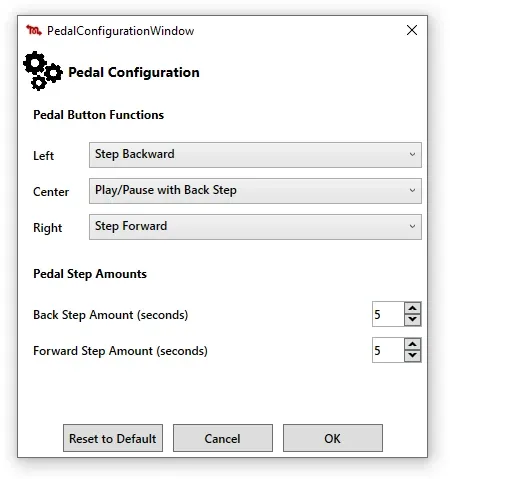
Then test the controller and document combination. With the document active, use the pedal to play and pause. Confirm the cursor stays where expected and that the pedal does not type unwanted characters or trigger unrelated commands. Check each function you intend to use.
A format list or compatibility statement can guide the test, but the sample establishes what happens in your setup. Mark unresolved points as “needs confirmation.” Do not count an untested feature as a pass because another edition or older version supported something similar.
For format-specific investigation, use the MP4 guide and MP3 guide. For the final workstation acceptance, use the kit compatibility checklist.
Separate setup, draft creation, correction, formatting and final review. This gives you a clearer picture than one total number. It also prevents a quick automatic draft from hiding a long correction phase or a convenient player from hiding a difficult export step.
Start the timing at a defined point, such as opening the supplied file. Stop at a defined result, such as a reviewed document that meets the brief. Record interruptions separately. If one test includes installation and another uses an already configured workstation, report that difference instead of presenting the times as directly equivalent.
Use the same transcript style and review standard for each workflow. A rough set of notes will usually take less work than a fully checked transcript, but that is a different deliverable. Comparing them would reward changing the assignment rather than improving the tool.
Keep subjective observations alongside measured time. Note awkward navigation, lost document focus, unclear controls and steps that required help. These observations explain the numbers and reveal training or support needs that a stopwatch alone misses.
Count useful categories rather than producing an unsupported universal “accuracy” percentage. For a practical buyer’s test, record wording changes, missing or added text, names, numbers, speaker-label corrections and unresolved passages. Keep formatting changes separate if they do not alter the content.
One correction can matter much more than another. A capitalization change and a missing “not” are not equivalent in their effect on meaning. Do not let a low total count conceal a serious error category. Decide which details deserve extra review in your work.
Avoid turning a small sample into a market-wide performance claim. If one tool needs fewer corrections on one interview, that result applies to that sample and setup. Repeat with other representative files before assuming the same advantage will hold across your assignments.
Keep the reference and corrected output available during evaluation. A reviewer should be able to inspect the actual difference rather than rely on a score with no supporting record. This also helps identify whether an error came from the draft, the typist or the review method.
The following worksheet is intended for your own evaluation. It does not rank named products. Use pass, fail or needs confirmation for essentials, then use notes or a simple rating for preferences after the essential requirements are satisfied.
| Test | Record this evidence | Decision |
|---|---|---|
| Actual file support | Sample IDs, application version and playback result | Essential pass/fail |
| Background pedal control | Commands tested with the document active | Essential pass/fail |
| Long-file navigation | Early, middle and late seek checks | Essential when required |
| Required output | Reopened final document or timed file | Essential pass/fail |
| Computer compatibility | Tested operating system and hardware path | Essential pass/fail |
| Correction burden | Time and correction types for each sample | Compare results |
| Learning effort | Steps needing help or repeated explanation | Compare results |
| Handoff | Second user resumes from the setup note | Compare results |
| Support fit | Current assistance terms and contact process | Compare requirements |
| Total cost | Hardware, software, setup and recurring services | Compare complete cost |
Do not average a failed essential into a reassuring score. If the required file cannot be used, a strong rating for appearance does not fix that. Resolve the failure or choose a different workflow.
Imagine two workflows tested on the same ten-minute interview. Workflow A creates a draft quickly but requires 28 minutes of correction and another 12 minutes of review and formatting. Workflow B takes longer to draft manually but reaches the same checked output in 38 working minutes overall. These numbers are invented to demonstrate the method.
The example shows why “draft produced in two minutes” is not a complete buying metric. Add every required stage before deciding which process saves time. Also inspect the remaining errors. If one output still contains an unresolved speaker mistake, it has not met the same endpoint.
Now repeat with a clear single-speaker recording and a difficult group discussion. The preferred workflow may change. That does not make the test inconsistent; it reveals that different material benefits from different tools or review routines.
Use those findings to decide whether one workflow covers your needs or whether a combination is practical. A foot-pedal player for review may coexist with an approved automatic drafting service. The purchase should support the work, not force every file through the same process without evidence.
For video work, test more than sound. Confirm the picture is large and clear enough for the task, that seeking is practical and that the player remains usable alongside the document. If you need to examine a slide or identify a speaker change, include that exact action in the test.
Check the relationship between picture and sound. Note obvious synchronization issues and compare the source if necessary. Do not assume a readable transcript proves that video handling is satisfactory; the assignment may rely on visual information that was never examined.
If your files include several tracks or unusual camera exports, obtain specific compatibility confirmation. A generic video label does not guarantee specialized multichannel review or proprietary project support. Use a representative sample, not an unrelated demonstration MP4.
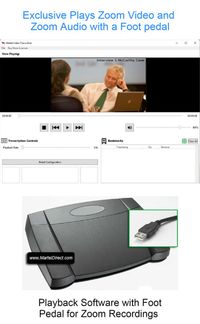
The Zoom Video Transcriber and All N One audio/video kit are the Martel product paths to evaluate for these tasks. Verify current package contents and the actual source files before selecting between them.
An audio-focused typist may not need video tools, caption export or complex collaboration features. Prioritize reliable file playback, comfortable listening, responsive controls and a document workflow that meets the assignment. Additional functions have value only when they solve a real need.
Include a quiet passage and a rapid exchange in the audio test. Verify that changing playback speed or using replay helps you work without changing the source document’s interpretation. Keep normal-speed review available for difficult phrasing and continuity checks.
Test the headset connection and any channel behavior relevant to the files. If a participant appears only in one channel, verify that the listening setup exposes the needed material. A software comparison performed through the wrong output device can produce misleading conclusions.
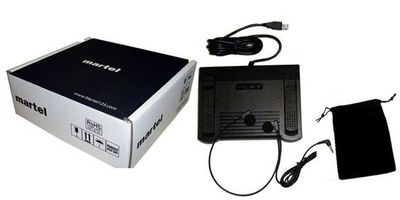
Use the All N One audio kit as the relevant Martel route for this evaluation. If video becomes a regular requirement later, revisit the workflow rather than assuming an audio-only purchase will cover every new task.
Have the intended user perform the test. A demonstration by someone already familiar with the software may not reveal the training needed by a new typist. Give the user a short setup note and record where they become uncertain.
Test a normal interruption. Save the document, close the applications and resume later. Can the user identify the correct file, current version and outstanding queries? Recovery from an ordinary break is part of daily usability, not an optional advanced feature.
Review the current support arrangement. Determine who helps with installation, pedal configuration and file questions. Ask how to describe a problem and what information to provide. Clear support expectations can matter more than a feature that is rarely used.
Keep the evaluation configuration documented. Record application version, operating system, pedal model and listening device. If a later update changes behavior, the support conversation can begin with specific facts instead of reconstructing the original setup from memory.
List the initial software cost, required pedal, headset, adapters and setup work. Add recurring services separately. Compare the same time period and user count for each option. A software-only price and a complete-kit price are not equivalent packages.
Confirm licensing for the actual use pattern. One person using one workstation differs from several people sharing files across computers. Check transfer and replacement-computer rules rather than assuming that a license number answers every deployment question.
Where processing or storage limits apply, calculate from your actual workload and the current terms. Do not assume unlimited use or permanent access. Keep a dated copy of the relevant purchasing information in your normal records so the team knows what was included.
Avoid justifying a purchase with an unsupported savings percentage. Use the sample results as a planning estimate and note the limits. A small pilot after setup provides better evidence than projecting one easy recording across a year of varied work.
Select the option that satisfies the essentials and offers the best practical fit among the remaining choices. Record why it was chosen and which assumptions still need confirmation. This creates a useful reference when the workload changes or another employee asks why the system was configured that way.
After installation, repeat the acceptance test on the actual workstation. Verify the delivered hardware, software edition and controls. The purchasing demonstration and the final setup should not be treated as identical without checking.
Start with a manageable assignment and review the result before moving a large backlog. Keep any unresolved compatibility issue visible. A clear exception is easier to fix early than after several users have adopted an uncertain process.
Continue to using a transcription foot pedal for production technique, or return to the transcription category with your completed scorecard. The test should lead to a confident, specific purchase rather than another broad search for an undefined “best” product.
A typist may work faster on a passage after hearing it once, regardless of which software is used next. Account for that learning effect when comparing workflows. Do not always give the second product the same familiar passage and then attribute every time saving to its controls.
Use several comparable samples and vary the order where practical. Keep the source, transcript style and review endpoint documented. If the same person must repeat a passage, note that it was a repeat and avoid treating the result as a fresh-file measurement.
Separate first-use setup from routine production. A new application may require configuration and training that an existing one does not. Report both the initial effort and the later task time rather than hiding one of them. A buyer can then decide whether a small ongoing advantage is worth the transition work.
Keep the evaluation proportional. You do not need a formal research study to make a sensible office purchase, but you do need to avoid obviously unfair comparisons. A few consistent samples, transparent notes and a defined review standard can produce useful evidence without overstating precision.
When the results are close, consider support, handoff and the user’s confidence operating the controls. Small timing differences on short samples may not predict meaningful differences across varied assignments. Choose the workflow that satisfies the essential requirements and can be used reliably, then verify it again on the delivered workstation.
No single comparison can establish that. File sources, platforms, outputs and user preferences differ. Identify essential requirements, test representative material and compare complete production time. A product can be a strong fit for one workflow and unsuitable for another.
Only if the complete workflow meets your requirements. Include correction, speaker review, formatting and final checks in the measurement. A rapid draft that takes longer to repair may not be the fastest route to an acceptable final document.
Use enough material to expose your important requirements. Several short representative samples and a long-file navigation check can be more useful than one lengthy easy recording. The purpose is to test the workflow’s limits, not to create an impressive total number of minutes.
You can learn about each one, but the time and correction results will be harder to compare fairly. Use the same source copies, transcript style and review standard for direct comparisons. Record any unavoidable differences in the setup.
Treat the unresolved file as a real requirement issue. Obtain specific confirmation or test an approved alternate workflow before buying. Do not assume that success with other files proves compatibility with the one that is essential to your work.
No. They are illustrative numbers showing how to measure complete work. Replace them with your own results. Martel product recommendations in this series are based on matching documented functions to tasks, not fabricated comparative performance measurements.
Use the compatibility and acceptance checklist on the delivered setup. Confirm the actual files, controls, computer and final output. Keep the results with your setup notes so future troubleshooting starts from a verified baseline.
Research note: Product details were checked against Martel’s current product pages. Technical references are linked beside the relevant guidance. Worked examples and worksheets are original illustrations, not measured product benchmarks. Features, licensing and software interfaces can change; confirm the current product details before ordering.