Meeting Transcription Software: Plan the Recording-to-Transcript Workflow
Plan meeting transcription around capture, speaker labels, automatic drafts, foot-pedal review, action-item checks and a clear final handoff.
Chapter 10 of 10 · Foot pedals, meetings and kit selection
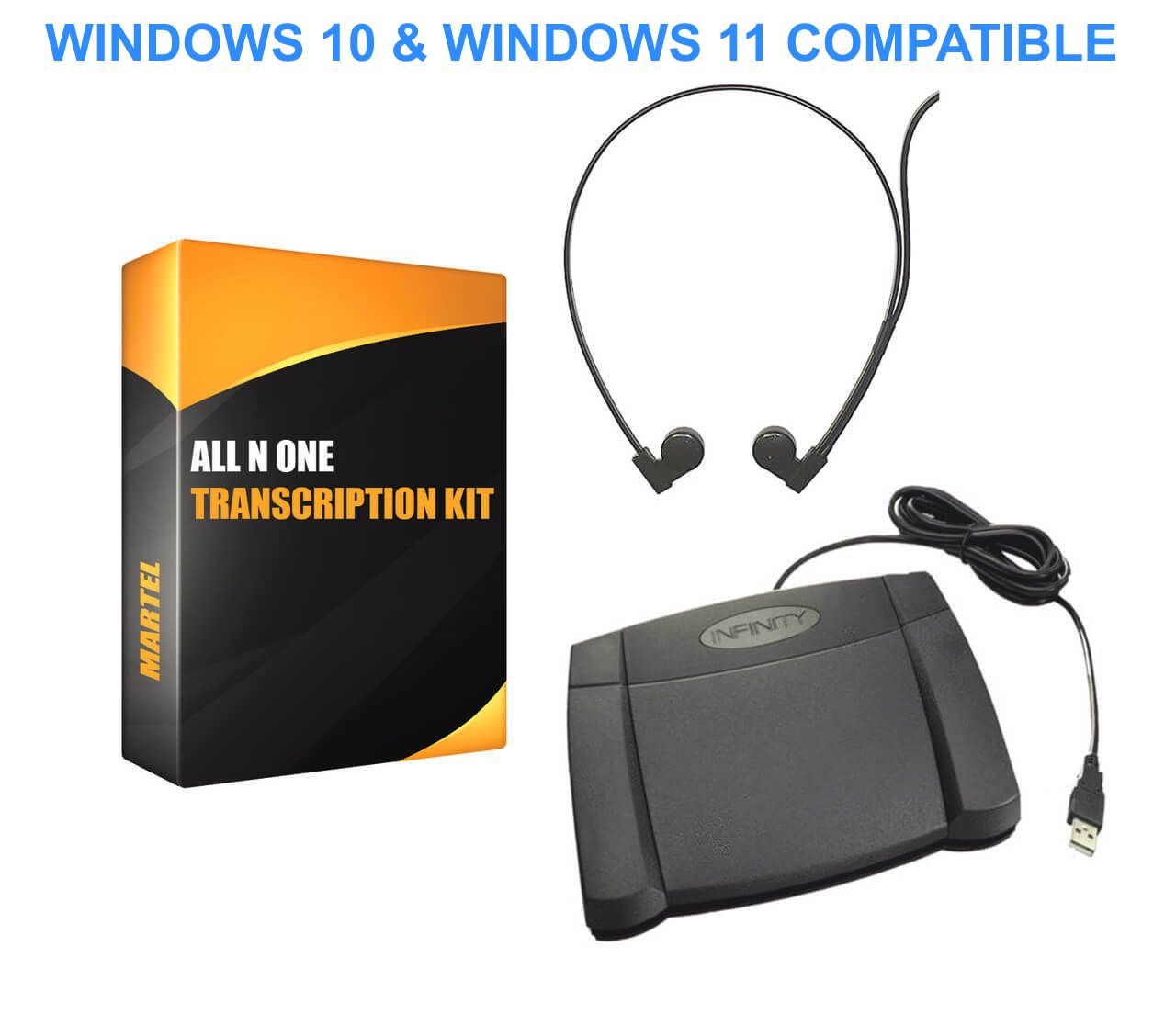
A transcription kit should be chosen around the files you receive, the computer you will use and the document you need to deliver. Begin with those facts, then compare software, foot control, listening equipment and support. A familiar product name or a long format list is not a substitute for verifying the actual workflow.
This checklist brings the ten-part series together. It is designed for buyers choosing an audio transcription kit, a video transcription kit or a saved-Zoom-recording workflow. It also gives a typist or office manager a practical acceptance record after installation.
Use the transcription category to compare current Martel offerings. This chapter links directly to the three principal product routes and explains what to confirm. When you finish, return to the video-to-text workflow overview to connect the equipment decision to the complete production process.
Describe what arrives, who works on it and what leaves. For example: “A typist receives MP3 interview files, controls playback while typing in Word, and delivers a reviewed speaker-labeled document.” That sentence is more useful than a request for “the best transcriber” because it identifies the basic workflow.
For video, the sentence might include reviewing a participant’s visible actions or checking shared-screen references. For meeting work, it might include correcting an automatic draft and producing a separate action list. Keep those outputs distinct so a playback product is not expected to perform an unverified automatic or editorial function.
Identify what must work immediately and what might become useful later. If audio is the only current requirement, do not assume video features are necessary. If MP4 assignments are already common, do not choose an audio-only workflow merely because an occasional export workaround seems possible.
Write down the consequences of a wrong assumption. A missing hardware component can delay setup; an unsupported file can stop production. That list will guide the questions you ask before ordering.
Use the current product pages as the purchasing reference. The table below describes the intended evaluation path, not a claim that all three packages have identical features or that every file is supported.
| Product route | Current SKU | Start here when | Confirm before purchase |
|---|---|---|---|
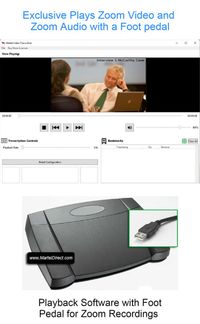
| Zoom Video Transcriber with Foot Pedal | 1515 | You need controlled review of saved video, including Zoom recordings | Actual export, computer requirements and current package contents |
| All N One audio/video transcription kit | 1518 | Your work includes MP4 and other audio/video files | Exact encoding, video needs, licensing and supported workstation |
| All N One audio transcription kit | 1040 | Your work centers on supported audio recordings | Exact audio format, pedal workflow and listening connection |
The audio/video listing identifies Windows operation and MP4 support. The audio kit’s current page lists Windows 10 and 11 compatibility and core audio formats including MP3, WAV and Opus. Treat these as starting specifications and confirm any unusual file or computer configuration before buying.
Do not infer automatic speech-to-text from the word “transcription.” The playback workflows discussed in this series support a person who listens, types or corrects a document. If automatic drafting is also required, identify that separate feature or service explicitly.
List the sources you regularly receive: recorder files, Zoom exports, camera video, client-supplied audio or exported material from a professional application. Include the exact extension and any known codec or export information. A source application can be as important as a filename suffix when investigating compatibility.
Separate ordinary media from proprietary projects. A project file may need the originating application to export a usable recording. It may also refer to media stored elsewhere. Do not assume that changing its extension or copying only the project produces a self-contained audio file.
Select representative samples. Include one routine file, one longer file and one that reflects a known difficulty. For video, include an example where picture review matters. Use authorized material and agree on an appropriate method before sending a sample to anyone.
Mark each requirement as documented, tested or needs confirmation. A format appearing on a product page provides useful evidence, but a successful test establishes more about the actual file and workstation. Keep those two kinds of evidence distinct.
Record the operating-system version, computer type and the application used for the transcript. In Windows, the device and system information available through Settings can help identify the configuration. Provide the exact details when asking about compatibility rather than saying only that the computer is new.
If the workstation uses an unusual architecture, virtualization, remote desktop or a managed installation environment, identify that before purchase. Do not assume that a general Windows statement covers every deployment. Ask whether the proposed configuration is supported for the particular edition and controller.
Distinguish software compatibility from the operating system’s maintenance status. Microsoft’s support information explains the end of regular Windows 10 support. For a new workstation, confirm a suitable supported platform and the organization’s maintenance plan rather than relying only on an application continuing to launch.
Check installation permissions and network access needed for download, activation or support. A locked-down office computer may require IT assistance. Arrange that before the equipment arrives so the typist does not have a complete box of hardware but no approved installation path.
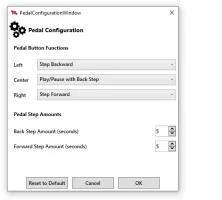
Identify the exact foot-pedal model included or already owned. USB describes a connection, not universal application support. The software must recognize the controller or its supported input method. A pedal intended for another professional program or live meeting command may require a different configuration or may be unsuitable.
Check the physical connection path. If the computer needs an adapter or dock, confirm a supported data connection and include it in the test. Do not assume that a setup verified directly on one computer has also been verified through a different hub, extension or docking station.
Plan where the pedal will sit and how the cable will reach the computer. A stable position and an uncomplicated cable route make daily use easier. If the workstation is shared, keep the controller identifiable so another similar device is not substituted without checking.
After installation, test every required command with the transcript application active. Record play, pause, backward step and any other configured actions. The foot-pedal technique guide explains press/release behavior and background-control checks in detail.
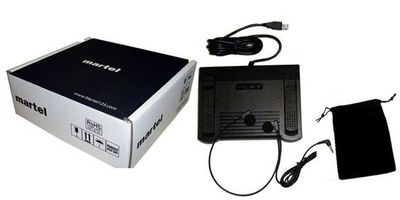
Confirm what headset or listening equipment is included and how it connects to the intended computer. Do not assume that every pictured accessory uses the same connector or that a laptop exposes every connection needed. Review the written package contents and ask about any missing adapter.
Use a known-good recording to test the output path. Confirm that the expected sound comes through the intended device at a reasonable level. If the recording has meaningful channel differences, verify that your listening arrangement exposes the required material.
For a shared workstation, record the chosen output device in the setup note. A later user connecting a display, dock or different headset can change the default output. A simple output check can prevent unnecessary investigation of a supposedly silent file.
Comfort and intelligibility should be evaluated in a short realistic session. A headset that sounds acceptable for a few seconds may not suit the user’s work routine. Avoid treating any accessory as a guarantee that poor source capture will become fully intelligible.
Ask what the typist needs from the video. Is it only the spoken audio, or must the person inspect a slide, identify a speaker change or understand a demonstration? That answer should guide the kit choice and screen arrangement.
If picture review is essential, test the actual video in the intended player. Check image, audio and seeking separately. A file that produces sound but no usable picture has not passed a video-workflow test merely because you can begin typing.
If an audio export is sufficient, preserve its relationship to the original video. Record any trimming or timing offset. Do not assume a derived audio file shares the same elapsed position when it was created from only part of the source.
Use the MP4 guide for container and playback troubleshooting and the video production guide for the document workflow. Keep compatibility questions separate from editorial decisions about what the transcript should contain.
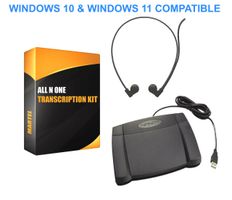
Choose and test a transcription kit using real recordings, current computer requirements, pedal controls, headset connections and acceptance checks.
Identify the playback controls that matter to your assignments. A first-pass typist may prioritize short replay and responsive stopping. A proofreader may need convenient navigation to queries. A video reviewer may need to inspect a specific visual moment without losing the document position.
Test supported speed controls with a representative passage, then return to normal speed for verification. Check any automatic back-step or configurable step amounts you plan to use. Record the actual behavior instead of assuming the controls follow another application’s conventions.
Seek near the beginning, middle and end of a longer file. Confirm that playback resumes where expected and that the displayed duration is plausible. A short demonstration does not reveal every long-file navigation problem.
Do not assume that a general player provides specialized channel isolation, evidence management or caption authoring. If those functions are essential, add them explicitly to the requirements and request specific confirmation. A useful buying checklist makes hidden assumptions visible.
Determine whether the listing is a complete kit or software-only. Compare the written contents for software access, pedal, headset and any included assistance. A lower-priced download may be appropriate for someone who already has compatible hardware, but it is not the same purchase as a matched package.
Check license terms for the intended user and computer pattern. The current audio/video listing describes two software licenses, but buyers should still confirm how the terms apply to transfers, replacement computers and the planned use. A license count does not answer every deployment question.
Identify any separate service needed for automatic drafting, cloud storage or collaboration. Do not assume those services are included because the kit is used in a transcription workflow. List their current costs and requirements separately when comparing the full setup.
Keep a dated record of the edition and package ordered. If the website later changes, your purchasing record should still identify what was selected. Use the current return and support information on the product page rather than relying on a remembered policy from an older purchase.
Decide who will install the software, configure the controller and verify the sample files. In a managed office, that may involve both the typist and IT. A successful installation message is not the same as a successful transcription acceptance test.
The audio kit’s current page describes installation assistance and technical support. Review the exact listing for the package you choose and confirm how help is arranged. Provide a clear description of the computer, controller and file when requesting assistance.
Prepare nonconfidential test material so basic setup can be verified without exposing a client recording unnecessarily. If a real sample is needed to investigate an unusual format, agree on an authorized transfer and handling process first.
Keep support questions specific. “The MP4 shows picture but no sound in this player” is more useful than “the kit does not work.” Include what succeeds, what fails and which checks you already performed. That narrows the next step without guessing at unrelated fixes.
Use this original worksheet after the final components are installed. It is a practical buyer’s test, not a laboratory certification or a promise that no future issue can occur. Replace the sample names with your own authorized files and record the observed results.
| Check | Action | Pass evidence |
|---|---|---|
| Source identity | Open the intended sample | Correct content and expected duration |
| Audio path | Listen through the selected device | Required voices are audible |
| Video path | Inspect the picture where needed | Usable image for the assignment |
| Seeking | Visit early, middle and late positions | Playback resumes correctly |
| Pedal mapping | Test each assigned control | Expected command and release behavior |
| Document focus | Type while using the pedal | Cursor remains usable; no unwanted input |
| Replay setting | Pause, type and resume | Enough context without excessive repetition |
| Output format | Save and reopen the document | Required formatting and content retained |
| Restart | Close normally and resume | Source, draft and place can be found |
| Handoff | Another user follows the setup note | Workflow can be reproduced |
Mark a check as “needs confirmation” when the sample cannot establish it. For example, an audio-only sample cannot prove video support. Keep failures separate from preferences so an attractive interface does not conceal an unmet essential requirement.
Begin with a manageable job and apply the same review standard planned for ordinary work. Record any new file behavior, control problem or document issue. Do not move a large backlog into an unverified workflow simply because the installation completed successfully.
Compare actual working time with the estimate from your test. Include drafting, correction, formatting and final review. A difference may come from the recording, the user’s learning curve or a missing setup detail. Investigate before assuming the product itself is the only cause.
Keep unresolved questions visible and assign an owner for each one. If the first assignment reveals a format problem, identify the source and seek a specific answer. Avoid building an undocumented conversion workaround that future users may mistake for a required or validated process.
Once the workflow is stable, retain a concise setup record and an acceptance sample. These provide a useful baseline after updates, computer replacement or staff changes. Repeat relevant checks when the configuration materially changes.
Imagine an office receiving mostly MP3 interviews and occasionally an MP4 presentation that must be transcribed with references to on-screen figures. The audio interviews and the presentation have different review needs. The office should not decide only from which format is most common.
One reasonable evaluation is to test an audio workflow for routine interviews and a video-capable workflow for the presentation task, then compare the total cost and simplicity of maintaining those paths. Another is to test a suitable mixed-media kit for both. The right choice depends on the actual results, user count and package terms.
If the presentation can legitimately be handled from audio alone, confirm that scope with the recipient. If the screen information is essential, choosing an audio-only path would leave a requirement unmet. The key question is what the completed document must represent.
Use the software testing scorecard to compare the options consistently. This example illustrates a decision process, not a claim that one package has been benchmarked as faster or universally better.
Prepare the source applications and file extensions, intended computer, existing pedal model, required document format and whether picture or separate-channel review is essential. Add any unresolved acceptance question. Those specific facts let Martel discuss a suitable package without assuming that every customer needs the same configuration.
Identify the actual recordings and the required output. Audio-only work, video review, automatic drafting and caption production are different requirements. Write the workflow in one sentence, then match the files, computer, controller and document process to that task.
Begin with the All N One audio/video kit, whose current listing includes MP4. Test the actual export and confirm computer compatibility. An extension list is a starting point, not a guarantee for every encoding or protected file carrying the same suffix.
The current Zoom Video Transcriber with Foot Pedal listing is SKU 1515. Use the product name and current page together when ordering. Check the exact package and requirements rather than relying on an old number or a similarly named software-only listing.
Evaluate it when the work centers on supported audio files and a person needs controlled playback while typing or reviewing text. Confirm the exact formats and workstation. If picture review is required, evaluate a video-capable workflow instead of assuming an audio listing covers it.
Possibly, but confirm the exact model and software support. Test it while the document application is active. A matching connector or similar appearance does not establish compatibility, and a controller configured for another task may behave differently.
Do not assume that. The playback workflows in this series support human transcription and review. If automatic speech-to-text is required, identify that feature or service separately and plan correction, formatting and final checking.
Record the specific failure and resolve it before relying on that function. Keep the original file and describe the tested configuration. Use the contact form for targeted help when appropriate. Do not mark an uncertain requirement as passed merely to complete the checklist.
Return to the complete workflow overview, which closes the ten-guide reading circle. You can also browse transcription kits, software and foot pedals or open the relevant product page with your requirements and acceptance worksheet ready.
Research note: Product details were checked against Martel’s current product pages. Technical references are linked beside the relevant guidance. Worked examples and worksheets are original illustrations, not measured product benchmarks. Features, licensing and software interfaces can change; confirm the current product details before ordering.