Transcription Kit Compatibility Checklist: Files, Pedals and Computer Setup
Choose and test a transcription kit using real recordings, current computer requirements, pedal controls, headset connections and acceptance checks.
Learn practical transcription foot-pedal technique, background playback checks, back-step settings, pacing exercises and common troubleshooting steps.
Chapter 8 of 10 · Foot pedals, meetings and kit selection
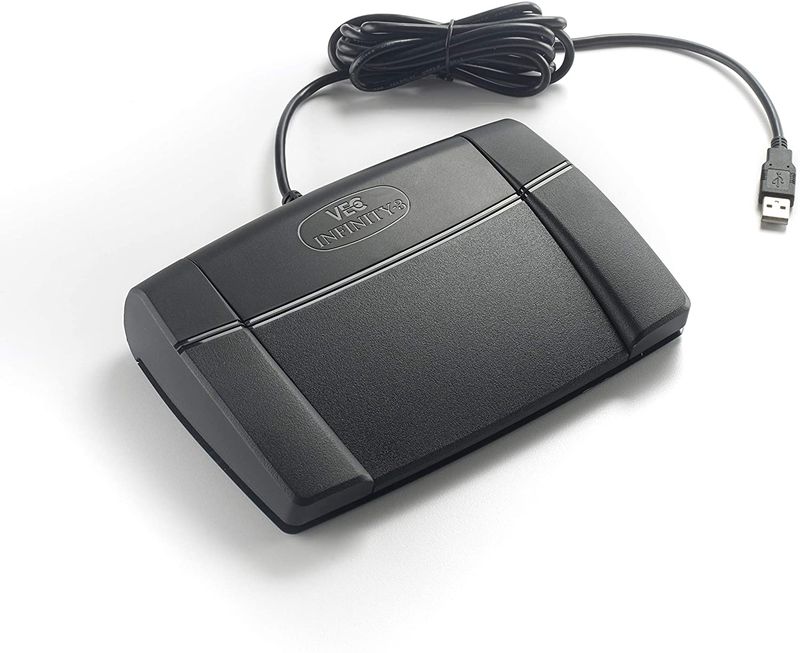
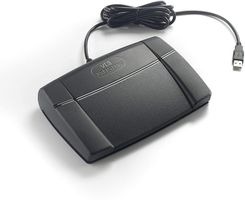
A transcription foot pedal lets you operate supported playback functions while your hands remain available for typing. Its practical value is in repeated stopping, replaying and resuming. It does not type the transcript, identify speakers or decide which word was spoken. Those remain parts of the transcription and review process.
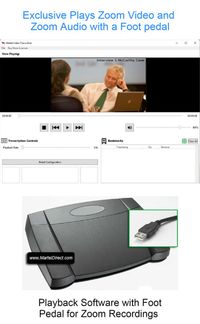
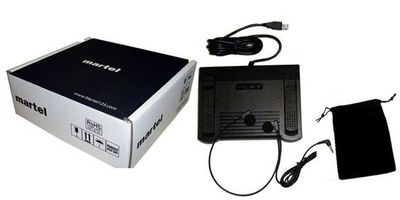
The best starting point is a matched player-and-controller workflow. Review the All N One audio kit for audio work, the All N One audio/video kit for mixed media, or the Zoom Video Transcriber for saved video review. Verify the actual package and the exact computer and files you intend to use.
This chapter focuses on technique and diagnosis after you have identified a suitable controller. Martel’s existing foot-pedal buyer’s guide covers the purchasing question, and its Infinity setup guide provides another relevant reference. Here, the goal is a repeatable rhythm and a clear way to isolate problems.
The pedal is an input device. The playback application must recognize its signals and associate them with useful actions. A connected USB plug is therefore only the start of compatibility. The operating system, controller support and application configuration all participate in the result.
Write down the exact pedal model, application edition and computer platform. Avoid descriptions such as “the usual pedal” when requesting help. Two controllers with similar shapes may be intended for different software or workflows.
Distinguish recorded-media control from live meeting control. A pedal assigned to microphone mute is serving a different purpose from one assigned to replaying a saved interview. Do not assume that a device configured for one task will automatically perform the other without supported configuration.
Test the functions you actually need. A setup that successfully pauses audio may still have an unexpected reverse command or an unwanted toggle behavior. Confirm each control deliberately before developing a typing habit around it.
In a press-and-hold arrangement, an action may continue while the control is depressed and stop when it is released. In a toggle arrangement, one press changes the playback state and another changes it back. Available behaviors depend on the software and controller, so inspect the supported options rather than assuming either mode is present.
The distinction affects rhythm. A typist expecting release-to-stop may let audio continue accidentally if the control is configured as a toggle. Another typist may find sustained pressure unnecessary if a supported toggle mode better fits their work. Choose intentionally and test the result.
Use a short practice recording before a real assignment. Press, release, pause briefly and press again while watching the player’s status. Repeat with the document active. The visual status helps confirm what happened before you rely entirely on sound and habit.
Record the chosen behavior in the setup note. If another typist uses the same workstation, that note prevents confusion and reduces the temptation to change settings without understanding why they were selected.
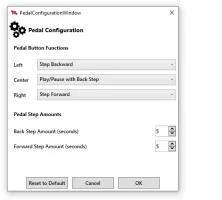
Start with a small set of functions used repeatedly: play or pause, a short backward step and any forward navigation needed for review. The available mapping depends on the application. Do not add complicated assignments before the basic controls behave reliably.
A first-pass typist often needs frequent short replay. A proofreader may need to move between bookmarked questions. A video reviewer may alternate between listening and inspecting a visual detail. The same physical pedal can be used differently when supported, but the mapping should follow the work rather than a generic ideal.
Test the direction and size of each step. A control that jumps farther than expected can skip context; one that moves too little may require many repeated presses. Keep a visible note during practice until the mapping is familiar.
Avoid changing several settings at once. If playback becomes awkward, adjust one factor and repeat the same passage. This makes it easier to identify whether the improvement came from the control assignment, replay length or playback speed.
Open a known-good recording and a blank practice document. Start playback using the mouse to confirm the media and output work. Then select the document and place the typing cursor in a paragraph. Use the pedal without clicking back into the player.
Check five outcomes: the recording responds, the document retains focus, no unwanted characters appear, the intended command occurs, and releasing or pressing again has the expected effect. Test each assigned control, not only play.
Now type a short sentence while pausing and replaying. Switch briefly to another ordinary application and return. Verify that the intended workflow still behaves consistently. If a command operates the wrong application, investigate supported controller settings and competing software rather than simply pressing harder or reconnecting repeatedly.
A successful background-control test is an essential acceptance result. NCH’s Express Scribe product documentation provides an example of a playback application describing background foot control, but compatibility must be established for the particular software and pedal you are buying. One vendor’s feature statement does not validate another application’s setup.
Automatic back-step, where supported, resumes playback a short distance before the point where you stopped. The purpose is to restore context. It is especially useful when the next phrase depends on the words you just typed.
Start with a modest interval and a clear passage. Pause, type and resume. Ask whether the replay includes enough context to reconnect the sentence without repeatedly replaying a large section. If the words feel disconnected, increase context or change where you stop. If the repetition is excessive, reduce the interval where the software allows it.
The time cost is easy to overlook. At normal playback speed, 30 stops with two seconds of repeated audio add approximately one minute of listening. That arithmetic is an illustration, not a recommendation to eliminate replay. The repeated context may prevent errors or manual searching that would cost more time.
Judge the setting by the completed passage. A longer back-step may help a beginner or a dense technical recording. A shorter one may work for clear familiar speech. Keep the setting adjustable instead of treating one number as correct for every assignment.
Try stopping after a complete phrase, question or short answer. This gives your memory a coherent unit to hold while typing. Stopping in the middle of an unfamiliar name or a number sequence can make the next restart harder to interpret.
Let the recording determine segment length. A clear conversational sentence may be easy to retain; a rapid list of amounts may require several pauses. There is no benefit in keeping audio running past the point where you can reproduce it accurately.
Use a practice passage with both easy and dense speech. Record where you tend to stop and which phrases require repeated listening. Adjust the rhythm before increasing speed. The aim is fewer avoidable interruptions and corrections, not the appearance of continuous typing.
If you lose your place, return to a known source position rather than trying to reconstruct the missing words from memory. A short, deliberate reset is usually easier to review than a paragraph built around uncertain recollection.
Begin at normal speed so you understand the recording’s natural pacing. Slow difficult sections only as needed, and return to normal speed to check wording and continuity. Speed changes can help listening, but they do not create information absent from the source.
Do not choose one extreme speed for an entire mixed-quality recording. A clear introduction and a rapid overlapping discussion may need different handling. Adjust selectively and keep the final interpretation tied to the original speech.
Measure the combined result. If faster playback creates more stops and corrections, it may not shorten production. If very slow playback makes sentence boundaries harder to follow, a moderate setting plus a little more context may be more useful.
For a simple exercise, transcribe the same short practice passage at two reasonable settings, then compare the corrected output and total working time. Use the result to choose a starting point, while recognizing that another recording may call for a different pace.
Place the pedal where it does not slide and where the cable is not under tension. Check that the desk, chair and floor arrangement allow ordinary comfortable movement. If you repeatedly search for the pedal with your foot, adjust its position before a long session.
Keep the keyboard and document in a consistent location. For video, arrange the picture so you can inspect it without constantly covering the transcript. A clear view of playback position is useful when you need to note an unresolved passage.
Route cables so the pedal and headset do not interfere with each other. If a USB hub or adapter is part of the setup, include it in the acceptance test. A controller tested directly on one port has not automatically been tested through every docking arrangement.
Take ordinary breaks and reset your position when needed. A foot pedal reduces some hand movements, but it should not be described as a medical solution or a guarantee against discomfort. Choose an arrangement that works for the individual user and seek appropriate help for persistent problems.
For the first drill, use 60 to 90 seconds of clear speech. Type it while stopping at phrase boundaries. Focus on correct play and stop behavior. Review the text and note any duplicated words caused by replaying the same phrase.
For the second drill, use a passage with names or numbers. Add source references for uncertain items. Practice short backward steps and returning to a known position. The goal is controlled investigation, not guessing a difficult detail to keep the recording moving.
For the third drill, use a multi-speaker exchange or a video with a visible speaker change. Pause to confirm the label, then resume drafting. Check whether your controls support the additional review without losing your place in the document.
Keep the drills short enough to repeat after a configuration change. Record the mapping, replay interval and speed used. That gives you a practical baseline for deciding whether a new setting actually improves the workflow.
First confirm that the media plays with the application’s ordinary controls. If it does not, resolve the file or output problem before investigating the pedal. Controller troubleshooting cannot fix an unreadable recording.
Next confirm the physical connection and the application’s supported controller configuration. Use the vendor’s instructions for the exact model. If a hub or adapter is involved, test a supported direct connection where practical. Record whether the operating system and application recognize the device through their normal interfaces.
Then repeat the background-control test. If the pedal works in the player but not while typing, report that specific result. If no control works anywhere, report that instead. These are different failures and should not be merged into a vague statement that the system is incompatible.
Avoid installing unrelated controller utilities or codec packs as a first response. Gather the exact model, application version and observed behavior. Use the Martel contact form with those details when setup assistance is needed.
If a control triggers the wrong action, inspect its assignment in the supported configuration interface. Do not assume that left, center and right have the same meaning across every application. Confirm the actual mapping with a harmless practice file.
If playback jumps too far, distinguish a fixed step from continuous rewind or fast-forward. A held control may behave differently from a brief press, depending on the software. Test press duration and release behavior while watching the playback counter.
If a command affects another program, check whether another controller-aware application is active and follow the relevant vendor guidance. Keep the test simple by using only the applications required for the workflow. Do not change unrelated system settings without understanding their role.
If the result remains inconsistent, record a concise sequence: application open, document selected, control pressed, observed action. A reproducible sequence helps support much more than a general description such as “sometimes it skips.”
Drafting and proofreading are different tasks. During drafting, you may pause frequently to type. During proofreading, longer continuous listening can expose missing transitions or duplicated paragraphs. Keep the pedal available for focused replay without fragmenting every sentence unnecessarily.
Use an issue list for unresolved names, numbers and speaker labels. Review those locations deliberately, then listen to surrounding context at normal speed. A difficult word may be clarified by the next speaker’s response, not only by slower repetition of the word itself.
Separate confirmed corrections from remaining uncertainty. Do not erase a query simply because you have heard the passage many times. Repetition can increase familiarity without supplying new evidence. The final transcript should reflect what the recording supports.
For video proofreading, keep relevant picture access available. A visual check can clarify a speaker transition or a referenced object, but it should not be used to invent unheard speech. Record observations according to the assignment’s convention.
Record the pedal model, software edition and version, computer platform, connection path and chosen command mapping. Include the date and the practice file used for acceptance. This makes a later support conversation more concrete.
Add a short restart procedure: open the correct source, open the current transcript, confirm the output device and perform a brief control check. A second typist should be able to follow the note without discovering every preference from scratch.
If settings change, note why and repeat the practice drill. Do not assume a change that helped one assignment should become permanent for all users. Keep individual preferences distinct when several people share a workstation.
Use the compatibility checklist for the complete buying and installation record. A clear setup note turns a collection of components into a workflow that can be maintained and handed off.
Use a two-minute practice passage to compare control settings. Record the time spent drafting and checking it, the number of times you lose your place, and any duplicated or omitted text. These observations are more useful than counting pedal presses alone.
In one trial, use the current replay interval. In a second, make one modest adjustment and repeat with comparable material. Keep playback speed and transcript style unchanged so the comparison is interpretable. If the passage is repeated, note the familiarity effect rather than crediting the entire improvement to the setting.
Consider an invented result: a shorter back-step reduces repeated listening but causes the typist to search manually for context three times. The setting may save seconds at each ordinary stop while creating larger interruptions elsewhere. The better choice depends on the total corrected task, not the shortest automatic replay.
Try the same method during proofreading. A reviewer may benefit from a different stepping pattern because the text already exists and the task is to inspect selected queries. If the workstation supports user profiles or documented settings, keep the drafting and review preferences understandable instead of changing them silently.
Keep the results modestly stated. A test showing that one setting works better for one typist and sample does not establish a universal productivity percentage. It gives that user a sensible starting point and a repeatable way to investigate future discomfort or inefficiency.
The most useful outcome is a control arrangement that supports accurate listening, predictable stopping and easy return to the document. If a setting makes the user hesitant or repeatedly loses the source position, revisit the mapping before increasing playback speed.
No. Ordinary playback controls can be adequate for occasional work. A pedal is worth evaluating when frequent stopping and replaying interrupt typing or review. Test it on your actual assignments and compare the complete task rather than assuming a guaranteed productivity increase.
No. Confirm the exact model and application support. A USB connector describes the physical connection, not every software command. Test the complete setup with the document active before relying on it for production.
Use enough replay to restore context without excessive repetition. Begin modestly, test a short passage and adjust according to the material. Dense speech may need a different setting from familiar dictation. The correct choice is the one that supports accurate, comfortable work for that task.
The control may be configured as a toggle rather than a press-and-hold action, or another setting may govern stopping. Inspect the supported configuration and test with a practice file. Do not assume the behavior indicates broken hardware until the command mode is confirmed.
Only if the specific product and configuration support that separate task. Recorded-media playback and live meeting mute are different functions. Choose and configure equipment for the intended purpose rather than assuming one pedal’s description covers both.
No. Slowing can help with dense speech, but extreme changes may make phrasing less natural. Use selective adjustments and verify difficult interpretations at normal speed. Accuracy also depends on source quality, terminology and the review process.
Play a known-good file, activate the document and test every assigned control while typing a few sentences. Confirm the cursor stays in place and no unwanted commands occur. Then test a passage near the end of a longer file.
Continue to meeting transcription workflows to see how playback review fits a complete meeting process. For purchasing, return to transcription kits and software or use the final kit compatibility checklist.
Research note: Product details were checked against Martel’s current product pages. Technical references are linked beside the relevant guidance. Worked examples and worksheets are original illustrations, not measured product benchmarks. Features, licensing and software interfaces can change; confirm the current product details before ordering.