Transcription Kit Compatibility Checklist: Files, Pedals and Computer Setup
Choose and test a transcription kit using real recordings, current computer requirements, pedal controls, headset connections and acceptance checks.
Work from Zoom recordings and available transcripts. Check MP4, M4A and VTT files, current transcript settings, speakers and foot-pedal review.
Chapter 4 of 10 · Video and Zoom transcription
To transcribe a Zoom meeting reliably, first identify what was actually saved. You may have a video recording, an audio-only file, an automatically generated transcript, or only a link to a host’s recording page. Those starting points require different access and review steps. A meeting that displayed live captions does not necessarily leave you with a downloadable transcript afterward.
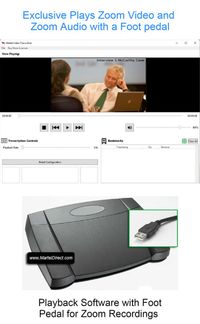
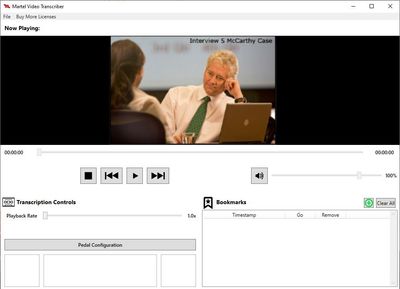
This guide covers a saved-recording workflow: obtain the authorized files, prepare a document, use any available automatic text carefully, and review against the media. It does not describe a live captioning service. For controlled video review, evaluate the Zoom Video Transcriber with Foot Pedal using a representative export from your own Zoom workflow.
Before production, agree on the final output. A full speaker-labeled transcript, edited meeting notes and an action-item summary serve different purposes. If the recipient expects exact quotations or detailed source references, preserve the recording and plan the review accordingly. Do not substitute a short meeting summary for a requested transcript.
Zoom changed its meeting caption and transcript controls in 2026. Its official update explanation separates live captions from retained meeting transcripts. Organizations that need saved speech-to-text records should check the Meeting transcript setting and its retention and download permissions. Older instructions that simply tell participants to save live captions may no longer describe the current workflow.
Cloud-recording audio transcription is a separate feature with its own controls. Do not assume that changing one meeting-transcript setting enables every kind of recording transcript. Check the feature that produced the particular file you are using, and involve the host or administrator when access is restricted.
For a recurring meeting, test the complete process in advance: make an authorized short recording, end the session, locate the saved media and confirm who can obtain the transcript. This practical test is more useful than discovering after an important meeting that a setting or permission was missing.
Treat the settings review as part of meeting preparation. A transcription kit helps with playback after a recording exists; it cannot retroactively capture a meeting that was never recorded or restore speech absent from the saved source.
Zoom’s recording-format documentation describes MP4 video, M4A audio-only files and VTT text assets among its recording outputs. The exact assets available depend on recording settings and features. A chat text file is a record of messages, not a substitute for the spoken conversation.
Create an inventory before opening several similar files. Note which file contains video, which contains audio and which contains text. Record the meeting identifier or project reference supplied by the host. If multiple layouts or segments exist, confirm which ones the assignment covers.
| Asset | What to check | Production use |
|---|---|---|
| MP4 recording | Picture, sound, duration and completeness | Main video review source when visuals matter |
| M4A audio file | Audible participants and exact file support | Audio-focused review when suitable |
| VTT transcript | Matching meeting, timing and text accuracy | A draft or reference requiring review |
| Chat file | Relevant messages and scope | Separate reference material |
| Shared recording link | Permission, download access and expiration | Access route, not proof of a local media copy |
Do not assume that every M4A file is supported merely because a product supports MP3. Check the exact format and encoding with the intended playback application. For video assignments, keep the MP4 available even if you use audio for part of the drafting process.
Ask the host or recording owner for the required source through the organization’s normal process. A link may allow viewing while preventing downloads. Another person’s successful access does not establish that your account has the same permissions. Resolve the access route before scheduling the transcription work.
For cloud recordings, Zoom’s current audio-transcript instructions direct users to the recording in the web portal, where the available media and transcript can be reviewed. Transcript processing can finish after the recording becomes available. A missing transcript immediately after the meeting may therefore require a processing or settings check rather than a playback repair.
For computer recordings, locate the saved files through Zoom’s recording-management interface. Its computer-recording guide explains locating the file and opening the recording. Keep the complete relevant folder together until you understand which assets are needed.
After downloading or receiving a copy, verify it independently. Open the beginning, middle and end. Confirm that the expected participants can be heard and that the recording covers the requested portion. Do not treat a completed download notification as a content-quality check.
A meeting can produce different views of the same conversation. One view may emphasize the active speaker; another may emphasize shared material. Zoom’s cloud-recording settings guide describes separate recording choices. The best transcription source depends on which information the assignment requires.
If the task is a spoken transcript, prioritize clear audio and dependable source references. If a presenter repeatedly says “this figure” or “the highlighted cell,” access to the shared-screen recording may be useful. A speaker-focused video may not show the referenced material clearly enough to support a descriptive note.
Keep the views labeled rather than treating them as separate meetings. Confirm that they cover the same session and time range. Do not assume identical start points merely because the filenames resemble one another. Test a distinctive statement in each file when cross-referencing them.
Choose one primary timeline for the document and explain any supplemental source. This prevents references from alternating silently between a gallery recording and a trimmed presentation recording. A reviewer should be able to reproduce the cited location without discovering your source choices by trial and error.
An available transcript can reduce initial typing, but it still needs review. Compare it against the recording before deciding how much correction is required. Names, technical terms, numbers, negatives and speaker changes deserve particular attention. A well-formed paragraph can still express the wrong meaning.
Zoom’s cloud-transcript workflow allows editing text and speaker labels in its portal. A downloaded VTT can also be opened as text. Decide which version will become your working master and record that decision. Otherwise, edits in the portal and edits in a separate document can diverge without anyone noticing.
For example, a reviewer may correct a participant’s name in the Word transcript while the portal still displays the original automatic label. That does not mean the correction failed; it means there are two different outputs. Tell the recipient which file has been reviewed and whether the portal transcript was also updated.
If no transcript is available, you can still transcribe from a usable recording with an appropriate playback and document workflow. The missing text asset and the missing media asset are different problems. A playback kit does not require that Zoom have already generated a draft.
A VTT file contains text cues associated with media times. MDN’s WebVTT reference explains that cue timing includes a start and end. That structure is useful for synchronized text, but it is not the same as a polished meeting document.
Keep an unchanged copy of the received VTT before adapting it. If the deliverable is a readable transcript, decide how to represent timestamps and speaker labels. Removing all timing immediately may discard useful review references. Retaining every cue break may produce awkward paragraphs that distract from the discussion.
An invented cue might cover a short phrase from 00:05:10.000 to 00:05:12.000. If you combine several cues into one paragraph, record the reference convention you will use for that paragraph. Do not imply that the whole paragraph was spoken within the first cue’s two-second interval.
If the final output must remain a timed caption or transcript file, use an appropriate editing workflow and check it against the final recording. A document editor may be useful for text correction, but changes to the cue structure still need validation and playback review.
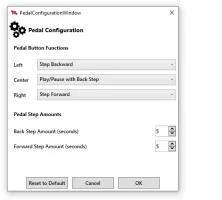
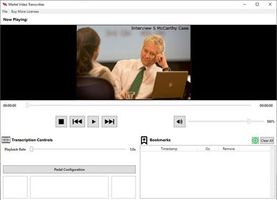
The practical purpose of foot control is to keep stopping, replaying and resuming close at hand—or underfoot—while you work in the transcript. Open the actual downloaded recording in the intended player, place the document beside it and test a short section. Confirm the pedal works while the document has focus.
Start with clear speech at normal speed. Add a modest replay interval that restores context without repeatedly replaying a large passage. If your software exposes different press-and-hold or toggle options, choose deliberately and test them before a longer session. The foot-pedal chapter provides a structured practice method.
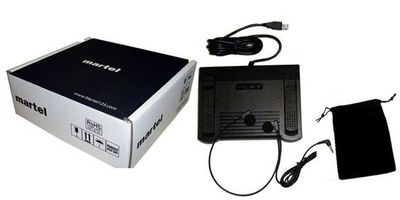
Use the Zoom Video Transcriber as the product route for this recorded-video workflow. For broader MP4 work, compare the All N One audio/video kit. Do not confuse either with a live meeting mute pedal; controlling saved playback and muting a microphone are separate functions.
Where a computer or software requirement is uncertain, verify it before purchasing. A Zoom recording can originate on one platform and be transcribed on another. The playback workstation must meet the transcription product’s requirements even if the meeting itself was hosted on a different device.
In a hybrid meeting, several people may speak through one room endpoint. An automatic transcript label can therefore identify the meeting connection rather than every person at the table. Do not assume one label equals one human speaker throughout the session.
Build a speaker map using confirmed introductions, direct references and the recording itself. If a name cannot be established, use the agreed neutral label. A displayed account name may belong to the host’s organization, a shared room or another participant using that device.
Pay attention when someone joins late, changes rooms or speaks through a second device. These transitions can create inconsistent labels even when the words are understandable. Review surrounding dialogue before applying a replacement across the entire transcript.
When several voices overlap on a shared microphone, the recording may not provide enough separation to resolve every word. Mark the specific uncertainty and retain its source time. A more expensive playback system cannot guarantee reconstruction of speech that the original capture did not preserve intelligibly.
A transcript records discussion; a decision summary interprets which outcomes were adopted. If the assignment includes both, create distinct sections or documents. A proposal, an objection and an approved action should not be merged into one sentence simply because they share a topic.
For an invented example, a participant may propose a Friday deadline, another may suggest Monday, and the chair may postpone the decision. An automatic summary that selects Friday would need correction even if individual transcript sentences were accurate. Review the whole exchange before extracting an action item.
Use a decision checklist with action, owner, deadline, source location and confirmation status. Leave a field unresolved when the meeting did not settle it. Do not fill gaps with what seems operationally convenient. Route the issue to the responsible person through the project’s established review process.
The meeting transcription workflow guide expands this distinction. It also explains why recording preparation and microphone coverage affect the amount of correction needed after the meeting.
First identify which transcript is expected: a cloud-recording audio transcript, a retained meeting transcript or a separate document created by another service. Then check the relevant host or administrator settings. Searching for an old “save captions” button may be the wrong path under Zoom’s current controls.
Confirm that processing has completed and that the authorized account has access. If the recording exists but no automatic text was generated, decide whether manual transcription or another approved process meets the deadline. Do not change account settings without the authority to do so; the typist’s immediate task may simply be to work from the available recording.
If the recording itself is missing, ask the host to verify where it was saved. Computer and cloud recordings are managed differently. A calendar invitation or meeting link is not a recording. Likewise, a chat export does not contain the spoken content needed to recreate a transcript.
Report the problem precisely. “MP4 downloaded and plays; expected cloud audio transcript is not listed” gives the host a useful starting point. “Zoom transcription does not work” combines several possible issues and makes the next investigation harder.
Compare the recording with a known-good file and confirm the listening output. If only the Zoom export fails, test the same file in another trusted player as a diagnostic step. Zoom’s no-audio guidance notes that player support and capture settings can both be relevant.
If the source contains no usable audio, a transcript tool cannot recover a conversation that was not captured. If the audio exists but your production player cannot decode it, that is a compatibility problem to investigate. Keep these explanations separate when requesting another export or contacting support.
Check for additional segments and intentional pauses when the recording seems incomplete. Compare the meeting’s expected scope with the supplied files. Do not infer that the final spoken sentence marks the actual end of the meeting if the recording may have stopped early.
For recurring work, use the problem as a preparation lesson: verify the selected microphone, record a short test, and listen to the saved result before the next important session. A live participant saying “I can hear you” does not fully test what the recording workflow saves.
Identify the meeting, source files and reviewed version in the final document. State the transcript style and timestamp convention. If a separate summary or action list is included, label it clearly. Keep unresolved speaker or wording issues visible through the agreed convention.
Reopen the exact final file and inspect it. Check speaker names, document headings, dates and any references to shared screens. Search for temporary labels and drafting notes. If a VTT or caption file is part of the delivery, verify its playback with the matching media.
Keep access and retention aligned with the project’s established process. Do not assume that possessing a meeting link authorizes wider distribution. For equipment choices, return to transcription kits and software; for the next chapter, continue to transcribing MP3 audio.
Choose a master for the reviewed text and document where corrections are applied. A Zoom portal transcript, downloaded VTT, Word document and PDF can all coexist, but they do not necessarily update one another. Without a clear master, a recipient may open an older draft and assume the review was never completed.
For an illustrative workflow, keep the received VTT unchanged as an intake asset. Make corrections in the working document, record the reviewed status and export the final document from that version. If the assignment also requires updating the portal transcript, treat that as a separate completed step and verify the relevant changes there.
If the host later edits the recording, compare the new media with the source used for review. A removed introduction can shift every elapsed reference even when the remaining words are identical. Reusing the previous timed file without checking can create a misleading result.
Use a short version note: source recording identifier, transcript master, reviewed date and delivered formats. Avoid claims that every available copy is current unless you have actually checked them. The note can remain concise while giving the next person enough information to choose the correct asset.
For repeat meetings, make this note part of the handoff template. It reduces confusion when the host, typist and reviewer use different applications. The playback kit then serves a well-defined source, and the finished document has a clear relationship to the meeting recording rather than to whichever file was downloaded most recently.
No. Zoom’s current caption and retained-transcript controls are distinct. Check the relevant meeting transcript or cloud-recording transcription setting, along with host and administrator permissions. Test a short meeting before relying on the workflow for an important event.
Yes, if a usable recording is available and you have permission to work with it. Open the media in compatible playback software and create the document manually, or use another approved drafting process followed by review. The automatic text asset is optional to that manual workflow.
Use MP4 when the picture supports the assignment. An audio-only file may be sufficient for speech-focused work, but verify its exact compatibility. Keep the sources identifiable and choose a consistent reference timeline. Do not assume every audio transcriber supports every M4A encoding.
A shared room or device can represent several speakers, and automatic attribution may be wrong. Use confirmed information and the recording to review labels. If individual identity remains uncertain, preserve a neutral label rather than inventing a name.
Do not assume that a Martel playback purchase includes a Zoom subscription, cloud recording or automatic transcript entitlement. Check each product or service independently. The workflow in this guide uses saved media with a playback tool while a person prepares or reviews the document.
It may describe controls that changed in 2026. Use Zoom’s current official documentation for saved transcripts and recording features. Keep the distinction between live accessibility captions, retained meeting transcripts and cloud-recording audio transcription clear.
Download an authorized recording from the workflow you actually use and test it on the intended computer. Check sound, picture, seeking and pedal control while typing. Then review the kit compatibility checklist before placing an order.
Research note: Product details were checked against Martel’s current product pages. Technical references are linked beside the relevant guidance. Worked examples and worksheets are original illustrations, not measured product benchmarks. Features, licensing and software interfaces can change; confirm the current product details before ordering.