A Mock Court Hearing From Roll Call to Readback With Speechmatics
Run a complete fictional footbridge hearing with Martel stenomasks, two witnesses, exhibits, a recess, a disputed readback, and four separate scores.
A purchase checklist for voice writers choosing a laptop, setting up a Martel stenomask, and preparing for a first practice job.
If your court reporting course or next assignment calls for Speechmatics, start with three things you can put in writing. Name the reporting software and release you will open, the recognition option you will use inside it, and the Martel mask you will speak into. Then compare the Martel VOX Elite laptops. Those three answers make the difference between ordering a computer with a promising specification and ordering a setup you know how to put to work.
The two Martel options covered here are the VOX Elite 32 GB, SKU 809, and the VOX Elite 64 GB, SKU 421. Both product pages describe a 1 TB solid-state drive, stenomask assistance, and help with transferring files. The published laptop warranty is three years for the 32 GB package and four years for the 64 GB package. Both listings describe Martel support for the life of the laptop. Put the exact mask, software arrangements, and services you have selected on the written order. Martel VOX Elite 32 GB Martel VOX Elite 64 GB
Still deciding which recognition option your CAT software supports? Read the Speechmatics versions guide for court reporters
Use this list as an order worksheet. A student can fill it in with the instructor’s equipment sheet and the Martel listing side by side. A working reporter can begin with the current setup and the first assignment planned on the new computer. Put a name or a specific answer beside each item. An empty box is a question you can take to Martel before you place the order.
Picture the first afternoon you sit at the new laptop. You have your mask, the instructor has distributed an invented practice passage, and you are ready to begin. What do you open first? What should appear on the screen as you speak? When the exercise ends, what do you have to turn in or review? The answers describe your purchase more clearly than a list of hardware parts. You may need text in a particular CAT practice job, a separate file of your own dictated voice, or room audio associated with a practice transcript. Write down which of those results matters for your first week.
For a working reporter, choose a representative day that you know well. Perhaps you connect a mask, bring a separate room microphone, display a practice exhibit on a second screen, and later replay a saved passage. Put those tasks in the order you perform them. Beside each one, write what equipment you physically touch. That can uncover a detail that a conventional computer checklist misses. If your hands are occupied with a mask and notes, for example, the position of the controls you use frequently can be important when arranging the desk.
A student’s list can be shorter. Write the course name and section, the software version specified in the current equipment list, and any assignment format the instructor has requested. If a class supplies a license, ask how you will receive it and when you can activate it. If a mask appears in the course list and the Martel package also includes one, ask Martel to identify the exact mask on the order. A clear answer here can save you an extra purchase and give the person preparing the laptop the correct model from the start. Martel VOX Elite 32 GB Martel VOX Elite 64 GB
Build the first exercise with material you wrote for practice. It might describe a library meeting, give the date of an imaginary hearing, or spell the surname of an invented speaker. Use at least one detail you can search for afterward. A sentence such as “Ms. Pell delivered the blue folder on Thursday” gives you a name, an object, and a day you can check independently. A handwritten copy of the expected sentence lets you compare your own dictation, the saved sound, and the resulting text without bringing an actual client matter into the demonstration.
For an EclipseVox order, Advantage Software identifies Speechmatics Enhanced and gives version-specific deployment choices. Its published table lists local Speechmatics for Eclipse 10 and 11. It lists both local and cloud Speechmatics for Eclipse 12. For local recognition, Advantage Software specifies its Boost Box or a supported computer purchased from Advantage Software. The current Boost Box listing has its own version requirement of Eclipse 11 or later. If you use Eclipse 10, obtain confirmation of the supported local arrangement for that installation. Record the answer before choosing hardware for it. Advantage Software EclipseVox Advantage Software version table Advantage Software Boost Box
Here is how that changes a buying conversation. Imagine that your instructor’s email says only “we will use EclipseVox with Speechmatics.” Ask which Eclipse release the class will use and which recognition option the instructor will demonstrate. If the answer is cloud processing with Eclipse 12, write that down and include the approved network location in your rehearsal. If the answer is local processing, ask for the publisher-supported hardware arrangement for your installation. The Martel laptop you plan to work at and the hardware designated for local recognition belong on separate lines until the arrangement is clear. Advantage Software EclipseVox Advantage Software version table
For CATalyst VP, Stenograph publicly announced an on-device Speechmatics integration. Its public getting-started article also describes the Dragon workflow, specifying CATalyst VP version 21 or later and Dragon Professional 16 on the same computer for those Dragon voice features. If you are buying for the Speechmatics option, write down the available build, license entitlement, and setup instructions that apply to you. A buyer moving from Dragon can use the Dragon guide to document the existing setup and the Speechmatics information to identify the intended one. Stenograph’s Speechmatics announcement Stenograph’s CATalyst VP setup guide
The question to bring to Martel is concrete. “I will use this edition of CAT on this Martel VOX laptop, with this mask and this published recognition arrangement. These are the parts I own, and these are the parts I need help setting up.” That gives the person preparing your equipment several things to confirm. It also makes the conversation useful for an experienced reporter who already owns a license and for a first-term student who will receive access through a school.
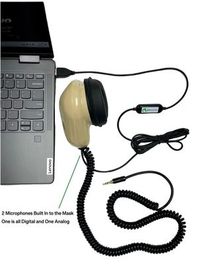
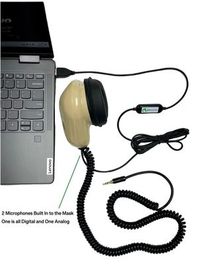
When you dictate at your usual reporting pace, you want the software to receive each word, including the first word after a pause. The Martel Dragon USB Stenomask sends your voice straight to a computer through its built-in USB sound card. That gives you one microphone path to select, test and use again. Choose the Martel Double Dragon 2 when you also want a separate recording of your own dictation. Its second microphone has a 3.5 mm connection for a compatible recorder, so you can listen back to the words you spoke while reviewing the rough.
Before your first assignment, read the same 100-word practice passage at a comfortable pace and then at your working pace. Include a surname, a dollar amount and a pause before an answer. Record how long each reading took and how many words you needed to correct in the saved rough. Check the name and amount separately. Use those observations to choose a pace that preserves the details you need. The published Martel specifications describe the microphone connections. Speed and recognition accuracy reflect the complete setup and your delivery.
We handcraft our Dragon USB and Double Dragon 2 stenomasks in limited quantities. If a batch sells out, there may be a waiting list.
Check Dragon USB Stenomask availability · Check Double Dragon 2 availability
Put the two model pages next to your assignment worksheet. Both are VOX packages offered by Martel for voice writing. The published comparison below uses the individual product listings. A school quote, a later listing, or an option selected on an order can supply additional details. Retain the version of the order you actually accept. Martel VOX Elite 32 GB Martel VOX Elite 64 GB
| Purchase detail | Martel VOX Elite 32 GB | Martel VOX Elite 64 GB |
|---|---|---|
| Order reference | SKU 809 | SKU 421 |
| Installed memory listed | 32 GB | 64 GB |
| Solid-state storage listed | 1 TB | 1 TB |
| Published laptop warranty | 3 years | 4 years |
| Preparation on the listing | VOX preparation, stenomask help, CAT and case-file transfer help | VOX preparation, help with the agreed configuration, and file-transfer assistance |
| Continuing assistance | Martel support for the life of the laptop | Martel support for the life of the laptop |
Read the memory row and the storage row independently. The two packages list the same storage capacity. Choosing the larger installed memory configuration therefore leaves another purchase question open. Where will you keep completed work, which materials need to travel with you, and which approved backup destination will you use? For planning, make two lists. One should describe the programs and tasks you need open together. The other should describe the files that need room on the drive. The first helps you discuss memory with Martel. The second helps you discuss storage and transfer.
One way to choose between the two configurations is to make a short workday inventory. Write the names of the reporting application, recognition workflow, meeting application if used, reference documents, and any audio tools you open during a normal session. On a second line list what you expect to add in the next stage of your training or work. A student whose first term uses a single local practice exercise can bring a very different list from a reporter who switches between a practice job, exhibits, and remote participants on the same machine. Give Martel the list and explain which items must run together. Martel VOX Elite 32 GB Martel VOX Elite 64 GB
If you already have a Windows practice computer, record a typical session before you shop. Note which applications were open, what you did in each, and when you noticed a delay, if any. Windows Task Manager can display memory information, including available memory and committed memory. A reading is most useful beside a description of the activity at the time. “I had just opened the second exhibit and started playback” gives a technician a specific event to discuss. A screenshot of an idle desktop answers a different question. Use observations from your own work when talking with Martel about more memory. Microsoft’s memory counter reference Martel’s Windows memory practice guide
Think about a change you can name. A student might start using a second display for exhibits next term. A working reporter might plan to keep several reference documents open during practice proceedings. Once you can name the change, ask which product feature addresses it and what you would test on delivery. A second screen raises questions about a display connection and where sound will play. More documents raise questions about legibility and the way you arrange your workspace. More saved recordings raise questions about storage. Each question leads to a feature or a connection you can check. Martel VOX Elite 32 GB Martel VOX Elite 64 GB
The 32 GB listing also describes an upgrade path to 64 GB. If that option matters to your buying decision, keep the current specification with your quote and ask about the procedure for the actual unit. For the 64 GB choice, decide whether having the larger memory configuration from the beginning suits the workload you have described. Either conversation is more productive when you can explain how you will use the computer next month. The package comparison is a starting point for a specifically configured Martel order. Martel VOX Elite 32 GB Martel VOX Elite 64 GB
Martel’s VOX pages describe professional preparation, help connecting the stenomask, assistance moving user or case files, and remote support. The written order is the place to specify the actual reporting application, licensed software, mask model, and transfer work. The 32 GB listing describes Dragon Professional as separately supplied unless the selected option expressly includes it. The 64 GB listing says Dragon Professional software is separately supplied. If your course uses Speechmatics, identify that option by name and keep its access details on the same worksheet. Martel VOX Elite 32 GB Martel VOX Elite 64 GB
Divide the appointment into three columns on paper. In the first, put what the laptop package supplies. In the second, put what you already own and will bring. In the third, identify anything supplied by the school or the publisher. For example, your Martel order might supply the computer and included mask. You might bring a recorder used in an earlier class. Your program might provide instructions for a particular CAT edition. Putting each item in one column makes it easier to see who can answer a question about that item and when an answer is needed.
For transfer assistance, prepare a short inventory that describes work by the names you recognize. “My practice dictionary from the spring course,” “the formatting settings I use for a question and answer,” and “the folder with the three mock jobs I am allowed to transfer” are useful descriptions. A technician can use those descriptions to help identify the corresponding resources in your authorized software. You can then use the same names to check the result. Choose a practice job with an obvious identifying feature such as an invented speaker name. Finding that feature helps you recognize the right copy. Stenograph’s new computer setup guide
Be specific about the handoff if you will continue using your present computer for a few days. A Tuesday backup represents Tuesday’s work. If you add dictionary entries or correct a practice transcript on Wednesday, tell the person helping with the move. A small note recording the later changes allows both of you to agree which copy should be used when you begin on the new laptop. Keep the old working environment available during the planned transition whenever your license and office policy allow it. The publisher’s backup and restoration instructions apply to the edition being transferred. Stenograph’s new computer setup guide
Use the setup appointment to answer one question that is hard to settle by reading a specification. Can you, at your own desk, open the expected practice job and follow a saved spoken sentence through the software you will actually use? Ask to perform the activity yourself after the initial demonstration. One person can describe where the software saves something while another person uses a different account or looks in a different folder. Doing the sequence yourself gives you a useful written note in your own words and a place to return to next time.
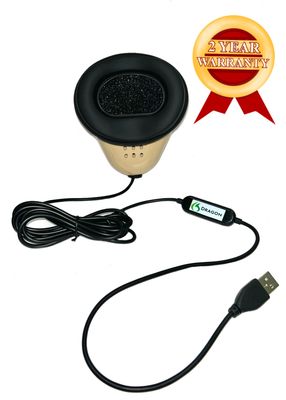
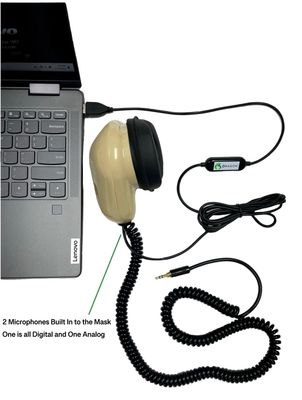
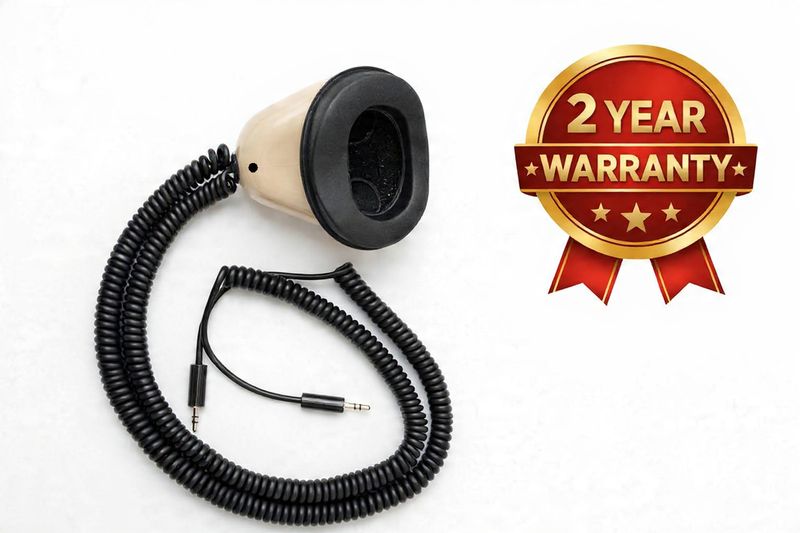
If the recognition laptop is your only destination for masked speech, begin with the Martel Dragon USB Stenomask, SKU 1941. Trace the connection on your worksheet from the mask to the computer’s USB input. During setup, identify the microphone name that Windows shows and record a short spoken sample. Listen through the output you intend to use for practice. This is a manageable starting arrangement for a student who has a single assigned recognition exercise and wants to know where the dictated speech is going. Martel Dragon USB Microsoft’s microphone test
Choose the Martel Double Dragon 2, SKU 1945, when your plan calls for a USB connection to the laptop and a separate 3.5 mm microphone connection to a compatible recorder. Those connections carry the reporter’s masked speech. Write the recorder make and model on your worksheet and check its input specifications. During the handoff, start a practice recording on the recorder, dictate a distinctive sentence, stop the recording, and play its file. Then check the computer’s practice result of the same sentence. The two checks answer different questions about the same spoken words. Martel Double Dragon 2
The Martel MM-ST1, SKU 374, supplies two independent 3.5 mm microphone outputs. If you intend to send one to a computer, identify the compatible analog input or suitable input adapter in the order. Name the second destination too. Two leads with a similar appearance can be difficult to distinguish at a busy desk. A removable label at the destination end of each cable can help you reconstruct the arrangement after packing up. Keep the names on the labels consistent with the names on your worksheet. Martel MM-ST1
What should you do if you already own one of these masks? Bring the model name, the connections, and a description of your current setup to Martel. If helpful, take a photograph of your own cable ends against a plain background. Compare the mask you have with the one named on the package. Ask Martel to confirm what the order includes and which input will receive your existing equipment. You can then decide whether the supplied mask suits your plan or whether to discuss another configuration. This applies equally to a personally owned primary mask and a personally owned spare. Martel VOX Elite 32 GB Martel VOX Elite 64 GB Martel Stenomasks
A second output is a useful choice when you want a second destination for the mask. A room microphone has a different assignment. Imagine a speaker says “green binder” and you repeat that phrase into the mask. A room recording can contain the speaker’s original voice. The mask recording contains your rendition. To hear the difference in practice, have a volunteer read an invented question while you remain quiet. Then have the volunteer pause while you dictate your answer. Listen to each intended file and write down which voice it contains. Knowing that before a live job helps you describe your equipment accurately. Martel Double Dragon 2 Compare the three Martel masks
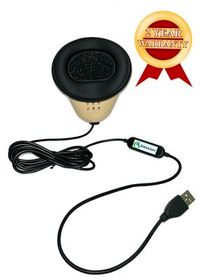
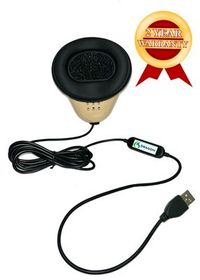
The package photo is a useful visual reference when it is paired with a model number. Compare the pictured end of the cable with the device you intend to attach. If the photo shows more than one lead, identify both destinations. If the order says only “stenomask included,” ask for the exact model on the quote. That detail is especially helpful if the school’s requirements specify a separate recorder or a particular connection. Use the actual Dragon, Double Dragon 2, or MM-ST1 product photograph when discussing your order with Martel. Martel Dragon USB Martel Double Dragon 2 Martel MM-ST1
Use a piece of paper large enough to place the Martel laptop in the center. On the left write the sources you will use, such as your own voice inside the mask and a volunteer speaking in the room. On the right write the results you intend to keep. One result might be text in a CAT practice job. Another might be a saved recording of your masked dictation. Draw a line only when you can explain how the signal gets from one point to the next. An unfinished line tells you exactly what to ask about during setup.
Now add the physical connections. The 32 GB listing identifies USB-A and USB-C connectivity and a supplied USB hub. The 64 GB package also lists a hub and describes its connectivity. Ask Martel which connections are built into the selected unit and which are available through an included accessory. Bring the connector diagram from your worksheet when you ask. Counting usable connections means putting each planned plug in a real place while reserving the equipment you need for the assignment. It is a practical question that the actual package configuration can answer. Martel VOX Elite 32 GB Martel VOX Elite 64 GB
A reporter who uses an external display can test sound as well as the picture. Start with the output device you normally use and play a short practice recording. Connect the display in the way you plan to use it, play the same recording, and identify where you hear it. Write down the name of the intended playback device in Windows. If your job involves reviewing a passage with headphones, repeat that check with the headphones connected. A port chart gives you the physical connections. Listening to the saved file verifies the arrangement at your desk. Microsoft’s Windows playback-device instructions
For a practical packing exercise, disconnect the equipment after a successful test and lay it next to the laptop bag. Group together the parts needed for the computer recognition route. In a second group put the recorder and its lead if you use them. Keep room audio equipment identifiable as its own group. Reconnect from your paper diagram and run the sample again. If you needed a cable that was missing from the drawing, add it while you have the working setup in front of you. This exercise can improve a purchasing list before a travel day.
A buyer who uses different desks can go one step further. Write a small heading for the classroom, the home practice area, or the office. Under each one, note what stays there and what travels with the laptop. A monitor that remains in the office affects your office setup but does not belong on every travel checklist. The recorder you use for your own masked feed may travel even if the room equipment changes. A location-by-location list keeps a second desk from turning into an unnecessary second purchase of everything.
Start by naming one thing your current Dragon workflow does well for you. It could be entering a recurring legal term, recognizing your chosen spoken form of an uncommon name, or placing a question and answer correctly in a practice transcript. Write a made-up example that demonstrates that one behavior. When you try the new Speechmatics arrangement in your licensed CAT software, use the same sort of example. You will then have two results that answer a question you actually care about. A general impression of how the first few words appeared on screen is harder to use.
Nuance documents exporting custom words and provides installation and profile guidance for Dragon Professional. If you maintain a custom word list, follow the instructions for your edition and preserve the resulting export in your authorized storage. Give it a name that tells you what it is and when you created it. Then make a separate human-readable list of terms you want to exercise in the new workflow. The first item is a software-specific resource. The second is a test you can read aloud whichever engine is active. Use the receiving CAT publisher’s public guidance to establish what that workflow can import or apply. Nuance Dragon Professional 16 release notes Advantage Software’s EclipseVox and Speechmatics training Stenograph’s CATalyst VP setup guide
Consider the word “series.” Your test could ask for the singular form, a sentence using the term in context, and a paragraph in which it sits next to a name. In a real reporter’s practice list, a word may matter because it sounds like a different word the reporter uses frequently. Make a note of the distinction that matters to you. For an invented name, include the expected spelling. For a number, include its intended meaning, such as a room number or an exhibit number. A small collection like this helps you separate recognition from formatting when you review the text.
Stenograph describes separate roles for Dragon vocabulary and the Personal VoiceCommands dictionary in its Dragon-based CATalyst VP workflow. Advantage Software’s introductory EclipseVox and Speechmatics training describes the relationship among spoken input, vocabulary, pronunciation, written output, and Eclipse dictionaries. Those descriptions give you a reason to keep vocabulary and formatting resources identifiable on your transfer worksheet. A term you speak, a formatted speaker label, and an action that inserts a passage can look similar to you on screen while belonging to different pieces of the working setup. Stenograph’s CATalyst VP setup guide Advantage Software’s EclipseVox and Speechmatics training
Choose a switching date that leaves time for a practice job and review. Put the date of the last known working Dragon practice job on the sheet, and give the Speechmatics practice job a different name. When you compare the two, note the exact application and release used for each. If you adjust a vocabulary entry between runs, record that change before you do the next passage. Your own written comparison can be useful later if you need help explaining which behavior changed and which behavior you still want to reproduce.
Begin in Windows 11 with the Martel mask connected to its intended input. Microsoft documents microphone selection and testing under Settings, System, Sound. Choose the intended input and use the available microphone test, or make a practice recording in Sound Recorder. Say a few words at your regular practice level, stop, and listen. If you normally listen through laptop speakers after disconnecting an audio device, choose those speakers before playback. A saved sample gives you something concrete to compare with the next stage of the exercise. Microsoft’s microphone test Microsoft Sound Recorder
Here is an original passage to use at an ordinary speaking pace. “The workshop began at nine fifteen on Thursday morning. Ms. Pell placed exhibit twelve on the oak table. The folder held four blue cards, two receipts, and the revised schedule for October sixth. Mr. Varo asked for the page with the delivery address. After the recess, the chair returned to the second receipt.” Before you speak, decide how you expect the names, numbers, and paragraphs to appear for your course exercise. The expected text belongs to your practice exercise and can be adapted to the conventions you are learning.
For the first run, focus on hearing your own voice clearly in the saved file. Play the first sentence and the last sentence. Listen to the names and the beginning of the sentence after you paused. Make a note using ordinary words. “I hear Varo clearly at my normal practice level” tells you something concrete about the saved audio. Put that note beside the selected microphone name. If you reconnect the mask at a different desk later, the two facts together will help you recognize the working arrangement. Microsoft’s microphone test Martel mask-on and mask-off test
For the second run, open the practice job in the CAT application and use the recognition option that your instructor or publisher has confirmed. Speak the same passage, save the job, and reopen it. Find “second receipt.” Work back from that phrase to the sentence before it, then inspect the name and exhibit number earlier in the passage. This tests whether you can find and review your work as well as whether words appeared on screen. If your configuration includes transcript-linked audio, use the publisher’s playback instructions to listen at a selected point. Stenograph’s playback instructions Advantage Software’s EclipseVox and Speechmatics training
If you have a Double Dragon 2 and a separate recorder in the order, make a third check. Announce a new take number into the mask before you begin. Start and stop the compatible recorder as you normally would and write down the name of its saved recording. Find the spoken take number in that file. This identifies the new sample even if you have several similar practice recordings on the device. A second person can try to find it from your written instructions. If the person finds a different file, improve the file description while the session is still fresh. Martel Double Dragon 2
Finish by closing the practice applications and repeating only the part you expect to do at the start of a normal assignment. Someone who usually sets up before others arrive might test the mask first and open the job second. Someone whose class supplies an assignment file might begin by locating that file. Make sure the sequence works in the order that is practical for you. Note one detail that would be easy to forget after a weekend, such as the name of your playback device or the folder used for practice jobs.
A student starting with one laptop and one mask. In this fictional example, Ana has a current class handout, no personal CAT jobs to transfer, and a requirement to use Eclipse 12 with a specified Speechmatics option. She writes down how the school will provide access. She compares the Martel VOX packages and asks which mask will be included. Her first exercise requires her own dictated voice on the laptop, so she asks about the Dragon USB model and whether the planned connection matches the order. At delivery she wants to be able to speak, hear the saved sample, and reopen the practice document. Her checklist can be that short. Advantage Software EclipseVox Advantage Software version table Martel Dragon USB Martel VOX Elite 32 GB
What does Ana take to the setup appointment? She brings the dated equipment list, her order confirmation, a fictional class-style passage, and the name of the application and release. Because she has no old jobs to move, she uses the available time to identify where a new job is saved. She writes down the folder and the name of the practice job in her own words. At home she reconnects the single mask, finds the same file, and repeats the practice sequence. Her work with Martel has a specific outcome she can recognize on her own.
A working voice writer moving from Dragon. In this second fictional example, Chris already knows how to create jobs and review audio. The important resources are a working vocabulary, familiar formatting, a recorder for masked speech, and several authorized practice jobs that demonstrate the current workflow. Chris starts the quote with the CAT edition, the planned Speechmatics arrangement, and the model of the existing recorder. The Double Dragon 2 is relevant because Chris wants USB audio at the laptop and a separate compatible analog destination. Chris asks Martel to identify the mask on the quote and to discuss transfer assistance for the applicable files. Martel Double Dragon 2 Martel VOX Elite 32 GB Martel VOX Elite 64 GB
Chris also wants to make a memory decision based on actual work. Before the appointment, Chris records which applications are normally open during a representative practice job and whether a display and playback tools are in use. The notes show that some applications run together while others are opened only during editing. That detail changes the discussion from a count of everything installed to a description of a working session. After choosing a Martel configuration, Chris runs the same exercise on the new setup. A personal worksheet with the date, files, and equipment connected makes the result easy to revisit. Microsoft’s memory counter reference
A reporter whose work moves between two locations. In the third fictional example, Devon will practice in an office and a training room. The office has an exterior display and a desk recorder. The training room has a desk, a power outlet, and a different approved network arrangement. Devon writes a packing list for each location. The laptop and personal mask travel. The display stays in the office. If the class uses cloud Speechmatics in Eclipse 12, Devon confirms the permitted connection at the training location. If the requirement is local processing, Devon documents the publisher-supported local hardware arrangement before buying. Advantage Software EclipseVox Advantage Software version table
Devon rehearses a location change before the first scheduled session. The test begins with the equipment packed. At the second desk, Devon connects the mask, selects the intended input, opens the practice job, and plays yesterday’s saved passage. Only then does Devon record a new passage. That sequence checks both continuity with earlier work and the ability to produce a fresh result. The one item that had been left at the office becomes a specific addition to the packing list or order. For a traveling reporter, that discovery can be as valuable as comparing two lines on a specification sheet.
What exactly will arrive, and what will be arranged afterward? Ask for a written row for the VOX Elite model, a row for the precise stenomask, and a row for each included accessory you plan to use. Identify the files or configuration that need your participation during a remote setup session. If an item is on the product page but you have selected a different option, ask how the option changes your order. The point is to leave the conversation able to picture what you will open, what you will plug in, and which part of the setup you will do with help. Martel VOX Elite 32 GB Martel VOX Elite 64 GB
How should I describe a school requirement to Martel? Quote the application name, release, and assigned processing option accurately in your own order notes. Include the term and section if your school changes its equipment list between classes. If the class permits a choice, describe the activity that each choice must support. A brief written description of your first practice assignment is more informative than an undated shopping list. Keep the current course instructions and the selected Martel quote together so you can reconstruct the decision the next time you discuss the equipment.
Which package terms should I keep for later? Record the SKU, purchase date, configuration, laptop warranty term, and the support service described on the order. Distinguish the period of hardware protection from the availability of Martel support for the life of the laptop. Include the model of any accessory you may need help identifying. A photograph of your own working desk can supplement this record, particularly if there are several similar leads. Store it where you can retrieve it even when the laptop is packed. Martel VOX Elite 32 GB Martel VOX Elite 64 GB
How do I prepare a useful support note? Write the exact step you were performing, the equipment you selected, and the result you observed in your fictional practice job. An example is “The saved mask sample plays through the headphones. In the practice job I can find exhibit twelve, and I would like help replaying that passage.” This tells the person assisting you which parts you have already confirmed and what you want to accomplish next. Include the application version and your Martel model. Use the practice passage when you demonstrate the behavior. Microsoft’s microphone test Stenograph’s playback instructions
Write two sentences at the top of your worksheet. The first identifies the person who will use the system and the work that person will do. The second describes the result that person wants from the first rehearsal. A possible entry is “I am beginning a voice-writing class using the software and release named on the attached class sheet. I want to dictate the class practice paragraph with my own Martel mask, save it in the expected job, and locate one answer during review.” Those two sentences keep the rest of the worksheet grounded in your use of the equipment.
Under computer, enter one Martel model and SKU. Beside it, write what made you choose the memory capacity and the warranty term that goes with it. If you have two quotes, put the two numbers on separate sheets and date them. That avoids carrying a warranty term from the 64 GB package onto a 32 GB quote. Under storage, identify which current work needs to be available locally and the approved place for another copy. If someone else manages the archive, list that person’s role and what they will supply at transfer. Martel VOX Elite 32 GB Martel VOX Elite 64 GB
Under software, record the CAT edition and release, the recognition option, and the public publisher page that describes the relevant feature. Keep a separate entry for the person or organization providing the license. If you have been told that access becomes active at orientation, write the date on the sheet. You can still check the mask, laptop playback, and physical connections beforehand. Reserve a second practice session for the licensed workflow once access is available. This timing distinction helps you make use of the new laptop from delivery while keeping the first complete rehearsal realistic. Advantage Software EclipseVox Stenograph’s Speechmatics announcement Microsoft’s microphone test
Under equipment, name the mask and write its destination or destinations in full. A useful description is “Double Dragon 2 USB lead to the VOX laptop and separate 3.5 mm output to the compatible recorder named on the order.” For an MM-ST1, specify which analog input or adapter you will use at each end. For a Dragon USB setup, write down the selected computer input name once you have seen it in Windows. Leave room to add the name of your room microphone if your class or working arrangement calls for one. Martel Dragon USB Martel Double Dragon 2 Martel MM-ST1
Under setup, write who will be present, which equipment will be connected, and the fictional file you plan to use. Put one familiar task on the sheet for each person who needs to be comfortable with the result. For example, the student might need to create a practice job, while the person assisting with setup might show how to identify the chosen input. At the end of the appointment the student can repeat the task independently. If a question remains, it now has a specific place on the worksheet, alongside the equipment and version involved.
Under first completed practice job, record the filename, date, chosen microphone, selected playback device, and the sentence you located after reopening the file. Add the separate recorder filename when that was part of the test. These notes become your starting point the next time you change a cable, move desks, or begin another course module. Because the example belongs to you and uses invented material, you can describe it to Martel without identifying a client, witness, or actual proceeding. A modest practice record is often easier to maintain than an elaborate equipment binder.
Start with the Martel VOX laptop category, then open the product page for the configuration that matches your worksheet. Use the 32 GB page for SKU 809 and the 64 GB page for SKU 421. Confirm the included mask and selected options before completing the order. If you would like Martel’s help with a configuration or a written quote, send the model, your CAT version, the recognition option you have confirmed, and the connections you intend to use. Martel can then discuss its listed laptop preparation and setup assistance in the context of your own equipment. Martel VOX laptops Martel VOX Elite 32 GB Martel VOX Elite 64 GB Request a written Martel quote
Use the rest of Martel’s educational guides at the point you need them. The guide to choosing a VOX setup for EclipseVox explains how to document the recognition arrangement. The stenomask comparison helps you match one or two output connections to the intended destinations. The Windows 11 stenomask guide gives you a saved-audio exercise you can perform on the delivered laptop. And if this is a transfer from an existing CAT system, the new-laptop guide helps you collect the right questions before the appointment. Together these give you a path from the buying checklist to a practice transcript you can reopen and review. Martel’s EclipseVox laptop and processing guide Compare the three Martel masks Martel stenomask troubleshooting Martel’s guide to moving CAT software to a new laptop Martel Articles
This article is for educational purposes only.
Use this checklist to choose a Martel VOX Elite laptop for Speechmatics, match your stenomask connections, and prepare your first practice job.