TIME IS RUNNING OUT FOR 2026 TAX WRITE-OFFS

Reading Windows 11 Memory During Voice-Writing Practice

By Martel Electronics
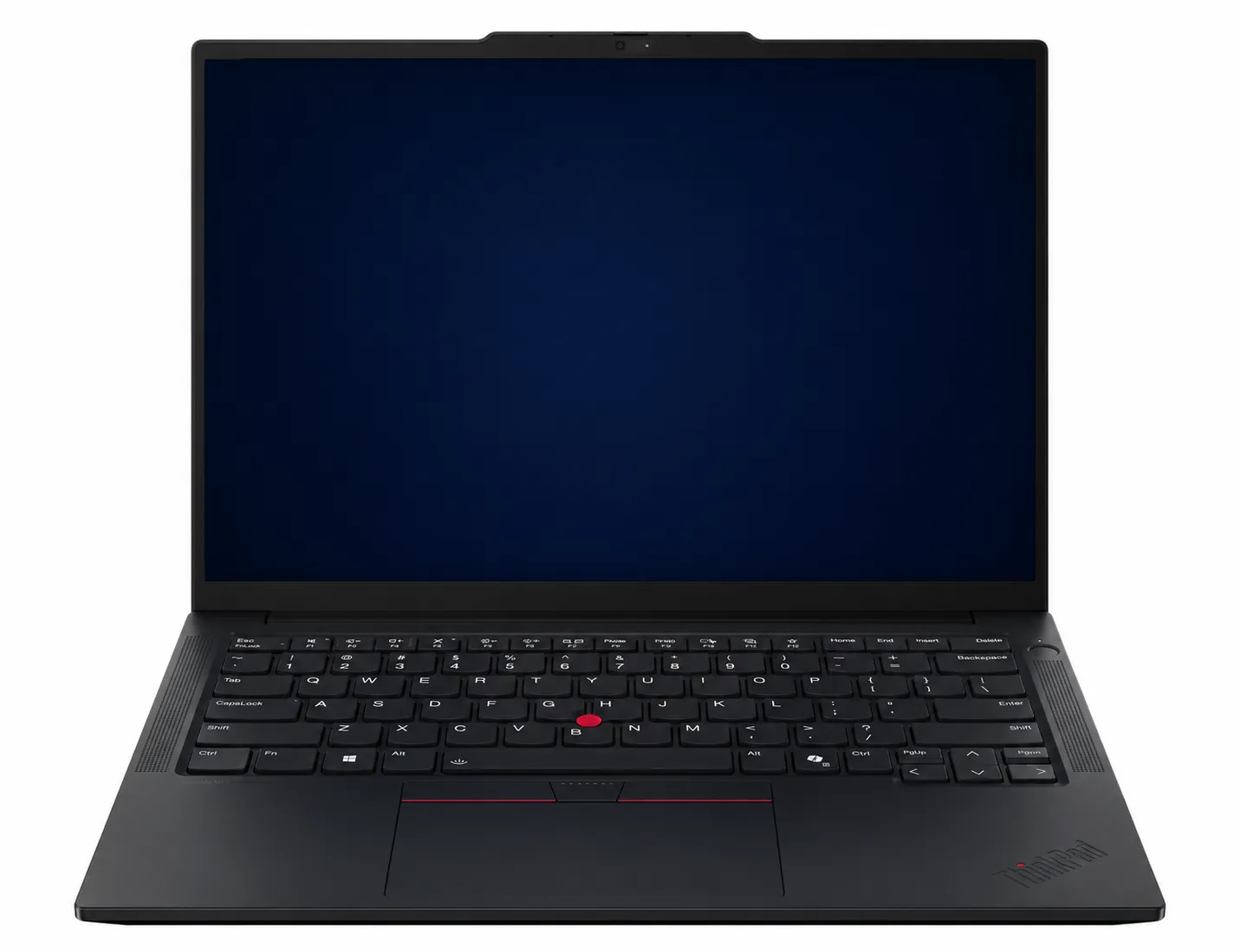
Martel VOX Elite laptop; screen display simplified for illustration.

A voice writer can learn more from a documented practice session than from an isolated Task Manager screenshot. Windows 11 shows how working memory changes while applications open, a practice job runs, and the session closes. Those observations become useful when they are connected to the activity that produced them.

This guide explains a repeatable way to observe memory in Task Manager and document a realistic VOX session. The useful result is a written record of what was running, what Windows reported, what the user observed, and what future work is expected to change. That record can support a conversation with Martel or the software publisher when a laptop or application changes. It does not promise recognition accuracy or establish a universal purchase requirement.

The example sessions and observations below are illustrative. They demonstrate the method and are not Martel tests, customer results, product guarantees, or software requirements. The current CAT and recognition documentation, together with applicable school or firm requirements, governs the setup you actually use.

What a Windows 11 memory reading can and cannot tell you

Task Manager reports the state of one computer at one moment. Under Performance > Memory, Windows shows installed memory and several changing values, including In use, Available, Committed, and Cached. Those figures can reveal whether a particular mix of applications is leaving practical room for more work. They do not, by themselves, identify the perfect laptop or prove that a recognition error came from memory.

Memory is only one part of a VOX system. Audio-device compatibility, Windows configuration, the recognition route, the CAT application, the active job, network conditions for cloud services, and the way those parts are configured can all affect the experience. A smooth practice session does not guarantee that every future job will behave identically. A single slow moment also does not identify the remedy.

Use a memory reading to answer a narrower question:

During a documented, representative Windows 11 workload, how much memory was in use, how much remained available, how much was committed, and did repeated sessions leave reasonable room for the user’s planned additions?

That question is measurable. It also gives support a defined working situation to review. A note that identifies the application, task, and time is easier to interpret than an unexplained request for a different computer.

Keep three recognition routes separate

Before opening Task Manager, identify the recognition route. The applications and hardware required for one route should not be casually substituted for those of another.

Dragon is a local recognition application

In a Dragon-based voice-writing workflow, authorized Dragon software runs on the Windows computer and works with the user’s trained profile, audio input, and CAT workflow. The local computer therefore participates directly in recognition. The practice workload should include the authorized Dragon version and profile the reporter will actually use, along with the relevant CAT application.

Cloud Speechmatics uses a cloud service

For a cloud Speechmatics workflow, include the CAT application, audio input and network connection in the session record. Identify the Eclipse release on the session sheet. The publisher’s version table allows cloud or local Speechmatics with Eclipse 12; its entries for Eclipse 10 and 11 identify local processing. Establish the selected arrangement before starting the exercise. Then record the applications actually open and the supported cloud connection used for that practice session.

Local Speechmatics Enhanced has a publisher-specific hardware requirement

Local Speechmatics Enhanced has its own purchase requirement in EclipseVox: obtain the publisher’s Boost Box, or choose a qualifying laptop purchased from the same publisher. Record the supported local arrangement beside the Windows memory observations. The equipment entry identifies the publisher’s designated deployment, while the readings describe the practice session. Confirm both entries when planning the local workflow.

This distinction matters when documenting a VOX session. Identify the route first: Dragon, cloud Speechmatics, or the publisher-supported local Speechmatics Enhanced route. Then build the memory rehearsal around it. Do not run Dragon and a cloud route together merely to make the test look demanding unless the reporter uses them together and the publishers support that use.

Confirm the written requirements before measuring

Collect the current requirements that apply to the intended setup:

  • The exact CAT product and current supported release
  • The exact recognition route
  • The school, employer, agency, or firm’s written requirements
  • The operating-system edition and update level
  • The authorized audio input and any required driver or connection utility
  • Remote meeting or realtime-delivery applications that will be used during assignments
  • The publisher’s requirement for local Speechmatics Enhanced, if that route is planned
  • Backup, security, and account rules that affect the working session

Record the source and date for each requirement. Do not copy an old classroom checklist into a new purchase without checking it. Requirements and supported versions can change.

Use the publisher’s written configuration guidance to prepare the selected recognition route, then use this exercise to document the actual practice workload. Record the supported setup, the job opened, the simultaneous applications and any planned additions. These entries serve complementary purposes: one describes the approved arrangement and the other explains what the reporter observed during a particular session.

Prepare Windows 11 for a useful reading

A reading becomes meaningful when another person can understand how it was produced. Start with a normal, supported Windows configuration rather than changing virtual-memory settings or turning off services to manufacture a lower number.

  1. Install supported Windows updates and restart if an update requires it.
  2. Connect the normal charger and use the ordinary power setting intended for work.
  3. Connect the same authorized audio device, hub, external display, and network method expected during assignments.
  4. Open only the applications that belong in the planned test.
  5. Allow Windows and the required applications to settle after startup.
  6. Confirm that no large installation, cloud synchronization, or security scan is intentionally being used to distort the reading.
  7. Write down the date, Windows edition, a safe computer identifier, and application versions.

Do not disable the Windows page file for this exercise. Windows uses committed memory and the page file as part of normal memory management. Unless qualified support gives case-specific instructions, leaving the system-managed configuration alone creates a more realistic observation than tuning it solely for a screenshot.

If the laptop is already in daily use, also note any utilities that launch automatically. A user who always works with an approved security tool, an accessibility utility, or a required synchronization client should generally include it. The goal is not to achieve the smallest possible baseline. The goal is to reproduce the real working computer.

Open the Memory view in Task Manager

On Windows 11, press Ctrl+Shift+Esc to open Task Manager. Select Performance, then select Memory. Widen the window if necessary so you can read the labels and values without confusing adjacent fields.

Record these values:

  • The displayed total, retained in your own session worksheet so later readings can be interpreted on the same computer
  • In use, which is memory currently being used by Windows, applications, drivers, and related components
  • Available, which is memory Windows can make available promptly; it includes more than a simplistic pile of never-used memory
  • Committed, shown as a current amount and a limit
  • Cached, which Windows can use to keep useful data ready and can repurpose as needed

The committed limit relates to physical memory and page-file capacity. It is not the same as installed RAM. The current committed figure is not a count of memory chips in use. Likewise, “Available” is not merely empty memory. Windows manages several lists and can reuse standby content when applications need memory.

For this practical worksheet, resist the temptation to convert one figure into a universal red, yellow, or green percentage. Instead, compare repeated readings from the same documented workload, note whether Available falls after planned additions, and record whether the user observed a problem at the same time. A fall in Available is not, by itself, a measurement of Windows memory compression.

Take a quiet baseline

After Windows has settled, close the CAT application, recognition software, remote meeting application, and any optional working tools. Leave normal required background components running. Capture a baseline row.

An illustrative row might look like this:

Stage In use Available Committed What was running Observation
Baseline after restart Copy displayed value Copy displayed value Copy current value and limit Windows 11, required security, audio utility No job applications open

This blank-value row shows the notation without prescribing a computer specification. In your private worksheet, copy the values and units that your own laptop displays. Do not substitute an example from somebody else’s computer.

Why take a baseline? It reveals how much the normal Windows environment is using before the assignment begins. It also makes unusual changes easier to notice. If two runs start with very different baselines, find out what changed before comparing their later readings. An update, synchronization job, forgotten browser session, or newly installed utility may explain the difference.

The baseline is not a purchasing verdict. A laptop can show a modest baseline and still encounter trouble in a demanding job. Another can show a larger baseline because Windows is caching useful content while still retaining ample available memory.

Build a representative VOX rehearsal

The test should imitate a real assignment without using confidential client material. Create or obtain an authorized practice job. Use sample names and facts. Mark every made-up scenario as illustrative if it is saved or shared.

A realistic rehearsal can include:

  1. The supported CAT application with a practice dictionary and practice job
  2. The recognition application or cloud route that will actually be used
  3. The authorized voice-writing audio device
  4. One ordinary reference document or exhibit viewer, if the reporter normally keeps one open
  5. A remote meeting application only when remote proceedings are part of the intended workload
  6. Realtime output only when it is part of the job
  7. The normal backup step or approved job-save routine

Avoid adding unrelated stress applications. Opening dozens of arbitrary browser tabs, a game, or a video editor may create a dramatic number but will not answer whether the intended reporting workflow fits. If the reporter must run an exhibit platform or accessibility tool, include it and record its name and version in the private session notes.

Use a practice segment long enough to move beyond launch activity. Five seconds after an application opens is not representative. Dictate or play an authorized practice segment, navigate the job, perform a save, and use the normal correction or review step. If remote work is in scope, join an approved test meeting rather than a live confidential event.

Measure stages, not one dramatic moment

Record several stages. A useful sequence is:

  • Baseline after Windows settles
  • CAT application open with the practice job loaded
  • Recognition route active
  • Representative dictation underway
  • Remote meeting and realtime output active, if those are genuinely part of the workflow
  • Review, playback, or editing step
  • Save and backup step
  • Ten minutes after the active segment ends

At each stage, write the Task Manager values and a plain-language observation. Do not infer an error merely because a number increased. Applications are supposed to use memory. The important questions are whether the readings remain repeatable, whether the workload leaves practical room for the planned work, and whether a user-visible issue appears consistently with a stage.

Here is an illustrative observation sheet. The descriptions summarize a pattern; the reporter’s own worksheet should retain the actual displayed readings beside them.

Stage In use trend Available trend Committed trend User observation
Baseline Starting reading Starting reading Current value and limit recorded Applications closed
CAT job open Above baseline Below baseline Current value increased Fictional practice job opened normally
Dragon route active Increased again Fell again Current value increased Practice profile loaded
Dictation plus remote test Higher than previous stage Lower than previous stage Current value increased; limit recorded again No issue in this invented run
Review and playback Similar to active session Similar to active session Little change observed Illustrative playback completed
Ten minutes after closing job Near initial reading Near initial reading Current value decreased Background tools remained open

These invented trends show how to organize observations. They do not predict a result for a Martel VOX laptop or another computer. A real note should state how much a value changed, using the units shown by the tested system, and should retain the earlier reading for comparison.

Repeat the rehearsal at least three times

Repeating the rehearsal helps document consistent behavior across ordinary working conditions. It also gives context to temporary activity, such as an update or a network interruption. Use separate starts and the same practice steps for each run.

Keep the workload consistent:

  • Use the same practice job and comparable duration.
  • Open the same required applications.
  • Use the same recognition route.
  • Connect the same audio path and accessories.
  • Include the same remote test only when it is part of the intended job.
  • Take readings at the same stages.

Do not expect the numbers to match digit for digit. Windows manages memory dynamically. The value of repetition is to reveal a pattern. If three sessions leave similar room and complete the same tasks without a repeated problem, that is more useful than one screenshot. If available memory shrinks sharply in each run or committed memory grows without returning after the same applications close, document that pattern for support rather than guessing at a cause.

For every observation you want support to review, note the exact time, application state, and activity. “The system was slow” is too vague. Better notes might say, “At 2:14 p.m., switching from the practice job to the exhibit viewer took several seconds while the remote test was active,” or, “The recognition application displayed a message at 10:06 a.m.; Available was similar to the previous completed stage.” Both are illustrative notes. The second keeps the displayed message separate from an unproven explanation involving memory.

Read In use and Available together

In use shows that Windows and applications are actively using memory. A rising value during a job is normal. Available represents memory that Windows can provide promptly, including reusable standby content. These values are related, but they are not a complete diagnosis.

Suppose the fictional system’s Available reading stays similar across several successful practice stages. That does not mean the available memory was wasted. Windows can keep reusable content ready and make memory available when an application needs it. It also does not establish that every additional application or future job will behave the same way.

Now suppose a different documented workload repeatedly leaves very little available memory while the user adds a second realtime output, a remote meeting, and an exhibit set. That result deserves review. First confirm those additions are required and supported. Then compare the readings with the publisher’s written requirements and planned future use. Support can assess the complete pattern before recommending a configuration or application change.

Do not judge a laptop from a photograph of the Memory graph without the test notes. The graph needs a workload description, time, recognition route, and observed behavior.

Understand Committed without confusing it with RAM

The Committed display has two numbers separated by a slash. The first is the current committed amount. The second is the commit limit. Windows derives the limit from physical memory and page-file capacity. Committed memory represents memory for which Windows must provide backing; it is not a direct statement that the same quantity of physical RAM is occupied at that instant. Copy both numbers with their displayed unit into the session worksheet.

Why record it? Repeated growth in committed memory across the same workflow can help qualified support understand what happened. It also gives more context than an isolated “In use” number. Why not turn it into a universal threshold? Different supported configurations, applications, page-file settings, and workloads can produce different values. The publisher’s requirements and repeatable behavior remain essential.

If the current committed number approaches the displayed limit during a representative workload, stop treating the session as a buying demonstration and treat it as a support investigation. Save the notes, record the applications, and consult qualified support. Do not respond by manually enlarging or disabling the page file simply to move the limit. A change made without understanding the workload can conceal the evidence needed to identify the actual issue.

Use the Details view only as a follow-up

Task Manager’s Processes or Details view can show which applications are using memory, but process numbers need care. Shared components, child processes, drivers, caching, and application design can make a simple ranking misleading.

Use the view to answer practical questions:

  • Was the remote meeting application still open after the test?
  • Did a browser retain an unrelated session?
  • Were two copies of the CAT application running?
  • Did the expected recognition component launch?
  • Did a backup or synchronization client begin during the rehearsal?

Do not close a process merely because its number looks large. Save the job first and follow the application publisher’s normal exit process. Do not end Windows services or security components to improve a test result. If one application repeatedly grows across identical sessions, record it and contact the relevant support team with the version, steps, and times.

Turn a stable run into a useful reference

A successful rehearsal becomes useful when its conditions can be repeated. Save the practice job, application list, route selection, and observation sheet together under an approved practice location. Write down which actions were actually completed, such as opening the job, dictating, reviewing the saved material, and closing each application normally.

Also write down the boundaries. If the rehearsal did not include remote hosting, another realtime destination, or an exhibit viewer, those activities remain untested. A stable run can be the starting point for later comparisons without being presented as a guarantee for a different workload.

Choose a reference date and assign a run identifier. An illustrative label is Memory-Practice-A. Retain that label when discussing the sample with support. If a later test uses different settings, give it a new identifier instead of replacing the earlier sheet. The two records can then show what changed between a familiar session and a new one.

For available package choices, consult the Martel VOX Elite voice-writing laptop package. Use the current listing and written order to identify the configuration and services being supplied. The rehearsal remains a method for understanding your workflow as available models change.

Use repeated observations for a focused comparison

If the same action repeatedly coincides with a delay or error, identify one change to test. Suppose an invented session remains consistent until an exhibit viewer opens. The next comparison should keep the job, recognition route, audio connection, and meeting conditions the same while adding that viewer at the same stage.

Record the before and after readings, the precise action, and whether the symptom recurs. If the viewer is essential, keep it in the required workload and ask the appropriate support team to review the result. If it was unrelated personal browsing, document that distinction before treating it as a reporting requirement.

A repeated association is useful evidence but does not identify the cause alone. An application can wait for a network response while its memory use changes normally. Keep observed activity, memory values, and the proposed explanation in separate columns. Write the explanation as a question until a supported investigation establishes it.

Where another Martel package is being considered, the current alternative VOX Elite package should be evaluated against the same approved route and practice actions. Confirm the current offer with Martel; do not assume that changing the package will resolve a symptom whose cause remains unknown.

Confirm supported hardware for local Speechmatics Enhanced

Record the publisher’s local Speechmatics Enhanced deployment requirement separately from Windows memory observations. Both entries help document the selected recognition route clearly.

If the reporter wants cloud Speechmatics, document the cloud route and its network-dependent practice conditions. If the reporter wants Dragon, document the authorized local Dragon software and supported profile. If the reporter wants local Speechmatics Enhanced in EclipseVox, verify the publisher’s Boost Box or qualifying publisher-supplied laptop requirement.

Confirm the publisher’s supported local deployment arrangement independently of the practice reading. A Windows memory observation describes the measured session; the publisher’s confirmation identifies the qualifying hardware. Review both entries when changing recognition routes after buying a computer for another purpose.

When asking for a quote, use explicit wording:

Please identify whether this configuration is for Dragon, cloud Speechmatics, or publisher-supported local Speechmatics Enhanced. If it is for local Speechmatics Enhanced, identify the qualifying hardware in writing.

That sentence gives the seller and publisher a concrete compatibility question to answer. Keep their written response with the route decision before beginning a local practice session.

Account for remote work without turning it into a network test

Remote meeting software can add memory use, but the quality of a remote session also depends on the network, service, camera, audio route, and meeting configuration. Record those factors separately.

During a rehearsal:

  • Use a permitted test meeting, not a confidential proceeding.
  • Connect through the ordinary network method.
  • Note whether camera video is on if that reflects real work.
  • Note whether screen sharing or exhibit viewing is active.
  • Record Windows memory at the same stages as the non-remote rehearsal.
  • Record network or audio symptoms separately from memory values.

If the sound breaks up while Windows still shows ample Available memory, review the audio and network path with the relevant support provider. If adding the supported remote application repeatedly changes the memory pattern, retain that observation as a separate item in the evidence package. The same session can contain several different symptoms.

Include the future workload, but keep it concrete

A buyer often wants a laptop to support several years of work. Future-proofing is useful only when translated into likely, named additions.

Ask:

  • Will the reporter add remote depositions within the next year?
  • Will a second realtime destination be used?
  • Will the CAT publisher’s next supported release have a new written requirement?
  • Will the reporter move from a cloud route to publisher-supported local Speechmatics Enhanced, and if so, what designated hardware will be required?
  • Will a larger external display, approved exhibit viewer, or accessibility utility join the normal session?
  • Will the computer also be used for editing or review after the proceeding?

Write each credible addition in the worksheet. If possible, rehearse it with an authorized trial or supported demonstration. If it cannot be tested yet, label it planned, not measured. That label is more honest than pretending an unavailable estimate is known.

Avoid padding the future plan with every application the buyer might conceivably open. The objective is a credible working envelope, not the largest possible shopping list.

Preserve the meaning of each recorded value

Copy each Task Manager value with its label and unit. A handwritten number without its label cannot tell a reviewer whether it represented In use, Available, the current commit charge, or the commit limit. A screenshot may preserve those relationships, but it still needs the run identifier and stage of work.

Do not mix readings from two computers into one sequence. If comparing an existing laptop and another supported system, give each its own sheet. Keep the practice task consistent and compare how each session was conducted. Different configurations and application states make an unexplained number comparison misleading.

The Memory panel describes active working memory. It does not verify whether a job’s audio was saved, whether an export contains the required files, or whether a backup can be restored. Complete those checks through the reporting application and approved backup process. Mark them separately on the practice sheet so a favorable memory reading does not silently stand in for a saved-file check.

Keep a measurement worksheet

Use one row per stage and one sheet per run.

Field What to record
Run ID Date plus a simple label, such as 2026-11-19-A
Windows Edition and update state
Laptop Safe identifier for the computer actually tested
Recognition route Dragon, cloud Speechmatics, or publisher-supported local Speechmatics Enhanced
CAT application Authorized product and version
Audio path Authorized device and connection
Required extras Remote meeting, realtime output, exhibits, accessibility, backup
Stage Baseline, job open, recognition active, active dictation, review, save, recovery
In use Value shown in Task Manager
Available Value shown in Task Manager
Committed Current value and limit
Observation Specific user-visible behavior, including time
Result Completed, repeated issue, or needs support review

Attach screenshots only when they do not reveal confidential information, account names, case captions, participant names, or protected files. A typed worksheet is often safer and more searchable. If screenshots are stored, follow the organization’s security and retention policy.

An illustrative three-run comparison

The following fictional summary shows how repetition can inform a decision without inventing a universal cutoff.

Run Representative workload Available observation Committed observation Repeatable issue?
A CAT, Dragon, practice job, remote test Baseline and session values recorded Current value and limit recorded at each stage No issue in fictional run
B Same documented workload Similar pattern to Run A Similar pattern to Run A No issue in fictional run
C Same, plus planned exhibit viewer Lower than the comparable stage in A Current value higher; limit recorded again Brief delay noted once; repeat before interpreting

The next useful step is to repeat Run C, verify that the exhibit viewer is supported and required, and record whether the delay recurs. Then compare the complete evidence with current requirements and the reporter’s actual tasks. The descriptive table is a summary; the private worksheets retain the measured values that support it.

Suppose the repeated Run C no longer shows a delay. That does not erase the first observation. Add the successful rerun beside it and record any changed conditions. If another rerun reproduces the issue, support has both the pattern and its exceptions. A mixed result is more informative than removing whichever row fails to fit the preferred explanation.

What to include in a software support question

Prepare a concise incident note:

  1. Date and local time
  2. Windows 11 edition and update state
  3. Safe computer identifier tied to the actual device
  4. The Memory panel’s displayed total and units
  5. CAT application and version
  6. Recognition route and version or service mode
  7. Audio device and connection
  8. Other required applications open
  9. Exact steps before the problem
  10. Task Manager In use, Available, and Committed values
  11. Exact on-screen message, if any
  12. Whether the same steps reproduced the issue after a normal restart

Do not send confidential transcripts, audio, dictionaries, or client information unless an authorized support process specifically requires them and the organization permits it. A sanitized practice job is usually safer for reproduction.

Support can use this record to review the memory question alongside application behavior, audio routing, network conditions, and the supported configuration. The documented observations give the team a clear starting point for advising on the next step.

A buying conversation based on evidence

Bring the worksheet to the equipment discussion. Ask the seller to confirm:

  • The exact customer-facing package name
  • Which current configuration is proposed for the documented workflow
  • Windows 11 edition
  • Current supported recognition route
  • Included setup, transfer, testing, and support
  • Current warranty details
  • Any publisher-designated hardware required for local Speechmatics Enhanced
  • The return or change process if the ordered configuration does not match the written quote

If comparing two quotes, normalize the scope before comparing totals. Record software rights, setup, migration, warranty, support, and acceptance tasks separately. A lower total may describe a different service bundle. A practice memory record helps define the work that each offered setup needs to support, while the written order identifies the current configuration.

The seller should not be asked to guarantee that a future, unknown application mix will use a certain amount of memory. Instead, ask which current product corresponds to the documented workload and which parts of the configuration are supported in writing.

Close the worksheet with a decision record

End the worksheet with one of three outcomes: the planned practice tasks were completed, a repeatable issue needs support, or the session was incomplete. Write the reason. Avoid a single green check that hides which route and activities were actually tested.

For a completed practice session, name the reference run that will be used for later comparisons. For a support referral, identify the smallest repeatable sequence and attach the permitted observation records. For an incomplete session, record the missing dependency: perhaps a school account, an approved practice file, or a remote test participant. An incomplete session supplies no result for the step that never occurred.

Then name the next review trigger. A new recognition route, a changed CAT release, another required application, or a different remote-work procedure can justify a fresh rehearsal. A routine date passing does not automatically invalidate a well-documented observation, but changes to the tested workflow do matter.

The Martel Voice Writers VOX Dragon Laptops category shows the current package choices. Keep the written order and supported route beside the worksheet so the practice method remains useful as available equipment changes.

Questions and answers

1. How do I open the Windows 11 memory screen?

Press Ctrl+Shift+Esc to open Task Manager, select Performance, and then select Memory. Widen the window if needed to read each label. Record the figures together with the run identifier and stage of the session.

2. Which memory figures should a voice writer record?

Record the displayed total, In use, Available, current Committed, the commit limit, and Cached in your private worksheet. Pair each reading with the applications and stage of work active at that moment.

3. Does Available mean completely unused memory?

No. Available includes memory Windows can provide promptly, including reusable standby content. It should not be interpreted as a pile of chips that Windows has never touched.

4. Is Committed the same as physical RAM in use?

No. Committed memory has backing that Windows must provide, and its limit relates to physical memory plus page-file capacity. Record it as context; do not treat it as a direct physical-RAM reading.

5. Should I disable the page file before testing?

No, not for this observation exercise. Keep the normal supported Windows configuration unless qualified support gives case-specific instructions. Changing it would introduce another variable and may affect the behavior being observed.

6. Is one Task Manager screenshot enough to assess a reporting session?

No. A screenshot lacks the workload, timing, recognition route, application versions, and repeated behavior. Use at least three documented runs of the same representative rehearsal.

7. What belongs in a representative VOX workload?

Include the supported CAT application, the recognition route actually used, the authorized audio device, a sanitized practice job, and only those remote, realtime, exhibit, accessibility, or backup tools genuinely required.

8. Should I open extra applications to make the test harder?

Only if they are part of real work. Arbitrary stress applications create a dramatic reading without answering whether the intended workflow fits.

9. Is Dragon the same as cloud Speechmatics?

No. Dragon is a local recognition application in the relevant VOX workflow. Cloud Speechmatics uses a cloud service through the supported publisher workflow and also depends on network conditions.

10. How should I record local Speechmatics Enhanced hardware alongside a memory reading?

Give the hardware and the memory observation separate entries. Identify the Boost Box or qualifying laptop purchased from EclipseVox’s publisher for the local Speechmatics Enhanced setup. Keep its deployment instructions with the hardware record. In the second entry, write the Windows values observed in Task Manager during the practice session.

11. Does more memory improve recognition accuracy?

Memory capacity alone does not guarantee recognition accuracy. The supported recognition route, profile or service, audio input, speaking technique, CAT configuration, network conditions, and the particular material can all matter. Preserve the raw practice audio and first text output when investigating a recognition issue.

12. What should I do if two runs have different baselines?

Compare the applications, startup activity, update state, and required background tools before comparing later stages. Preserve both readings. If the starting conditions differed, label that difference and make a new controlled run rather than treating the sheets as identical tests.

13. How should an untested future application be recorded?

Mark it planned and not measured. Name the reason it may become part of the job and identify who can confirm support. Add it to a later authorized rehearsal when access is available, without inventing a reading in the meantime.

14. How long should the rehearsal run?

Run long enough to move beyond application launch and exercise normal dictation, navigation, review, save, and any required remote or realtime step. Use the same duration across comparisons.

15. Why take a baseline after restarting?

The baseline shows the normal Windows environment before the job begins and helps identify changed conditions, such as an update, synchronization job, or forgotten application.

16. Why repeat the test three times?

Repetition helps separate a pattern from an isolated update, network interruption, or unusual launch. The readings need not be identical; the workload and method should be consistent.

17. What if Windows shows plenty of Available memory but the session has audio problems?

Record the memory reading, then investigate the audio device, driver, connection, application configuration, and network path where applicable. Do not assume more memory will solve an unrelated fault.

18. What if Committed approaches the displayed limit?

Save the job safely, document the exact workload and readings, and consult qualified support. Do not change the page file simply to make the limit look larger.

19. Should confidential case files be used in the rehearsal?

No. Use an authorized, sanitized practice job with fictional names and facts. Follow the firm or agency’s security policy for any saved worksheet or screenshot.

20. How should remote deposition software be included?

Use a permitted test meeting under ordinary conditions, note whether video or screen sharing is active, and record network or audio symptoms separately from memory values.

21. Does a favorable Memory panel prove the job was saved correctly?

No. Verify the job through the reporting application: close it normally, reopen the practice copy, and confirm the required text and audio are available. Record that check separately. Task Manager does not verify the contents of a saved job or backup.

22. What should I do if one application’s memory use keeps growing?

Repeat the same sanitized steps, record times and versions, save screenshots that reveal no confidential information, and send the evidence to the appropriate support team. Do not end required processes at random.

23. What evidence should accompany a laptop quote request?

Provide the intended recognition route, CAT application, required simultaneous tools, written publisher or school requirements, and a summary of repeated Windows readings from any existing system.

24. When should a completed memory worksheet be updated?

Update it when the tested workflow changes: a different recognition route, a supported application release, an added remote or realtime service, or a new required tool. Keep the older sheet as a dated reference. A new run should explain what changed so the comparison remains useful.

Martel Electronics