



A Mock Court Hearing From Roll Call to Readback With Speechmatics
Run a complete fictional footbridge hearing with Martel stenomasks, two witnesses, exhibits, a recess, a disputed readback, and four separate scores.
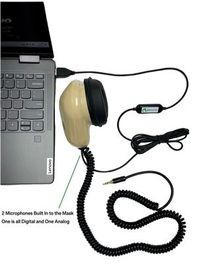
Connect a Martel Double Dragon 2 to a VOX laptop and compatible backup recorder, then test both dictation paths across a fictional hearing and recess.
Put the recorder beside your laptop and finish this sentence before connecting anything. “At the end of the session, I want to remove this recorder from the table and play back my own dictation from a file it saved.” If that is the result you want, the Martel Double Dragon 2 gives you a useful way to build the setup. Its two microphone connections can feed the laptop and a compatible recorder at the same time. Each receiving device still needs a job of its own, an appropriate input and a way to save the sound you expect to find there.
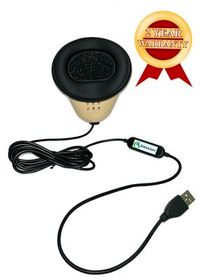
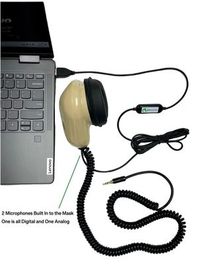
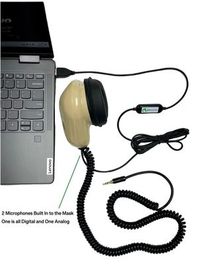
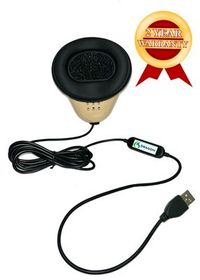
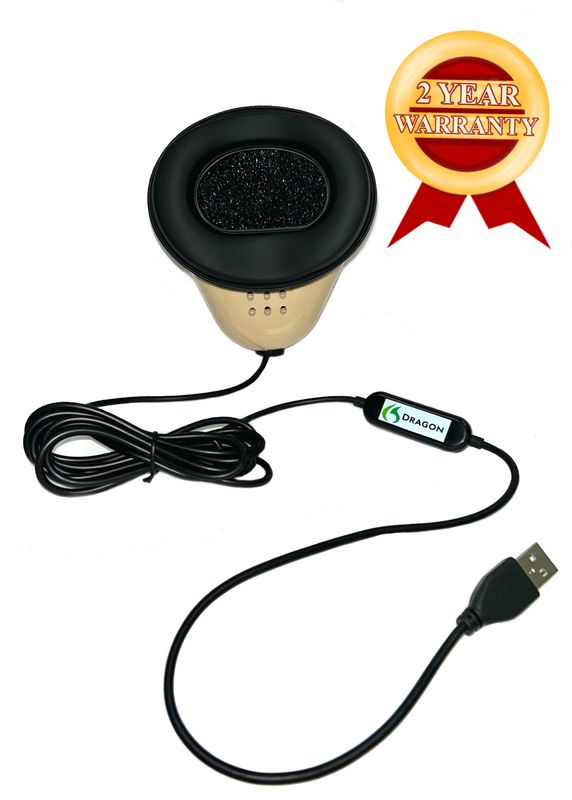
Martel describes the Double Dragon 2 as a stenomask containing two independent microphones. The digital USB connection supplies the computer, and the separate analog connection has a 3.5 mm plug, also called one-eighth inch. Both microphones pick up the reporter speaking into the personal mask. You can use the USB route to supply your supported Speechmatics CAT setup and the analog route to feed a compatible recorder. The reason to choose this arrangement is that you can open that recorder’s own file away from the computer and hear what you dictated. Martel Double Dragon 2 product details.
Think through an ordinary review request. You are editing a practice rough and reach the phrase “the third tray from the left.” You would like to hear whether you actually dictated third or thirty. A recorder that captured your voice inside the mask can help you answer. If the question is what the original witness said before you repeated the answer, you need an appropriate source of the witness’s voice. That is a different recording decision. Give the two purposes different names in your notes so you can choose the right item when someone asks for audio.
During the following setup, use made-up practice speech in a private place. No actual testimony is needed to establish that a USB microphone reaches a laptop and that an analog microphone reaches an independent recorder. You may have assignment-specific instructions about what may be recorded, retained or provided to another person. Use the handling procedures that apply to your work. This exercise lets you learn the equipment, label both ends and rehearse listening to the results before those workplace decisions ever arise.
Lay out your personal Double Dragon 2 with enough space to follow the cables with your hand. Put the computer on one side and the recorder on the other. Trace the USB connection to the compatible computer port you will use. Trace the 3.5 mm connection to the external microphone input the recorder maker identifies for this purpose. Write the actual name printed by the recorder jack, together with the model of the recorder. A label like “right side, MIC” can be more useful during a rehearsal than a catalog photograph showing the opposite side.
Martel’s product information identifies a built-in sound card on the USB route. A separate analog-to-USB microphone adapter is therefore unnecessary for that direct computer connection. The analog route has its own receiving-input requirements. Consult the recorder’s documentation for the type of external microphone input it accepts and any associated choices. The diameter of a plug alone cannot identify the function of a socket. An output for listening and an input for an external microphone can look alike when you are in a hurry to set up a small recorder on a crowded table. Martel’s microphone connection comparison.
If you are choosing a recorder, put its public manual or manufacturer’s input description beside the Double Dragon 2 product details. Identify the model, the input that will receive the microphone and the procedure for recording from that input. Ask about any outstanding compatibility question using the actual model numbers. A question such as “Will my recorder’s documented external mic input accept the analog output of this Martel Double Dragon 2?” gives a supplier something specific to check. An order based on the word stereo or the appearance of a round plug leaves that decision unresolved.
Route the leads where you can keep track of them while holding the mask in your usual working position. Place the recorder so you can read its screen without turning the laptop around. Keep enough slack for a comfortable movement from your normal speaking position to the keyboard and back. If a lead crosses under the laptop or a pile of folders, move the folders so its destination stays visible. These are practical desk choices. The purpose is to make it easier for you to notice and correct a loose connection before a fresh practice run.
Make a connection note in ordinary language. One example is “USB, personal Double Dragon 2 to my VOX laptop, left side, direct port. Small analog plug, same mask to recorder external microphone input.” If there is a compatible computer dock or adapter, name it too. Add the recorder’s own input label from its menu or screen once you verify it. Leave a blank for the filenames. The sketch becomes an actual record of a completed setup when you replace those blanks with things you have saved, reopened and heard.
Microsoft’s Windows 11 instructions guide you to microphone properties through Settings, System, Sound and the Input choices. Select the input you intend to use for the USB microphone and open its properties. Start the available test, speak into the mask, stop and play the sample. Write the name Windows displays for this input. If two entries have similar names, observe what changes when you reconnect your mask during a stopped practice setup, then make a new spoken test. Identify the input by how it behaves in your configuration as well as by its displayed name. Microsoft’s Windows microphone test.
Use a distinctive computer-only line for this first step. For example, say, “Computer check, the little brass bell rings twice.” Leave the separate recorder stopped. On Windows playback, listen for the whole sentence and the word twice. Record whether the voice sounds like the person speaking into the mask. A successful microphone properties test provides a specific finding about this selected input. The next steps are to confirm what the recording application saves and what happens in your own recognition workflow. They will use different spoken markers.
Open the audio recording arrangement you intend to use on the computer. For a preliminary independent check you can use Windows Sound Recorder and a practice file. If you intend the CAT job to retain dictation audio, use the recording workflow documented by your publisher for your installation and verify that a corresponding file or job recording is saved. Choose a private practice job name that is easy to retrieve, such as “Theater storage rehearsal, microphone setup.” If the CAT configuration supplies text only in this particular exercise, note exactly where you separately arranged to record computer audio. Microsoft Sound Recorder help.
Advantage Software describes EclipseVox options for Dragon Professional and Speechmatics Enhanced, with local and cloud processing choices. It publishes a version and hardware table for the supported arrangements, including its Boost Box or a qualifying computer purchased from Advantage Software for local recognition. Check the option that applies to your installed version when planning a Martel laptop setup. Stenograph describes an on-device Speechmatics integration for CATalyst VP. Confirm access and current requirements for your own version with Stenograph. The physical mask and recorder connections can be tested before you enter either publisher’s software. Advantage Software’s EclipseVox options · Advantage Software’s local hardware table · Stenograph’s on-device announcement.
Martel’s VOX Elite laptop packages include stenomask setup and CAT file-transfer assistance as described on the 32 GB and 64 GB product pages. Bring the recorder and the Double Dragon 2 to the equipment discussion if you intend to use both destinations. Explain which copy you want to be able to play on the laptop after a session. Name the CAT program, its edition and the recognition option your publisher supports. A successful setup appointment can then include the actual independent playback you would like to demonstrate at home or at school. Martel VOX Elite 32 GB · Martel VOX Elite 64 GB.
Read the recorder’s own instructions for its external input and the recording mode you intend to use. Put the analog plug in the compatible input and select that source where the model requires a choice. Check available power and space for your practice take. Use the documented controls to begin recording and to stop or finalize the file. Pay special attention to the difference between a ready or monitoring screen and an advancing recording. A machine can show incoming audio while it is waiting for you to start saving it.
For the first recorder-only take, leave the computer recording stopped. Speak “Recorder check, the painted door is number eight” into the mask. Stop the recorder and return to the entry representing the file you just made. Play it directly on that device using the listening method its maker supports. If you are using speakers, stop all active recording before playback. The spoken phrase tells you which device was meant to record it. The fact that you can start again at the beginning and hear the full sentence tells you more than seeing a moving meter during speech.
Listen for the source of the sound. If the recorder was using an internal microphone lying on the table, it might still have heard you from the room. Try a controlled recorder-only sample in a quiet space with the recorder resting at its normal distance and the mask used normally. Identify the selected input, the feel of the close voice on playback and the presence of the full private test phrase. If the result remains ambiguous, check the recorder’s source-selection instructions and repeat the exercise with a different marker. Several near-identical filenames can otherwise make a solved input problem look unsolved.
Check the volume of the recording and the volume of playback separately. A recorder’s output may have a listening control that changes how loud a file sounds through its speaker or headphones. The recording level determines what is captured at the input where the model provides that control. Use the manufacturer’s procedure and a spoken sample at your usual mask level. When a recording already sounds complete on one listening device but faint on another, compare both using a known file. That helps you decide which control deserves attention next.
While the recorder is still on the table, learn how to find a recently saved file without referring to the laptop. If the device assigns its own filename, copy that name onto your note. Say the date or practice subject in the recording when useful, using invented information. Record the folder or list in which you found the file. This is especially helpful when the recorder is later connected to a computer and the order of files differs from what you first saw on the small screen. The spoken words and filename together help identify the intended file.
Start the two receiving devices in a consistent order you can explain. Here is an original rehearsal routine. Start the recorder, confirm that recording has begun, then start your computer recording or the configured CAT recording. When both are running, speak the common opening marker “Theater store, both routes, opening rehearsal.” Use a natural reporting level. Dictate a short exchange and finish with the common closing marker “Theater store, both routes, end of the labels.” Stop each device using its normal procedure and note what each called the completed file.
The opening and closing markers define a shared stretch of speech. The recorder may begin a little before the computer and continue a little after it. Elapsed times and total durations can differ for that reason. The useful comparison begins where you hear the same opening words on each take and ends where you hear the same closing words. You do not need to force both counters to display the same numbers. If you use time references for review, identify which device and file supply each time.
For your first shared exchange, use these invented lines. Question. What color was the label on the large wooden flat? Answer. There were two labels. The white one showed the room number. The smaller blue one showed the scene number. Question. Which number did you write on the work order? Answer. I wrote the room number, eight, in the top corner. I drew a circle around the scene number, three, on the blue label. Read the exchange once while both devices are receiving your dictation. Keep the rough that resulted from your normal reporting workflow.
Set aside the mask and play the recorder file first. Find the common opening marker, the sentence about the two colors and the closing words. Write three observations in plain language. Then stop that playback completely and open the computer recording. Listen again for the same three points. Finally, open the text from the practice job and find the room number and scene number. The result you want to document is which device supplied which audio, whether your dictation contained the two numbers and how those numbers appeared in the text.
A device can preserve the words of your dictation even if the saved rough needs an edit. The reverse is also important. A perfectly readable short rough does not demonstrate that either device saved an audible file. Keeping the two audio findings and the text finding in separate notes helps you explain the exercise accurately. You can then decide whether to work on an audio input, learn a CAT recording step or practice the distinction between two similarly worded answers before the next drill.
The following fictional review meeting gives you a longer first setup test. A community theater is cataloging stage scenery before a storage room is repainted. The scene has two segments with a short recess between them. You can ask a partner to read the parts while you voice-write, or record the source for practice in advance. Prepare both receiving devices and an empty CAT practice job. Decide before starting whether your rehearsal will produce two pairs of files or one continuous pair. Use the method your devices support and label the material accordingly.
In the first segment the coordinator asks, “Which items did you find in room eight when you opened it?” The technician replies, “There was a tall painted wall standing against the back rail, two small door frames and a box of hinges. The box of hinges was on the floor between the frames. The hinges had a paper label marked scene three. The wall had a card marked room eight. I kept those two labels where I found them so that the scenic artist could identify the pieces.”
The coordinator asks, “Could you read the whole card on the wall?” The technician answers, “I could read the room number at the top. A clamp covered the last line. I did not move the clamp because it was holding the paper flat. I asked Vera to write down the words we could see. She wrote room eight, back rail, in the small notebook. I could read that from the doorway. I could not read the name printed under the clamp.”
The coordinator asks, “How many hinges were in the box?” The technician says, “There were six loose hinges. There were four more inside a sealed bag. I counted the loose ones myself and read the figure four from the outside of the bag. I did not open the bag. If the list is supposed to show what I physically counted, the answer is six.” The coordinator says, “Let us pause here and look up the original list. We will come back to the sealed bag.”
Speak the common marker you chose for the end of the first segment. If you planned separate files, stop and save both first segments. Write down both filenames before you resume. Look at the recorder’s remaining capacity and power indication during the break and note any action the maker recommends for your model. If you planned one continuous recording, note where the first segment ends on each destination. Practice handling only the mock material in whichever way your setting permits. Do not take a file from another practice run as proof of what these two devices captured today.
For the second segment, identify both devices as ready again and use a new common opening, such as “Theater store, return from the list search.” The coordinator asks, “What does the list say about the bag?” The technician replies, “The list calls it the bag of painted hinges. It says that four hinges were sent to the store after the matinee. It does not say that anyone opened the bag in room eight. My name appears on the line for receiving the box. Vera’s name appears on the separate line for preparing the list.”
The coordinator asks, “Was the tall painted wall included in that delivery?” The technician says, “I cannot tell from this list. The delivery entry reads four painted hinges, one packet of screws and a short strip of blue tape. The wall is in the condition photographs. The photographs were taken on Thursday morning. The list of hinges is dated Friday afternoon. Those are two different pieces of paperwork. I put the photographs in a folder called back rail, and I clipped the list inside the notebook.”
The coordinator asks, “What did you do with the blue tape?” The technician answers, “The strip listed on the delivery sheet was inside a paper sleeve. I left that sleeve in the box with the loose hinges. There was another strip of blue tape across one of the door frames. I peeled that other strip off so the scenic artist could read the writing beneath it. I did not use the strip from the box for that purpose.” The coordinator says, “That completes the storage-room item. Please keep the list and the pictures together for review.”
Speak the second closing marker and save both destinations. Put the two filenames for the return segment on the same line of your notes. Try locating the statement about Vera in the recorder file by listening for the return marker. Then locate it in the computer file. Finally, find the corresponding answer in the rough. If you retrieve the first segment by mistake, the lack of a return marker shows you why. Distinct words at the boundaries can save more time in this exercise than trying to match two nearly identical file durations.
Start with the hinge counts. In the imaginary meeting the technician counted six loose items and read a label claiming four more. A rough could express both numbers correctly while losing the difference between counting and reading. Find the relevant sentence in the recorder recording and listen to your own dictation. Is the phrase about reading the figure present? Open the computer recording and listen to the same portion. If the words are clear on both, the next question concerns what went into the rough. If you left out the phrase when speaking, both recordings may faithfully preserve that omission.
Try a second review question with a different dependency. Whose name appeared on the line for receiving the box? The witness’s name appeared there, and Vera’s appeared on the separate line for preparing the list. Locate the explanation in the second segment. Write down the nearby spoken words, the filename and the approximate position within that file. Now give those notes to a practice partner who has only the computer copies. If the partner can find the same answer without guessing between first segment and return, your naming plan is doing useful work.
The blue tape is a good test of how an editor uses context. The strip on the delivery sheet stayed in its sleeve. A different strip was peeled from a door frame. Ask a partner to request the answer about removing the tape without quoting it. Use the saved rough to identify the answer and the independent recorder file to hear your repetition. A person asking for readback needs enough of the exchange to identify which strip the witness meant. Practicing that search gives the recorder a purpose beyond being another object with a plug.
Consider an example in which the computer’s second segment contains the return marker and complete testimony, while the recorder’s list shows only the first segment. Before trying to fix anything, identify the known files and retain them. The first recorder file demonstrates that the analog route supplied a recording during the first segment. It does not settle whether the recorder was started after the break. Run a short new analog test with the same connections and a new marker. If that succeeds, rehearse the return routine itself and verify the new second filename before packing up.
Another training pair finds that both files include the return marker, but one sounds much quieter through the recorder speaker. They copy the recorder file through the device’s documented transfer workflow and play it on the same listening system used for the computer take. Now they can compare intelligibility at a consistent listening volume. If the copied recorder file contains clear words, the first difference may involve the playback arrangement. If the words remain hard to understand in that file, they can check its input, level and source with a new recorded take.
Use your own sample files to practice a storage estimate. Suppose a completed ten-minute recorder sample occupies twelve megabytes on the device. At the same observed average size per minute, ninety minutes would need about 108 megabytes. The calculation divides twelve by ten and multiplies the result by ninety. This is an invented example of the arithmetic, not an estimate for the Double Dragon or a particular recorder. Recorders, selected file formats and applications can produce different file sizes. Read available space on the actual device and follow the maker’s limits and recording instructions.
Make a separate estimate for computer audio if the job saves it. Take the size of an actual completed practice file, note its duration and write the result alongside the recorder estimate. If your CAT job includes multiple files, identify which ones are associated through the software before treating a single file as the complete job. During this practice exercise, reopen the job and test playback in the way you expect to review it later. Time spent estimating storage should help you identify the true contents of your own workflow rather than fill a purchasing sheet with guessed specifications.
Treat power and capacity as distinct questions. Ample free space does not show that a recorder is ready to operate for the planned period. A full power indicator does not show that you have space to save a new take. Consult your recorder manufacturer for its supported power arrangements and observe them under your normal practice conditions. Note what you checked just before the first segment and again during the break. That is more informative for setup planning than quoting an unverified battery life or promising a continuous duration for every device and configuration.
Practice a handoff with only fictional material. Give the two files human-readable descriptions, such as “theater store, recorder, first segment” and “theater store, computer, return.” Keep any original recorder filenames you need for identification on your paper note. When transferring material, use your usual approved procedures and preserve the originals while testing the copies. Open one transferred copy in the place the recipient will use it. Do this before removing anything from either device. A second directory with familiar-looking names may still contain the wrong session.
If a colleague asks what you have verified, a concrete answer might read, “I heard the opening and return markers from my Double Dragon on the external recorder, and I located the matching lines in the computer recording and the rough.” Add the filename for the line about the sealed bag. If you tested only the first segment or only one device, describe the observations you actually made. This makes a compact support note equally meaningful to the reporter, a trainer or a person helping prepare the laptop.
We handcraft our Dragon USB and Double Dragon 2 stenomasks in limited quantities. If a batch sells out, there may be a waiting list.
End your rehearsal as you would at the close of the session. Place the stopped recorder and your personal mask in their usual places, close the practice job and leave the paper with the two assigned filenames on your desk. Return after a short break. Imagine that a reviewer has asked a narrow question about the source of the four-hinge count. Give yourself access only to the recorder first. Find the correct file, then find the complete sentence in which the technician explains reading the figure printed on the sealed bag. A successful retrieval demonstrates that the independent recorder remains useful when the laptop is closed.
Now reverse the exercise. Put the recorder aside and open the copied practice material on the laptop. Locate the original rough, find the corresponding answer and follow your notes to the saved computer audio. Compare what you had to remember in the two attempts. If an automated filename made the recorder difficult to search, add a cross-reference to your session note. If you found the text immediately but had to hunt for the linked audio, learn your publisher’s procedure for copying the complete practice job. These discoveries are inexpensive to make with invented testimony. They concern how you will actually use the second recording, which is the reason for setting up two destinations in the first place.
Both capture the voice you speak inside your personal Double Dragon 2. When you repeat the fictional technician’s words about six loose hinges, both microphone paths carry your rendition of that statement. If a work assignment also requires a recording of the original speakers, arrange an appropriate room source and recording destination. Use clear labels so the intended listener understands whose voice should be present in each file.
Martel provides a built-in sound card for the USB connection. Use a compatible computer port or the compatible connection arrangement your laptop needs. Record whether a dock or adapter is part of the path. After connecting, identify the actual input in Windows and listen to a spoken test through it. The direct USB path gives you an identifiable starting configuration you can check again when setting up in another room.
Obtain the exact recorder model and the maker’s description of its external microphone input. Ask how to choose that source, start recording, stop and find the saved file. Identify any input compatibility question using the recorder and mask models together. The most important decision is whether this receiving device can serve your planned analog microphone setup and produce a file that you can later play independently.
Read the label at the socket and identify its purpose in the recorder manual. A headphone output supplies sound for listening. A microphone input receives a microphone signal. A connector can appear to fit while serving a different purpose. When writing your setup note, include the actual input label and a short practice filename you have played afterward. That ties the physical choice to an audible result.
Separate startup phrases let you answer a narrow question about one destination before attempting simultaneous recording. If you hear the line about the painted door on the recorder, you know which part of the setup produced that file. Later you will use the same markers on both destinations to compare a shared period of dictation. The change of method follows the different questions you are asking.
The computer indicator tells you something about an input activity on the laptop. The separate analog recorder has its own source, recording controls, power, storage and saved files. Start a recorder-only rehearsal and play the result on the recorder. A useful written entry is “I opened the file the recorder saved and heard the number eight.” It says exactly which destination you have verified.
The recorder may save the analog input if it is connected, configured and actually recording. The separate computer workflow must be operating to create the computer record or rough you expect. During a controlled recorder-only test, keep the other destination stopped on purpose, then identify the recorder’s file. That exercise makes it easier to recognize a missing computer start in a later mock session.
Yes. If you started the receiving devices one after the other, some audio before the shared opening marker may appear only in the earlier file. Find the first words spoken after both were running and compare the stretch through the common closing marker. Use each file’s own time position when documenting where you found a later answer. Total durations alone cannot identify the shared material.
Inspect the source specified by the recorder maker for an external microphone. Make a distinctive masked recording with the recorder resting at its normal desk distance. Listen for the closeness and words of your dictation and compare it with a deliberately labeled internal-microphone take if the device supports that selection. Restore the external source afterward and record a new file. Gather the selection and the sound together before concluding which source supplied it.
For this particular purpose the recorder is receiving the analog output of your mask. Put it where its intended cable connection is practical and where you can check its recording state. The original witness’s position becomes relevant to a separately designed room-microphone arrangement. Giving each device a specific job saves you from trying to make a single recording answer both a mask-dictation question and a room-hearing question.
Consult the recorder’s instructions to identify its particular ready, monitoring or recording states. Incoming sound can be visible while you are preparing a take. The exercise is complete when you have a file you can stop, save, reopen and play. Learn to recognize the device’s indicator for an active recording and practice the short sequence with a new marker before testing both destinations together.
Two independent microphones and two receiving and playback paths can produce different recordings. Judge each one by the job it is meant to do. Can you hear the full marker, the number of hinges and the qualifying words about the sealed bag? For a fair comparison listen on the same playback system at a consistent comfortable volume when possible. An understandable difference in tone by itself does not tell you which words were preserved.
It lets you establish that you are hearing sound from the recorder file you chose. If both devices are playing similar material in the same room, a clear voice from the laptop can mask a silent or faint recorder take. Stop other playback and verify a recognizable passage from the recorder. Then reverse the arrangement and listen to the computer copy. This simple turn-taking makes your finding easier to describe.
Give the new rehearsal a unique subject or session name before opening a job. On the recorder, copy its assigned filename to your paper note beside the new spoken marker. On the computer, retain yesterday’s sample and give the new practice material its own identifiable name. When you reopen a file, listen to the marker before adding conclusions. You can keep two clean examples without relying on which item happens to appear first in a list.
Play the recorder’s file at the relevant line and listen for what you dictated. In the theater exercise, the witness described six loose hinges and four described on a bag. Hearing your own words can help you resolve whether you dictated the distinction. If you need to establish what the original speaker said before you repeated it, consult the appropriate source material for your practice or assignment.
Begin with the number and type of audio destinations you need. The Double Dragon 2 provides a direct digital path and a separate analog mask path. To evaluate pace in your own setup, make a practice job, time the dictation and measure the review required to confirm important details. Your results depend on the complete setup and delivery. The hardware’s distinctive purchasing benefit here is the independent recorder connection.
Use a completed file from your chosen recorder and settings to estimate what a longer practice recording will occupy. Make a separate estimate for computer audio. Consult the devices’ available capacity and manufacturer limits before using the figures for planning. Leave a practical margin for the session you intend to run. A number calculated for a different recording mode or a different application is a poor substitute for measuring your own files.
Follow the file-management choices documented for your model and your office procedures. You can make a useful cross-reference without renaming the original device file at all. Record its assigned name, the session subject and an unmistakable spoken phrase. If you give a transferred working copy a more descriptive name, retain the link between copy and original in your notes so that either can be identified later.
The opening words identify the beginning of the stretch both devices should contain. The closing words show whether each saved file reaches the intended end. A recorder could contain the first line of a test while missing speech after a break. Locate both boundaries and one meaningful word or number in between. This checks more than simply seeing that a file exists in the correct folder.
Document the last words you can actually find in that device’s file. Keep both devices’ material and check whether another file captured the return. In practice, start a short new test on the affected receiver with a different spoken marker and follow its normal saving process. Once that result is known, rehearse the return routine from beginning to end. Distinguish an unstarted second segment from an input that could not be heard.
Choose a consistent order you can carry out under your normal procedures. The value lies in verifying the copied contents at their destination. For instance, copy the recorder’s rehearsal file, open it and locate the line about the bag. Then do the same for the computer material through the supported CAT or file-transfer process. Preserve the originals during verification so you have identifiable sources for both copies.
Identify each connector by the recorder maker’s description. An output meant to drive headphones and an input meant to accept an external microphone perform different functions. Some devices have configurable connections, so follow the exact instructions for your recorder. Set up the external microphone for recording first. Stop and save, then listen through a supported playback option. Keep your note precise about which cable was in which jack during recording.
State that you want the Double Dragon 2 USB microphone to feed your VOX reporting computer and the other microphone to feed a named compatible recorder. Identify the CAT product, edition and recognition arrangement your publisher supports. Bring a brief fictional exercise you would like to save on both paths. Asking for independent playback of two identifiable files gives the laptop and mask discussion a clear practical objective.
The release, recognition option and supported processing equipment belong in the Advantage Software discussion. Its public information describes both cloud and local Speechmatics choices, with hardware details for the local arrangement. Identify which route applies to you before planning the full setup. Separately, a Windows microphone test and an analog recorder take let you learn the Double Dragon connections without making assumptions about your software entitlement.
Stenograph publicly describes integration of Speechmatics into CATalyst VP with recognition on-device. For your own computer, use Stenograph to confirm which release, access and setup instructions apply. You can record that information alongside the mask connections in your setup notes. A publicly announced feature describes the publisher’s product. Your own completed practice job is the evidence of what is running in your particular configuration.
Have the student use their own personal mask. The instructor can read the fictional stage-storage lines and listen to the resulting recordings without wearing the student’s equipment. Ask the student to identify the cable to each destination, start both devices, stop them and retrieve the files. The demonstration shows which steps the student can repeat alone and where an extra opportunity for practice would be helpful.
Use the same known recording to check the recorder’s playback settings and listening equipment. Preserve the clear transferred sample as evidence of what the recorder captured. Then make a new short take under the same input settings and test playback directly on the device again. You can explain that the captured file is intelligible on the laptop while you investigate how you listen on the recorder.
Each output comes from a microphone in the same mask. Both are intended to capture the person using that mask. The two paths provide different destinations, which is valuable when you need a recorder copy of your own dictation. A separate person’s original words require their own appropriate source. Give the two mask files descriptive names so someone reviewing them understands why the same reporter’s voice occurs in both.
List the recorder’s model, the jack used, the selected input and the name of a practice file made on that device. State whether its counter advanced and what you heard when you reopened it. Include the independently verified USB result in one sentence for context. With fictional test material, you can describe the precise marker or missing word without sharing a client name or an actual proceeding.
Demonstrate the result from a stopped state. Connect the intended inputs, start both receivers, dictate a common marker and short answer, then stop, save and reopen each recording. Find the marked answer in both files and in the practice rough if you used recognition. Write down the filenames and what you heard. You now have a complete example of the independent dictation recording you set out to create.