Voice Writing Laptop Setup: Stenomask, Recognition and CAT Workflow
Follow the voice input, recognition, CAT and review paths separately, using small practice checks to establish a repeatable working routine.
Choose a remote setup by its audio roles, supported connections and saved result, then verify the complete arrangement with a short practice meeting.
Remote workflow guide
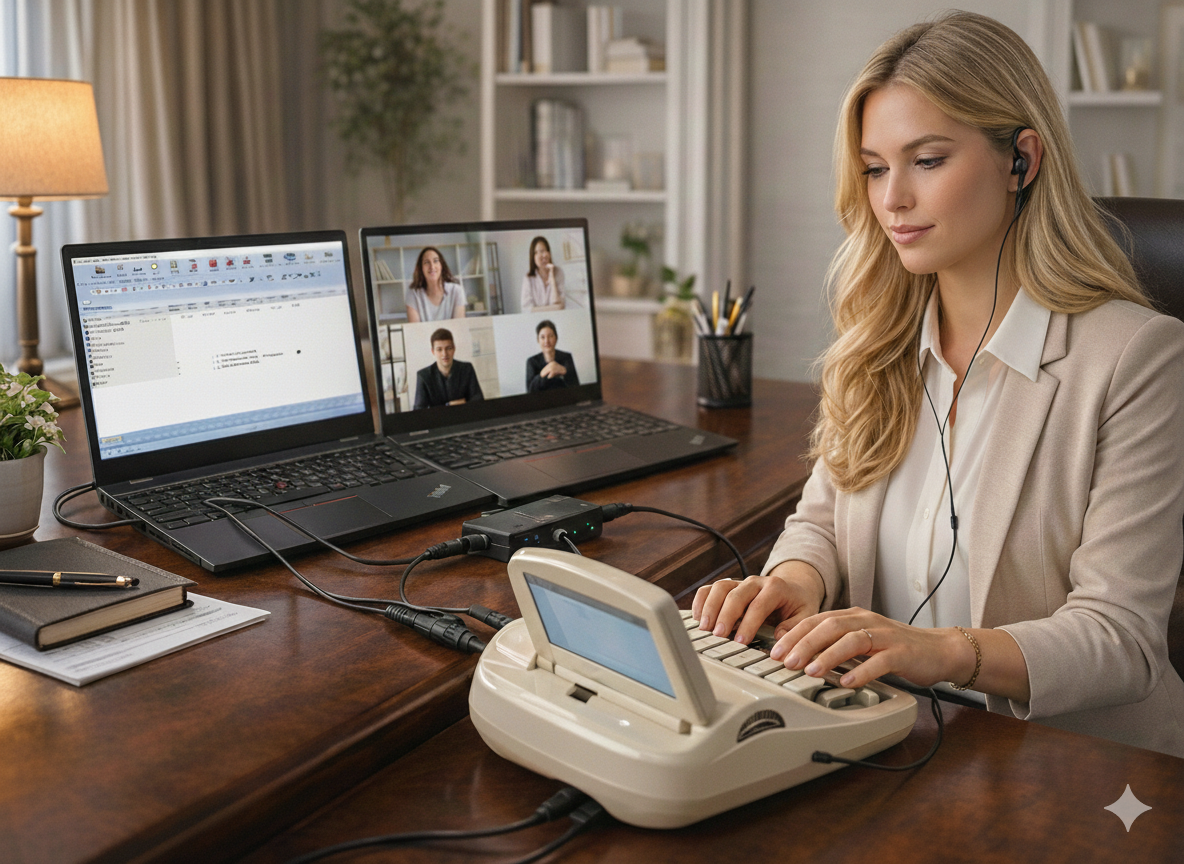
A remote deposition laptop setup has several jobs to perform at once. It must let you hear participants, let you speak when necessary, support your reporting method and preserve the audio required by your approved workflow. Seeing the meeting on screen is only one part of that arrangement.
The choice between one computer and two should begin with those jobs. A supported single-computer arrangement can be compact. Separate meeting and CAT devices can make their roles easier to distinguish. Neither choice removes the need to verify the actual connections, applications and saved result.
This guide explains how to compare the arrangements and prepare a useful discussion with Martel. Start with court reporter laptop packages for the reporting computer and the Martel Zoom Court Reporter Connection and Recording Kit, SKU 403, for its described audio-routing options.
Listening means receiving the participants’ speech through the intended output. Talkback means sending your own permitted communication into the meeting. Recording means saving the required source in the intended application or device. Voice recognition, when used, means supplying the reporter’s input to the selected recognition workflow.
These roles may involve different devices and selections. A headset can provide listening while another microphone serves talkback. A Stenomask may supply recognition input while incoming participants’ speech follows a separate recording route. The exact arrangement must be established for your equipment.
Write each source and destination in ordinary language before connecting anything. For example, identify where incoming meeting speech is heard, where it is saved and which device carries your voice back to the meeting. Add the mask route if you are a voice writer.
This list prevents a common misunderstanding: that one successful audio check proves every role is working. A participant hearing you does not prove your CAT file contains that participant. Hearing the meeting does not establish that recognition is receiving the correct input.
The CAT laptop supports the reporting application, working files, connected input equipment and whichever recording or delivery functions are assigned to it. In a two-device arrangement, another computer or compatible device handles the meeting. In a one-computer arrangement, these tasks share one system.
Describe the intended role when buying a replacement. Are you replacing the CAT laptop, the meeting device or the complete arrangement? An old laptop may remain useful for a limited task, but that decision should follow a supported workflow rather than an assumption that any powered-on computer is suitable.
Martel’s Elite Court Reporter Laptop is a starting point for a reporting-focused purchase. Voice writers should also review the VOX laptop selection and describe the recognition and mask arrangement they need.
Keep hardware discussion tied to tasks and supported software. The most useful buying question is whether the proposed arrangement can run your reporting workflow and complete a representative practice exercise.
A two-computer arrangement gives the meeting and CAT applications separate devices. One device joins the proceeding. The other supports your reporting environment. A confirmed connection provides the intended audio route between them.
Martel’s SKU 403 page describes this as its recommended straightforward arrangement. The kit is presented as a way to route meeting audio to a compatible reporting input while providing listening and talk functions. Confirm the exact source device, input and adapters for your order.
Role separation can make the setup easier to explain. You can identify the meeting device without opening CAT settings, and identify the reporting device without changing the meeting view. It can also help when comparing live incoming speech with what the CAT application is receiving.
There are additional items to carry and connect. Both devices need appropriate power, placement and access to the resources their tasks require. The audio route still needs verification; placing two laptops beside each other does not establish a recording connection.
A one-computer arrangement places the meeting and CAT workflow on the same laptop. It can reduce equipment and fit a smaller workspace. Its success depends on the supported applications, audio routing and controls for that exact system.
Incoming meeting audio must reach the intended recording input through an appropriate supported method. The meeting microphone must serve the intended talk role. Voice recognition, if used, needs the correct input and destination. Those choices should be identified separately.
Some CAT workflows provide specific direct-audio or related integration features. Availability and setup depend on the version and licensing. Do not assume a function mentioned for one program or edition exists in every CAT environment.
Discuss the single-computer goal with Martel and, where necessary, the software vendor before depending on it. A compact arrangement is useful when it is understood and tested. It should not be selected only because a second device seems inconvenient.
Use the following comparison to decide what to discuss. It describes practical differences; it does not rank one arrangement as universally superior or establish compatibility for an untested collection of devices.
| Question | One computer | Separate meeting and CAT devices |
|---|---|---|
| How are tasks divided? | Meeting, reporting and assigned audio functions share one system. | Meeting and reporting roles are assigned to different devices. |
| What must be confirmed? | Supported simultaneous use, internal audio route and clear application controls. | Compatible audio connection between devices and the correct receiving input. |
| What is carried? | One main computer plus required input, audio and power accessories. | Two devices plus their power and the required linking equipment. |
| What should be tested? | All roles together, including saved audio and required recognition or delivery. | Each device’s task, the connection between them and the saved result. |
| What remains shared? | Several functions can depend on the same computer and configuration. | Some dependencies, such as the incoming source and connection equipment, may still be shared. |
Choose based on the arrangement you can operate reliably in your actual workspace. Include packing, rebuilding and identifying controls during a busy session in that decision.
Identify both ends of a physical connection. A listening output on the meeting device and a receiving input on the reporting device have different jobs. Confirm the signal, connector wiring and appropriate interface rather than buying a cable because both plugs fit.
A headset socket may combine functions that another device separates. A USB interface can introduce its own device names and input choices. An adapter may solve a physical connection while leaving the wrong source selected in software.
Provide Martel with the actual device models and intended destinations. If you want to connect a writer or backup recorder as well as the CAT laptop, include that requirement before ordering. Do not assume every additional input is electrically or operationally interchangeable.
The court reporter microphone connection guide explains general connector questions. The final route should follow the instructions for the selected kit and your specific equipment.
Know which output you intend to monitor. Check that incoming participant speech reaches it clearly enough for the task and that the level is comfortable. Select the intended output in the meeting application rather than assuming it follows the most recently connected device.
Listening through a headset does not by itself send audio into CAT. Likewise, playing the meeting through room speakers and recording it with a nearby microphone is a different path from a direct supported connection. Do not confuse the routes when evaluating a proposed setup.
During a practice meeting, ask a remote participant to speak while you identify the listening output and inspect the assigned recording input. Keep those observations separate. This can reveal that you are hearing one path while recording another.
Where the approved arrangement uses a physical connection kit, follow its intended monitoring route. Avoid adding a second unintended live audio path that creates echo or makes it difficult to identify which source is being captured.
Your ability to hear the meeting does not prove others can hear you. Identify the intended meeting microphone and test it with a remote participant. Confirm how you will speak, mute and return to the reporting task.
Use a short harmless exchange. State a sentence, ask the other participant to repeat what was heard and verify the reply. Then check the mute control used for that meeting path. Observe the actual result rather than assuming the visible icon controls every audio application.
For voice writing, be especially clear about the difference between mask input and meeting communication. The recognition application and meeting application may use separate sources and controls. A meeting mute should not be treated as a universal audio switch.
Document the tested talk routine in your setup notes. You should be able to identify the correct control promptly without changing unrelated recognition or recording settings during the proceeding.
Identify the exact destination for the required recording. It may be a CAT function, a compatible writer or another permitted recorder. Know what starts it, what stops it and where the result should be found.
Make a short practice recording containing a remote participant. Stop normally, close the practice job if appropriate and reopen the saved result. Listen for the intended incoming speech. If your own communication should also be present, check that as a separate observation.
A meeting platform’s recording function is not automatically the same recording used by CAT. Availability, permissions, storage and association with a job can differ. Follow the requirements for your assignment and do not assume that a visible recording indicator answers every record-keeping question.
For a missing or incorrect result, use the AudioSync troubleshooting guide. State whether the problem affects live listening, the input selection or the saved file.
Two files are not necessarily two independent ways of recovering the event. If both receive the same missing source, both can lack the same speech. If both depend on one unverified connection, duplicating the destination does not solve that connection problem.
List what each recording relies on: source audio, connection equipment, receiving application or device, power and storage. This makes common dependencies visible. It also helps you describe a backup goal clearly when asking Martel about suitable equipment.
Where a separate permitted recorder is part of the plan, test its saved result independently. Confirm that the input is compatible and that the recording contains the required source. Do not infer success from another application’s meter or the presence of a second cable.
A contingency plan should follow the rules of the assignment and organization. This guide does not establish a universal legal recording, retention or recovery procedure. It provides a technical way to ask whether your intended backup actually addresses a different failure.
A remote setup must fit the work area. Arrange displays so you can read what matters without blocking the writer, mask or documents. Route cables so ordinary movement does not pull on inputs or disturb an interface.
Identify the power supply for each device and accessory. A two-device arrangement creates more than one charging and connection responsibility. A single-device arrangement can still have interfaces and accessories that need their own attention.
Confirm how the meeting and any required delivery services reach the network. Test under conditions reasonably representative of the intended location when possible. A successful practice at home does not guarantee the same network conditions elsewhere.
Keep the discussion practical. You need a supported working arrangement and time to check it, not a collection of generic claims about speed. If the location is unfamiliar, leave time to establish its permitted connection and contingency arrangements before the assignment begins.
Arrange a practice meeting with one remote participant using fictional material. Have the participant say “Remote check one,” followed by a short ordinary sentence. Reply through the intended talk microphone with “Reporter check two.” Include pauses so the two sources are easy to distinguish.
During the exchange, check the listening path, meeting microphone and assigned recording input. If you are using voice recognition, run a separate short mask exercise under the supported workflow. Do not assume the meeting exchange verifies recognition.
Stop the test normally and reopen each recording that is part of the arrangement. Confirm which identifiers appear in each file and whether that matches your intended routing. If only your local phrase is present, you have not demonstrated capture of the remote participant.
Repeat the affected portion after any correction. Preserve a short note of device selections, connections and the observed result. This is a proposed acceptance exercise, not a claim of completed testing or a promise of identical results in every proceeding.
If you hear the participant but CAT saves silence, examine the recording route and selection. If the remote participant cannot hear you, examine talkback. If both sides hear an echo, identify duplicate live paths with assistance before adding more devices.
If recording works but voice recognition does not, keep the mask and recognition investigation separate. If only one case fails to play, compare that saved material with a new harmless recording rather than changing every system setting immediately.
Write down recent changes: a different headset, reconnected interface, updated application or new physical arrangement. The change may be relevant without being the cause. A clear observation is more useful than assuming any problem must come from the last update.
When requesting help, identify the source, destination and symptom. “I hear the remote participant in the headset, but the reopened CAT practice file contains only my local microphone” is much easier to investigate than “Zoom audio is bad.”
A setup used in a fixed office can remain connected. A traveling setup must be rebuilt repeatedly. Evaluate that difference when deciding between one and two devices. The arrangement should be manageable for the person who will actually pack and connect it.
After a successful test, make a connection record and label cables by role. Store related adapters together. Note any application choice that must be confirmed after reconnecting the equipment.
Rebuild the arrangement once from the packed state and repeat the short audio exercise. This can reveal an omitted cable or a device selection that seemed obvious while someone else was assisting. Update the notes while the tested result is still fresh.
Use the Martel laptop preparation guide to plan help with the personal setup. A good buying decision includes how the arrangement will be used after the initial appointment.
Consider a hypothetical freelance steno reporter replacing the CAT laptop while keeping a familiar meeting computer at a fixed desk. The useful questions concern the supported connection between them, the selected CAT recording input and the way talkback and monitoring are handled. A two-device arrangement may fit the routine because both devices already have clear jobs.
The reporter should still test the new receiving side. A kit that worked with the previous CAT laptop has not yet demonstrated the new input selection, job recording and saved playback. The most valuable acceptance result is a reopened practice file containing identifiable remote speech, alongside a successful talkback check.
Now consider a traveling voice writer trying to fit everything into a small portable workspace. A single-computer arrangement may be attractive, but the reporter needs a supported plan for mask input, recognition, meeting communication and the required recording. The question is whether those roles remain clear and manageable in that specific software environment.
For that reporter, the practice should include both the meeting exchange and a separate voice-writing exercise. Confirm which input each application receives and which control affects which task. If the compact arrangement is difficult to rebuild or explain, discuss an alternative with Martel before making it the primary workflow.
These examples do not establish that either person must choose a particular number of computers. They show how the decision follows the work, existing equipment and supported routing. A purchase based only on the number of screens misses the operational questions.
Use a decision note after the practice: the chosen arrangement, why it fits, what was verified and what remains open. Include any dependency on a particular interface, software feature or accessory. That note becomes useful if equipment changes later.
For both examples, the final test should follow the packed-to-working routine where travel is involved. The arrangement must be something the reporter can reproduce independently, not only something that worked while another person selected the devices.
A clear role map, a supported connection and a checked saved result make the buying conversation concrete. Bring those observations to Martel when confirming the laptop and connection package. They provide a practical basis for a recommendation without assuming a universal setup for every reporter.
There is no universal requirement established by this guide. Martel’s connection kit page recommends separating meeting and CAT devices as a straightforward arrangement. A supported single-computer workflow can also be considered. Confirm the exact software, routing and equipment, then verify the required saved result.
No. Listening and recording can follow different routes. Check the intended recording input and reopen a practice file containing remote speech. The live meeting, a meter and a headset each provide different evidence from the saved file.
Possibly, if it supports the meeting task and the intended connection arrangement. Explain its model, software and available outputs to Martel. Check it as part of the complete workflow rather than assuming that any older computer will work.
No automatic equivalence should be assumed. The applications can have different controls, permissions, storage and job associations. Identify the recording required by your approved workflow and confirm it directly.
Provide your CAT edition, reporting method, meeting device, intended listening and talk equipment, recording destination and backup goal. Include whether you want one computer or separate devices and which equipment you already own.
Original guidance prepared by Martel Electronics. Product and software information researched October 30, 2026. Examples and acceptance checks are proposed exercises, not claims of completed testing or guaranteed results. Follow the current instructions for your selected equipment and software edition.