Court Reporter Laptops for Remote Depositions: One or Two Computers?
Choose a remote setup by its audio roles, supported connections and saved result, then verify the complete arrangement with a short practice meeting.
Understand Martel’s published setup services and prepare a practical handoff from your existing computer to a familiar reporting environment.
Setup and service guide
A new court reporter laptop becomes useful when it can support your way of working: the right CAT user, familiar dictionaries, connected input equipment, usable audio and files you can find again. Getting from a new computer to that working arrangement requires preparation and a clear transfer of responsibility between the seller and the reporter.
Martel’s laptop pages describe professional preparation, help moving CAT material and personal files, configuration assistance and continuing support. This guide explains what those services mean for a buyer and how to prepare for the personal setup appointment. It does not present an undisclosed factory procedure or claim that a particular acceptance test has already been performed on your files.
Use the Martel laptop category to select the appropriate reporting package. Then use the following planning questions to make the transition concrete. If you are still deciding what to buy, begin with the Court Reporter Laptop Buyer’s Guide.
Some work can be performed before Martel has access to your existing reporting environment. Other work depends on your software licenses, personal user files, connected equipment or account approval. Recognizing that difference helps you understand what should be ready when the box arrives and what may be completed with you afterward.
The selected package should explain its preparation and service scope. Ask which applications or supporting tools can be arranged in advance, which personal files must come from your old computer and which tasks require you to be present. Keep that distinction in your order notes.
For example, a system can be prepared for CAT use without already containing your personal dictionaries. A program can be available for installation without your license being activated. A microphone can be supported without your preferred input having been selected in every application.
The buying goal is a coordinated handoff. You should know where the starting preparation ends, how personal configuration will continue and what evidence will show that your particular workflow is ready.
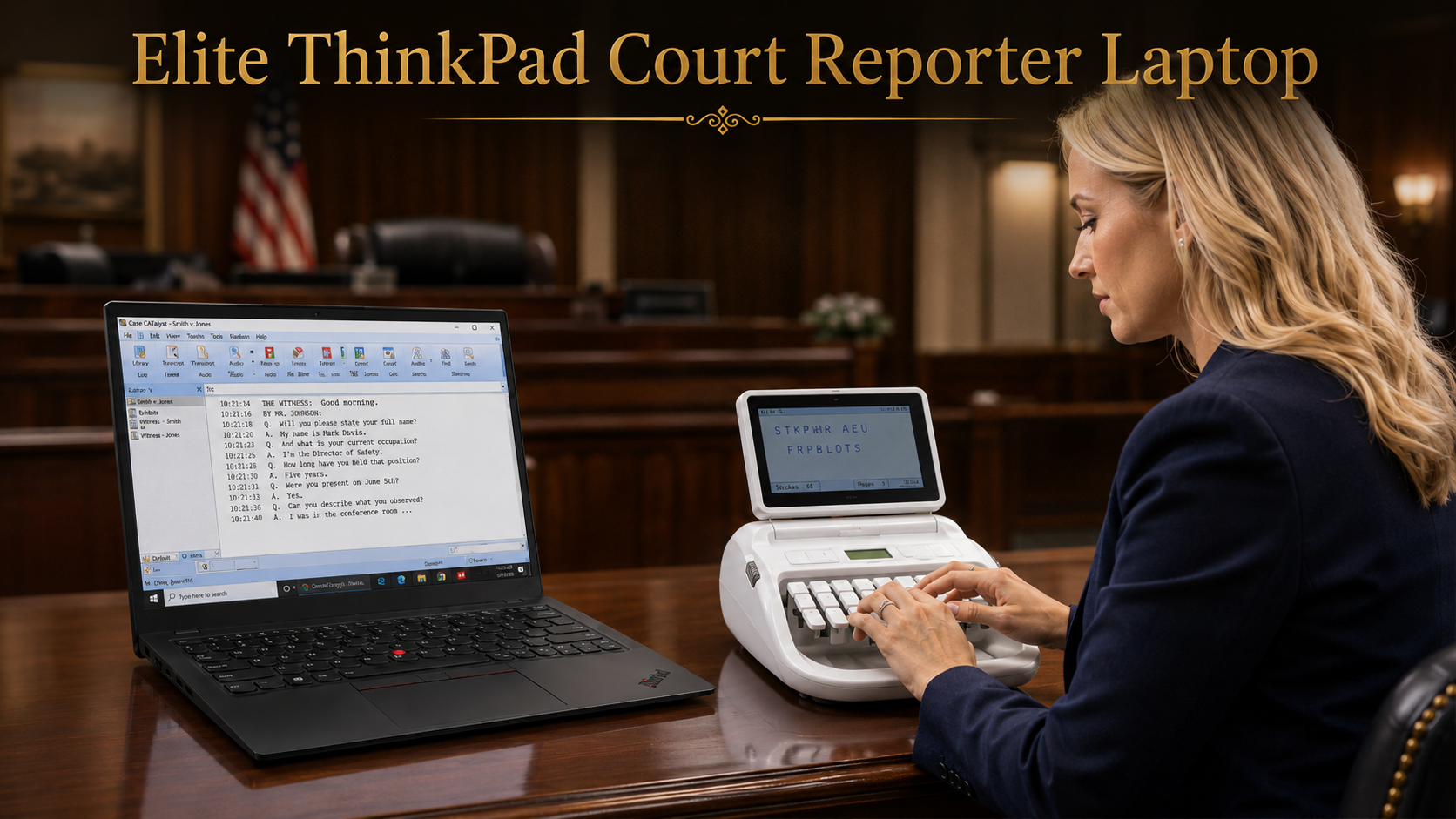
The Elite Court Reporter Laptop describes CAT and personal transfer assistance alongside its reporting audio focus. The Elite ThinkPad listing describes arranging a remote appointment after receipt. VOX packages also address Stenomask and voice writing setup.
Read the page for the product you actually intend to order. Do not combine the most attractive inclusion from several listings into an assumed package. School bundles, optional equipment and software arrangements can differ even when the laptop names sound similar.
Turn the published service description into a short list of questions about your circumstances. Which of your applications will be addressed? Which old files are in scope? Is the existing laptop accessible? Does a particular vendor need to authorize a license move?
Save the answers with the quotation. That record supports a useful setup conversation later and avoids treating a general phrase such as “everything transferred” as a substitute for a defined inventory.
Before the appointment, write a one-page description of the reporting environment you want to preserve or create. Start with your method, the CAT application and edition, any recognition system, your writer or Stenomask, and the kinds of assignments you take.
Add the programs that support the work: meeting software, word processing, email, delivery tools and other essential utilities. State what each does. A support person can make a better plan from “this program exports my final delivery file” than from a list of unfamiliar desktop icons.
Identify the first work you need to perform on the replacement. That may be a student practice session, an in-person deposition, an edit of an existing job or a remote proceeding. Choose a representative task that can be practiced without exposing unnecessary client information.
Finally, note anything unusual. Perhaps you retain an older application, use a particular keyboard shortcut arrangement or connect equipment differently at home and away. Those details are easy to miss if the setup discussion begins only after a problem appears.
An inventory should identify material by purpose and location, not simply by how much data exists. The following structure is useful because it separates items that may require different transfer and validation methods.
| Part of the environment | Examples to identify | How you will recognize success |
|---|---|---|
| Applications | CAT, recognition, editing, meeting and delivery tools. | The correct edition opens with the authorized account or license. |
| Personal resources | Dictionaries, voice profiles, commands, layouts and preferences. | Familiar practice entries and actions behave as expected. |
| Working cases | Jobs, associated audio and related editing material. | A copied example opens completely and required audio plays. |
| Connections | Writer, mask, microphones, headset, display and adapters. | The intended source reaches the intended program. |
| Everyday access | Email, file destinations, school accounts and authorized services. | You can reach the resources needed for your normal work. |
Use a small number of representative examples for each row. You do not need to expose an entire archive to explain what a successful transition should preserve.
These three tasks are often spoken about together, but they should be checked separately. Installation places the application on the computer. Activation or sign-in establishes the right to use it. Data transfer brings the personal material that makes it useful for your reporting work.
A program may open in an unlicensed state, under the wrong account or without your normal user selected. Conversely, personal files may be present before the relevant program has been fully installed. Neither situation establishes a completed working environment.
Know who supplies each license. Keep purchase information and authorized account access available for the appointment. Enter your own passwords through the appropriate sign-in process rather than including them in a general inventory or a document of setup notes.
If an application requires software-vendor approval, make that a visible dependency in the plan. Martel can help with a transition, but a hardware purchase does not automatically change a third party’s licensing terms, product support policy or account ownership.
A reporter’s personal knowledge can be stored in several different places. CAT dictionaries translate or organize material within that CAT environment. Recognition profiles and vocabularies serve speech input. Commands, layouts and preferences can be separate again.
Identify the application holding each resource. Explain which user you normally open and whether several users or methods share the old computer. Avoid using “my dictionary” as the only description when multiple programs contain personal resources.
Choose a few practice checks that reveal whether the right material is active. A familiar shorthand entry, a harmless custom term or a known formatting action can be useful. Record the expected behavior before the transition so you do not have to reconstruct it afterward.
For a detailed preparation checklist, use moving Case CATalyst or Eclipse to a new laptop. The exact migration procedure should follow the software edition and supported method rather than a generic folder-copy instruction.
A transcript document may depend on more than the text visible on screen. Audio, notes, dictionaries, layouts and other associated material can be needed to continue editing or review. Plan the transfer around the task of reopening the case and performing the work you still need to do.
Identify a representative active job. Note what you expect to open, which audio belongs with it and what output you need to produce. Where a program provides an appropriate backup and restore method, use a version-compatible workflow with assistance rather than assuming an ordinary document copy includes everything.
Keep the original available while validating the replacement copy. Avoid reorganizing or renaming the old material at the same time as the first migration unless that change has been planned. Combining cleanup with transfer can make an omission harder to identify.
Archived work can follow a separate plan. Establish which older files need immediate access, where the archive will live and how a sample will be opened. Do not equate “the folder was copied” with “the archive has been verified.”
The operating system and each application can have their own audio choices. A headset or microphone being detected is only one part of readiness. You also need the correct source selected in the intended program, appropriate monitoring and a recording that can be reopened.
Describe the audio tasks separately: room pickup, voice input, incoming remote speech, talkback and later playback. The exact arrangement depends on your reporting method. Ask the person assisting to help identify which device and application serve each task.
Use a short practice recording made in the intended application. Speak from a normal position, save normally, close the test job and reopen it. Listen to the result. If remote speech belongs in the file, include another participant in the test so you can distinguish incoming audio from your own voice.
Link any troubleshooting to the observed result. A selected device, moving meter and audible live monitor are useful clues, but the saved file answers a different question. The AudioSync troubleshooting guide covers that investigation in greater detail.
Use the actual equipment you expect to carry when checking connections. A substitute microphone or different adapter can conceal a question that will return when you unpack for an assignment. If an important item has not arrived, mark that part of the setup as still needing verification.
Arrange the laptop, writer or mask, audio equipment and documents as they will be used. Check screen visibility, keyboard access and cable strain. Make sure the routine does not depend on balancing an interface where it can be pulled off the table.
Create a simple connection record after the arrangement works. Use device names, destinations and a photograph or sketch. Label cables in a way that identifies their job rather than relying only on color. Two similar cables can serve entirely different audio roles.
Then disconnect and rebuild the practice arrangement deliberately. This suggested exercise checks your ability to reproduce the setup after travel. It can reveal an undocumented adapter or a connection you understood during the appointment but could not identify later.
Prepare both computers, their power supplies, the required accessories and your inventory before the scheduled session. Confirm the remote assistance arrangements and what internet access is required. Keep your own account sign-ins available without placing passwords in the shared planning notes.
Start by agreeing on the immediate goal. A migration appointment should not quietly expand into reorganizing a decade of unrelated personal files while an essential reporting task remains unchecked. Prioritize the work you need next, then list additional tasks separately.
During the session, ask for explanations in terms you can repeat. Know which user to open, where new jobs are saved, which input to select and how to request help. You do not need to memorize every configuration screen to understand the working routine.
End with a record of completed checks and open questions. If a vendor activation, school direction or missing accessory prevents a task from being completed, identify the next step. Do not let an unresolved dependency disappear into a general statement that the session went well.
A useful acceptance exercise follows one small task from beginning to end. Create a clearly named fictional matter, use your ordinary input method, make a few corrections, save the job and reopen it. Include the audio and delivery functions you need in normal work.
For a stenographic workflow, include familiar translation entries and a short writer session. For voice writing, include a brief passage and the supported recognition-to-CAT process. If remote assignments are essential, perform a separate test with incoming speech rather than assuming the local check covers the meeting path.
Produce a sample output and open it outside the editing window if that reflects your normal delivery routine. Check that the file is the one you intended to create and that you can find it again. A saved edit and a delivery-ready output are different milestones.
The exercise is proposed customer guidance. It does not imply that a private factory test or accuracy guarantee has been established. Its value is specific evidence that your prepared arrangement can complete a representative task.
Once the system is working, keep a short support reference. Record the laptop order, relevant software versions, equipment names, the tested connection arrangement and where you keep approved backups. Avoid putting confidential case information or passwords in a general support sheet.
When a problem appears, describe what you were doing and what you observed. State whether it affects every job or one case, whether audio is missing from live monitoring or saved playback, and whether a device or application changed recently. These distinctions can narrow the question quickly.
Ask how the support included with your package works and which issues may involve a software vendor. Confirm warranty terms separately. Technical assistance, warranty repair and software licensing are related aspects of ownership, but they are not interchangeable promises.
A known working arrangement is a useful reference point. Document changes and repeat the relevant practice check after adding a device, changing a major application version or moving to a different remote setup.
A prepared laptop cannot make every room quiet, guarantee every incoming connection or remove the need for skilled reporting and review. It cannot create software rights you do not own. It also cannot ensure that every older application will remain supported indefinitely.
Preparation addresses the computer environment and the agreed workflow. Training addresses how you use the tools. Professional responsibility addresses the work product and the rules of the assignment. Keep those expectations clear when deciding what assistance you need.
For voice writers, a new system does not promise perfect recognition. For remote work, a successful local test does not guarantee that every participant has a reliable microphone or network. For archived work, a copied folder is not a substitute for checking the material you need.
Useful service makes those questions manageable by establishing a clear starting arrangement, helping with the transition and providing a way to investigate problems. That is a practical benefit you can evaluate without relying on an absolute performance claim.
After an assisted setup, repeat a short task without relying on the person who configured the system. Begin with the laptop closed and the portable equipment packed as it would be between assignments. Rebuild the approved arrangement, open your normal user and create a new fictional job.
Use your own notes to select the intended input and begin work. Then make a correction, stop normally and find the saved material. Play the required recording and produce a small output. If you need to look up a step, add that explanation to your personal setup sheet while it is still fresh.
This rehearsal can expose a practical gap that a technical appointment does not reveal. You may understand the audio settings while they are visible but be unsure which program opens first. You may know a file was saved without knowing how to reach it from the starting screen. These are useful orientation questions, not evidence that the computer must be replaced.
For a hypothetical reporter moving between home editing and in-person work, repeat both physical arrangements. Check the traveling setup first, then reconnect the home display and listening equipment. Keep separate notes where the routines differ. Avoid assuming that success in the home arrangement proves the portable one has been checked.
Use a completion list with three entries: demonstrated independently, demonstrated with help, and still unresolved. This simple distinction makes the remaining work visible without turning the process into a complicated technical audit. It also helps you explain the next support request accurately.
Do the rehearsal while there is still time to obtain help before an important assignment. The point is to become familiar with the prepared environment and confirm the parts that depend on your own routine. A well-organized transition includes that learning time alongside delivery and file transfer.
Keep the old computer and preserved source material available under your normal security and retention practices until the transition has been checked. A successful first exercise is encouraging, but any unverified archive, specialized delivery tool or unusual accessory should remain on the open-item list until its own task has been demonstrated.
Personal transfer depends on access to the existing material and the agreed service arrangement. Ask which preparation happens before shipment and which work requires an appointment with you. Do not assume that account-dependent or personal data tasks have been completed before those resources are available.
Prepare the new and old computers where applicable, power supplies, reporting accessories, current backups and an inventory of applications and files. Know how to access your authorized software accounts. Confirm the appointment requirements directly and identify a harmless practice job for the readiness check.
Not automatically. File transfer, installation assistance and licensing are separate. Confirm the rights included with the selected package and whether the software vendor must approve activation or a move from your old computer.
Use a representative practice task. Open the correct user, verify familiar resources, create input, save and reopen the work, listen to required audio and produce an expected output. Keep a list of anything not yet checked rather than relying only on whether the programs open.
You have an identified working arrangement and a clearer basis for requesting help. Connection notes, known file locations and completed practice checks make later changes easier to explain. Confirm the continuing support terms for your specific package and keep that information with the order.
Original guidance prepared by Martel Electronics. Product and software information researched October 30, 2026. Examples and acceptance checks are proposed exercises, not claims of completed testing or guaranteed results. Follow the current instructions for your selected equipment and software edition.