Court Reporter Laptops for Remote Depositions: One or Two Computers?
Choose a remote setup by its audio roles, supported connections and saved result, then verify the complete arrangement with a short practice meeting.
Follow the voice input, recognition, CAT and review paths separately, using small practice checks to establish a repeatable working routine.
Practical workflow guide
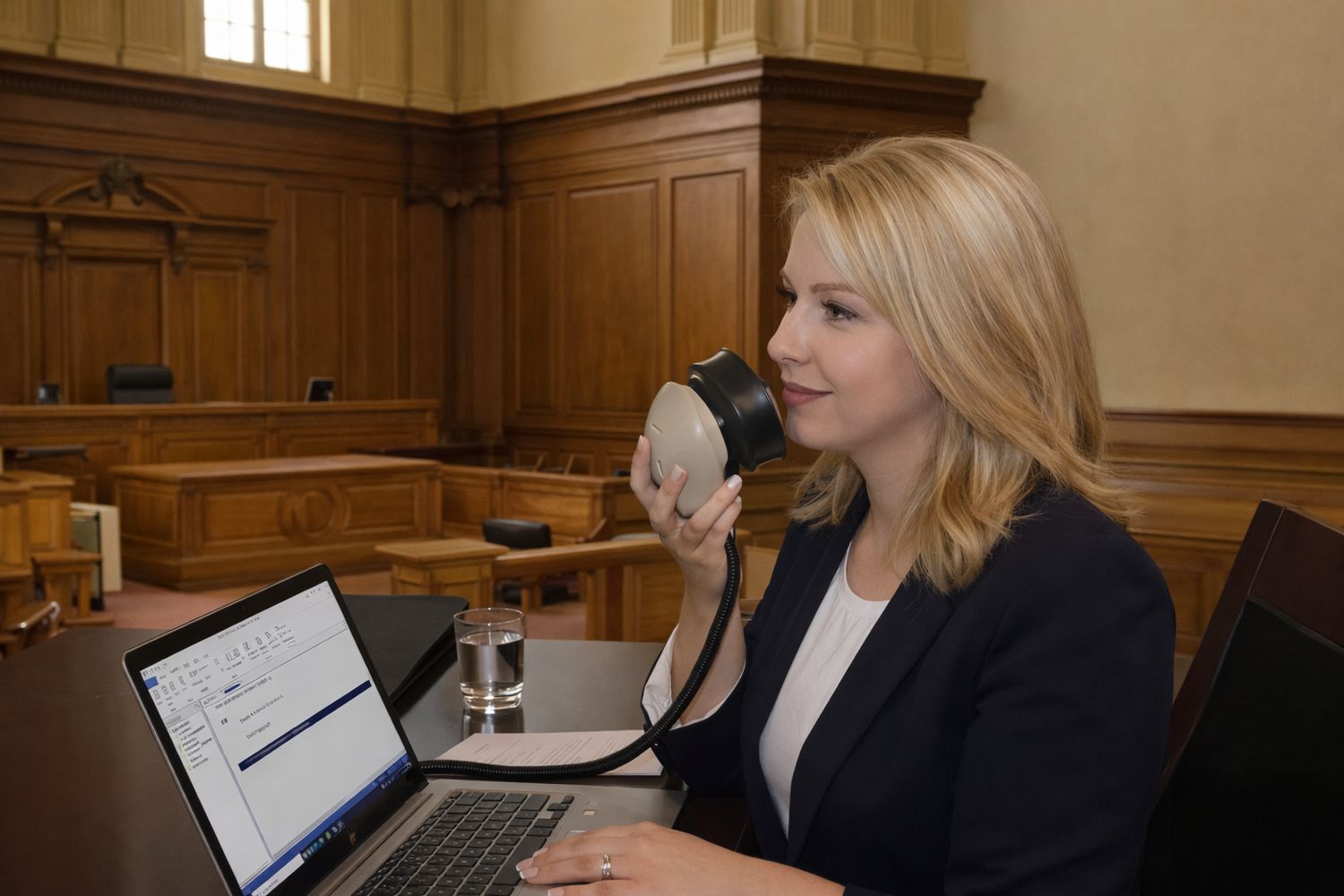
A voice writing laptop works through a chain of decisions: which device captures your voice, which application receives it, how recognized material reaches the CAT workflow and what is saved for review. Understanding those roles makes setup and troubleshooting much easier than treating the entire arrangement as one black box.
The aim is a repeatable working routine. You should be able to connect the equipment, open the intended user, select the correct input, create practice material, make corrections and reopen the saved result. Each step deserves its own check before the system is used for an important assignment.
Martel’s Voice Writing and VOX Laptop packages are a starting point for preparing that environment. This guide explains the workflow and proposed checks. Exact installation steps, recognition choices and menu names depend on your supported applications, editions and training method.
Begin by naming the source, receiver and purpose of each part of your arrangement. Your Stenomask may supply the speech used for recognition. A CAT application handles the assigned text workflow. A separate microphone or incoming meeting feed may supply review audio.
Do not assume that every workflow uses the same recognition engine or integration. Identify the specific arrangement recommended for your software and school or professional method. A product page listing several applications does not mean they must all be installed or run together.
| Role | Question to answer |
|---|---|
| Voice input | Which mask or microphone captures the reporter’s spoken input? |
| Recognition | Which supported engine and personal resources process that input? |
| CAT work | Where does the intended text appear, and how is it formatted and corrected? |
| Review audio | Which source is recorded, where is it saved and how is it reopened? |
| Meeting communication | How do you hear participants and speak to them when necessary? |
Some devices can serve more than one role, but that should be established through the supported setup. It should not be inferred from a cable fitting into a socket.
Record the laptop, mask, audio interface and relevant accessories by model. List the CAT program, recognition software and editions actually in use. Add the meeting application if remote proceedings are part of the workflow.
Make a separate note of the software rights you own and what the selected package supplies. Compatibility and installation assistance do not automatically include a paid license. School packages can differ from general laptop listings, so confirm the precise arrangement for your order.
If you already have personal profiles, custom commands or CAT dictionaries, identify where each is held. Those resources should be considered before deciding that a clean new installation is the entire setup task.
The VOX Laptop Buyer’s Guide provides the purchasing checklist. Once the package is selected, the inventory becomes a setup reference and a useful way to explain the environment to support.
Start at the mask and follow the actual cable through any interface or adapter to the receiving input. Identify the purpose of each connector. If there is more than one microphone output, confirm which destination each is intended to serve.
A physical adapter does not automatically correct signal level, wiring or application selection. Likewise, a USB device being detected does not prove that the intended application has selected it. Check the connection and software choice together.
Use the Martel Double Dragon 2 product information for that specific model’s connections. Compare other masks through the Stenomask Buyer’s Guide. Do not apply one model’s cable arrangement to every Stenomask.
Once the route is confirmed, document it in plain words. “Mask output to this interface, then this input in this application” is a useful record. It is easier to reproduce after travel than a photograph of several unlabeled plugs alone.
Work in the posture and position you intend to use during practice. Hold or support the mask according to its instructions and your training. A quick check made in an unusual position may not represent the input you supply during a longer session.
Use an ordinary speaking level rather than trying to compensate for an unclear setup by shouting. Follow the supported audio check for the selected software. Listen to an appropriate sample where your workflow allows it, and seek help with an intermittent or distorted signal before changing vocabulary settings.
Keep the conditions recognizable when comparing results. A changed mask position, different room, new interface and different passage can all alter the observation. Changing everything at once makes it difficult to learn which adjustment mattered.
A Stenomask should not be treated as a guarantee that no sound can escape or that it records the entire room. Its role in the setup is different from a microphone placed for participants. The mask and room microphone guide explains that distinction.
Check the application that actually receives your voice. The operating system’s default device and an application’s selected input may not be the same. A laptop microphone, webcam, headset or audio interface can each appear as a possible choice.
Use the device name associated with the tested arrangement. If several names are similar, ask for help identifying them through a harmless test. Do not rely on a remembered position in a menu, because the list can change when equipment is connected or removed.
Confirm the choice after rebuilding the portable setup or making a relevant device change. A successful test performed before disconnecting an interface does not establish the state after a different device has been attached.
A visible input meter is one clue. It does not by itself identify the source or prove that the resulting text and saved recording are correct. Continue the check through the application task and the stored result.
A recognition profile holds personal information used by the recognition system. Vocabulary resources address words and phrases. Commands may control actions or formatting in a supported environment. CAT dictionaries and user settings serve the CAT application.
Those categories can interact, but they are not interchangeable. A recurring proper-name error is different from a command appearing as ordinary text. A formatting problem can arise after recognition has already produced the expected words.
When migrating, identify which application holds each resource and use its supported process. When troubleshooting, identify which category of behavior is wrong. This avoids replacing a useful personal resource because a different part of the workflow was selected incorrectly.
For existing users, keep a few harmless examples that exercise personal words and actions. For beginners, follow the method taught by your instructor rather than importing unfamiliar command sets simply because another reporter uses them.
Confirm the supported recognition-to-CAT arrangement for your particular software. Know which application or field should receive input and how the workflow is started. Do not assume that speech appearing in an unrelated text window demonstrates complete CAT integration.
Use a clearly named practice job and a short passage. Observe where text appears, whether intended speaker or formatting actions behave correctly, and how you make a correction. Keep the example small enough that you can compare it with the expected result.
If words appear correctly but the format is wrong, record that difference. If nothing appears, check whether the intended input and destination are active. If a command becomes text, note the exact application and context in which it happened.
Specific observations help an instructor or support person determine which part to examine. They also prevent a general complaint about “recognition” from concealing an issue with destination focus, integration or an application-specific action.
A system can produce recognized text while saving no useful review audio. It can also save audio while the recognition workflow is misconfigured. Verify the recording function separately using the source your approved workflow requires.
Identify whether the recording should contain the reporter’s mask, room participants, incoming meeting speech or a supported combination. Then check the receiving program, recording selection and saved destination. Do not infer the answer from what is audible in the headset.
Stop the practice job normally, reopen it and play the required recording. Confirm that the expected source is present. A test containing only your own voice cannot establish that incoming remote participants are being captured.
If playback is missing or different from the intended source, keep the problem in that category. The AudioSync troubleshooting guide can help organize the investigation without changing unrelated personal vocabulary.
The following fictional passage is for equipment practice only: “Morgan Vale met Avery Chen on Tuesday. The blue folder contained three pages. At the second meeting, they reviewed invoice forty-seven. The discussion ended before lunch.” It contains ordinary sentences, names, a number and a change of topic.
Use it first to check a short continuous passage under your normal method. Compare the result with the source text and note the type of any difference. Then use the formatting and speaker actions taught in your training to place similar material into a small practice exchange.
Do not turn one passage into a universal accuracy score. It is a controlled example for identifying whether input, destination, correction and saving work as expected. Different vocabulary and speaking conditions can produce different results.
Retain your own before-and-after observations if you make an adjustment with appropriate assistance. Record the changed item and repeat the same small task. That is more informative than changing several settings and judging the result from an unrelated passage.
A useful problem description identifies what failed. An absent signal, a noisy signal, a recurring word substitution, an unexpected command and a missing recording are different symptoms. They should not all be treated as proof that the laptop lacks performance.
If the intended input is absent, trace the connection and selection. If the input is present but unusable, investigate that signal with help. If ordinary speech is received clearly but one name is repeatedly wrong, examine the supported vocabulary and correction process.
If text reaches the wrong place, check the destination and supported integration. If the right words appear but an action fails, identify the application and command context. If the saved recording is wrong, inspect the recording path independently.
Keep changes controlled and preserve useful personal resources. Creating a new profile or replacing equipment may sometimes be appropriate, but it should follow an identified reason rather than serving as the first response to every symptom.
Write a brief routine for your tested arrangement. It should identify the equipment to connect, the applications and users to open, the intended inputs and the small check you perform before beginning. Follow the supported sequence supplied for your actual workflow.
A routine is most useful when it describes actions you can recognize. “Open the correct voice user and confirm this input” is more helpful than “make sure everything is optimized.” Avoid including settings you do not understand or steps borrowed from another reporter’s different system.
Practice the routine from the packed state after an assisted setup. Reconnect the equipment and complete a short test using your notes. Update unclear instructions while there is time to ask for help.
Record exceptions separately. A remote assignment, a different mask or a home editing arrangement may require its own choices. Do not let one successful configuration become an assumption that all possible arrangements have been checked.
During a remote proceeding, your mask input, meeting microphone and listening output may serve different functions. Know which application controls each one. A mute control in the meeting application should not be assumed to mute recognition or a separate recording.
Test the talk path with another participant during a harmless practice meeting. Verify that the participant hears the intended communication and that you hear the response. Then check the required saved audio separately. Ask for help establishing the supported routing for your equipment.
Do not experiment with unfamiliar routes during live testimony. Document the tested arrangement and the permitted contingency process for your assignments. Recheck affected functions after a relevant software or device change.
For the device-choice discussion, read court reporter laptops for remote depositions. That guide compares roles in one- and two-computer workflows without assuming that a second computer alone creates a reliable recording.
At the end of practice, save the job through the normal application process and reopen it. Confirm the intended text, any associated recording and the output you expect to use. Know the destination of new work rather than relying on the most recent file list alone.
Include personal resources in an appropriate backup plan. A saved transcript does not necessarily preserve the recognition profile, commands or CAT dictionary that helped create it. Follow the supported backup guidance for each application and your organization’s storage practices.
When moving to a new laptop, preserve source material while validating the replacement. The CAT migration guide explains why a working text copy and a complete personal environment require separate attention.
Use harmless sample material to test a recovery workflow when appropriate. A backup is more useful when you know what it contains and how the required application will reopen it.
Keep a record of the working arrangement: relevant software versions, selected audio devices, mask connections and a small practice example. This does not need to be a technical manual. It should let you explain what was working before a change.
When replacing an input device or making a major application change, allow time to repeat the affected checks. Verify the supported integration and personal resources rather than assuming that familiar program names mean identical behavior.
Maintain normal software and security support practices. Ask for version-specific guidance when a reporting tool needs special configuration; do not apply blanket changes to security protections or system services in the hope of improving recognition.
For help with the laptop environment, use the support arrangements attached to your Martel package. For instruction, application licensing or method-specific behavior, the instructor or software vendor may also need to be involved. A precise description helps each person address the relevant part.
Use four short passes to keep observations separate. The first pass checks the input route. Identify the mask and receiving device, select the intended source and perform the supported audio check. Record whether the expected speech is present before examining recognized words.
If that first pass fails, resolve the connection or selection question with help. There is little value in changing a personal word list while the wrong microphone is active. Keep the laptop, mask position and connection unchanged while confirming the source.
The second pass checks ordinary recognized text. Use the fictional passage in this guide or another harmless passage with a known source. Note missing words and substitutions separately from punctuation or formatting behavior. Use the correction method appropriate to your software and instruction.
Repeat one short portion after making a supported adjustment. Write down what changed and whether the same symptom remains. A record such as “the proper name is still substituted, but ordinary sentences are received” gives a clearer starting point than an unsupported accuracy percentage.
The third pass checks the CAT workflow. Create a practice exchange using the speaker and formatting actions taught in your method. Confirm that material appears in the intended job and that you can correct it without accidentally working in another application or field.
Keep command behavior distinct from word recognition. If an action does not occur, record the application, active context and expected result. Do not assume that a command copied from another reporter’s system belongs in your own method or edition.
The fourth pass checks continuity. Save and close the practice work normally, reopen it and locate any required recording. Produce the sample output you expect to use. This checks whether the session leaves useful work behind after the live input has ended.
Complete the four passes with notes you can understand later. Record the tested arrangement, the observations and the next step for any unresolved issue. The sheet can remain brief; its purpose is to prevent several unrelated symptoms from being combined into one unclear support request.
Repeat only the affected passes when a relevant item changes, then perform a short complete workflow check before professional use. For example, a new mask connection deserves an input check, while a changed output layout deserves an output check. Keeping the purpose visible makes practice more useful than repeatedly dictating unrelated material and hoping the result improves.
A meter shows that some signal is reaching a particular point. It does not prove that the correct source, personal user, recognition task and destination are active. Identify the selected device and supported workflow, then test a small passage in the intended application.
No. They belong to different parts of the workflow and may require separate preservation, editing and migration methods. Identify which application holds the resource you need and use the current guidance for that edition.
No. Equipment preparation supports the workflow, but results also depend on input, software, vocabulary, technique and the task. Use controlled practice checks to investigate specific symptoms rather than expecting a universal accuracy result from a model name.
Do not assume the recognition input is the correct meeting microphone. Confirm the intended talk, listening and recording roles for your supported arrangement. Test them with another participant before using the setup for an assignment.
Provide the software editions, mask and interface models, selected input, intended destination and the symptom you observed. Explain whether it occurs during recognition, formatting, monitoring or saved playback. Include recent changes without sending unnecessary confidential case material.
Original guidance prepared by Martel Electronics. Product and software information researched October 30, 2026. Examples and acceptance checks are proposed exercises, not claims of completed testing or guaranteed results. Follow the current instructions for your selected equipment and software edition.