TIME IS RUNNING OUT FOR 2026 TAX WRITE-OFFS

Martel Electronics | 12 hours ago

Transcription Foot Pedal Controls When Switching Windows in Windows 11

Test a Windows 11 transcription foot pedal with the player, writing window and CAT job selected. Compare press, hold and release using two spoken reference files.

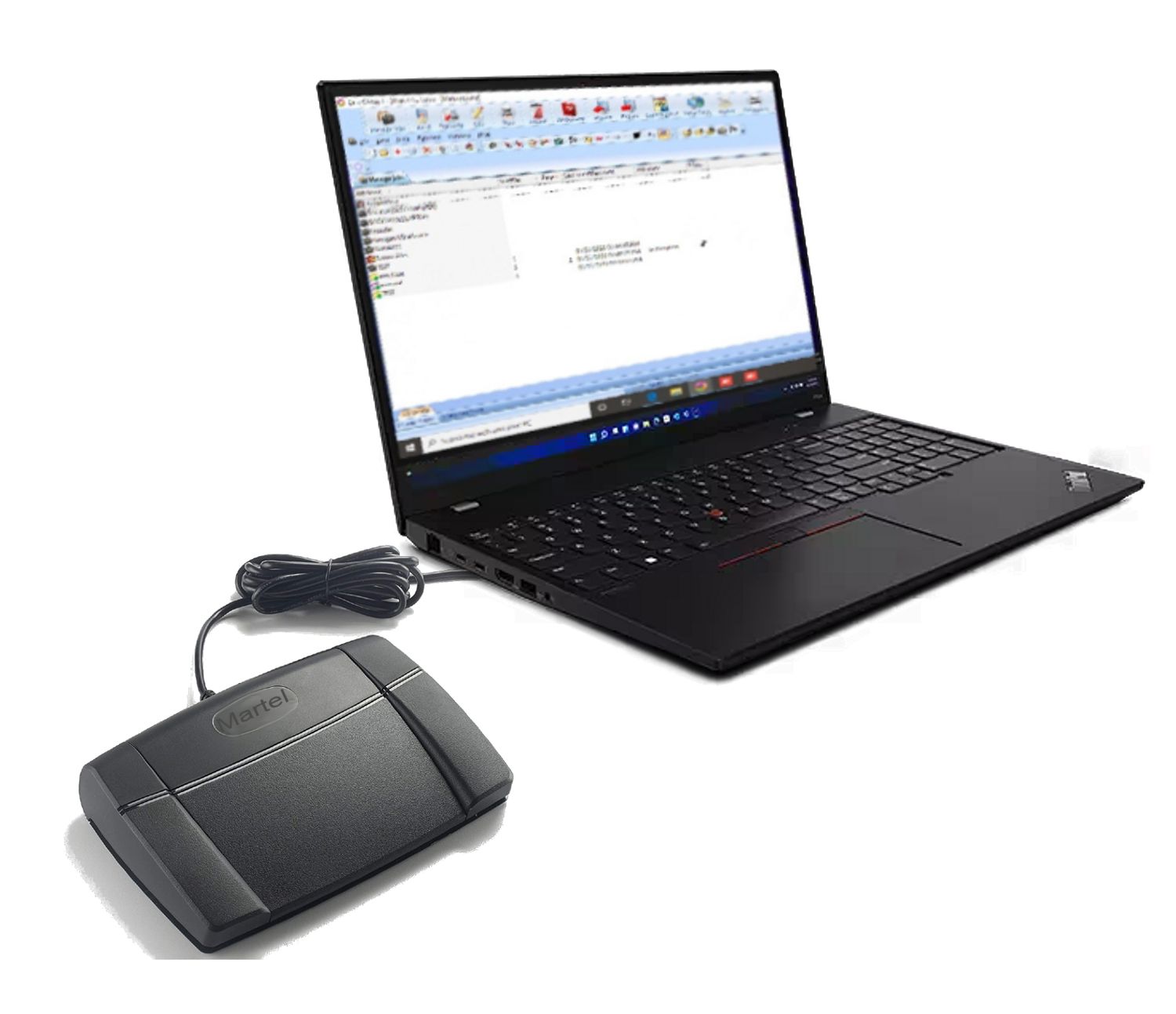
Case CATalyst AudioSync foot pedal from the Martel SKU 895 gallery
Martel SKU 895 is listed for Case CATalyst AudioSync. The two spoken reference files were created separately for the window-focus exercise.
In this guide

A pedal may be detected correctly while its intended command reaches a different application or reaches no useful destination. A meaningful compatibility test names the exact pedal, player, working document, app versions and active window. A mark that says USB pedal works leaves the buyer unable to reproduce the result.

Find out which program owns the action you need

A reporter presses a pedal, hears the recording and sees the highlighted words advance. A transcriptionist presses a pedal while typing in a separate document and hears an audio file resume. A video reviewer presses a control, pauses a picture and inserts an elapsed time beside a sentence. Those users can describe all three jobs as foot-pedal transcription. They are asking their computers to do different things. Begin with a sentence describing the result you need at your own desk. Include what should move, what should stay still, and where your typing should appear.

Consider a common buying question: “Can I keep typing when I use the pedal?” There are at least three details inside it. The source audio has to respond to the correct physical control. The document must continue to receive the writer's keystrokes. The operator needs a way to find their place in the recording after releasing or tapping the control. The application that receives the pedal action and the window that receives ordinary typing can be the same program or different programs. Support depends on the actual product and workflow. A green indicator for a USB device alone cannot settle the buying question.

Record the software and the intended job in ordinary language. A Case CATalyst user might need AudioSync to play from a highlighted word in a job that contains linked audio. Another user might receive a standalone audio file and manually type in a word processor. A third might receive a video file and need elapsed review notes. Record which of those outcomes you must complete without leaving your typing position. It is much easier for Martel to help select a product when the requirement names both the recording and the destination of the text.

Use a nonconfidential practice document and source before testing a new arrangement. A window-focus test deliberately visits more than one place where input could go. Keep email, live case forms, customer messaging and actual transcripts out of the exercise. Open two expendable practice files in the applications you normally use. Write one recognizable label at the top of each. If an unexpected control inserts a character or moves a cursor, the result becomes a useful observation in a harmless document. Save real work first and return to it only after the control behavior is understood.

Match the Martel product to the receiving program

The Martel Case CATalyst AudioSync foot pedal is listed for a specific court-reporting workflow. Its product description assigns backward scrolling and rewind to the left control while held, playback with highlighted-word scrolling to the center while held, and forward movement of the highlighted cursor to the right while held. Release ends the corresponding action described in the listing. Check the documented assignment for your installed edition and configuration. In particular, a center control described as hold-and-release can feel unsuccessful to someone expecting one tap to leave a recording playing.

The All N One transcription kit brings together transcription software, a USB foot pedal and a headset for working with supported recordings. A customer choosing that package can ask a different, concrete question: can the included player carry out the needed play, stop and review actions while the typist edits the intended practice document? Check the transport assignment in the installed player and verify it against the recording on the computer. An ordinary sound file has no inherent link between a word in an unrelated document and that word's position in a reporting application.

The Martel Video Transcriber Kit with Foot Pedal and Timestamps supports a manual video transcription workflow. The review includes watching the actual picture and confirming elapsed-time references. A video buyer should test transport and timestamp insertion as two separate actions. A press that pauses the right frame says nothing about the place a timestamp command will insert text. Use the currently installed program's documented controls for each task, then check both the recorded elapsed time and the editable text destination.

If your desk handles more than one of these jobs, list them in separate rows. A scoping pedal chosen for a specific CAT command should be evaluated there even if the same computer also plays a video. A video kit can be evaluated with a supported practice video regardless of whether a reporting job is open. You may ultimately need one particular workflow, several supported arrangements, or a change to the way the workspace is organized. A reliable answer begins with the actual model and application pair that will receive each required command.

Required resultPractice sourceApplication where the result should appearEvidence to retain
Hear linked audio from a selected reporting-job wordDisposable job with verified linked audioSupported CAT workflowSelected word, heard words, highlighted movement and release result
Type a manual passage while playing an audio fileSupported practice audio filePlayer receives transport and document receives normal typingSource identity, playback position, and typed line
Reopen a selected video moment from a timestampSupported practice video with visible changeVideo player plus the intended notes destinationFrame or cue, time value, and resulting document text
Resume work after changing windowsSame practice source and saved documentIntended pair after switching backActive window, first pedal action, and first typed words

Establish an ordinary playback baseline before plugging the pedal into the diagnosis

Open the intended practice source and use the application's documented on-screen control to start it. Identify one word or visible event that proves the correct source is playing. Pause it and record the displayed elapsed position. Restart the same source once. If an ordinary on-screen action already fails to open the file, plays silence, or opens an unrelated recording, address that result first. Replacing a pedal at this stage is unlikely to explain why the application's own control also fails.

Set a comfortable listening level using the Windows 11 playback output and equipment you will actually wear. If a display, docking station or second headset is connected, confirm which output the application is using. The source position moving on screen while the expected headset stays silent can be a playback-output issue. A pedal click followed by silence feels like a failed command, even if the player did exactly what the operator requested and sent sound elsewhere. Record what happened on the timeline and what reached the headset as separate observations.

For linked CAT audio, create or use an authorized practice job in the supported workflow. Verify an ordinary supported playback action at the selected word before testing the foot control. Note the selected location in the text and the words actually heard. Importing a general audio file into some separate player can test that player. It cannot create a valid test of the association between a word in a reporting job and the audio attached to that job. A CAT test needs a practice source that already establishes that association.

For video, choose a short local practice source that your installed software can open and play. A filename extension by itself does not establish compatibility with every audio or video encoding stored inside that file. Use the mouse to identify the point at which a visible fictional label changes or a plainly distinguishable action occurs. Record the displayed time and then play through the change again. If a file from a specialized system needs assessment, ask about the exact format through an approved representative sample before drawing a conclusion about the foot pedal.

Build two reference sources so the wrong player is obvious

We created two small original practice audio files for the underlying exercise. They use the same synthetic voice, one mono channel and a nineteen-second timeline sampled at sixteen thousand samples per second. Each file has three spoken cues placed at two, eight and fourteen seconds. Both finished uncompressed WAV files are 608,044 bytes. The words differ between files while the durations and cue positions match. These facts were checked in the generated files. No physical pedal or particular application's background behavior was measured in making them.

You can reproduce the same idea with an ordinary recorder and two invented lists. Call the first practice source Blue and the second Green, or use two names easily distinguished by the operator. The important feature is that a recording's identity is audible without looking at a filename. If the files both contain the same meeting, hearing “the next item on the agenda” leaves the listener unsure which instance of the meeting resumed. If one file says “Blue folder, page twenty” and the other says “Green folder, page thirty,” a short press supplies evidence about the responding source.

Cue start on the reference timelineBlue sourceGreen source
2 secondsBlue folder. Row eleven.Green folder. Row seven.
8 secondsBlue folder. Page twenty.Green folder. Page thirty.
14 secondsBlue folder. Final word, maple.Green folder. Final word, cedar.

Leave a little quiet time before each cue. A test that begins in silence needs a timeline observation as well as the listener's experience. If the user presses play at the file opening and releases after half a second, they may correctly hear nothing because the first words begin at two seconds. Set the source just before a known cue, start it using the ordinary on-screen control, and establish how long it takes to hear the first word. Then repeat from the same starting region with the pedal. The known quiet interval turns a misleading failure into a useful check.

To make the two-window demonstration, start with only the Blue source in the intended application. Use the Green source in a second supported player or a second permitted instance only when it is useful to the workflow and allowed on that computer. A one-player user can instead keep Green closed and use a second practice text document to check typing destinations. There is no need to install competing players or reconfigure a managed computer merely to reproduce this exercise. The question is which of the windows already relevant to your work receives an actual action.

Stage the window changes as an operator would use them

Begin with the intended player visible and selected. Place playback just before a named Blue cue, hold or tap the relevant control in the manner the installed configuration specifies, then release. Record whether the playback position moved, which words were heard and what happened after release. Move back to a known starting point using the ordinary documented procedure. When the result is reproducible, switch to the practice document by deliberately placing the editing cursor in a visible test paragraph. Type a harmless marker such as “practice line A” to prove where text is going.

With the document still selected, perform one of the supported playback actions required while typing. Listen for the named source, watch any visible transport indicator and then type another short marker. Four separate outcomes matter. The source may or may not have responded. The two typed markers may or may not have landed in the same practice document. Do not count the case as a pass merely because sound was heard. The typist who has to recover their text destination after every press has a different result from the typist who carries on writing in the same line.

Next select a second, ordinary window involved in the job. This might be a separate practice notes file, an approved reference document or the CAT transcript itself. Record the exact action that changes focus. Clicking on a source timeline to find a time and clicking back into the text can produce different starting conditions. Switching between windows by the operator's usual keyboard method can also leave a different control selected inside an application. Describe the sequence that reproduced the behavior instead of merely writing “it happens sometimes.”

Finish the first pass by returning to the original player. Test the same transport control again from another known cue. If it works in the player, stops doing the desired job while the document is active, and works again when the player regains selection, you have identified a repeatable relationship worth discussing with support. It does not establish which setting the application should provide. The product's documented design, the required operating mode and the specific configuration determine whether that focus-dependent behavior is expected.

StageActive window confirmed by the operatorSingle actionWhat to write down
AIntended player with the practice source selectedOne documented start or holdSource identity, time movement, and release behavior
BIntended writing document with a test line selectedRepeat the same transport actionSource movement plus destination of next typed marker
CSecond permitted reference windowTest only the command required thereWhich source responds and whether document text changes
DIntended player selected againRepeat the original actionWhether the original result returns
ESaved and reopened working arrangementRepeat the required player and writing taskAny setting or file selection the operator must restore

Record the press, the hold and the release as separate events

A quick foot tap can hide the difference between a toggle and a control that plays only while held. Read the current assignment for the exact program. On the listed CAT pedal's center control, hold long enough in a harmless practice job to reach an identifiable spoken word. Ask what the selected and following words do as playback progresses. Then release and see whether movement stops. If you test by tapping quickly somewhere between recorded words, your notes should not say that no action occurred solely because no word was heard.

For a backward action, choose a point safely inside the practice source. At the opening frame or first word, an expected backward movement may have nowhere to go. For a forward action, avoid the file's very end. Record the starting point, intended direction and observed destination without assuming a particular number of seconds per press. Some settings or workflows move by different units, and linked CAT text may display the result as movement through highlighted words. Use the description appropriate to the actual application.

Release behavior deserves its own observation. A center press that starts correctly followed by playback that continues unexpectedly after release supplies different information from a press that never starts playback. Likewise, a reverse control may move exactly as expected but leave the editing cursor at a location unsuitable for the next typed word. Repeat the case with a fresh identifiable segment and the same program selected. Give support the note “release left the player running while the writing cursor stayed after the practice marker” when that is what you observed.

Repeat the ordinary return-to-work action after the transport check. If the writer usually hears a few words, releases the center control, makes a text correction and resumes, reproduce that whole sequence in the disposable job. A technically correct start-and-stop action may still leave the person editing the wrong paragraph after a source-selection change. A handoff is complete when the user can perform the next task, not simply when a device emits a detectable signal in a setup dialog.

Distinguish the wrong recording from the wrong text destination

Imagine the operator expects Blue but hears “Green folder, page thirty.” The observation identifies the responding practice source. First confirm which file is selected in the intended player, then identify any second open playback window using the Green source. Close or stop the unneeded practice source using the application's normal controls and retest the intended source. If a single-window test restores the expected result, record that change and what the operator ordinarily needs open. A configuration that works with everything else closed may still need support for normal daily use.

Now imagine Blue plays the expected words while the next typed note lands in the wrong document. Audio routing and text destination have produced different results. Put a visible text marker in each open practice document. Select the intended paragraph, test the transport, and type a new disposable marker. Note which application and which field received it. A general statement that the “pedal changed the audio” would send support looking at the wrong part of this example. Describe the movement of the typing cursor and the step immediately preceding it.

An even quieter failure happens when neither source moves and nothing appears to happen in either practice document. Reproduce the action with the intended player selected and test its on-screen transport again. Confirm the expected source position is away from a boundary. Identify whether the control should be held, tapped, or used with a feature that is enabled only in a particular application view. Preserve the current configuration before changing assignments. A reproducible no-action result under a clearly named condition is much more helpful than a photo of a connected plug by itself.

If an unexpected character, line break or shortcut appears in a disposable document, stop that part of the test and record the result. You have learned that an input reached a text context in the current setup. Avoid experimenting inside actual case files or applications that can submit or send information. Ask for guidance on the supported assignment for the pedal and receiving software. A correction that simply blocks a familiar keyboard shortcut across all programs can cause a different problem for somebody using that shortcut for its ordinary purpose.

Test timestamps and reference points on their own

In a video workflow, transport describes what the player does to the source timeline. A timestamp places a reference to a source position in notes or transcript text. Test these outcomes with two different checks, even if the application offers convenient controls for both. First pause the practice video at a visually identifiable change and record the elapsed position shown by the player. Then use the installed program's documented timestamp command with the editing destination prepared. Compare the displayed reference with the intended moment and the actual insertion point.

A successful test answers two small but important questions. Does the time in the note point to the intended source time, within the precision used by this workflow? Did the reference appear on the correct line beside the intended sentence? An operator who sees the right digits in another practice document has learned something about text destination. An operator who sees the right line but a time from the other open practice source has learned something about source selection. Neither observation requires inventing a special diagnosis for the computer.

For a linked CAT job, the normal reference may be a word or location in the transcript rather than an independently typed video timestamp. Choose a distinctive word in the disposable job and test the application's documented ordinary route from text to linked audio. Then test the pedal in the same part of the job. Report whether the highlighted text moves, whether the expected source words are heard and where the editing cursor appears when the user returns to typing. This supports a discussion about the actual scoping task rather than about the irrelevant behavior of a general media player.

If a reviewer often uses two source files for one project, identify both files in the practice notes. The same elapsed time can exist in each. A note that merely reads “00:08” cannot tell the reader whether Blue page twenty or Green page thirty was playing. Combine the file label and elapsed position in the test result or use the application's supported method of identifying the source. Ask another authorized user to follow the finished note back to the practice point. A result this second person can reproduce is a better readiness check for team work.

Rehearse the interruptions that matter at your own desk

A workday usually involves more than one uninterrupted stretch in the same window. Select one ordinary interruption that matters to the buyer: viewing a reference document, changing to a second practice file, pausing to look at notes or saving and reopening a job. Put the practice source into a known state first. Name the source, elapsed position, active window and whether playback is stopped. Next perform the ordinary interruption and return by the method the user expects to use. Test the next pedal action and the next typed sentence.

Try the same check after closing and reopening only the supported working applications. Use the same physical connection at first. Find out which file the program opens, whether transport starts stopped, which input selection or pedal assignment is remembered, and where the user must click before typing. Write down the routine restoration step if there is one. For example, the application may open to a file list and require the user to choose the practice source before the transport controls have a job to do. Capture the actual screen and behavior for the installed version.

Use a separate check if the laptop normally moves between a fixed desk and a travel setup. Finish and save the practice work before changing the supported connection. Confirm the exact cable, hub or adapter for the destination, then reopen the same practice arrangement. Run a short mouse-playback check followed by the two active-window stages. If the result differs, keep the previous successful configuration recorded. Avoid combining a new hub, a software update, a changed pedal assignment and a different media file in one comparison.

A user working through a remote session or centrally managed application should describe where each element runs. The USB pedal is physically connected to one computer; the application that needs its commands may run in a different session. The ability to hear streamed audio or type in a remote window does not establish support for the pedal in that arrangement. Ask the organization or software provider to confirm the supported setup for the exact environment before purchasing or changing remote-access settings. The same ordinary local practice test is still useful for isolating which part has been verified.

Write a short report that support can reproduce

Start with product identity, software edition, Windows 11 computer, physical connection and working source. Describe the expected action in the terms of the application. A report for a CAT job may name the center press and release at a highlighted word. A report for standalone transcription may name the player, the separate document and the intended hold or play action. A video report may include the visible frame change and elapsed reference. Avoid simply stating that “the foot pedal and software do not work together.” That phrase contains no controlled starting point.

Give support the smallest harmless sequence that reproduces the difference. A useful example might read, “Blue test file plays with the player selected. I click in my blank practice document and type Line A. On a center press no source position changes. I select the player again and hear the Blue cue. My mouse playback works in both attempts when I deliberately select the player.” The example describes observations without promising that the particular application should accept a background press. Supply your actual model, assignment and result when reporting your own case.

For an intermittent issue, keep the working attempt as well as the failed one. Note anything visible that differed, including which window had the typing cursor, whether the source was already playing, and whether a button was released before moving between programs. Keep private recording titles, case data and client names out of screenshots and logs. A staff-created practice clip repeating three fictional cues is usually much easier for another operator to follow than a long confidential proceeding sent without context.

After receiving a supported setting or corrected assignment, repeat the same stages on the practice pair. Then run the shortest complete sequence the buyer actually needs. A successful final review might consist of typing one sentence, replaying its last words with the pedal, entering the correction in the intended document and returning to the same source. For a video buyer it can include inserting and reopening a reference. For a CAT user it can include hearing the words linked to a specific practice location. Keeping the outcome tied to the job gives the purchaser a clear basis for choosing or accepting the correct equipment.

For general connection checks, see Martel's Infinity USB pedal setup and troubleshooting guide. The transcription foot pedals category and the foot pedal buyer’s guide provide the next comparison when the required command and software are known. The most productive buying description identifies one task the operator must complete from the keyboard and one result an observer can verify.

Practical questions and answers

1. What should a pedal compatibility question include?

Give the full pedal model, receiving application and edition, Windows 11 configuration and the commands required. A pedal that works as a transport control in one program may have a different configuration or command path in another.

2. Why start with on-screen playback?

It establishes that the player can open and play the source recording. If a file is unsupported or the output is silent, pressing a foot pedal cannot isolate the cause. Confirm one distinct spoken marker with the on-screen controls.

3. What is window focus?

It identifies the window or control currently receiving ordinary user input. The way a program handles a foot control while another window is active depends on the supported integration. Observe the actual behavior in the intended software.

4. How should the first focused-window test run?

With the player active, begin at a recognizable word. Press and release the intended pedal control and record whether playback starts, pauses, backs up or continues. Use that result as a baseline before clicking in a document window.

5. How should I test typing in a separate document?

Place the cursor in a harmless practice document, type a short word and press the intended pedal. Verify whether the player responds, whether the cursor remains where expected and whether an unintended character or command reaches the document.

6. What should I do if the pedal sends an unintended document command?

Stop the practice, record the exact application and command, and review the supported pedal configuration. Use a disposable document while investigating. A successful physical press is not a reason to expose a real working document to an unverified mapping.

7. Does every USB pedal support background playback?

Confirm that capability for the actual pedal and player. A product description for a different application does not establish background behavior in yours. Test a harmless file with the document active before relying on hands-free control.

8. Should press and release be reported separately?

Yes. One setup may play while pressed and pause on release, while another may toggle transport. Report the observed action at each event and the application's setting. A label saying play can hide a significant workflow difference.

9. How can automatic rewind be distinguished from a faulty pedal?

Note the exact word at pause and the first word after resume. Check the program's backspace or review setting where supported. Repeat with the same file before assuming the physical switch sent an incorrect command.

10. What if the control works until a meeting starts?

Keep the player and document baseline, then add the meeting window and repeat. Record which window is active and what command reaches which program. Avoid treating a conferencing mute pedal and a transcription transport pedal as interchangeable.

11. Which Martel products should be compared for different jobs?

The All N One transcription kit, CAT-specific pedal and video transcriber serve different workflows. Identify whether you need audio transport, an action in the reporting application or video and timestamp controls before selecting an item.

12. What should I check about a timestamp action?

Name the player, target document and exact timestamp command you want. A transport control moving audio backward is a different feature from inserting a formatted time mark. Ask which actions the specific supported configuration provides.

13. Can a hub change this comparison?

Test the same application behavior through a documented direct connection first if supported, then introduce the intended hub. A changed port can affect detection while the window-focus behavior remains a separate question. Note both.

14. How should I document the starting position?

Use a distinctive phrase and a source time reference recognized by the working player. Restart from the same point after changing focus. This avoids confusing a correct command at an unexpected point with a command that failed.

15. Why close an unused second player during diagnosis?

It removes an unnecessary competing application from the first comparison. Once the supported player works, reopen the second one if it forms part of the real workflow and observe which program handles the pedal event.

16. Can I use a different pedal model as proof?

It provides evidence only for that model and software configuration. Similar physical shapes or a common USB connector do not prove identical command behavior. Write down the exact model and test the unit the operator plans to use.

17. What if a three-control pedal produces only two actions?

Check the commands the application supports and how each switch is configured. Test each control in the correct window with a disposable file. A physically present switch does not guarantee a third distinct feature in every program.

18. Should I reinstall software after one failed press?

First establish whether mouse playback works, whether the correct device is detected and whether focus changes the result. Preserve the working configuration and any license information. A reinstall without a baseline can conceal what originally failed.

19. What does a useful support note look like?

State the model, player version, active window, source time and action on press and release. Add whether the behavior changes when the player regains focus. Use a harmless example rather than a protected client recording.

20. When is the pedal ready for an editing job?

The operator can type in the intended document, control playback as required, recognize the active position and repeat the actions after reopening the working applications. Record any action that still requires returning to the player.