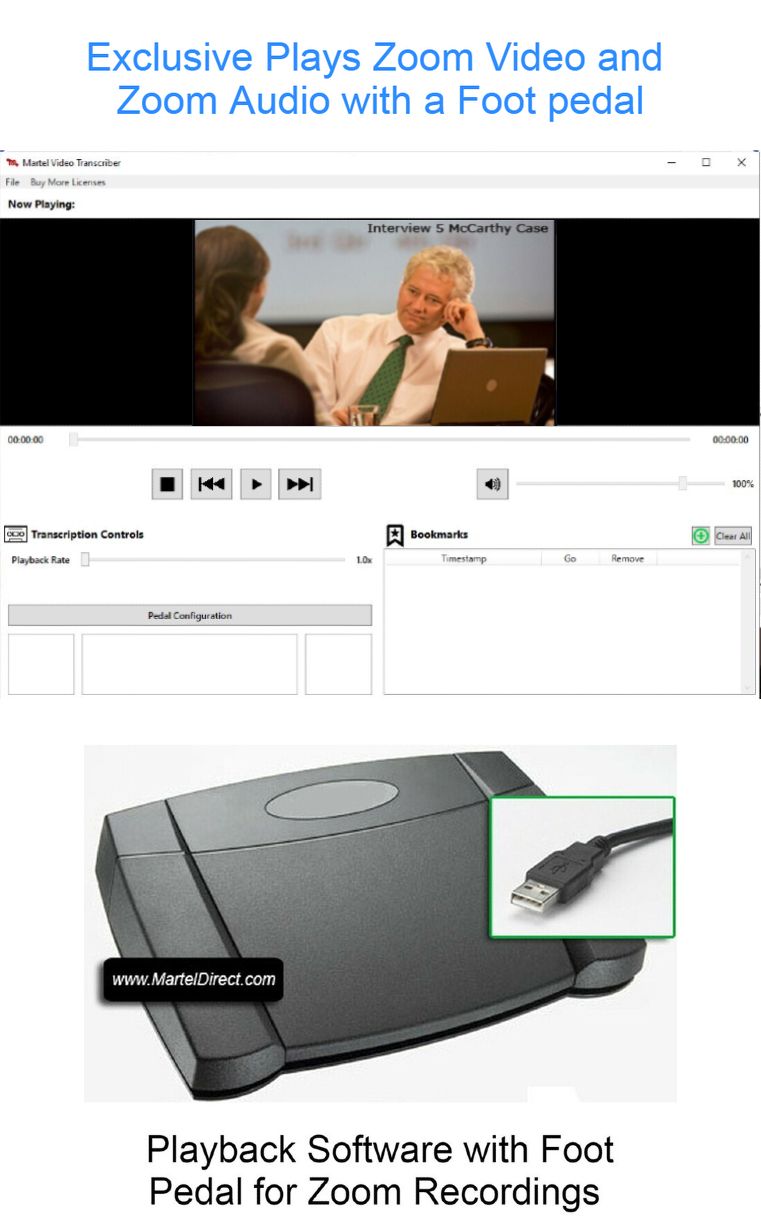
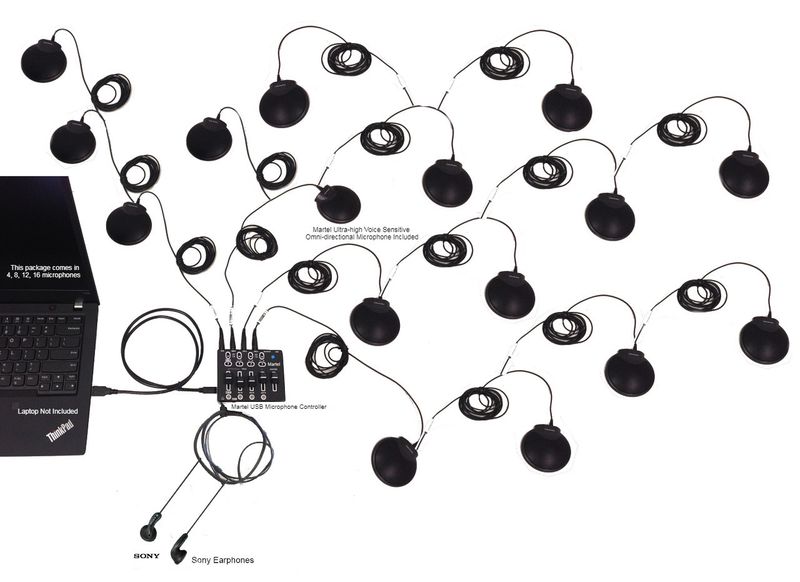
From Martel’s own product gallery. Illustrative arrangement; room coverage depends on placement, acoustics and testing.
A Microsoft Teams transcript makes a long meeting searchable, but searching text and checking what was said are different jobs. A useful review compares important words with the recording, preserves uncertainty where speech is unclear, and leaves the next reader a practical route back to the source.
That matters most when a small transcription error changes a large decision: an amount, a deadline, a person's name, a qualification, or the word “not.” It also matters in hybrid meetings, where several people may speak through a single room connection. A neat paragraph with a familiar participant label can still conceal a mistaken word or an uncertain speaker.
This guide explains a repeatable review process for meeting administrators, project teams, office managers, and anyone preparing an accurate working record. It covers access, file preparation, listening, corrections, speaker attribution, quality checks, and better sound capture for the next meeting. The examples are invented teaching cases, not claims about measured transcription performance.
Decide what the reviewed transcript needs to accomplish
Begin by naming the deliverable. A corrected working transcript, approved minutes, a short decision log, and a verbatim transcript serve different purposes. Combining them without explanation makes a document harder to trust.
A working transcript follows the conversation closely enough for readers to find passages and check quotations. Minutes organize the outcome, often leaving out repetition and unfinished sentences. A decision log records a decision, its owner, and the next step. None of these automatically replaces the others.
Write a one-sentence review instruction before opening the recording. For example: “Check the project handoff discussion against the recording, correct clearly audible transcription mistakes, retain meaningful qualifications, and flag passages that remain uncertain.” This gives the reviewer a boundary and makes later approval easier.
Set the level of detail too. Do you need every hesitation, or only words that carry meaning? Will false starts remain? Will overlapping speech be marked? Agree on those conventions before different reviewers apply different standards.
A transcript used for a formal purpose may need an organization's particular process or a qualified service. This practical workflow does not create certification. The useful principle is simpler: tell readers what was reviewed, against which source, by whom, and with what unresolved limits.
Confirm that the recording and transcript belong together
Do not assume that two files with the same meeting title cover the same period. Recurring meetings may reuse titles. A recording may begin after the introductions. A transcript may stop and restart. There may be more than one recording from a long session.
Check the meeting date, approximate duration, opening discussion, and closing discussion. Listen to the first meaningful exchange and find it in the text. Repeat near the end. When the sources cover different spans, write down those boundaries before reviewing individual words.
Microsoft explains that Teams recordings are stored in OneDrive or SharePoint and normally appear in the meeting chat or channel conversation after processing. Guest and external access may require explicit sharing. Use the meeting's actual recording link rather than relying on an unrelated downloaded file with a similar name. See Microsoft's recording guidance.
Make a short source note containing the meeting identifier used by your team, the recording's displayed name, duration, and the date you accessed it. This need not become a complicated register. Its purpose is to stop someone reviewing Tuesday's text against Monday's recording.
If only part of a session is available, label the review accordingly. “Reviewed against the available recording from the opening presentation onward” is more useful than allowing a reader to infer complete coverage.
Obtain the right access before starting detailed work
Viewing a transcript, playing a recording, downloading a file, and editing the stored transcript are separate capabilities. Being invited to the meeting does not establish that you can perform every one of those actions afterward.
Microsoft's transcription documentation describes role-dependent access and transcript downloads, including DOCX and VTT options for permitted users. Start with the past meeting's chat and Recap, then check the transcript options actually available to your account. An absent download or edit control can be a permissions issue rather than a fault in the recording.
Before assigning a review, ask the owner to confirm three practical points: the reviewer can hear the recording, can view the corresponding text, and has an agreed way to return corrections. If downloading is restricted, a browser-based review and a timestamped correction list may still accomplish the task within that restriction.
Keep access proportionate to the assignment. A person checking five product names may not need permission to alter the entire stored transcript. A designated editor can apply the approved changes afterward.
When blocked, request access from the organizer or responsible administrator. Do not spend review time inventing a workaround that creates a second uncontrolled copy. Record the access issue and continue any independent preparation, such as collecting the agenda and spelling list.
Separate the source, the working copy, and the final document
Use three clear concepts even if your organization stores them in one approved location. The source is what you received. The working copy is where review happens. The final document is what readers are told to use.
Preserve the original download when downloads are permitted. Create a separately named working document, such as “Planning meeting transcript—review in progress.” Use ordinary version dates or your team's existing document convention. Avoid names such as “final final corrected,” which stop being meaningful as soon as another correction arrives.
Treat an exported document and the transcript displayed beside a video as different artifacts until you have checked their contents. Editing your local document is not a reason to assume that viewers of the online recording will see the same changes. Decide where the authoritative reviewed text will live and who will update it.
For a small team, a simple record is enough:
Item
What to record
Why it helps
Recording
Link or approved file reference and duration
Identifies the listening source
Original text
Export or online version reviewed
Preserves the starting point
Working text
Reviewer and revision date
Shows who is making changes
Final text
Approval status and location
Directs readers to the intended version
Open questions
Time, issue, and responsible person
Keeps uncertainty visible
The benefit is practical traceability. Someone should be able to reproduce your check without guessing which file you meant.
Choose between DOCX and VTT according to the job
A word-processing document is convenient for reading, comments, and a straightforward editorial review. A timed caption file has another purpose: it associates short text cues with playback times. Choose deliberately rather than treating the extensions as interchangeable containers.
Use a working document when you need to annotate names, discuss ambiguous phrases, or produce an accessible reading copy. Retain useful time references as you work. If you remove all timing information early, locating a disputed sentence later becomes slower.
Use the timed version when your actual task concerns caption cues or synchronization, and work with an appropriate process for that format. Do not casually delete structural lines or change timing while correcting a spelling mistake. Text correctness and timing correctness need separate checks.
Microsoft's video transcript and caption guidance explains searchable transcript navigation in the Microsoft 365 player and cautions that replacing a Teams transcript through a downloaded and uploaded WebVTT file can lose speaker attribution. Check the documented behavior before choosing that route.
For many office reviews, the safer editorial decision is to keep an annotated working document and submit precise corrections to the authorized editor. A format that supports your intended output reduces accidental work. It does not remove the need to listen.
Build a review map before correcting sentences
Listen briefly to the beginning, middle, and end, then scan the transcript headings or major transitions. Identify the presentation, discussion, decisions, questions, and closing actions. This creates a map for the detailed pass.
Mark areas with dense terminology, rapid exchanges, distant room voices, or obvious interruptions. Those areas deserve additional attention. Also mark passages where a number or commitment appears, even if the text looks plausible. Plausibility is a poor test for a budget figure.
Use a compact review worksheet. Give each issue a recording time, a short description, and a status. For example: “18:42—delivery date; replay with preceding question; unresolved.” Avoid pasting long chunks of sensitive discussion into a separate tracker when a short reference will do.
Your map should organize the work, not prejudge the words. If you begin by writing the answer you expect, repeated listening can turn into a search for confirmation. Write the issue neutrally: “amount unclear,” rather than “should be fifteen thousand.”
The first scan also helps estimate effort. A short meeting with many overlapping speakers can require more care than a longer single-presenter briefing. Plan review time around difficulty and importance, rather than promising a universal number of minutes per recorded hour.
Listen in short passages with enough surrounding context
Start a few seconds before the disputed phrase. Listen through the end of the thought. Then read the corresponding text and compare. This order helps you hear the speaker's actual phrasing before the transcript suggests a possible answer.
When needed, replay at a comfortable slower speed without making the speech so unnatural that sounds become harder to distinguish. Return to normal speed for the final check. A sentence can seem convincing in isolation and still make little sense within the speaker's complete answer.
Keep playback volume comfortable and reasonably consistent. Turning an unclear passage much louder may also amplify room noise. If a passage remains unclear, change one listening condition at a time, such as replaying the preceding exchange or using a different suitable listening device. Keep the source intact.
Avoid editing several sentences ahead of what you have heard. A smooth transcript can tempt a reviewer to read quickly and assume agreement. Instead, work in manageable chunks, confirm the wording, and then move on.
On a difficult section, leave a temporary marker and continue. Returning after a break can help you distinguish genuine audibility from familiarity. If the evidence remains inadequate, keep an uncertainty marker. Persistence should improve the check, not pressure the reviewer into inventing a word.
Review meaning-changing words before cosmetic details
All words deserve appropriate care, but some errors have a larger practical effect. Give early attention to negation, conditions, quantities, comparisons, ownership, and timing. “Approved” and “not approved” are only one word apart. “By Friday” and “after Friday” send a project in different directions.
Create a second pass specifically for these categories. Search the working text for amounts, percentages, dates, “unless,” “subject to,” “before,” “after,” “must,” and “may.” Searching is a way to locate candidates; it is not a substitute for hearing the passage.
When a speaker changes an answer, preserve the correction clearly. Suppose someone says, “Make that twenty-four, rather than twenty.” A clean reading copy must not leave readers with the first number simply because it appears earlier.
Distinguish a stated requirement from a suggestion. An automatic transcript may contain every word yet punctuation can make a tentative proposal look like a settled instruction. Review the complete exchange, including the response from the person expected to act.
Only after these checks should you spend extensive time on paragraph breaks and typographic consistency. Polished formatting makes a reviewed transcript easier to use. It cannot compensate for an unchecked amount or a missing qualification.
Verify names and technical terms without rewriting the evidence
Prepare a reference list from material the team is authorized to use: the agenda, participant roster, project glossary, and documents discussed in the meeting. This helps distinguish unusual but correct language from a transcription substitution.
A reference list establishes spelling, not what the speaker actually said. If the agenda lists “Phase Alder” but the recording clearly says “Phase Birch,” do not silently replace the audible word to match the document. The discrepancy may itself be important.
For names, separate sound from identity. You may hear a surname clearly without knowing which attendee it belongs to. You may know who attended without being able to hear the name in a particular passage. Avoid turning either partial clue into certainty.
When a term remains doubtful, give the approver a concise question with time and context. “At 12:18, is the project name Alder or Alden?” is easier to resolve than a general request to “check terminology.” If someone supplies a spelling from memory, document it as a spelling confirmation rather than pretending the recording became clearer.
Use global replacement carefully. A term can appear in several contexts, and a similar word may be correct elsewhere. Confirm the intended occurrences before replacing every match. This is especially important with abbreviations that also form ordinary words.
Treat speaker attribution as its own review task
Correct words and correct speakers are separate dimensions. A room connection may carry several people. A visible account name is useful context, but it should not be treated as proof that the account holder spoke every sentence arriving through that connection.
Make a speaker list with the labels supported by the available evidence. If you can reliably distinguish “chair,” “presenter,” and “unidentified room participant,” those labels may be more honest than attaching personal names too early. Apply one convention consistently.
Look for introductions, direct questions, and clear handoffs. A sentence such as “Morgan, can you take the schedule?” followed by a reply provides context. It still deserves listening, because another participant may answer first.
Video can add information, but do not infer words from a camera view alone. An off-camera person may be speaking. A participant may be reacting while someone else has the floor. If the picture and the sound do not support a confident attribution, mark the uncertainty.
For a mixed room and remote meeting, document the distinction between a connection label and a verified person. This prevents the final transcript from suggesting greater identification precision than the recording supports. More microphones can help capture speech near different seats, but microphone count alone does not establish individual Teams identities.
Handle overlap and inaudible passages consistently
When two people speak together, the transcript may flatten their words into a single sequence. Start by identifying what is audible without trying to force it into a tidy exchange. If a meaningful interruption is clear, preserve it using the convention agreed at the start.
Use a small vocabulary for unresolved sections. For example, “[inaudible 00:23:17]” means the words could not be determined, while “[overlapping speech 00:23:17]” explains why the exchange may be incomplete. Your organization may prefer other notation. Consistency matters more than inventing an elaborate system.
Do not fill a gap with the most likely sentence from context. A transcript can remain useful with a visible gap. A fabricated bridge is harder to detect because it reads so well.
If part of a sentence is clear, preserve that part and mark the limit. Avoid replacing an entire useful exchange with “inaudible” merely because one name cannot be heard. Conversely, do not imply a continuous clear quotation when crucial words are missing.
Give unresolved passages an action. They may need another authorized listener, confirmation from the speaker, or a note in the final deliverable. A question with an owner can be resolved. A silent guess becomes part of the record before anyone notices.
Distinguish correction from editorial interpretation
Correct a clear recognition mistake to match the recording. Improve punctuation when it clarifies the spoken thought without changing meaning. Treat larger rewriting as a separate editorial task.
For example, replacing an obviously mistranscribed project name with the clearly spoken name is a transcript correction. Turning a five-minute debate into “The group agreed to proceed” is a summary. Both may be useful, but the latter needs its own label and review.
Keep meaningful hesitations when they affect certainty. “We can commit” and “I think we can commit, if testing finishes” are not equivalent. Removing the qualifying phrases makes cleaner prose at the cost of the speaker's actual position.
When producing both a transcript and minutes, work from the checked transcript into the minutes. Then check the minutes back against the relevant recording passages for decisions, owners, and qualifications. This creates a deliberate path from sound to text to summary.
Never add a rationale merely because it would make the decision easier to explain. If the reason was not stated, say so or keep it outside the transcript. A good review preserves the boundary between what was said, what the team later clarified, and what the editor inferred.
Martel’s Zoom Video Transcriber combines supported recording playback with USB foot-pedal control. Open the product page to check the package and supported formats.
Apply approved corrections in the appropriate location
Microsoft documents organizer editing in the Microsoft 365 player after a Teams recording has uploaded to OneDrive or SharePoint. Its current procedure opens the recording in a browser, selects Transcript, edits the relevant passage, and saves with Done. Organizers can also manage viewing, editing, and downloading permissions, subject to administrator policies. See Microsoft's transcript editing instructions.
Before applying changes, decide whether you are editing the stored transcript, preparing a separate reviewed document, or doing both. The answer should be explicit in the handoff. A reviewer who has permission only to comment can return a correction list for the designated editor.
Apply a few confirmed changes, then check that they appear where intended. Continue in manageable groups. This is easier to audit than making hundreds of changes with no intermediate check.
Retain a brief change record for substantive corrections: time, original wording, corrected wording, and reason. You do not need a record for every comma unless your process requires one. Concentrate on changes that alter identity, numbers, commitments, or meaning.
If several people review the same meeting, allocate passages or roles. One editor should reconcile the proposed changes before the final release. Simultaneous uncoordinated edits make even careful reviewers' work harder to assess.
Make the review log useful to the person approving it
A good review log saves the approver from replaying the entire meeting just to understand a question. It provides enough context to locate the issue and make a decision without burying the actual uncertainty.
Recording time
Issue
Suggested treatment
Status
00:08:34
Project name has two possible spellings
Confirm against authorized project list
Spelling confirmation needed
00:19:02
Deadline appears changed in the next sentence
Keep the correction and its qualification
Ready for approval
00:31:47
Two room participants overlap
Retain clear words and mark overlap
Second listener requested
00:44:10
Owner is unclear
Do not assign an owner from inference
Meeting follow-up needed
These are illustrative entries, not findings from a real meeting. Adapt the categories to the work. A short internal project meeting may need only a few comments; a heavily reviewed document may require a fuller record.
Separate “audio verified” from “confirmed afterward.” Both can resolve a business question, but they are different evidence. If a speaker later clarifies a date by email, the transcript should not quietly imply that the clarification was audible in the original exchange.
Close resolved items and preserve remaining ones. An approver should see the unresolved list immediately, with the consequence of leaving each issue open.
Use Recap and search as navigation aids
Microsoft's Recap documentation describes a place to revisit meeting materials such as recordings and transcripts. Some intelligent features require an eligible Teams Premium or Microsoft 365 Copilot license. What appears can depend on the meeting, account, and available features.
Use available navigation tools to find likely passages, then listen. A generated topic or summary can direct your attention to a decision. It does not prove that the decision was unconditional, that the owner was correctly identified, or that a quotation is exact.
Search with variants. If a surname is spelled incorrectly, searching only the correct spelling may miss the relevant passage. Try part of the name, a nearby project term, or the subject discussed immediately before it. If text search fails, the agenda and recording timeline can still provide a route.
Avoid letting the summary define the review scope without checking. A short exchange can carry an important qualification even when it receives no prominent summary label. Use your review map and the meeting's purpose alongside the software's navigation.
This is a productive division of labor: tools help locate; the reviewer compares; an authorized person approves. Clear roles make the workflow faster without treating a convenient interface as a substitute for evidence.
Work through a hypothetical deadline correction
Imagine a planning meeting whose automatic text reads: “We will deliver all units on the fourteenth. Finance can release the payment.” The project manager is about to put both statements into the decision log.
The reviewer locates the passage and listens from the preceding question. The audible answer is more qualified: “We won't deliver all units on the fourteenth; the first batch can go then. Finance can release the payment after acceptance.” The omitted negation and timing condition materially change the meaning.
The reviewer corrects only words supported by the recording, keeps the relationship between the first batch and the later deliveries, and notes the payment condition. The decision-log editor then writes a concise action that preserves those limits. The transcript and the summary remain separate deliverables.
Now suppose the word before “acceptance” remains unclear. The reviewer should not choose a plausible adjective from the contract. The correct next step is a timestamped query. The project team can clarify its intended action separately while the transcript retains the uncertainty in what was recorded.
The lesson is not that every transcript contains this error. It is that fluent text can be misleading, and meaning-changing words deserve a deliberate listening pass. A good process catches them before an attractive summary turns them into operational instructions.
Work through a hypothetical shared-room speaker problem
Consider a hybrid committee with eight people around a table and two remote attendees. The room joins through one computer. During a scheduling discussion, two people in the room speak in quick succession while the camera shows a wide view.
The transcript places both comments under the room account's name. One comment accepts a task; the next asks whether an additional review is needed. The secretary knows who usually handles that task, but the recording does not clearly establish which person accepted it.
The careful response is to correct any audible wording while keeping speaker attribution unresolved. The secretary can ask the chair to confirm the action owner for the decision log. That later confirmation should be identified as follow-up rather than silently assigned to the transcript.
Before the next meeting, the group can introduce a simple speaking practice: identify the speaker when taking a new action, pause before responding, and ask the chair to restate assignments. These are meeting habits, not software promises.
The group can also assess microphone positions. If distant voices sound faint while nearby voices are clear, bringing suitable microphones closer to speaking areas is a practical capture improvement. It will not automatically identify every person, but it addresses a real source of unclear speech that a reviewer otherwise has to confront afterward.
Improve the next transcript by improving room capture
Post-meeting editing begins with the sound that was captured. When people at the far end of a table are hard to hear, repeated playback cannot manufacture the missing detail. Treat review findings as feedback for room setup.
Record a few neutral observations: which seats repeatedly require replays, where paper handling masks words, whether remote speech is audible, and whether quiet speakers disappear. Do not convert one difficult phrase into a sweeping claim that a particular person or device is at fault.
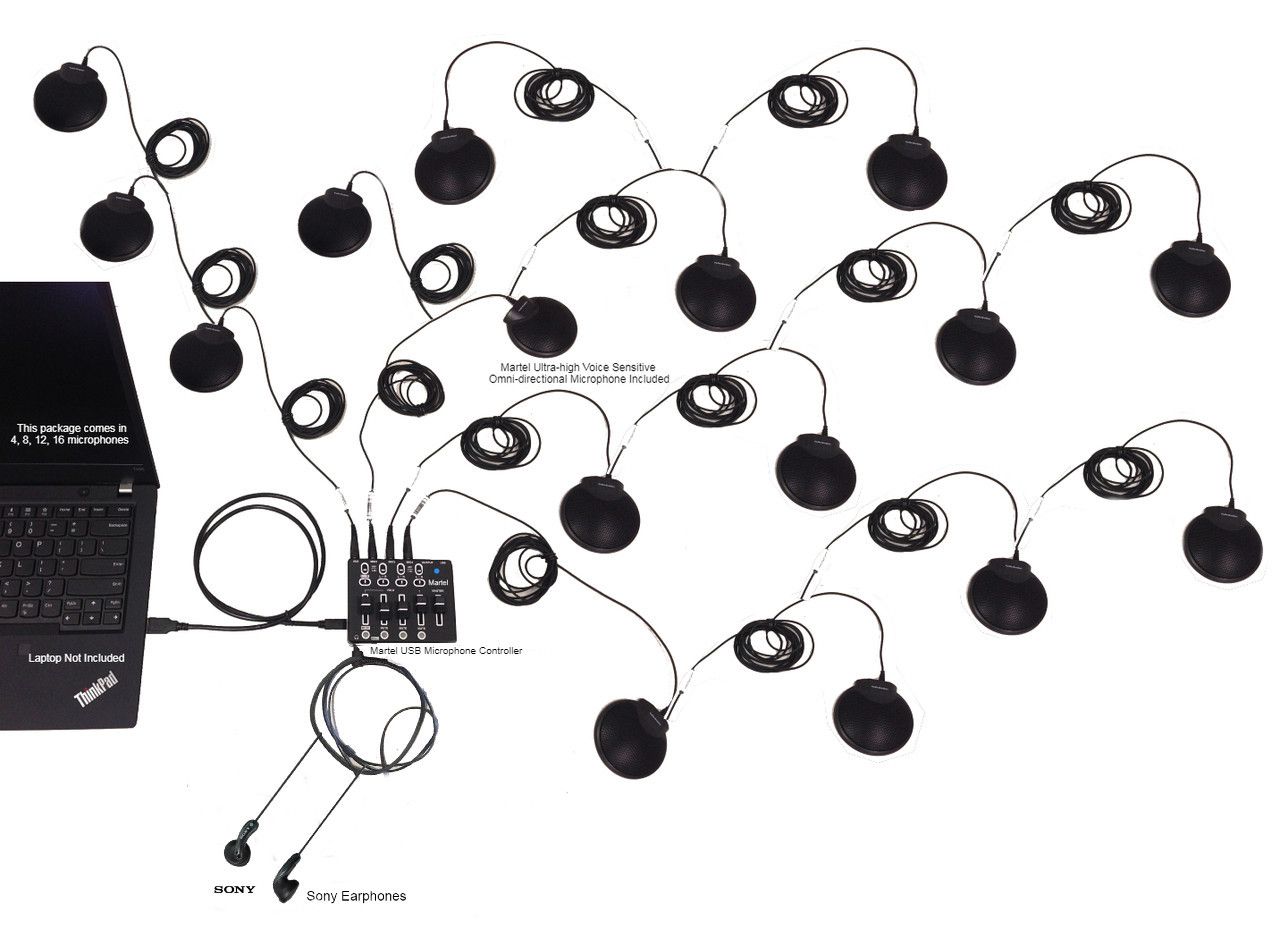
The Martel Zoom multiple microphone systems offer 4, 8, 12, or 16 microphone packages through one USB connection for Zoom and Microsoft Teams meeting computers. Their purpose is to provide pickup positions around the conversation. Choose the package around actual seating and table layout, then test normal speech from each position.
For the transcript reviewer, the practical goal is consistent audibility across the room. A test should include an ordinary short sentence, a name, a date, and a number from each intended speaking position. Ask a remote listener to check the received sound, and listen to the resulting permitted recording too.
More pickup points are a tool for placement, not an accuracy guarantee. They do not establish independent recorded tracks, automatic speaker identity, or a particular transcription result. The complete workflow still includes the meeting computer, application settings, remote audio, recording, and review.
Check Teams audio settings for a shared room
Confirm which microphone and speaker Teams is actually using before the meeting starts. A connected room system is not helpful if the application is still listening to the laptop microphone. Microsoft describes selecting devices and, where available, making a test call in its audio settings guidance.
Test with the room's real use in mind. A setting that helps a single person at a desk may not suit a shared microphone carrying several people. Microsoft explains that voice isolation uses a voice profile to retain that person's voice and filter other voices. For a shared room input, evaluate that behavior deliberately rather than assuming every noise feature should be enabled.
Have people speak one at a time from several seats. Include the quietest likely speaker and the presentation position. Check the remote listener's experience before adjusting settings based only on a local meter.
Keep a short room setup card with the intended input, output, and tested arrangement. After a computer change or application update, repeat the practical check. A room procedure should make successful setup easier for the next operator, rather than depending on one person's memory of a past menu.
Perform a final quality pass before sharing
Read the reviewed text while listening to selected high-importance passages one more time. Focus on names, numbers, owners, decisions, and conditions. Revisit every unresolved marker. Confirm whether it remains unresolved, has an approved treatment, or needs to be excluded from a summary.
Check for editing side effects. A global replacement may have altered an unrelated word. A deleted paragraph may have removed a time reference. A speaker label may have been applied across a boundary that should remain separate.
Then read the document without playback. Does the formatting distinguish speech from editorial notes? Are uncertainty markers obvious? Can a reader find the relevant recording time? Does the opening note accurately describe the review's scope?
Finally, check the intended access. Ask the authorized approver to open the actual final location, rather than assuming a link works because it works for the editor. Make sure the handoff points to the reviewed version and identifies any separate unedited export.
Release only the deliverable your process has approved. A quick internal working copy can be useful when labeled honestly. The problem is allowing a partially checked document to look fully verified because it has a polished title and no visible review status.
Give the reviewer an efficient handoff checklist
The next reviewer should receive enough information to continue without repeating completed work. Include the recording reference, the working document, the review convention, completed time ranges, and a short unresolved list. If a specific passage needs another listener, identify it directly.
State what was checked. “Reviewed decisions and action assignments” is different from “Listened through the complete available recording.” Neither description should be inflated to sound more complete than the work performed.
Use a consistent completion note: reviewer, date, source duration, coverage, important corrections, and remaining questions. Keep it brief enough that people will actually read it. If the transcript includes sensitive information, follow your organization's approved handling and sharing process rather than creating a broad distribution list for convenience.
A useful handoff also passes capture findings to the person setting up the next meeting. For example: “The two seats nearest the window were consistently faint; test those positions before the next session.” This is an actionable observation without claiming a measured technical diagnosis.
Close the loop after the next meeting. Did the revised seating or microphone arrangement make those passages easier to hear? Evaluate the result by listening, not by assuming that a changed setup must be better.
Martel’s product-gallery image shows a multiple-microphone arrangement connected to a controller. The laptop is not included. See the product page for the current package.
Run a short practice review before assigning a long meeting
A ten-minute practice can reveal disagreements about review standards before they spread through a long document. Use a short authorized recording or create a simple internal practice conversation. Keep it free of confidential material so people can focus on the method.
Include four ordinary challenges: a corrected number, an unfamiliar project name, an interrupted answer, and a tentative commitment. For example, one speaker might change a quantity from sixteen to sixty, then say the order is conditional on an inspection. Another might interrupt with a question before the first answer finishes. These are deliberately constructed teaching examples, not a test of a particular software product.
Ask two reviewers to work independently for the first pass. Each should return corrected text, unresolved items, and a brief statement of coverage. Compare the results against the recording together. Discuss differences in conventions rather than simply counting how many words each person changed.
Did one reviewer remove the condition because it sounded like a digression? Did another identify a speaker from a seating chart even though the voice was unclear? Did both preserve the corrected quantity? These questions reveal whether the team shares a useful definition of accuracy.
Then produce an agreed reference version for the exercise. Mark which changes are supported by the audio and which are editorial choices. Keep the example with the review instructions. New reviewers can see how your team handles real ambiguity instead of trying to infer standards from a list of abstract rules.
Finish by assessing the handoff. Give the correction log to someone who did not perform the review. Can that person find the passages, understand the unresolved questions, and distinguish the transcript from the summary? If locating a passage requires an explanation from the reviewer, improve the time references or descriptions.
This exercise is valuable even when the meeting team uses excellent equipment. Consistent capture and consistent review solve different parts of the problem. A clear recording gives people evidence; a shared method helps them use that evidence responsibly.
Frequently asked questions about reviewing Teams transcripts
Can I review a transcript if no recording exists?
You can check spelling, consistency, and supporting documents, but you cannot compare the wording with audio that was never saved. Label that limitation. Do not describe a text-only editorial review as verification against a recording.
Should I correct every grammatical mistake?
Match the agreed deliverable. A transcript normally preserves the speaker's meaning and phrasing. A separate polished summary can use edited prose. Avoid silently turning informal speech into a stronger or more definite statement.
Is a participant name beside the text enough to verify the speaker?
Treat the label as context. Review the available evidence, especially when several room participants share one connection. If identity remains uncertain, use the agreed neutral label and request clarification for action ownership separately.
Why can another attendee edit or download when I cannot?
Roles, sharing settings, and organizational policies can differ. Ask the organizer or administrator to confirm the access needed for your assignment. Your available controls are the practical starting point.
Can a better microphone eliminate transcript review?
Clear capture supports a better review process, but no microphone package guarantees error-free recognition, correct names, or complete speaker attribution. Important passages still need appropriate human checking.
How much of the recording should I listen to?
That depends on the promised scope. If you claim a full recording review, cover the full available source. If the assignment covers decisions only, identify that narrower scope and check those passages with enough surrounding context.
Build a process that gets better with every meeting
An effective Teams transcript review produces more than corrected words. It produces a usable record, clear unresolved questions, and practical evidence about where the next meeting's capture can improve.
Start with matched sources and the right access. Preserve the original, listen in context, give extra attention to meaning-changing details, and keep speaker identification separate from word correction. Apply approved changes in the intended location and tell readers exactly what they are receiving.
For recurring hybrid meetings, make audio preparation part of the same process. Compare the Martel 4, 8, 12, and 16 microphone USB systems with your seating plan and normal speaking positions. Ask Martel for help matching the package to your room, then test the complete Teams workflow before an important session. Better preparation gives your reviewers a stronger source to work from and your remote attendees a more useful seat at the table.
Martel gallery image of the 16-microphone system. See the product page for the supplied configuration.
Martel Electronics | 7 hours ago
How to Review a Microsoft Teams Transcript Against the Recording
A meeting transcript is a working draft. Use the recording to check names, numbers, speaker labels and decisions, then improve the room’s microphone coverage before the next meeting. Keep a record of each correction and its supporting timestamp.