Can Windows 11 Notification Sounds End Up in a Zoom Deposition Recording?
Find out whether Windows 11 alerts enter a Zoom deposition recording. Compare computer audio and room-mic playback with Martel’s deposition recorder software.
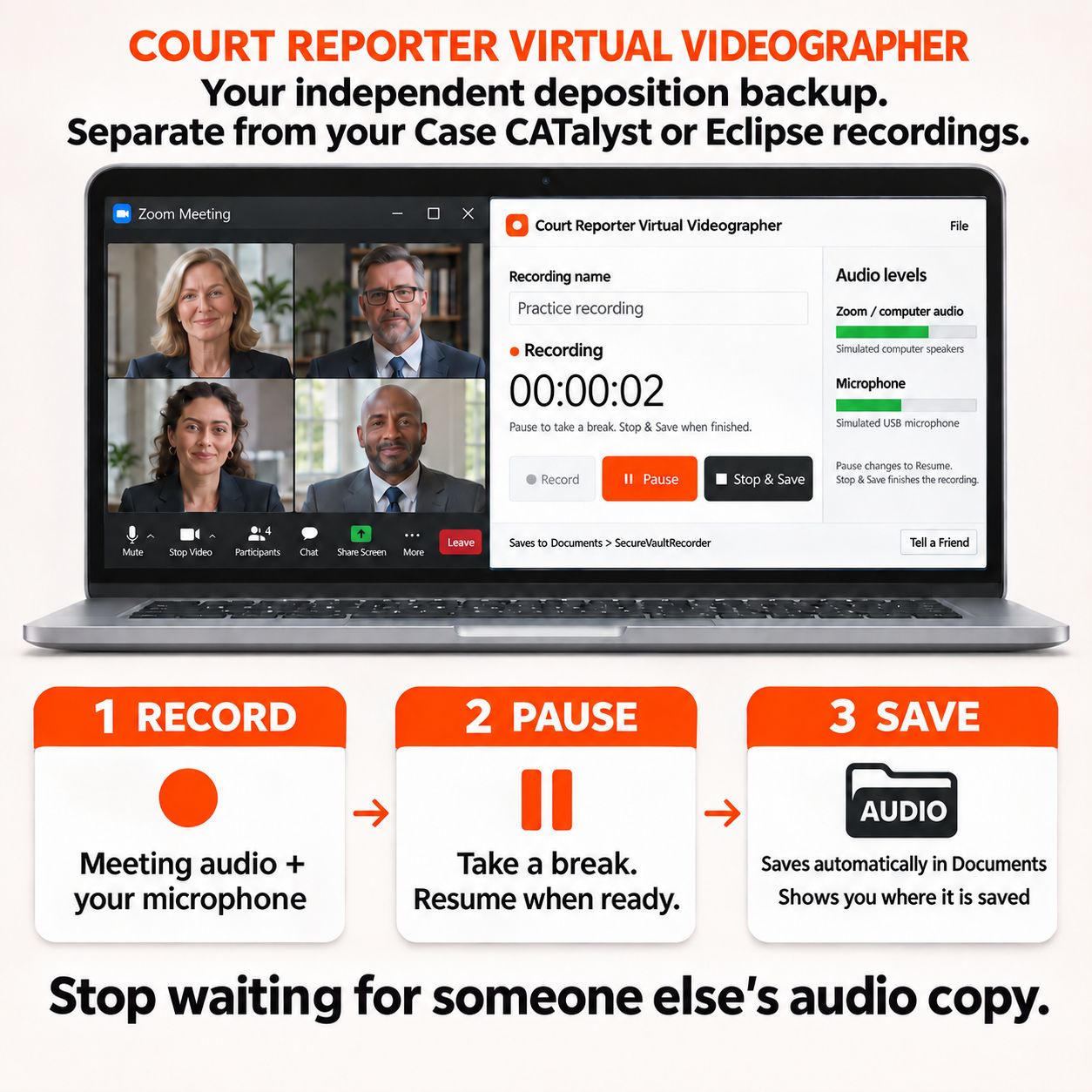
Yes. A Windows 11 notification can end up in a Zoom deposition recording when the alert plays through the computer audio being captured. An alert can also travel through air from a loudspeaker into a room microphone. Headphones change the second route. They can keep a chime out of the room while the chime remains present in sound captured from the selected computer output. To check your court recording software on the Windows meeting laptop, trigger one harmless alert during a practice call, save the samples and listen to them.
For a court reporter, the question that matters is usually more specific. Did the chime cover a witness’s first answer? Did everyone in the meeting hear it or only the person reviewing the backup? Can you suppress an ordinary message alert while keeping remote testimony and an important meeting cue audible? This guide walks through those checks on Windows 11 and connects them to the way Martel’s Court Reporter Zoom Deposition Audio Recorder Software, SKU 3322, is used. The fictional dialogue below gives you a way to test your workstation without using an actual proceeding.
View Martel’s Court Reporter Zoom Deposition Audio Recorder Software.
Decide whose ears, whose recording and which device
Imagine you are reviewing a deposition from your office. A chime sounds as the witness gives an apartment number. You remember hearing a chime at the desk, but cannot recall whether it came from the meeting computer, your phone or counsel’s end of the call. Ask three separate questions before changing any settings. Who heard the chime while the meeting was taking place? Which saved file contains it? Does it occur at exactly the same point in the witness’s words on a second playback?
Those questions separate a surprising number of cases. A chime that returns on each playback between “suite” and “forty” is likely to be part of that audio file. A chime that follows a new message whenever you open the player may be a sound coming from your computer during review. A chime reported by the remote practice witness may have traveled down the meeting connection. A reporter can hear an alert on a headset without the meeting participants receiving it. Each observation establishes a different piece of the route.
Label the machines by the jobs they are doing. The Windows computer running Zoom produces the remote meeting voices you hear. The computer running CAT software may be the same machine or a different one. A steno writer can save its own room-microphone recording independently of both. Someone presenting an exhibit may send sound through the meeting, and a phone on the table can ring in the room. An alert enters a particular saved file only if its sound reaches the source that file records.
Consider a concrete example with two laptops. The meeting plays in a USB headset connected to the first laptop, where Martel’s recorder is running. A calendar notice appears on the second laptop and that laptop plays a sound through its speaker. The first laptop has no automatic digital connection to the second laptop’s calendar sound. However, a microphone in the room could hear it. Labeling the sound as “Windows notification” would be accurate and still leave out the detail needed to solve the problem. Write down which Windows machine produced it.
The same distinction matters when the cue comes from someone at the far end. Suppose a remote assistant receives an alarm that goes through their own live meeting microphone. The reporter in another city hears the sound inside the incoming meeting. Adjusting notification settings on the reporter’s PC cannot change sound that has already arrived with the remote voices. In a practice session, have the assistant identify an intentionally introduced sound so you can hear what that route is like. Reserve changes to another participant’s device for its operator.
Read the playback and microphone choices on your Windows 11 workstation
Open the Windows Sound settings and look at the selected output device. Record its displayed name, especially if several choices contain “speakers” or the same headset brand. Open the audio settings in Zoom and check the speaker selection there. Zoom’s speaker test plays a tone through the chosen device. Use it during setup to establish what you will hear at the desk. Also inspect Zoom’s microphone choice. That microphone sends your voice or room sound toward remote attendees. The speaker choice delivers their voices back to you.
Open the Martel recorder separately on the Windows computer handling the meeting. Martel directs you to select the same speakers or headphones used for the meeting. Read the displayed recording choice instead of assuming an old preset followed a new device. A workday can begin with the laptop docked at the office, move to a deposition room with a USB headset, and end back on the dock. The laptop is the same throughout. The device that carries the meeting sound may change at each stop.
A computer can capture sound being played to an output. Microsoft’s description of playback capture explains why a headset can be a source of recorded computer audio even while it is keeping the room quiet. Think of two questions you can answer separately. Is the sound in the chosen playback signal? Is some loudspeaker also emitting that sound into a microphone in the room? You can change the answer to one without changing the answer to the other. Different recorders can use different capture methods, so verify the behavior of the particular program and settings you plan to use.
For local people at a hybrid deposition, identify the microphone selected in the recorder as well. A remote witness can be perfectly audible through the selected speaker or headset while an attorney across the table is absent from a computer-audio-only sample. Conversely, a room microphone can pick up the local attorney clearly while a witness playing only in the reporter’s headphones is missing from that separate room source. Establish a working sample from each required voice before changing anything to deal with an alert.
Write a compact device note during rehearsal. It can say, “Meeting on Windows laptop, Zoom speaker is USB desk headset, recorder playback is the same headset, room audio comes from the conference-table microphone.” If the audio app shows a number or room-specific name, include it. A screenshot taken while using fictional practice material can help when reinstalling equipment. Crop out meeting identifiers and work documents. A device name means more alongside the role it performed than it does in an isolated photo of the Settings screen.
Make a marked recording and a separate room-microphone comparison
Arrange a short mock Zoom meeting with a colleague using a different room or location. Use no client material. Set up a predictable, harmless alert on the meeting laptop, such as a reminder with a fictional subject that you know produces sound on that machine. Check that it actually makes a sound before the trial. A silent banner offers little evidence about whether your recorder would capture an audible reminder. Keep a second room recorder or the recording capability already used on your writer available if you want to distinguish electronic playback from room pickup.
In the first take, use the hearing arrangement you normally expect at your desk. Start the separate practice recordings as applicable. Ask the remote reader to say, “Marker one. The blue envelope went to suite forty.” Trigger the practice alert in a pause. Ask the reader to continue, “Marker two. Its label said Orchard Lane.” A local reader can add, “Marker three. I wrote card seven.” These fictional details let you identify whose words reached each source. Leave time between markers for the rehearsal, and repeat new material once with the alert deliberately near a word if you want to judge how distracting it can be.
Stop and save each sample. Name each for its actual source, such as “headset output practice” and “writer table mic practice.” Keep any answer sheet with the trial notes. Listen to the saved files using the same comfortable playback arrangement and write down the first marker, whether a chime appeared, the remote street name and the local card number. If the local name is absent on a sample intended to capture computer output alone, that can be consistent with your setup. If it is missing from a hybrid recording that must contain both voices, investigate the room input before approving that arrangement.
In the second take, change one defined condition. A good comparison is to keep the same headset in Zoom and the Martel recorder while disabling the sound for the practice reminder. Another is to test the room microphone with the alert playing through an external speaker instead of the headset. If changing output, confirm and record the new playback selection in Zoom and in the recorder. Use the same invite, conversation level and script. Running two separate comparisons lets you speak confidently about the scope of each change.
Ask the remote listener to record their observation on paper as well. Did the first alert play in the remote person’s ears, at your desk, on both or neither? Ask them to identify the marker they heard next to it. An answer such as “I heard something around the second marker” can be valuable even without a separate remote recording. It identifies a signal that traveled into the call itself and may require a look at the meeting microphone, active computer-sound sharing or the remote participant’s own device.
Mark a result as untested when a required piece was unavailable. If you had only the laptop and headset, you established what happened in the computer recording in that configuration. You still have a useful result, and you know exactly which part of a hybrid assignment remains to be tried. A second run with the actual table microphone is worth more than a remembered guess about what laptops generally pick up.
| What you heard on practice replay | First comparison to make | What counts as a useful result |
|---|---|---|
| Chime on computer audio with headphones in use | Check which playback device handled the alert | Caller remains clear after changing the sending app’s sound |
| Chime only on the room-mic sample | Check nearby phones, displays and speakers | A second room take identifies a specific audible device |
| Chime also audible to the rehearsal caller | Check the meeting mic and any audio being shared | Remote listener identifies which marker included the sound |
| Chime heard during review at an inconsistent time | Replay the same marked excerpt with unrelated apps quiet | A file event returns at the same point in the words |