TIME IS RUNNING OUT FOR 2026 TAX WRITE-OFFS

CAT Software Closed Before You Saved. What Can Your Court Reporting Laptop Recover?

Recover an unsaved CAT job on a Windows 11 court reporting laptop. Check edited text, steno notes and audio, then rehearse on the Martel Elite laptop.
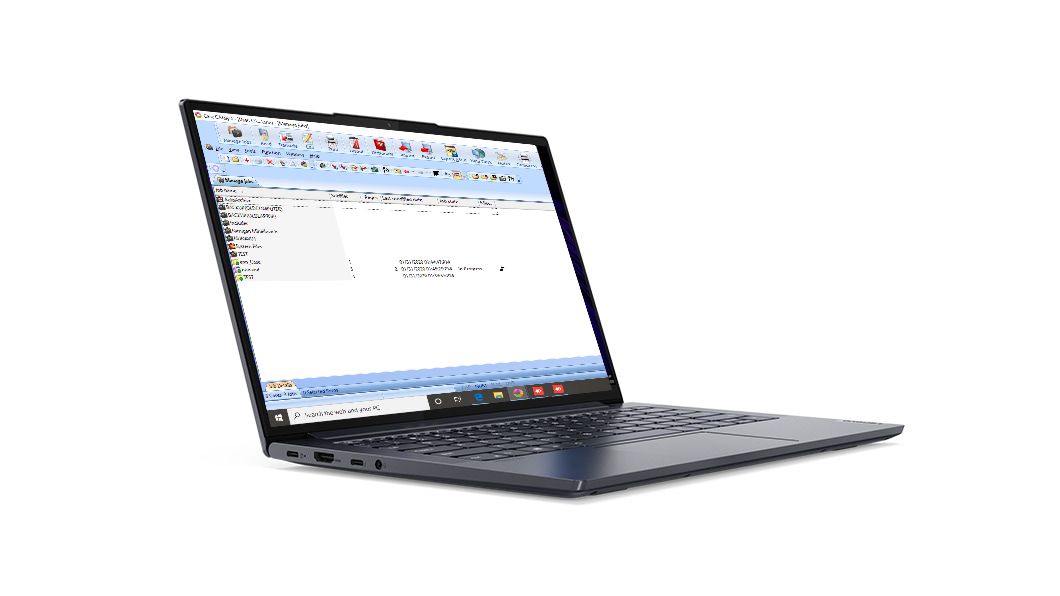
Open Martel Elite Court Reporter Laptop viewed from the front at an angle
Elite Court Reporter Laptop. View Martel’s product details for SKU 1978.

Your court reporting laptop may still hold the last transcript you explicitly saved, a later copy produced by your computer-aided transcription (CAT) software, or audio saved alongside the job. Your steno writer may hold another set of notes. Each answers a different question. A corrected surname can survive in the edited transcript while a later answer survives only as strokes on the writer. A recording can contain both answers even when clicking the corresponding text no longer plays them.

Start with the last words and edits you can actually verify. Preserve the available files, identify which device produced each one, and use the recovery procedure for your installed CAT version on a working copy when the software permits it. The following Windows 11 guide walks through that process with a fictional equipment inventory. It also gives you a rehearsal you can run before you entrust a new court reporter computer with a real job.

View the Elite Court Reporter Laptop.

Start where the testimony stopped

Imagine that a witness has just described a delivery. You saw the answer render on the laptop, changed “Palmer” to “Parmer,” and moved the speaker label above it. Then the CAT editing window disappeared. Those three actions happened close together in the room. Later, they can have three different outcomes on disk. The writer might have the strokes for the answer, the last saved transcript might contain the first spelling, and a recovery copy might include the new spelling but place it under the previous speaker. Write down those distinctions while you remember them.

First determine what actually stopped. A vanished edit window on an otherwise responsive computer is different from a laptop that shut down. If you can still see the CAT job manager, note whether it identifies an open session. If the writer is still receiving strokes and its own job remains open, keep that information separate. If an independent recorder is already running under your normal procedure, note its status. Do this without disturbing a component that is continuing to work. During proceedings, use your established reporting procedure for any interruption and mark the first words you can verify after resumption.

On paper, write the job identifier, the approximate time, the last known manual save, the last complete question or answer you remember, and the last edit you made. Use a concise private note for the incident. For the fictional delivery, “last answer about lower shelf, surname corrected, label moved” is more useful than “lost about twenty minutes.” Twenty minutes on the clock might include a recess, a long exhibit review, or work you saved. A recognizable phrase and the kind of edit give you a way to examine the candidates later.

Before opening another job, capture the exact wording of any recovery dialog and the job or folder it identifies. A phone photograph may be inappropriate for a particular job. An approved screenshot or a handwritten transcription of the prompt can serve the same purpose. If one choice would replace an existing file and the dialog does not reveal which one, leave the choice pending while you consult your version’s recovery instructions. A prompt that offers the correct date still deserves a check against the actual job name, especially after a split morning and afternoon session.

Separate the transcript, steno notes, audio and edits

The translated job is where to look for text as it existed when the application wrote that version. It may contain headings, punctuation, speaker assignments, layout, and edits made on the computer. A saved version can be excellent through the last manual correction and stop in the middle of the next question. To evaluate it, pick one early line you edited, one line just before the interruption, and one subsequent change you clearly remember making. Look at all three. Their presence tells you more than a document that happens to open on the expected last page.

The writer’s notes answer whether the corresponding strokes were captured on that machine. Certain writers store notes and timestamp information internally as well as on removable media. Consult your own writer’s storage chapter for the applicable locations, how jobs are identified, and how to copy them. The internal-memory chapter for a supported writer describes recoverable steno notes and timestamps. That distinction matters if you are also looking for recorded sound. Use the device’s separate instructions for audio and check which microphone and recording option were actually active.

Audio is a third candidate. A microphone connected to the laptop might feed a recording made inside the CAT program. Another microphone might feed the writer or a standalone recorder. Each recording follows its own start, pause, stop, power, and storage conditions. Hearing the judge or seeing a meter move during the proceeding establishes that someone could monitor sound at that moment. Later, the question is whether a particular saved file contains the phrase you need. You can test that by listening in context at the suspected boundary and identifying the surrounding speakers.

Edits made after translation form another layer. Changing “nineteen” to “ninety,” resolving an untranslated name, moving an answer to the correct speaker, and inserting an exhibit parenthetical all involve choices. Some may be partly inferable from strokes and sound. A private editing bookmark or a choice of paragraph break might exist only in the CAT job. Draw a simple map of what you need to restore, with a source next to each item. This keeps later reconstruction from quietly undoing accepted work on earlier pages. It also tells a support technician which part is missing even if other parts look healthy.

CandidateRead or listen forCheck separately
Manually saved transcriptThe final edited spelling and its speaker labelWhether testimony continues past that edit in another version
CAT recovery copyThe last full question and the last corrected occurrence of a nameWhich version, session and folder produced it
Steno writer notesAn overlapping series of strokes and the first later answerWhich dictionary translates the interval
RecordingThe last intelligible phrase around the interruptionWhether a matching click in the transcript finds that phrase
Earlier folder backupThe material present when the backup ranWhether the restored folder also contains its audio

Preserve the available candidates on Windows 11

In CAT, the word “job” can refer to several related files handled together. Prefer the program’s documented way of making a copy or exporting a complete job when the job is stable and the directions fit the incident. If the program has closed and you know the designated folder, preserve that folder as it currently stands in an approved location. Keep its names and directory structure intact. Record any companion audio location listed in the job’s settings. A neat folder containing the transcript alone can look complete until the first attempt to play back testimony.

Windows 11 File Explorer can display complete file names. Open View, choose Show, and turn on File name extensions. In Details view, inspect the name, type, size, and modification time. You might find a transcript candidate and a similarly named export that someone printed earlier. You might also find two morning jobs whose displayed names look the same until their extensions are visible. Record the originating folder along with each candidate. A file opened through a recent-items list can come from an archive, a synchronized folder, or the working directory.

Folder names are especially important on a computer migrated from an earlier laptop. An older directory might contain an intact January practice job that still appears in the recent list. The current job could be located in a newer folder with the same last directory name. Open the file’s actual location and read the entire folder path. If an audio companion points outside the text folder, preserve its relative arrangement or record the separate path for later use. Protect job names according to the way your organization handles that information when asking for help.

Keep one preserved copy aside and use a clearly named comparison copy for inspection, where your CAT version supports working this way. Identify each by its source, such as “manual evening save” or “recovery candidate after morning session.” Retain the original date and filename in your written record. Renaming the enclosing comparison folder is often easier to follow than altering individual job components. Confirm the destination by closing and reopening File Explorer to that location. Comparing its file list and sizes catches omissions before a misleading copy becomes the starting point for further work.

A job that is still being written requires different handling. An ordinary file copy taken during an active write can reflect different moments for different components. Preserve whatever is already available and follow the software publisher’s instructions for exporting or closing that session at the appropriate time. If the drive hosting the job repeatedly disappears or produces read errors, pause routine copy attempts and seek qualified assistance. That symptom changes the task from comparing stable versions to protecting material on unreliable storage.

Read the CAT recovery candidate before deciding which version to edit

Look up recovery for your installed CAT release and for the activity you were doing. Editing a completed job, translating incoming steno, importing notes, or creating a new unnamed job can expose different controls. The Help or About screen normally identifies the release once the application is usable. Record the full version shown, including a maintenance build when available. “My software saves every few minutes” leaves important gaps. Ask which portion of the job that setting covers, what event writes the copy, and where that copy can be opened.

A periodic save setting describes a schedule or trigger. Its value alone cannot identify the last persisted sentence. A previous write may have completed before the witness gave the crucial answer, or the selected option may apply to editing and have a different effect during live translation. Check whether your version presents a recovered candidate, a backup set, or an ordinary job file. Follow the documented procedure for that type. If several candidates appear, make a short list before choosing. Retain an earlier edit-rich version even when the newest candidate has more testimony.

Once you can examine a version, check exact editorial changes. In our delivery example, the surname should read Parmer in the speaker list and in the witness’s answer. The label for that answer should belong to the witness. Look for a punctuation decision made before the interruption and a visible parenthetical identifying the object discussed. A job can carry the correction in one occurrence without carrying a later replace operation throughout the job. Read earlier and later occurrences separately so that recovering a single correct instance does not conceal an inconsistent spelling.

Check accompanying audio from the recovered job at an early question, the interruption boundary, and the first material after any restart. If a text click leads somewhere else, make a note of the spoken phrase that it reaches. Then test the known companion recording separately, using an approved player if the format permits. A playable audio file and a working link from text to audio are two deliverables you can verify independently. The publisher’s procedure for reconnecting or rebuilding an association belongs on a working copy after you confirm which recording matches.

Recover the useful writer interval without disturbing the finished pages

You may have a precise place where writer notes resume or extend beyond a CAT job. Find the writer’s session using its recorded date, approximate start, and recognizable strokes or translated display if your equipment offers one. Remember that a power interruption or an intentional new session can divide a morning across multiple entries. Record both boundaries before deciding which one to copy. Keep the writer’s original files intact while transferring a working copy using its documented storage procedure.

Start your comparison several exchanges before the apparent endpoint. Suppose the saved text ends after “Was the box on the lower shelf?” The writer notes continue into “No, on the shelf below the handle,” before another question begins. That first “No” belongs to a particular question. Translating only a few strokes from the end could detach it from the preceding exchange. Include a short stretch of overlapping dialogue, then compare the point where the versions last agree. Leave any uncertainty visible until you can verify it against the available materials.

Perform any permitted retranslation in a new practice or comparison job with the correct dictionary and template. A dictionary updated after the original proceeding can translate familiar strokes differently. A changed speaker assignment can also alter how the same sequence appears on the page. Work on a small boundary interval first. Look for a proper name, measurement, or specialized term that you resolved manually earlier. If that known term changes in your trial translation, the exercise reveals which edits will require attention when reconciling the larger stretch.

For an actual merge, use the procedure your CAT version provides for joining, appending, or importing the intended material. Verify the final sentence before the boundary and the first full answer after it. Check speaker labels, continued questions, any exhibit markings, and a time reference on both sides. A repeated question that looks awkward on the page might be what the speaker actually said. The overlapping writer interval helps you distinguish a legitimate repetition from a sentence accidentally inserted twice during reconstruction.

Some reporters work in voice writing or digital reporting instead of capturing steno strokes. The available sources change with the working method. A voice writer might have a recorded personal voice channel and a separately captured room channel. A digital reporter might have an audio recording and contemporaneous annotations. List what your actual setup captured. If there is no writer note file, build the comparison around the supported transcript versions, recordings, and annotations that do exist. The remaining steps about preserving files and verifying boundaries still apply to those materials.

Begin with a question that has an easily recognizable answer. A spoken invoice number followed by a location works well in practice because the two pieces help identify the exact exchange. If the audio starts but the phrase comes from an earlier hearing, record the actual file being opened and its path. If the expected speaker is faint while the nearby reporter sounds clear, consider which microphone was active. This is a routing question before it is a recovery question. Identify the path that actually recorded each voice.

Check more than the start and the apparent length. Play a short passage near the beginning, a middle exchange, and the exact portion where the laptop window closed. Continue beyond that boundary if the file permits it. Mark what is intelligible at each spot. A large file, a long duration, or a correctly labeled session can all coexist with a silent passage. “The file plays through the witness saying lower shelf, followed by room noise” gives you a meaningful endpoint. “Audio seems fine for two hours” leaves the material you care about unresolved.

When a matching passage is present but the transcript cannot find it, record whether the application expects the audio beside the job, on an external drive, or at another saved location. Preserve the original recording and its name. Follow the publisher’s instructions to point a working copy at the correct audio when that is supported. After reconnecting, click a passage early and another late in the job. Landing on the right phrase near the start does not establish alignment throughout a long proceeding.

A standalone recording may supply spoken content when its matching text has stopped. Make a separate note of the elapsed playback location and the words heard there. The recorder’s clock, the laptop’s file modification time, and the position in a media player express different things. Report the units alongside the number. “Thirty-eight minutes into the afternoon audio” is more useful for another listener than “2.38,” which could be a wall-clock observation or a file position. Use a spoken reference to align independent materials before relying on time labels.

If a file appears on disk but the permitted player cannot open it, preserve it and the surrounding directory. Some recording formats or applications require a particular playback program or a successful final save. Determine which application produced the file and what the publisher recommends for an interrupted session. Give support the reported type, size, source device, and exact message. Changing the suffix of the only original or repeatedly saving it through different applications reduces your ability to compare candidates later.

Find previous versions that were actually captured

Windows 11 File History is one possible source if it was enabled, used an available destination, and included the relevant job folder. Microsoft documents which libraries File History covers and how additional folders can be included. A courtroom job kept in a software-specific folder deserves its own coverage check. On a healthy practice system, restore a sample from that exact location and inspect its contents. General backup status can look good while an application stores its media in a separate folder outside the backed-up set.

When a previous version exists, use the File History option to preview it or restore it to a different location. Let the current candidate remain available for comparison. Read the restored transcript’s last edited passage, and inspect the companion files that came back with it. A backup taken at lunch may contain every morning correction and none of the afternoon testimony. That makes it a valuable source for the finished morning even when the writer or another job has the later interval. Give it a role according to the material it contains.

If your organization already uses an approved OneDrive or SharePoint workflow, Microsoft provides version history for files stored there. Check the correct account and the individual file. An older version of the transcript and an older version of a separate audio file may have different times. List the versions actually available before restoring anything. Microsoft explains that restoring a version makes it current. Preserve the candidates you need and consider the effect on a shared working folder before following that command.

Rehearse a recovery on a Windows 11 court reporting laptop

Set up a short fictional job named Dock Inventory Practice. Use a blank practice folder and equipment you are allowed to test. Note the Windows 11 laptop, CAT release, writer model, job location, audio destination, active microphone, and current save setting. If you change a test setting, record the original so you can put it back. Use a practice activity separate from current professional work. For the interruption rehearsal, use the software publisher’s supported procedure, an example recovery file, or guidance from support. A normal save-and-close tests reopening. It does not reproduce a crash.

Read this original passage in two voices, or have a colleague alternate the questions and answers. “Which label was tied to the crate?” “The green card with a silver eyelet.” “What did you write on the count sheet?” “Seven brass hinges and two return springs.” “Who initialed the line for the springs?” “Nora Parmer, with an r in the middle.” “Where did she put the green card?” “In the blue drawer beneath the scale.” These words are invented for the exercise. The color, quantity, and surname give you independent points to find.

Make a manual save after the hinges and springs. Then change an occurrence of the surname from Palmer to Parmer on the laptop, and add a job bookmark if your version supports one. Write the final drawer answer on the writer. Note which of these actions you saw appear on screen and which manual save you actually performed. Following the documented practice procedure, observe what the program presents upon reopening. If you used a supplied recovery example, keep its observations separate from the results of your own ordinary reopening exercise.

Fill out a four-column worksheet using the first and last recognizable words from each source. Use an entry such as “candidate B ends after silver eyelet” only when you actually observe those words. Look up the spelling of Parmer in each transcript candidate. Check the number of springs. Listen for the drawer answer on each available recording and locate the corresponding strokes in the writer copy. Record blank and unknown results honestly. An empty recovery list in one practice mode tells you exactly which procedure to ask the publisher about.

Choose a court reporter computer you can use for a real recovery rehearsal

Martel packages its Elite Court Reporter Laptop (SKU 1978) with Windows 11 for reporting assignments. Martel describes setup and transfer assistance and laptop support for the original purchaser over the life of the laptop. Its listing includes an SD card USB reader. For a reporter whose writer uses supported removable media, the reader is worth identifying during setup. Match the card type and the writer manufacturer’s transfer procedure before relying on it. A software publisher’s license, recovery controls, and supported formats depend on the installation you bring.

Use the product page to discuss specific needs with Martel before selecting a configuration. For example, describe a writer that stores notes on a card, a CAT job with audio on a separate drive, and a currently approved backup destination. Ask how you would open a practice copy after transfer and who handles an application-specific recovery question. A concrete example gives Martel a much better view of your hardware and setup needs than the phrase “I need stronger backup.” Keep authorization for software support and media handling with the appropriate provider.

Keep the results of the practice session with the machine’s setup notes. Record where the sample reopened, the working reader or writer connection, how you identified the last saved edit, and the name of the recovery help topic for that release. Repeat that small exercise after a material change to software, storage location, writer, or backup destination. The final decision during a real interruption still rests on the files you can verify. Setting up the laptop with that decision in mind gives the reporter familiar places to look and a practical way to explain what is missing.

30 questions and answers

1. What is the first detail to write down if my CAT window disappears during a deposition?

Record the last complete exchange you recognized and the last editing action you performed. “Witness answered two return springs, then I corrected her surname in the speaker list” gives you two specific things to check. Add the approximate time and job name. Preserve any recovery prompt wording before selecting a choice.

2. How can I tell whether only the editing window closed?

Look at the responsive parts of the program and computer. The CAT job manager might still show the session, or a second window may have focus. Record what remains visible and whether the writer continues to receive strokes. Consult the application’s directions for returning to a current job before creating a new one with the same name.

3. Can I recover a job that had never been given a filename?

That depends on how the installed CAT release handles newly created jobs and whether it wrote any recovery data before closing. Consult the instructions specifically for unnamed or newly started jobs. Independently check the writer session or authorized recorder if either was in use. These could identify testimony even when a named editing file is unavailable.

4. Does a five-minute CAT autosave guarantee I lost fewer than five minutes?

A five-minute setting tells you the intended interval. Find the newest readable candidate and inspect the last recognizable line it actually contains. A setting can apply to one mode, and a save attempt may have encountered a problem. The difference between the verified boundary and the interruption determines how much work remains to check.

5. My CAT software wants to recover a file named like yesterday’s job. Should I choose it?

Compare the displayed full path, date, and job identifier with your notes. Similar names are common when a proceeding continues the next day. Preserve the prompt and resolve the identity using the publisher’s procedure before accepting a replacement. An earlier day may be valuable on its own and deserves to keep its existing contents.

6. Why would a longer transcript contain fewer of my corrections?

A longer candidate may incorporate more incoming steno but derive from a point before a later round of editing or from a different copy. Check a corrected proper name, a reassigned speaker, and a parenthetical at known locations. Those checks let you identify the strongest source for each portion without relying on page count.

7. Can the writer give me back a private bookmark I inserted on the laptop?

Check the application version that created the bookmark and the transcript candidates it saved. Writer notes can anchor the words around a bookmark, but a private annotation entered exclusively on the computer has a different origin. If it is missing, use a phrase you can verify to locate the passage in the comparison job.

8. Should my steno notes and recovered transcript contain identical spelling?

Translation depends on dictionaries, context, and later human editing. Look at a distinctive series of strokes around the name and compare the translation with the version you remember correcting. Record which dictionary was loaded when you retranslated. A spelling difference at one agreed interval can identify an editing choice that needs review.

9. What if the recovery copy has the new surname but misses my correction to its plural?

Search the singular and plural occurrences separately. A single resolved spot does not establish that a broader replacement completed. Check the speaker list, captions, and the affected testimony in whichever job contains them. Record exactly which form each candidate preserves so you can update the approved working version consistently.

10. How can I reopen the afternoon without accidentally adding the morning twice?

Identify one complete exchange before the break and one after the restart. Compare those markers in the morning job, afternoon job, and available notes. Use the documented merge function only after you know the extent of the overlap. Read across the join and confirm that a repeated question was spoken twice if you keep both instances.

11. Which writer file should I inspect if its clock shows the wrong hour?

Use the sequence of writing sessions, their relative lengths, and recognizable opening or closing phrases. Record the apparent difference between the writer clock and your incident note. A clock setting is an aid to locating a session. The surrounding words provide stronger evidence that you have selected the right testimony.

12. Can a USB card reader retrieve audio from a steno writer?

A compatible reader can provide access to files the writer placed on supported media. The active recording setting and the device’s storage design determine whether audio is among them. Review the writer’s media instructions, copy the practice contents safely, and listen to the actual passage before treating the card as an audio source.

13. What if I find writer notes for the hearing and hear only my own voice in the audio?

Identify which microphone fed the device that produced that recording. A personal voice channel and a room pickup can capture very different material. Look for an authorized separate room recording if one was running, and verify it against recognizable speakers. Keep the filenames and channel descriptions together when comparing them.

14. My audio plays normally by itself, but a transcript click goes to the wrong answer. What do I report?

Give support the selected words, the words actually heard, the approximate playback position, and the recording identity. Repeat at two well-separated points. The mismatch may involve a different file, an association, or alignment within a session. Preserve the independently playable recording while you investigate the CAT link.

15. Can a PDF sent to my agency help recover work?

A PDF that was exported before the interruption may show wording, speaker labels, or page layout from that moment. Compare the relevant passages with the editable candidates and record the export time if known. The PDF provides a visual reference. Continue searching for the native job, note data, and audio wherever those were stored.

16. Should I make an audio transcription from memory to fill a silent section?

Mark the exact affected interval and identify the available sources for that part of the job. Check writer strokes, another authorized recording, and contemporaneous notes as applicable to your workflow. Use your professional procedure for anything unresolved. Treat remembered context as a lead to verify before relying on it for wording.

17. How do I tell whether an empty-looking job contains anything useful?

Open a preserved comparison copy through its supported application and inspect the job’s component list where available. A cover page, early annotations, or companion file may remain even when the expected testimony view is empty. Check which job is selected and whether you are in the appropriate view before concluding that no components survived.

18. I see the transcript listed twice in Windows. How do I tell which one I opened?

Display file extensions and record the full parent folder for each occurrence. Inspect the candidate’s contents from the actual location, then check the early and late marker phrases. File Explorer’s recent list can lead to an archived copy. Two identical base names are much easier to distinguish when their paths and contents are written side by side.

19. Should I turn on Windows File History now if yesterday’s version is missing?

Turning it on can protect future covered files once an eligible destination is available. First preserve the candidates you already possess, then check whether any earlier backup actually included yesterday’s job folder. Look separately for the CAT program’s own recovery options. They may offer a candidate from a different point in your editing session.

20. Why is the transcript in my Windows backup while its sound file is absent?

The CAT program may have written the audio into another folder or drive. Inspect the saved association or source settings and identify the exact location. Then check the backup configuration for that location. Restore a fictional job and its audio together on an approved destination to verify future coverage.

21. What if a synchronized folder contains an older version than my laptop?

Identify the local path, the approved synchronization account, and the versions visible there. A device that had not completed synchronization can contribute a different candidate from the cloud copy. Preserve each available version and compare meaningful edits. If a shared folder is involved, coordinate with its responsible owner before making a version current.

22. Does Windows keeping my applications and settings mean my unfinished job was backed up?

A remembered application or preference answers a different question from the contents of a specific job folder. Locate the actual backup of that folder and test whether it includes edited text and any required companions. If the transcript was still only visible in an active session, consult CAT recovery for that mode and release.

23. How should I name a recovery copy that goes to my scopist?

Use an approved job identifier, a short version label, and the specific interval that was recovered. In your handoff state which copy is for editing and identify any unresolved speaker, spelling, or missing audio link by its surrounding words. Confirm the scopist can open that designated copy without referring back to the original directory.

24. Can another court reporter’s laptop help me inspect the files?

A suitable authorized workstation can provide a comparison environment when it has permission to handle the material, a compatible CAT build, the relevant dictionaries, and access to necessary media tools. Start by testing a fictional transfer. For a real job, preserve the original candidate and record which workstation and software opened the comparison copy.

25. What should I tell support if the only remaining file opens partway?

Give the program and version, file type and size, source location, exact message, and the last passage you can reach. Note whether other copies open farther and whether audio plays separately. Support can use these differences to decide which documented procedure fits without asking you to keep trying different edits on the only candidate.

26. Can I use a normal practice close to test crash recovery?

A normal close is a valuable baseline for manual saves, routine reopening, and audio associations. An application may also write changes during that close. To learn what survives an unexpected exit, use a documented practice method or sample recovery set supplied for your version. Keep the two observations clearly identified in your setup notes.

27. Why include a number and a surname in my test passage?

A unique surname checks an editing or dictionary decision. A count checks a different transcription detail, and both can anchor an audio search. In the Dock Inventory Practice passage, Parmer and two return springs make simple independent markers. Agreeing on one while losing the other tells you exactly what needs closer inspection.

28. When buying a new court reporter computer, how can I avoid losing old job paths?

Bring a practice job from the old computer with a known microphone recording and at least one manually corrected line. Ask the setup provider to show its new location and reopen it on the destination. Confirm the media path separately and record any changes to shared folders, user accounts, or attached drive letters.

29. Which parts of this exercise can Martel help with on the Elite laptop?

Martel describes setup and transfer assistance and ongoing laptop support for the original purchaser of SKU 1978. Explain the writer connection, media reader, Windows file locations, and practice job you want to verify. Direct release-specific autosave behavior, native file repair, and license entitlement questions to the relevant software publisher.

30. How do I decide the recovery exercise is finished?

Another authorized person should be able to follow your practice record to the designated job, locate the boundary exchange, confirm the spelling and quantity, and play or identify the corresponding audio. Record any component you could not verify and its reason. A precise remaining gap is more helpful than calling the exercise complete because the file opened.

Martel equipment and related guides

Elite Court Reporter Laptop · SKU 1978

This article is for educational purposes only.