A Mock Court Hearing From Roll Call to Readback With Speechmatics
Run a complete fictional footbridge hearing with Martel stenomasks, two witnesses, exhibits, a recess, a disputed readback, and four separate scores.
Move your computer-aided transcription (CAT) software, active work, and settings to a new laptop. Use a familiar practice job to verify what you can reopen, hear, edit, and deliver.
Transition guide
When you move computer-aided transcription (CAT) software to a new laptop, the test is whether you can pick up where you left off. Imagine opening yesterday’s practice transcript. Can you find the last correction, hear the passage you marked, and deliver a sample page in your usual format? An installation can be finished before those parts of the move are complete.
Start by defining what you need to preserve and how you will recognize a successful move. Keep source material available, use the appropriate transfer method for your software edition and verify the result through representative tasks. Avoid making the first test the morning of an assignment.
Martel describes transfer assistance on its Elite Court Reporter Laptop product page. Take an inventory to the appointment so you can agree on which files and settings to move. Use the current instructions for the edition you own for exact installation, export and restore steps.
Write a short statement of what the replacement must do immediately. You might need to continue three active jobs, retain a personal dictionary, connect a particular writer and take remote depositions. That statement establishes the essential transition work.
Then distinguish three groups: active work needed now, archives that must remain accessible, and unrelated material that can be addressed separately. Each group can have a different destination and verification priority. Do not let a large archive hide the smaller set of files needed for tomorrow’s editing.
List the applications as well as the files. Identify the exact CAT edition and version, recognition software where applicable, and tools used for delivery or realtime work. Include any unusual dependency that is easy to overlook because it has worked quietly for years.
Agree on the scope with the person assisting. One reporter may mean current jobs when they say “all my files.” Their office manager may also expect the prior year’s archives, shared layouts and a separate folder of recordings. Write down how each person will recognize completion.
Treat these as three checks. Open the application on the destination. Confirm that the intended reporter can use the features the next assignment requires. Then open a disposable job under that person’s account and check its files and settings. A completed installation answers only the first question.
For each program, find out how its supplier supports a move to another computer. Keep the edition, version and account contact handy. If the agreement requires the office or account holder to authorize a second installation, arrange that before deciding when to retire the old machine.
For an older application, confirm which release the replacement can run and which transfer methods that release accepts. A practice export from the old computer gives you something to try while the original is available.
Before scheduling the move, write one line for the installation, one for authorization and one for the working data. Give each line an owner and a visible completion result. That prevents a sign-in issue from being mistaken for missing case material.
Open a harmless example under your usual user account. List the resources you actually call on, which may include personal entries, case-specific terms, a page layout and a preferred output format. Identify anything held in a separate recognition or delivery application.
Make a list while using the old system for a harmless example. Open the normal user, note the dictionary arrangement, create a practice case and produce a familiar output. Record what you expect to see at each step. This makes the inventory more reliable than trying to remember every customization later.
| Resource | Question to answer before the move |
|---|---|
| CAT user and dictionaries | Which user and resources do you normally select, and how will you verify familiar entries? |
| Layouts and formatting | Which settings make a sample output look correct for your work? |
| Cases and associated assets | Which jobs, notes and recordings are needed to continue editing? |
| Recognition resources | Does another application hold a profile, vocabulary or commands that need separate migration? |
| Connections and delivery | Which devices, accounts or additional tools must work before the transition is complete? |
Use the list to discuss scope, not as an instruction to copy every application folder manually. The correct transfer method can differ by program, edition and version.
A PDF or text delivery file may preserve the readable transcript while leaving out the material needed to continue working in CAT. A project backup, export or other application-supported package can serve a different purpose. Identify which result you actually need before deciding what to move.
For active jobs, the objective is often to reopen the working material, continue editing, use the associated audio and produce another output. A finished document alone may not provide that environment. Confirm which backup options include the needed resources.
For an archive, you may need both a readable delivery copy and the retained working material required by your organization’s practices. Those goals should be planned explicitly. Do not assume that a folder called “Archive” contains both simply because its name sounds complete.
Use the transfer or restore method documented for both the source and destination versions. If an older archive requires an intermediate step, confirm it on a duplicate and keep the original intact. Record the software version that successfully reopened the example so a colleague can repeat the check.
Audio deserves its own inventory because a transcript can open even when its associated recording has not moved. A backup process may offer choices about including audio. Make that choice deliberately based on what the job and your permitted workflow require.
Select a representative case with known audio. Before the move, confirm that you can play it in the old environment. Note the case and a harmless identifying point you can use to find the same portion afterward. Do not rely solely on an unfamiliar filename or the size of a copied folder.
On the new laptop, open the restored job and play the associated recording through the intended application. Check more than the first moment if completeness matters. If the recording is separate from the job, verify how the software associates or locates it.
Keep listening and recording questions separate. Being able to hear new computer sounds does not prove an old case recording moved. Creating a successful new recording does not prove the archives are complete. Each task needs its own check.
Keep the existing computer and current backups available during the transition. Avoid treating the first copy operation as permission to erase, discard or reorganize the source. The aim is to establish a usable destination while preserving a reference against which it can be checked.
Name the transfer material clearly with a date and purpose. Distinguish a preserved source backup from the working copy on the new laptop. If you make additional changes after creating the backup, record that the source has moved forward and may require an agreed final update.
Do not let both computers become independent active versions of the same case without a plan. If you edit an assignment on the old computer after a transfer, the new copy may no longer be current. Identify which system holds the authoritative working version at each stage.
Use your normal approved storage and confidentiality practices. A migration is not a reason to upload client material to an unfamiliar service or scatter untracked copies across personal accounts. Discuss the transfer destination and access arrangements before moving sensitive work.
Choose a transition point when you can pause edits briefly, make an up-to-date backup and complete the move. The exact schedule depends on your assignments, but the principle is to know what changed after the transfer set was created.
Maintain a simple list of active cases with the last action performed on the old computer. If one case must continue there temporarily, mark it as an exception. Resolve that exception before assuming the new computer has the latest working material.
A hypothetical example shows why this matters. A reporter backs up a case on Monday, restores it on Tuesday and finishes two hours of edits on the old computer Tuesday evening. The restored case can still open perfectly while missing those edits. The problem is the timing of the copies, not an inability to open the file.
A cutover note can be brief: source, backup time, destination and any later changes. It creates a shared understanding of what was moved and reduces the chance that an older copy will be mistaken for the current work.
A destination may already contain a user, case or resource with the same name. An overwrite prompt is a decision about which material to retain. Do not answer it automatically without understanding whether the existing destination contains newer edits or a deliberately prepared setting.
Pause and identify both versions. Compare the known source, the intended transfer set and the current working copy. Ask for assistance if the relationship is unclear. File timestamps can be useful clues, but the content and history of the work still matter.
Where supported, use an appropriate separate test user or controlled restore location for validation. Follow the application’s guidance rather than inventing a folder arrangement that breaks expected associations. The point is to prevent an exploratory check from silently replacing important material.
Keep naming changes separate from initial recovery where practical. A broad reorganization performed during migration can make it difficult to distinguish a missing file from a renamed one. Establish completeness first, then plan any cleanup as its own task.
Voice writers should identify the personal resources used by their recognition software as well as CAT. A profile may contain information about the speaker and input device. Custom vocabulary or commands can have separate export or transfer options, depending on the edition.
A CAT dictionary is not a replacement for those resources. Equally, moving a recognition profile does not move the CAT cases, layouts or user preferences. Record each application’s role and confirm which supported migration method applies.
After the move, use a short fictional passage and familiar commands to check the resulting workflow. Verify that the intended input is selected and that material reaches the correct destination. A profile opening without an error does not demonstrate every command or CAT integration.
Use the voice writing laptop setup guide for a fuller explanation of these roles. The transition should preserve useful personal resources without assuming that every older profile will behave identically in every new software version.
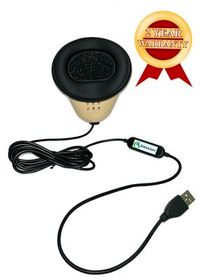
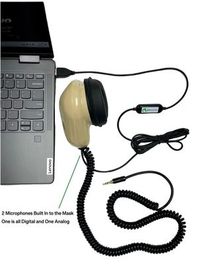
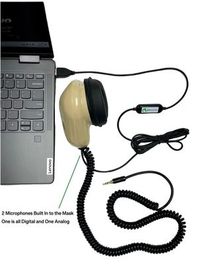
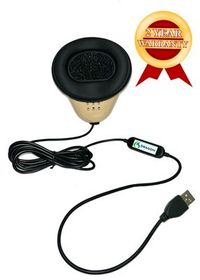
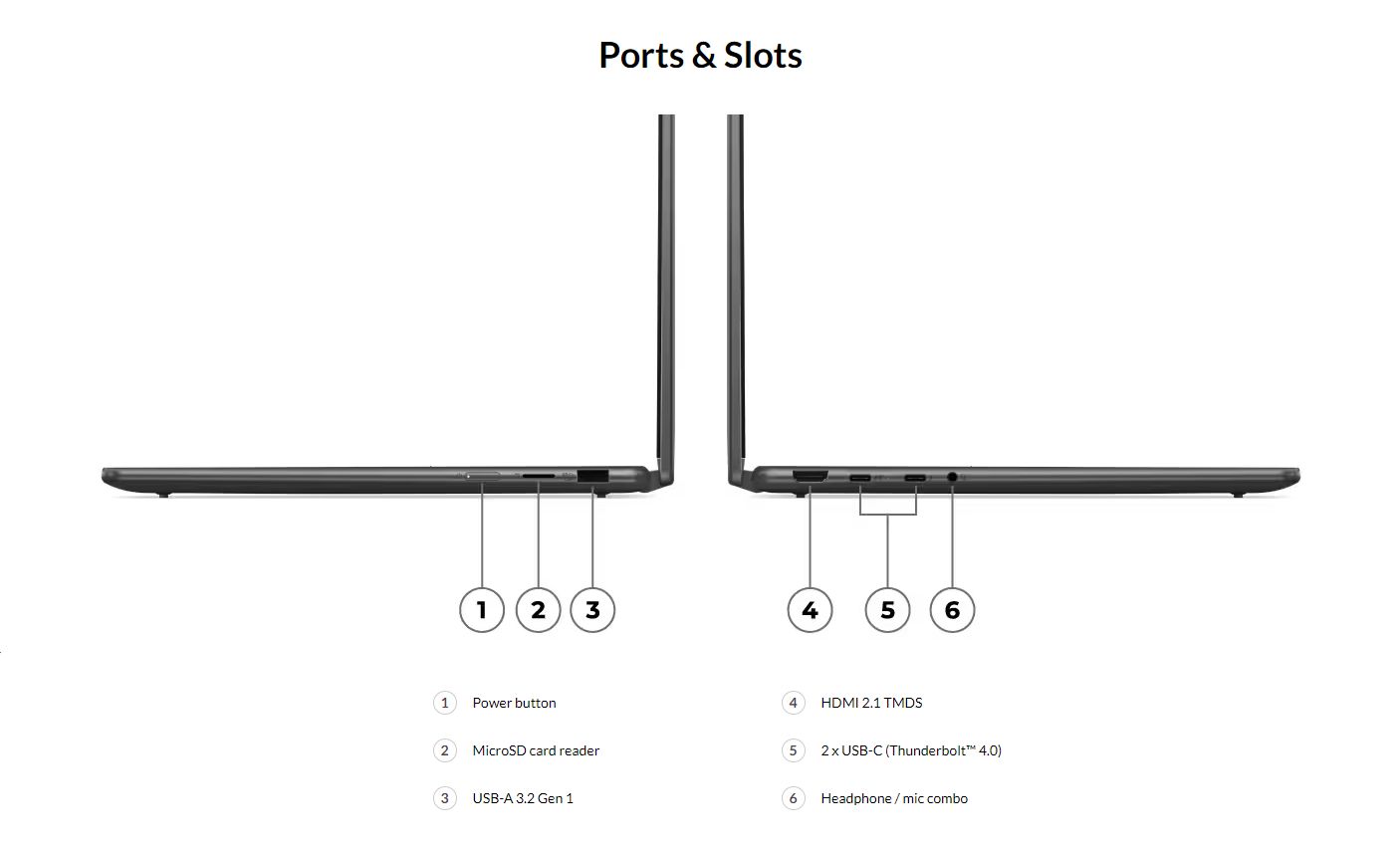
A file transfer does not establish writer input, microphone selection, Stenomask connections or external delivery. Bring the equipment and adapters you actually use to the setup session. Identify any component that differs between your home and travel arrangements.
Check connections through the program that uses them. For steno, create a short new practice job using the writer. For voice, test the supported mask and recognition arrangement. For recording, make and reopen a short file. For an external display, verify the viewing arrangement and controls you need.
Use the same cables and routes you intend to carry. A temporary substitute can be helpful for diagnosis, but it should not be mistaken for verification of an accessory that has not yet been tested. Record any remaining equipment checks.
For a remote workflow, also test the incoming meeting audio. Read the remote deposition laptop guide before assuming that the meeting and CAT applications share the intended source.
Choose examples that reveal different parts of the environment. One current case can check continued editing. A case with audio can check associated recordings. A layout-sensitive example can check formatting. An older archived job can check historical access.
Keep a written expected result for each example. “Opens” is less informative than “opens under the correct user, plays the required audio and produces the expected sample output.” Use harmless test material where it can demonstrate the same behavior.
Do not interpret a successful sample as proof that every archived file has been inspected. Instead, use it as evidence about the process and identify any categories of material that need further checking. An unusually old file or a separate storage location can deserve its own test.
The number of samples matters less than their purpose. Several nearly identical cases may reveal less than a small set chosen to cover the tasks and file types you actually need to preserve.
Reopening transferred work and creating new work answer different questions. A restored case can function while the default location for new cases is not what you expect. A new job can work while an archive remains incomplete.
Create a clearly named practice job after the move. Use the normal input method, make a correction, save it and close the application normally. Reopen the job from the ordinary starting point. Verify any required recording and produce the expected output.
Locate the new material through your normal file workflow. Confirm that it is stored where you intend and included in your approved backup routine. Avoid assuming that a copied backup setting automatically covers a new folder or changed destination.
This final exercise connects migration to future work. It helps establish that the new laptop can continue your environment as well as display files created on the old one.
Have the old and new computers available where applicable, connect their power supplies and gather the required accessories. Prepare the inventory, current transfer material and a list of unresolved licensing questions. Confirm the appointment arrangements directly.
Use your own authorized accounts when activation is required. Keep passwords out of ordinary setup notes and provide access through the appropriate sign-in process. If a vendor or school must act first, complete that dependency when possible before the transfer session.
Prioritize the essential workflow. Installation, working files, personal resources, input and saved audio should not be displaced by unrelated housekeeping. Record secondary tasks separately so they can be scheduled without obscuring readiness for your next assignment.
The Martel preparation and support guide explains the distinction between initial preparation and customer-dependent work. A clear scope and a representative acceptance exercise make the appointment more useful.
Build a small verification sheet before the appointment. For each example, record the old location, intended destination, task to perform and result. Keep the names unambiguous so that two copies of the same case are not mistaken for different matters.
For a personal dictionary check, choose several familiar entries with known expected behavior. Verify them in a new practice job under the intended user. Merely seeing a dictionary filename in a folder does not establish that the application is using it for that job.
For an active case, reopen a preserved copy, navigate to a known portion and make a harmless test edit in an appropriate practice copy. Save and reopen that copy. This checks continued work rather than only the ability to display an existing page.
For audio, use a case with a known recording and inspect the source before migration. On the destination, play the associated audio at identifiable points and confirm the intended output device. If only one segment plays, investigate completeness before concluding that the audio transfer is finished.
For delivery, produce a sample output using the required layout and open the result through the normal receiving workflow. Check the page or text characteristics that matter to you. A file with the expected extension may still have the wrong content or formatting.
For an archive, select an older example that represents a different storage period or file arrangement. Record whether it opens and what additional resources it requires. An archive can remain a separate verification project even after the immediate active workload is ready.
These checks are suggested exercises, not a claim that every transferred file has been audited. They make the transition review more precise and provide a practical list of any exceptions that need further work.
Finish by reconciling the sheet with your cutover note. Confirm which computer now holds the current active work and whether any edits occurred after the final transfer set was created. Keep unresolved exceptions visible until the correct version and location have been established.
That final reconciliation is especially valuable when delivery and setup happen over several days. It connects the technical result to the real history of the work, so a successful restore is not confused with a guarantee that no later edit exists elsewhere.
A shortcut points to something; it does not contain the complete application, license and personal environment. Arrange the appropriate installation and activation, then use a supported method to bring across the required data. Verify the result in the application itself.
The text and associated recording may not have been included or located together in the transfer. Check the original case, the backup choices and the restored association with qualified assistance. Do not assume that a working speaker or a successful new recording proves the old audio moved.
Identify the version on each computer and the material you need to move, then consult the instructions that cover that combination. For example, an office might move its current work directly but retain older archives in a separately supported arrangement. Ask how to open one sample from each group and verify the result before handing off the original computer.
After the required applications, personal resources, active cases, audio and connected workflows have been checked and any open dependencies resolved. Preserve originals and archives according to your normal requirements. Do not erase the source merely because a copy operation finished.
Name the case or resource, the source and destination, and the last action that worked. “The new job opens under the correct account, but its audio is missing after the transfer” is more informative than “the laptop move failed.” Include whether a second practice job behaves the same way.
Martel Electronics prepared these practice exercises for reporters planning a laptop move. Product details and package terms are available on the linked Martel pages. Use the current transfer instructions for the software editions and equipment you have.