Dictation Systems for Multiple Attorneys Sharing a Secretary
Plan dictation for multiple attorneys sharing a secretary: compatible recorders, author identification, priorities, workload, corrections and software checks.
Understand powered-on, buffering and saved recording, then build a practical acceptance check for a patrol-vehicle video system.
Published · Updated · Martel Electronics
“Is the police dash camera on?” can mean several different things. The unit may have power, show a live view, hold a temporary buffer or save an event. A useful department evaluation checks those states separately and then confirms exactly what appears in the exported recording.
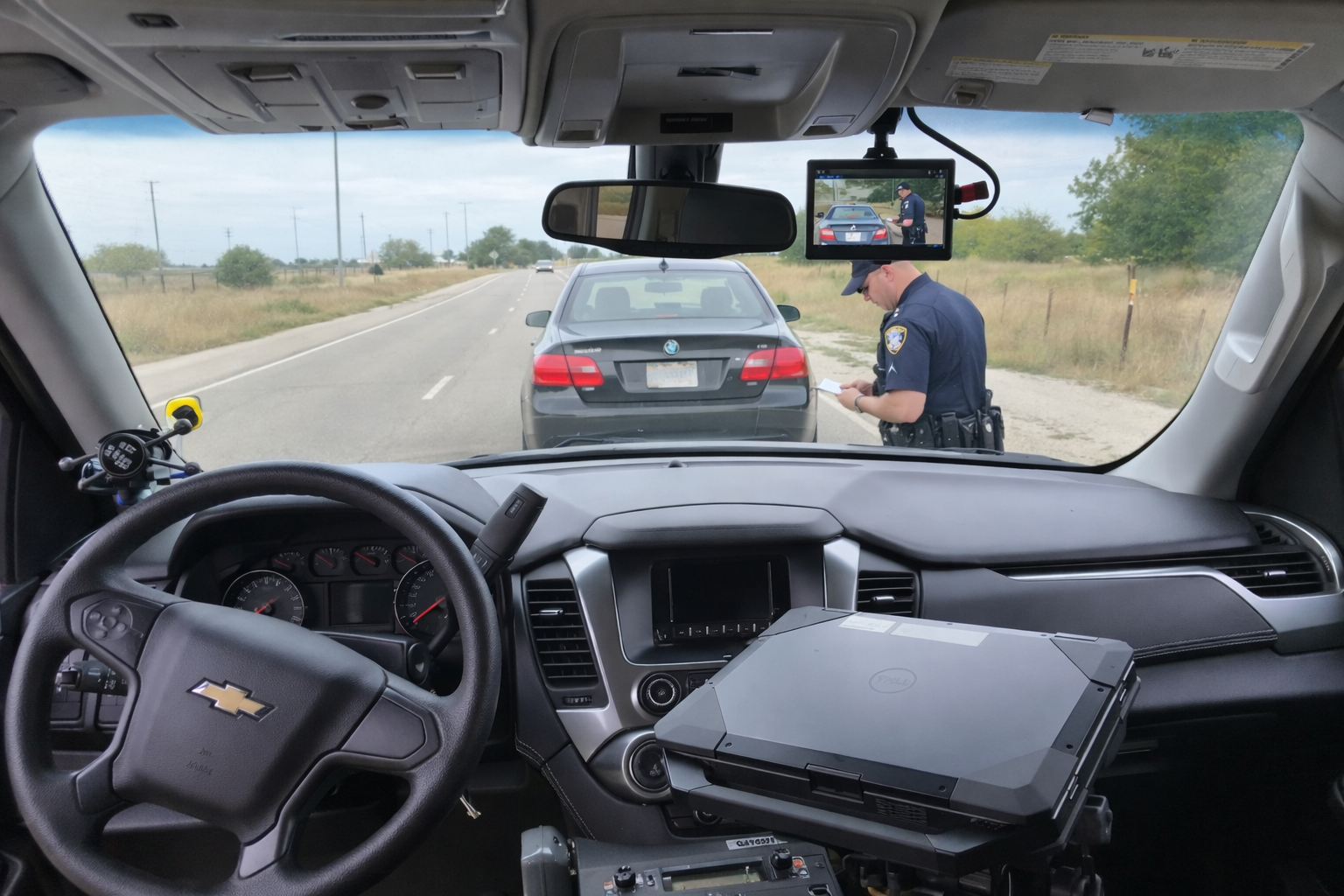
A powered display is evidence that a display is working. It does not by itself prove that the required camera views and audio are being saved. Ask the installer to identify the recording indicator, demonstrate the manual start and stop controls and show the resulting file on a review computer.
Likewise, a live camera image does not answer how long a file will be retained. Your evaluation should follow the event through recording, storage and retrieval. That is the point at which staff can verify the outcome.
Where supported, a pre-event buffer holds a short recent window that can be included when an event is activated. It is different from retaining an entire shift. Duration, camera coverage and audio behavior depend on the equipment and settings.
The Town of Atherton’s published technology information describes pre-activation footage in its own mobile audio/video system. Treat it as an example of the concept. It does not establish the buffer duration or audio behavior of another agency’s installation.
For any system under consideration, ask for a demonstration: record a visible test action before activation, start the event and inspect the saved beginning. Check whether the earlier action appears and whether audio exists during that earlier segment. Put the observed result on the acceptance form. Do not assume a buffer feature or duration for a Martel model unless confirmed in the quoted configuration.
Automatic triggers can help start recording in a defined situation, but support and installation vary. For example, the MDP6 package listing includes a lightbar activation cable. Ask how that cable will be connected to the particular vehicle and demonstrate the completed installation.
The RCMP describes manual and automatic activation in its own system. This illustrates why buyers should request a precise trigger list. One agency’s light, siren, speed or microphone trigger does not prove that another product offers the same input.
A short operating card should identify the start control, recording indication, microphone check and fault-reporting route. Use the system’s actual labels and include only functions demonstrated on the installed equipment. Recording policy and retention decisions belong in the agency’s approved procedures.
For a dedicated vehicle setup, examine the DC7 police car camera system and request written confirmation of required activation features. For a removable camera workflow, use the DC7 and MDP6 comparison to identify the relevant installation questions.
A trigger matrix is a small table that connects a specific input to an expected recording result. Use columns for the input, required installation, expected saved views, expected audio, start indication and test result. Populate the matrix only with functions confirmed for the selected equipment. A vehicle with several emergency controls may supply different electrical signals, and a similarly named input on another camera system may behave differently.
For a staged lightbar test, first establish the system’s starting condition. Activate the installed input according to the approved test procedure, then stop the test and retrieve the saved event. Note when the indication changed and what appears at the start of the recording. Repeat separately for every supported trigger that the department requires. This avoids accidentally attributing a recording to one input when a different input actually started it.
Buffer length describes the earlier interval a supported system can attach to an activated event. Event length describes the material saved for that event. Retention describes how long the agency keeps the resulting record. These are separate decisions. A system that saves a short period before activation is not necessarily keeping a complete shift, and a long saved event does not establish how long it will remain available.
Ask how a buffer behaves after startup or restart. A system cannot be assumed to have accumulated a full earlier interval immediately after it begins operating. Also ask whether every view participates and whether earlier audio behaves the same way as earlier video. Use a visible staged action and a spoken phrase before activation to test those distinctions. Record the observed outcome and the selected settings instead of relying on a feature label.
If a reviewer believes a recording started late, first establish which time display they are reading. The playback timeline, a visible timestamp and a separate case-management time can represent different things. Check whether the event has been opened at its beginning, whether all exported segments are present and whether the selected player is showing the correct camera. Preserve the original files while the agency determines the cause.
When evaluating a clock difference, document the displayed device time against an appropriate reference and record the offset. SWGDE’s DVR acquisition guidance, version 17-V-002-1.4, addresses documenting time differences during acquisition. A documented difference helps explain a recording; changing the source system clock during an evidence retrieval can complicate that explanation. Follow the agency’s authorized procedure for any later correction.
Have the installer explain what the system does when it encounters full storage, a missing microphone, a restart or an interrupted transfer. These conditions should be investigated in controlled acceptance testing using non-evidence material and the appropriate instructions. Do not create a fault in an active evidence recording to see what happens. The goal is to identify the indication, the responsible person and the approved recovery route before operators encounter the issue in service.
Keep the trigger matrix beside a short operating card. Show the actual record control, the expected recording indication and the reporting route for faults. Review the card when equipment, wiring or configuration changes. This makes training specific to the installed system and helps supervisors distinguish an equipment defect from an operating misunderstanding. Use the pre-shift camera checklist to turn those acceptance findings into routine checks.
Note the vehicle, recorder, configuration, input tested, starting state and expected outcome. Describe whether no event was saved, the wrong views were present or the start occurred at an unexpected point. Keep the non-evidence test file and any installer observations together. A failure report should be reproducible; simply saying that an automatic trigger did not work leaves several possible causes unresolved. Retest after the authorized correction and document the result before accepting the function.
No. A buffer is a technical behavior, while agency procedure defines when recording is required and how staff respond to problems. A feature can support the approved workflow but cannot make every activation decision for an agency. Training should explain the installed controls, recording indication and fault-reporting steps in plain language. Review that training when equipment or settings change so operators do not carry assumptions from an older system into a different configuration.
During acceptance, ask what happens if a supported trigger is activated again while an event is already recording. The system might have a defined event or marking behavior that staff need to understand; do not infer it from another model. Use non-evidence testing and inspect the resulting event structure. Include the observed result in the operating instructions so staff can distinguish repeated activation from an unexpected split or a missing event. This is a configuration question to demonstrate, not a capability assumed here.
There is no single answer for every system. Power, buffering and retained recording are different states. Equipment, settings and agency procedures determine the result.
Do not assume it does. Verify the actual model, settings and saved test clip. Video and audio may have different pre-event behavior.
Only if the installed system supports and is configured for that input. Demonstrate every required trigger instead of relying on a general product category.
Read the wireless microphone audio guide and local video storage guide. Compare equipment in the Police camera category.
