Dictation Systems for Multiple Attorneys Sharing a Secretary
Plan dictation for multiple attorneys sharing a secretary: compatible recorders, author identification, priorities, workload, corrections and software checks.
Build a repeatable recording routine: connect the right input, check every voice, save a test file and verify the backup before the session begins.
Browse Court Reporter Backup Recorders
A recorder is ready when you can play back a saved file and understand the voices you need. A moving meter or illuminated microphone is helpful, but neither proves that the correct audio reached storage. Make verification part of setup, then use the same routine at each assignment.
This court reporter recorder guide covers practical preparation, monitoring and file handling. Compare court reporter backup recorders first if you are still choosing equipment; the steps here help you put that choice to work.
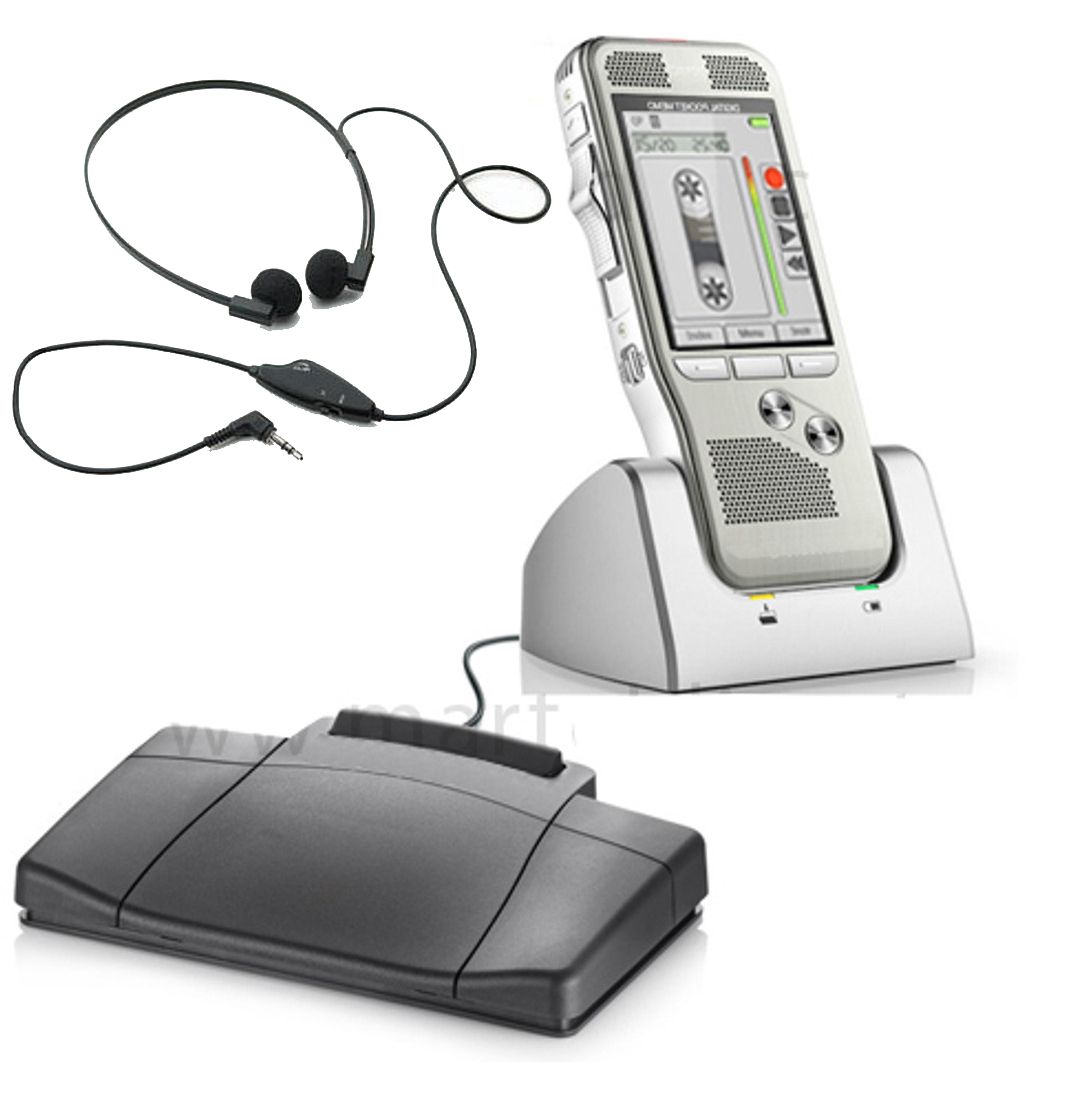
Decide whether you need portable backup audio, recorder-based transcription or computer-based review with a scopist. The Court Reporter 5000 Recorder + Transcriber Package supports the basic recorder, cradle and foot-pedal workflow without requiring a computer for that review process.
The Recorder Only version suits someone who already has review equipment. The Scopist Edition includes a computer transcription workflow. A courtroom package adds room microphones. Check the current contents of each Court Reporter 5000 package before planning connections.
Charge the recorder, connect the correct supply when appropriate, and check the remaining recording capacity. Confirm the date and time so the file list is useful later. Select the recording format supported by the software or playback device that will receive the files.
Use a short rehearsal rather than changing unfamiliar settings immediately before a session. Record, stop, start a new file and find both files again. Know how your particular recorder indicates recording, pause and playback. Those states should be unmistakable to you during a busy job.
A microphone input receives a microphone signal. A line input receives a suitable output from equipment such as a mixer. The Court Reporter 5000 listing describes compatible external microphone and line-in workflows, but the upstream output and cable must still be correct.
Do not connect an amplified speaker output to a recorder input. Ask whoever manages the room system to identify the available feed, its level and connector. Read the microphone connection guide if you need help distinguishing plug shape from signal type.
Put microphones where they can hear the participants without sitting directly beside fans, paper stacks or keyboard activity. Ask for normal speech from the quieter and farther seats. Include a louder voice so you can check that sudden increases do not overwhelm the input.
For a hybrid session, test a remote participant as well as the people in the room. Say which source is speaking during the rehearsal. That makes it easier to identify a missing feed when you review the test, particularly when several microphones are mixed together.
This rehearsal tests more than pickup. It also checks file creation, playback and the handoff to your review system. If the sample fails, change one part of the setup, then repeat the same test so you can tell whether the change helped.

Write down what both recording paths share. Two applications on one laptop still depend on that laptop. Two devices receiving one mixer feed still depend on the mixer and its routing. A separate recorder can reduce some risks without removing every shared failure point.
Where the assignment permits, plan independent power and a separate sound source for the backup. Start and verify both paths. Build a habit of checking recording status at appropriate breaks, especially after a cable move or power change. Avoid rearranging a working setup unnecessarily during proceedings.
Stop recording normally and confirm that the files appear. Copy them to your approved job folder, retaining the original recording until the copies have been checked and your retention process permits removal. Use a consistent name based on your office’s job identifier, date and session part.
Open the copied audio in the actual playback or transcription application. Check the beginning, a middle section and the end. Confirm duration and any file splits, and keep a simple note connecting each file to its session. Follow the assignment’s handling and access requirements when sharing recordings.
Gain controls the signal entering the recording path; headphone volume controls how loudly you hear playback. Turning up headphones will not repair a recording made too quietly. If the recorded signal clips, lowering playback volume will make it quieter without removing the distortion.
Multiple microphones do not necessarily create separately saved channels. Confirm the channel arrangement of the exact recorder and package. MP3 and WAV also describe file formats rather than microphone coverage. Select supported settings, then verify the saved result. Our audio file format guide explains the practical differences.
It shows activity at a point in the signal path. You still need to confirm that the device is recording to storage and that a saved test file plays correctly.
Yes, when the recorder supports that input and the mixer provides a compatible output. Confirm signal level, cable wiring and the actual recorded sources before the session.
Keep the originals until you have verified the destination copies and followed your required retention process. An unfinished or unreadable transfer is not a usable backup.
Listen to the saved file, check the input level and confirm you used the correct mic or line connection. Repositioning a microphone or reducing input gain may help the next recording; it cannot restore information already clipped.
Use the complete court reporter equipment checklist to pack the recorder, tested cables, power and review tools together.
