Dictation Systems for Multiple Attorneys Sharing a Secretary
Plan dictation for multiple attorneys sharing a secretary: compatible recorders, author identification, priorities, workload, corrections and software checks.
A lawyer-and-secretary dictation system is ready when the lawyer can record an assignment, the secretary can find and control the saved audio, and both can identify the document returned for review. Connecting a recorder to a computer is only part of that process. The first complete handoff is the useful test.
This guide explains a computer-based setup using Martel legal dictation packages. It is intended for one author and one transcription workstation, with a clear path for later expansion. Use fictional assignments during installation so you can resolve software, cable and playback questions before introducing real work.
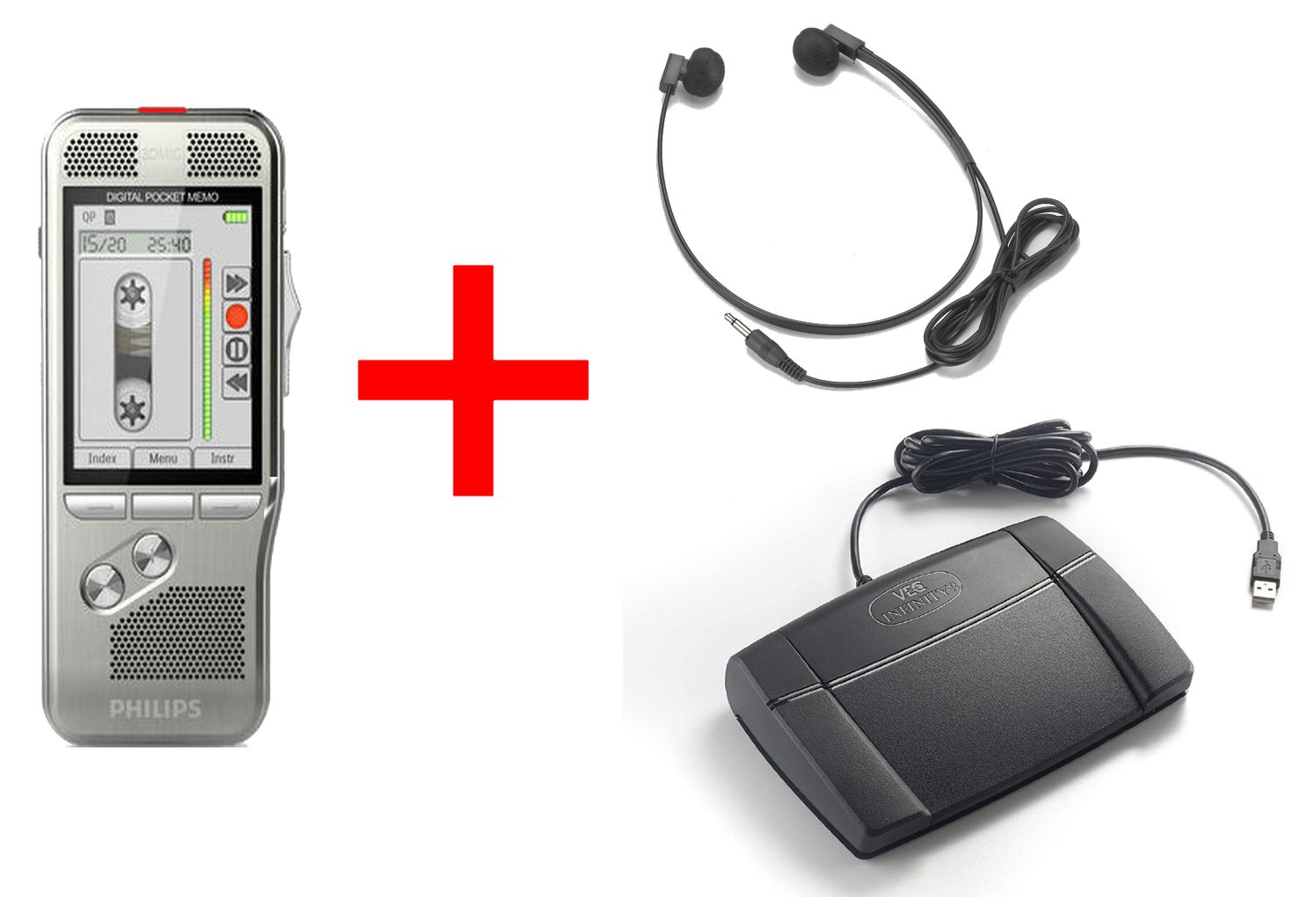
Start with the current package list and the actual items delivered. Martel’s Lawyer Dictation Recorder + Free Secretary Transcriber combines a slide-switch recorder and docking equipment with secretary transcription tools. The Lawyers Perfect Digital Dictation Package is another computer-based option. Compare exact contents in the legal dictation package buyer’s guide before treating the two offers as interchangeable.
Make an inventory for each desk. The author needs the recorder, suitable power or charging equipment and supported recording media. The secretary needs the supplied playback software, the correct USB foot pedal and headphones. Include the data cable, software activation information and any instructions that identify which components belong together.
Check the operating-system version on the secretary’s computer against the requirements of the software edition actually supplied. Do not rely on a general statement that a recorder works with computers. Recorder file transfer, software installation and foot-control support are separate compatibility questions. Confirm them before replacing an existing working arrangement.
Use the installation source and instructions supplied for the purchased software. Identify the product edition, license or activation requirement and the user account that will run it. If installation needs administrative permission, arrange that through the office’s normal computer support process. Do not disable system protections simply to make an unfamiliar installer run.
Install the playback application and confirm that it opens normally before changing recorder settings. Keep the purchase and activation records where an authorized office administrator can find them. A software license may be tied to a seat, user or installation; do not assume that one package authorizes every computer in the office.
Connect the supported foot pedal as directed and use the application’s documented control setup. Assign play or pause, rewind and forward according to the secretary’s preference and the functions available. A pedal showing up as connected in the operating system does not establish that the transcription program is responding to it.
Choose one approved location for incoming audio. Avoid an informal mix of the desktop, downloads folder, personal email attachments and multiple removable drives. The secretary should be able to answer two questions without searching: where new work arrives and which assignments have already been accepted.
A small office can start with clearly named areas such as Incoming Audio, In Progress and Awaiting Review. Decide who moves or marks each assignment and when. Keep audio files distinguishable from document drafts. A folder named Completed should have a written meaning, because recording complete, typing complete and author review complete are different stages.
For a fictional test, use an office reference such as DEMO-042 and a revision number. Put the same reference in the spoken opening and the draft document. For actual work, use identifiers that fit the office’s approved filing practices without adding unnecessary client details to exposed file names. Preserve original recorder names where software depends on them; add a separate job note if renaming would disrupt processing.
Charge or power the recorder according to its instructions. Record about a minute of sample dictation: identify the fictional job, state the document type, dictate two short paragraphs and make one intentional correction. End with a clear statement that the assignment is complete. Stop recording and use the device’s documented finish procedure where applicable.
Connect the recorder or dock through the specified data connection. A charging light alone does not prove that audio can transfer. Philips docking equipment, for example, distinguishes computer data and power connections in its ACC8120 docking-station information. Follow the documentation for the exact equipment delivered rather than connecting cables by appearance.
Use the supported download method for the package. It may involve the supplied application or a documented file-copy process. Confirm the destination and whether the method copies, moves or removes recordings. For the initial test, retain the source recording until you have verified the complete downloaded file and established the office’s retention procedure.
Open the saved sample from its destination on the secretary’s computer. Do not count playback directly from a connected recorder as proof that the intended computer copy exists. Check the job reference, the beginning, the corrected passage and the ending. Confirm that the file remains available after safely disconnecting the recorder as instructed.
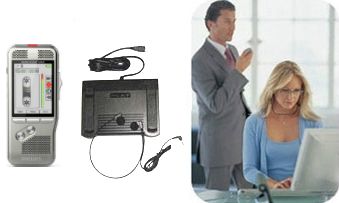
Select the intended headphone output and start with a comfortable volume. If sound comes through the computer speakers, correct the output selection rather than raising the volume and assuming the headset is faulty. Check the physical plug, any adapter and the application’s audio settings before changing several things at once.
Have the secretary type the sample while using the foot pedal. Test repeated starts and stops, a rewind into the middle of a sentence and forward navigation to a later passage. If the program offers an automatic short rewind after a pause, adjust it cautiously and check whether it helps the typist recover context.
Keep the word processor active during part of the test. Some control arrangements depend on the playback application, its focus behavior or configured shortcuts. Verify the way the secretary actually works, including switching between the document and audio controls. Save the resulting settings only after the complete typing test feels predictable.
Save the draft with the agreed job reference and revision. Mark unclear words for review instead of inventing a confident interpretation. Return the document through the office’s normal approved route, with enough information for the lawyer to locate the matching audio if clarification is needed.
The author should compare the fictional draft against the instructions and confirm that the intentional correction survived transfer and playback. Record what happens when the author requests another change: does it arrive as a new audio assignment, a replacement recording or a document edit? Choose one understood method for the office rather than mixing them without labels.
Only after review should the assignment move to the office’s defined final state. Document where retained audio belongs and who can authorize its removal. A successful download is not the same as an independently verified backup, and an audio file marked finished is not the same as a reviewed document.
Keep this checklist with the equipment records and repeat the relevant parts when a workstation, software edition, cable or pedal changes. You do not need to repeat the entire installation for every assignment. You do need evidence that a changed component still supports the real handoff.
The recorder charges, but files do not appear. Check the data-capable connection, the specified dock port, the recorder’s connection mode and the download destination. If software imports only completed dictations, inspect the sample’s documented status. Do not format media or delete the source as a troubleshooting shortcut.
The file appears, but playback fails. Check the actual recording format against the installed application’s supported formats. File-name extensions can help identify the format, but renaming an extension does not convert audio. Our dictation file-format guide explains DSS, DS2, MP3 and WAV compatibility checks.
Audio plays, but the pedal does nothing. Check the exact pedal model, application selection and control assignments. Close other playback programs that may be using the device if the software instructions call for it. Test one known sample after each change so the result can be attributed to a specific adjustment.
The secretary receives the same assignment twice. Review whether transfer copies or moves files and whether the import tool remembers previously downloaded recordings. Keep a stable job reference and a visible accepted status. Do not rely solely on the time a file arrived, especially after a recorder is reconnected.
The recording and human transcription workflow does not by itself provide automatic speech recognition. Confirm any recognition software, compatibility and licensing separately. The secretary playback tools let a person listen, navigate and type; they do not promise a finished legal document.
Once the recording has been transferred, verified and the device safely disconnected according to its instructions, the recorder can return to author use. Confirm available power and storage. Keep the source audio until the office’s verification and retention requirements are satisfied.
Do not assume universal support. Confirm the exact supplied software edition, current operating-system version, installation permissions and pedal support. A recorder being accessible for file transfer does not prove that every transcription application supports that computer.
Possibly, but check each model against the new setup. A headset needs the correct connection and usable audio output. The pedal needs explicit application support and working control assignments. Test both during typing before removing the supplied accessories from the plan.
Choose the office’s approved transfer method and use it consistently. Email is not required simply because audio is digital, and it can create extra copies and unclear versions. A documented local or shared location may suit the office better, depending on its systems and access practices.
Count the additional author recorder separately from transcription seats. Establish author identification, file compatibility and queue ownership before adding work. The multiple-attorney guide below explains how a shared secretary can receive distinct assignments without treating every arrival as an unidentified audio file.
Set up a practical recorder-to-computer workflow for one lawyer and secretary. Check software, audio transfer, foot-pedal playback, file organization and the complete return-for-review process.
