Follow a recording from device assignment through receiving, verification, local storage, review, and authorized copies. Give every transition a responsible owner and a clear completion check.
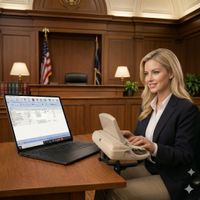
Martel Elite Court Reporter Laptop, SKU 1978. Image from Martel’s own product gallery.
Case CATalyst can display the transcript while the reporter assumes audio is recording correctly. Then, during editing, a click on an expected AudioSync passage produces silence or an unexpectedly weak sound. The microphone may be physically connected. Windows may show an input meter. A headset may even play ordinary sound. Those observations are useful, but none of them proves that a complete, playable audio file was created for the intended job.
The best approach is to separate three questions: Can Windows 11 record a fresh file from this microphone? Does Case CATalyst select and save the intended audio source? Can the reporter reopen the saved sound through the expected workflow? Testing in that order is more dependable than replacing a microphone, repeatedly raising gain or modifying unrelated application settings. It also provides evidence that can help a vendor technician pinpoint the problem.
This article is specific to Case CATalyst AudioSync on Windows 11. It complements Martel's broader court reporter audio-sync troubleshooting guide by concentrating on an observable Windows-to-CATalyst test. Menu labels and AudioSync settings vary by Case CATalyst release. Always confirm application-specific steps against the software version being used, and test with invented practice material rather than confidential testimony.
Precision AudioSync starts with the right laptop: Martel Elite, SKU 1978
A court reporter's computer should do more than display a clean transcript. It must capture the intended voices, maintain the recording through a lengthy job, and make the saved result easy to understand during editing. For reporters replacing an unreliable general-purpose computer, the Martel Elite Court Reporter Laptop — SKU 1978 is designed specifically around this workflow rather than treating AudioSync as an afterthought.
Martel's Elite package combines a professional AudioSync sound card, Dolby HD Voice Recording as listed on the product page, and four-speaker playback with Windows 11 and support for transferring Case CATalyst, dictionaries, job files, and important settings. Martel also prepares the system for reporter workflows and provides technical support for the life of the laptop to the original purchaser. The practical goal is precision recording and clear, detailed playback—the kind of theater-like listening experience a reporter wants when reviewing a difficult passage, without pretending a laptop can repair dialogue that never reached the microphone.
A properly configured Elite laptop can be the foundation of an excellent Case CATalyst audio system. The microphone, room, recording settings, and saved-file test still determine whether the result is usable. Explore Martel's Elite Laptop, SKU 1978 to see its current configuration and included services.
Begin with the saved recording, not the level meter
A level meter indicates activity at a point in the signal path. It does not necessarily establish that the proper device is being recorded, that the recording was saved, or that the transcript is attached to the expected file. The meter may move because a laptop's built-in microphone is active while the reporter intends to use a Martel USB microphone. It may show a signal that never reaches the intended application channel. It may also register tapping and background noise even when speech is unclear.
A more meaningful diagnostic asks for a new, short file with a known phrase. For example, say, "This is a private test for the Cedar Ridge matter. The number is four one nine. The next sentence is a question." The invented words make it easy to recognize the recording and determine whether the file contains a complete sequence. Save it under an unmistakable practice-job name and play it back. If the file is missing, that is different from a file that exists but is too quiet. If the file plays but is positioned at the wrong transcript location, synchronization needs attention rather than the input gain.
Before changing anything, write down the current hardware setup. Note the USB microphone model, whether it connects directly or through a hub, the computer's active playback device and the Case CATalyst version. If several audio devices appear in Windows, copy the name of the one the reporter actually wants to use. Take a screenshot of the relevant settings if the office permits it. Without a baseline, it is easy to make several changes and later discover that no one knows which adjustment produced the difference.
Preserve existing job files, associated audio and backups. Do not rename, convert or replace an official sound file while trying to repair a test setup. Work in a disposable practice job and return to the original only after you have reliable evidence that the new configuration works. A professional record should not become part of a trial-and-error experiment.
Step 1: check the physical microphone route
Inspect the cable and every connector between the microphone and the laptop. If a USB-A microphone uses a USB-C adapter, confirm that the adapter is seated and supports data rather than power only. If the microphone passes through a docking station or hub, include its model in your notes. For a controlled test, try an approved direct laptop port when possible. The purpose is not to condemn every hub; it is to determine whether the extra connection is a variable in the failure.
Position the microphone in a realistic location. A microphone in front of a loud reporter can appear healthy while a softly spoken witness at the other side of the room is difficult to capture. Test normal voice level from the intended position, then compare a quiet speaker and a louder speaker if possible. Moving the microphone closer to a real speaking position may improve clarity more than increasing an electronic level that also amplifies air conditioning, papers and chair noise.
USB and analog connections are not interchangeable merely because an adapter can be purchased. A laptop USB microphone appears to Windows as an audio device. An analog microphone designed for a recorder or writer depends on a compatible analog input, sometimes through an appropriate interface. Verify the complete route against the equipment specifications before changing adapters. The Martel microphone category includes different products for USB computer recording and compatible recorder or writer inputs.
An illuminated indicator on a USB microphone confirms at most that something in the device is receiving power or operating. It cannot certify the quality of the saved AudioSync file. Likewise, an unmuted Windows input does not prove the selected device is the one connected to the expected microphone. The recording-and-playback tests below are what establish end-to-end success.
Martel court reporter USB microphone; confirm the specific connection and model before recording.
Step 2: open Windows 11's Recording tab correctly
Use Start → Control Panel and change View by to Large icons. Select Sound, then the Recording tab. Look for the exact name of the intended microphone. If the device is absent, focus first on the cable, port, adapter, device detection and any device-specific driver requirements. If the device appears, double-click it and record the settings you find before making changes.
For a baseline test, verify that the microphone is enabled, not muted and selected as the appropriate default input when required by the CATalyst workflow. On the Listen tab, make sure Listen to this device is off unless a specific diagnostic calls for it. Leaving live listening on can create distracting feedback or echo, especially when speakers are near the microphone. It is not the method for confirming saved AudioSync quality.
Under Levels, examine the current value and any microphone-boost setting exposed by the hardware. Stenograph's published Windows 11 AudioSync guidance uses a high microphone level as a starting point and discusses optional boost for hardware that provides it. A good starting setting for one device may overload another. Listen to a real saved test and reduce excessive gain if loud speech clips. If the microphone has no boost slider, do not hunt for one in unrelated software or install arbitrary utilities to create it.
Under Enhancements or Advanced, disable optional audio enhancements for the controlled test where the driver exposes them. Review the exclusive-mode options, because an application taking sole control of a recording device can affect another application trying to use it. Save the changes and retest. Windows 11 machines do not all display identical checkboxes. Some controls live in Settings → System → Sound → Input rather than in an old-style properties dialog. Use what the current computer actually provides.
The official Stenograph AudioSync setup instructions and Microsoft's audio-enhancements guidance provide useful manufacturer references for this Windows configuration. This article uses its own testing sequence and original explanations; it does not reproduce their support pages.
Step 3: confirm privacy access for a desktop application
Windows 11 has microphone permissions separate from the classic Recording tab. Open Settings → Privacy & security → Microphone and check whether microphone access is permitted for the type of desktop application being used. An application may appear in the installed-program list yet be unable to capture from the device if access is disabled. When a computer is managed by a court, school or reporting agency, administrative policy can also determine which permissions are available.
If Windows recognizes the microphone but CATalyst saves silence, privacy access is a reasonable test point. Change only the setting required by the approved configuration, reopen the practice job and record again. Do not assume an access switch has repaired anything until the new file plays. Some older desktop programs may not appear as individual entries in the privacy screen; the desktop-application access option can matter more than searching for a specific program name.
If Windows itself cannot find or test the microphone, application privacy is unlikely to be the whole explanation. That observation sends you back to the connection and device-detection steps. A useful troubleshooting tree has branches. It should not tell every reader to change every control regardless of what the earlier tests showed.
Step 4: make a standalone Windows Sound Recorder file
Case CATalyst AudioSync Not Recording? A Windows 11 Microphone Troubleshooting Guide
Troubleshoot silent, quiet or distorted Case CATalyst AudioSync recordings on Windows 11, with practical microphone tests and the Martel Elite Court Reporter Laptop, SKU 1978.
Before opening CATalyst, launch the Windows 11 Sound Recorder application. Verify the intended input device through Windows Sound settings, because the selection shown inside an individual app may differ. Record twenty or thirty seconds of invented speech. Include a normal speaking voice, one softer sentence, a string of numbers and a question. Use consistent microphone placement so the next test is comparable.
Stop the recording normally and confirm that it was saved. Play the file through the reporter's usual headphones, then, if possible, through a second known-good output device. Listen for silence, faint words, clipped peaks, irregular changes in volume, static, dropouts and unusual processing. If the problem appears in both sets of headphones, it is more likely to be in the recorded signal than in one headset. If the file sounds normal on one playback device but not the other, investigate output settings rather than raising microphone input level.
Name the file with a timestamp or descriptive label. Keep the result for comparison, but use nonconfidential material. If the test is unsatisfactory, change one factor: the microphone position, an adapter, a Windows enhancement, or the selected input. Make a second recording with a different name. Repeating the identical paragraph gives you a direct comparison. It is less informative to record a whisper for the first sample and a shouted sentence after changing settings.
The standalone test establishes a key boundary. If Windows cannot make a good recording, it is premature to troubleshoot CATalyst codecs or sync offsets. If Windows makes a good recording but CATalyst cannot, you have demonstrated that at least one input path is functioning. That narrows the investigation toward application selection, recording settings, file location or interaction with other running software.
Step 5: test Case CATalyst in a new disposable realtime job
Open Case CATalyst using the normal authorized reporter account and create a practice realtime job. Find the AudioSync or recording options for your installed release. Confirm that audio recording is enabled and that the intended microphone or input device is selected. If your workflow provides multiple audio channels, understand which source belongs on each one. Be careful not to apply settings intended for a remote conference feed to the local room microphone.
Make another short recording using the same paragraph and speaking positions as the Windows test. Stop it properly, save the practice job and play the associated audio from the appropriate transcript position. If the sound is clear, confirm that it remains available after closing and reopening the test job. That extra step catches the difference between hearing a temporary live feed and retaining a file for subsequent editing.
Do not be surprised if the CATalyst interface does not look like an older tutorial. Application versions change, and student editions can expose different capabilities from professional configurations. Use the manufacturer documentation for the exact version rather than guessing the name of a button. Where the software allows an audio format or codec to be chosen, leave the current working option in place until the recording path has passed the basic test. Changing compression is not a reliable way to repair an absent or wrongly selected microphone.
If the CATalyst test is silent while the Windows sample is clear, record the device name shown inside CATalyst and compare it with the name in Windows. Determine whether recording was actually enabled, whether a file was created, and whether the job is looking in the intended location. If the application recorded the built-in laptop mic instead of the external microphone, the saved file may contain room noise or the reporter's voice but miss other speakers. This is not the same issue as a microphone with a broken cable.
Step 6: distinguish no file, silent file and wrong-file playback
The phrase "AudioSync isn't working" hides several distinct situations. No file created suggests an application recording, permissions, destination or storage problem. A saved file containing silence suggests source selection, a muted input, a capture interruption or a similar signal-path fault. A clear file attached to the wrong job or position points toward association and synchronization. Each requires a different investigation.
Start by confirming the name and path of the intended practice file using approved application controls. Avoid manually moving or renaming official files while investigating an association problem. The safest approach is to reproduce the symptom in a disposable session, preserve the originals and consult current CATalyst support guidance for any job-repair operations. A file's existence in a folder does not prove it belongs to the transcript currently on screen.
If sound plays but seems delayed relative to the text, ask whether the offset is constant or changes throughout the recording. A constant delay and progressive drift are different patterns. A microphone volume adjustment will not solve either. A clean voice file with inaccurate synchronization can still be useful to diagnose the problem, so keep a copy according to the permitted support procedure rather than discarding it.
For troubleshooting, write a sentence that distinguishes the result: "The Windows sample has voice; CATalyst creates no audio file," or "The CATalyst file plays but begins thirty seconds after the relevant transcript point." That precise description can save more time than searching dozens of forum discussions for the broad term "AudioSync problem."
Step 7: when Windows records too quietly
First verify that the microphone is aimed at the speech you need, and that the selected device is correct. A quiet witness seated far from a small microphone presents a different problem from a reporter speaking directly into a USB mic that is still faint. Compare a close normal voice with the quiet witness position. If the close test is healthy, consider placement, distribution and room acoustics. Raising gain can make keyboard tapping and HVAC noise louder without recovering speech detail buried in the room.
If both near and far voices are faint, review Levels, the microphone's own controls if present, and any interface between analog equipment and the computer. Use manufacturer recommendations as a starting point rather than a universal mandate. Some external sound cards have their own gain and boost behavior; setting everything to maximum can create pumping or clipping. A good test result includes intelligible words at both ordinary and loud moments with controlled background noise.
The Martel HGM-USB is one option designed for a USB laptop recording workflow, while the HGMUSB3 package addresses distributed pickup in larger arrangements. Choosing between them requires identifying the room coverage challenge rather than merely asking which product has the strongest advertised sensitivity. Test the speaking positions and verify the saved file with the intended software.
Dolby HD Voice and theater-like playback: what the Elite laptop can—and cannot—do
When reporters ask for “theater-quality” Case CATalyst recordings, they usually mean something specific: less straining to identify a quiet answer, clearer separation between a speaker and the room noise, and audio that is pleasant to review for extended periods. That experience begins with clean capture and continues through the listening system. Martel positions its Elite Court Reporter Laptop (SKU 1978) around those requirements, listing Dolby HD Voice Recording, a dedicated AudioSync-oriented sound card, and four built-in speakers.
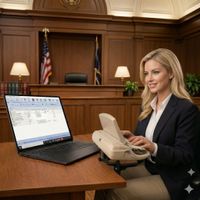
Actual Martel Elite laptop product-gallery image. Recording and playback performance depend on the configured system and source audio.
Keep the roles distinct: Case CATalyst AudioSync associates captured sound with transcript text; the microphone captures voices in the room; the computer's audio hardware and configuration affect recording and monitoring; and the speakers or headphones determine how clearly you hear the saved result. Dolby HD Voice Recording is a feature Martel describes on its laptop listing—not a claim that Case CATalyst includes a separate Dolby plug-in or that every recorded file automatically becomes studio-quality.
For a fair demonstration, make the same one-minute practice recording on the current computer and on a properly configured Elite system using the same external microphone, speaking positions, and CATalyst settings. Listen to the saved files, not just the live microphone feed. Compare intelligibility, loud peaks, faint speech, handling noise, and clarity when replaying a troublesome passage. A better laptop is most valuable when the entire AudioSync path is verified and repeatable.
Step 8: when sound is harsh, wavy or intermittent
A harsh recording during loud speech may indicate clipping at some stage. Make a controlled test at slightly reduced input level while leaving placement unchanged. If distortion clears without making normal words too faint, you have evidence that excessive gain contributed to the problem. Do not reduce the input indiscriminately until a quiet witness becomes unusable. The objective is a recording that preserves the range of expected voices.
A "wavy" sound that repeatedly rises and falls can have several causes, including automatic gain behavior, unwanted sound processing, changing microphone distance or interference between active applications. If a USB sound card or other adapter is involved, document its exact model and the current settings. Test with Windows audio enhancements disabled where available, then repeat with nonessential communications software closed. Make separate files after each change. Do not conclude that a particular sound-card brand is defective merely because a high gain setting coincides with the symptom.
Intermittent clicks or missing fragments deserve a connection test. Try a direct approved USB port, inspect the connector, and compare behavior with the normal hub or dock. Note whether the problem appears after the computer wakes from sleep or when another device is attached. If an error occurs only after reconnection, check whether Windows and CATalyst retained the same selected microphone. If the actual audio device disappears from the Windows device list, changing a CAT codec is unlikely to be the right first step.
Another source of confusion is playback. A recording may be acceptable through headphones but harsh through laptop speakers because those speakers are small, distorted or configured with enhancements. Test the exact saved file using a second known-good output device. Then investigate the playback path if the sound differs. A high headset volume does not improve weak captured speech; it only changes how loudly the existing signal reaches the listener.
Step 9: check whether another application is using or changing the microphone
Court reporters frequently have several programs running: Case CATalyst, a videoconferencing client, a browser with meeting permissions and perhaps a separate recorder application. Each can select or request audio devices differently. One application may use the laptop's built-in microphone while another uses a USB unit. The microphone may be available to one program but interrupted when another program opens a session.
For the initial test, close unnecessary audio programs and verify the microphone using Windows Sound Recorder. Then launch Case CATalyst alone and reproduce the recording. If that works, add the normal applications one by one. Document the order of launch and the selected input name in each. A conflict that occurs only when another app starts is a stronger finding than an unexplained "sometimes it works" report.
In a remote deposition, meeting software may have its own echo cancellation, automatic microphone gain or background suppression. Those settings affect the meeting feed and can make the meeting sound different from a locally recorded CAT file. Determine which source Case CATalyst is recording before changing software processing. The desired official audio arrangement should be defined by the reporting workflow, not by whatever application happened to become the Windows default device last.
Step 10: keep a separate backup instead of relying on a second program window
A reporter may use a dedicated backup recorder so a laptop or CAT software failure does not eliminate every audio path. A meaningful backup needs a tested source, power arrangement, media, placement and saved-file procedure. Two recordings that both rely on the same wrongly configured USB input can share the same failure. Independence must be designed, not assumed from the presence of two record buttons.
Before the assignment, make a short backup recording, stop it and play the saved file on the device or compatible workstation. Note the filename, date and recording destination. A backup should be checked again after unusual changes such as moving rooms, adding a remote attendee or changing cables. Follow confidentiality and retention requirements when handling any test that resembles real proceedings. In practice, invented sample speech is enough to demonstrate that the backup path operates.
The Court Reporter 5000 family provides dedicated recording options, while other Martel courtroom recorders address different source and track arrangements. The appropriate backup is the one that captures the required speakers and can be retrieved under the reporter's established procedure. Buying a recorder does not automatically make it an independent, tested backup.
Step 11: a repeatable fifteen-minute pre-deposition check
A reliable pre-job test can be brief. Connect the correct microphone using the final cables and adapters, then check Windows 11 for the intended input and output devices. If a hub is part of the actual deployment, test through it rather than proving the microphone only works directly. Place the microphone where the witness and attorneys will sit. Verify that the unit has power or that an analog interface is working as intended.
Record the twenty-second invented passage in Windows Sound Recorder. Listen to the saved file, preferably with the headphones you will use during editing. Then open a fresh Case CATalyst practice job and repeat the passage. Play the saved CATalyst file and, where practical, reopen the job to prove the association survived. Speak from the quietest anticipated seat as well as a normal position. This is a better test than tapping the microphone and watching a meter jump.
If remote participants will be involved, separately verify how their voices enter the authorized recording path. A local tabletop microphone may not capture the far-end meeting audio that is being played in headphones. Conversely, a conferencing app may pick up local voices for remote listeners without supplying Case CATalyst the same signal. Do not guess that every audio route is automatically merged. Test each required speaker source and confirm the final saved file contains it.
End with a short note in the job-preparation checklist: input device, test time, Windows result, CATalyst result and backup status. The note need not contain a technical essay. Its value is that a second person could understand what was actually verified. This routine also makes later troubleshooting faster because it creates a known-good comparison from before the assignment.
A symptom-to-test referenceWhat you notice Next most useful test What not to assume USB microphone never appears in WindowsCable, adapter, port and device detectionCATalyst's codec is the causeMicrophone appears but Windows test is silentMute, levels, privacy access and physical sourceApplication changes alone will fix itWindows test is good; CATalyst test is silentCATalyst input selection, recording and destinationThe microphone must be replacedBoth saved tests are faint at distant seatsMicrophone placement and room coverageMaximum electronic gain creates missing speech detailVoice pumps or sounds wavyOptional processing, gain and app interactionsOne specific brand is necessarily defectiveFile plays but is attached to wrong transcript positionAudio association and synchronizationRecording louder fixes the offsetSound is clear on one headset but not anotherPlayback device and output settingsThe saved audio has changed
These examples are diagnostic starting points, not automatic repair guarantees. When multiple symptoms appear, begin with the most objective observation—whether a new saved Windows file contains intelligible speech. Work toward the application only after the upstream path is demonstrated. Make one change per recording. If a setting change solves a test, confirm it again using the complete real-world workstation arrangement.
Frequently asked questionsDoes Case CATalyst need Windows 11 to recognize the microphone first?
For a standard Windows audio-device recording workflow, the microphone should appear as an available input and record a usable test file at the operating-system level. If Windows cannot capture any speech, investigate the physical and operating-system path first. If Windows works but CATalyst fails, look at application device selection and recording configuration. This division helps avoid unnecessary equipment purchases.
Should microphone levels be 95 or 100?
Different vendor support instructions and devices use different starting points. The Stenograph Windows 11 setup guide describes a high starting level and optional boost where available. Martel support may ask users to test at 100 with supported microphones. The actual decision comes from the saved audio: reduce excessive gain if loud speech clips; improve placement if a distant speaker remains weak. A single slider value does not prove good sound.
Why did CATalyst stop using my USB microphone after I connected a dock?
Windows may identify or prioritize audio devices differently after a dock or adapter is attached. Inspect the input device list in Windows and inside CATalyst, then create a fresh disposable test. If the failure occurs only through the dock, examine that connection path. If the device name changes after reconnection, update the approved application selection and verify a saved file rather than relying on an old remembered setting.
Will a better microphone make AudioSync work automatically?
A well-matched microphone can improve coverage and captured clarity, but no microphone bypasses the need to choose the correct Windows input and record in CATalyst. A new device also introduces a new device name and sometimes a different connection type. Test the complete path before using it for professional work. The Martel court reporter microphones page helps buyers compare compatible categories.
Can the Martel Elite Laptop give Case CATalyst clearer, theater-like audio?
The Martel Elite Court Reporter Laptop, SKU 1978, is designed and prepared for professional AudioSync work, with a dedicated sound card, Martel-listed Dolby HD Voice Recording, and four-speaker playback. Those features can support a more satisfying listening experience. They do not guarantee that a distant or muffled witness becomes clear; microphone placement, room acoustics, CATalyst recording choices, and test playback still matter. Ask Martel about the current configuration and verify your own sample recording.
Can a scopist use the AudioSync file if the reporter can hear it?
Not necessarily. The recipient must have the correct file, a supported format and the authorized workflow to access it. Playback on the reporter's machine is only one acceptance test. Verify the actual handoff path with an invented sample, follow office security requirements and preserve the protected original. Never assume a specific compression choice works with every recipient version.
What if the official job has missing audio already?
Preserve the original job and sound files exactly as they are, including any backup. Do not overwrite or convert the only copy while experimenting. Follow your professional organization's recovery and evidence-handling procedures. Test suspected configuration fixes in a separate practice job first. If the issue persists, provide the software vendor with the version, Windows 11 build, microphone model and the results of the independent Windows recording comparison.
The bottom line
When Case CATalyst AudioSync is silent, quiet or distorted, do not guess where the failure lives. Verify the physical connection, set up the intended Windows 11 microphone, record and listen in Windows Sound Recorder, then make a separate practice recording inside Case CATalyst. If Windows works and CATalyst does not, concentrate on the application path. If both are poor, solve the upstream problem before worrying about synchronization or compression.
If your laptop itself is the weak link—or you want a system prepared specifically for professional CAT software—consider the Martel Elite Court Reporter Laptop, SKU 1978. It pairs an AudioSync-focused hardware setup with Dolby HD Voice Recording, four-speaker listening, CAT transfer assistance and long-term Martel support. The goal is precise, intelligible recording with a theater-like sense of clarity at playback, not an untested promise of perfect audio in every room.
If the tests reveal inadequate pickup rather than a software fault, compare Martel's USB and courtroom microphones, including the HGM-USB and multi-microphone packages. Select based on the required speaking positions and verified software connection, and keep a separate tested backup where your workflow calls for one.
Technical verification: Stenograph: AudioSync setup for Windows 11 · Stenograph: Poor Audio Quality · Microsoft: Disable Audio Enhancements. Product links and images are from Martel; explanations and practical test examples are original editorial writing.