Why Can You Hear Remote Counsel in Headphones but Only the Local Witness on Playback?
Trace remote counsel and the local witness through separate parts of a hybrid deposition setup. Check Windows 11 playback, microphone input and the saved audio.
You hear a lawyer in your headphones ask, “Which entrance did you use?” The witness sitting across from you answers, “The loading entrance.” Later, your recording contains a pause and then “The loading entrance.” The room microphone may have done exactly what it was connected to do. The witness spoke into the room. The remote lawyer's voice traveled from the meeting application to the headphones. That voice can be perfectly clear to the reporter and still have no route into a program recording only the room microphone.
Start with the file that is missing counsel. Identify the device that created it and the source that device was set to record. Then find the computer or phone supplying your headphones. A useful repair connects the required remote and local sources to the intended recorder using an authorized, supported arrangement. A short two-person rehearsal will tell you whether the repaired setup captures both. This guide follows the missing question from the far end of the call to the file a court reporter will actually review.
Identify the exact file with the missing voice
A hybrid deposition can produce several different kinds of audio. Your CAT job may have its own linked recording. A separate recorder on the table may save an audio file to its own storage. A meeting-audio recorder on a Windows computer may save another file. A recording created by the meeting host belongs to yet another workflow. Before changing a setting, establish which of those you opened. Write down the program or device, the practice job name, the location you opened, and a recognizable spoken detail you heard inside it.
If there is any doubt about the file, create a fresh practice recording with an unusual name and a short opening label. Ask a local volunteer to say “window sample, second take” and the remote volunteer to give a different label. Stop and save. Open the newly created file through the program used for normal review. If you accidentally open an earlier take, you can often catch the mistake from its first few words before spending time diagnosing a device that is actually working.
Also establish whether the voice is missing from the whole file or one interval. If the attorney was audible before a break and vanished afterward, look for something that changed then. A headset may have been reconnected, a docking station added, the meeting transferred to a phone, or a second application used to create the later file. If the remote voice was never present, look first at the recording arrangement itself. A clear local witness for an entire deposition gives you strong reason to investigate the remote route specifically.
Draw three routes on a piece of paper
On the first line, write “remote counsel to reporter.” Fill in how counsel's voice reached you. For example, the meeting on a Windows laptop sent it to a USB headset. On the second line, write “witness to recorder.” Name the room microphone, where it connects, and the application or device saving the job. On the third line, write “remote counsel to recorder.” Follow it from the meeting output to whatever is supposed to capture it. A blank space on the third line is often the most informative part of the entire sketch.
Keep a fourth line handy when the remote side also needs to hear the witness. That route goes from the local microphone to the meeting's sending input and onward to the remote participants. It serves an important purpose, but establishing that remote counsel hears your witness does not establish that counsel's own replies are present in your recording. On a practice call, ask the remote person to confirm the words they received and separately check what your saved local file contains. Each answer belongs to its own line.
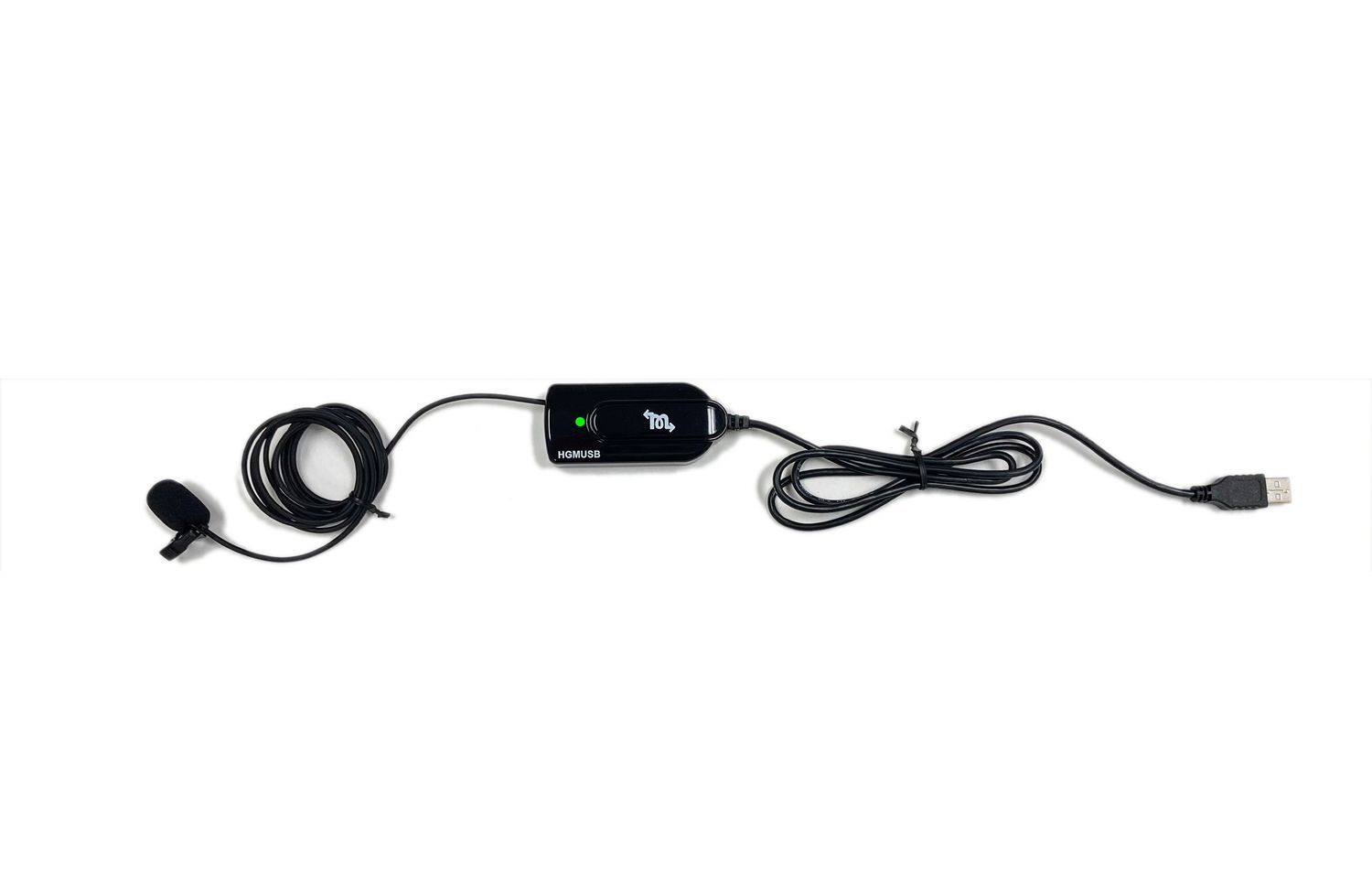
You can make the routes specific without learning a new set of technical terms. Use names you can recognize on the equipment, such as “black headset on meeting laptop,” “Martel microphone at witness table,” and “practice job on reporting laptop.” Also copy the device labels shown by the relevant programs. A button that says “default” can select a different item after a headset or monitor is connected. A note containing both the program's label and the physical device makes that discrepancy much easier to spot.
Establish a two-voice practice call
Ask a remote volunteer to join from a separate space and use computer audio in the intended meeting configuration. Use an invented exchange with details that are easy to identify by ear. Remote counsel can say, “My card has a yellow compass.” The local witness can answer, “My card has a silver lantern.” Then let the remote volunteer ask, “Which item gives light?” and the local volunteer answer, “The lantern.” Use a different pair of colors or objects when repeating the exercise. Keep the practice participants aware that you are making an equipment test recording.
Let the remote volunteer finish their opening cue while the local room stays quiet. Then give the local speaker a turn while the remote end stays quiet. Follow those isolated cues with the short exchange at a natural pace. The isolated turns identify the sources. The exchange tests whether a listener can connect a remote question with its local answer. If the two volunteers sit beside each other while joining the same meeting, the room mic may capture the remote person's live voice directly. Separating them keeps the test meaningful.
After saving, have a listener identify the color of each object from the recording. If a file includes only the lantern cue and the answer, check that the silent interval aligns with the remote person's turn. If both colors are present but the remote one is faint, determine whether it came through the intended recording route or leaked from the reporter's headphones. Run a comparison using the actual listening arrangement and the supported device selections. Avoid compensating for a missing digital source by turning the headset up where the room mic might accidentally hear it.
One Windows computer handles the meeting and recording
Begin in the meeting application's audio settings. Write down the selected speaker or headphones. In Zoom Workplace, speaker and microphone settings can be selected and tested separately under Audio. A working speaker test shows that the chosen output reaches your ears. Next visit the program creating your independent recording and find its supported source selections. If the program can capture Windows playback, select the output where the meeting actually plays. If it offers only microphone inputs, find out what supported connection or software arrangement supplies meeting audio to that particular workflow.
For the local witness, identify the microphone input independently. Windows 11 lets you inspect a microphone under Start, Settings, System, Sound, then Input. Microsoft's instructions describe a microphone test on the device's properties page. That test can help establish whether the intended mic reaches Windows. You still need to select the proper source in the recording program, and in the meeting if the remote participants need that mic. Several applications can display the same device name while serving entirely different destinations.
Keep the meeting and recording programs visible long enough to match their choices. A laptop may show the computer's own speakers, an external display's audio device, and a headset. Ask remote counsel for the compass cue and watch the relevant recorder indicator if one exists. Ask the witness for the lantern cue and check the local input as well. Then save and reopen the whole exchange. A meter that follows the witness while ignoring counsel may simply be a meter for the local mic. Read its label before treating that behavior as a malfunction.
Two computers divide the reporting and meeting tasks
Name the computers by their roles for this particular job. Call the one that plays the remote attorney “meeting computer” and the one running the CAT job “reporting computer,” even when either machine could perform either task. A microphone attached to the reporting computer can save the local witness. It has no reason to receive the other computer's headphone output unless a supported physical or software route between the machines has been established. Sitting the machines next to each other does not create that route.
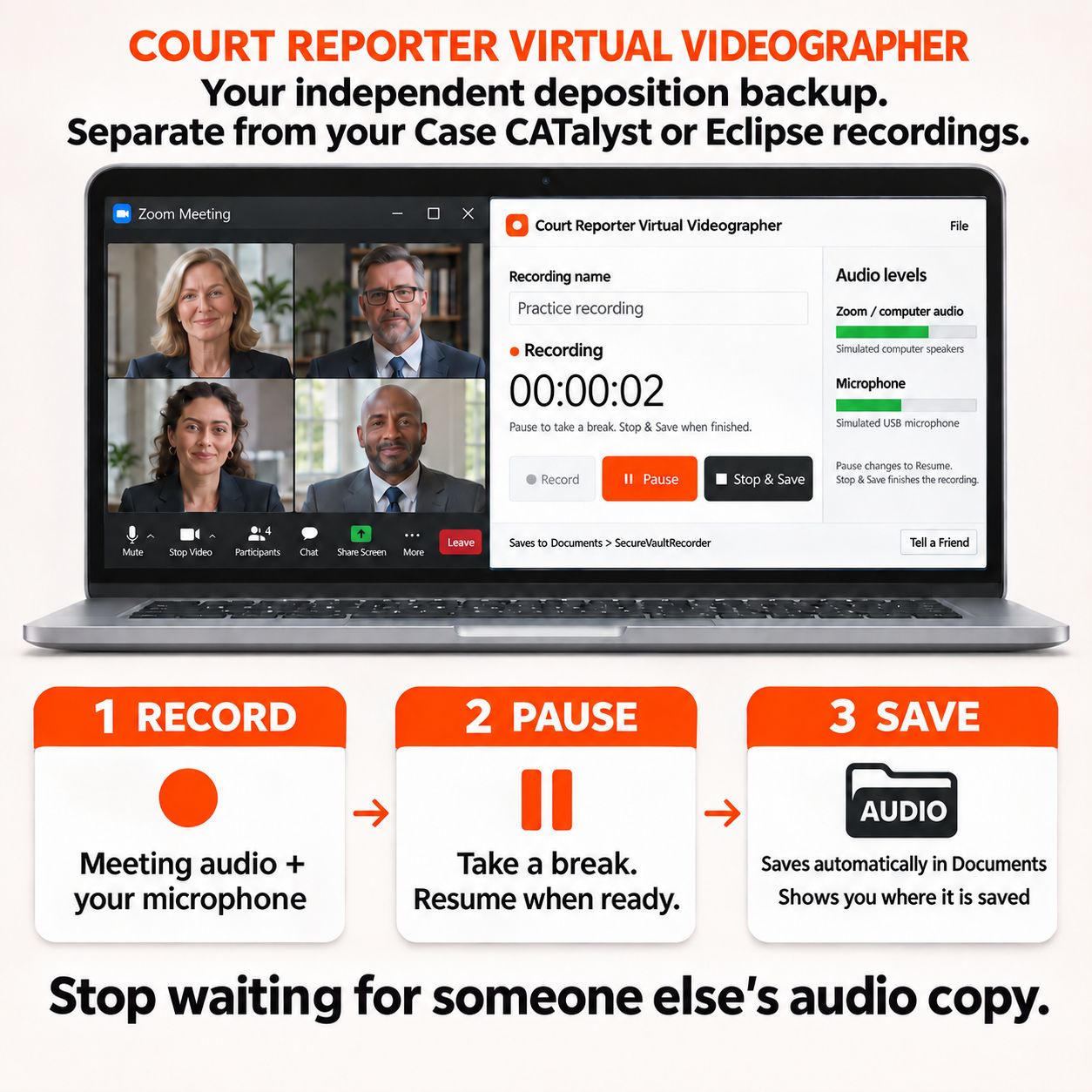
One workable design for an authorized independent file is a meeting-audio recorder on the meeting computer. Verify that it receives the meeting output and whichever local input you also require on that machine. Another design may use a supported court-reporting connection kit or an existing approved room system to bring meeting audio into the reporting machine. Document the actual source and receiving input before using any connection. Match the kit and input to the intended receiving equipment. Ask for model-specific guidance when a connector or supplied signal is unclear.
Check each deliverable independently. Suppose the meeting computer's saved file contains both the compass and lantern. The reporter's CAT job could still contain only the room mic. If the assignment requires the remote and local voices at transcript-linked points in the CAT job, the independent recording does not by itself satisfy that particular requirement. Open the practice CAT job, navigate to the mock question and replay it there. Draw a separate result beside each destination on the sketch so the distinction survives a busy equipment change.
When the headphones belong to a phone or room system
Some reporters attend a meeting visually on a computer while listening through a telephone connection. Ask where the voice actually plays. If the headset connects to the phone, a Windows program monitoring computer playback may receive no remote counsel at all. The meeting window on the PC can show the person speaking while a completely different device supplies your ear. Check the actual audio connection in the meeting before diagnosing an apparently silent computer output.
If the approved plan is to use computer audio, establish that arrangement in a practice call and follow the meeting administrator's instructions about leaving or muting a duplicate telephone connection. Name the newly selected headphones or speakers in your route sketch. Repeat both voices in the saved test. If a phone connection is necessary, discuss a supported recording arrangement with the people responsible for the setup. Avoid changing to speakerphone solely to make the room microphone catch a remote voice without considering the assignment's listening and privacy arrangements.
A conference room appliance can create a similar division. It may handle incoming meeting audio while the reporter's laptop runs CAT and listens through a room-provided monitor feed. Ask the venue operator what sources are in that feed and how it should connect to the reporter's equipment. A room loudspeaker or monitoring jack can establish what people hear in the room. The contents of a reporter's saved file depend on the recording path on the other side of that connection. A remote-only rehearsal cue is a simple way to verify the feed the operator describes.