A Mock Court Hearing From Roll Call to Readback With Speechmatics
Run a complete fictional footbridge hearing with Martel stenomasks, two witnesses, exhibits, a recess, a disputed readback, and four separate scores.
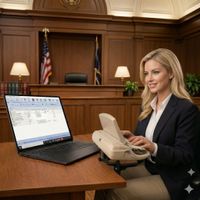

Martel Elite Court Reporter Laptop, SKU 1978. Image from Martel’s own product gallery.
The transcript is on screen. The microphone’s indicator is lit. Then you reach a quiet answer during editing and hear only the rustle of paper. To find out where the sound changed, make two short recordings with the same microphone. Make the first in Windows 11 and the second in your computer-aided transcription (CAT) software, if it supports recording. Use a phrase you will recognize when you play it back.
Answer three questions in order. Does Windows capture the intended voice? Does the practice job save that voice? Can you reopen the job and hear the right passage? A useful support request reports the last check that worked and the first that produced a different result. A recording from each stage makes that difference easy to hear.
This guide follows the sound from a Windows input to a saved practice job. Martel’s companion guide, Troubleshooting Audio Linked to a Court Transcript, covers how to compare the saved sound with a passage of text. Use invented details in your practice materials.
Preparing a Martel Elite laptop for the test
The Martel Elite Court Reporter Laptop (SKU 1978) is one option for a reporter setting up a Windows workstation. Before the setup appointment, list the microphone, headphones, case files and settings you use. Name one task you want to try on the completed system, such as opening a practice job and hearing a spoken exhibit number.
Martel’s Elite listing describes setup and CAT file-transfer assistance. If you already own the laptop, use your ordinary connection, account and editing headphones for the comparison. If you are considering a purchase, ask which installation and transfer steps apply to the software and hardware you already own.
Keep the same short sample for both a hardware check and a software check. Listen for the clearest words, the softest voice and the exact number. You can find the current configuration and package details on Martel’s Elite laptop page.
Start with a saved recording
A level meter indicates activity at a point in the signal path. It does not necessarily establish that the proper device is being recorded, that the recording was saved, or that the transcript is attached to the expected file. The meter may move because a laptop's built-in microphone is active while the reporter intends to use a Martel USB microphone. It may show a signal that never reaches the intended application channel. It may also register tapping and background noise even when speech is unclear.
A more meaningful diagnostic asks for a new, short file with a known phrase. For example, say, "This is a private test for the Cedar Ridge matter. The number is four one nine. The next sentence is a question." The invented words make it easy to recognize the recording and determine whether the file contains a complete sequence. Save it under an unmistakable practice-job name and play it back. If the file is missing, that is different from a file that exists but is too quiet. If the file plays but is positioned at the wrong transcript location, synchronization needs attention rather than the input gain.
Before changing anything, note the microphone model, whether it connects directly or through a hub, the selected playback device and the CAT software version. Copy the input name exactly as Windows displays it. If permitted, keep a screenshot of the relevant settings. Later you can return to the same starting point and identify which change altered the recording.
Preserve existing job files, associated audio and backups. Do not rename, convert or replace an official sound file while trying to repair a test setup. Work in a disposable practice job and return to the original only after you have reliable evidence that the new configuration works. A professional record should not become part of a trial-and-error experiment.
1. Trace the microphone connection
Inspect the cable and each connector between the microphone and the laptop. For a USB-A microphone using a USB-C adapter, confirm the adapter supports data and is seated properly. If the microphone passes through a dock or hub, note its model. When a known compatible direct port is available, compare it with the dock while keeping the microphone and passage the same.
Position the microphone in a realistic location. A microphone in front of a loud reporter can appear healthy while a softly spoken witness at the other side of the room is difficult to capture. Test normal voice level from the intended position, then compare a quiet speaker and a louder speaker if possible. Moving the microphone closer to a real speaking position may improve clarity more than increasing an electronic level that also amplifies air conditioning, papers and chair noise.
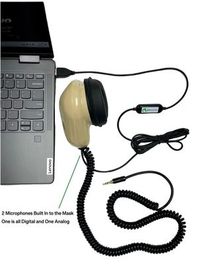
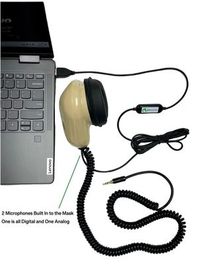
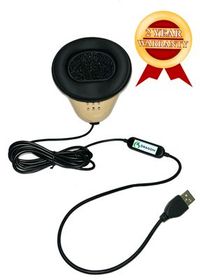
USB and analog connections are not interchangeable merely because an adapter can be purchased. A laptop USB microphone appears to Windows as an audio device. An analog microphone designed for a recorder or writer depends on a compatible analog input, sometimes through an appropriate interface. Verify the complete route against the equipment specifications before changing adapters. The Martel microphone category includes different products for USB computer recording and compatible recorder or writer inputs.
An indicator can show that a USB microphone has power. To verify what is being recorded, speak an identifiable phrase from the intended place, stop recording and listen to the saved result. If Windows has several inputs, this test can reveal whether the program is actually using the laptop microphone or the external unit.
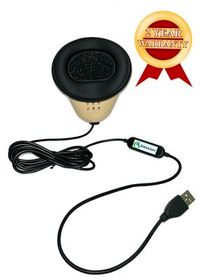
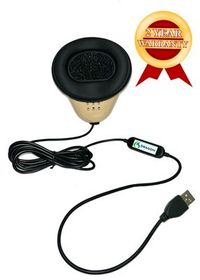
Martel court reporter USB microphone; confirm the specific connection and model before recording.
2. Find and test the input in Windows 11
In Windows 11, open Settings, choose System and Sound, then find the Input section. Select the microphone you connected and open its properties. Note its name before changing anything. If it does not appear, check the cable, USB port, adapter and any setup instructions for that device before investigating the CAT software.
Microsoft describes a microphone test on the device’s properties page. Start the test, speak normally, stop and play the recorded sample. Listen for a word you can identify. This first check uses the selected Windows input. You will make a separately retained Sound Recorder sample next so you can compare it with your CAT practice recording.
Write down the initial input volume. Make one sample at normal speaking distance and a second from the quietest planned position. If both voices are faint, change the input volume in a small step and repeat the same words. If ordinary speech is loud enough but a strong syllable sounds rough, listen again at a slightly lower input level. Save the setting that produced the clearest repeatable sample.
If the test has no useful sound after the correct input is selected, Microsoft also documents checking audio enhancements where the device provides them. Record the original setting, make one change and retest. Different drivers can display these options in different places. Use the controls actually offered for the connected microphone.
Microsoft provides the applicable Windows instructions in How to set up and test microphones in Windows and Disable audio enhancements. Use the first to confirm the device and the second if the symptom calls for testing its processing.
3. Check which applications may use the microphone
In Windows 11 Settings, open Privacy & security, then Microphone. Check microphone access for the device and the appropriate applications. For a traditional desktop application, Windows provides a desktop-app access setting. A court or employer may manage access on its own computer. Ask the person responsible if a required setting is controlled by the organization.
An individual desktop program may not have its own permission switch. Microsoft explains the difference in Turn on app permissions for your microphone in Windows. After correcting an access setting, create a new practice sample and listen to it. Keep the earlier recording so you can compare the two.
If Windows still cannot see the microphone under Input, return to the connection and device test. If Windows can use it but one application cannot, note the application type and permission setting before opening another program.
4. Save an independent Windows Sound Recorder sample

Test a microphone in Windows 11 and then in computer-aided transcription (CAT) software. Compare what each saves and hear exactly where the recording changes.
Open Windows Sound Recorder while the other recording program is closed. Confirm the selected input and record twenty or thirty seconds of invented speech. Include a normal voice, a quieter sentence, a number and a question. Keep the microphone in the position you plan to use for the CAT test. A repeatable little script makes it easier to hear a meaningful change.
Stop the recording and find the new item in Sound Recorder. Listen on the headphones you use for editing, then, if available, try another known working output. Listen for words that disappear, a peak that distorts, or a level that rises and falls. If just one output sounds poor with exactly the same sample, check that output before changing the microphone. Microsoft documents saving and naming recordings in its Sound Recorder FAQ.
Name the file with a timestamp or descriptive label. Keep the result for comparison, but use nonconfidential material. If the test is unsatisfactory, change one factor: the microphone position, an adapter, a Windows enhancement, or the selected input. Make a second recording with a different name. Repeating the identical paragraph gives you a direct comparison. It is less informative to record a whisper for the first sample and a shouted sentence after changing settings.
The independent sample narrows the next step. If it is missing speech, concentrate on the Windows input, microphone and connection. If it sounds right, you have a known working example from this laptop. You can now compare another recording made by the reporting application under the conditions you actually intend to use.
5. Record a fresh CAT practice job
If your CAT software supports recording, create a clearly named practice job. Find the recording setup for your installed edition. Confirm the selected source and recording state using its current instructions. If you use separate sources for room and remote speech, write down which input is meant to carry each. For a setup using Martel’s four-channel interface, SKU 2065, verify what the particular application can receive and save before assigning a channel to a speaker.
Record the same words from the same positions as in the Windows sample. Stop, save and reopen the practice job. Use its ordinary playback control to hear the recording. Where the software supports playback linked to the text, try a known word near the beginning and another near the end. If the recording is ordinarily opened in a separate player, use that normal path and note the time of each phrase.
If a tutorial shows options you cannot find, check the instructions for the exact version and edition you have. Leave unrelated compression or formatting choices as they were for this comparison. Record the input setting and where the program says the sample was saved. Change one thing only after you can repeat the original observation.
If the CAT practice sample is silent while Windows is clear, note the source name selected in each program and whether recording was enabled for that job. Check whether the software created a file or other saved recording and can reopen it. A faint voice close to the laptop and missing words from the far seat can point to a different microphone being selected.
6. Tell a missing recording from a silent or misplaced one
Look for the first result you can demonstrate. A job with no new recording calls for a check of whether recording was started and where the program saves it. A saved item that plays silence calls for a check of the input and mute state. An audible but unrelated voice calls for a check of which file is open. Clear speech at the wrong passage calls for a comparison of text and playback position.
Use the ordinary controls to identify the practice job and any recording associated with it. Open a duplicate if testing a different association is necessary. For an actual assignment, preserve the original recording and job and follow your organization’s process for assistance. A filename and date are useful clues, but the spoken test phrase identifies the example you intended.
If sound plays but seems delayed relative to the text, ask whether the offset is constant or changes throughout the recording. A constant delay and progressive drift are different patterns. A microphone volume adjustment will not solve either. A clean voice file with inaccurate synchronization can still be useful to diagnose the problem, so keep a copy according to the permitted support procedure rather than discarding it.
Write a diagnosis another person can reproduce. For example, “The Windows sample contains ‘Cedar Ridge, four one nine.’ The CAT job saved at 10:12 has a recording, but I hear the earlier practice phrase.” That gives the next person both a working step and a distinct result to investigate.
7. Compare the quiet seat with a nearby speaker
First verify that the microphone is aimed at the speech you need, and that the selected device is correct. A quiet witness seated far from a small microphone presents a different problem from a reporter speaking directly into a USB mic that is still faint. Compare a close normal voice with the quiet witness position. If the close test is healthy, consider placement, distribution and room acoustics. Raising gain can make keyboard tapping and HVAC noise louder without recovering speech detail buried in the room.
If both near and far voices are faint, review Levels, the microphone's own controls if present, and any interface between analog equipment and the computer. Use manufacturer recommendations as a starting point rather than a universal mandate. Some external sound cards have their own gain and boost behavior; setting everything to maximum can create pumping or clipping. A good test result includes intelligible words at both ordinary and loud moments with controlled background noise.
The Martel HGM-USB microphone is a USB option for a laptop. The Martel HGMUSB3 package provides three microphones for positions around a room. Sketch the seats that need coverage and repeat the saved-file check from each position. A single person speaking near the laptop does not represent someone further down the table.
Compare capture and listening on the Elite laptop
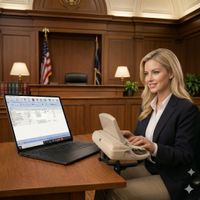
For an editing test, identify one quiet answer and one louder exchange. Is the end of the quiet answer clear? Can you hear the initial consonant of the louder answer? Replay the same saved file through the laptop and through the headphones you plan to use. Before ordering the Martel Elite Court Reporter Laptop, SKU 1978, discuss the microphone, monitoring connection and setup assistance you need for this exercise.
Actual Martel Elite laptop product-gallery image. Recording and playback performance depend on the configured system and source audio.
Separate the jobs of the equipment. The microphone captures the room. The selected input and recording application determine what is saved. Your headphones or speakers reproduce that saved sound. Where the CAT software supports it, the transcript may also provide a way to find the relevant audio. Testing each part gives a more precise answer to “the recording is hard to hear.”
When comparing an existing computer with an Elite laptop, try two short exercises. First, play the same existing file through the same headphones on both computers to compare listening. Second, make a new practice recording on each computer with the same microphone, placement and passage to compare capture. Keep the samples labeled so a change in one part is not accidentally attributed to the other.
8. Trace harsh, fluctuating or intermittent sound
A harsh recording during loud speech may indicate clipping at some stage. Make a controlled test at slightly reduced input level while leaving placement unchanged. If distortion clears without making normal words too faint, you have evidence that excessive gain contributed to the problem. Do not reduce the input indiscriminately until a quiet witness becomes unusable. The objective is a recording that preserves the range of expected voices.
A "wavy" sound that repeatedly rises and falls can have several causes, including automatic gain behavior, unwanted sound processing, changing microphone distance or interference between active applications. If a USB sound card or other adapter is involved, document its exact model and the current settings. Test with Windows audio enhancements disabled where available, then repeat with nonessential communications software closed. Make separate files after each change. Do not conclude that a particular sound-card brand is defective merely because a high gain setting coincides with the symptom.
For intermittent clicks or missing fragments, compare an approved direct port with the usual dock using the same equipment. Note whether the issue appears after reconnecting the USB device or waking the computer. At that moment check the selected input in both Windows and the recording software. If the microphone has disappeared from Windows, repeat the device check before changing file settings.
Another source of confusion is playback. A recording may be acceptable through headphones but harsh through laptop speakers because those speakers are small, distorted or configured with enhancements. Test the exact saved file using a second known-good output device. Then investigate the playback path if the sound differs. A high headset volume does not improve weak captured speech; it only changes how loudly the existing signal reaches the listener.
9. Add the other applications one at a time
A reporting workstation may run CAT software, a meeting application and a browser. Each application can request a microphone or select its own input. Write down the source selected by each. An external room microphone in one program and a built-in laptop microphone in another can sound different even when both programs appear to be recording.
For the initial comparison, close the other audio programs and record in Windows Sound Recorder. Then switch to the CAT software and make the practice recording. If both work, add the programs normally used for the assignment, one at a time. Record the launch order and selected inputs at the first change in what you can hear.
For a remote deposition rehearsal, have a colleague say a different invented phrase from the far end while someone near the laptop reads the local phrase. Confirm where each phrase appears in the authorized recording. Meeting software can process its own microphone differently from the local recorder. Identify which feed reached each application before adjusting a gain or sound-processing control.
10. Test any independent backup recorder
A reporter may use a dedicated backup recorder so a laptop or CAT software failure does not eliminate every audio path. A meaningful backup needs a tested source, power arrangement, media, placement and saved-file procedure. Two recordings that both rely on the same wrongly configured USB input can share the same failure. Independence must be designed, not assumed from the presence of two record buttons.
Before the assignment, make a short backup recording, stop it and play the saved file on the device or compatible workstation. Note the filename, date and recording destination. A backup should be checked again after unusual changes such as moving rooms, adding a remote attendee or changing cables. Follow confidentiality and retention requirements when handling any test that resembles real proceedings. In practice, invented sample speech is enough to demonstrate that the backup path operates.
The Martel Court Reporter 5000 recorder range includes dedicated recording packages. If you use a separate recorder, play its own saved sample and identify which voices reached it. A second device is useful for this purpose only if it captures the sources you need and you know how to retrieve that recording.
11. Repeat the short check in the final room setup
A reliable pre-job test can be brief. Connect the correct microphone using the final cables and adapters, then check Windows 11 for the intended input and output devices. If a hub is part of the actual deployment, test through it rather than proving the microphone only works directly. Place the microphone where the witness and attorneys will sit. Verify that the unit has power or that an analog interface is working as intended.
Record the twenty-second invented passage in Windows Sound Recorder and listen using your editing headphones. Repeat it in a fresh CAT practice job and reopen the saved result. Speak once from the quietest anticipated seat and once at normal distance. Note what you could understand from each seat and whether the intended practice job opened the right recording.
For remote participation, separately repeat the remote and in-room phrases through the intended recording arrangement. Monitoring a remote participant in headphones does not establish what the tabletop microphone captured. Listen to the saved sample for both distinct phrases before marking those sources as checked.
Record the input device, test time, Windows result, CAT practice result and any backup result on the preparation sheet. Include one phrase someone can replay. If another person later uses the setup, the note tells them exactly which result was demonstrated and where to begin comparing a new symptom.
Match the symptom to the next check
Microphone missing in Windows. Check the cable, adapter, port and device detection.
Windows sees the device but captures silence. Check the source, mute state, permissions and input level.
Windows is clear and the CAT sample is silent. Check the source selected for the practice job and whether the program saved a recording.
Only the distant seat is faint. Compare placement or coverage before changing the input volume.
The level rises and falls. Use the same distance and test one processing or gain setting at a time.
A clear voice plays at the wrong passage. Confirm the file and, if supported, how the software links audio to text.
Headphones differ on the same file. Compare the output device and playback level.
For the next recording, change only the item connected to the observed symptom. A change in input level is relevant to a faint recording. A transcript that opens the wrong file calls for a different check. Repeat the successful result after reconnecting the actual cables and other programs you expect to use.
Frequently asked questions
Should I test the microphone in Windows before the CAT practice job?
For a workflow that uses an ordinary Windows audio input, first find the intended device in Windows and play a short test sample. Then make a new CAT practice recording. If your interface uses a separate driver or provides several channels, check the instructions for that interface and the installed application. Record the specific input name and route you verified.
What input volume should I use?
Choose a level by listening to the saved result at the speaking positions you need. Increase it in small steps if both nearby and distant voices are faint. If strong syllables distort, try a slightly lower setting. Compare recordings of the same phrase at the same distance. Microsoft shows where the control is located in its Windows microphone test instructions.
What should I check after connecting a dock?
Check the visible device name and selected input in Windows and in the application after reconnecting the dock. Make a new disposable recording. If the direct connection works and the docked route does not, note exactly which adapter, port and cable were in the second path. Bring that information to the supplier so they can reproduce the same setup.
How can I tell whether another microphone would help?
Record a phrase from the nearest seat and the quietest seat with the current microphone. If one position is clear and another is hard to understand, try placement or additional pickup points and compare fresh samples. If Windows has no recording at all, first check the selected input and connection. Compare the devices and connection types in Martel’s court reporter microphone category.
What should I test when considering a Martel Elite laptop?
Use your usual microphone and one recognizable practice passage. On the Martel Elite Court Reporter Laptop, SKU 1978, compare an ordinary speaking voice and a quiet answer, check the stored recording, and repeat playback through the headphones you expect to carry. These observations tell you how the proposed workstation fits your own recording and editing arrangement.
How can a scopist confirm receipt of the right audio?
Send an authorized practice package through the office’s normal method. Ask the scopist to open it on their workstation and report the practice phrase at two known points. If it opens on the reporter’s laptop but not at the destination, check what was actually delivered, how the recipient accesses it and which formats the receiving application supports.
What if an existing job is already missing sound?
Preserve the original job and sound files exactly as they are, including any backup. Do not overwrite or convert the only copy while experimenting. Follow your professional organization's recovery and evidence-handling procedures. Test suspected configuration fixes in a separate practice job first. If the issue persists, provide the software vendor with the version, Windows 11 build, microphone model and the results of the independent Windows recording comparison.
What to take to a setup or support appointment
Bring the microphone model, Windows input name, CAT software version and two saved practice examples. Identify what the Windows example contains and what the CAT example contains. If playback reaches the wrong place, identify the words you expected and the words you heard. This lets the person assisting start at the first observable difference.
For a workstation change, the Martel Elite Court Reporter Laptop listing describes the system and transfer assistance. Before the appointment, note which job, recording, input device and output device you want to check. Repeat the end-to-end exercise with the actual accessories you plan to use.
When the missing words are linked to seating position, compare Martel court reporter microphones, including the HGM-USB and HGMUSB3 three-microphone package. Take a simple seating diagram and a sample made at each intended speaking position so you can discuss coverage and connection together.
Windows references · Set up and test microphones · Microphone permissions · Sound Recorder FAQ · Audio enhancements. The hardware links above lead to Martel’s current product details.