
Body Cameras for Security Guards: Buying Guide
Evaluate body camera equipment for security teams. Plan mounting, audio tests, charging, downloads, local storage and staff recording routines.
Build a practical video transcription workstation. Compare software-only and complete Martel kits, understand pedal controls, and develop a reliable manual transcription workflow.
A video transcriber can mean the person who prepares a transcript, the software used to control a recording, or a complete equipment package. If you are shopping for one, decide which meaning applies to your job. A professional who needs to listen and type may be looking for playback software, a USB foot pedal, and a headset. Someone seeking an automatic first draft is asking for a different kind of tool.
For manual work, the transcriber workstation has a clear division of responsibilities. The recording supplies the source. The player lets you navigate it. The pedal gives you convenient control. The headset delivers the sound. The document holds the words you type. You then compare the draft with the source and decide how to handle anything uncertain.
This guide explains that workstation as a practical system. It looks at daily setup, control habits, realistic assignments, equipment handoffs, and ways to diagnose problems without confusing one component with another. It also connects those decisions to Martel's video transcription software, Zoom kit, and All N One audio/video transcription kit.
Start with a sentence that describes the task: I need to play a saved recording, control it while typing, and produce a reviewed document. That points toward a manual playback setup. If the sentence instead begins with I need a program to generate text automatically, compare automatic services and their review requirements separately. Similar product names can describe very different processes.
Also distinguish recording from transcription. A camera or meeting platform captures the event. A transcription player works with material that already exists. A device that controls a live microphone is not necessarily a player for saved video, and a player does not establish that a meeting was recorded. Naming the stage you need helps prevent a mismatched purchase.
Finally, consider whether you are buying for yourself, equipping another typist, or supporting an office. A personally familiar pedal may suit one user but need a short orientation for another. A complete kit can simplify the included-items decision, while a software-only purchase can preserve equipment that is already compatible and comfortable.
Think of the job as several linked handoffs. The recording owner supplies an authorized source. The person preparing the transcript identifies the correct file and scope. Playback provides access to the speech. Typing creates a draft. Review checks the relationship between the draft and the recording. Delivery gives the recipient the requested version and format.
Problems can occur at any link. The wrong meeting can play perfectly. The right meeting can have poor sound. The pedal can respond normally while the typist uses inconsistent speaker labels. A polished final document can still refer to the wrong source file. Reliable work requires checking the relationship between stages, not simply whether every device turns on.
A simple job record makes the chain visible. Include the source name, recording date, required output, current draft, and unresolved issues. This does not need to be elaborate. Its purpose is to let you resume accurately and allow an authorized reviewer to understand what material you used. Equipment convenience is most useful when it supports that clarity.
In many manual workstations, the video transcriber controls media while Word or another word processor contains the transcript. Keeping those roles clear helps you arrange the screen and troubleshoot failures. If text formatting is wrong, inspect the document workflow. If rewind is unresponsive, inspect the player and pedal. If sound is absent, inspect the file and output path.
Test the applications together because you will use them together. Click in the document, type a paragraph, and operate the supported pedal controls. Save the draft and resume playback. A player demonstration performed entirely inside the player does not show whether your normal writing rhythm will work comfortably.
Do not assume that two applications working side by side exchange specialized data. Automatic timestamp insertion, synchronized text highlighting, caption export, and court-reporting integration are separate features that need separate confirmation. Describe the exact interaction you need when asking a supplier. The phrase works with Word should not be stretched into a claim about every possible document function.
A foot pedal can move routine playback actions away from the mouse. The useful result is that you can listen, pause, and replay while keeping your hands ready to type. Learn what each supported control does before starting a consequential assignment. Do not rely on the physical shape of a pedal to tell you its mapping in a particular application.
Practice with a short known recording. Operate one control at a time and observe where playback goes. Check release behavior and any adjustable backspace option. Then repeat while your document is active. If the control does something unexpected, stop and identify the behavior rather than compensating with increasingly complicated foot movements.
Position the pedal for deliberate use. It should not be trapped by chair legs or slide into a reach that changes your posture. Keep its cable clear of moving furniture. If more than one person uses the workstation, record the agreed starting placement and settings. Small physical inconsistencies can make an otherwise familiar setup feel unpredictable.
Begin by opening the correct source and checking its identity. Listen briefly at the beginning and another point. Confirm the selected output, comfortable volume, and supported pedal response. Open the document template, enter the meeting or assignment details, and save a working draft. Those steps establish that the workstation and job are aligned.
Prepare the reference material next. A participant list, approved spelling list, or assignment format can answer questions that playback controls cannot. Keep references identifiable and available without covering the writing area. Note any limits in the source or instructions before you begin typing, particularly when the recording starts late or consists of several sessions.
Finish the setup by choosing a consistent method for uncertainty and timestamps. If your draft contains temporary labels, use a form you can search later. This makes the closing review more dependable. The purpose of a routine is not to add ceremony; it is to reduce the number of decisions you have to reinvent while concentrating on speech.
The document should be easy to read at your normal working position. The video should be visible when visual context matters. Playback controls should be available without taking over the entire workspace. A large display can help, but a thoughtful arrangement matters more than filling every available inch with windows.
Decide which visual details you actually need. A training session may require seeing a slide. A multi-person interview may require occasional checks of speaker context. An audio-focused assignment may rarely require the picture. Allow the layout to follow those needs rather than assuming every job requires a permanently enlarged video.
If you use multiple displays, keep the relationship between source and document easy to follow. Avoid placing important reference details where you repeatedly overlook them. If another person uses your workstation, show the layout rather than expecting them to infer it. A repeatable arrangement makes it easier to notice when a window or output device has changed.
Listen with the equipment you will actually use, in the room where you work. Office noise, nearby conversations, and a headset's fit can affect how comfortably you follow speech. A product demonstration through different speakers in a quiet setting may not reflect your daily experience. Use representative material rather than a dramatic music sample.
Set volume gradually and compare a known clear file when something sounds wrong. If the source is distorted, raising volume may only make distorted speech louder. If the selected output is wrong, changing playback speed will not fix the output. Diagnose the specific listening problem before changing unrelated controls.
Comfort includes the headset, cable, keyboard position, chair, and pedal arrangement. A system that feels convenient for a minute may be awkward during sustained work. Reassess the arrangement when you notice unnecessary reaching or repeated control mistakes. The aim is a setup you can operate intentionally, not an endurance test.
Losing your place is a common source of repeated or omitted words. The problem may occur when you pause after typing, switch windows, or return from a break. Use enough replay context to recognize the last completed phrase before entering new text. An adjustable backspace setting can support that transition when the application provides it.
Create a deliberate stopping note for longer interruptions. Record the source file, elapsed position, and the last completed speaker or phrase. Do not depend entirely on the current screen state remaining unchanged. A restart, another user, or a different recording can make an undocumented stopping point difficult to reconstruct.
When resuming, listen to the transition and compare it with the last paragraph. Check for a duplicated sentence or a missing reply before continuing. This small verification is usually easier than finding the boundary error after several more pages. The habit connects playback position with document position instead of treating them as unrelated markers.
The picture can clarify that a speaker is referring to a displayed chart, pointing to an object, or reacting to another participant. It can also help you recognize a transition between activities. Use that information according to the assignment. A transcript of speech and a description of everything visible are different outputs.
Do not insert an interpretation as though someone said it. If the speaker says over there while pointing, the appropriate treatment depends on the required transcript style and available conventions. You may need a clearly marked description or an editorial note, or you may need to preserve the speech without elaboration. Decide with the recipient rather than improvising invisibly.
Visual speaker identification also needs care. The person on screen is not always the audible speaker, and a participant label may identify an account rather than an individual. Keep the source of an identification clear when it is uncertain. Video is valuable evidence, but it does not eliminate ambiguity.
Consider an illustrative office assignment: a recorded planning meeting must become a readable transcript with speaker names and references to decisions. The first step is to confirm the meeting and obtain the participant list. The typist opens the authorized recording, prepares a document, and tests the pedal while the document is active.
During drafting, the typist keeps proposals separate from decisions by preserving what was actually said. An uncertain deadline receives a marker and recording reference. A short response from another speaker is checked rather than assigned automatically to the longest speaker. At the end, the typist reviews the words and then checks document presentation separately.
The equipment's role is specific: it makes the recording accessible and controllable. It does not decide which proposal became a commitment or authorize changing an ambiguous phrase. If the recipient also needs action items, that is a separately labeled editorial task. The workstation can support both tasks while the documents remain clear about their purpose.
In an illustrative interview job, the client requests an edited transcript that removes some filler but preserves answers faithfully. Before starting, the typist confirms the permitted editing rules. The recording may contain an interviewer, a respondent, and occasional off-camera comments, so a temporary label system is established for uncertain voices.
The typist listens in complete thoughts, uses the pedal to replay replies, and checks specialized names against authorized notes. A pause before an answer is not automatically converted into a particular emotion or intention. If a phrase remains unclear, the draft records that limitation rather than replacing it with wording that sounds more polished.
Review focuses on the boundaries of editing. Has removing filler changed emphasis? Has a correction been mistaken for a new answer? Have interruptions been assigned consistently? These are editorial questions supported by playback. They show why a good video transcriber workstation needs both usable controls and a clear understanding of the assignment.
A training recording introduces another pattern: the speaker may refer to material visible on screen. The transcript's reader may need to know which slide, demonstration, or step is being discussed. Agree on whether the deliverable includes headings or limited visual references, and distinguish those additions from the spoken words.
A typist can keep the video visible during demonstrations and concentrate on audio during narration. When a term appears on a slide, it may help confirm spelling, but it should not automatically replace a different spoken phrase. Record enough context for a reviewer to find the demonstration without turning the transcript into an unsupported reconstruction.
The finished document may be useful for study or reference, but a transcript alone is not automatically a timed caption file. If the client requires captions or another accessible presentation format, clarify that separately. The playback application may support preparing text without supplying all the timing, formatting, or publishing functions needed for a different final format.
Some assignments involve interviews, depositions, or body-camera material with formal handling requirements. Start by confirming the authorized source, scope, and instructions with the organization responsible for the recording. Use a working copy when required and keep the original identifiable. A consumer file-sharing habit should not determine how an organization's material is handled.
Difficult passages deserve explicit treatment. A short negative, an interrupted reply, or a change of speaker can matter. Use playback to inspect the available evidence, keep timestamps or references consistent, and avoid making a sentence more definite than the recording permits. If several sources are authorized, document which one supports a correction.
The equipment does not establish legal sufficiency or professional qualification. A software feature list cannot determine whether a particular deliverable meets court, agency, or client requirements. The practical purchasing question is whether the player, pedal, and headset support the approved workflow. The substantive requirements come from the assignment and the responsible organization.
Describe the symptom before trying a solution. No sound, poor intelligibility, a frozen picture, a pedal that does nothing, and a misplaced paragraph are different failures. Start with a known comparison where possible. A clear file through the same headset can help you distinguish a source problem from a general output problem.
If the pedal fails but mouse playback works, focus on pedal compatibility, connection, and control assignment. If neither method can play one file but another works, focus on the source or format. If sound reaches speakers but not the intended headset, inspect output selection. Keep a record of the observation rather than changing everything and hoping the problem disappears.
When contacting support, provide the exact product, Windows version, pedal model, and file details relevant to the failure. Say what you tried and what changed. This supports a focused conversation and reduces repeated checks. Share recordings only when you have permission to provide them and when they are needed to investigate the issue.
A recording's extension helps identify the kind of file, but it is not a complete description of the media inside. Two files with the same extension can behave differently because of their encoding or other details. A supported-format list is useful, but a representative playback test is the most direct way to check your actual work.
Test more than opening. Listen, seek to a later point, return to an earlier point, and try the speed controls you expect to use. Confirm that the duration and relevant audio are present. A file that opens to the first picture but cannot be navigated comfortably may still disrupt a long transcription job.
If a conversion is necessary, preserve the source and inspect the result. Keep the relationship between the converted working copy and the original explicit. Avoid accumulating unlabeled alternatives that make it unclear which one was reviewed. The practical objective is a dependable source for the document, not merely a file that happens to open.
Record the basic workstation configuration when it works: application version, Windows version, pedal model, output device, and key playback preferences. This gives you a useful starting point after a change. It does not require a complex inventory system; a short accurate note can be enough for a small office.
When making a routine change, test a small known assignment before relying on the setup for time-sensitive work. Confirm playback, pedal response, document saving, and the intended output. If a new problem appears, the known sample provides a clearer comparison than an unfamiliar recording with its own sound difficulties.
Avoid combining several changes unnecessarily. Replacing a pedal, changing the player, rearranging displays, and moving files at the same moment makes later diagnosis harder. A deliberate sequence helps you identify what improved the workflow and what introduced a new issue. Maintenance should make the workstation more predictable.
A useful handoff explains what the workstation is for and how to begin a job. Identify the player, word processor, pedal functions, headset output, source folder, and draft convention. Show a short recording and let the other person perform the basic sequence rather than only watching you demonstrate it.
Include what to do when something is uncertain. The new typist should know how to mark unclear words, document a stopping point, and distinguish a playback problem from an editorial question. Give the appropriate support contact and the information to gather before asking for help. This makes assistance more specific and less frustrating.
Do not imply that copying another person's settings substitutes for learning the assignment. A comfortable replay interval and screen arrangement can be a starting point, but the typist still needs to understand speaker labels and review standards. Good handoff notes support judgment; they do not replace it.
A software-only purchase fits a different starting point from a complete kit. If you already own a compatible pedal and comfortable headset, replacing those items may be unnecessary. If you are building a workstation from the beginning, compare the included accessories and software licenses together rather than collecting components with unverified compatibility.
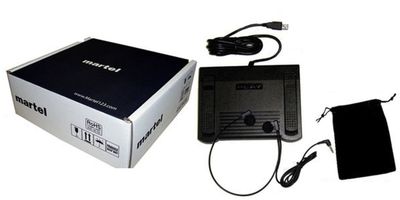
Martel's software-only option lists two licenses and excludes the pedal and headset. Its Zoom kit includes software, a USB foot pedal, lightweight headset, and manual. The All N One audio/video kit lists Windows software with two licenses, a heavy-duty USB pedal, and an ultralight headset. Read the current pages linked below for package details.
Before choosing, name the recordings you receive and the equipment you already have. Confirm those details with the supplier if anything is unclear. Avoid assuming that a higher-priced package is automatically the right fit or that software alone will work with every existing pedal. The best option closes a specific gap in your workstation.
A successful equipment test ends with a short reviewed transcript, not only a functioning play button. Use a representative source and follow the whole process: intake, setup, typing, replay, saving, review, and preparing the delivery version. Notice where the workflow is clear and where you repeatedly stop to solve the same problem.
Separate comfort from accuracy without ignoring either. A convenient pedal arrangement can reduce unnecessary interruptions, while disciplined review addresses wording and attribution. Neither guarantees the other. Your evaluation should leave you knowing what the equipment does reliably and which decisions remain the typist's responsibility.
When you can explain the workflow to another person and repeat it with a second representative recording, you have a useful foundation. From there, refine settings and habits according to real assignments. A video transcriber earns its place by helping you control the source and prepare a document with a clear, reviewable relationship to it.
Imagine a workstation that played yesterday's interview normally but produces silence from today's video. First play the known interview through the same output. If that also has no sound, inspect the output selection and connections before drawing conclusions about today's file. If the known interview sounds normal, confirm that today's file contains the expected audio and is the correct source.
Next separate the method of control from the media. If ordinary on-screen play works but the pedal does nothing, the recording itself is not the first question to investigate. Identify the pedal model, supported mapping, and connection. If both control methods fail on the new file while another file works, the source or its compatibility becomes a more useful line of investigation.
Finally record the observation in one sentence: this file is silent through this output while a known file plays, or mouse playback works but this pedal has no response. Those descriptions help support staff choose a relevant next step. They also keep you from buying replacement equipment before you understand which part of the chain has actually failed.
A shared desk benefits from a documented starting arrangement. Identify the intended player, writing application, headset output, pedal model, and job-storage location. Keep a short practice file that every authorized user can use for setup checks. Use material that is appropriate for that purpose rather than leaving a client's recording as a permanent demonstration file.
Agree which preferences users may change and how they should record changes that affect the next person. A different replay interval is easy to understand when it is documented. An unexplained switch in audio output or source location can make the next job begin with avoidable troubleshooting. The baseline should make the handoff predictable without treating personal comfort preferences as errors.
Give each job its own identifiable draft and source relationship. Shared equipment does not mean every user should edit an undifferentiated document or search the same unorganized download folder. The workstation can be common while the assignment record remains clear. That distinction becomes especially important when two typists work on similar meetings from the same week.
After several representative assignments, inspect your notes for recurring interruptions. Are you repeatedly reaching for a mouse because the supported pedal functions are not configured? Are you losing your place after breaks because stopping points are undocumented? Are compatibility questions limited to one source provider? Different patterns suggest different improvements.
Change the part that addresses the observed need. A new headset may help when the current one is uncomfortable, but it will not establish speaker identity. A better folder convention may solve repeated source confusion without a hardware purchase. A compatibility conversation may be more valuable than replacing a player that works well with the rest of your material.
Keep the successful parts of the workflow and retest after a meaningful adjustment. You are refining a system, not collecting features. A practical video transcriber workstation should become easier to explain, more predictable to operate, and clearer to review as you learn from the work it supports.
The phrase is used for both. A person transcribes recorded speech; a product can provide playback tools for that work. When shopping, specify whether you need manual software, a complete pedal-and-headset kit, or automatic text generation so the terminology does not hide a mismatch.
You need an authorized recording, a supported player, a writing application, suitable audio output, and a process for reviewing the text. A compatible USB pedal can add hands-free playback control. A complete kit may provide several components together, but confirm its written included-items list.
No. A recorder captures material; a playback transcriber helps you work with an existing recording. Confirm the stage you need to improve. Buying playback software does not establish that an unrecorded meeting can be recovered or that a live microphone will be controlled.
In the manual workflow described here, the pedal controls supported playback actions. You type the words and edit the document. Learn the actual control mapping in the selected application and test it with the document active before beginning an important job.
In this context, it means operating playback with a foot pedal while your hands remain available for typing. It does not mean the software performs all transcription work automatically. Read the feature description to determine exactly which controls and workflow are being offered.
You may be able to if it works properly with the computer and suits your listening needs. Compare intelligibility and comfort using representative speech. If buying software alone, verify the remaining equipment separately rather than assuming the purchase includes replacement accessories.
Look for the manufacturer's identification on the device or its purchase information. Record the model rather than describing it only by color or number of pedals. That detail gives the supplier a better basis for confirming compatibility with the player.
Test each assigned action with a short recording, then repeat while typing in the document window. Check that playback resumes where expected and that the physical placement is comfortable. A pedal working inside an active player is only part of the complete workflow test.
It helps you reconnect the next audio with the last words entered. Without enough context, you may omit a reply or repeat a sentence. Choose a manageable replay interval and use a stopping note for longer breaks rather than relying entirely on memory.
Do not assume that. Review the product's supported formats and test representative files. The extension does not fully describe the encoding, and successfully opening one example does not establish universal compatibility with every recording from every source.
Martel's relevant product descriptions identify saved Zoom recordings as a use case. Work from a finished supported file and test it before a long job. The manual process involves listening, typing, and checking the document; it is distinct from controlling a live meeting.
Use an application supported by your chosen workflow and capable of the required document format. Martel identifies working alongside Word and other major word processors. Confirm practical operation with the player and pedal rather than assuming specialized integration from that statement.
Yes, when the recording is compatible and the assignment permits the workflow. Prepare the speaker-label and editing rules first. The tools provide recording control; the person preparing the transcript still decides how to represent uncertainty and verify the wording.
It can support preparing text from a compatible training recording. Decide whether the document needs references to slides or demonstrations, and distinguish editorial descriptions from spoken content. A transcript is not automatically a timed caption file or a complete accessible-video publishing package.
Do not assume automatic speaker identification unless the product explicitly provides it and you have evaluated the result. In manual work, prepare confirmed labels and use temporary identifiers when needed. Visual participant labels can be helpful but may not identify the audible person correctly.
Use the full exchange and other authorized evidence to assess attribution. Screen sharing, shared rooms, and delayed views can complicate identification. Do not label speech solely from the visible tile when the source does not support that conclusion.
Only according to the assignment's conventions. A spoken transcript and a fuller video description are different deliverables. If a gesture matters, ask how it should be marked rather than inserting an interpretation that looks like words the speaker actually said.
Save the draft and note the source file, recording position, and last completed phrase or speaker. On return, replay the transition against the document. This helps catch duplicated or omitted material and makes resuming less dependent on the window state remaining unchanged.
It provides a comparison when troubleshooting. If clear speech also sounds wrong, inspect output or equipment. If only one source has trouble, investigate that recording. A known sample helps you avoid changing the whole workstation in response to a single difficult file.
Focus on the pedal path: model support, connection, mapping, and any conflict relevant to the setup. Record the exact behavior. Do not assume a media conversion is necessary when the same recording already plays normally through the application's ordinary controls.
Check the selected Windows and application output as applicable, then play a short known sample. Computers can expose several devices, including monitor audio and connected headsets. Confirm where sound actually emerges before changing the recording or trying unrelated playback settings.
No. It can help you inspect speech, but missing or heavily obscured information may remain unresolved. Compare normal speed and reasonable adjustments with context. Follow the assignment's uncertainty convention instead of treating repeated listening as proof of a preferred guess.
Identify the player, writing application, source location, pedal functions, audio output, draft naming, and review conventions. Let the next typist perform a short job. Include the support contact and the information to gather when reporting a problem.
Shared starting settings can simplify support, but preferences and assignments vary. Keep a known baseline and document meaningful changes. Confirm that each typist can hear, operate controls, and follow the document conventions rather than assuming identical settings guarantee identical results.
Compare the software function, license quantity, supported equipment, included accessories, format information, and support relevant to your work. Use a representative assignment. A product title, photograph, or price alone does not reveal whether the package closes the gap in your workstation.
Additional equipment helps only when it addresses a real need. A compatible pedal and useful headset can improve control and listening, but they do not replace source review or clear instructions. Buy for a defined workflow rather than accumulating components without a purpose.
Keep originals identifiable and follow the assignment's storage and access rules. Use clearly labeled working copies for permitted conversion or editing. Document which source produced the transcript so a reviewer can return to the correct material if questions arise.
Note the current configuration and keep a short known test recording. After the change, verify playback, pedal response, intended output, and document saving. A controlled comparison helps you identify a new issue without confusing it with an unfamiliar source file.
No equipment description can establish that for every assignment. Follow the court, agency, client, or organization requirements that apply to the work. Evaluate the workstation for its ability to support that approved process, while keeping professional and document requirements separate.
Ask whether the proposed setup supports your actual recording, pedal, computer, and document workflow. Name the equipment you already have and the deliverable you need. A concrete compatibility discussion is more useful than asking which video transcriber is best in the abstract.
Software-only download with two licenses. USB foot pedal and headset sold separately.
View product detailsSoftware, USB foot pedal, lightweight headset and manual for recorded-video transcription.
View product detailsWindows software with two licenses, heavy-duty USB foot pedal and ultralight headset.
View product detailsCheck the product page for current price, availability and package details. For help choosing a setup, call (800) 553-5536.
Written for Martel Electronics. Practical examples and workflow recommendations are original editorial guidance; the product links above provide the current Martel specifications.
Platform guidance checked November 5, 2026. Menus, account features and product details can change.
Martel Electronics Sales Inc. · Serving professionals since 1957 · martelelectronics.com