
Body Cameras for Security Guards: Buying Guide
Evaluate body camera equipment for security teams. Plan mounting, audio tests, charging, downloads, local storage and staff recording routines.
To transcribe Zoom recordings reliably, begin with the actual recording and the document you need to produce. Locate the completed file, confirm that its sound is usable, choose a transcription method, and review the finished text against the source. A foot pedal and a suitable video player can make manual transcription easier to control, but the quality of the result still depends on listening and editorial decisions.
This guide is for people working from recorded meetings, interviews, training sessions, and other authorized Zoom material. It focuses on saved recordings and manual review on Windows 11. It does not assume that every account has the same Zoom features, that every meeting was recorded, or that a rough automatic transcript is a finished deliverable.
The practical goal is simple: create text that another reader can understand and, where required, trace back to the recording. The sections below take you from intake through speaker labeling, controlled playback, difficult passages, proofreading, and delivery. Martel's software and kit links are included so you can connect the process to the equipment you need.
Ask what the recipient expects. A verbatim transcript, edited transcript, meeting summary, and set of action items are different assignments. A verbatim job may preserve repetitions and incomplete sentences. A readable edited version may remove some verbal clutter under an agreed policy. Meeting minutes usually organize decisions and responsibilities rather than reproduce every exchange.
Write the requested format at the top of your job notes. Include whether speaker names, timestamps, questions and answers, or topic headings are required. If the recipient needs a quotation from a particular section, identify that section before working through the whole meeting. Clear scope helps you avoid preparing pages of text that the client cannot use.
Do not quietly change the deliverable when the recording becomes difficult. A summary is not an equivalent substitute for a requested transcript. If material is unavailable or unintelligible, document the limitation and follow the agreed convention. Making that decision explicit is more useful than smoothing over missing speech with prose that appears complete.
Start with the meeting date, topic, organizer, and expected duration. A folder may contain several meetings with similar names, multiple sessions of one event, or separate camera and audio files. Compare those details with the assignment. Listen briefly to the opening and a later point to confirm that you have the intended session rather than an unrelated recording.
Check for gaps at session boundaries. If the meeting was stopped and restarted, the material may be split across files. If the assignment covers a morning and afternoon session, the order matters. Make a small source list showing each file and the portion of the assignment it represents. This prevents an apparently polished transcript from silently omitting a segment.
Retain the source filenames in your intake notes even if you use simpler names for working copies. A reviewer may later need to identify which recording produced a disputed passage. Consistent file identity also helps when a replacement download arrives. Avoid overwriting your first source copy before you understand whether the new file is different.
Zoom distinguishes recordings saved on a computer from recordings stored in its cloud. On Windows, Zoom identifies the user's Documents\Zoom folder as a default location, although the configured folder may differ. Check the recording location associated with the meeting in Zoom rather than assuming that every file must be in the default folder.
Once you locate the recording, open the finished media file and verify it plays. A shortcut, meeting invitation, calendar attachment, or cloud sharing link is not the same thing as a downloaded video. Note where the actual file resides so you can return to it from your transcription application and avoid accidentally opening a second copy.
If another person recorded the meeting, ask that person for the authorized finished recording or its location. Searching your own computer cannot find a file that was never saved there. A clear request should identify the meeting and the expected media, which is more effective than asking for everything related to the event.
For cloud recordings, Zoom's web portal provides recording and transcript management. The host's recordings and the account administrator's view can differ. If a link opens only a viewing page, check whether your access includes downloading the needed media. If it does not, ask the recording owner for the appropriate file or approved access.
Do not treat a missing download control as a reason to work around the owner's restrictions. The person assigning the transcript should be able to identify the permitted source and handling process. Also confirm whether the recording is still processing. A video may become available before other associated files are ready.
When downloading is permitted, save the file in the job's source folder and verify it independently of the web page. This catches incomplete downloads and confusion between a recording and its companion files. Record the date or source version if the owner may later replace the recording. Good intake makes later review much easier.
Zoom's file-format documentation identifies MP4 for audio and video, M4A for audio-only material, and VTT for certain transcript or caption files. Other companion files can include chat text or playlists. These files serve different purposes. Opening the chat file will not give you the spoken meeting, and a playlist should not be mistaken for the underlying media.
For a video transcription job, start with the authorized finished video if the visual context is useful. Audio-only material can be appropriate when the assignment does not require the picture and the player supports the file. If several views or tracks exist, identify which one the job uses and whether supplemental sources are allowed.
Keep a clear distinction between a transcript supplied with a recording and the recording itself. The transcript may help you search, but it should not become your only evidence for an uncertain phrase. Replaying the source is essential when you are responsible for checking the words. Preserve both if the assignment requires a record of your review process.
Manual transcription starts from listening and typing. Reviewing an automatic draft starts from text and checks it against speech. Summarizing identifies the main ideas and expresses them in a different form. These routes can all be useful, but the task instructions should determine which one you use and how you label the result.
Zoom documents an automatic audio-transcription feature for eligible cloud recordings. Availability depends on the account and settings, and the resulting text still warrants review for the intended use. Do not assume that every recording will have this companion transcript or that a recording on your computer automatically includes the same cloud feature.
If an automatic draft is available, inspect a short representative section before committing to a review method. Dense corrections can be harder to track than a clean manual draft. If you type manually, keep the original speech and any authorized references close at hand. Choose the route that you can review consistently rather than the route with the most impressive initial output.
Create a dedicated job folder and keep the source media, working document, and reference material distinguishable. Open the recording in your chosen playback application, then open Word or your preferred word processor. Arrange the windows so you can read the document and see relevant video context without repeatedly moving everything around.
Select the intended audio output before starting. A computer may offer speakers, a headset, a monitor's audio device, or another connected output. Play a short section and confirm that sound reaches the device you intend to use. Start at a comfortable volume and check that the controls remain accessible while you type.
Prepare the document with the required headings, date, and speaker-label format. Save a first draft before significant work begins. This is also the time to establish an uncertainty marker and timestamp style. A little structure at the beginning reduces the temptation to improvise different conventions halfway through a long recording.
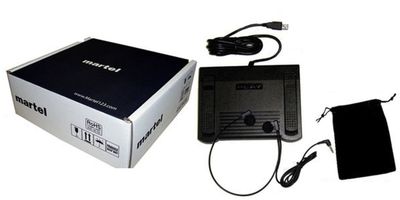
With a compatible transcription pedal, you can control common playback actions while your hands remain near the keyboard. Confirm the exact model is supported by the application. Plug it in, open a short test recording, and try each assigned function. Then activate the document window and repeat the exercise while typing a few sentences.
Physical setup matters. Position the pedal where you can reach its functions deliberately, and route the cable so it does not catch under the chair. If a control behaves unexpectedly, identify whether the problem follows the pedal, the player, or the focused application. Do not change several unrelated settings at once.
The pedal does not create the words or settle an uncertain passage. It reduces the need to alternate constantly between mouse control and typing. Whether that makes your work more comfortable depends on correct compatibility and a usable arrangement. Test it as part of the whole transcription process rather than as an isolated device.
Before processing the full meeting, choose a manageable opening section. Type it using the actual speaker-label and punctuation rules. Pause, rewind, save, and resume as you normally would. This practice reveals whether your layout, replay interval, and control mapping let you recover your place comfortably.
Use the exercise to identify problems early. If the file does not seek properly, the audio is missing, or the pedal stops responding when you enter the document, resolve that issue before investing hours in the job. A small realistic test is more valuable than discovering a basic setup mismatch after a long draft.
Read the practice text while listening again. Note which errors came from hearing, typing, attribution, or formatting. Each suggests a different adjustment. You might need slower playback for dense speech, a clearer speaker list, or simply a more consistent paragraph convention. Avoid treating every correction as a reason to replace the software.
Prepare a list of people whose identities are confirmed. Include the approved spelling and the label you will use in the transcript. If the meeting has a moderator, presenter, or interviewer, note those roles. A working speaker map is especially useful when several participants have similar voices or only appear briefly.
Treat participant names on screen as clues to verify. A person may share an account or speak while someone else's tile is displayed. In a conference room, several voices may come through one connection. Visual context helps, but it does not remove the need to listen to each exchange and confirm who is speaking.
When you cannot identify a speaker, use a consistent temporary label. Add a note or timestamp so the question can be resolved later. Changing the label midway through the recording without explanation makes review harder. It is better to have one documented unresolved identity than several confident guesses that appear to describe different people.
Listen for a complete thought before typing when the speech allows it. Very short fragments can obscure sentence structure, while overly long stretches can overload memory. Find a unit that lets you retain the meaning and wording without repeatedly reconstructing what happened. That unit may change between a formal presentation and a fast discussion.
Pause at natural boundaries, type the passage, and replay enough context to reconnect. If you repeatedly lose your place, adjust the playback backspace or shorten the listening unit. The solution is often a more deliberate rhythm rather than a faster typing pace. A steady process makes errors easier to notice.
Keep interruptions visible. A brief yes, no, or correction from another person can matter even when the main speaker continues. During review, listen through transitions rather than checking only isolated sentences. The transcript should preserve the relationships in the exchange according to the assignment, not merely collect the longest stretches of speech.
Slow down when you need help processing rapid speech or a dense phrase. Begin with a modest adjustment and evaluate whether it actually improves understanding. If it makes the voice sound unfamiliar or fragments the natural rhythm, return closer to normal speed. There is no single correct setting for every recording or listener.
For an uncertain word, compare the passage at normal and reduced speed with surrounding context. A longer sentence can clarify word boundaries that are difficult to hear in a tiny loop. At the same time, context must not become a license to replace the sound with a plausible guess. Keep the distinction between heard speech and inference clear.
Use normal-speed review to check conversational flow and speaker transitions. If your application offers constant-pitch speed adjustment, evaluate its result with your files rather than relying on the label. Playback control is useful because it gives you options; it does not guarantee that obscured or missing speech will become recoverable.
Zoom meetings can contain simultaneous speech, remote delays, and several people responding at once. On a first pass, preserve what you can identify and mark the rest for review. Avoid creating a tidy sequence that implies one person waited for another when the recording actually contains overlap.
If authorized separate tracks are available, they may provide another listening reference, but confirm that the application supports them and that you can relate them correctly to the main recording. A track labeled with a participant's name still deserves checking. Keep source references clear so later reviewers know which material informed a correction.
Do not spend an unlimited amount of time repeating the same short fragment without progress. Change the question: is the uncertainty the word, the speaker, or whether a separate voice is present at all? That distinction helps you decide what additional context might help and when the assignment's unclear-audio convention is the appropriate outcome.
Choose a timestamp system before the draft becomes long. State whether you are using elapsed recording time or another agreed reference. Elapsed time is often practical for locating a passage in a saved file, but the client may have specific requirements. Consistency matters more than adding timestamps at arbitrary intervals.
Add references at meaningful points such as section starts, speaker changes when required, or unresolved passages. If the job uses several source files, identify the file with the timestamp. A time of twelve minutes is ambiguous when three recordings all contain a twelve-minute point. Keep the source list and document references aligned.
Check a few timestamps by returning to them in the player. Editing or converting a recording can change the relationship between your references and another person's source copy. If you work from an altered copy, document that fact. A useful timestamp should guide someone back to the evidence rather than merely decorate the page.
Ask for an authorized agenda, participant list, or terminology reference when available. These materials can help with spelling and consistency. Use them to confirm what you hear rather than forcing the recording to match an expected phrase. A meeting can include a correction, an unusual name, or a term that differs from the agenda.
Maintain a small job-specific list of resolved names and terms. This is particularly useful when an unfamiliar organization or technical expression appears repeatedly. Record the source of a confirmed spelling when appropriate, and distinguish a verified answer from a temporary assumption. The list should reduce repeated uncertainty without hiding unresolved questions.
During review, search the draft for alternate spellings and inconsistent capitalization. Then check any substantive uncertainty against the recording. Search-and-replace can improve consistency, but broad replacements can also alter unrelated text. Inspect each meaningful change, especially where a short name is also an ordinary word.
Amounts, dates, percentages, deadlines, and responsibilities deserve a focused pass. A small change in one of those details can matter more than several cosmetic punctuation differences. Listen to the surrounding sentence and confirm whether the speaker changed an earlier figure, gave an approximation, or referred to a different item.
For meeting deliverables, distinguish a proposal from a decision and a suggestion from an assignment. The transcript should preserve the exchange; any separately prepared summary should make its own editorial role clear. If the client asks for action items, trace them back to the relevant discussion instead of extracting every future-tense sentence as a commitment.
Do not silently reconcile conflicting statements. If two speakers give different dates, the recording contains a disagreement. Your role in a transcript is to represent that exchange under the required conventions. A note asking for clarification is more transparent than choosing one date because it seems more likely.
First review the words while listening to the source. Focus on omissions, repeated phrases, speaker changes, and unresolved markers. A document-only read can catch some mistakes, but it cannot establish that the draft faithfully represents speech. Keep the media available throughout the substantive review.
Then check presentation separately. Inspect headings, paragraph breaks, speaker-label style, spacing, page identity, and the requested output format. Separating these passes helps prevent attractive formatting from creating a false sense that the content has already been verified. It also keeps you from repeatedly interrupting a listening pass to adjust margins.
Before delivery, search for every temporary marker you used. Review each occurrence and either resolve it or retain it intentionally under the assignment's convention. Check that your final filename identifies the correct meeting and version. Deliver the requested document rather than a rough working draft that happened to be open last.
If a recording has no sound, compare the selected output and a known working file. If a picture appears but a particular audio source is absent, ask whether you have the correct recording. If playback fails entirely, confirm the finished download and supported format. These observations are more useful than a general statement that Zoom transcription does not work.
If the pedal fails, test its connection and compatibility separately from file playback. If the transcript is inaccurate, examine the listening and review process rather than assuming a different pedal will solve wording problems. If the meeting itself was never recorded, a playback application cannot recreate the missing source.
Keep troubleshooting notes short and factual: what you opened, what you expected, what happened, and what comparison you tried. This makes a support conversation more productive and limits repetitive experimentation. Preserve the original recording before attempting conversions or edits that could make the source harder to identify.
Martel offers a software-only video transcription option and complete kits with playback accessories. The software-only listing supplies two licenses and requires a separately purchased compatible pedal and headset if you need those accessories. The Zoom kit includes software, a USB pedal, lightweight headset, and manual. The All N One kit combines Windows software, two licenses, a heavy-duty pedal, and an ultralight headset.
Use the product links below to compare the current specifications. If you already have equipment, identify its model before ordering. If you need a complete workstation, compare the included items against your list. Test a representative recording so the purchasing decision follows the job rather than the popularity of a search phrase.
The essential workflow remains the same with any suitable setup: identify the source, control playback, prepare the text, and review it carefully. A recording, a draft, and a finished transcript are separate stages. Keeping those stages clear is the most useful way to turn a saved Zoom meeting into a document someone else can rely on.
Consider this invented exchange from a planning meeting: one person proposes Friday, a second person says that Friday will not work, and the first person then suggests Monday. A rushed draft might preserve the first proposal and the final date while omitting the short objection. The result can make the change appear unexplained or suggest agreement where the meeting contained a correction.
During review, listen to the exchange as a unit. Confirm who proposed each date, whether the objection includes a negative, and whether the final suggestion was accepted. A transcript should represent those turns under the assignment's conventions. If you also prepare a summary, do not turn the last date mentioned into a decision unless the source supports that reading.
This example illustrates why a smooth sentence is not enough. The missing word can be brief, the wrong speaker can seem plausible, and the document can look polished. Controlled replay helps you inspect the transition, but the reviewer must ask the relevant questions. Keep the correction tied to a source position so it can be checked again without searching the whole meeting.
Sometimes a recording owner sends a second file after work has begun. Before replacing anything, ask whether it is a new download of the same media, an alternate view, an edited version, or an additional session. Compare the identity and duration, then inspect a few known points. Do not assume two files are interchangeable merely because their meeting titles match.
Retain your original source reference and label the new file clearly. If it includes extra material, decide how that material enters the draft. If it has a different beginning or edited pauses, existing elapsed timestamps may no longer point to the same speech. Check the references affected by the change instead of continuing with an unexamined source swap.
Document which source underlies the final delivery. This is particularly helpful when the client later asks about a quotation or a missing passage. A clear explanation of the file used is easier to assess than a folder containing several alternatives with no record of which one you transcribed. Source management supports accuracy even when no equipment setting changes.
A short delivery note can state the meeting identity, document version, covered source files, and any intentional unresolved markers. Include only information relevant to the recipient's use. The note should help them distinguish a reviewed transcript from a rough draft, a summary, or a partial record. It should not make claims beyond the work actually performed.
If the assignment covers only selected portions, identify that scope plainly. If an unclear section remains marked, point the recipient to the convention used rather than quietly removing the marker. If the requested file format differs from your working document, open the delivery version and inspect it before sending. Conversion of the document can affect presentation even after wording has been checked.
Keep the source recording and your working notes according to the agreed retention process. Delivery does not automatically authorize a new sharing destination or a new storage location. The final handoff is part of the workflow, and a clear, accurately labeled package is more useful than a large collection of drafts left for the recipient to interpret.
Identify the actual finished recording and the required deliverable. Confirm the meeting, date, duration, and whether the job covers multiple files. You cannot choose an effective transcription process until you know both what source material you have and what text the recipient expects.
Check the location configured in Zoom and associated with the meeting. Zoom lists Documents\Zoom under the user's profile as a default Windows location, but settings can differ. Confirm the actual folder instead of assuming a meeting invitation or shortcut is the recording.
It may have been saved by another participant, stored in the cloud, placed in a different folder, or not recorded. Ask the organizer or authorized recording owner to identify the source. A player cannot locate media that was never saved to your machine.
It depends on the access and workflow provided by the owner. A link may allow viewing without downloading. If your chosen application needs a local file, ask for an authorized download or approved copy. Do not bypass the recording owner's access restrictions.
Use the finished supported video file, commonly an MP4 in a Zoom workflow. Confirm the picture and sound before starting. Keep companion chat, transcript, and playlist files distinguishable; their presence does not establish that you have the media needed for the assignment.
Yes, when the assignment permits it and your player supports the file. You may lose useful visual context for speaker changes or displayed material. Decide whether that context matters before choosing an audio-only route, and keep the source relationship clear in your job notes.
No. Zoom's documented cloud transcription feature depends on account eligibility and settings. Verify what exists for the particular meeting. If a draft is available, review it for the intended use rather than treating its existence as proof of accuracy.
Do not assume so. Establish which saved files are available and what the recipient requires. Captions, an automatic transcript, meeting notes, and a reviewed transcript serve different purposes. Label the deliverable accurately and check the spoken content against the recording when responsible for its accuracy.
The products discussed here support manual transcription through controlled playback. You listen and type in a word processor. A compatible foot pedal helps operate the recording; it does not turn the product into an automatic speech-recognition service.
It can let you play, pause, or navigate supported recordings while keeping your hands near the keyboard. Verify the application's supported functions and the pedal model. The useful benefit is control of the working rhythm, not a guarantee about how fast you will finish.
Martel's product descriptions identify working alongside Word and other major word processors. Test your particular setup with the document active and the player running. Prepare the required format before starting so you can focus on the recording rather than repeatedly changing the document layout.
A brief orientation can help you understand speakers and structure, but the appropriate amount depends on the assignment. For a long meeting, review its organization and source files before detailed work. Do not replace close listening with assumptions formed during a quick overview.
Use a manageable thought or phrase that you can retain accurately. The useful length varies with pace, complexity, and familiarity. If you repeatedly lose context, shorten the listening unit or adjust replay behavior rather than forcing yourself to remember longer stretches.
Use slower playback when it improves comprehension. Normal-speed listening can help with rhythm, emphasis, and speaker changes. Compare sensible settings for difficult passages, and avoid assuming that the slowest available speed produces the most accurate interpretation.
Prepare confirmed identities from authorized references and careful listening. A single connection may carry several people, so the account name may not identify each voice. Use consistent temporary labels where needed and document unresolved attribution rather than guessing.
Preserve identifiable speech under the assignment's convention and mark uncertainty for review. Listen to the full exchange, not only the overlapped instant. If supplemental tracks are authorized and supported, use them with clear source references rather than assuming they automatically resolve every overlap.
Follow the requested level of transcription. A verbatim job and an edited readable transcript can treat repetitions differently. Decide before drafting and apply the policy consistently. Do not remove wording merely because it is inconvenient to type or sounds awkward.
Mark the passage using the agreed convention and retain a timestamp. Revisit it with surrounding context and reasonable playback adjustments. If the source remains uncertain, preserve that uncertainty instead of silently inserting a plausible phrase.
Use the client's required reference and state it clearly. Elapsed recording time is often practical for replay, but multi-file jobs also need source identification. Check sample references against the recording so another reviewer can actually locate the passage.
Create a source list and establish their order. Identify each file in the working notes and distinguish timestamps belonging to different files. Check for gaps or repeated content at boundaries before producing a single continuous document.
Use them as clues rather than conclusive attribution. Shared accounts, off-camera speech, and screen sharing can complicate identity. Confirm names and voices where possible and use a documented temporary label when the recording does not support a confident answer.
Use an authorized participant list or other supplied reference for spelling, then compare the recording for the spoken identity. Keep a job-specific terminology list and review inconsistent spellings. Do not assume that every expected name appears simply because it is on the agenda.
Amounts, dates, deadlines, and quantities can materially change the meaning while remaining easy to mistype. Listen to the full statement and any correction that follows. A dedicated pass helps you catch errors that a fluent document-only read might overlook.
Only when that is the agreed deliverable. Minutes organize decisions and responsibilities; a transcript represents spoken exchanges. If both are required, prepare and label them separately so readers understand which text is a record and which is an editorial summary.
Document the available source and the missing portion. Check whether another authorized file completes the meeting. Do not invent an opening, closing, or transition to make the transcript look continuous, and do not imply that an incomplete source covers the entire event.
Confirm the format and ask about supported options first. If conversion is appropriate, keep the original and verify the converted copy's sound, picture, duration, and navigation. A filename change alone does not convert the file or establish that it contains the same usable media.
Use clear version names and a separate final-delivery step. Search for temporary markers, verify the meeting identity, and check the requested format. Close or distinguish rough versions so the file selected for delivery is the one you actually reviewed.
Check the intended output device and compare a known working file. Then compare another playback device if appropriate. Describe whether the issue affects one recording or every recording, which helps distinguish source, output, and application problems.
Ask whether it supports your recordings, your Windows setup, and any existing pedal. Confirm included accessories and license quantity. Explain that you need to transcribe saved Zoom recordings so the recommendation matches recorded playback rather than a different live-meeting task.
It matches the agreed scope and formatting, has been checked against the available source, identifies speakers consistently, and handles uncertainty openly. The source files, draft versions, and final document should also be clearly distinguishable for any later questions or review.
Software-only download with two licenses. USB foot pedal and headset sold separately.
View product detailsSoftware, USB foot pedal, lightweight headset and manual for recorded-video transcription.
View product detailsWindows software with two licenses, heavy-duty USB foot pedal and ultralight headset.
View product detailsCheck the product page for current price, availability and package details. For help choosing a setup, call (800) 553-5536.
Written for Martel Electronics. Practical examples and workflow recommendations are original editorial guidance; the product links above provide the current Martel specifications.
Platform guidance checked November 5, 2026. Menus, account features and product details can change.
Martel Electronics Sales Inc. · Serving professionals since 1957 · martelelectronics.com
Find your Zoom recording, set up foot-pedal playback, identify speakers and review the transcript. A practical Windows 11 workflow with Martel transcription products.