Software, compatibility and remote work
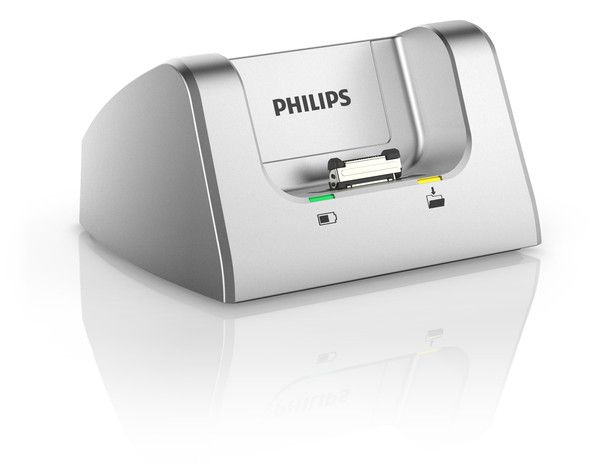
To buy dictation equipment for Mac or Windows, check the complete path from recording to a reviewed document. The recorder, connection, file format, transfer software, playback application, foot pedal and speech-recognition product can have different requirements. A device appearing on the computer is one successful step; it does not establish that the whole dictation system works.
Write down the exact computer, operating-system version and software editions used by both the author and the secretary. Then identify the functions each person needs. Copying an MP3 file, controlling playback with a pedal and dictating directly into text are three different tasks. Each deserves its own compatibility confirmation and a practical sample-file check.
This guide provides a buying and installation method rather than a universal promise for every Mac or Windows computer. It also explains where Martel’s Dictaphone Machine, SKU 1843-2, changes the question by providing an audio playback arrangement outside a computer application. For the broad buying decision, use the Dictaphone equipment guide.
Define what “compatible” must mean in your office
Compatibility should describe a completed action. “The secretary can open the recording and control it with this pedal while typing in this document application” is useful. “The recorder works with Mac” leaves too many unanswered questions. It might mean only that the computer can see a storage device or play one supported file.
Separate required functions from optional conveniences. An office may need reliable manual copying but not automatic downloading. Another may depend on author names, job status or encryption features that require a particular application. A basic file-transfer demonstration cannot establish that those additional functions will be available.
| Layer | Question to resolve | Evidence to retain |
|---|---|---|
| Physical connection | Does the approved cable or adapter provide the required data connection? | Exact cable, port and dock used |
| Device recognition | Does the system detect storage, audio input or controls as intended? | Observed device role |
| Transfer | Can the required recording reach the intended folder or application? | Successful sample handoff |
| File support | Can the actual audio be decoded and played? | Sample file and recording settings |
| Playback controls | Does the pedal operate the chosen player during typing? | Player edition and pedal model |
| Recognition | Does the selected speech-recognition edition support the input and application? | Edition-specific requirements and test |
| Document completion | Can the user save and return the reviewed draft? | Completed fictional assignment |
Make an equipment record before ordering
For each workstation, record the computer model, processor platform, operating-system version, available ports and whether the person works locally or through a remote desktop. Identify the word processor or case-management application that receives the text. Add the user’s installation permissions and the person responsible for maintaining the computer.
For existing dictation equipment, record the exact model number rather than a family name. Include the recorder’s current recording mode, the pedal model, headset connection and software version. If a license came with an older package, locate the entitlement and installation information instead of assuming it can be reused on a replacement computer.
Keep uncertainty visible. A blank software-version field is a question to answer, not a reason to guess. A useful purchasing request might say: “The author uses this recorder; the secretary uses this Windows edition; we need these files to play with this pedal.” That gives Martel a concrete setup to evaluate.
Start with the correct Martel workflow
Martel’s Lawyer Dictation Recorder + Free Secretary Transcriber, SKU 405, includes a recorder and computer transcription components. The product gallery labels the All N One transcription kit as Windows 10 and Windows 11 compatible. Treat that as the listed kit’s stated support, then confirm the supplied software version and the exact workstation arrangement before installation.
The same label does not establish native macOS support, support for every processor platform, or operation through a remote desktop. It also does not prove that another application will accept the included pedal. Those are separate questions that should be addressed in the purchase record.
The Dictaphone Machine, SKU 1843-2, uses the shared recorder and supplied cradle, pedal and headset for audio playback. The secretary does not need a computer player for that described function. A Mac or Windows computer may still be used for typing, but the product’s no-PC playback arrangement is not a claim about every possible file-transfer or software use.
Choose between these routes based on the office’s handoff needs. If the lawyer and secretary need the same shared unit at the same time, the scheduling issue remains even when computer compatibility is simplified.
Check cables, adapters and device modes
Use the connection specified for the exact recorder or microphone. A cable can fit physically without supporting the intended data task, and a charging connection may not place the device in the mode needed for transfer. Follow the model’s instructions for switching between recording, storage and any supported USB audio functions.
If the everyday computer has USB-C ports but the supplied equipment uses another connector, identify the adapter before testing. Include the actual dock or hub used at the desk. A successful demonstration on someone else’s direct USB port does not establish the behavior of the office’s adapter chain.
Keep the first diagnosis simple. With a disposable recording already saved, connect through a supported direct route where practical and determine what the computer recognizes. Then add the everyday dock or adapter and repeat. Do not change the cable, software, recording format and computer all at once; that makes the cause of a failure difficult to identify.
For removable cards, confirm the recorder’s supported card type and capacity and the receiving reader’s support. A card that physically fits is not a complete compatibility check. Do not format a card containing the only copy of work while troubleshooting an installation.
Separate storage access from audio playback
A recorder may expose files as storage, use a management application, or support another documented transfer route. Follow the exact model’s process. Once the recording reaches the computer, verify its name, size and duration before moving to playback. A file appearing in a folder confirms that something transferred; it does not establish that the recording is complete or usable.
Open a disposable sample and listen to its beginning, middle and end. Check that it contains the expected speaker and full assignment. If a source file is copied to another location, keep the original until the office’s verification and retention process permits otherwise. Avoid relying on a filename alone when several revisions have similar names.
On a Mac, access to external storage and permission for an application to use files can be separate considerations. On Windows, the connected device and the application opening its files can also behave differently. The practical question is whether the designated user can complete the intended transfer using the approved configuration.
If the recorder is recognized but a file will not play, stop treating the issue as purely a USB problem. Record the file extension and selected recording mode, then check the receiving player’s support. This isolates the failing layer instead of repeating an already successful connection step.
Read file formats precisely
WAV, MP3, DSS and DS2 identify different audio choices, but the extension is only part of the record. For a meaningful test, retain the recorder model, recording mode and relevant audio settings. A software application may accept a particular extension while imposing additional conditions on the audio it contains.
Do not rename a file to a different extension and expect conversion. If conversion is required, use software that genuinely supports reading the source and exporting the destination format. Preserve the source, document the change and verify the exported recording before handing it to the next person.
Likewise, file encryption requires compatible access at the receiving end. A familiar extension does not tell you whether a file is encrypted or whether the recipient can open it. Test the actual configured workflow with a disposable sample and provide access information through the office’s approved process.
The DSS, DS2, MP3 and WAV guide explains these choices in greater detail. For purchasing, the useful outcome is a known sample that the exact receiving application handles correctly.
Verify the transcription player and pedal together
The secretary’s transcription station consists of software and controls working together. A USB pedal being detected by the operating system does not prove that the chosen player supports it. Conversely, a file playing successfully with a mouse does not establish that hands-free control will work during typing.
Record the pedal model and the player’s product name, edition and version. Confirm the manufacturer’s supported pairing and any required configuration. Then test each assigned action. A three-way control should be checked for the office’s intended play, rewind and forward behavior, rather than assuming the labels match the installed settings.
Test with the document application in front. Type a few lines, pause the audio, rewind a phrase and continue without returning to the player with the mouse. Check any adjustable back-step after pausing and make sure the setting feels predictable to the person who will use it every day.
If two playback programs are open, a control may be intercepted or behave unexpectedly. Use one intended application for the initial check, then evaluate the normal desktop arrangement. Record the symptom precisely before changing software or replacing hardware. The lawyer and secretary setup guide provides the broader installation sequence.