
MARTEL ELECTRONICS • STUDENT EQUIPMENT GUIDE
Stenomask Guide for Voice Writing Students
Starting voice writing school brings a new set of tools and habits. This guide helps you understand what your Martel stenomask does, prepare the equipment your program requires, and build a setup you can check before every practice session.
Written by Martel Electronics • October 24, 2026
Your first goal: a clear, saved recording
Before judging recognition results, make sure you can record and replay your voice clearly. A reliable audio check gives you a starting point for learning technique and configuring your school’s software.
Ready to compare equipment? Open the Martel Stenomask Buyer’s Guide for all seven models, connection types and current product links.
Understand the equipment before the terminology
Your stenomask captures the words you speak into it. In a voice writing exercise, you repeat the material you hear and use the conventions your instructor teaches for speakers, punctuation and other elements of the record. The mask helps contain your spoken voice while keeping its microphone close to your mouth.
Three jobs can happen in a student setup. A microphone supplies audio. A recorder or recording application saves audio. Speech-recognition software can produce text from spoken input. These jobs can be connected, but they are separate things to verify. Plugging in a mask does not automatically create a recording or start recognition.
A second mask microphone still captures your voice inside that mask. It does not become a room microphone for other speakers. If your program requires a room recording, ask which additional input and recording arrangement it expects.
Turn your school’s equipment list into a connection plan
Use the current list from your instructor or program. Equipment recommendations can change, and another student’s older purchase may not match your class. Copy the exact model names and software versions into a simple worksheet.
| Item | Write down | Why it matters |
|---|---|---|
| Computer | Exact model, operating system and available ports | Determines which connection and adapter you can use |
| School software | Required application, version, license and setup instructions | Helps avoid buying a microphone around the wrong workflow |
| Mask | Required or approved Martel model and output plugs | Connects your voice to the intended input |
| Backup requirement | Whether a separate recording destination is required | Determines whether a second microphone path is useful |
| Accessories | Adapter, mouthpiece, stand and foam already included or still needed | Shows the complete cost and prevents duplicate purchases |
If the list says only “USB microphone” or “dual mask,” ask for the exact intended arrangement. You want to know which cable goes to which device before the first class.
Plan where your spoken audio will go
One computer input
A direct USB mask connects through the computer’s USB audio path. An analog mask may use a compatible microphone input or USB microphone adapter. In either arrangement, select that device inside the application that records or recognizes your speech.
A computer plus a separate recorder
A dual-microphone mask provides separate microphone outputs for suitable receiving devices. Identify the computer connection and the recorder connection independently. Then test both saved recordings. A second connected cable does not tell you whether a recorder has started or whether the right input was selected.
Microphone inputs and headphone outputs
Headphones let you listen; a microphone input accepts sound from the mask. Some computer sockets combine functions, so check the exact computer and adapter requirements. Match the supported input rather than assuming that a similar-size plug is enough.
The technical connection section of the buyer’s guide explains USB, 3.5mm, XLR, 1/4-inch plugs, gain and separate microphone paths.
Explore Martel models around your class requirements
These are examples of connection choices, not a substitute for your program’s required equipment list. Use the complete comparison when your requirements are confirmed.
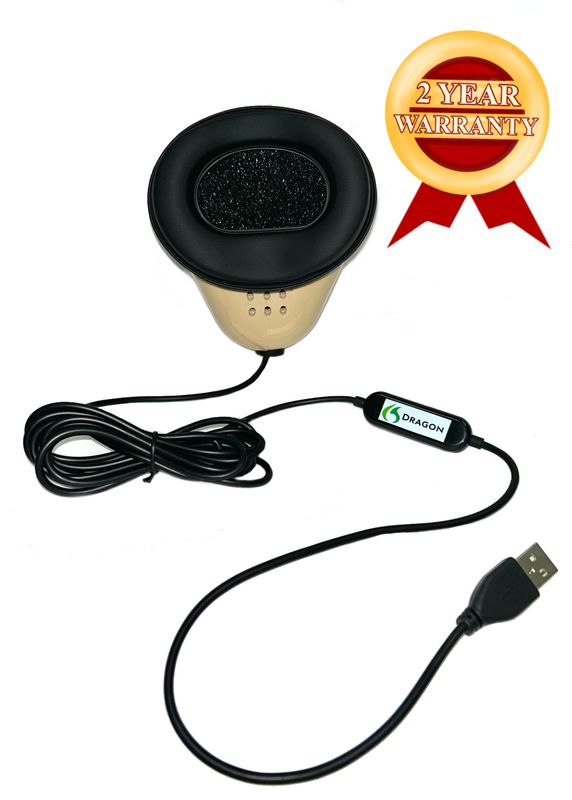
Dragon Stenomask
A direct USB option to investigate when the required setup uses one computer microphone input.
See the Dragon Stenomask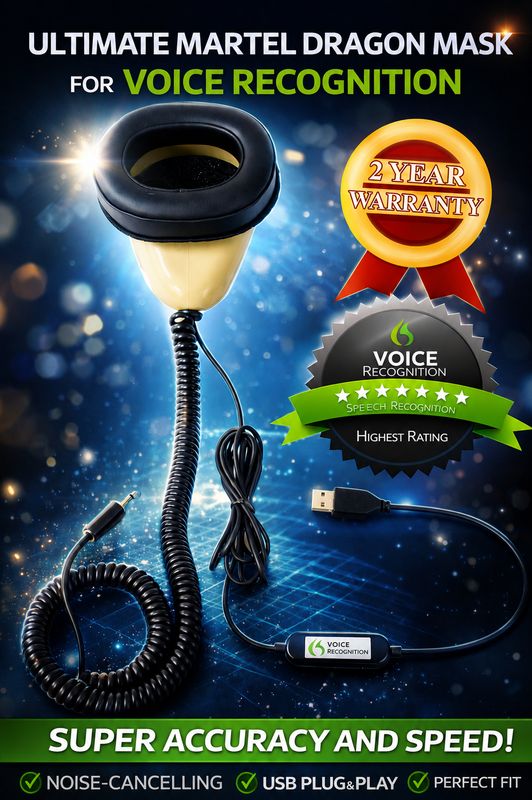
Double Dragon 2
Provides USB and a separate 3.5mm microphone output when a compatible computer-and-backup-device plan calls for them.
See Double Dragon 2 connections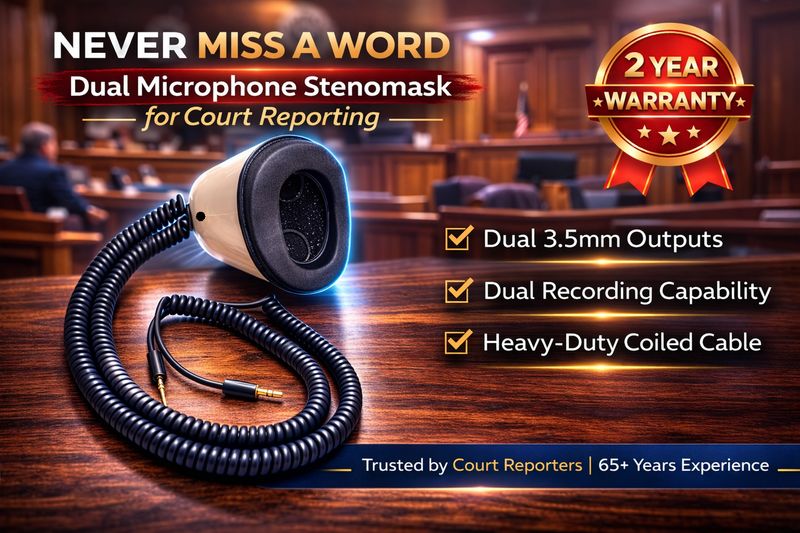
Stereo MM-ST1
Has two independent 3.5mm microphone outputs. Check the analog inputs or adapters expected by your class setup.
See the dual-output MM-ST1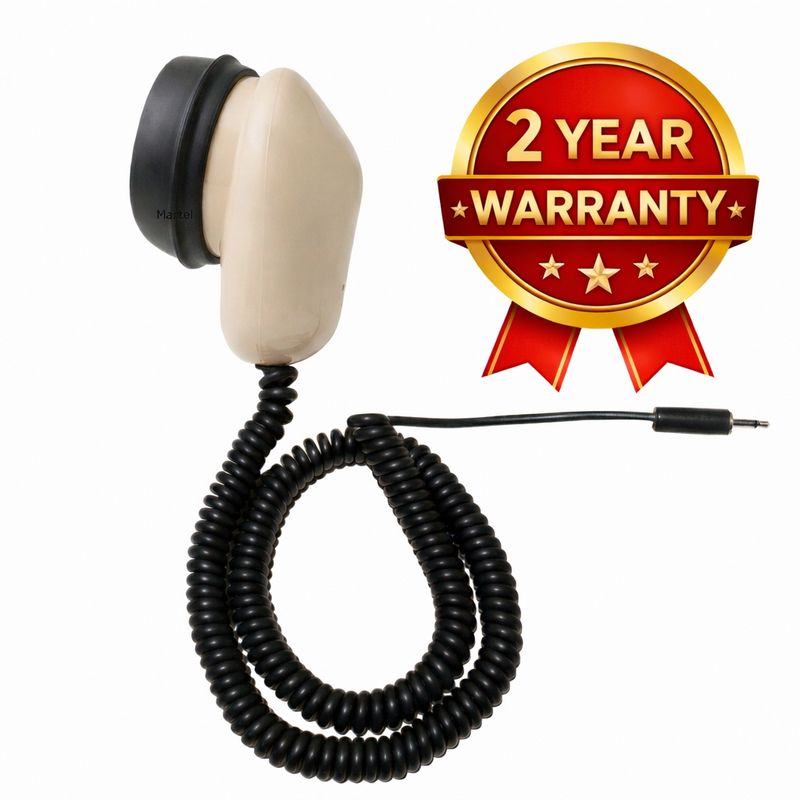
MM-18
A single 3.5mm microphone connection for a compatible input. Include a suitable computer adapter if your equipment requires one.
See the MM-18 StenomaskFor XLR and specialty connections, compare MM-ST2, MM-XLR and MM-14 in the full seven-model chart.
A first-session setup check you can repeat
- Arrange your workspace. Sit in your normal practice position. Place the computer, mask and any recorder where cables can reach without pulling. Keep the keyboard and controls available.
- Fit the mouthpiece. Follow the mask and mouthpiece instructions. Work with your instructor on speaking position and technique. If you cannot maintain a comfortable position, address it before making the session longer.
- Choose the intended input. In Windows, use Settings, System, Sound, then Input to find the connected microphone or adapter. Also check the input selection in the working application.
- Record a short passage. Use normal speech, stop the recording, save it and replay it. Listen for clear words rather than relying only on an animated meter.
- Test recognition separately. Once the audio is clear, use your instructor’s recognition setup and a short exercise. Compare the resulting text with what you actually said.
- Check any second recording. Open and listen to the backup file too. Confirm that it contains the intended input and that you know where the file was saved.
Build a useful practice routine
Follow your instructor’s assigned material, speed and technique. The routine below is an optional way to organize the equipment and review portions of practice; it is not a school standard or a substitute for instruction.
- Begin with the same short audio check. Use a familiar sentence so you can notice a new connection, input or sound problem.
- Choose one learning goal. For example, focus on consistent delivery, punctuation or speaker changes in the exercise your instructor assigned.
- Review a manageable passage. Compare the source, your saved voice recording and any recognized text. Separating these three helps you understand where a difference appeared.
- Write down what changed. Note the exercise, your observation and one adjustment to discuss or try next. Change one equipment setting at a time so the result is easier to interpret.
- Finish by saving and reopening. Use a consistent filename and confirm that you can find and play the file again.
For an equipment test, use fictional names and nonconfidential practice material. Try a few numbers, a question and an answer so you can check the whole passage. Follow your course’s notation rules when practicing transcript conventions.
Identify the problem before changing equipment
| What you notice | First check | Useful information to keep |
|---|---|---|
| No input activity | Connection, selected microphone, mute controls and application microphone access | Exact device name and which application cannot hear it |
| A meter moves, but you cannot find a recording | Whether recording started, the stop/save steps and the chosen folder | Filename, save location and recording application |
| Speech sounds muffled or distorted | Mouthpiece fit, selected input and recording level using normal speech | A short test recording and the mask/adapter models |
| Audio is clear, but text differs | Your spoken words, recognition input selection and the instructor’s software configuration | The short recording and the corresponding text |
| Only one destination has audio | Each output connection, input choice and saved file separately | Which path worked and which did not |
These observations help narrow a problem; they do not establish its cause on their own. Keep the first test simple and share the result with your instructor or Martel.
Comfort, care and useful extras
A Martel SS4 Soft Seal mouthpiece is an optional comfort choice. The Martel Hands-Free Flex Stand can help support mask positioning at a suitable workspace. Check fit and mounting before relying on either during practice.
Keep the correct replacement foam available and follow the care instructions for each part. Do not assume that instructions for one mouthpiece material apply to every other part. Leave slack in cables and support the connector when unplugging instead of pulling the cord.
Common Questions and Answers
What equipment does a voice writing student need first?
Get the school’s current list before ordering. Match the Martel stenomask connection, computer, software and any required backup recorder. The buyer’s guide compares Martel models.
Does a stenomask turn speech into text by itself?
No. The mask supplies microphone audio. Recording software saves sound, while compatible speech-recognition software produces a draft that needs review.
Do students need a mask with two outputs?
Only when the required setup calls for two destinations. Connect and test each output separately; two plugs do not prove that two recordings were saved.
What should I check before every practice session?
Record a short passage, stop, reopen the saved file and listen. Check the backup separately and confirm the input selected inside your working software.
Why is my audio clear but the recognized text wrong?
Compare what you said with the saved audio and text. Check the recognition input, configuration and vocabulary with your instructor before replacing equipment.
Make your next question easy to answer
Before asking for help, collect your mask model, computer model, adapter or recorder model, software version, selected input and a short description of what your test showed. For purchase planning, include the current school equipment list. For a problem during practice, explain whether it affects the saved audio, the recognized text or both.
Compare Martel stenomasksBrowse current modelsContact MartelThis original guide covers learning and equipment preparation with Martel stenomasks and accessories. Your instructor’s current requirements and directions guide your course work.