Updated · By Martel Staff
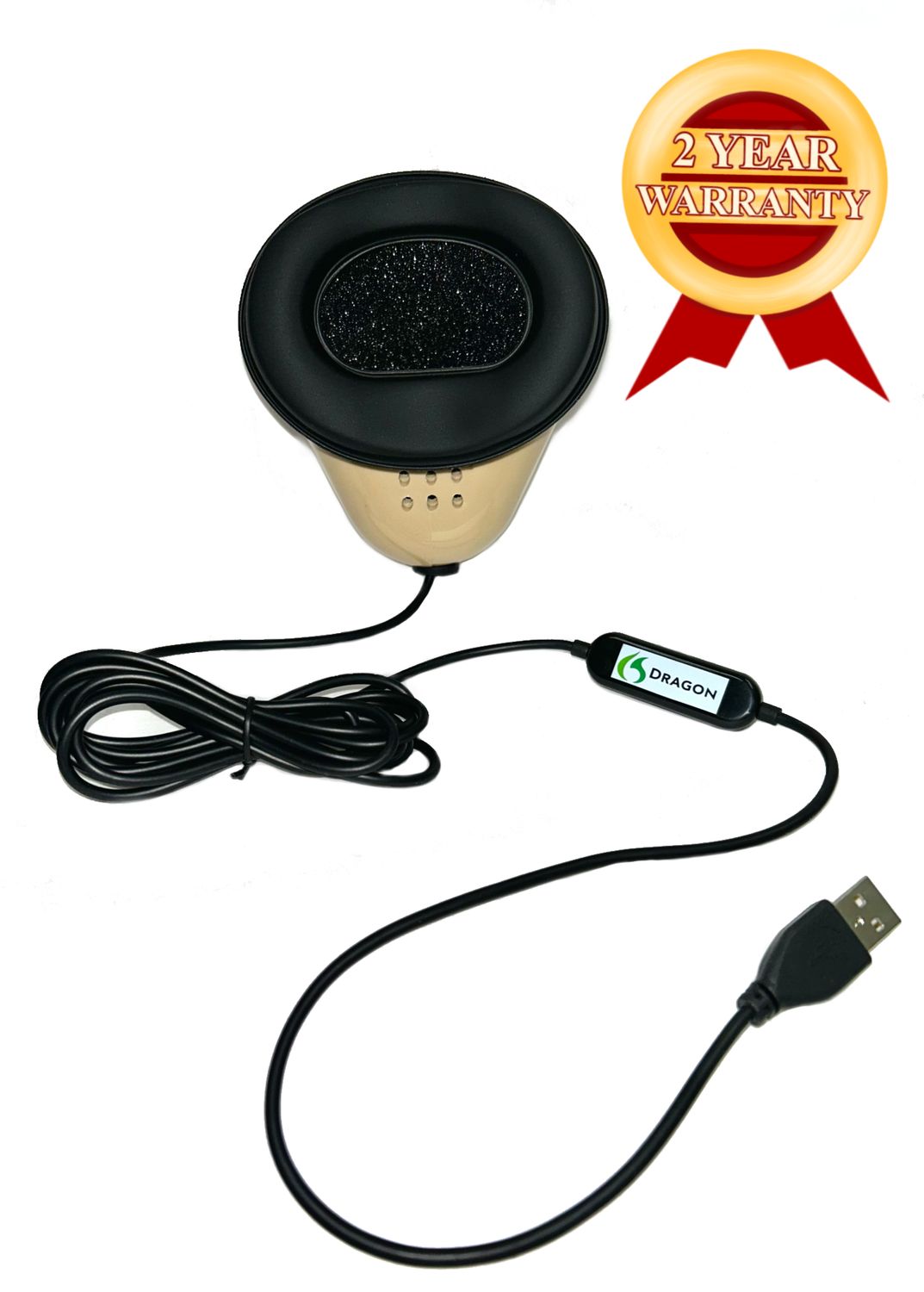
The Martel Dragon Stenomask supplies microphone input for a voice-writing workflow. A trained reporter repeats the spoken record into the mask; compatible speech-recognition and court reporting software process that input. The microphone itself does not create, edit or certify a transcript.
How a stenomask fits the reporting workflow
A stenomask helps contain the reporter’s voice while positioning a microphone close to the mouth. Fit, speaking technique, input level and the surrounding environment affect the resulting audio. Voice writing differs from machine shorthand: the reporter uses spoken input rather than stenotype keystrokes, while still handling speaker identification, punctuation, terminology and transcript production.
Recognition software can produce a draft as the reporter speaks. That draft still needs review, correction and formatting. A particular microphone does not guarantee recognition accuracy or make professional training unnecessary.
Check the connections before choosing a model
Compare the current specifications of the Dragon and Double Dragon Stenomask with your computer, audio interface and software. Confirm the connector and adapter, then check Windows 11 Settings > Privacy & security > Microphone. Enable microphone access and the desktop-app permission needed by your dictation software; selecting a device alone does not grant that access. Microsoft microphone permission instructions. Check the current product listing for package contents, availability and warranty terms.
If you also record room audio, plan that input separately. Verify which microphone each application records so the room recording does not accidentally contain only the reporter’s dictated voice.
Set up and test the complete system
- Connect the mask using the supported connection and select the intended input in the operating system and application.
- Adjust the microphone level using normal reporting speech. Listen for distortion, missing words and background noise.
- Configure the recognition profile and reporting software for the reporter and the intended workflow.
- Test names, numbers, punctuation and speaker changes, then review the resulting text against the recording.
- Practice saving, locating and backing up the files before relying on the system for an assignment.
Training and equipment planning
Students should confirm their school’s required software and hardware before purchasing. Acceptance of reporting methods and licensing requirements depend on the jurisdiction and work setting.
Read our voice writing versus steno comparison and voice writer career guide for training questions. Browse stenomask microphones to compare current equipment, and contact Martel for help matching the components to your workflow.
Related Martel equipment
Common Questions and Answers
What does the Martel Dragon Stenomask capture?
It captures the voice spoken into the mask for a supported voice-writing or dictation workflow. Plan room microphones separately when you also need the voices of other participants.
What is the connection difference between Dragon and Double Dragon?
Dragon USB provides a USB microphone path. Double Dragon USB adds a separate 3.5 mm microphone output for a compatible second destination. Match both inputs and test each saved recording independently.
Does buying the mask include recognition software?
Check the current package listing. The microphone and a speech-recognition license are separate unless explicitly offered together. Confirm your software’s computer and input requirements before ordering.
What should a new student read before choosing a mask?
Start with the school’s current equipment list, then use the student guide for first-session checks and the buyer’s guide to compare Martel connections and accessories.
What should I do if the mask works in one application but not another?
Check microphone permissions and the selected input inside the affected application. Compare a short saved recording with the recognized text to identify whether the problem concerns captured sound or software processing.