Why Does a Court Reporter’s Audio Play in Only One Ear?
Work out whether one-ear court reporter audio comes from the saved file, the player or the headphones. Includes checks for a scopist and Windows mono playback.

If a court reporter’s audio plays in only one ear, first establish what you are listening to. Is it live speech at the microphone, a CAT job on the reporter’s laptop, a file sent to a scopist or a recording in a desktop cradle? Then play a known file through the same headphones and the affected file through a second known listening setup. These two comparisons separate many equipment and recording questions without changing the original. Keep the left and right sides identified, and use ordinary, comfortable listening levels.
Distinguish an ear, an earpiece and a recorded channel
“The answer is only on my left” is a useful description of the listening experience. By itself it does not say how the file was recorded. A headset has a physical left and right side. A playback program can route or combine recorded channels. A file may contain one channel, two channels carrying similar content or two different microphone sources. A listener may also use an accessibility setting that combines channels. Write down which headset, player, output device and file produced the experience before assigning it a cause.
Consider an invented deposition about a ferry timetable. The local question is, “Which sailing left at nine twenty?” The witness responds, “The Linden ferry left at nine forty.” During review, counsel’s words appear on the left while the witness’s answer sounds faint or disappears. The difference might be deliberate capture of speakers on separate recorded channels, a one-sided headphone problem, a selected playback channel or an incomplete recording. The answer can only be identified by changing one part of the listening chain while keeping the passage the same.
Keep two questions in your notes. First, are both of the needed people actually present in the original saved material? Second, can this reporter or scopist hear those people comfortably through the intended playback setup? Solving the second question by combining playback channels can help a listener. It cannot manufacture a witness’s answer that was never captured. Conversely, finding two source channels in a file does not prove that the listener’s current cable and earpieces can reproduce both.
Start with a reference file whose two sides are understood
Choose an authorized practice reference that you have already heard through a known working two-sided setup. Ideally its content makes the sides identifiable, such as a purpose-made exercise with a short left-side voice and a different right-side voice. Avoid selecting an arbitrary commercial clip simply because its file label says stereo. Two nominal channels can contain the same material, or all the spoken words may already be placed on one side. The reference needs to answer the specific question you are asking of it.
Play that reference through the same application, output and headphones that produced the complaint. Identify the reported side by the physical L or R marking on the headset, where present, and note which spoken markers are heard. Then open the affected practice file without moving the headset or changing a software option. If the reference is heard in both ears but this particular recording is one-sided, inspect the recording and the player’s interpretation of it. If both files behave the same way, look first at the common listening route.
Keep a useful reference available at the receiving desk, not just on the reporter’s laptop. A scopist who can identify both reference markers on the same pedal-driven player has established that the local playback arrangement can reproduce that test. A reference played successfully in a web browser still leaves the transcription application’s own output or channel selection open. Use a file type the actual playback program supports. Record the exact program used when you report the comparison to a colleague.
Try the affected file on a genuinely different listening setup
Use a copy sent through the normal authorized process and play the same named passage on another known workstation or compatible player. A different pair of headphones on the same computer changes the transducer and possibly a plug or adapter. A different computer and headset changes more of the listening route. They are both useful observations, but they answer different questions. Keep them in separate rows instead of calling both “tested somewhere else.”
Ask a second listener to report the nine-twenty question and the nine-forty correction before showing the script. Which phrase is audible from which side, and can both be heard at a comfortable level? If the second setup reproduces both phrases normally, return to the first system and inspect its headset and playback controls. If both systems reproduce the same one-sided placement of one speaker, identify whether that is how the file’s channels are organized. If neither reproduces the witness’s correction, check the original job and the capture route.
A comparison is strongest when the reviewer can prove they opened the same material. Give the practice file a distinctive name and identify a nonconfidential phrase near the end. Check transfer completeness when results differ sharply. A preview attached to a message, a different take from the same rehearsal and a locally saved original can sound substantially different. Do not edit one file to resemble the other before identifying the copies under test. The differences may be the evidence that explains the reported symptom.
Inspect the headset and its ordinary connections
Use the headphones in their intended orientation and connect them fully through the supported output or adapter. If they plug into a computer or USB audio device, verify which output the player selected. If they are plugged into a recorder or cradle, identify the jack intended for listening. A headset labeled for speech or dictation can have a different connector or intended equipment from another headset that looks similar in a pouch. Check the product instructions when compatibility is uncertain.
During a practice session, try a second known working headset at the same supported output. Play the same words at a comfortable level. If the second headset reproduces both sides and the first repeatedly loses the same marked earpiece, document that result. If the symptom changes when an ordinary removable adapter is replaced by an approved alternative, identify the adapter as part of the tested assembly. Avoid pulling, sharply bending or rotating cables to provoke an intermittent connection. Use normal handling and arrange inspection or replacement of suspect parts.
A single-ear listening accessory deserves its own entry in the notes. Some reporters deliberately use one earpiece so the other ear remains available to the room. That is a physical listening choice. It can hide a difference between the recorded left and right channels if the player sends only one source to the connected side. Before adopting that arrangement for someone reviewing testimony, establish whether the intended listening setup presents all required voices to the earpiece the person actually uses.
Find out what the file’s channels contain
When your authorized playback software can inspect, select or solo channels, rehearse its controls with an invented file. First listen to the entire recording using the normal playback setting. Then listen to the first channel alone, noting which words are present. Repeat with the other available channel. A stereo file description tells you a layout exists. The listening test tells you where the attorney, witness and any other required source actually appear in that file. Label channels by what you hear after the test rather than guessing their assignment in advance.
An intentionally separated two-source recording can make one speaker sound strongly one-sided on ordinary stereo headphones. That might preserve valuable information for an editor who needs to examine a difficult overlap. It can be inconvenient for someone who hears comfortably on one side or uses a single earpiece. A supported playback mix or accessibility option may help the listener hear both sources while leaving the authorized original unchanged. Confirm the words against the source after switching, particularly if both channels contain overlapping speech.
A two-channel file with speech recorded only on one useful channel is another case. If both the question and answer are present there, the reporting content may be complete even though the headphone presentation feels odd. If the missing channel was supposed to carry the witness and that witness is absent from the other channel, a simple duplication of the populated side would yield two copies of the same incomplete audio. Check any authorized independent source and follow the assignment’s ordinary procedure for an unavailable passage.
Use Windows mono audio as a listening option
Windows provides a mono audio accessibility setting that combines audio channels for playback. Microsoft describes the option under Accessibility and Audio in Windows 11. It can help a listener hear sound from both channels through one listening side. Before enabling it for a particular task, record what you heard from the original stereo arrangement and note the current setting. Then listen to the same invented question and answer under the combined setting. Determine whether both remain understandable to the intended listener.
Changing how Windows presents playback is a different action from exporting or overwriting a recording. For a listener who wants the two source voices in one ear during editing, a playback control can meet the immediate need while preserving access to the original channels for later inspection. When another person uses the workstation for channel diagnosis, tell them how mono was set or restore their intended configuration. A persistent combined output can make a carefully separated two-channel source sound identical in both ears.
Check the path that actually produces sound. A recorder with its headset connected to a hardware cradle is not necessarily using Windows at all. Likewise, a direct live-monitor jack on a microphone may supply local sound independently of a particular Windows playback setting. If the option appears to make no difference, identify the physical connection and whether the person is hearing a saved file, a direct monitor or a different computer. That question often resolves the apparent contradiction before another headset is purchased.
Compare a recorder and a scopist’s computer without confusing their controls
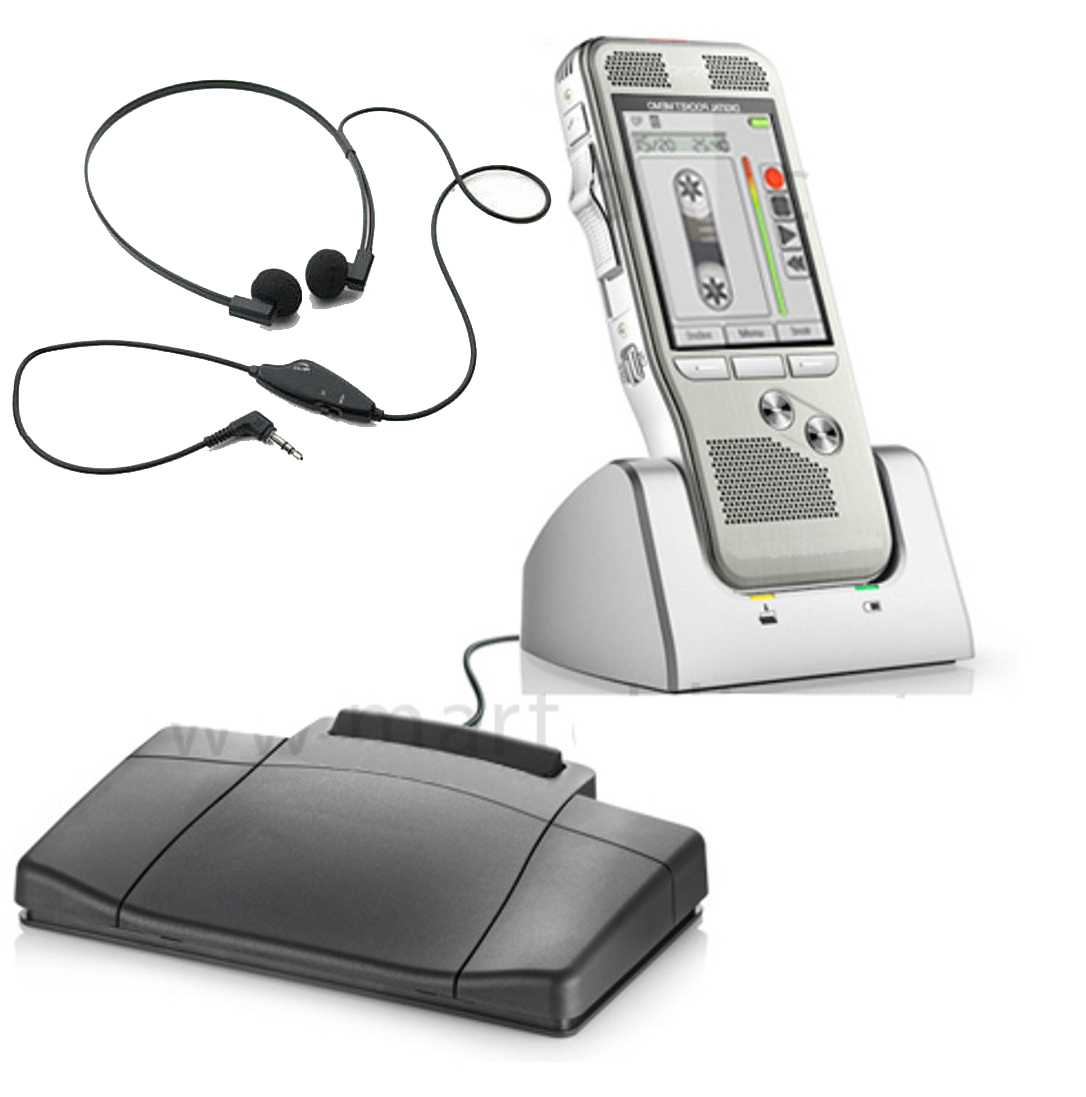
In the Martel Court Reporter 5000 Recorder and Transcriber package, SKU 1491, a reporter can use recorder, cradle, headset and foot pedal for the basic desktop playback workflow. A file reviewed there follows the recorder setup. At another desk, the Martel All N One Digital Transcriber, SKU 1040, uses its transcription application, USB pedal and headset on a compatible Windows computer. A pedal in either setup controls playback functions supported by that setup. Pressing it cannot prove that both speakers are present on the source recording.
Use an invented exchange made through the recorder in its actual job configuration. Hear the speaker correction through the first desk. Then provide a compatible copy for the Windows transcription desk and ask the scopist to find the correction using the usual pedal and player. Write down where the sound appears on each side and which words survive. If the cradle gives both required voices and the PC setup loses one, check the file selection, format support and playback routing on the PC. If both lose the same words, inspect the original recording before changing the pedal.
Decide where any adjustment will live. One scopist may prefer a local software or accessibility setting, while the original recorder and its source file stay as captured. Another may need to inspect separately recorded tracks in an appropriate player. A shared note should say which approach was used and how to return to the source arrangement. Delivering a new file that has permanently combined the channels is a separate decision requiring the ordinary authorization and verification for that workflow.