TIME IS RUNNING OUT FOR 2026 TAX WRITE-OFFS

Should a Court Reporter Monitor Through the Microphone’s Headphone Jack or the Laptop?

Choose a listening point for live testimony, CAT playback and remote voices. Compare the USB Miracle Mic and HGM-USB and verify what each path sends to the file.
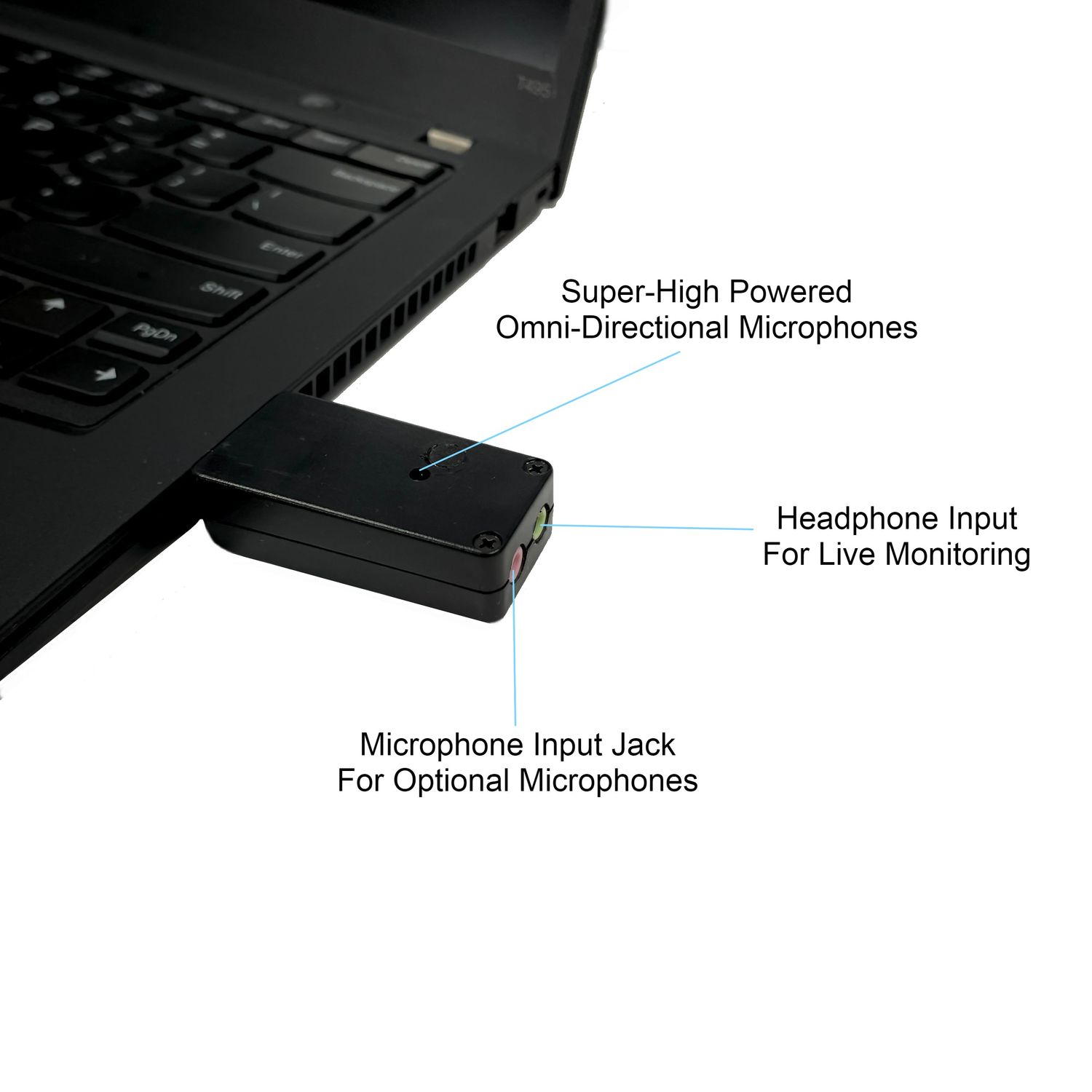
USB Miracle Mic plugged into a laptop, with labels for its headphone and additional microphone connections
USB Miracle Mic for court reporters. View Martel’s product details for SKU 995.

Choose the listening point according to what you need to hear. To listen closely to people speaking around a table, the USB Miracle Mic, SKU 995, has a documented live headphone connection on the microphone. The HGM-USB Elite, SKU 1277, provides live headphone monitoring in its USB computer setup. To check a recording that already exists, open the job or file and listen through the output used by its player. A headset can serve all three activities at different times. The place where its plug happens to fit gives only part of the answer.

Start with a sentence naming the sound you want

A reporter sitting at a deposition can mean at least three things by “I want to monitor the audio.” One wish is to hear a quiet witness more clearly while writing. Another is to detect whether audio is reaching the computer that is supposed to record it. A third is to hear the remote examiner arriving through a meeting headset. Write down which of those sounds matters now. Someone asking for louder local speech can have a very different purchasing need from someone whose local speech is fine but whose remote examiner disappears during CAT playback.

Consider a practice tabletop populated by three invented participants. Reed asks the question from the near seat, Vale answers from across the table and Lu appears on a video meeting. Reed and Vale produce sound in the room. Lu’s voice reaches the meeting computer through the call. If the reporter chooses headphones instead of room speakers for the meeting, a room microphone can still receive Reed and Vale. The setup must have a way to reach the meeting audio if the saved result also needs Lu. A clear conversation in the reporter’s ears tells you little about which recording path received each source.

Keep the listening goal separate from the file name that will be needed at the end. Write “room speech while I write” on one line and “audio reached from the written CAT text” on another. Add “remote meeting file” only if that is part of the assignment. Test each line explicitly. The person reviewing the setup can then help with one question at a time instead of trying to solve a mysterious complaint that everything sounds fine now and wrong later.

Hear what a local monitoring jack can tell you

The USB Miracle Mic plugs into a computer and provides a headphone jack for live listening at the microphone. Position the unit for the voices you intend to hear, plug the headphones into its documented listening jack and have someone speak from the intended seat. Begin with a comfortable listening volume. A phrase spoken beside the laptop may have a different prominence from the same phrase spoken beside the microphone. Use that difference to understand the view of the room you get at the jack.

The immediate value is that you can hear changes in placement as they happen. Suppose Vale normally speaks toward a pad. Ask Vale to read “the label ends in V as in Victor” while facing that pad, then say a different letter while looking toward counsel. If the first answer is hard to distinguish at the jack, shift the microphone within the permitted table space and ask for the passage again. Once the live sound is workable, record the same exercise in the actual CAT job. On review, the letters should be identifiable from the file as well.

The built-in jack is also a useful point of comparison when recording appears to fail. If you can hear distinct room speech there and the computer’s saved job contains silence, document the fact that speech reached that local listening point. Go to the USB connection, the input chosen by the computer application and the way the job was recorded. If even the local listener cannot distinguish the answer, look first at the person’s position, surrounding noise and the local listening controls. Keep the local and recorded observations in their own sentences when reporting the result.

Understand the Elite HGM-USB computer setup

The Elite HGM-USB uses USB power from the computer and supports live listening in the supplied USB audio workflow. Martel’s page illustrates the microphone and headphone connections in its interface. On your actual kit, identify the interface, the microphone connection, the listening connection and the single route into the computer. The Martel category recognizes it as a laptop microphone with monitoring. This description should not be read as a promise that any headphone socket on a different laptop or adapter will automatically carry the same live audio.

Start an exercise with the HGM-USB as the intended room input. Find the device in Windows and select it in the recording application. Have a helper speak beside the microphone while a second person remains near the laptop. Listen in the supported monitoring arrangement and look for the expected response at the host. Then save the job, stop the live room exercise and replay the take. If the loudest voice in the saved file belongs to the person beside the built-in laptop microphone, the physical presence of the HGM-USB has not answered the device-selection question.

For an agency moving the kit between machines, make a small drawing showing the exact listening point used during a successful practice. Include the input name displayed in the working application and the output chosen to play the saved job. The next reporter can take the kit to a loaner laptop and identify what changed. “Headphones in the reporting computer” can mean the laptop’s own jack, a separate USB headset or the HGM-USB interface. Label the actual connection and the purpose for which you tested it.

Trace local speech and remote speech separately

An entirely local deposition is a sensible starting exercise. Leave the meeting disconnected and have two speakers read a short exchange. Mark where each sat and write an identifiable phrase in CAT. Listen live through the intended monitor. Now stop the practice and open the saved record at the written phrase. If both voices are recoverable, the local test has produced evidence about that specific application, microphone and room. You can introduce the remote connection afterward without losing track of the result you already have.

For the remote exercise, put the meeting on the computer and headset you actually plan to use. Ask the remote helper to read “the parcel is on level eight” while the room remains quiet. Then let a local helper say “I collected it at level three.” Note which listener hears the two phrases in the moment and which saved file contains each. If the remote participant reaches the meeting headphones but not the room microphone file, the two observations are compatible. The meeting listener had a source the room microphone did not necessarily receive.

Use a second recorder only if your plan includes a supported connection for the sounds it is expected to capture. Placing a recorder next to a laptop whose meeting stays entirely in personal headphones can be a poor test of remote audio. Label the practice results as room, meeting or both, and identify the device on which each result was saved. A relief reporter can read those labels and know where to look for the examiner’s words even when the microphones and computers all occupy the same end of the table.

Avoid listening to two copies of the same voice

If a speaker seems to have an echo in your headphones, ask what is reaching those headphones. You might be hearing natural room speech around the earpieces plus a monitored version of that speech. Your setup might also be sending one microphone to two listening routes that arrive at different times. A feature that sends computer input back to an output can change the experience. Check the controls you actually enabled. Do not assume that an echo heard by the reporter was also recorded at the same level or at the same point.

Use an invented sequence like “amber, pause, silver” in a quiet room. First listen through the supported microphone monitor with a separate software return turned off if you had deliberately enabled one. Then compare the computer listening route you intend to use for the job. Save a short practice recording in each configuration and play it once with the live feeds quiet. If double speech was present only while listening live, record that outcome. If the saved recording includes two copies of each word, inspect what the recording application was actually receiving.

Keep the exercise at a comfortable volume. There is no reason to keep increasing one monitor while another copy of the same voice is already present. In a live proceeding, an intrusive echo can distract a reporter even when the saved take is usable. A stronger practice result is a listening arrangement the reporter can use naturally and a saved file that another listener can understand. Those two conditions can be checked with the same fictional phrase but should be judged separately.

Decide which control to adjust

A headphone control affects what the reporter hears at a particular output. A microphone input setting affects what the recording program receives, subject to the design of the device and software. A playback slider affects the sound made from a previously saved file. The labels in your equipment instructions tell you what each available control does. Photograph or note the starting positions during a rehearsal so one adjustment can be reversed. It is much easier to explain the effect of a single change when the original arrangement is documented.

A practical exercise uses one fixed saved sample and one live speaker. Open the sample and change the player’s playback volume. The original words in the stored file remain the reference. Stop playback and have the helper speak the same passage into the room microphone. Change the supported listening control and note whether the live listening experience improves. If the saved new take is genuinely too quiet, inspect input placement and recording controls in a separate pass. This short exercise teaches the reporter which control is useful for which problem.

For a quiet witness, try placement before assuming the recording level needs a large increase. If the microphone hears an attorney sitting very close as well as a soft witness farther away, raising the input can also raise the near voice and surrounding noise. Use a recording that includes both a soft answer and an ordinary follow-up question. Adjust one control at a time and listen to both passages. The listening level you choose for your own comfort does not have to become a master instruction for every other person who plays the file.

Check the transition from writing to readback

Imagine that Lu asks for a phrase to be read back during a rehearsal. The reporter has been listening live at the Miracle Mic and now wants to hear the CAT recording from a point in the written notes. The first practical question is which output the CAT player uses. Some setups can return computer playback through a connected audio device. Others are configured to speakers or a separate headset. Check the actual selection and avoid publicly playing sound that should be reviewed privately. Use approved procedures for the real assignment.

A useful practice starts with Reed saying “cedar, row seventeen.” After writing it, ask Reed to remain quiet. Select the words from the practice job and play the associated audio through the intended private output. If the reporter hears the phrase at that moment, it came from the saved or associated job playback under test. If the room suddenly hears it from the computer, identify the output selected before repeating. Make a note of the physical jack used for local live listening and the physical device that played this passage.

After readback practice, return to writing and ask Vale to give a different row number. Later, reopen the complete job and find both numbers in order. This final transition can expose an application paused for review, a recording setting changed during troubleshooting or headphones left on a source that no longer serves the live task. An operator who has rehearsed moving into playback and returning to writing has learned more than someone who only checked that a voice was audible at startup.
Choose the microphone around the way you work

Bring three decisions to a microphone purchase. First, identify the source you need to hear immediately. Second, name the device and application where the job must be saved. Third, describe what another person will need when they open that recording later. For local live speech at a dedicated microphone jack plus laptop recording, the USB Miracle Mic is a documented option. Its expansion input can take compatible Audio Grabber microphones when more pickup positions are needed. Its published expansion support applies to the specified arrangement.

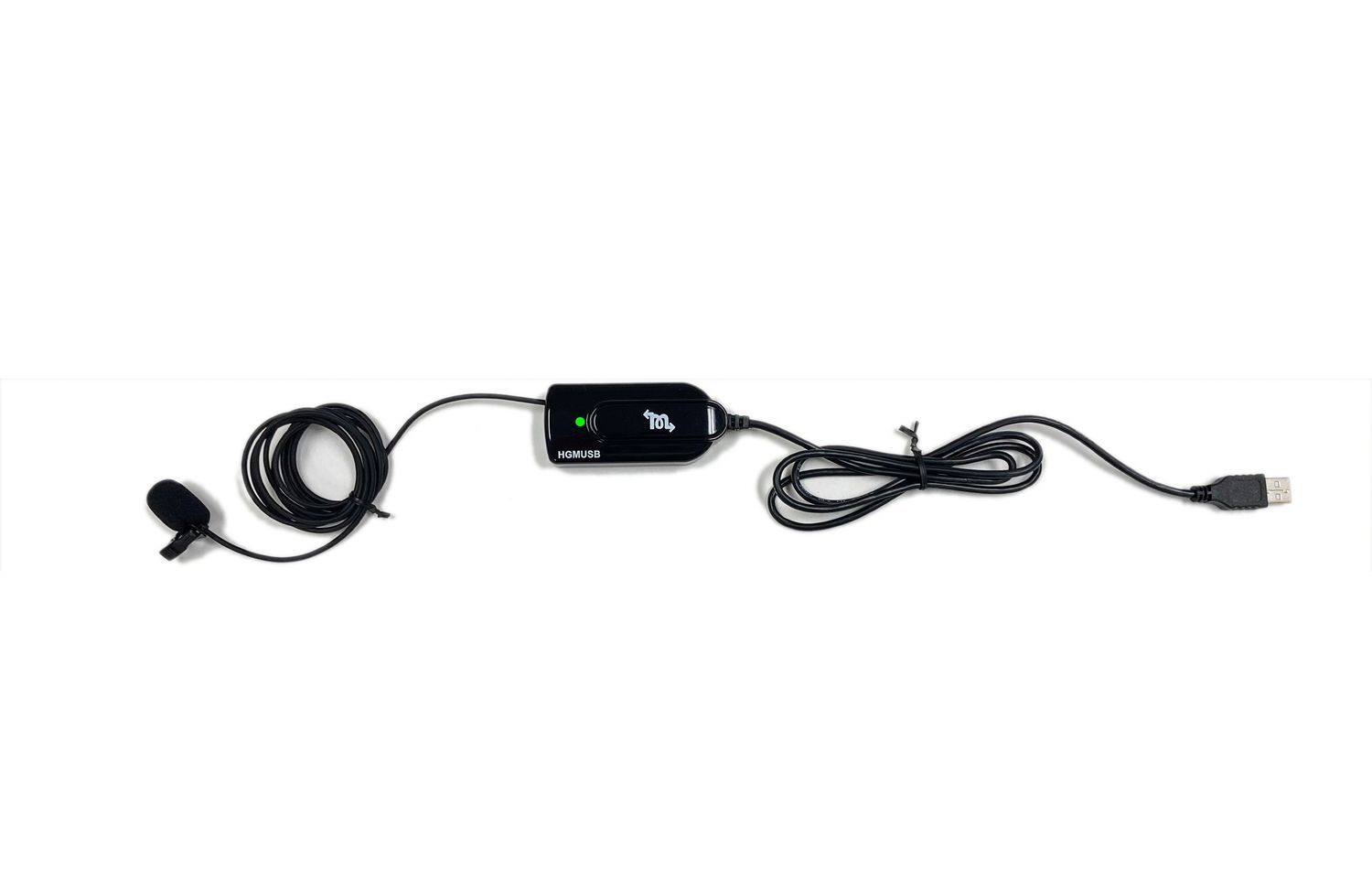
For a standard USB court reporting microphone and live listening in the computer workflow, compare the Elite HGM-USB. Check how the supplied interface and headphones would sit beside your own writer and laptop. Ask how you would hear a saved demonstration as well as how you would listen during writing. In a cramped room, the practical distance between your head and a device at the center of the table can matter as much as the feature description. Try the hearing position with the papers, keyboard and chair actually in use.

Document the choice with the results of the three-speaker practice. It might say that direct listening at the mic assisted with the witness, CAT playback came out of the laptop headset and a separate supported meeting recording supplied the remote examiner. Another reporter may end up with a simpler room-only setup. Either description gives a reviewer concrete facts to check. The buying question then becomes which equipment meets the layout and sources you actually need, with a file the intended listener can retrieve.

Give an unfamiliar desk a three-line listening map

Write “what is heard now,” “what is being recorded” and “where it plays afterward” on an index card. Fill the lines in with device names and actions someone can reproduce. For example, the first line might name the Miracle Mic headphone jack and the witness in the window seat. The second might name the selected USB input in the CAT practice job. The third might name the computer headset and the written line where the practice exchange begins. There is no requirement that the lines name three different pieces of equipment. Their point is to identify three jobs a device may perform.

Try the map with a helper who did not watch setup. Ask them to identify the headphone plug they would use to hear the person at the table right now. Then ask them to find yesterday’s practice answer without turning a live microphone toward a speaker. Finally, ask where a remote helper would be heard during a meeting. The answers reveal practical gaps in a handoff without requiring anyone to guess at your arrangements from one coiled cable. Add a date or equipment version to the note whenever a different laptop or interface changes one of the routes.

Test what the remote participant hears on their end

In a fictional hybrid rehearsal, ask the remote participant to write down the words heard when someone in the local room says “oak drawer seven.” The reporter listens at the chosen monitoring point and notes those same words. Then reverse the exchange by having the remote participant say a different drawer number while the local room stays silent. That produces observations from people at two different ends of the call. Hearing the distant question in the reporter’s headset gives no information about whether the remote participant could hear the response coming from the table.

If the remote participant misses the local answer while the reporter hears it clearly at the microphone jack, inspect the input chosen by the meeting application. If the participant hears the room clearly but the reporter’s final job misses that answer, inspect the CAT recording setup. Each participant can hear what their own connection supplies. The two reports narrow the source of a failure considerably before anyone exchanges the headphones or moves a microphone that was already serving the witness well.

30 questions and answers

1. Which Martel microphone has the headphone jack on the microphone itself?

The USB Miracle Mic, SKU 995, documents a headphone jack for direct live listening to the room. Its product page distinguishes that connection from the additional microphone input used for compatible expansion. Look at the markings on the device and use the correct jack for each cable. Having two ports near each other can create a simple setup error. Once your headphones are connected, practice with a speaker who is sitting where the quiet witness usually sits and listen to their response.

2. How does the Elite HGM-USB monitoring arrangement differ in practice?

The HGM-USB Elite, SKU 1277, supplies USB microphone audio to the computer and supports live listening in that setup. Martel illustrates the microphone and headphone connections on its interface. Identify which supplied part holds the connections in the kit you are buying and how it will reach your working position. Then check your computer’s chosen playback device for the separate task of hearing an edited job. Avoid assuming a driver name or output behavior solely from the word USB on the package.

3. Can I hear a room witness and a remote attorney through the same headset?

That depends on which sources your selected listening arrangement sends to that headset. A meeting headset can receive the remote attorney, while a room microphone monitor can make the local witness prominent. To show that both reach one set of headphones, arrange a test with one person in each location. Ask them to speak different words in turn and document the actual settings. If you also need both in a recording, reopen that particular file and identify both words there.

4. What should I listen for first when I am unfamiliar with a microphone jack?

Ask someone at the expected witness seat to read a short, ordinary sentence involving a number or spelling. Listen for enough detail to repeat the words accurately. The sound of paper or air handling confirms that something is audible but does little to establish the usefulness of speech at that seat. Have the speaker turn toward counsel and repeat a changed number. Record the same exercise in the job after the live listening arrangement is practical and comfortable.

5. Do I have to open CAT software to learn whether Windows recognizes the input?

Windows provides microphone selection and testing in Sound settings. You can identify the intended USB input there and perform the operating system’s test. The next step for a reporting job is separate. Open the actual CAT application, confirm its recording input where a selection is available and write while someone speaks. It is possible for Windows to recognize several working inputs. The rehearsal makes clear which one the job used and where that application stores or associates its audio.

6. How can I tell whether I am hearing live testimony or an old recording?

Use time and words to distinguish them. In practice, ask the person in the room to stay silent while you play a phrase from an earlier named job. Stop the player and have that person say a new word that did not appear in the earlier file. Listen to each at the proposed output. In a working setup, knowing which activity produced each word helps avoid mistaking an open live monitor for successful playback during a readback check.

7. What if I hear a witness naturally even after taking my headphones off?

That is expected whenever the person is audible in the room. Natural hearing can mask a weak or missing electrical listening route. Run a practice at a sensible distance, set the headphones at a comfortable level and compare the two positions without using uncomfortable volume. Better yet, check the recording privately after the speaker stops. Hearing the distinctive witness phrase from a saved take after the room goes quiet establishes something that hearing nearby speech with an earpiece in place cannot.

8. Does a green recording indicator prove my CAT job will play at the right stroke?

An indicator on supported equipment can tell you about its current operating condition. The job association and playback position belong to the recording application or writer. Give a practice line a distinctive phrase, write it, close the job normally and reopen it. Use the text or strokes to reach the phrase. If it appears only in a different file or from a different point in the job, investigate that part of the workflow while retaining the information the indicator supplied.

9. Which control should I use if my previous recording plays too loudly?

Start with the playback volume on the application or selected output device and set a comfortable level. The file already exists. Changing a capture input for the next witness is a different adjustment and cannot rewrite the old take. If you are comparing two practice recordings, establish roughly comparable listening levels before judging clarity. Later, test a fresh recording through your normal capture settings if the original signal itself seems distorted or difficult to recover at any listening level.

10. What does an echo in the reporter’s headphones tell the scopist?

By itself, it tells the scopist how the reporter heard that moment live. It does not establish the content of the scopist’s copy. Use an invented line with a clear pause, stop recording and listen to the finished file at the scopist’s desk. A single clean delivery there points the next investigation toward the reporter’s live listening routes. A doubled delivery in the actual file calls for tracing overlapping inputs or returns that fed the recording.

11. Can changing the meeting speakers to headphones alter which remote voices the room mic hears?

Yes. A microphone in the room can hear sound that comes from the computer speakers into the room. Moving the meeting output into personal headphones changes that acoustic path. Verify the intended digital or other supported route for the remote voices if those voices must be present in the saved recording. Use a remote-only phrase followed by a local-only answer and listen after saving. The meeting may remain perfectly understandable to the reporter throughout the change.

12. Should I listen through a laptop’s built-in speakers while checking a live microphone?

Consider the working environment and the source you are trying to test. If the live input is played into the same room through speakers, some of that output may reach the microphone again. Another person at the table may also hear material that was meant for a private check. Use the intended headphone route for a rehearsal requiring private listening. If you must test the speaker output itself, do it under suitable conditions and listen later to what the recording actually captured.

13. How should I label headphones in a kit shared by several reporters?

Label the purpose along with the physical connection. A compact label such as “local witness monitor at Miracle Mic” or “CAT playback on laptop” is more informative than a tag saying “audio.” If one pair of headphones is moved between listening points, include the steps for the transfer in the practice note. Mention any adapter that was included in the tested setup. A relief reporter should be able to recognize the cable and reproduce the check without knowing who last packed it.

14. What if the microphone is safely positioned but the headphone cord will not reach me?

Measure the actual path the cord must follow around the writer, binders and occupied seats. Look for an arrangement supported by the microphone or computer setup that keeps the listening connection within reach without pulling the room microphone out of place. Ask the supplier about a suitable headphone extension if one is needed. Test that exact cable and plug before the assignment. A layout that works on an empty table may shift the witness microphone as soon as the reporter turns a chair.

15. Could connecting headphones make Windows switch the meeting or editing output?

Check the selected output whenever a new audio device joins the setup. Applications can offer their own output preferences, and the operating system can present several available devices. Rather than guessing what changed, open a known practice recording and identify where it actually plays. Then have a remote helper speak during the test call and identify the meeting output too. The two applications can be inspected separately even if the reporter intends them to use the same headset.

16. How can I avoid choosing the webcam microphone instead of the HGM-USB?

Identify the intended USB device by name in Windows and in the recording application. Position a practice speaker near the HGM-USB with the webcam farther away, then compare a second phrase spoken near the computer. If both devices have similar names, document which entry responds to the intended microphone during a controlled setup. Save and reopen an actual job. The contrast between the two speaking positions can help reveal a wrong selection that a moving meter would overlook.

17. Should the reporter put a different earphone in each ear to compare sources?

That arrangement can make it harder to tell which sound belongs to which source and can complicate ordinary reporting. For diagnosis, listen to one identified route at a time with a comfortable, known working headset. Keep the other sources quiet or stopped during the comparison. Use consecutive practice takes with clearly different words. If a specialized listening setup is needed for an assignment, rehearse it deliberately and verify that the file received by the intended listener contains the required material.

18. Can a USB Miracle Mic expanded with Audio Grabbers give one live feed for each seat?

The product documents an expansion input and support for a compatible Audio Grabber chain. Adding pickup positions helps place microphones nearer to different speakers. It does not by itself establish a separate live headphone source or an individually editable file for every seat. Label the seats in a practice recording and check what the monitoring jack and recording software actually provide. If independent tracks are a requirement, ask for a documented recording arrangement and a sample that demonstrates channel selection.

19. How do I test a quiet speaker without turning up everyone else?

Begin by changing the relationship between the pickup position and the quiet speaker. Use their normal posture and keep the louder questioner at the expected seat. Ask each to supply a number and compare how clearly the present setup captures both. A nearby microphone position or an appropriate additional pickup point may improve the quieter signal. Turning up a headphone output affects whatever is already present in that output. It cannot selectively repair the words of the distant speaker in a saved file.

20. What if the court allows private headphones but controls where microphones can be placed?

Use only the approved pickup position and supported connections, then do as much of the rehearsal as the setting allows. In a practice plan, identify the speaking locations you can check and the listener’s permitted position. If one seat is difficult to hear from the allowed microphone position, document the limitation and follow the setting’s process for addressing it. Moving equipment without authorization can create a new problem for an otherwise functional audio setup. A model’s monitoring feature does not determine where it may be deployed.

21. What should an editor do if the file is silent in one headset but plays through another?

Use the same saved file, passage and playback program for the first comparison. Identify whether the selected output or adapter changed along with the headphones. A successful playback through one route establishes that the file contains audible material at that point. It gives you a reason to investigate the silent headset, its connection or the selected device. Before changing recording settings for tomorrow’s job, try another known file through the same outputs to see whether the problem follows the listening arrangement.

22. Is a local live monitor useful if the job requires no computer audio at all?

It can be, when the equipment and permitted workflow provide the monitoring capability you need. However, the USB models discussed here depend on a computer USB connection, and their product descriptions address computer-based use. A reporter who needs writer-only or recorder-only operation should identify a microphone and monitoring path documented for that receiving device. Describe whether the actual need is help hearing the room live, an audio file linked to writing or both. Those requirements lead to better equipment questions.

23. Should the meeting volume go up if the remote examiner is much quieter than the local witness?

First identify where the imbalance occurs. If the remote examiner is quiet at the reporter’s meeting headset, inspect that meeting playback and confirm the remote participant’s normal audio. If the headset sounds balanced but the saved file favors the local witness, inspect the routes entering the actual recording. Raising a meeting listening level may help the reporter hear while leaving a separate recording path unchanged. Use a local and a remote practice figure to compare the two results.

24. How do two reporters share one practice result without borrowing each other’s headphones?

Give the second reporter an authorized copy of the practice recording and the two invented phrases to locate, or ask them to report the words they hear before seeing the script. Have them use their normal editing workstation and headphones. Then compare their result with what the first reporter heard live. Agreement on the recorded words across desks is useful evidence about the file. Different listening preferences or playback volume settings can coexist with both reporters identifying the same testimony.

25. Why test with the meeting closed after the practice job ends?

Closing or quieting the meeting helps distinguish recorded playback from something the remote participant is still saying. Have the remote helper speak an unlikely fictional reference while the local room is quiet. After saving, play from the job with no active meeting speech. If you hear that reference, the chosen recording contains it. An open call can otherwise make a live remote response sound as if it came from the saved job, especially when both use the same headphones.

26. How should a reporter check the return from a lunch break?

Identify any connection that moved. The headphones may have been unplugged, the USB device may have changed ports or the meeting may have rejoined on another computer. In the permitted setup period, listen to a current local phrase and verify a distinct remote phrase if needed. Confirm the intended recording program is active again. Once feasible, retrieve its post-break practice result. A morning listening map is a reference for the setup, while the new check tells you how the equipment is assembled now.

27. What should I ask Martel before ordering either USB model for a loaner laptop?

Give the laptop model and USB connection, the installed Windows and CAT setup and the exact places from which you need to hear sound. Mention whether a remote meeting runs on the same machine and what file the scopist expects. Ask to identify both the live monitoring connection and the output for saved playback in the proposed setup. A product recommendation is easier to evaluate when it can be matched to these concrete source, destination and listening requirements.

28. How can I keep the card listing the listening routes short enough to use?

Limit it to the equipment actually packed for that assignment. For each route, record one physical connection, one selected device or program, and one way to hear a known phrase. For example, write which jack carries the local witness, which input CAT records, and which headset or speakers play the saved practice job. Keep a separate version for a two-computer remote setup. A single note covering every configuration in an agency can be harder to use than a few verified arrangements.

29. When should I choose monitoring at the microphone for the first rehearsal?

Choose it when the immediate question is whether the microphone position gives you intelligible room speech while you write. The Miracle Mic’s documented local headphone connection makes that particular observation available. Test the distant, quieter answer as well as the nearby question, and check comfort where you actually sit. Follow the live trial with a saved job played through the intended editor. That second part tells you whether the equipment meets the complete recording need you described before buying.

30. When should I start the test at the laptop instead?

Start there when the difficulty involves a file, an application’s chosen input or the output used by a meeting or CAT player. Open a known recording to establish what the computer can play. Then create a new job through the specified USB microphone and compare the saved result. If live listening is also needed, add the documented monitor route and test it after the computer path is understood. This order makes sense when local speech sounds fine at the table but review repeatedly fails.

Martel equipment and related guides

USB Miracle Mic for court reporters · SKU 995

HGM-USB microphone with its USB interface and connecting cables
Elite Court Reporter USB Microphone HGM-USB. View Martel’s product details for SKU 1277.

Elite Court Reporter USB Microphone HGM-USB · SKU 1277

This article is for educational purposes only.