Did Connecting a Webcam Change the Microphone for Your Zoom Deposition?
Use paired rehearsal clips to identify whether a webcam changed the selected Zoom microphone, the Windows input or the court reporter’s locally saved audio.
A new webcam can give counsel a better view and introduce another microphone at the same moment. The useful question for a court reporter is whether that extra input changed what the meeting sends, what the reporting program saves, or both. Make two short rehearsal recordings with different spoken labels. Keep the room microphone in place for both. Connect the webcam between the clips, check the selected input names, and ask a remote practice listener to identify a phrase from the far side of the table. Then reopen the local recording and do the same comparison. Those observations let you keep the camera angle you want while restoring the audio path that actually changed.
Identify the three decisions involved in a webcam change
The meeting application chooses a microphone to transmit. Windows has a sound input selection and lists the input devices it recognizes. Your reporting program or other local recording application may have its own source setting. Those decisions can agree, or one can change independently of the others. A webcam preview establishes which device supplies video. It gives you no reliable evidence about which microphone the meeting chose or whether your locally saved file hears the room. Write the desired camera and desired microphone on separate lines before you connect anything.
Give the destinations names based on what someone actually needs to do. “Remote counsel hears the table” is a different destination from “the scopist can hear the witness in the reporter’s saved audio.” Add a third entry if a separate approved backup recorder is part of the setup. A stand-alone recorder might sit in the same room while having no connection to the laptop’s webcam choices. Include it only if it is part of the question you are testing. More clips without identified destinations create more opportunities to compare the wrong things.
A checkout of camera and microphone together is usually faster than guessing after a bad test. A remote volunteer can confirm that the camera shows the correct angle, then turn their attention to the audio phrases. Tell them which details to listen for without telling them what those details should be. The local reporter can inspect input names while recording with the software that will actually be used. That division of labor keeps the remote return and the local saved result separate.
Get the original setup on paper before touching a cable
With the webcam disconnected, open the meeting’s audio settings and copy the active microphone name exactly as displayed. If the setting follows the system input, write that wording too. In Windows 11 open the sound settings and identify the selected input under Input. In the reporting program find its audio source if the program exposes one. Write whether the application follows Windows, uses a named device, or leaves its selection unclear. If a device name is truncated, expand its menu during rehearsal and use the visible distinguishing portion.
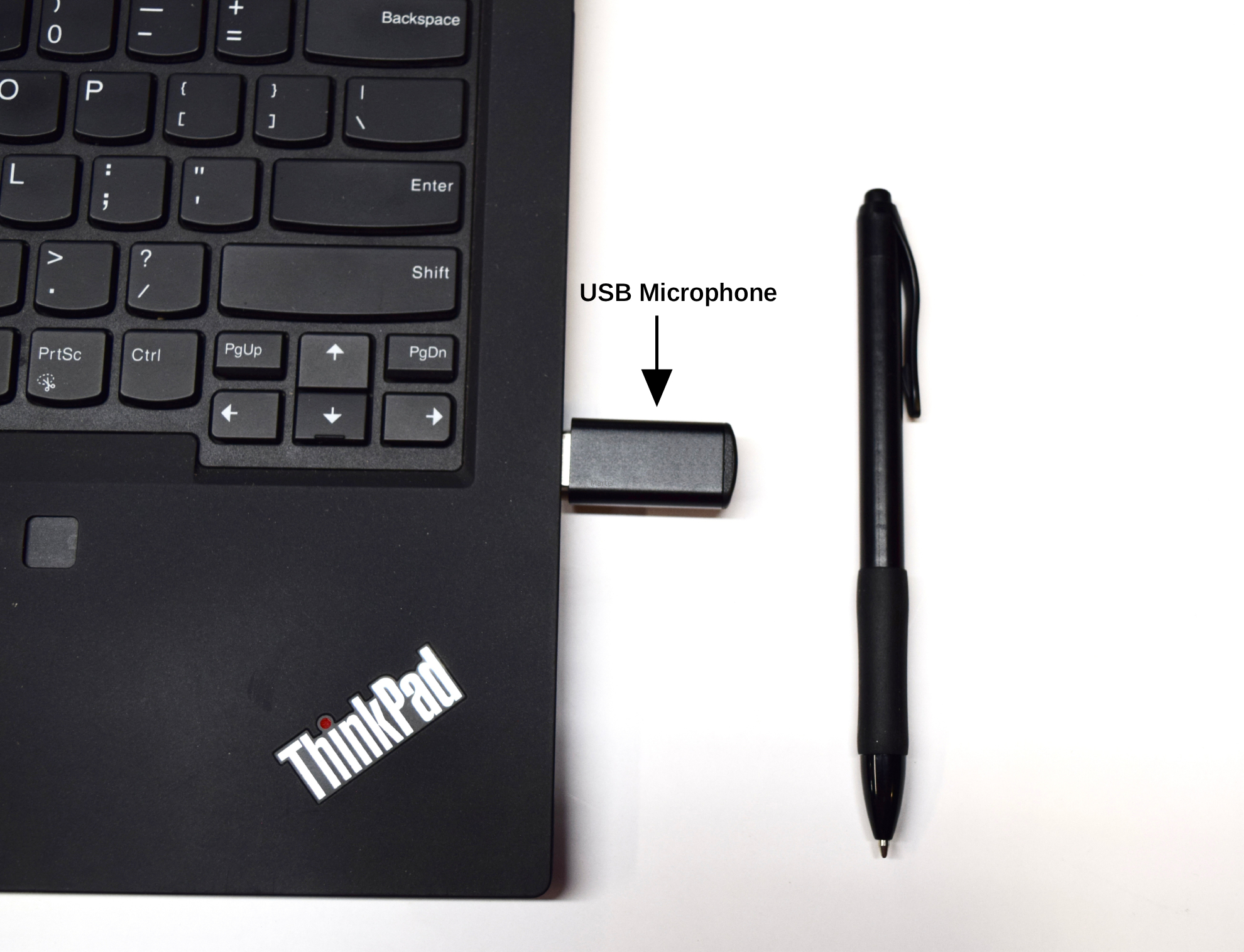
Add enough physical detail to reconstruct the setup. Note whether the room microphone connects directly to the computer, through a dock, or through a USB adapter. Which socket receives the camera? Is the laptop lid open, and is an external display being used? A monitor or dock may present additional devices. Take this inventory while everything works so a later list of generic “USB Audio” entries has some context. If taking a settings screenshot, use a practice session with public-facing names and no sensitive meeting details.
Get a control recording first. Place the questioner where counsel normally sits and ask for a complete sentence with a color, number or unfamiliar surname chosen for the test. Then have someone speak from next to the laptop. Do not move the physical room microphone yet. A clip that already muffles the far phrase before the webcam appears points to a pre-existing issue. The camera connection may be coincidental, especially if several staff members rearranged the table at the same time.
Design two sound sources that distinguish the microphone positions
Give each practice position a distinct name. The person near the room microphone might say, “Table position, copper ticket twenty-three.” The person near the webcam might say, “Camera position, yellow folder seven.” Speak one at a time at ordinary conversation levels. If the camera is mounted on the same laptop that holds a built-in microphone, those two nearby sources can sound similar. Put the room pickup far enough away during rehearsal to create a useful contrast. A physical move for the test should remain practical in the intended room.
Avoid tapping the microphone grille or striking equipment to find out what is live. The sound can travel along a tabletop or cable to whichever microphone is active. It tells you little about the speech a reporter needs to record and can be startling to anyone monitoring. Instead, have the far participant turn slightly away to read a number from a page while the near participant speaks from their usual seat. Listen for which person remains intelligible and whether either phrase has a strong sense of the room around it.
Use a different secret detail for the second clip to limit memory effects. Give each participant a card or let them choose their own harmless phrase and write it down privately. The listener reports what arrived before seeing those cards. This lets you distinguish a real improvement from a listener correctly guessing a repeated phrase. Keep the order of speakers constant between tests and note if the camera move changed which way anyone faced.
Make the webcam connection the only deliberate change
Finish the prepared baseline clip and give it an unmistakable name such as “Practice A before webcam.” Leave the room microphone, dock, computer power, headphones, meeting session and input settings alone. Plug the webcam into the port you intend to use for depositions. Allow the normal device list to settle and write any visible change before selecting anything. A camera image may become available while the original audio device stays selected. Documenting that outcome is just as helpful as catching an unwanted switch.
Check the active meeting microphone again without assuming that the newest device won. A setting pinned to a named USB mic can behave differently from an option that follows the computer’s active microphone. Applications and software versions use different labels. Read the selected entry rather than relying on its position in a list. Menus may reorder after new hardware appears. Write what changed in the meeting menu, what changed in Windows and what changed in the local software, using separate lines.
Record “Practice B with webcam” and ask the two participants to use their second phrases. Stop and save through the expected route. The remote participant should send their written account of the two details, and the local reviewer should examine the B file independently. If the input names changed but the distant and near results barely differ, the placement may be too similar to distinguish. Widen the practice spacing or rely on an explicit named input combined with a more informative test.
Use Zoom’s microphone test to identify the meeting input
Zoom’s support documentation describes testing a selected microphone and hearing a recorded sample played back. Use that control to check whether your sound reaches the meeting application at all. It can also help you choose between two similar device entries during setup. Pay attention to which output carries the test playback. A microphone that works perfectly can appear silent when the computer sends the return to a disconnected monitor or a muted headset. Settle that question with the speaker test before increasing microphone gain.
Run the test with a person near the room pickup while the laptop operator stays quiet. Invite the person to spell a harmless two-syllable practice name, give a number, or identify a colored object in the room. If the recorded sample sounds distant, select the intended input and repeat using fresh text. Use a remote test meeting for the next step when the proceeding depends on what another participant can hear. The built-in sample exercises Zoom’s selected local mic. It does not tell you what the reporting program wrote into a job.
Check your mute state when interpreting results. A selected and functioning microphone can be muted during a meeting. A local test can succeed while a particular live meeting receives nothing. Establish whether the remote listener is receiving your side at all, then compare clarity. Have the practice partner listen through headphones or from another room so they cannot hear the test directly through an open door. Physical leakage can produce a confident but misleading report that both phrases were audible remotely.
Check what the Windows input settings prove
Windows 11 sound settings list recording inputs and provide a microphone test for supported devices. Microsoft describes choosing an input in the Input area and testing it at a normal speaking level. Use this to establish that the operating system sees the intended room microphone and receives a signal. It is especially helpful when the meeting shows several variations of a manufacturer name. Write down the device Windows tested and the source position that produced the signal.
A positive Windows test says little about an application explicitly set to a different source. Return to the meeting menu and the reporting program once the operating system responds correctly. If the desired microphone appears in Windows but is absent from an application, save and close your rehearsal files before relaunching that one application. Test again in the order in which equipment will actually be connected. Avoid changing every application’s permissions or resetting the entire audio configuration while you still have a working baseline.
Windows may also list a monitor’s audio output or the headset you use for playback. Keep the language on your notes precise. Input tells the software where the room speech comes from. Output tells the software where to play remote counsel or a test clip. Switching the headphones can fix a missing return without fixing a bad microphone. If the operator is both listening and recording, write their intended input and output under separate headings and check one at a time.
Find the source used by the local recording
Open the rehearsal job in the reporting or recording application, and find the microphone selection offered by that application or its documented capture workflow. Some programs display the hardware name while others rely on the operating system. If the choice is unclear, treat the saved file as the deciding test and consult the application’s current instructions before promising any specific routing behavior. A meeting actually sounding clear through your headphones can coexist with a local file containing only the webcam or laptop microphone.
Create two separate job segments or two clearly labeled files using normal training procedures. Note the first test phrase just as you would note a key moment for later playback. Close and reopen the file in the program a scopist will use. Seek to the distant voice, then to the near one. Have a colleague identify which details survived without watching the video. A picture of the speaker can make a faint word easier to guess without improving the sound in the saved recording.
If the local file is clear and remote counsel reports muffled speech, focus on the meeting’s selected microphone and outgoing path. If the reverse is true, turn to the local program and its input. If both are poor, examine the common parts of the chain, including any disconnected room microphone. Before attributing either failure to the webcam, check that the original selected device is still available after the connection. A dock that no longer supplies the room input presents a different problem from a meeting that merely picked the wrong available microphone.