Body Cameras for Security Guards: Buying Guide
Evaluate body camera equipment for security teams. Plan mounting, audio tests, charging, downloads, local storage and staff recording routines.
Create a reviewed transcript of your own YouTube video. Work from source files, check captions, use foot-pedal playback and prepare publishable text.
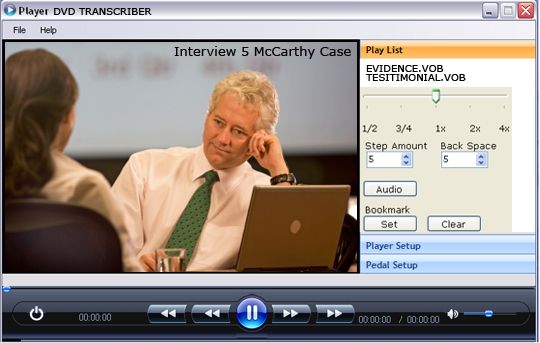
Transcribing your own YouTube videos starts with a simple advantage: you control the source. You may have the original export, the production script, the guest names, and the terminology used on screen. Those materials can make review easier, but they do not remove the need to listen. The published video may differ from the script, and automatic captions can contain plausible words that were never spoken.
Decide whether you need a readable transcript, synchronized captions, or both. A transcript is a text document readers can search and scan. Captions appear at specific times during playback. They can share reviewed wording, but captions also require timing and readable segmentation. A page of accurate text is not automatically a finished caption track.
This guide explains a practical workflow for videos you own or are authorized to manage. It uses Martel's manual audio-and-video playback kit as an option for close review of supported local files. The examples are original and do not claim that Martel software downloads YouTube links, automatically writes transcripts, or exports captions. YouTube's current official help pages provide the platform-specific references at the end.
Use the final exported video that matches the published edit. Check the opening, main content, and ending. If the video was trimmed or altered after upload, establish whether your local file still matches it. A transcript prepared against an earlier version can include deleted speech or use timestamps that no longer align with the audience's video.
Record the video title, local filename, duration, and the version used for review. A simple production note is enough for many creators. The purpose is to avoid confusion when several exports have similar names or when an editor sends a replacement file after transcription has begun.
Prefer your retained production export for local playback. If you need to retrieve your own upload, use the options available through your authorized YouTube account and the platform's official guidance. A public watch link is not the same thing as a local video file supported by a transcription player.
Keep the source separate from working caption and transcript files. A readable transcript, a timed caption file, and an edited promotional excerpt are different outputs. Give each a clear name that ties it to the source video. This makes later corrections easier and reduces the chance of uploading a caption track from the wrong revision.
Captions represent relevant audio information in synchrony with the video. A transcript presents that information as a continuous text resource. Translated subtitles involve an additional language task. A summary condenses the main ideas and normally omits most wording. These outputs answer different audience needs and should be labeled clearly.
For an original example, imagine a video showing how to organize a community workshop's tool cabinet. The transcript would include the presenter's explanation. Captions would divide that explanation into timed segments. A summary might list the storage principles. A translated subtitle track would require translation as well as review of timing and meaning.
The visual demonstration may contain information that the speech does not state. A presenter saying “put this here” gives little meaning to a reader without the picture. If a descriptive transcript is needed, add a checked description of the essential visual action in a distinguishable form. Do not invent details from an audio-only source.
Choose the outputs before doing detailed work. Reviewed transcript wording can support caption production, but the caption editor still needs timing checks. A summary written for a description box cannot serve as an exact transcript without returning to the recording. Planning the difference prevents duplicate effort later.
YouTube can generate automatic captions for supported circumstances, but its official guidance warns that recognition can misrepresent speech. Accents, pronunciation, background sound, and overlapping voices can affect the result. Availability and processing time also vary. Do not treat the presence of a caption track as evidence that the words have been checked.
Review the beginning as carefully as the main presentation. Introductions often contain names, organization titles, or product terms that deserve close attention. Short greetings can also be assigned to the wrong voice when several people begin together. The easiest-looking portion of a video is not necessarily error free.
Compare the draft with the actual audio, not only with your memory of filming. Creators often know what they intended to say and can overlook a different delivered phrase. A script or outline can guide terminology checks, but the source establishes the recorded wording. Where the public text intentionally corrects or clarifies speech, make that editorial decision explicit.
If automatic captions are unavailable or unsuitable, manual preparation remains an option. YouTube's official help describes several ways to add captions, including file upload and text-based workflows. Choose the method available for the video and language, then verify the saved result rather than assuming a particular option appears identically in every account.
For a short clip, the platform's editor may be enough. For longer interviews, tutorials, or a recurring production schedule, local playback with convenient controls can make repeated listening easier. A foot pedal lets the reviewer pause and revisit passages while the hands remain available for typing and correction.
The Martel All N One Audio and Video Transcription Kit combines Windows playback software, a USB foot pedal, and an ultralight headset. The current product page lists two software licenses and support for specified audio and video formats. Confirm the representative file and codec before making the workflow depend on it.
The kit supports manual transcription of supported files. It should not be described as automatically opening every YouTube watch URL, generating speech-to-text, or producing a finished caption file. The reviewer listens and prepares text in a separate application, then uses the appropriate publishing tools for captions or a transcript page.
Test the full Windows 11 arrangement with a non-sensitive source: video playback, audio output, pedal actions, and the preferred typing application. Check whether the picture is visible at a useful size when visual context matters. Adjust playback speed and back-step for review without assuming that maximum slowing is always the clearest way to hear a phrase.
Collect the correct spelling of names, products, places, and technical terms used in the video. Include the exact labels visible on important controls or diagrams. A creator's own production notes can be a strong reference, especially when the video contains specialized vocabulary that an automatic caption system may not recognize.
Keep spelling reference separate from transcription evidence. A product label can tell you how a name is written, but it does not prove that the presenter used that name in every sentence. Listen to the passage before replacing a word simply because a familiar term appears on your list.
Check numbers and units deliberately. A tutorial might mention dimensions, quantities, durations, or model numbers. An error can remain grammatically plausible while changing the instruction. In the tool-cabinet example, “leave two inches” and “leave ten inches” have different meanings even though either could look reasonable in an unchecked draft.
Record unresolved items in a short query list. If a guest's name or an acronym needs confirmation, ask the responsible production contact through the normal workflow. Keep the public text free of placeholders before publication, or use an honest uncertainty notation where the source cannot be resolved and the editorial policy permits it.
Work through the recording in manageable passages. Preserve complete thoughts and speaker turns where possible. Very short fragments can make context difficult to judge, while long stretches can encourage omissions. Use playback controls to return to the start of a phrase when a pause for typing breaks the flow.
Choose an editorial convention for fillers, false starts, and repetitions. A readable transcript may use paragraphing and restrained punctuation without changing the substance. Keep corrections and qualifications that affect meaning. If the presenter says “three shelves—sorry, four,” the transcript should not retain only the abandoned number.
Separate editorial descriptions from spoken text. A bracketed visual note or a clearly labeled editor's note can help readers, but it should not appear as if the presenter said it. This is especially important when a tutorial's picture contains an action that the narration never explains in words.
Keep speaker labels consistent. A video can help identify who is speaking, but a visible face or display name does not always establish the audio source at that instant. Off-camera comments, narration, and inserted clips need their own treatment. Use the source and production context rather than guessing from the most prominent image.
Review negatives, numbers, names, and conditions early. A missing “do not” can reverse an instruction. A dropped phrase such as “only after it cools” can change the sequence. These errors deserve attention before small stylistic preferences about commas or paragraph length.
For the illustrative workshop video, suppose the presenter says, “Keep the spare key in the office, not inside the cabinet.” An unchecked draft that omits “not” tells readers the opposite. The sentence can still look fluent, so proofreading the text alone will not find the problem. It must be compared with the recording.
Look for duplicated or omitted material around edits. A caption draft may repeat a phrase near a cut, while a manual typist may skip a short answer after an interruption. Compare the transitions between segments as well as the centers of long explanations. Edits are places where an apparently continuous conversation can be easy to misread.
After correcting the words, review the paragraph in context. Confirm that speaker labels and punctuation still fit. A local change can alter the relationship between two sentences. The final transcript should be both faithful to the source and understandable as a document, without silently becoming a rewritten tutorial.
Speech is not always the only information needed to understand a video. A timer sounding, a crowd responding, or a musical transition may explain what happens next. A descriptive transcript may also need important visual information. W3C's media guidance explains these distinct access needs and encourages planning them with the content.
Use descriptions that are supported and useful. “Timer beeps” may help when the presenter immediately stops an activity. A detailed account of every background sound may distract from the instruction. The right level depends on the purpose of the text and the information the audience needs to understand the content.
When describing a visual action, check the actual frame or sequence. Do not infer the location of a control from the spoken phrase “over here.” If the important information is a value shown on screen, verify the value and its context. A mistaken visual description can be as misleading as a misheard word.
Keep accessibility work distinct from an unsupported guarantee of compliance. A reviewed transcript and captions can be valuable components, but the video's complete access requirements depend on its content and applicable standards or policies. Use the relevant official guidance and your organization's process for the actual publication.
Once the wording is checked, divide it into caption segments that can be read during the corresponding speech. Timing is a separate review task. A segment can contain the right words but appear too early, disappear too quickly, or remain over a different speaker's statement. Watch the captioned video to evaluate the result.
Keep phrase boundaries understandable. Avoid splitting a name, number, or short logical unit in a way that makes the meaning hard to follow. Segment length and reading time should fit the platform and audience. Do not apply a single arbitrary word count to every line without considering the pace of the actual speech.
YouTube's official tools allow creators to edit caption text and timing. Its help also describes uploading supported caption files and using text-based options where available. Follow the controls shown for the selected video and language. The manual transcript remains useful, but it is not a replacement for checking the timed track.
If you use automatic synchronization, inspect the result. Synchronization can save effort, but it does not establish that every segment aligns correctly with pauses, music, or rapid speaker changes. Check the beginning, transitions, difficult passages, and ending, then complete the review coverage required for the publication.
YouTube's current help directs creators to the Subtitles area in YouTube Studio, then to the selected video and language. The available actions can include editing an existing track, duplicating automatic captions for correction, or adding a new track. Read the current controls rather than relying on a remembered layout from an older tutorial.
For an existing automatic track, the official editing guidance describes creating a revised track through the duplicate-and-edit workflow where that option is shown. Correct the text and inspect timing before publishing the revision. Save a copy of your reviewed wording in the production records so it is not available only inside one editing session.
For a prepared caption file, use a supported format and confirm whether it includes timing. YouTube's upload workflow distinguishes timed and untimed content. A transcript with occasional navigation timestamps is not automatically a valid caption file; caption formats use a defined structure and display intervals.
After saving or publishing, return to the actual video and inspect the available caption track. Confirm the language, wording, and alignment. The completion of an upload operation does not prove that the correct file was selected or that the intended track is the one viewers will use.
A transcript timestamp often identifies a single point such as the start of a topic. A caption interval specifies when text begins and ends on screen. These are related but different structures. A list of topic times can help readers navigate, while a caption file needs enough timed segments to accompany the audio.
Use elapsed time from the identified video version unless another basis is required. Do not confuse that with the date and clock time of filming. If a video was shot in the morning, a transcript marker of 00:08:20 still describes eight minutes and twenty seconds into the chosen file, not a morning clock reading.
Recheck timing after edits. Removing a thirty-second introduction can shift every later marker, while an inserted segment can shift only the material after it. Keep the relationship to the source explicit. The Martel timestamp guide explains how to document that basis for manual review.
Do not promise frame-accurate timing from a workflow that only observes whole seconds. Use the precision the actual tool and task support. Extra digits can look technical without making a reference more accurate. The useful measure is whether another reviewer can locate and verify the intended passage.
A separate transcript can help readers scan topics, search terms, and revisit explanations without following the video's playback pace. Place it on a suitable page you control or use the publishing method your project supports. Identify the video and provide a clear link back to it.
Use headings and readable paragraphs instead of exporting caption fragments as a wall of disconnected lines. Remove caption sequence numbers and display timing syntax from the reading version unless they serve a specific purpose. Preserve useful speaker labels and selected navigation markers in a consistent form.
If you add explanatory links or updated information, distinguish those additions from the recorded speech. A resource may have moved since filming, and an editor's note can help readers find it. The transcript should remain understandable to someone comparing it with the video rather than silently presenting a revised version as exact speech.
Check the page on a narrow screen. Long technical terms, URLs, or tables should not force horizontal scrolling across the whole layout. A transcript is a reading product as well as a search resource. Its usefulness depends on clear structure and accurate content, not merely the presence of many words.
Open the video through the normal viewing experience and choose the intended caption language. Check a passage near the start, a speaker change, a technical explanation, and the ending. For a fully reviewed deliverable, inspect the complete track rather than treating a few spot checks as comprehensive verification.
Compare the published captions with the saved reviewed text. Confirm that the correct revision was uploaded and that no formatting artifact changed the wording. If multiple tracks exist, make sure their labels are understandable. A corrected track is less useful if viewers cannot identify it among confusing alternatives.
Test the transcript link and any important reference links. Confirm that they lead to the intended destinations and that the text page identifies the same video version. A strong transcript does not help readers if its link points to an old episode or an inaccessible draft page.
Record publication status in the production note. Distinguish “text reviewed,” “captions timed,” “track published,” and “viewer check completed.” These are separate milestones. A clear status record prevents the team from assuming that a saved draft has already become the public version.
Keep a short list of recurring recognition errors and terminology checks. If the same product name is wrong in several videos, add it to the production reference sheet. If timing repeatedly fails around music, make that transition a deliberate review point. Improve the workflow instead of rediscovering the same issue each week.
When the video changes, update both captions and any separate transcript as necessary. A new introduction, removed section, or revised demonstration can affect wording, timing, and visual descriptions. Keep the source version and change note together so the next reviewer can understand why an update was needed.
For a recurring channel, decide who owns the final viewer check. The editor, caption reviewer, and publisher may be different people. A named responsibility makes it less likely that each assumes someone else inspected the public result. The process should remain simple enough to repeat consistently.
If close listening is the time-consuming step, ask Martel about a supported foot-pedal workstation using your actual files and Windows 11 computer. If the issue is unclear source audio, address recording and microphone placement as well. Playback equipment supports review, while the production process determines what viewers ultimately receive.
Begin with the final video that the audience will see. Use the script as a spelling and context reference, then compare it with the delivered speech. Presenters improvise and editors remove material. A script can be useful without being a transcript, and the distinction should remain clear throughout the production process.
Use the export that matches the published edit and record its version. Check the opening and ending as well as the main content. Similar filenames can conceal different cuts. If the video changes after upload, determine whether the local source still matches before relying on it for wording, timing, or visual descriptions.
No. A web link and a supported local recording are different inputs. The Martel kit described here is used with supported files; universal playback of watch URLs is not an established capability. Retain your original export or use the options available through your authorized account when retrieving your own uploaded material.
They should be treated as a draft requiring review. Recognition can produce plausible substitutions, omit short words, or handle speaker changes incorrectly. Compare the text with the actual audio, especially names, numbers, and qualifications. The presence of a caption track does not establish that anyone has checked its accuracy or completeness.
They often remember what they intended to say and mentally substitute that wording while reading. Reviewing against the source helps separate intention from the recording. Use the production materials for reference, but listen to the passage before accepting a correction. A second reviewer can be useful for difficult or consequential wording.
Use an appropriate manual or file-based workflow available for the video and language. YouTube's official help describes several caption-creation methods. Prepare reviewed wording, establish timing, and inspect the published result. Do not assume that every account or video will present the same options or complete automatic processing on the same schedule.
It places common supported playback actions under the feet while the hands remain available for typing. This can make repeated pauses and replays easier to manage during long reviews. The pedal does not decide the wording or create captions by itself. Its usefulness depends on a compatible software-and-hardware setup and a clear review method.
The kit described in this article supports manual playback and transcription of supported files. The person listens and prepares the text in a separate application. Automatic speech recognition, YouTube downloading, and finished caption export should not be inferred from the product name. Confirm any specific required capability against current product information before purchasing.
The current Martel listing describes Windows software with two licenses, a USB foot pedal, and an ultralight headset. It also lists playback controls and supported formats. Review the current page and confirm the actual file and computer configuration. Package contents and compatibility should be established from the product, not assumed from another kit.
Yes. The container extension alone does not describe every codec or encoding detail. Test the type of export your production process actually creates. A short non-sensitive sample can reveal playback or control issues before the full transcript depends on the workstation. Keep the original source intact if a working export is needed.
Prepare a reference list from your own confirmed production materials and inspect the relevant speech. Use the list to resolve spelling, not to overwrite the recording with expected vocabulary. A familiar product name may be plausible without being the word spoken in that particular sentence. Mark unresolved items for review rather than guessing.
Missing negatives, altered numbers, omitted conditions, and dropped self-corrections can all matter. “Do not connect” differs from “connect,” and an incorrect measurement can change an instruction. These errors may look grammatically normal. Review them against the source before spending time on minor stylistic polishing or decorative formatting.
Use the agreed editorial convention. Some repetitions are incidental, while others signal emphasis, correction, or a change of thought. Preserve substantive meaning and avoid silently rewriting the presenter. If the text becomes an adapted tutorial rather than a transcript, label it accordingly so readers understand its relationship to the recorded speech.
You can include clearly identified editorial or descriptive material when the publication requires it. Keep it distinguishable from speech and verify it. A helpful note about a visual action or updated resource should not appear as a sentence attributed to the presenter. The transcript's source relationship should remain understandable to readers comparing text and video.
Use the recording and authorized production context to identify them. A visible face or screen name does not necessarily establish who produced the sound. Narration, inserted clips, and off-camera comments may require separate labels. When identity cannot be supported, use the publication's uncertainty process instead of assigning the most likely person.
When essential information is conveyed visually and the intended text alternative needs to communicate it. A spoken phrase such as “press this button” may require a checked description of the demonstrated control. Review the actual picture and keep descriptions distinct from speech. Do not invent visual detail from an audio-only source or a remembered filming session.
Include sound information needed to understand the content under the chosen access approach. A timer, audience response, or meaningful musical transition may matter. Use neutral descriptions supported by the source and avoid unnecessary clutter. The goal is to communicate relevant information, not to produce an elaborate narrative about every minor background sound.
No. Captions require a defined timed structure and readable segmentation. A continuous document may supply the wording, but the segments must align with playback. Occasional navigation timestamps do not necessarily satisfy a caption format. Use a supported creation or upload method and verify the resulting track on the actual video.
Check that text appears with the corresponding speech, remains readable, and does not linger over an unrelated turn. Review transitions, rapid explanations, music, and the ending. Correct words can still make poor captions if timing is wrong. A final watch-through should assess the combined text-and-video experience rather than only the caption file's syntax.
It can assist the workflow where available, but the result still needs inspection. Pauses, music, edits, and quick speaker changes can complicate alignment. Confirm that the intended wording and segment boundaries remain useful. Describe the review coverage honestly; a few spot checks should not be presented as a complete inspection of the entire track.

Create a reviewed transcript of your own YouTube video. Work from source files, check captions, use foot-pedal playback and prepare publishable text.
Use the current Subtitles workflow for the selected video and language, following the controls shown in your account. Official YouTube help explains creation and editing options. Interface details can change, so rely on the current page and documentation. After making changes, inspect the actual viewer-facing track rather than assuming the editor's save action completes verification.
A transcript marker often points to one moment, such as a topic's beginning. A caption interval defines when a segment appears and disappears. Keep those purposes separate. A topic list can help readers navigate while still being insufficient for synchronized captions. Use the level of precision supported by the tools and required by the deliverable.
Usually transcript timestamps are elapsed positions in the identified video file. They are not automatically the filming clock time. State the basis clearly and do not infer a date or time from playback position. A reference of eight minutes into the file identifies a source location, not a real-world morning or evening time.
Recheck wording and timing against the new version. Removing an opening can shift later references, while an inserted segment can affect only the material that follows it. Visual descriptions may also need revision. Keep the source-version note current so the caption track, separate transcript, and public video continue to correspond.
It can help readers search, scan, and revisit content without following the playback pace. Identify the video and provide a clear link between the two. Use headings and paragraphs suited to reading rather than leaving raw caption syntax in place. Decide the publication method around the audience and the pages you control.
They usually need a reading-format pass. Remove sequence numbers and unnecessary display syntax, restore sensible paragraphs, and keep speaker labels clear. Preserve the reviewed wording while making the document usable as text. Formatting for reading is different from adding new claims or silently rewriting the source into a separate tutorial.
No. A useful transcript can make content easier to understand and navigate, but rankings depend on many factors. Focus on accurate, relevant text and a good reading experience. Avoid padding the page with repeated keywords or unrelated product mentions. The transcript should serve viewers and readers first, with clear links and descriptive context.
Open the normal video page, select the intended language, and review the captions against playback. Confirm that the correct revision is available and that labels are understandable. Check the separate transcript and important links as well. Publication status and review status are different, so record both in the production note.
Standardize source-version naming, speaker labels, terminology references, editorial conventions, timing review, and responsibility for the final viewer check. Keep a short list of recurring errors and improve the process that causes them. A repeatable routine is more useful than relying on one person to remember every correction from earlier videos.
Provide the Windows 11 computer, typical audio and video formats, whether visual context matters, and any existing pedal or headset. Explain that the work involves manual review of your own files. Confirm the representative recording and desired playback controls so the proposed kit supports the actual workflow without assumptions about automatic captioning or web-link playback.
Platform steps should be checked against YouTube's current help and the controls available for the selected video. The workshop examples and manual review process above are original. Martel product claims are limited to the current linked listing.