TIME IS RUNNING OUT FOR 2026 TAX WRITE-OFFS

Which Laptop Ports Should a Reporter Photograph Before Ordering a Replacement?

Build a port-photo inventory for a replacement reporting laptop. Identify the writer, microphone, display, hub and pedal before deciding what needs an adapter.
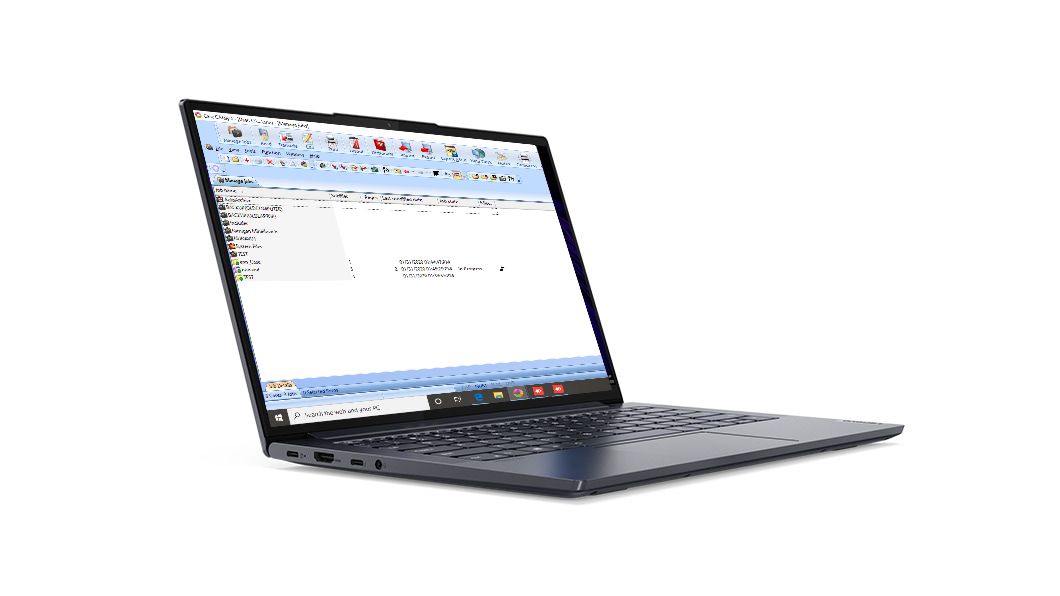
Open Martel Elite Court Reporter Laptop viewed from the front at an angle
Elite CSR Court Reporter Laptop. View Martel’s product details for SKU 1978.

Before ordering a replacement court reporting laptop, photograph both ends of every connection that lets you take and review a job. Start with the writer, room microphone, display, power supply and any playback pedal you expect to reuse. Then photograph the laptop sides with everything connected at once. Those views answer different purchasing questions. A close-up identifies the plug. A view of the working desk shows whether that plug blocks the one beside it, whether the hub also occupies a port, and whether your cable can reach the equipment at its customary side. Turn those photos into an acceptance list the seller and reporter can both use.

Begin with the equipment you actually intend to carry forward

Make three groups on an empty practice desk. In the first put equipment needed to take a job, in the second put equipment used during a break or later review, and in the third put items that stay at the office. A writer, room mic and power adapter usually belong in the field group when those are the reporter’s normal devices. An external monitor might be essential for one reporter and remain in the office for another. Classify by your own working procedure. That choice determines how many simultaneous usable connections you need on the replacement.

Assign a short label to each actual device. For example, give the writer the letter W, the HGM-USB the letter M and the review pedal the letter P. Apply labels to your worksheet or removable cards placed beside the device for photography. Keep IDs on the worksheet clear of private equipment inventory identifiers if the images will be sent outside your organization. Start a row for the task the device performs. Seeing “P controls playback in the review program” is considerably more useful to a laptop seller than seeing an unexplained black cable beside three others.

Take six kinds of photograph with a clear purpose

Start with the working desk from the reporter’s position. Next photograph the left, right and any used rear edge of the current laptop. Take close-ups of the host end and device end of each cable, including the symbol next to the socket where visible. Finally photograph the power and upstream connections of any hub or dock. A useful photograph gives a second person enough context to tell not only what a connector looks like, but which device and position it belongs to. Keep the pairing by including the same letter card in both close-ups.

Use an empty fictional job or turn screens away from the camera. Crop client papers, meeting invitations, identifying stickers, network names and unrelated devices before sharing. Read each small marking with your own eyes and write it down if glare makes the photo illegible. A port symbol can be useful evidence of what to verify in the product documentation. Physical appearance alone does not establish data rate, display capability, supported charging or compatibility with a particular device. Reserve a column for the independently confirmed function and where that confirmation came from.

Separate sockets built into the laptop from ports provided by accessories

On a blank sketch draw one box for the laptop and one for each hub or dock. Number the observed physical laptop sockets in the same order as your photographs. Draw each connection from the device to the socket it actually occupies. A four-port hub can accept several peripherals while using one host connection itself. Its power supply, if needed, may consume an outlet rather than a laptop socket. Knowing those facts keeps a count of advertised connectors from turning into an impossible desk layout.

The Martel Elite CSR, SKU 1978, is a Windows 11 reporting laptop. Its listing includes an HDMI output and an included four-port USB hub. The listing also describes USB-C connections for particular functions. Use the actual supplied configuration and connector markings to confirm what you will receive. On the seller worksheet ask which sockets are on the computer itself, which will be available through the included hub and which must remain available for power. Then account for every accessory in the field configuration, including a spare route that your procedure specifically requires.

Give the writer connection its own row

Photograph the writer model label or record the exact model separately, then capture its intended computer connection. Some reporters connect their writer by USB and others use a supported wireless configuration. Include a cable used for fallback if it must fit your kit, even when you ordinarily work wirelessly. Distinguish a cable that supplies power to the writer from one that provides the data connection your reporting application requires. The connector that charges a device does not automatically demonstrate that strokes travel through that route.

On the current working setup, start an invented job and send two unmistakable strokes. Write down how the connection appears in the application and note the physical route in your worksheet. On the replacement, repeat that same task after you verify the software and supported connection are set up. The decisive observation is the intended writer sending strokes into the correct job. A Windows notification, visible socket or familiar plug provides supporting information but cannot replace that functional check for a reporter about to rely on the machine.

Photograph the external microphone where the speech is captured

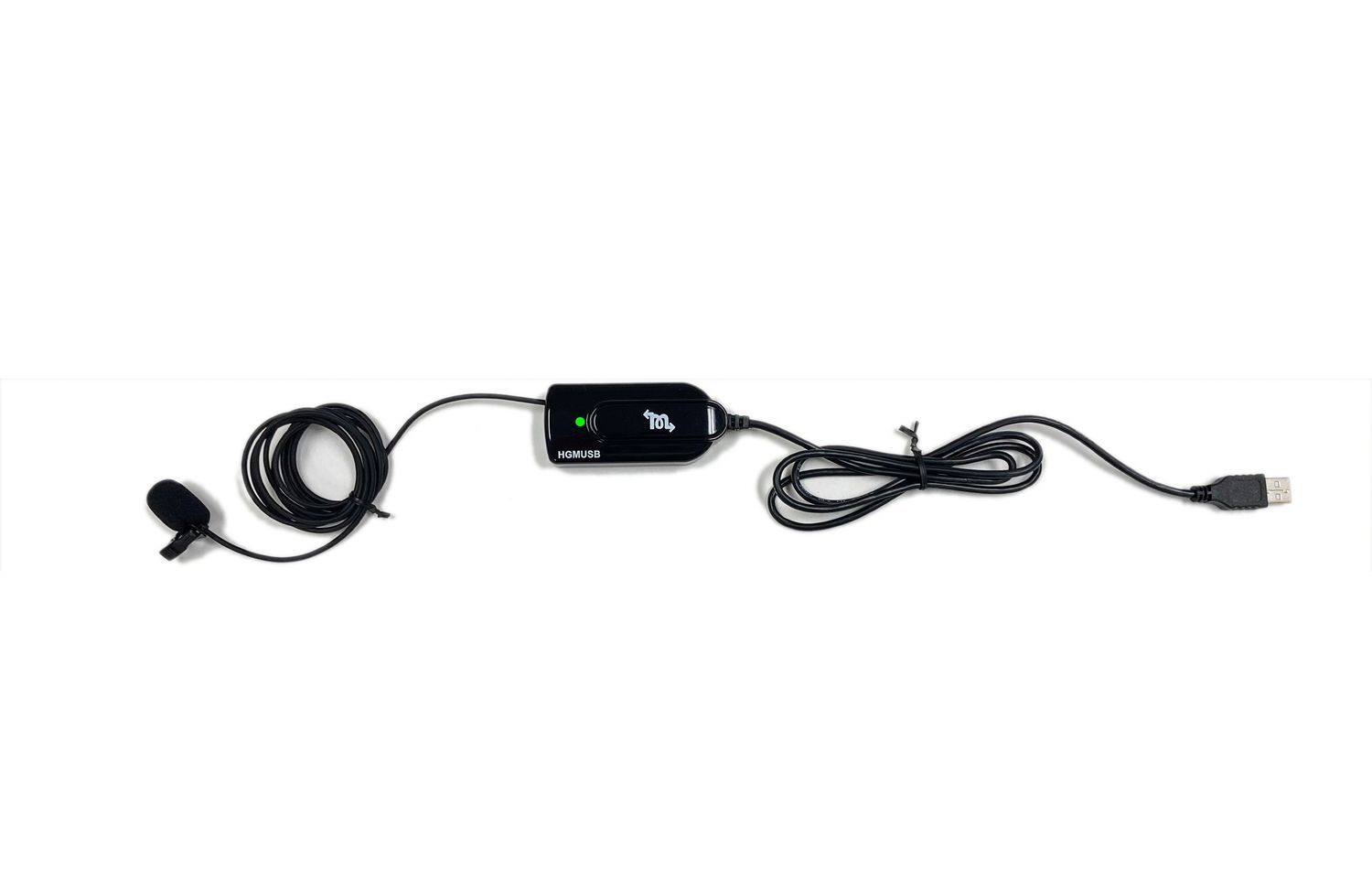
Show both the microphone end in its normal courtroom or deposition position and the end that connects to the computer. The Martel HGM-USB Elite, SKU 1277, provides an identifiable example of a computer USB recording path. If you use it through a hub, photograph the upstream cable as well as the HGM-USB connection at the hub. If your microphone is instead connected to a writer, give it a separate row that identifies the writer as its receiving device. In that case the mic plug may consume no laptop port itself.

On Windows 11, identify the intended microphone in Sound settings and use a fresh practice recording to confirm that the reporting program uses it. Put the practice speaker close to the external head for one phrase and in the normal witness position for another. A new computer’s internal microphone might otherwise produce enough room sound to create a misleading pass. Record where the source was selected and what the saved job actually contains. That result lets the seller distinguish a physical adapter question from an input-selection or application question.

Map the exhibit display and power path as a pair

Identify which laptop output sends the exhibit picture, what cable or adapter lies in between, and what input the display receives. Photograph the ends without exposing a real exhibit. Include whether the monitor has separate power and whether a dock supplies laptop power through the same connection. A direct HDMI cable, a USB-C display adapter and a dock with a display output can all result in a picture on the same monitor, while making very different demands on the laptop.

Ask how you will show an exhibit page while keeping the writer and microphone connected. With invented content, display a clearly labeled practice image and verify the intended screen arrangement before taking a sample of recorded speech. A display connection can also introduce a playback endpoint. Confirm where the reporter hears a returned paragraph as well as where the exhibit is visible. The purchase requirement is the specific working combination. One photograph of a monitor showing a bright image cannot establish that private material stays on the right screen or that playback still reaches the reporter.

Distinguish recording devices from review-only controls

A foot pedal ordinarily belongs to a specific playback application, transcription kit or recorder dock. Photograph the pedal’s actual connector and the equipment it enters. A pedal attached to a recorder for hardware-controlled transcription may not use a USB socket on the laptop. Another pedal for computer software may need one during editing. Note whether you require the pedal while a live job, microphone and external display are all active, or only after those items have been put away. This changes the connection count substantially.

For a computer pedal, use an invented recording with three distinct phrases. Start, stop and replay an assigned phrase through the application and pedal combination you expect to use. Observe what happens if you return focus to the transcript or open another window, when that matters to your normal workflow. For a recorder-dock pedal, demonstrate the route through the recorder itself. Both exercises can be documented in one inventory while preserving which device is responsible for playback and which physical connector the replacement laptop must provide.

Resolve ambiguous USB-C photographs before purchasing

USB-C gives you a recognizable connector shape. The combination of host port, device, cable and any adapter determines which functions you can use together. Microsoft documents common issues with charging, video and other USB-C connections. Write the required action beside the photograph, such as “display the practice exhibit,” “receive strokes,” “use the external drive” or “charge the laptop during a session.” Then ask the seller to identify a supported path for that action on the exact replacement configuration.

If a dock provides several functions, list the functions separately and show how they share the host connection. A test in which a display works with no microphone or writer attached leaves the actual loaded desk untested. Also note whether the docking setup is supplied, already owned or still to be purchased. Add any required compatible power adapter to the quote instead of assuming that a visually similar cable in the equipment bag can supply the needed power and data at the same time.

Check what will physically fit when all required connections are occupied

The distance between neighboring sockets, the thickness of plug housings and the direction leads must bend can matter as much as the count. Photograph the current desk with a ruler or a familiar labeled object where scale is useful. Keep the cables in their natural relaxed positions. Show which side of the laptop is next to the writer, which side holds the exhibit stand and where the power outlet normally lies. These facts let a seller see why moving a wide direct-plug accessory to the opposite side might be a problem.

For a replacement, stage the actual full configuration on a clear table and bring the objects back one by one. Open the lid to its usual angle, put the writing machine in working position, lay out a blank folder and sit where the reporter will sit. Check whether a cable crowds a right hand, brushes a binder or spans a walking path. If you need a supported adapter, choose it for a named connection and test its fit. A loose chain assembled solely to make every connector shape match is a poor basis for an acceptance decision.
Turn the photographs into a quote and an arrival inspection

Provide a short description for each paired photograph. For instance, “W comes from this writer using this cable, M is the USB room microphone, D is an HDMI exhibit screen and P is used for computer playback after court.” Ask the seller to return a connection assignment for the exact offered laptop and any included hub. Mark an accessory that needs buying separately, an accessory you already have and any capability requiring a further confirmation. That gives the price comparison a complete field-kit context.

When the new machine arrives, compare the delivered ports with the quote before moving the sole working copy of any reporting job. Use a mock file and the known accessories. Connect them in the proposed positions, verify each individual task, then run the tasks together. Record the successful mapping, the Windows build and the actual hub or adapter used. Retain the original photo set next to the final setup sheet. It becomes a reference for the reporter ordering a replacement cable or explaining a discrepancy to Martel support.

Try a fictional port order from both sides of the conversation

Imagine a reporter named Ada needs a writer and HGM-USB at every deposition, an exhibit monitor for in-person testimony and a USB pedal only for office review. Ada sends separate photos of the writer’s computer lead and charging lead. Her initial list counted both as data connections, yet the working diagram shows that one goes to an external power supply. At the same time, her first list omitted the computer connection used by the hub. Correcting those two entries produces a different physical map even if a rough numerical total happens to stay the same.

Now imagine the replacement quote offers HDMI and a four-port hub. Ada asks which host connection the hub occupies and whether the exhibit monitor can use the stated HDMI path at the intended desk. She asks for an ordinary practice trial with the writer, external microphone and monitor together. Later she tests the office pedal with its own playback program. These questions help seller and reporter agree on an observable delivery condition. This is a hypothetical purchase exercise. Your actual cable ends, device support and arrangement determine the corresponding questions on your own worksheet.

37 questions and answers

1. Which photograph should I take before unplugging anything?

Take an overhead or seated-eye view that shows the working arrangement with all required cables connected. Place small tags beside the relevant devices, including any hub hidden behind the laptop. Make sure the image shows which side the leads approach. You can later obtain a clear close-up of a loose plug, but reconstructing the original arrangement from a pile of unplugged leads is much harder. Include a written list of which devices were actively serving the job when you took the first image.

2. Why do I need a photo of the end at the apparatus as well as the laptop end?

The two ends often differ, and the apparent USB cable at the laptop might connect to a writer, a playback controller, a hub upstream connection or a separate charging arrangement. A paired picture ties the signal path to the device whose compatibility actually matters. If a replacement cable is needed, the seller can identify which end would remain in the writer and which end must fit the new host. It also prevents a spare charging cable in the same bag from being mistaken for the working data lead.

3. Is a count such as “I need four USB ports” specific enough for a quote?

It leaves out the tasks, whether the four devices run together, whether the hub occupies a host socket, and whether any port also provides power or a display. Tell the seller that a writer and room microphone must work during testimony, an external drive may be needed at recess and the pedal is usually used later. State which of those uses must overlap for your procedure. This lets a laptop with an appropriate combination be evaluated fairly alongside one that merely advertises a large connector count.

4. How can a seller identify a connector from a photo without seeing the socket clearly?

Provide a close-up with the plug and socket separated in an orderly setup, plus the surrounding markings and device model. Photograph the front face of the connector without forcing it into another socket to see whether it fits. Add a second angle if shadows hide its outline. If the markings are unreadable, label that part unknown and ask the seller to match the device’s documented connection. An honest unknown is less likely to result in an incorrect replacement than a confidently mislabeled photo.

5. What is the difference between a port map and a list of peripherals?

A peripheral list says which devices you own. A port map shows how each one enters the system, which items share a connection, when tasks must run concurrently and how success is demonstrated. It can show that a mic enters the writer while the writer enters the laptop, or that two accessories enter one hub. It can also reveal that an item used only on an office recorder needs no computer socket. Those are exactly the differences that can affect a replacement order.

6. Should a Bluetooth writer still appear in the pictures?

Yes, if it is part of the workflow the replacement must support. Photograph the writer and note that its normal data path is the supported wireless connection. Separately show any fallback cable and the charger if they are required. On the candidate laptop verify actual strokes entering the application under normal pairing conditions. A visible wireless icon is useful for identifying a feature, but only the end-to-end test confirms that this writer and software combination works for the reporter at the proposed desk.

7. What if I do not know whether my writer lead carries power as well as data?

Start with the manufacturer's documentation for the writer and the actual cable, then demonstrate the known working arrangement using a fresh mock job. Note whether the writer has a separate charger and whether strokes arrive while the cable is connected. Do not disconnect a required power source in live work to discover this. If there are two leads that look alike, photograph and label them separately. Tell the seller which functions must be available and which detail still needs confirmation before ordering an adapter.

8. Can I identify a laptop’s microphone input from a photograph of a round socket?

A clear label can help, but several headphone, headset-combination and audio-input arrangements use familiar round connectors. Photograph the marking and consult the specification for the particular laptop. Identify the microphone’s own connector and electrical requirements as well. If the microphone actually feeds a writer or recorder, its compatibility question belongs at that receiver first. If it feeds the laptop, use the supported input and a saved practice phrase to establish that the external head supplied useful speech.

9. Does a USB microphone need its own direct socket on every laptop?

Individual devices and setups differ. Begin with the microphone’s supported connection and a known path. If the proposed configuration uses a hub, test that exact hub with the writer and other simultaneous devices connected. Save and reopen a short recording from the intended input, then repeat after ordinary disconnect and reconnect handling. A comparison can help you reserve a direct socket for the item that benefits from it. The result belongs to the equipment and workload you actually exercised.

10. How should I photograph the HGM-USB if the cable crosses the writer?

Show the HGM-USB head at the intended speaking position, the lead crossing or passing beside the writer, and the socket it uses. Include a side view from the reporter’s working position to show whether moving the writer pulls the cable or blocks an adjacent socket. If a safer practical route exists, photograph the corrected configuration separately and label it. The seller needs to know both the connection and the distance or direction the new laptop must accommodate to preserve that mic position.

11. I own a USB hub already. What do I need to show besides the four openings?

Show its upstream connection to the laptop, any power input, its model marking and which downstream sockets are occupied. Photograph the plug housing where it meets the laptop because a wide connector can block a neighboring socket even when another port exists on paper. Say which peripherals must work together through this hub and whether the seller's configuration includes a different hub. Plan a fresh functional check on whichever model the reporter will actually take into the field.

12. Can a hub with unused sockets still be the wrong one?

Yes. A free opening answers a physical count question, while the connected devices still need the right capabilities, power and stable operation on the proposed host. A hub might also sit in an impractical location, require an unavailable outlet or use the same port needed for the reporter’s display arrangement. Ask the seller for a route that supports the actual workload. Exercise the writer, microphone and any required display or drive together and verify their outputs before approving that route.

13. What should I record about an external courtroom monitor I do not own?

Note the provided connection type and any known room restrictions or approved adapter. Use a photo only where authorized, with a blank screen or invented test page and no people or proceedings in frame. Record the approximate cable reach and which end the reporter supplies. If access to the actual monitor is unavailable, verify the proposed laptop output with a representative display and identify the room connection as a remaining check. This helps prevent a successful office display trial from being represented as a courthouse acceptance.

14. Is HDMI in the laptop specification sufficient for an exhibit presentation?

It confirms the listed output on the specific configuration. You still need the appropriate cable, compatible display input, a reachable route and the screen arrangement required for the assignment. Use an invented exhibit covering the full expected screen and confirm that only the intended material is visible to the viewer. Also replay a mock line through the reporter’s chosen output after the display connects. The display may work beautifully while a separate listening assignment has changed elsewhere in the system.

15. Why retain a picture of the power brick and cable?

A laptop that can run on its battery briefly may still depend on the correct supply to handle a long reporting day with peripherals and a monitor. The picture identifies the supplied connector and can help a seller confirm the part against the exact model. If a dock also supplies power, identify whether the original adapter remains necessary for travel or a fallback setup. Keep labels readable in your private inventory and crop serial identifiers before sharing a photograph unnecessarily.

16. Can the same USB-C cable support charging, an exhibit display and a drive?

Some combinations can carry more than one function, but connector shape alone cannot answer which combination your cable, ports and dock support. Examine the markings, documentation and exact equipment configuration. Write a separate test requirement for charging, display and data access, then verify them together as the reporter will use them. If a cable works for charging and fails a display trial, identify which output and adapter were involved before replacing the laptop or assuming all similar-looking cables have equal capabilities.

17. How can I include functionality I only use occasionally?

Label it by frequency and consequence. A display used for one arbitration a month may still be critical enough to require a supported connection. A pedal occasionally used at home may be served by a separate office setup and need no permanent field socket. List the occasions when the accessory must operate alongside the primary writer and microphone. This gives the seller a realistic requirement and keeps rare but essential use from disappearing behind a simple daily packing list.

18. Should a spare port be dedicated to an emergency recording device?

Reserve capacity only for an identified procedure. Describe the spare device, when it is connected, whether it supplies audio by USB and whether attaching it changes the selected input. Rehearse that procedure with invented speech if it matters to your work. A separate recorder operating entirely on its own may need no live laptop port at all. Its later transfer process can be tested at a break or in the office as a separate stage.

19. How do I account for a device that is always connected to its own recorder dock?

Photograph its connection to the dock and the dock’s own relationship to the laptop, if any. A foot pedal can control playback on a compatible recorder without behaving like a general computer USB pedal. If you transfer files afterward through a different cable, give that transfer an additional row. The result distinguishes a necessary recording or playback function from a computer-port requirement. It can also prevent an unnecessary replacement pedal when the existing dedicated hardware already handles review.

20. Is it useful to include the Windows device name in the photo captions?

Yes, if it helps you identify the same physical unit after connection. Write the displayed Windows input or device name alongside the photo, and then name the application function you verified. Two similar USB audio device labels can be difficult to distinguish in an unfamiliar setup. A paired label such as “M, external mic beside mock witness, selected as this input in the practice job” gives a future reporter a practical way to check the right path without relying solely on a generic device name.

21. Can I use my old dock with a new Martel Elite CSR laptop?

Start with the dock’s precise model, upstream cable and required functions, then compare those requirements with the exact Elite CSR configuration on offer. Ask Martel to confirm the relevant capability where the pictures leave ambiguity. A seller’s description of an included four-port hub does not automatically establish that a different existing dock will charge the laptop, drive a display and pass every device. Verify each needed function separately and once more with the complete working group attached.

22. What if an adapter works at the office but is too wide for the courtroom setup?

Record both facts. Show how the adapter sits beside adjacent plugs, how far the lead projects into the desk area and what moves when the reporter places the writer or binder in its working position. A different supported arrangement may preserve the same electrical function with a better physical layout. Test that alternative with a saved job and the normal handling movements. Photograph the adopted arrangement so a substitute cable or adapter can be compared against the actual clearance that mattered.

23. How do I assess a new laptop while the writer software has not yet been set up?

You can identify physical connectors and verify documented display or charging functions. Mark the application-dependent tasks as pending. A seller or qualified setup provider can then arrange the supported software configuration and a real mock writer-and-microphone trial. Keep the distinction in the purchase record so a picture of plugged-in devices does not inadvertently become a statement that strokes were received and audio was saved. A useful acceptance sheet has room for both confirmed observations and named follow-up tasks.

24. Which device order should I use when checking everything together?

Start with the normal startup sequence the reporter expects to use, then test one realistic reconnect sequence that matters to the work. For example, the writer and mic can stay connected while an exhibit display is added during a practice break. Save a sentence on both sides of that change and confirm the writer continued to deliver strokes. The objective is a usable desk throughout expected transitions. Arbitrarily connecting every device in every possible order produces effort without necessarily testing the reporter’s actual risk.

25. What belongs in a photo of a cable that will never leave a courtroom?

Where photography is permitted, show the reporter-facing connector, its location relative to the desk and enough of the approved connection point to explain its purpose. Avoid tracing installed cabling into restricted areas. If the venue can supply a specification or identify the person responsible for the connection, record that separately. Test with a permitted practice signal when access is available. A courtroom-supplied cable can be a fixed requirement even though the reporter will never need to pack or order that particular cable.

26. How do I show that a device requires a wall outlet as well as a laptop connection?

Use a simple label on your worksheet linking the peripheral, power supply and data connection. Photograph the arrangement in two views if a single image makes the route hard to follow. Count the required outlets separately from host sockets, including the laptop’s normal power supply. If the reporter must operate in a room with only one usable outlet, share that constraint with the seller. A perfectly adequate port map can still leave a dock or display unable to run at the assigned desk.

27. Can an old product photo supply enough information to order a replacement?

An older image can identify an accessory family or show its general layout. Obtain a current photograph of the actual unit, its connections and its revision markings before relying on it. Laptops and accessories can have variants that look alike from above. Ask the seller to confirm the offered configuration in writing, then inspect the delivered device against that record. For software-dependent devices, retain separate evidence of normal operation, because photographs can show what fits without showing what the program recognizes.

28. How should I mark an uncertain port on the purchase worksheet?

State the requirement, the evidence available and the unresolved detail. For example, record that the reporter needs an external exhibit display, that the current laptop uses an oval connector at the dock, and that the replacement’s supported video path still requires confirmation. That gives the seller a bounded question. A guessed label could lead to an adapter purchase that solves the wrong problem. Keep the unresolved row visible until documentation or an appropriate practice test establishes the needed function.

29. Do I need to share every serial number and photograph with a seller?

Share the model details, connector views and working requirements needed to answer the compatibility question. Keep case identifiers, client screens and unnecessary serial numbers out of a general inquiry. A service provider may later need a precise hardware identifier to confirm the supplied revision or warranty through its normal support process. The initial port comparison usually benefits more from legible connector pairs and a complete desk map. Give each shared photograph a descriptive label so even a redacted image remains useful.

30. What should I do if the delivered model has ports on the opposite side?

First confirm that the delivered configuration matches the agreed order. Then rebuild the real desk using the intended cable routes and working positions. Check the writer placement, mic head location, exhibit display and whether the power lead would cross a working or walking area. If all required tasks and handling still pass, record the new mapping for future setups. If a critical cable cannot reach or a connector blocks another device, give Martel the paired images and explain the specific physical limitation.

31. If all the devices work individually, why repeat the test together?

Individual checks cannot show two items demanding the same physical connection, neighboring plugs colliding, a dock losing a required function or a display changing the listening route. Assemble the busiest intended combination with an invented job open. Send a stroke, record a short witness answer, display a harmless exhibit and, where required, operate the review pedal or drive. Then recover the saved details and inspect the desk. This is the practical delivery test that corresponds to the purchase worksheet’s simultaneous-use requirement.

32. How can I preserve the map after an adapter or cable is replaced?

Update the affected row with the new part, an updated connector photo and a fresh test result. Keep the old map dated so another reporter can recognize an earlier desk arrangement. If the replacement changes the hub, host port, power route or display path, repeat the relevant combined setup test. One changed cable can alter neighboring clearance or which device is recognized first. A small dated revision is enough to make the inventory a useful working reference.

33. What is the simplest handover for a technician preparing the laptop?

Send the annotated desk overview, paired photos for each required connection, the simultaneous-use list and the acceptance task associated with each row. Include the exact reporter software and device versions through the normal approved support process where needed. Ask the technician to identify any accessories to be supplied, components to bring from the old station and remaining compatibility questions. That package lets both sides recognize a successful setup even when their shorthand names for the same cable or microphone differ.

34. What single question should I ask if the seller can answer only one?

Ask the seller to show where each exact required device connects at the same time on the offered configuration, including power, and how you will confirm its function on delivery. Provide your annotated photographs and numbered tasks with that question. A complete answer should identify the physical sockets, any included or separately required accessory and the most important application-dependent check. If one row remains uncertain, you know precisely which part of the purchase still needs confirmation before you rely on it.

35. Can a desk diagram replace pictures when photography is restricted?

Yes. Draw the laptop from the reporter’s position, mark each edge, and give each connection a number. For the ends you can inspect, record the visible marking and the device it serves. Have the room technician confirm any installed connection that cannot be photographed. Combine that sketch with permitted close-ups of your own portable equipment taken away from the venue. The seller can still propose a testable configuration, and the resulting notes can explicitly identify any room-dependent connection that remains to be proved in place.

36. What if two reporters will share the same replacement laptop?

Build one set of physical socket photographs and a separate task map for each reporter. One person might use a cable for the writer and a room USB microphone while the other uses a different supported writer connection and an external audio interface. Rehearse each person’s ordinary arrangement in their authorized software environment and verify its saved output. Mark which accessories are common and which travel with the individual. A shared purchase is easier to evaluate when the seller can see both real desk configurations side by side.

37. Which photo helps if the seller and reporter disagree about whether a hub was included?

Keep a separate image of the labeled items actually supplied with the replacement alongside the dated order description. Then photograph the assembled working route showing the hub’s connection to the laptop and its occupied outputs. Those images answer different questions about package contents and practical use. If a combination in the agreed worksheet depends on a missing component, identify the affected task and ask the seller to reconcile the delivered configuration with the written order before relying on the setup.

Martel equipment and related guides

Elite CSR Court Reporter Laptop · SKU 1978

HGM-USB microphone with its USB interface and connecting cables
Elite Court Reporter USB Microphone HGM-USB. View Martel’s product details for SKU 1277.

Elite Court Reporter USB Microphone HGM-USB · SKU 1277

This article is for educational purposes only.