Courtroom Microphones: Choosing One Microphone or a Multi-Microphone System
Compare single and multiple courtroom microphones. Plan speaker coverage, recording inputs, mixed audio versus separate tracks, monitoring and setup tests.
Set up an Infinity USB foot pedal for legal transcription. Check software support, pedal assignments, audio playback and common connection problems.
An Infinity USB foot pedal is ready for legal transcription when it controls the intended playback program while the secretary types. A connected USB plug or a device notification is only part of that test. The computer must recognize the control, the software must support it and the recording must play through the correct audio output.
This guide gives you a practical setup and troubleshooting sequence for the Infinity IN-USB-3 sold by Martel. Menu names vary among transcription programs, so use the instructions for your actual software edition when selecting a controller or assigning functions. Work with a fictional recording first and change one setting at a time so you can tell which step solved the problem.
Read the model label on the control and compare it with the purchase record. Similar-looking Infinity models and older versions can appear in instructions or office inventories. Record the exact model rather than assuming that every device called an “Infinity pedal” is identical. Use the model information when checking supported controllers in your playback software.
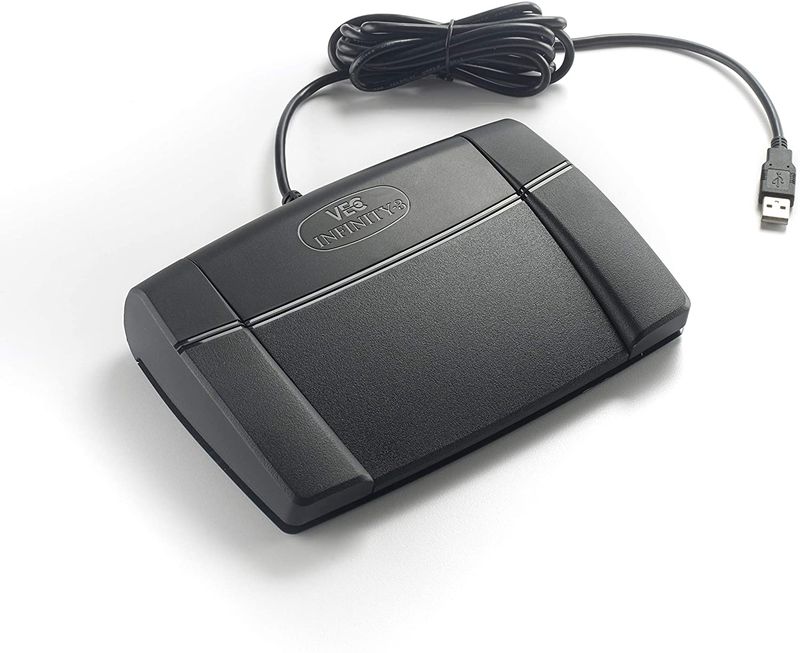
The Infinity IN-USB-3 Universal Foot Pedal listing describes three computer controls for play/pause, rewind and forward. The separate pedal does not include transcription software. If you bought only the control, establish which compatible application will receive its commands before looking for a supposed universal playback function in the operating system.
If you purchased the Martel All N One Transcription Kit, use the installation information supplied with that package. Confirm the software edition and the workstation requirements. Avoid downloading utilities from unrelated “driver” sites simply because a search result mentions Infinity. Obtain installation files or guidance from the supplier or the software publisher.
Open a short nonconfidential recording in the intended transcription program. Start playback using the program’s onscreen controls. Confirm that you can hear the beginning and end, pause and resume, and move to another point in the file. If any of those actions fail, solve the file or audio problem before investigating the foot pedal.
Select the intended headset output and check its physical connection. Begin at a comfortable volume. If sound comes from the computer speakers, review the output selection rather than turning every volume control to maximum. Try a known good recording if the current file is silent, incomplete or unsupported.
This first test creates a useful dividing line. When onscreen playback fails, the pedal is not the primary issue. When onscreen playback works but pedal commands do not, you can focus on the USB connection, supported controller selection and command assignments.
Connect the pedal through the supported USB arrangement. For an initial test, use a direct computer port when practical. If an adapter is required, confirm that it provides a data connection. Inspect the cable for visible damage and avoid pulling the pedal’s lead tight across the floor or through the chair base.
Check the operating system’s normal connected-device view if the application cannot find the control. The name displayed may differ from the product’s retail name. Record what appears, but do not treat appearance in that list as proof that the transcription program is configured. Hardware recognition and application control are separate checks.
If the pedal is connected through a hub, docking station or remote-desktop arrangement, keep those details in the setup notes. They become important if the same pedal works on one desk and fails on another. A successful direct-connection test can help isolate a connection problem without assuming that the pedal itself needs replacement.
Follow the playback program’s instructions for foot-control setup. Select the supported Infinity model or controller option when the application offers one. Use any provided test function to observe individual switch presses. Do not assume that a program’s default controller is correct merely because the pedal has three switches.
Assign the desired functions and test them separately. Start with play or pause, then rewind, then forward. Notice whether playback is a held action or a toggle. If the typist expects playback to stop when the foot lifts but the program uses a toggle, the behavior may feel like a fault even though the controller is responding normally.
If automatic back-step is available, start with a modest setting and adjust using real typing rhythm. The useful amount depends on the speaker and the typist. Replaying too much audio after every pause can slow the work, while too little can remove context needed to understand the next phrase.
Open the normal word processor and begin typing a fictional assignment while controlling the recording with the pedal. This catches a problem that a controller test alone can miss: the pedal may work only while the playback window has focus. If that happens, consult the application’s documented background-control settings or support information.
Do not install several competing controller programs in an attempt to make the pedal respond everywhere. An existing utility may already be intercepting commands. Close unnecessary playback or control applications during the test and establish one supported arrangement. Keep any office-required software changes within the normal administrator process.
Repeat the same passage after restarting the playback program. Confirm that the assignments persist and that the correct audio output is still selected. Once the workflow is repeatable, save the settings and application version in a short workstation record.

| Symptom | First useful check | Next step |
|---|---|---|
| No sound with onscreen play | File and selected audio output | Try a known good sample and verify headphones |
| Sound works but no pedal response | Supported controller selection | Check connection and application foot-control setup |
| Wrong action on a switch | Command assignment and playback mode | Test each switch independently |
| Works only in the playback window | Background-control support | Follow the application’s documented settings |
| Stops after reconnecting equipment | Port, hub and session changes | Repeat the known working connection test |
If there is no response at all, note whether the computer detects the device. Check one alternate supported port or connection arrangement, then retest in the application. Avoid changing file formats, headphones and pedal assignments simultaneously; that makes it difficult to identify the cause.
If only one switch behaves unexpectedly, check the assigned function and any hold-versus-toggle setting first. Test with your foot fully clear of the neighboring switches. If the software’s control test repeatedly fails to detect one switch while detecting the others, record that specific observation for support.
If trouble begins after a software update, record the new version and the last known working arrangement. Check the publisher’s compatibility information and the application’s settings. Do not immediately downgrade the operating system or disable security controls. A clear description of the change gives support a much better starting point.
A pedal sends control information; it does not carry the recording’s sound. Audio output problems and controller problems therefore need different checks. Headphones can be correctly connected while pedal commands fail, and the pedal can work while sound is directed to the wrong output. Keep those paths separate during diagnosis.
Remote desktops add another boundary. The pedal may connect to the local computer while the transcription application runs on a remote machine. Ask the administrator whether that session supports the required USB or controller redirection. Test inside the actual session, not only in a local media player.
Shared desks also need consistent user settings. One secretary’s controller assignments may not automatically appear in another user account. Check the supported method for retaining or documenting preferences without sharing personal credentials. Keep sample audio and setup notes available to authorized staff so a replacement computer can be tested methodically.
Provide the pedal model, application name and version, operating system, connection path and exact symptom. State whether onscreen playback works and whether each switch is detected in the application’s test. Mention any recent update, hub change or move to a remote session. Use Martel’s online contact form and keep real client recordings out of the initial request.
Use the instructions for the actual pedal and supported application. Do not assume that an unrelated driver website is required or trustworthy. The application’s controller support and setup often matter more than finding a generic download with a similar product name.
The playback application may require a supported background-control setting, or another utility may be handling the input. Test with the normal word processor open and consult the application’s instructions. A controller test proves detection, but not the whole typing workflow.
The application may be set to toggle playback rather than use a held action. Check the assigned behavior before treating this as a hardware failure. Choose the supported mode that matches the typist’s expectations and test it with a short recording.
No. It helps navigate the recording. Playback speed, volume and replay can assist listening, but they cannot reliably recreate words that were not captured. Preserve the source file and address recording problems at the author’s end as well.
Compare Martel transcription kits instead of assuming an individual pedal includes software. The foot-pedal buyer’s guide explains the difference between a replacement controller and a complete playback workstation.
After a supported application and known working connection have been checked and the fault remains repeatable. Document which switches fail and under what conditions. This avoids replacing a working pedal when the actual problem is software support, an adapter or an audio-file issue.