HGM-2 Battery Microphone vs. HGMUSB: Choosing a Court Reporter Recording Path
Compare the Martel HGM-2 battery microphone and HGMUSB microphone. Choose a recording path, check inputs and power, and test the saved sound.
Build a separate backup recording path for remote court proceedings. Compare the Martel recording app and teleconference kit, then test saved audio.
Martel equipment guide · Remote proceedings and backup audio
Design a backup around the failure you want to survive, then prove that the saved file contains the voices you need.
A reporter may hear a remote proceeding clearly and still discover that a recording contains only one side of it. Another setup may create two files while both depend on the same muted input. A third may continue recording when CAT software stops, yet stop with it if the shared computer loses power. These are different situations, and they require different answers. Counting recording applications is a poor substitute for understanding their audio paths.
This guide explains how to plan and verify an authorized backup for a remote deposition, hearing, or similar proceeding. Its worksheets and examples are original planning exercises. They do not describe a customer's confidential matter or claim that any configuration has been tested on every computer. The aim is practical: identify what reaches each recorder, learn which failures remain shared, and make a saved sample that another person can locate and review.
The Martel Zoom Court Reporter Backup Audio Recording App, SKU 2072Z, is offered as a recording application outside the CAT program. Its current page describes WAV output, saving to the Documents folder, and setup assistance. The Martel Zoom Court Reporter Kit, SKU 403, is a related product to examine when planning the audio connection. Ask Martel to confirm the exact route for your computer and current software versions.
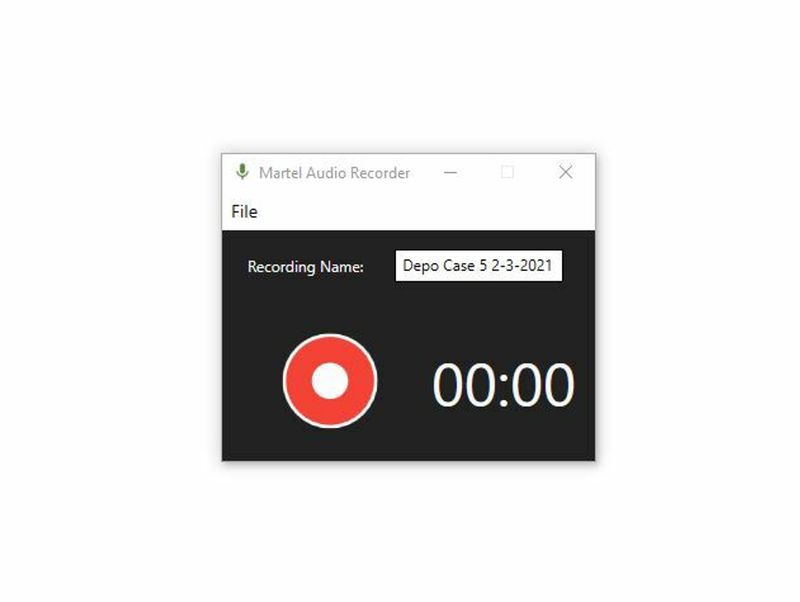
Write a sentence describing what the second path should preserve. One reporter may want a recording that continues independently of a CAT recording command. Another may want a second computer to retain incoming meeting audio if the reporting computer becomes unavailable. A third may need room speech as well as the remote participants. These goals overlap, but none automatically includes all the others. Define the required voices and the failure you are trying to address before choosing hardware or settings.
A useful requirement might say: “The backup must retain the remote participants and my spoken interventions even when the CAT program is not recording.” That statement can be tested. “The backup must protect against everything” cannot. Add a second requirement if the job demands survival of a computer failure, and identify what equipment and connection would make that possible. Keep the scope small enough to verify and broad enough to serve the assignment.
Follow the recording arrangements authorized for the proceeding, including the responsible person's instructions for notice, pauses, handling, and access. The presence of an application on the laptop does not decide those matters. Once the operational boundaries are established, the equipment plan can be specific about what should happen within them.
Make two short lists: voices originating in your room and voices arriving from the meeting. Then trace each toward the intended saved file. Your room microphone may feed the meeting application, the CAT program, a separate recorder, or some combination of those destinations. Remote speech arrives through the meeting connection and is played through a selected output. Hearing it through headphones does not, by itself, show that a recording input receives it.
Describe the paths using actual device names and connections. “USB microphone to CAT input” is more informative than “audio works.” “Meeting playback through the selected adapter to the recording input” can be checked against the installed arrangement. If you do not know where a source is combined with another, mark that point for setup support. Do not fill the gap with an assumption that every application hears everything the computer plays.
The map should include your own voice when it belongs in the backup. A remote-only recording may omit your request for a repeat or another local contribution. Conversely, a room microphone may capture your speech while missing remote voices routed exclusively to headphones. The test must include both directions deliberately, not merely a conversation in which one direction happens to dominate.
Separation can exist at several levels. Two applications may create different files while sharing a computer, operating system, audio device, and power connection. Two computers may separate application and storage failures while sharing the same internet connection or incoming audio source. A recorder can have its own storage and still depend on a common microphone or cable. These are useful distinctions, not reasons to dismiss a backup that solves a defined problem.
List shared dependencies beside the two paths. Include power, meeting connection, microphone, adapter, cable, selected output, recording input, and save destination. Then ask what happens when each becomes unavailable. A second application can be valuable for a CAT-specific interruption without being an independent answer to a laptop shutdown. Make that conclusion visible in the setup record so nobody attributes a broader guarantee to the equipment.
| Arrangement | Separation to evaluate | Dependency that may remain |
|---|---|---|
| CAT recording plus another application on one laptop | Different recording commands and output files | Computer, input device, operating system, and power |
| Meeting computer plus reporting computer | Different applications, storage, and computer hardware | Meeting connection, routing cable, or common playback source |
| Computer route plus a suitable separate recorder | Recording device and storage | Shared microphone, adapter, power source, or missing remote feed |
Treat the table as questions for your specific installation. It does not certify any generic two-device arrangement as independent. The actual wiring and the result of an authorized practice test determine which failure the backup can address.
A more elaborate desk is not necessarily easier to operate. Every added device introduces a connection, power requirement, setting, or saving step. Choose a route whose purpose you can explain and whose state you can recognize while working. If the requirement concerns a CAT application interruption, a supported separate recording application may be appropriate. If the requirement concerns loss of the entire reporting laptop, evaluate a route with genuinely separate recording hardware and the required source feed.
Present your audio map to Martel before assuming that a particular cable or adapter fits. Include the laptop models, available ports, meeting application, CAT program, headset or speakers, and whether one or two computers are used. Identify the exact product already owned. A familiar-looking connector does not establish the electrical signal, direction, or function expected by the receiving device.
The Zoom Court Reporter Kit page is the purchasing reference for the connection kit. Treat the kit and the backup app as distinct parts of the decision. One concerns the audio route; the other concerns the recording application. Confirm how they work together in your proposed setup rather than treating either product name as a complete wiring diagram.
Create a setup card with the meeting application's selected microphone and speaker, the CAT recording input, the backup input, and the backup destination. Use the names shown on the actual computer. If two similar adapters appear in a list, label their physical connections so you can distinguish them. Add the approved order for connecting and launching equipment. The card should make the working configuration recognizable after a restart or equipment change.
Include the installed versions of the recording and meeting applications when documenting the baseline. You do not need to place technical details in the transcript or ordinary customer communications. They belong in the setup record, where they help explain why instructions or device menus may differ later. Record changes when a software update materially affects the route.
Keep a short recovery instruction with the card. It might identify which input to reselect and which test to run after reconnecting a device. Avoid vague directions such as “use the usual microphone.” Those instructions depend on memory and become less useful when the reporter is already dealing with an interruption.
If the intended recording source is not available or does not respond, begin with the computer's input settings and the supported device connection. Microsoft's microphone guidance explains checking microphone access, choosing the intended input, and listening to a recorded test. These checks help distinguish an unavailable input from a problem confined to one application. See Microsoft's microphone troubleshooting instructions.
Apply only the checks relevant to your actual route. A test of a room microphone proves that particular microphone path; it does not establish a feed of remote meeting playback. Label the result accordingly. If the map calls for an adapter or other recording input, verify that source with the material it is expected to receive. Keep the intended equipment connected while making the test.
Resolve basic device problems before opening several recording applications at once. Once one supported input works, introduce the applications in the planned order and repeat the sample. If the result changes at a specific step, you have a narrower issue to investigate. This is easier to diagnose than a desk on which multiple programs and devices were changed simultaneously.
Confirm that remote participants can hear the intended local contribution and that you can hear them through the selected playback device. Zoom provides microphone and speaker tests, and its test meeting offers a practice environment. Use Zoom's test-meeting guidance for the current procedure. The meeting check establishes the live conversation path; the saved-file check establishes the backup path.
Keep those outcomes separate on the worksheet. You may pass the conversation test and fail the recording test, or record the remote speaker while your local meeting microphone remains muted. Write down which result you observed instead of using one general “audio passed” box. This prevents a later operator from mistaking successful listening for successful recording.
Where a two-computer desk is used, assign the live meeting audio role clearly. Extra active speakers and microphones can introduce unwanted return paths. Zoom's official echo guidance identifies nearby devices with active audio as a common cause. Use the documented audio roles for the desk and check both the live conversation and the recording after any adjustment.
Use a practice session and invented phrases. Start the backup through its normal control, identify the test aloud where appropriate, and record four parts: a local statement, a remote statement, a short exchange, and a clear ending. Give each part an easily recognized detail, such as a different number or a fictional appointment time. This helps reveal a missing source when you listen later.
Stop and save through the application's supported process. Locate the file in the destination you recorded. Close the recording session and open the saved file for playback. Listen for all four parts in the expected order. Check that the first words and final words are present, and note the duration. A file that opens but contains only silence or one side of the exchange has failed the requirement even if its name and size appear plausible.
Repeat the test after the complete working arrangement is connected, including the writer, headset, external display, and supported adapters normally used. If those items change device selection or the practical setup, the simplified bench test may no longer represent the job. Keep one clearly identified accepted sample as a reference until the configuration changes.
Once ordinary recording passes, use a nonconfidential practice session to test the specific failure you planned for. If the requirement is independence from a CAT recording command, confirm that the backup can capture the test exchange while CAT audio recording is not running. Follow the software's supported operation; there is no need to crash the program or interrupt a live proceeding to investigate this question.
If a separate computer or recorder is part of the plan, verify which source remains available when the reporting application is closed in the practice session. A physical connection that depends on playback from the reporting laptop may not provide the separation expected. Record the observation plainly. If the test shows a shared dependency, update the plan or narrow the stated purpose of the backup.
Do not unplug a recording drive, remove media, or cut power during an active real recording to demonstrate resilience. Those actions can risk the very files the process is intended to preserve. When behavior during a hardware or power failure matters, obtain the vendor's supported test procedure and carry it out with disposable test material under appropriate conditions.
The start routine should name the source, the recording state, and the destination. Before the proceeding, confirm the intended input, create the job's file name using the approved convention, start the authorized recording at the required point, and check the application's visible status. Keep the routine brief enough to perform consistently. The detailed configuration belongs in the setup card rather than in a long sequence that must be reconstructed under time pressure.
Decide which visible indicator you will check and what it does and does not prove. A timer can indicate that the application believes a recording is underway. An input display can indicate incoming signal. Neither alone demonstrates that the saved output contains every required source. Their value during the job depends on the prior saved-file test that established how the working setup behaves.
Coordinate the backup start with the assignment's ordinary recordkeeping routine. An unexplained second file that starts halfway through the session is harder to use later. If a recording begins late or is restarted, note the event through the approved process so the file inventory reflects what actually happened.
Do not assume every recording application offers the same pause behavior or creates files in the same way. Confirm the controls and file results of the installed product during practice. If stopping and restarting produces separate segments, use the agreed segment naming and ordering method. If a pause function is available and approved for the workflow, test its result rather than relying on a label alone.
During breaks, follow the proceeding's recording instructions and protect the existing file. Before resuming, check the input and recording state again. A headset reconnection, device swap, or change made during a break can alter the route. The restart check should be specific enough to catch a wrong selection without requiring a complete installation procedure each time.
Keep the distinction between an intentional break and an unplanned gap. Both may produce silence or a new segment, but their meaning differs. The recording inventory should identify known transitions accurately. Do not conceal a missing interval by renaming files or presenting a later combined copy as an uninterrupted original.
Know the exact destination on the computer, not merely the folder's familiar display name. A Documents folder can participate in an organization's synchronization or redirection arrangement. Confirm the location shown by the installed application and the organization's approved handling procedure. If a synchronization service is involved, understand which copy is local and which transfer happens later. The backup plan should not depend on guessing where the file went after the application closes.
Use file names that distinguish the job and segment without exposing unnecessary detail. Follow the established naming convention, and retain the relationship between the original recording and any working copy. Do not reuse yesterday's test filename for today's matter. A correct recording that is overwritten, misplaced, or confused with another session is difficult to use when needed.
After saving, verify that the file can be reopened from the intended location. If it must be copied elsewhere, check the completed destination copy through the approved process before removing the source. Merely seeing a filename in a transfer queue is not evidence that another person can open the finished recording.
Zoom's built-in computer recording has its own permissions, controls, output processing, and file locations. Its official documentation describes host or participant recording privileges and conversion after the meeting. Those details do not automatically describe a separate Martel recording application. See Zoom's computer-recording instructions when that additional route is part of the authorized setup.
Label each file by the route that produced it. A Zoom-generated meeting file, a CAT audio file, and a backup-app file may cover different intervals or sources. Avoid referring to all of them simply as “the Zoom recording.” That shorthand can conceal the reason one file contains material another lacks. A clear inventory helps a reviewer choose the appropriate source without guessing its origin.
If several authorized routes are used, test each separately and then together in practice. Determine the normal save and close sequence for each. Do not assume that finishing one program finalizes the files produced by another. The end-of-job routine must account for every recording the plan is supposed to retain.
A short test is necessary, but it does not answer every question about an extended job. Run a longer practice recording appropriate to the planned work, using nonconfidential material and the normal power arrangement. Observe available storage, device stability, and the saving process. Reopen the completed file and check several points. Describe what you tested without converting a single successful rehearsal into an unlimited-duration guarantee.
Confirm that power supplies and cables can remain connected without accidental strain. Place the computer and adapters so ordinary desk movement does not pull a connection loose. Plan enough approved storage for the session and the file-handling process. Use the application's current requirements and support guidance for its limits; do not calculate a maximum session length from a product slogan.
Schedule setup changes outside the live assignment where possible. A new hub, headset, audio driver, or major application update should trigger the relevant practice checks. A familiar setup that changes quietly can be more confusing than a new setup whose uncertainties are clearly marked.
When the backup is needed, identify the file and interval before importing or listening. Compare the known beginning of the session with the relevant transcript or working notes. If the file is used in a supported CAT audio workflow, follow the current vendor procedure for that software and version. Do not assume that a file's creation time or name establishes its precise relationship to the text.
Preserve the original and distinguish any review copy or converted copy. Note which source resolved a question and where the passage occurs. If the backup has a gap, one missing direction, or an uncertain transition, retain that limitation in the review process. The purpose of the additional recording is to supply available evidence, not to make missing material appear complete.
Practice the retrieval step before relying on it. Ask a colleague, where authorized, to locate the test file from the setup record and find a named passage. If they cannot, improve the file inventory or instructions. A recording that can only be found by its creator's memory is a fragile handoff.
Consider a hypothetical reporter whose CAT program sometimes stops recording while the computer remains usable. The reporter's goal is a separate saved audio path during that specific interruption. The initial practice test captures remote speech but omits the reporter's own interventions. Instead of declaring the second app a complete backup, the reporter marks the local voice as missing, reviews the input route with setup support, and repeats the four-part test after the supported correction.
The revised sample includes both directions. A second practice session confirms that the backup can capture the exchange while CAT audio recording is not running. The setup card then states the achieved purpose and the remaining shared dependencies: the same laptop, power, and incoming meeting connection. This is a useful and honest result. If the reporter later needs a recording that survives loss of that laptop, the requirement has changed and deserves a new design and test.
Now consider a two-computer desk. The meeting runs on one computer and reporting on the other. The operator must identify which computer produces the backup file, which route supplies incoming voices, and how the reporter's voice enters it. Two screens and two application icons do not answer those questions. A saved sample and a dependency map do. Use the same reasoning to evaluate the proposed backup app and connection kit before the next real proceeding.
Organize the routine around three moments. Before the session, establish the route and prove it with the agreed check. During the session, observe the supported indicators and follow the interruption procedure if something changes. After the session, complete saving and account for the retained files. Each moment supplies different evidence. A successful completion check cannot show that an unrecorded opening was captured, and a preflight sample cannot guarantee that a later cable remained connected.
Use different labels for these stages on the worksheet. “Route checked” records the preparation result. “Recording started” identifies the observed start. “File reopened” records the completed playback check. This wording prevents one hurried tick from standing in for three tasks. The exact form can be short; it only needs to preserve distinctions that matter when the recording is later needed.
For an unexpected change, write what you observed and when you observed it through the approved process. Perhaps the selected output changed after a headset reconnection, or the application displayed an interruption message. Avoid filling in an explanation before the cause is known. Preserve the available files and describe the uncertainty. A concrete observation gives support and the responsible reviewer something they can investigate.
After a practice session, review the worksheet as if you were an unfamiliar colleague. Could you find the file, identify which voices it should contain, and tell where its coverage begins and ends? If not, revise the record before adding more equipment. Clear operational evidence is part of a usable backup, because the file must remain understandable after the person who created it has moved on to another job.
It can provide another recording command and file outside the CAT program, subject to the supported input and setup. Define the CAT-related problem you want it to address and test that scenario. A separate application on the same laptop still shares important dependencies. Describe its purpose precisely instead of treating another icon as proof of complete independence.
No. It must contain the required sources, cover the intended interval, save successfully, and remain identifiable. Two files can both contain the same missing voice or silent input. Listen to a saved test from each route and compare their contents. Document what each file contributes before relying on the second one during a real assignment.
It proves that the listening path is receiving them. The recording route may use a different input or may not receive playback audio at all. Include a clearly identified remote passage in the practice recording, then open the saved file and listen for it. This is the direct way to establish that the required source reaches the backup.
The selected backup source may contain incoming meeting audio without the local microphone. Trace your voice through the installed setup instead of assuming it follows the remote participants. Ask setup support to confirm the supported route, then repeat a local statement and remote statement in the saved-file test. Keep the two checks distinct on the worksheet.
No. They can separate some hardware, application, and storage dependencies, but may still share the same meeting connection, adapter route, power arrangement, or source. Draw the actual paths and test the failure relevant to your requirement. The value of two computers depends on how the recording is supplied and retained, not simply on their presence.
The current listing is the Zoom Court Reporter Backup Audio Recording App, SKU 2072Z. Review the current page for the product offered and ask Martel to confirm the appropriate setup for your installed applications and devices. Keep the application purchase distinct from any connection equipment your route requires.
It is a connection product to examine when planning how meeting audio reaches the reporting workflow. The exact role depends on the installed arrangement. Give Martel your computer and audio map and review the current SKU 403 listing. Do not infer a complete route solely from the kit name.
That depends on the goal and supported setup. Sharing an input may address a CAT application problem while leaving a common source failure. Using a different input is useful only if it receives the required voices correctly. Compare the dependency map and saved samples. A different device name alone does not establish a better or more independent recording.
Evaluate the supported connection route first. An acoustic route through a speaker and room microphone adds the room and playback level to the recording path. If such a route is used, its result must be tested directly rather than assumed equivalent to a properly configured connection. Ask Martel to recommend the appropriate setup for the equipment you own.
Include a local statement, a remote statement, a short exchange, and a recognizable ending, using invented content. Make the details different enough to identify each section. Save the file normally and listen after closing the recording session. Confirm all required parts, their order, and the beginning and ending before marking the route accepted.
In an authorized practice session with disposable material, use the supported setup to record the test exchange while CAT audio recording is not running. Open the backup afterward and verify its contents. There is no need to crash software or interfere with a real proceeding. Record exactly which condition was tested and which shared dependencies remained.
No. Use a separate practice session and a supported test method for any interruption behavior that matters. Disconnecting drives, removing media, or cutting power can put files at risk. If resilience to a particular hardware failure is required, discuss the test with the vendor and use clearly disposable recordings rather than the proceeding's actual material.
A timer generally describes application state, not the intelligibility or completeness of the saved content. Observe the relevant input indicators, but establish their meaning through a prior saved-file test. During the job, use the documented checks and interruption procedure. Afterward, confirm the resulting file through the approved handling process.
Confirm the meeting's selected playback and microphone devices and the recording application's selected input. Reconnection can change the practical route or expose a previously unnoticed default selection. Use the working setup card to restore the intended arrangement and perform the relevant short test before resuming reliance on it. Do not assume every program changed in the same way.
No. Identify what each connection is intended to send or receive and use the supported equipment for that role. Similar physical sizes or familiar labels do not establish the required signal arrangement. Include the exact adapter and computer model when requesting setup help. Verify the completed route with local and remote speech in a saved sample.
The Martel product page describes a Documents-folder destination, but verify the actual location shown by your installed configuration. Know whether that folder is local, redirected, or involved in an organizational synchronization process. The setup record should contain a location another authorized person can find, along with the naming convention and segment order.
No. They are different recording routes with their own controls, permissions, and file behavior. Label the source of each recording in the inventory. Test each route used for the assignment, including its save and close sequence. Avoid assuming that stopping the meeting finalizes a separate application or that a CAT file contains everything in the meeting file.
Use only the supported controls and the proceeding's authorized recording procedure. Confirm how stopping and restarting affects file segments during practice, and document the resulting order. Do not assume a feature exists because another recorder offers it. The important outcome is an accurately identified set of recordings whose boundaries are understood.
Follow the organization's established convention and include a clear sequence where appropriate. Keep the relationship to the job and the actual transitions visible without adding unnecessary private details. Record known restarts or gaps through the approved process. A later reviewer should be able to identify the expected order without relying on the creator's memory.
Treat the recording route as unverified and inspect its selected input, mute state, supported connection, and save process. Use nonconfidential test material to isolate the issue. The working live meeting does not resolve the recording failure. Share a clear connection map and the steps already tried with support, then repeat the saved-file test after correction.
In practice, change one relevant variable at a time and repeat a short sample. This preserves the evidence of what helped and reduces the chance of leaving a new problem behind. During an actual proceeding, use the agreed interruption and fallback routine. A hurried experiment is difficult to reconstruct later and may affect other working audio paths.
Follow the assignment's procedure and document the actual coverage. A later start cannot recover audio that the route never recorded. Keep any other authorized sources identifiable and note the relationship between them. Do not rename or combine material in a way that makes the late-starting original appear to cover an earlier interval.
A recorder may continue running, but it cannot capture remote speech that never reaches its source. Identify what remains available locally and document any interruption. A separate file does not recreate missing incoming audio. If continuity during network failures is a requirement, address it in the meeting and operational plan as well as the recording setup.
Use a representative test recording from the actual application and settings to observe file size over a known interval, then plan capacity for the anticipated session and handling needs. Check the vendor's current limits and leave an appropriate operational margin. Do not rely on a general “unlimited” phrase as a substitute for available storage and a successful long-session rehearsal.
Follow the organization's retention and handling instructions. Before any approved removal, verify the completed destination copy through the required process. Keep original and working copies distinguishable. A transfer that has started or a filename visible in a queue does not prove that the retained copy is complete and accessible.
No. File format alone does not establish the timing relationship to a transcript or the supported import procedure. Use the current instructions for the CAT program and the particular recording workflow. Confirm the relevant session and interval before review. If alignment is uncertain, preserve that uncertainty until it is resolved through the appropriate process.
Provide product identification, computer and application versions, a simple connection map, selected device names, which voices are missing, and whether the issue affects live listening, recording, or both. Describe a repeatable nonconfidential test where possible. This helps support focus on the relevant path without requiring a speculative tour of every setting on the computer.
Use the short routine before each job and repeat the relevant fuller tests after a meaningful change. A reconnected device, altered playback choice, updated application, or different desk arrangement can affect the path. The previous accepted configuration is a useful reference, but it should help you recognize the current setup rather than replace checking it.
Follow the authorized recording boundaries and instructions for the proceeding. Plan the supported pause or stop routine in advance and verify the recording state before resuming. The backup's purpose does not independently decide what should be captured. Keep intentional breaks and unplanned gaps accurately represented in the file inventory and related notes.
You can explain its purpose, trace each required voice, identify shared dependencies, create and reopen a complete practice file, and reproduce the setup from the written record. You also know its limitations and the procedure for an interruption. Readiness is supported by those observations, not by the number of devices or recording buttons on the desk.
Start with the requirement and existing equipment. Review the backup recording app for a separate application path and the Zoom Court Reporter Kit for the relevant connection setup. Give Martel the complete proposed route so the purchase addresses the missing function. Verify current compatibility, package details, and the finished saved-file result.
Retain the audio map, working configuration, accepted practice sample, file-location instructions, and a short statement of the failure the backup was designed to address. Update that record when the route changes. The Martel backup recording app can be evaluated within that plan, with the connection kit where the supported setup calls for it. A backup becomes useful when its saved content and its limits are known.
